How to Use wkhtmltoimage on Windows
Install wkhtmltoimage on Windows, convert web pages or local HTML, tune output, fix common errors, and understand its security limits.
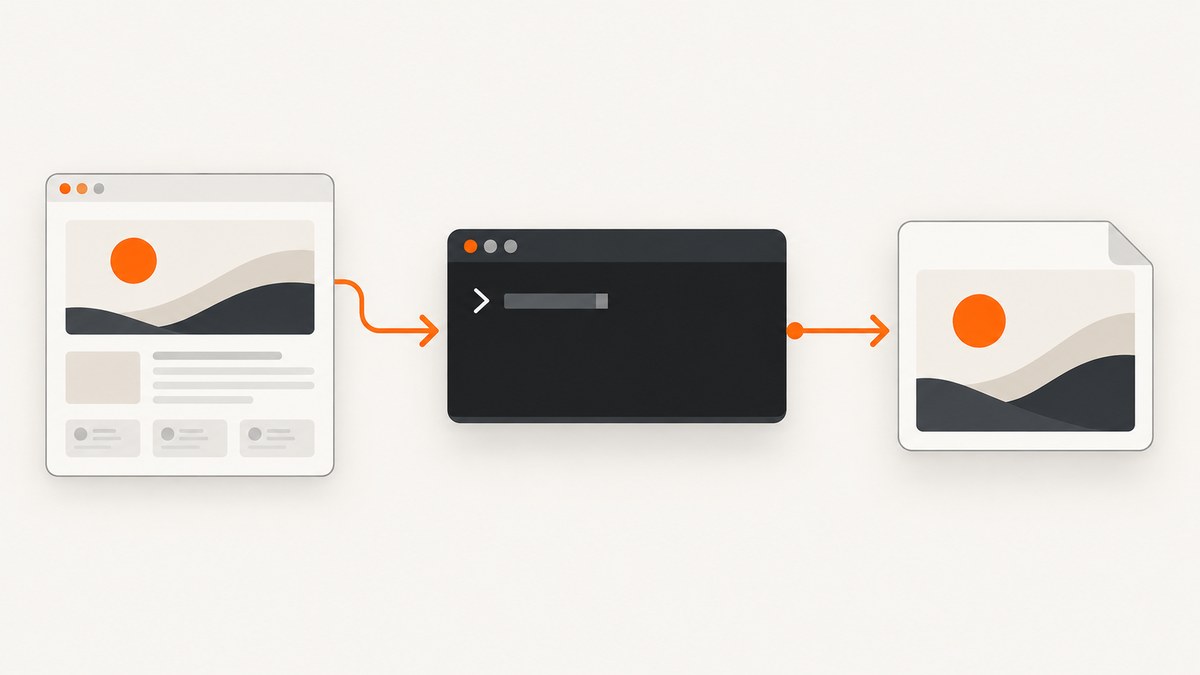
Direct answer: download the Windows installer or archive from the official wkhtmltopdf downloads page, choose the 32-bit or 64-bit package that matches your machine, install or extract it, then run wkhtmltoimage INPUT OUTPUT from Command Prompt or PowerShell. For example:
wkhtmltoimage https://example.com page.pngwkhtmltoimage is an open-source, headless command-line utility that renders HTML pages into image files with Qt WebKit. It is part of the wkhtmltopdf project, which also provides HTML-to-PDF tools. The instructions below cover web URLs, local files, important options, Windows troubleshooting, security, and a hosted alternative when maintaining a browser binary is not a good fit.
1. Choose and download the Windows build
Open the project’s official download page and verify the current asset and version before downloading. The page consulted for this guide lists Windows installers for Vista or later, in both 32-bit and 64-bit variants. It also lists 7z archives for XP/2003 or later, again in 32-bit and 64-bit variants. Downloads are hosted through GitHub releases.
The same page identifies the 0.12.6 series as a stable release dated June 11, 2020. Treat that as historical information from the page, not as proof that no newer build exists. The project’s documentation repository is archived, and the published material does not provide a Windows 10 or Windows 11 test matrix.
| Package | When to choose it | What you get |
|---|---|---|
| Windows installer | You want a conventional setup wizard | Installed executable and shortcuts or installation directory |
| 7z archive | You want a portable or manually managed copy | Extracted files without a traditional installer |
| 32-bit build | Your Windows or deployment environment is 32-bit | Compatibility with 32-bit systems |
| 64-bit build | Your Windows installation is 64-bit | Native 64-bit executable |
The sources do not establish a meaningful speed or feature difference between installer and archive packages. Their practical difference is distribution and setup.
2. Install or extract it
- Download the matching installer or archive from the official page.
- Run the installer, or extract the archive to a directory such as
C:\Tools\wkhtmltopdf. - Open a new Command Prompt or PowerShell window.
- Run
wkhtmltoimage --version.
wkhtmltoimage --versionIf Windows says the command is not recognized, use the executable’s full path as a quick check:
"C:\Program Files\wkhtmltopdf\bin\wkhtmltoimage.exe" --versionYou can also add the directory containing wkhtmltoimage.exe to your user or system PATH, then open a new terminal. PATH editing is standard Windows command-line guidance; confirm the actual installation directory on your machine.
3. Convert your first web page
The manual’s command pattern is:
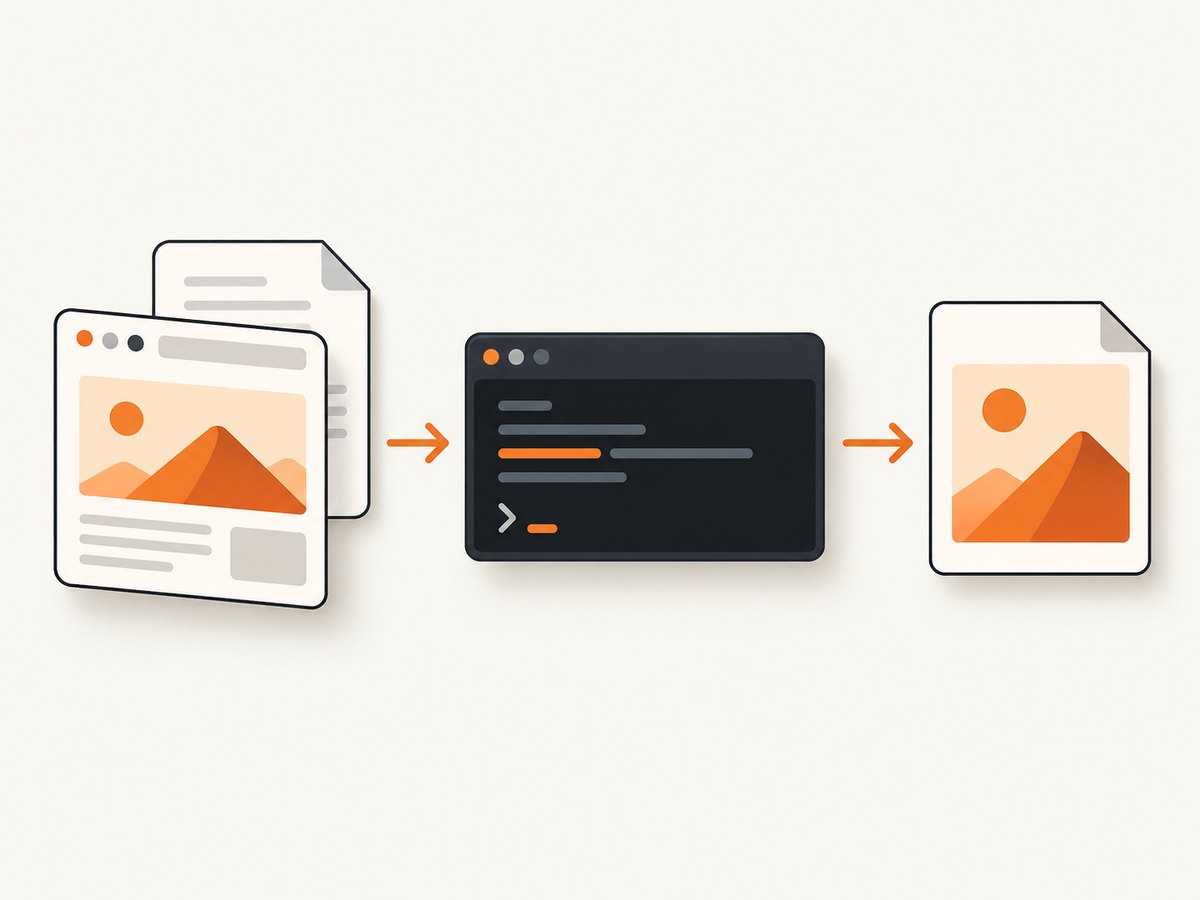
wkhtmltoimage [OPTIONS]... <input file> <output file>For a public URL:
wkhtmltoimage https://example.com page.pngThe first argument is the input URL and the second is the output filename. Use an absolute output path when you want to control the destination:
wkhtmltoimage https://example.com "C:\Users\Public\Pictures\example.png"For a local HTML file, pass the file path as the input. Quoting is important when a directory contains spaces:
wkhtmltoimage "C:\Users\Ada\Documents\site\index.html" "C:\Users\Ada\Pictures\site.png"Confirm the formats accepted by your installed binary with wkhtmltoimage --help or the project README. Do not assume every format is available across every build.
4. Options that matter most
The manual is dated, so inspect the help output from the executable you actually installed:
wkhtmltoimage --help
wkhtmltoimage --extended-help
Output quality
wkhtmltoimage --quality 90 https://example.com page.jpg--quality <int> sets image quality from 0 to 100. It matters for formats where the encoder supports a quality setting, such as JPEG. A higher value usually produces a larger file; compare the resulting file size and visual detail for your use case.
Viewport width
wkhtmltoimage --width 1280 https://example.com desktop.png--width <int> sets a screen width used as a guideline while rendering. Responsive pages may choose a different layout at that width. The manual notes that --disable-smart-width can make the width strict:
wkhtmltoimage --width 1280 --disable-smart-width https://example.com desktop.pngUse the strict form when reproducible viewport geometry matters. Check your build’s help because older WebKit behavior can differ from a modern browser.
Allow local resources
wkhtmltoimage --allow "C:\Users\Ada\Documents\site\assets" "C:\Users\Ada\Documents\site\index.html" local.png--allow <path> permits files from a specified directory to load. You can repeat it for multiple resource directories:
wkhtmltoimage --allow "C:\site\images" --allow "C:\site\css" "C:\site\index.html" local.pngKeep the allowed paths as narrow as practical, especially in automated jobs.
Wait for page state
wkhtmltoimage --window-status ready https://example.com dynamic.png--window-status <value> waits until the page’s window.status equals the requested value before rendering. A page that controls its own script can set that value after data and images are ready:
<script>
  // Set this after your application has finished rendering.
  window.status = 'ready';
</script>
This is useful for deterministic pages, but it will delay or fail if the page never sets the expected value.
5. A practical Windows workflow
- Create a small working directory, for example
C:\capture. - Put local HTML and its CSS or image assets in that directory.
- Open PowerShell in the directory.
- Run
wkhtmltoimage --versionto confirm which binary is being used. - Start with a plain command, then add one option at a time.
- Open the output image and record the command alongside it for repeatability.
For a URL that needs a fixed desktop layout and JPEG output:
wkhtmltoimage --width 1440 --disable-smart-width --quality 90 https://example.com example.jpgFor a local page that loads files from an assets directory:
wkhtmltoimage --allow "C:\capture\assets" "C:\capture\index.html" "C:\capture\index.png"6. Troubleshooting
| Symptom | Likely cause | Fix |
|---|---|---|
wkhtmltoimage is not recognized |
The executable directory is not on PATH | Run the full executable path or add its folder to PATH, then open a new terminal. |
| Output is blank or incomplete | The page needs more time, JavaScript, or a state signal | Try --window-status with a page that sets window.status; inspect the page in a compatible browser and simplify scripts to isolate the cause. |
| Local images or CSS are missing | The converter cannot read those paths | Use --allow for each required directory and quote Windows paths. |
| Mobile or desktop layout is wrong | The viewport width is not what the page expects | Set --width; use --disable-smart-width when the width must be strict. |
| The command exits before dynamic content appears | The page has not reached its final state | Use the page’s window.status handshake where possible and verify that the expected value is actually assigned. |
| Output format or option is rejected | Your binary differs from the manual | Run --help or --extended-help and use flags supported by that installed version. |
| Different machines produce different images | Different builds, fonts, viewport settings, or network content | Pin the binary, set width explicitly, install the same fonts, and capture stable URLs or local assets. |
7. Security and reliability limits
The official downloads page contains this warning: Do not use wkhtmltopdf with any untrusted HTML – be sure to sanitize any user-supplied HTML/JS, otherwise it can lead to complete takeover of the server it is running on!
The warning concerns untrusted HTML and JavaScript, particularly when the converter runs on a server. Treat user-supplied markup as hostile: sanitize it, isolate conversion workers, restrict filesystem access, and avoid exposing privileged credentials to the process.
wkhtmltoimage uses an older Qt WebKit rendering engine. Modern JavaScript, browser APIs, fonts, CSS, consent dialogs, and anti-bot pages may render differently or fail. The published sources do not provide a current Windows compatibility matrix, Windows 11 test results, performance benchmarks, or uptime figures. Validate the exact pages and Windows environment that matter to your project.
8. Performance, repeatability, and cost considerations
- Start simple: each additional wait or resource can increase capture time.
- Control inputs: local assets avoid network variability; fixed widths and pinned binaries improve repeatability.
- Watch file size: quality settings and image format affect storage and transfer costs.
- Reuse a worker: for batch jobs, keep a controlled process environment instead of installing a new binary for every capture.
- Plan for failures: network timeouts, redirects, missing fonts, JavaScript incompatibilities, and blocked resources should be retried or reported explicitly.
There is no source-backed benchmark that lets you promise a particular rendering speed. Measure your own pages with the options and concurrency you intend to deploy.
9. Or skip the browser setup
If you need dependable website screenshots without installing and maintaining a Windows rendering binary, ScreenshotNeo provides a GET-based screenshot API. The API accepts a URL and returns PNG, JPEG, WebP, or PDF. See the ScreenshotNeo documentation for the complete parameter reference.
cURL
curl -G "https://api.screenshotneo.com/v1/shot" -d access_key=YOUR_API_KEY --data-urlencode url=https://stripe.com -o shot.webpPython
import requests

r = requests.get(
    "https://api.screenshotneo.com/v1/shot",
    params={"access_key": "YOUR_API_KEY", "url": "https://stripe.com"},
    timeout=90,
)
r.raise_for_status()
open("shot.webp", "wb").write(r.content)
Node.js
const q = new URLSearchParams({ access_key: 'YOUR_API_KEY', url: 'https://stripe.com' });
const res = await fetch(`https://api.screenshotneo.com/v1/shot?${q}`);
if (!res.ok) throw new Error(`HTTP ${res.status}`);
const data = Buffer.from(await res.arrayBuffer());
require('fs').writeFileSync('shot.webp', data);
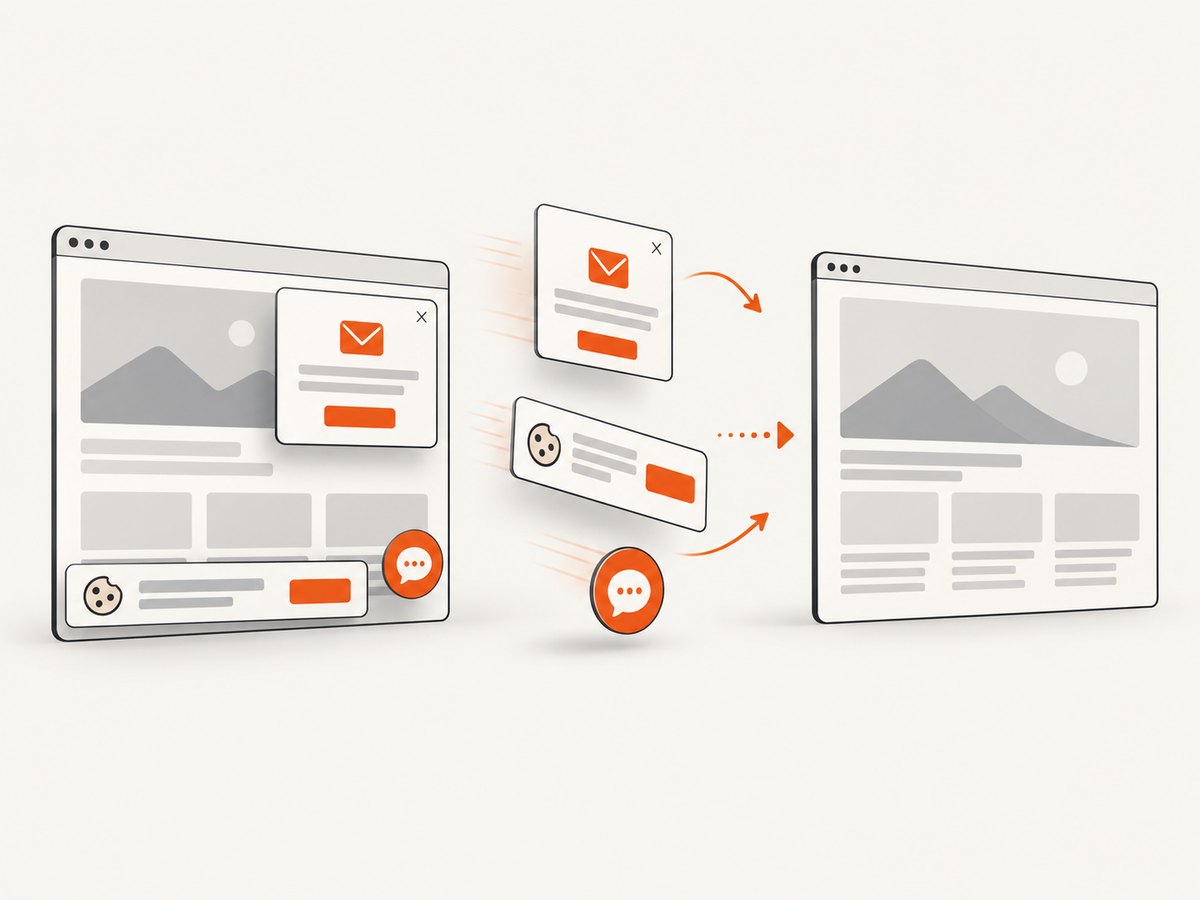
ScreenshotNeo removes cookie and consent banners, newsletter popups, and chat widgets before the capture; each cleanup step can be turned off. Bot checks or CAPTCHAs, blank pages, timeouts, failed loads, and cache hits are not billed, and the response reports the result through X-Page-Verdict and X-Billed headers. It also supports full-page captures with lazy images loaded, CSS-selector element captures, dark mode, device presets or custom viewports, retina scale, custom CSS and JavaScript, clicks, selector or network-idle waits, request blocking, headers, cookies, user agents, authorization, timezone, geolocation, transparent backgrounds, resizing, TTL caching, signed links, asynchronous jobs, webhooks, bulk capture of up to 100 URLs per call, usage reporting, and an OpenAPI specification.
An MCP server exposes take_screenshot, get_page_info, and capture_pdf for Claude, Cursor, and other MCP clients. The Free plan includes 1,000 screenshots per month without a card. Paid plans start at $5 for 3,000 screenshots; yearly billing gives two months free, and every feature is available on every plan.
Sign up for ScreenshotNeo to get 1,000 free screenshots a month with no card.
10. FAQ
Is wkhtmltoimage a browser?
It is a headless command-line HTML renderer built on Qt WebKit, distributed as part of the wkhtmltopdf project. It is not a full modern browser installation.
Should I use an installer or a 7z archive?
Choose the installer for a conventional Windows setup and the archive for a portable or manually controlled deployment. The sources do not show a feature or performance advantage for either package.
Why does a page look different from Chrome?
The rendering engine and supported web APIs differ. Older WebKit behavior, fonts, responsive breakpoints, scripts, and blocked resources can all change the result.
Can I process user-submitted HTML?
Only with a security design that treats HTML and JavaScript as untrusted. Follow the project’s warning, sanitize input, and isolate the converter from sensitive systems.
When should I use a hosted API?
Use one when you want to avoid Windows binary management, need features such as consent cleanup or device presets, or need API and MCP integrations for automated workflows.


