How to Use wkhtmltopdf on Windows
Install wkhtmltopdf on Windows, add it to PATH, convert URLs and HTML to PDF, fix JavaScript issues, and choose safer modern alternatives.
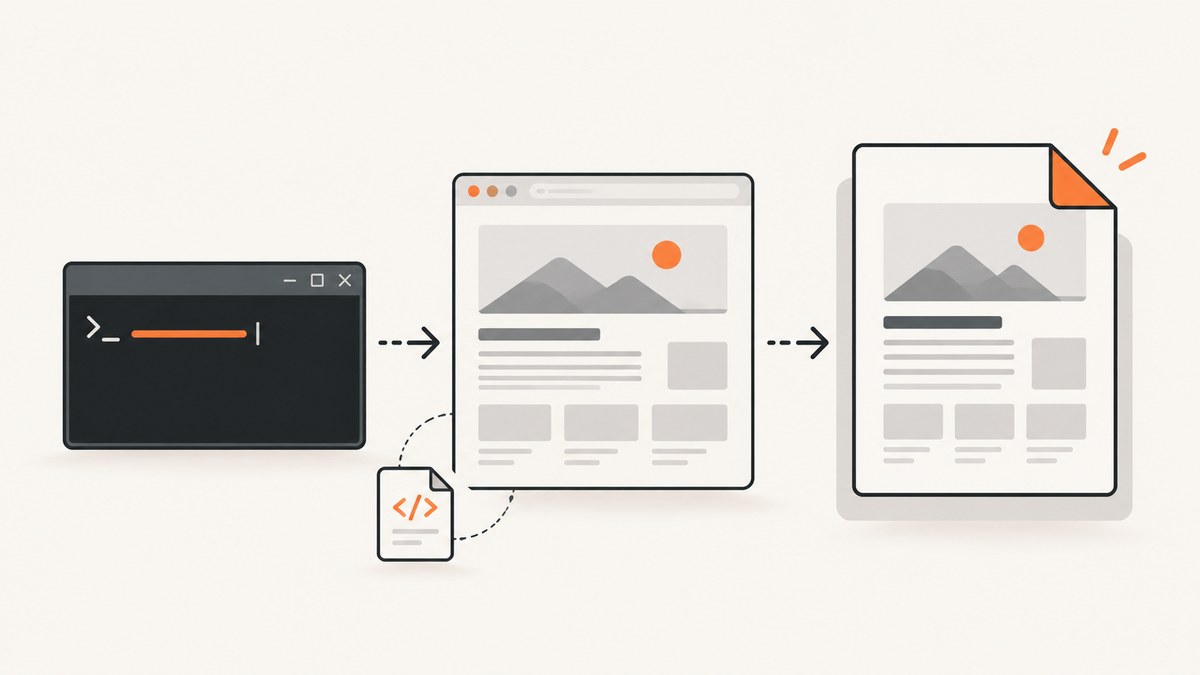
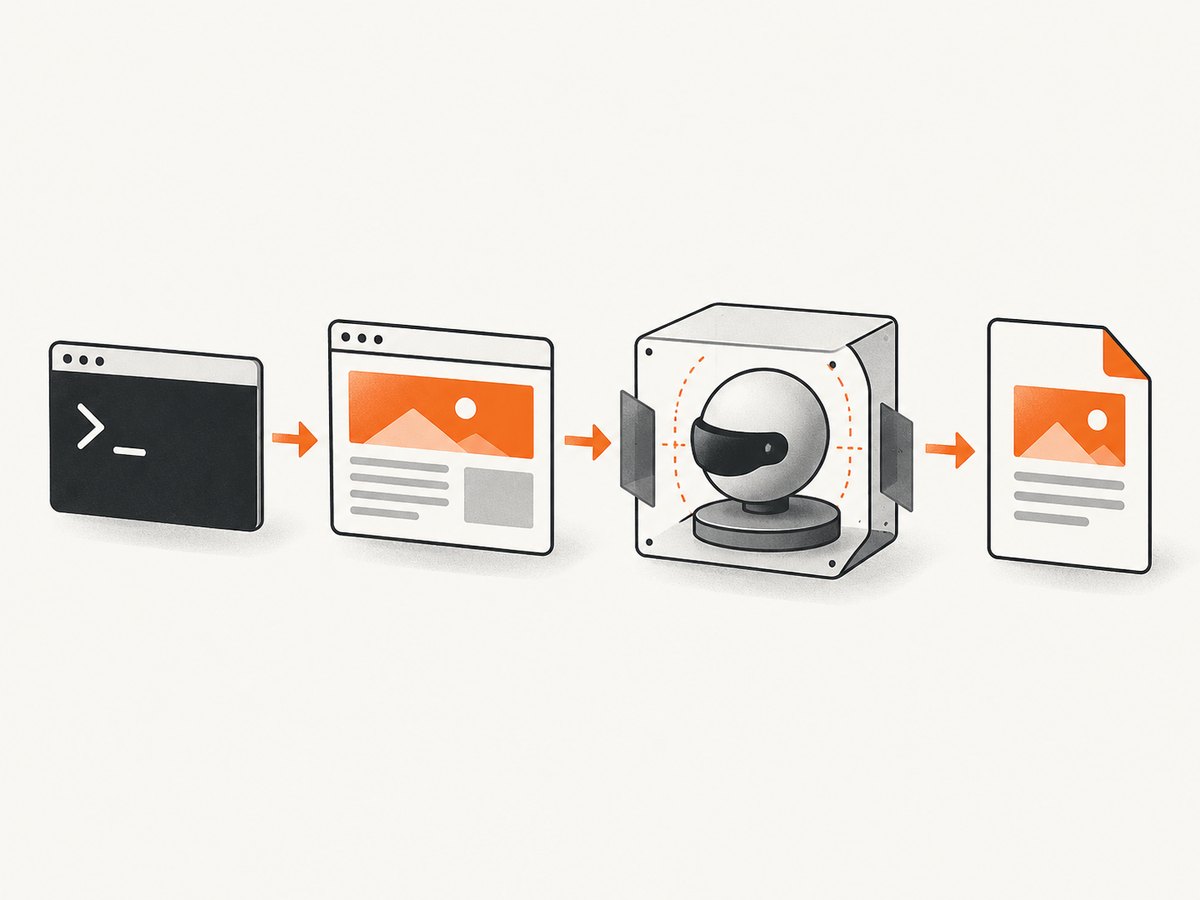
Direct answer: Download a reputable Windows installer, install wkhtmltopdf with the PATH option enabled, open a new Command Prompt or PowerShell window, and verify it with wkhtmltopdf --version. Convert a web page with wkhtmltopdf https://example.com example.pdf. Convert a local file with wkhtmltopdf C:\work\invoice.html C:\work\invoice.pdf. If the command is not recognized, run the executable by its full path or add its bin directory to PATH, then open a new terminal.
wkhtmltopdf is an open-source LGPLv3 command-line tool that renders HTML through the Qt WebKit engine. It runs headlessly, so Windows does not need a display server. The normal workflow is simple: install a precompiled binary, prepare a URL or HTML file, and provide an output PDF path. The project’s basic example is wkhtmltopdf http://google.com google.pdf (project home).
1. Install wkhtmltopdf on Windows
Download an installer
Use an installer from a reputable distribution. The project’s Windows guidance recommends running the installer, accepting the license, keeping wkhtmltopdf selected, enabling the option to modify the system PATH when offered, choosing the destination folder, and finishing the setup (Windows downloads).
- Download the Windows installer.
- Run the installer with an account allowed to install software.
- Accept the license.
- Leave wkhtmltopdf selected in the component list.
- Enable the option that adds wkhtmltopdf to PATH, if shown.
- Choose the destination folder and complete installation.
- Close any existing Command Prompt or PowerShell windows.
Verify the installation
Open a new terminal and run:
wkhtmltopdf --version
where wkhtmltopdf
A working installation prints version and build information. where wkhtmltopdf shows which executable Windows will run.
Fix “wkhtmltopdf is not recognized”
If Windows cannot find the command, call the executable directly. A common installation location is:
"C:\Program Files\wkhtmltopdf\bin\wkhtmltopdf.exe" --versionTo make the short command work, add the directory containing wkhtmltopdf.exe to the user or system PATH. In Windows, search for Environment Variables, open the PATH editor, add the directory (for example, C:\Program Files\wkhtmltopdf\bin), save the changes, and open a new terminal. Re-run where wkhtmltopdf and wkhtmltopdf --version.
2. Convert a URL or HTML file to PDF
Remote URL
wkhtmltopdf https://example.com example.pdfThe first argument is a page object and the final argument is the output document. Use a full output path when a script runs from an unexpected working directory:
wkhtmltopdf https://example.com C:\work\output\example.pdfLocal HTML file
wkhtmltopdf C:\work\invoice.html C:\work\invoice.pdfFor local CSS, images, fonts, or JavaScript files, your build may require local-file access. Enable it explicitly:
wkhtmltopdf --enable-local-file-access C:\work\invoice.html C:\work\invoice.pdfA narrower permission is preferable when supported:
wkhtmltopdf --allow C:\work\assets C:\work\invoice.html C:\work\invoice.pdfUse the smallest directory that contains the required assets instead of granting access to an entire drive.
Multiple pages, covers, and tables of contents
wkhtmltopdf treats inputs as page objects. Builds that include these features can combine several pages, add a cover, or generate a table of contents:
wkhtmltopdf cover C:\work\cover.html C:\work\chapter-1.html C:\work\chapter-2.html toc C:\work\book.pdfCheck the capabilities of your installed build with wkhtmltopdf -H; packaging differences can affect which extended features are available.
3. Set page size, orientation, and margins
Common layout options include:
wkhtmltopdf --page-size A4 \
  --orientation Landscape \
  --margin-top 12mm \
  --margin-right 12mm \
  --margin-bottom 12mm \
  --margin-left 12mm \
  https://example.com report.pdf
On Windows PowerShell, the backtick is the line-continuation character. For a single line, remove the continuation characters:
wkhtmltopdf --page-size A4 --orientation Landscape --margin-top 12mm --margin-right 12mm --margin-bottom 12mm --margin-left 12mm https://example.com report.pdfKeep units explicit for predictable output. A4 and other page-size names are handled by the installed command; run wkhtmltopdf -H for the complete option list, including headers, footers, links, print media, and other build-specific settings.
4. Handle JavaScript and delayed rendering
JavaScript is enabled by default in typical builds, but wkhtmltopdf uses an old Qt WebKit engine. Pages that render content asynchronously may finish after the initial document load. Add a delay:
wkhtmltopdf --javascript-delay 3000 https://example.com/dashboard dashboard.pdfThe value is in milliseconds. Start with a small delay and increase it only when the page demonstrably needs more time.
If the page can set a readiness status, wait for that status instead of guessing a fixed delay:
wkhtmltopdf --window-status READY https://example.com/report report.pdfYour page must set the expected status through its JavaScript. If scripts should not execute, disable them explicitly:
wkhtmltopdf --disable-javascript https://example.com/static-page static.pdfFor modern applications that depend on current JavaScript, complex CSS, or browser APIs, the project itself points readers toward Puppeteer or similar wrappers. Its status page also identifies the WebKit engine as outdated: Qt 4 has been unsupported since 2015, and the WebKit used by wkhtmltopdf has not been updated since 2012 (project status).
5. Authentication, cookies, headers, and proxies
For protected pages, wkhtmltopdf provides options for common request controls:
wkhtmltopdf \
  --username report-user \
  --password YOUR_PASSWORD \
  --cookie session_id YOUR_SESSION_COOKIE \
  --custom-header X-Report-Mode pdf \
  https://example.com/private report.pdf
Use the equivalent one-line command in PowerShell if preferred. The command reference also includes proxy support:
wkhtmltopdf --proxy proxy.example.net:8080 https://example.com report.pdfDo not put secrets directly into scripts that are committed to source control. Prefer environment variables or a protected credential store, and remember that command-line arguments can be visible to other processes depending on your Windows configuration.
6. Diagnose failures and inspect logs
Start with a minimal reproduction before changing many flags:
- Run
wkhtmltopdf --versionandwhere wkhtmltopdf. - Convert a simple public URL.
- Convert a minimal local HTML file.
- Add your real CSS, images, fonts, and scripts one group at a time.
Increase diagnostic output when a conversion fails:
wkhtmltopdf --log-level info https://example.com report.pdfFor JavaScript-specific problems:
wkhtmltopdf --debug-javascript --javascript-delay 3000 https://example.com report.pdfThe complete help generated by your installed binary is the authoritative option list:
wkhtmltopdf -H7. Troubleshooting checklist
| Symptom | Likely cause | Fix |
|---|---|---|
| Command not recognized | Executable directory is missing from PATH, or the terminal was opened before installation. | Run the full executable path, add its bin directory to PATH, open a new terminal, and verify with where wkhtmltopdf. |
| Blank or incomplete page | Assets are blocked, JavaScript has not finished, or the page requires a modern browser. | Check asset URLs, add --enable-local-file-access or a narrow --allow, use --javascript-delay or --window-status, then consider Puppeteer for modern applications. |
| Local images or CSS missing | Local-file access is disabled or the paths are wrong. | Use absolute paths, enable local access, or allow only the required assets directory. |
| Authentication page is captured | Credentials, cookies, or headers were not sent in the request. | Use --username, --password, --cookie, or --custom-header; verify the target URL independently. |
| Conversion reports resource errors | A stylesheet, image, font, or script failed to load. | Fix the resource first. Use --load-error-handling ignore only when you understand which failures are acceptable. |
| Output differs from the browser | The Qt WebKit renderer does not support current browser behavior. | Simplify the page for this renderer or use a maintained browser automation tool. |
When requesting help, provide the wkhtmltopdf version, Windows version, exact command, and a reproducible HTML/CSS/JavaScript case. This makes it possible to separate an installation issue from a page-specific rendering issue.
8. Security and maintenance considerations
wkhtmltopdf renders HTML and JavaScript inside a process. The project warns: “Do not use wkhtmltopdf with any untrusted HTML – be sure to sanitize any user-supplied HTML/JS, otherwise it can lead to complete takeover of the server it is running on!” Treat downloaded installers and rendered content as supply-chain and input-security decisions.
- Do not feed arbitrary user HTML or JavaScript directly into the converter.
- Sanitize content before rendering.
- Run conversion with the least filesystem permissions practical.
- Keep sensitive files outside directories allowed with
--allow. - Isolate conversion jobs from credentials and production systems where possible.
- Review the project’s current status and your organization’s licensing requirements before standardizing on it.
The project’s AppArmor examples are Linux-specific. On Windows, apply equivalent process and filesystem isolation through Windows security controls rather than copying Linux commands.
9. Performance, reliability, and cost planning
A fixed --javascript-delay increases every conversion’s latency, so use --window-status when your application can signal readiness. Reuse a prepared HTML template, keep local assets close to the conversion process, and avoid granting broad filesystem access. For batch work, capture failures and exit codes, preserve the command and input identifier, and retry only errors that are transient.
wkhtmltopdf itself is open-source LGPLv3 software, but operating cost still includes Windows hosts, storage, isolation, monitoring, and maintenance. Its aging rendering stack can create engineering cost when a site relies on current JavaScript or CSS. For controlled report generation, the project suggests WeasyPrint or the commercial Prince tool; for dynamic JavaScript pages, it suggests Puppeteer or similar wrappers. Verify current Windows support, output requirements, and licensing before migrating.
10. Or skip the browser setup
If you need a clean screenshot or PDF from a URL without maintaining a Windows rendering process, ScreenshotNeo provides a website screenshot API and MCP server. One GET request returns PNG, JPEG, WebP, or PDF. See the ScreenshotNeo API documentation for parameters and response details.
cURL
curl -G "https://api.screenshotneo.com/v1/shot" -d access_key=YOUR_API_KEY --data-urlencode url=https://stripe.com -o shot.webpPython
import requests
r = requests.get("https://api.screenshotneo.com/v1/shot", params={"access_key": "YOUR_API_KEY", "url": "https://stripe.com"}, timeout=90)
open("shot.webp", "wb").write(r.content)
Node.js
const q = new URLSearchParams({ access_key: 'YOUR_API_KEY', url: 'https://stripe.com' });
const res = await fetch(`https://api.screenshotneo.com/v1/shot?${q}`);
ScreenshotNeo accepts cookie and consent banners before capture and removes more than 60 known consent platforms, newsletter popups, and chat widgets. Each step can be turned off. Bot checks, blank pages, timeouts, failed loads, and cache hits cost nothing, and each response identifies the result with X-Page-Verdict and X-Billed headers. Its MCP server includes take_screenshot, get_page_info, and capture_pdf tools for Claude, Cursor, and other MCP clients.
For production workflows, it also supports full-page capture with lazy images loaded, CSS-selector element capture, dark mode, device presets and custom viewports, retina scale, PDF paper size, margins, landscape mode and page ranges, custom CSS and JavaScript, clicks, waits, request blocking, headers, cookies, user agents, authorization, timezone, geolocation, transparent backgrounds, image resizing, cache TTLs, signed links, asynchronous jobs with signed webhooks, bulk capture for up to 100 URLs per call, a usage API, and an OpenAPI specification.
The Free plan includes 1,000 shots per month with no card. Paid plans start at $5 for 3,000 shots; yearly billing gives two months free, and every feature is available on every plan. Create a free ScreenshotNeo account and start with the included monthly shots.
11. Frequently asked questions
Can wkhtmltopdf run without opening a browser window?
Yes. It is a headless command-line tool and does not require a display server.
Why does a page work in Chrome but fail in wkhtmltopdf?
wkhtmltopdf uses Qt WebKit, whose WebKit engine has not been updated since 2012. Modern JavaScript, CSS, or browser APIs may therefore render differently or fail.
Should I always use --enable-local-file-access?
No. Use it only when local resources are required, and prefer a narrow --allow directory where supported.
How do I know whether a failed conversion is an installation problem?
Run wkhtmltopdf --version, check where wkhtmltopdf, convert a simple public URL, and then test a minimal local HTML file before adding application assets.
What is the basic command pattern?
wkhtmltopdf input output.pdf. Options go before the input, and the final argument is the output document.


