How to Use XPath Selectors in Python
Learn when to use ElementTree, lxml, or Selenium for XPath in Python, with runnable examples, namespace patterns, debugging steps, and resilient locator tips.
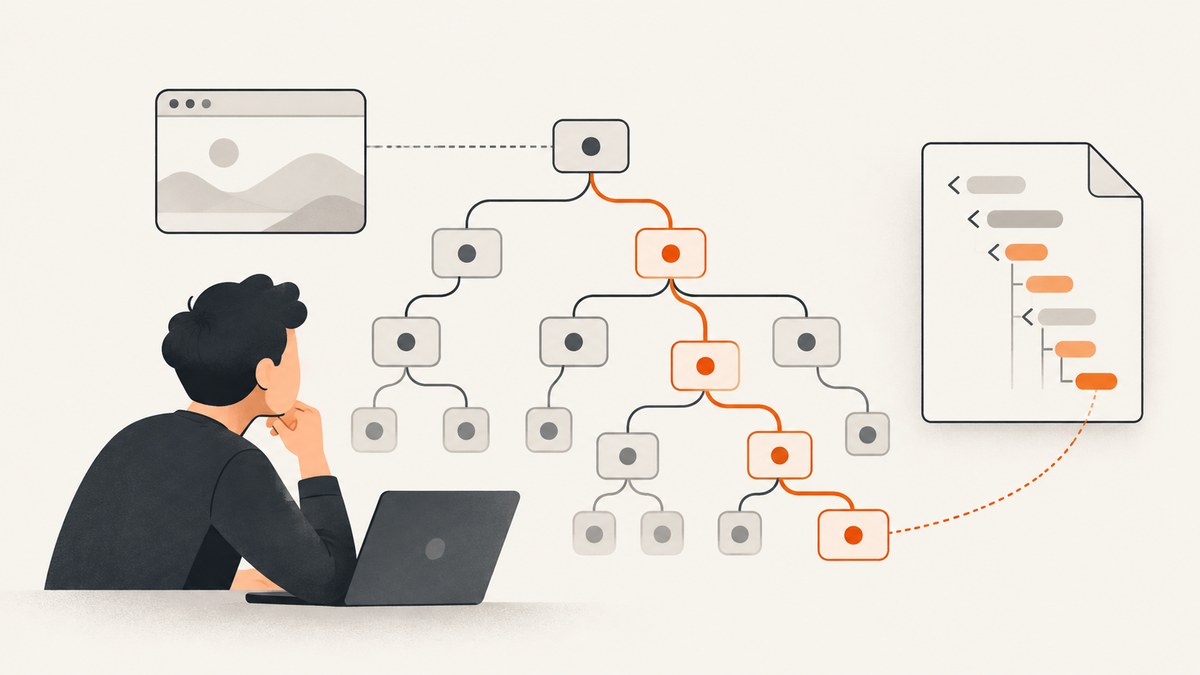
Use Python’s xml.etree.ElementTree for simple XPath queries against XML, lxml.etree when you need XPath 1.0 features such as functions, variables, or more capable namespace handling, and Selenium’s By.XPATH when you need to locate elements in a live browser. The right choice depends on where the document lives and how much of XPath you need.
This guide shows complete examples for all three approaches, explains result types and namespaces, and gives a debugging workflow for empty or brittle matches. If your actual goal is to capture a webpage image or PDF rather than inspect its live DOM, ScreenshotNeo offers a screenshot API and MCP server; see ScreenshotNeo and its API documentation.
1. Choose the Python tool that matches the document
| Tool | Input | XPath support | Use it when |
|---|---|---|---|
xml.etree.ElementTree |
Parsed XML tree | Limited subset | You need common element paths and want the standard library. |
lxml.etree |
Parsed XML or HTML tree | XPath 1.0 plus EXSLT extensions | You need functions, variables, namespaces, or repeated evaluation. |
| Selenium | Live browser DOM | Browser XPath locator support | The page is dynamic or interaction and browser state matter. |
ElementTree is not a full XPath engine: the Python documentation describes its support as limited and says a full engine is outside the module’s scope. Use lxml when an expression depends on unsupported axes or functions. Selenium is a different execution model: it asks a browser to find an element after a page has loaded, rather than querying a locally parsed tree.
2. Use ElementTree for straightforward XML paths
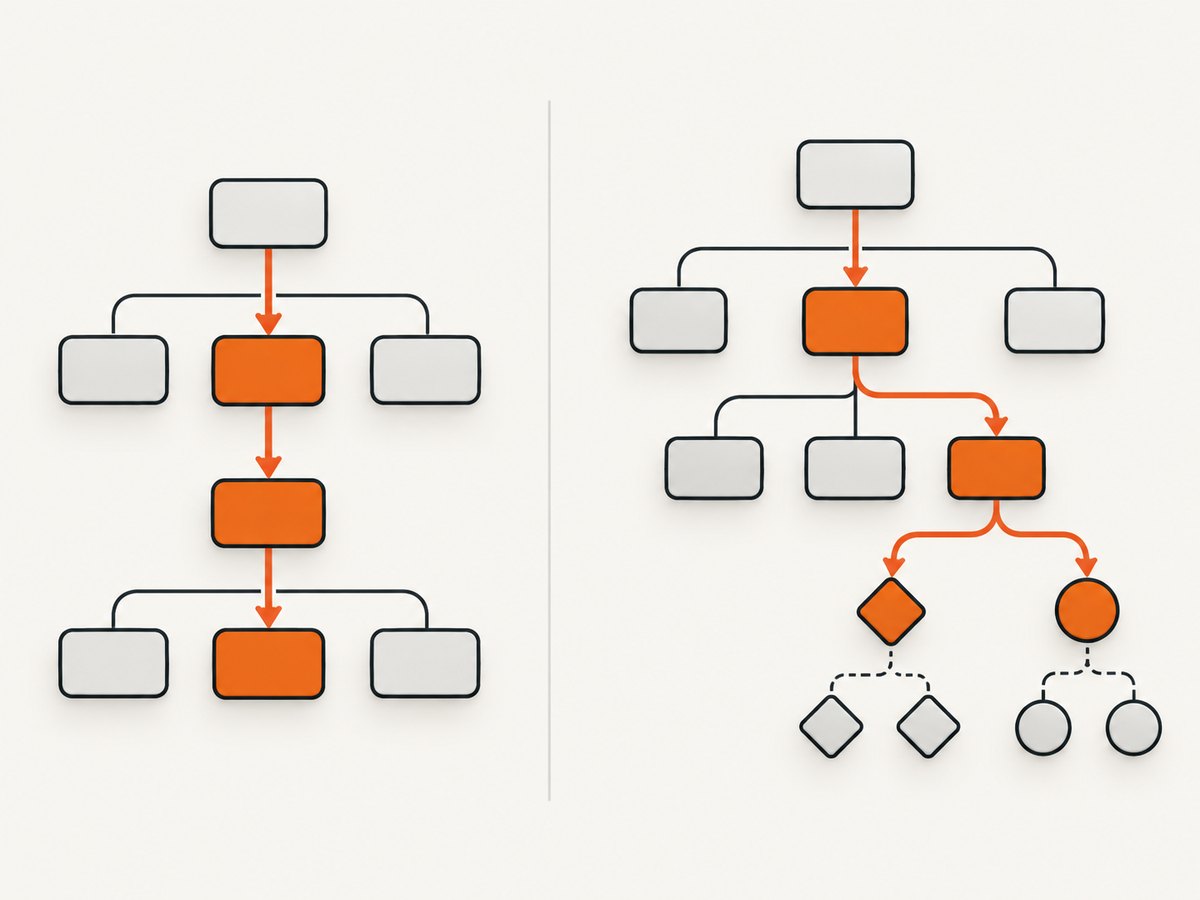
ElementTree is included with Python. The following complete script parses an XML string, finds all items, selects the second neighbor under each matching parent, and finds a year under a named country:
import xml.etree.ElementTree as ET

xml_text = """<data>
  <item id="a">First</item>
  <item id="b">Second</item>
  <place name="Singapore"><year>2025</year></place>
  <group><neighbor>A</neighbor><neighbor>B</neighbor></group>
</data>"""

root = ET.fromstring(xml_text)
items = root.findall(".//item")
second_neighbors = root.findall(".//neighbor[2]")
singapore_years = root.findall(".//*[@name='Singapore']/year")

print([item.text for item in items])
print([node.text for node in second_neighbors])
print([node.text for node in singapore_years])
.// searches descendants of the current element. findall() returns a list of matching elements; each element’s text is available as .text, though nested markup may mean the desired content is spread across descendants. For more complete text extraction, use "".join(element.itertext()).
ElementTree path details and limits
ElementTree supports a useful subset, including child paths, descendant searches, predicates, and positional predicates in supported forms. Do not assume an XPath expression copied from a browser console or lxml will work unchanged. In particular, a query needing the full XPath function library or axes may exceed this module’s supported syntax. If it does, move the parsing step to lxml rather than trying to emulate a full XPath engine with string tricks.
Context matters. root.findall(".//item") searches under root. When querying a selected subtree, a leading . makes the relative context explicit. An absolute expression beginning with / refers to a document-root context in XPath engines; do not assume it has identical semantics across ElementTree’s abbreviated path syntax.
3. Use lxml when you need fuller XPath support
Install lxml with python -m pip install lxml. Its XPath support is based on libxml2/libxslt and covers XPath 1.0 and EXSLT extensions. This script demonstrates node selection, text extraction, a variable, a scalar result, and a reusable compiled expression:
from lxml import etree

xml_bytes = b"""<catalog>
  <book id="b1">XPath</book>
  <book id="b2">Python</book>
</catalog>"""
root = etree.fromstring(xml_bytes)

book_id = "b1"
books = root.xpath("//book[@id=$wanted]", wanted=book_id)
texts = root.xpath("//book/text()")
book_count = root.xpath("count(//book)")

print([book.text for book in books])
print(texts)
print(book_count)

find_by_id = etree.XPath("//book[@id=$wanted]")
print([book.get("id") for book in find_by_id(root, wanted="b2")])
XPath results are not all elements. A path selecting elements returns element objects; text() returns strings; count() returns a number; boolean expressions can return booleans. Write code for the result type your expression produces instead of treating every result as an element.
Parse HTML safely and query it
For HTML rather than well-formed XML, use lxml’s HTML parser. Keep parsing and selection explicit:
from lxml import html

markup = """<html><body>
  <main><h1>Release notes</h1><a href="/latest">Read</a></main>
</body></html>"""
doc = html.fromstring(markup)
headings = doc.xpath("//main//h1")
links = doc.xpath("//main//a[@href]")

print(["".join(node.itertext()).strip() for node in headings])
print([(node.get("href"), "".join(node.itertext()).strip()) for node in links])
For untrusted XML, review parser security settings and library guidance for your environment. Do not enable entity expansion or network retrieval casually. For a webpage that requires JavaScript to create the content, parsing the initial HTML response will not reproduce the rendered browser DOM; use a browser automation tool for that case.
4. Handle XML namespaces explicitly
Namespaced XML tags carry a namespace URI. An unprefixed XPath name generally does not match an element in a default namespace. ElementTree represents the expanded name as {URI}tag:
import xml.etree.ElementTree as ET

xml_text = '''<root xmlns:dc="http://purl.org/dc/elements/1.1/">
  <dc:title>A title</dc:title>
</root>'''
root = ET.fromstring(xml_text)
titles = root.findall(".//{http://purl.org/dc/elements/1.1/}title")
print([node.text for node in titles])
With lxml, provide a namespace map. The prefix used in your query is your chosen alias and need not be the prefix used in the source document:
from lxml import etree

xml_bytes = b'''<root xmlns="urn:catalog">
  <book><title>A title</title></book>
</root>'''
root = etree.fromstring(xml_bytes)
ns = {"c": "urn:catalog"}
titles = root.xpath("//c:book/c:title/text()", namespaces=ns)
print(titles)
For a one-off query where the namespace URI is unknown or intentionally irrelevant, local-name() can match by local tag name. That can also match unrelated vocabularies with the same local name, so explicit namespace mappings are safer when the document format is known.
5. Use XPath in Selenium for a live page
Install Selenium with python -m pip install selenium. Selenium 4 can manage supported browser drivers through Selenium Manager when the browser is installed. This runnable example opens a page, waits for a stable login form, locates a field relative to the form, and reports a clear failure if the form never appears:
from selenium import webdriver
from selenium.webdriver.common.by import By
from selenium.webdriver.support.ui import WebDriverWait
from selenium.webdriver.support import expected_conditions as EC
from selenium.common.exceptions import TimeoutException

url = "https://example.com"
driver = webdriver.Chrome()
try:
    driver.get(url)
    wait = WebDriverWait(driver, 15)
    form = wait.until(
        EC.presence_of_element_located((By.XPATH, "//form[@id='loginForm']"))
    )
    username = form.find_element(By.XPATH, ".//input[@name='username']")
    print("Field found:", username.get_attribute("name"))
except TimeoutException as exc:
    raise RuntimeError("Timed out waiting for //form[@id='loginForm']") from exc
finally:
    driver.quit()
This example expects the target site to contain the illustrated form; change the URL and locator to match the page you are automating. A simpler locator can use an attribute and a compound predicate:
from selenium.webdriver.common.by import By

submit = driver.find_element(
    By.XPATH,
    "//input[@name='continue' and @type='submit']",
)
If working within a parent element, begin the XPath with ., as in .//input. Without the dot, an expression such as //input is document-wide and may select a matching input outside the parent. Selenium supports absolute and relative XPath, but an absolute path such as /html/body/form[1] is vulnerable to small structural changes.
Make browser locators resilient
- Prefer a unique, stable ID when one exists; otherwise use a meaningful
name, label, role-related attribute, or stable relationship. - Anchor to a stable container, then search within it with a short relative XPath.
- Avoid generated class names and positional indexes unless the page contract guarantees them.
- Use a wait for the needed condition, such as visibility or clickability, instead of a fixed sleep when possible.
- Keep the expression readable and include it in failure messages.
Selenium’s locator guidance notes that XPath is expressive but can be difficult to debug. Use CSS when it expresses the locator clearly; XPath is especially useful when the locator depends on relationships between elements or compound conditions.
6. Debug an XPath that returns no matches
Work from a minimal query toward the intended expression. This checklist covers the usual causes:
- Check the input. Print or save the XML/HTML string, or inspect the rendered browser DOM. A page’s source response can differ from content inserted later by JavaScript.
- Check the context node. Try a document-wide query, then a subtree query. In Selenium, use
.//inputwhen searching below a selected element. - Check namespaces. An unprefixed name will not match a namespaced XML element automatically. Add an explicit mapping or an expanded ElementTree name.
- Test the smallest predicate. Start with
//*[@id='stable-id']or a simple tag path, then add attributes, relationships, and text conditions one at a time. - Check exact values and quoting. Attribute values are case-sensitive in XML. Whitespace and punctuation can also make an exact text comparison fail.
- Check whether the result is scalar.
text(),count(), and boolean expressions return strings, numbers, or booleans rather than element nodes. - In Selenium, wait for state. The element may not yet exist, be visible, or be enabled. Wait for the specific condition required by the next action.
- Check relative versus absolute location. An absolute expression starts from the document root; a relative expression starts from the current context in engines that support that context.
7. Common errors and fixes
| Symptom | Likely cause | Fix |
|---|---|---|
| ElementTree raises a syntax or unsupported-path error | The expression uses XPath syntax outside ElementTree’s limited subset. | Simplify to supported paths or use lxml for fuller XPath. |
| Query returns an empty list | Wrong context, namespace, attribute value, or page content not yet present. | Inspect the input and test a minimal selector; add namespace handling or Selenium waits. |
Selenium raises NoSuchElementException |
The locator did not match at lookup time, or the page differs from expectation. | Confirm the live DOM, check the expression, and wait for the appropriate condition. |
| Subtree search finds an element elsewhere | The XPath begins with //, making the search document-wide. |
Use .// when the search should stay under the selected element. |
| Code treats text as an element | The expression selected text() or a scalar function. |
Handle strings, numbers, and booleans according to the XPath result. |
| Locator breaks after a small redesign | It used a full absolute path, generated class, or brittle index. | Anchor to a stable attribute and a meaningful relationship. |
| Browser driver or browser fails to start | Browser installation, driver management, or runtime environment is misconfigured. | Install a supported browser, check Selenium’s driver setup guidance, and inspect the original startup exception. |
8. Performance, reliability, and cost
For local XML extraction, avoid reparsing the same document for every query. Parse once, then evaluate multiple paths. If the same lxml expression runs many times, compile it with etree.XPath or use an evaluator suited to repeated queries. Keep selected result sets narrow for large documents. XPath performance depends on tree size, expression, and engine; do not assume a benchmark without measuring against your own input and workload.
Selenium has browser startup, navigation, rendering, and wait costs that local tree parsing does not. Reuse a driver for a sequence of related operations when appropriate, and always close it in a finally block or context-managed lifecycle. Dynamic pages need explicit waits; fixed delays waste time on fast runs and may still be too short on slow ones. For reliability, favor semantic attributes and validate assumptions about result cardinality when a locator should identify exactly one control.
ElementTree ships with Python, while lxml adds an installable dependency and native library components. Selenium adds a browser and WebDriver runtime. Account for those deployment requirements in containers and CI. No per-query price is inherent to these Python libraries; the practical cost is engineering time and compute consumed by parsing or browser sessions.
9. FAQ
Can I use XPath with Beautiful Soup?
Beautiful Soup’s normal search interface is not an XPath engine. Parse with lxml when XPath is a requirement, or use Beautiful Soup’s own selectors for its supported search model.

Is XPath better than CSS selectors?
Neither is universally better. CSS is often more readable for direct attribute and descendant matching. XPath can express parent and sibling relationships and richer conditions. In Selenium, choose the shortest stable locator that clearly describes the target.
How do I select an element by visible text?
XPath can compare text nodes, but exact text matching is sensitive to whitespace and nested markup. First inspect the element’s text structure, then choose a normalized or relationship-based expression supported by the XPath engine you are using.
Can XPath select content that has not loaded yet?
A local parser can only query the tree it has. In a browser, wait for JavaScript-created content to appear before locating it. XPath does not itself load or render a page.
10. Or skip the browser setup
If the deliverable is a screenshot or PDF rather than an element handle, ScreenshotNeo can capture a URL with one request. Cookie banners, newsletter popups, and chat widgets are removed before the shot; bot checks, blank pages, failed loads, timeouts, and cache hits are not billed. An MCP server lets AI agents use screenshot tools, and 1,000 screenshots a month are free with no card; paid plans start at $5 for 3,000.
import requests

r = requests.get(
    "https://api.screenshotneo.com/v1/shot",
    params={"access_key": "YOUR_API_KEY", "url": "https://stripe.com"},
    timeout=90,
)
r.raise_for_status()
open("shot.webp", "wb").write(r.content)
See the ScreenshotNeo API docs for request options. Sign up for 1,000 free screenshots a month with no card.


