Using the cURL Command: A Practical Example
Learn how to use curl for GET, POST, JSON, headers, redirects, files, debugging, and website screenshots with runnable examples.
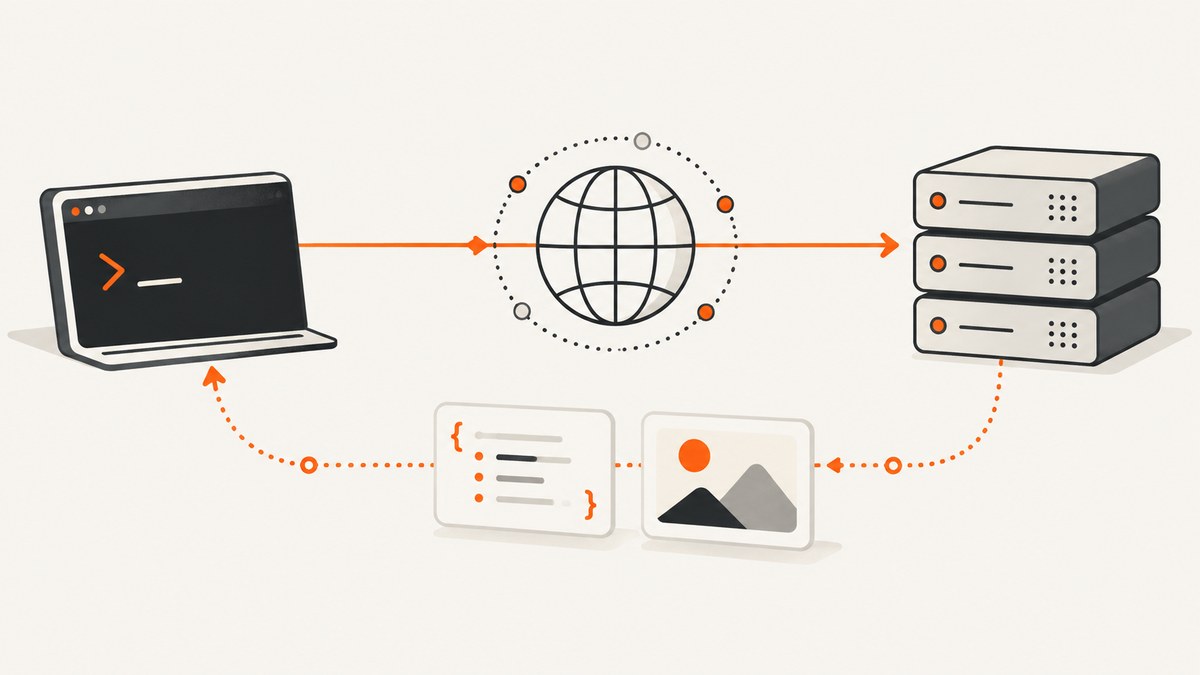
How do you use the cURL command? Start with a URL:
curl https://example.comThat command transfers the server response to your terminal. curl is a command-line tool for transferring data to or from a server using URLs, with options for request methods, headers, bodies, redirects, authentication, files, diagnostics, and more. This guide explains the most useful patterns, shows complete runnable examples, and covers the details that commonly cause confusing results.
The examples use the official curl syntax documented in the curl manual. Check your installed version before copying newer options:
curl --version
curl --help
1. The basic curl command
The general form is:
curl [options] URLArguments that are not recognized as options or option arguments are treated as URLs. You can request more than one URL in one command:
curl https://example.com https://example.orgBy default, curl writes each response body to standard output. That is convenient for a short text response, but binary data such as an image should be written to a file.
curl -o page.html https://example.com
curl --output page.html https://example.com
The short and long forms are interchangeable. Long forms are often clearer in scripts; short forms are convenient interactively.
2. GET requests, redirects, and query parameters
Follow redirects
HTTP redirects are not followed automatically. Add -L (or --location) when a URL may redirect:
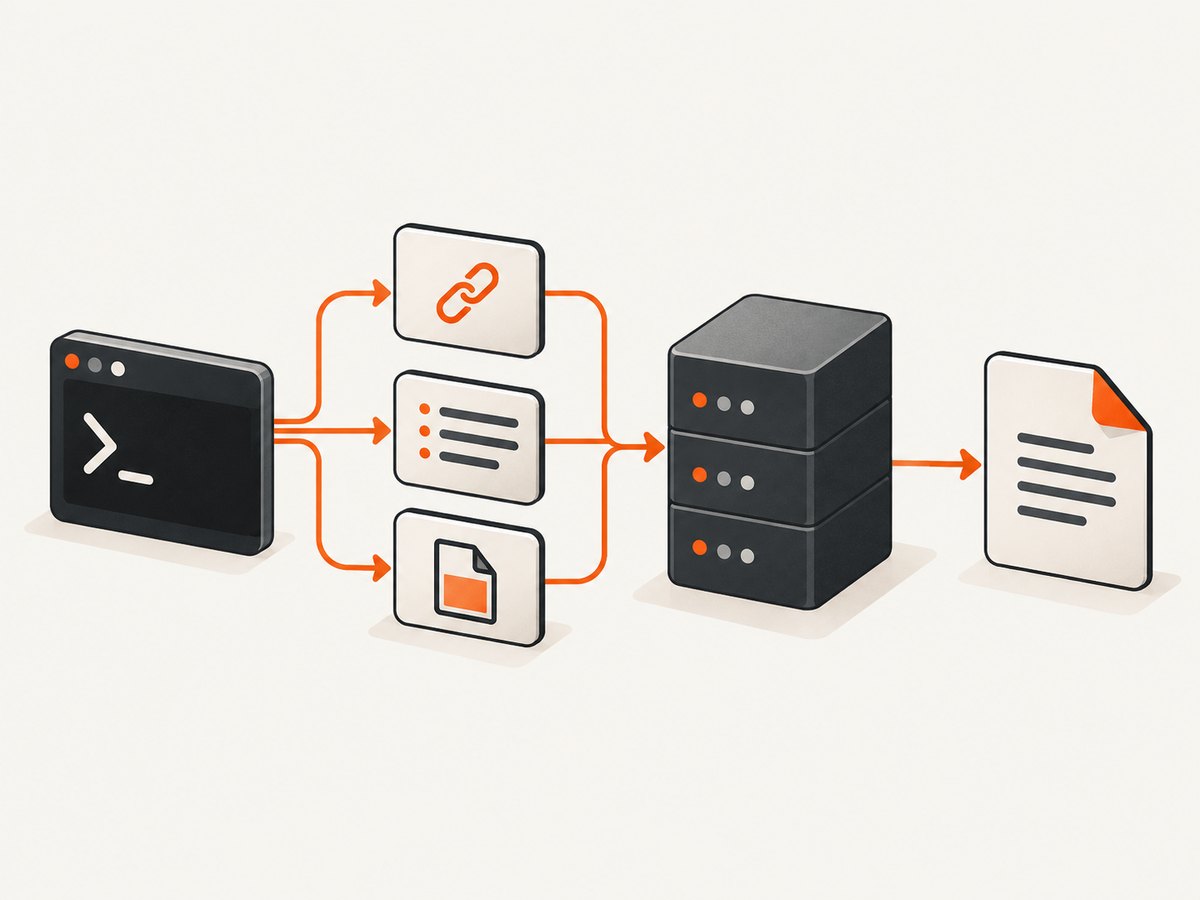
curl -L https://example.com/old-pathcurl repeats the request when the server returns a Location header with a 3xx response. When following a redirect to a different origin, curl does not forward authorization and cookie credentials by default. That behavior limits accidental credential disclosure.
Add query parameters safely
For a GET request, use --get with one or more --data-urlencode options:
curl --get 'https://api.example.com/search' \
  --data-urlencode 'q=blue shoes' \
  --data-urlencode 'page=2'
This produces a URL similar to https://api.example.com/search?q=blue%20shoes&page=2. Quoting prevents the shell from interpreting spaces or the ampersand.
Without --get, -d normally changes an HTTP request to POST. This distinction matters:
# POST body
curl -d 'q=blue shoes' https://api.example.com/search

# GET query string
curl --get -d 'q=blue shoes' https://api.example.com/search
Inspect only response headers
Use -I (or --head) for a proper HEAD request:
curl -I https://example.comDo not assume that -X HEAD configures every behavior needed for HEAD; the dedicated option is preferable.
3. Headers, form data, and JSON
Add request headers
-H (or --header) adds a header and can be repeated:
curl \
  -H 'Accept: application/json' \
  -H 'X-Request-ID: demo-123' \
  https://api.example.com/status
Header names are case-insensitive. Quote the whole argument when values contain spaces, punctuation, or shell metacharacters.
Submit form-style data
-d (or --data) sends data as an HTTP POST for HTTP(S), using application/x-www-form-urlencoded by default:
curl -d 'name=curl&purpose=example' https://example.com/formRepeated data options are joined with an ampersand:
curl \
  -d 'name=curl' \
  -d 'purpose=example' \
  https://example.com/form
When data comes from a file, --data removes carriage returns, newlines, and null bytes. Use --data-binary when the exact bytes must be preserved:
curl --data-binary @payload.bin https://api.example.com/uploadSend JSON
On curl 7.82.0 and newer, --json is a shortcut that sends a body and sets JSON content negotiation headers:
curl --json '{"name":"curl","enabled":true}' \
  https://api.example.com/items
--json is equivalent to using binary data with Content-Type: application/json and Accept: application/json. It does not validate that the supplied text is valid JSON. On older versions, write the headers explicitly:
curl \
  -H 'Content-Type: application/json' \
  -H 'Accept: application/json' \
  --data-binary '{"name":"curl","enabled":true}' \
  https://api.example.com/items
For a JSON file:
curl \
  -H 'Content-Type: application/json' \
  --data-binary @request.json \
  https://api.example.com/items
4. Authentication and sensitive values
Basic authentication can be supplied with -u:
curl -u "$API_USER:$API_PASSWORD" https://api.example.com/privateBearer tokens are usually sent as an authorization header:
curl \
  -H "Authorization: Bearer $API_TOKEN" \
  https://api.example.com/private
Environment variables keep secrets out of shell history and source files. Avoid putting keys directly in commands copied into tickets or logs. When using -v, inspect output carefully because request headers can contain credentials.
5. Output files, status codes, and diagnostics
Save response bodies
curl -o response.json https://api.example.com/data
curl -O https://example.com/archive.zip
-o chooses an explicit filename. -O uses the filename from the URL path.
Show the HTTP status with the body
curl -sS -w '\nHTTP %{http_code}\n' \
  -o response.json \
  https://api.example.com/data
-sS hides the progress meter while retaining errors; -w prints transfer variables after completion.
Fail on HTTP errors
A completed transfer is not the same as a successful HTTP response. Without an error option, a 404 response body can still produce a zero exit status. Use --fail (or --fail-with-body when supported) in scripts:
curl --fail --silent --show-error \
  -o response.json \
  https://api.example.com/data
Check the process exit code in shell automation:
if curl --fail --silent --show-error -o response.json https://api.example.com/data; then
  echo "download succeeded"
else
  echo "download failed" >&2
  exit 1
fi
Debug a request
curl -v https://example.com-v prints connection details, request headers, response headers, and TLS information. For a complete wire trace, use --trace trace.log; treat trace files as sensitive because they can include credentials and cookies.
6. A complete API request example
This script sends JSON, follows redirects, saves the response, prints the status, and fails on HTTP errors:
#!/usr/bin/env sh
set -eu

API_URL='https://api.example.com/v1/items'

curl --fail-with-body --silent --show-error --location \
  -H 'Accept: application/json' \
  -H 'Content-Type: application/json' \
  -H "Authorization: Bearer ${API_TOKEN:?set API_TOKEN first}" \
  --data-binary @item.json \
  --output response.json \
  --write-out '\nHTTP %{http_code}\n' \
  "$API_URL"
The dedicated options communicate intent: --location follows redirects, --data-binary preserves the request file, --output stores the body, and --write-out reports the status.
7. Shell quoting and URL edge cases
Quote URLs whenever they contain query strings, fragments, spaces, braces, brackets, or shell punctuation:
curl 'https://example.com/search?q=one&sort=recent'The shell treats an unquoted & as a background operator. curl also supports URL globbing with braces and brackets. Disable it when those characters are literal:
curl --globoff 'https://example.com/files/[draft].txt'For multiple unrelated URLs, list them separately. For a literal URL containing a newline or unusual byte, place it in a file and use a script that reads it safely rather than relying on shell expansion.
8. Website screenshots from the command line
curl can download any HTTP response, including an image generated by a screenshot service. A screenshot API is useful when a browser installation, rendering code, waiting logic, and cleanup rules would otherwise become part of your script.

Or skip the browser setup
ScreenshotNeo returns a clean PNG, JPEG, WebP, or PDF from one GET request. Its capture process accepts cookie and consent banners like a visitor, removes more than 60 known consent platforms plus newsletter popups and chat widgets, and lets you turn each step off. Bot checks, blank pages, timeouts, failed loads, and cache hits are not billed; the response identifies the result with X-Page-Verdict and X-Billed headers.
Here is a complete cURL request (see the ScreenshotNeo API documentation for all options):
curl -G "https://api.screenshotneo.com/v1/shot" \
  -d access_key=YOUR_API_KEY \
  --data-urlencode url=https://stripe.com \
  -o shot.webp
The same request in Python:
import requests

r = requests.get(
    "https://api.screenshotneo.com/v1/shot",
    params={"access_key": "YOUR_API_KEY", "url": "https://stripe.com"},
    timeout=90,
)
r.raise_for_status()
open("shot.webp", "wb").write(r.content)
And in Node.js:
const q = new URLSearchParams({ access_key: 'YOUR_API_KEY', url: 'https://stripe.com' });
const res = await fetch(`https://api.screenshotneo.com/v1/shot?${q}`);
if (!res.ok) throw new Error(`HTTP ${res.status}`);
const fs = await import('node:fs/promises');
await fs.writeFile('shot.webp', Buffer.from(await res.arrayBuffer()));
ScreenshotNeo includes full-page capture with lazy images loaded, CSS-selector element capture, dark mode, 12 device presets plus custom viewports, retina scale, PDF paper sizes and margins, page ranges, custom CSS and JavaScript, clicks before capture, selector waits, delay or network-idle waits, ad and tracker blocking, custom headers, cookies, user agents and authorization, timezone and geolocation, transparent backgrounds, resizing, selectable cache TTLs, signed image links, asynchronous jobs with signed webhooks, bulk capture for up to 100 URLs per call, a usage API, and an OpenAPI specification. Existing parameter names used by other screenshot APIs also work, which helps when migrating.
An MCP server provides take_screenshot, get_page_info, and capture_pdf tools for Claude, Cursor, and other MCP clients. You get 1,000 screenshots per month free without a card; paid plans start at $5 for 3,000 shots. Create a free ScreenshotNeo account.
9. Performance, reliability, and cost considerations
- Keep requests explicit. Use timeouts in automation and save output to a known path. For screenshot calls, the service example uses a 90-second client timeout because page rendering can involve redirects and asynchronous assets.
- Reduce unnecessary transfers. Use
-Ifor header checks, request only required fields, and write binary responses directly to files. - Reuse cacheable results. ScreenshotNeo lets you choose a cache TTL. Cache hits are identified and cost nothing.
- Separate diagnostics from output. Send progress and verbose information to a log while keeping the response body in a file.
- Plan for failures. Combine
--fail, bounded retries where appropriate, and an idempotent request design. Do not blindly retry non-idempotent POST operations. - Control screenshot scope. Full-page capture, lazy-image loading, custom waits, and PDF rendering can require more page work than a viewport image. Capture one CSS-selected element when that is all you need.
- Understand billing. ScreenshotNeo bills only clean shots. Bot checks, blank pages, timeouts, failed loads, and cache hits are free, and each response reports whether it was billed.
10. Troubleshooting common curl errors
| Symptom | Likely cause | Fix |
|---|---|---|
URL appears truncated at & |
The shell interpreted the ampersand. | Quote the URL or use --data-urlencode. |
| 301/302 response instead of final content | Redirects are not followed by default. | Add -L; review credential behavior across hosts. |
| JSON endpoint returns 415 | Missing or incorrect content type. | Use --json, or add Content-Type: application/json. |
| Script succeeds on a 404 | HTTP errors are being treated as ordinary bodies. | Add --fail or --fail-with-body and check the exit code. |
unknown option --json |
The installed curl is older than 7.82.0. | Use explicit headers and --data-binary, or upgrade curl. |
| Binary output corrupts the terminal | An image or archive was written to standard output. | Use -o file or -O. |
| Credentials leak in logs | -v or tracing printed authorization headers. |
Redact logs, use environment variables, and remove trace files after diagnosis. |
| Screenshot response is not an image | The API returned an error or a page verdict. | Inspect HTTP status and X-Page-Verdict/X-Billed; do not assume every body is an image. |
| Screenshot is incomplete | Lazy assets or client-side rendering had not finished. | Use full-page capture and a selector, delay, or network-idle wait; block problematic third-party resources if needed. |
11. A practical checklist
- Run
curl --versionand confirm that your options exist. - Quote URLs and data containing shell punctuation.
- Choose the request body deliberately: form data, JSON, or binary data.
- Add
-Lwhen redirects are expected. - Use
-Ifor HEAD, rather than only changing the method with-X. - Use
--failin scripts and record the HTTP status. - Save binary responses with
-oor-O. - Use
-vtemporarily, and protect trace output. - For screenshots, verify verdict and billing headers before processing the file.
12. FAQ
Is curl only for GET requests?
No. It supports GET, POST, PUT, PATCH, DELETE, HEAD, uploads, downloads, and many protocol options. Prefer purpose-built options such as --data and --head when they express the operation directly.
What is the difference between -d and --data-binary?
Both send a request body. --data may strip newlines, carriage returns, and null bytes when reading a file; --data-binary preserves the bytes exactly.
Does --json validate JSON?
No. It sets convenient headers and sends the supplied text. Validate JSON separately if malformed input would be costly.
Why did curl return exit code zero for an HTTP error?
Transport completion and HTTP success are separate. Add --fail and inspect the status code.
Can curl render JavaScript?
curl transfers HTTP responses; it does not execute a browser page. For rendered screenshots, use a browser-based service such as ScreenshotNeo or maintain your own browser automation.
Where should I start with ScreenshotNeo?
Use the one-call endpoint shown above, then add viewport, full-page, wait, selector, PDF, or delivery options from the documentation. The free plan includes 1,000 shots each month without a card.


