How to Validate Text Alignment on Webpages and Mobile Apps with Selenium and Appium
Test computed CSS alignment and rendered geometry on desktop, mobile web, hybrid apps, and native screens with Selenium and Appium.
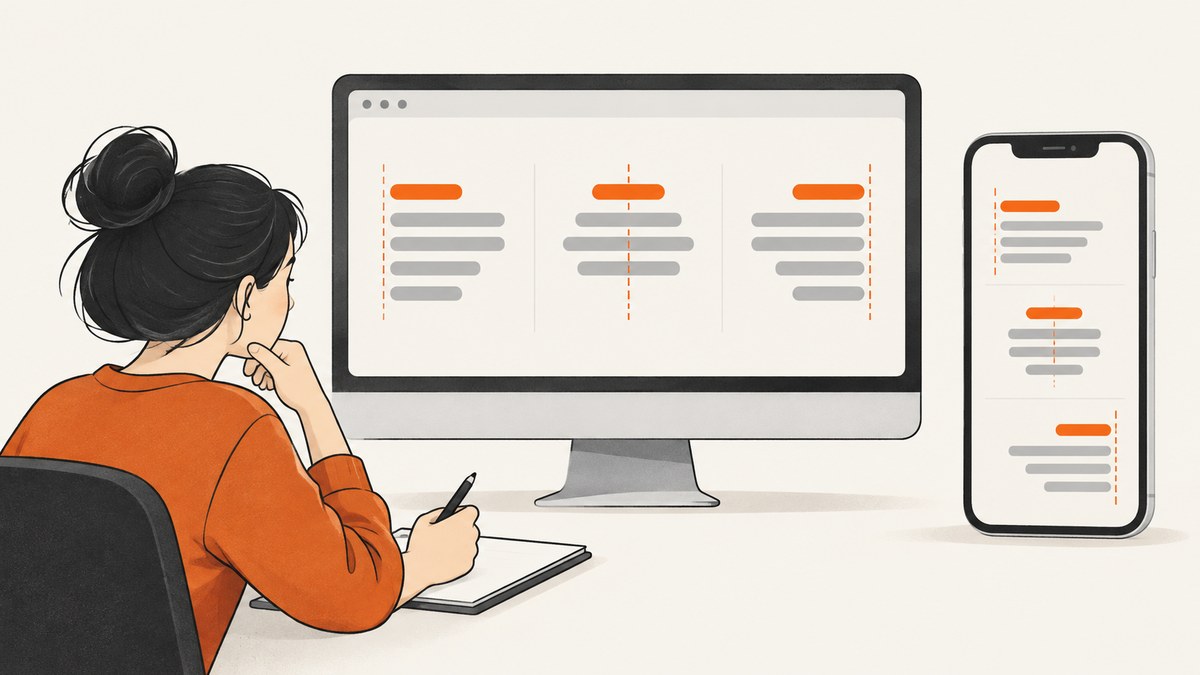
To validate text alignment reliably, test two separate things: the browser-resolved CSS value and the element’s rendered geometry. Selenium’s getCssValue("text-align") reads the computed property interpreted by the browser. If the requirement is visual placement, also inspect the element rectangle and assert a relationship you define. In Appium, first determine whether the target is native content or a web page inside a webview. CSS assertions belong in a webview or mobile-browser context; native screens require native properties or geometry checks.
What a text-alignment test should prove
A useful test answers four questions:
- Did the intended element receive the expected resolved
text-alignvalue? - Was the value read after stylesheets, responsive rules, and client-side rendering settled?
- Does the rendered box occupy the expected position and dimensions?
- Are you testing the correct surface: desktop web, mobile web, hybrid webview, or native UI?
These are different assertions. A computed value of center does not prove that a heading appears centered in its visual container. Padding, width, transforms, writing mode, nested elements, and an incorrect locator can all produce a mismatch. Conversely, a visually centered element might use a layout technique such as flexbox without having text-align: center.
Computed CSS versus inline style
element.style.textAlign reports only an inline declaration (or a value assigned through JavaScript). It does not include a rule coming from an external stylesheet, a media query, inheritance, or the cascade. MDN’s getComputedStyle documentation describes the resolved style returned after active stylesheets are applied.
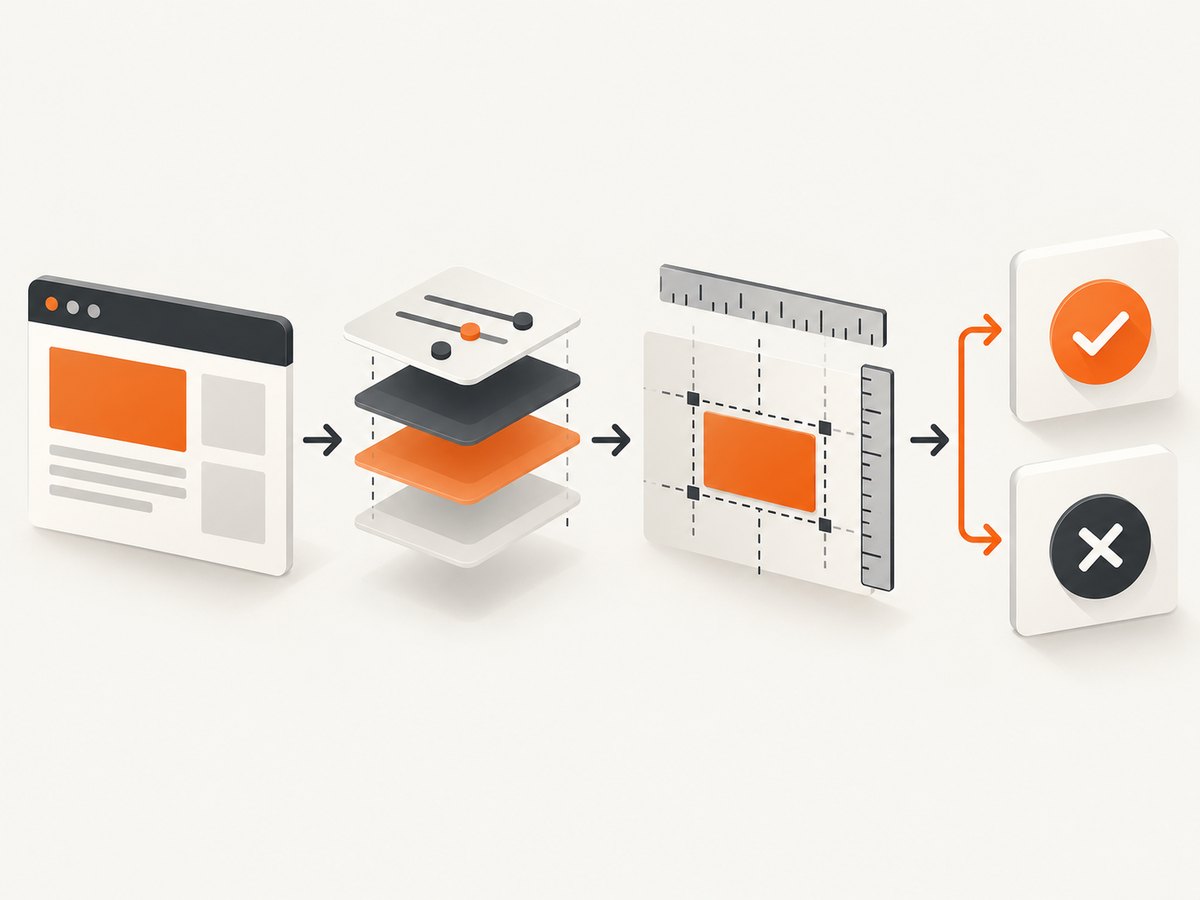
Selenium’s CSS-value API exposes the browser-interpreted value. The WebElement API warns that CSS values can be tricky to assert because browsers resolve them. Compare against the value your design expects in the target browser, and record the actual value on failure.
Desktop webpage validation with Selenium (Python)
The following test uses an explicit wait, a stable ID, a computed CSS assertion, and an optional geometry assertion. Install Selenium with pip install selenium; use a browser and driver setup supported by your environment.
from selenium import webdriver
from selenium.webdriver.common.by import By
from selenium.webdriver.support.ui import WebDriverWait
from selenium.webdriver.support import expected_conditions as EC

URL = "https://example.com/page-under-test"
EXPECTED = "center"

def test_text_alignment():
    options = webdriver.ChromeOptions()
    options.add_argument("--headless=new")
    options.add_argument("--window-size=1280,900")
    driver = webdriver.Chrome(options=options)
    try:
        driver.get(URL)
        element = WebDriverWait(driver, 20).until(
            EC.visibility_of_element_located((By.ID, "hero-title"))
        )

        resolved = element.value_of_css_property("text-align")
        assert resolved == EXPECTED, (
            f"Expected text-align={EXPECTED!r}, got {resolved!r}"
        )

        # Optional geometry check: the element's center should match its container.
        container = driver.find_element(By.ID, "hero-title-container")
        element_rect = element.rect
        container_rect = container.rect
        element_center = element_rect["x"] + element_rect["width"] / 2
        container_center = container_rect["x"] + container_rect["width"] / 2
        tolerance_px = 2
        assert abs(element_center - container_center) <= tolerance_px, (
            f"Center mismatch: element={element_center}, "
            f"container={container_center}"
        )
    finally:
        driver.quit()

if __name__ == "__main__":
    test_text_alignment()
Use a unique, predictable ID when the application provides one. When it does not, use a compact CSS selector that identifies the actual text-bearing element. Selenium's locator guidance recommends unique IDs where available and a well-written CSS selector otherwise.
Reading the value with JavaScript
JavaScript execution is useful when you need several computed properties in one browser round trip:
const details = await driver.executeScript(`
  const el = document.querySelector('#hero-title');
  if (!el) throw new Error('hero-title was not found');
  const style = window.getComputedStyle(el);
  const rect = el.getBoundingClientRect();
  return {
    textAlign: style.textAlign,
    direction: style.direction,
    writingMode: style.writingMode,
    x: rect.x,
    y: rect.y,
    width: rect.width,
    height: rect.height
  };
`);
if (details.textAlign !== 'center') {
  throw new Error(`Unexpected text-align: ${details.textAlign}`);
}
Do not use element.style.textAlign as a substitute when the rule may come from a stylesheet.
Define the geometry requirement separately
Use element rectangles only when placement is part of the product requirement. Selenium exposes an element's x, y, width, and height; the rect API documents these values. Define the relationship and tolerance before writing the assertion:
- Centered in a container: compare the horizontal centers.
- Right aligned: compare the element's right edge with the container's right edge.
- Left aligned: compare the left edges.
- Vertical placement: compare top edges or baseline geometry only if your requirement specifies it.
Allow for subpixel rounding, browser zoom, device pixel ratio, and fractional layout values. A small pixel tolerance is usually more stable than exact equality. Geometry alone cannot establish how text appears to a human; screenshot review or visual regression testing is appropriate for appearance requirements that coordinates cannot capture.
Wait for the state that owns the alignment
Read the property only after the relevant state is stable. Responsive breakpoints, transitions, font loading, client-side rendering, and user preferences can change the result after navigation. Wait for visibility or a state-specific condition, then consider waiting for a transition to finish or for a known application-ready marker. Keep the viewport explicit so a test failure identifies the breakpoint under test.
When alignment changes with content, test meaningful variants: narrow and wide viewports, long and wrapped text, right-to-left content, and dynamically inserted text. Include only scenarios supported by your design contract, and record viewport, browser, direction, expected value, and actual value in failure output.
Mobile web and hybrid apps with Appium
Appium exposes separate contexts for native and web content. The Appium context guide explains that applications can embed web content inside a native frame and that the active context affects commands and locator strategies. For a hybrid app, inspect contexts and switch to the webview before locating DOM elements or reading CSS.

from appium import webdriver
from appium.options.android import UiAutomator2Options
from selenium.webdriver.common.by import By
from selenium.webdriver.support.ui import WebDriverWait
from selenium.webdriver.support import expected_conditions as EC

options = UiAutomator2Options()
options.platform_name = "Android"
options.device_name = "Android Emulator"
options.app_package = "com.example.hybrid"
options.app_activity = ".MainActivity"
# Set the server URL and capabilities required by your Appium installation.
driver = webdriver.Remote("http://127.0.0.1:4723", options=options)
try:
    contexts = driver.contexts
    webview = next((c for c in contexts if "WEBVIEW" in c.upper()), None)
    if webview is None:
        raise RuntimeError(f"No webview context available: {contexts}")
    driver.switch_to.context(webview)

    title = WebDriverWait(driver, 20).until(
        EC.visibility_of_element_located((By.CSS_SELECTOR, "#hero-title"))
    )
    actual = title.value_of_css_property("text-align")
    assert actual == "center", f"Expected center, got {actual!r}"
finally:
    driver.quit()
For a mobile browser, configure the browser and platform session appropriate to the device. Appium's mobile-web reference describes Safari on iOS and Chrome on Android. That page is legacy documentation, so verify current browser, driver, and Appium compatibility before pinning versions. Android Chrome automation requires a compatible ChromeDriver.
Native context is a different assertion surface
In NATIVE_APP, a screen may have no DOM and therefore no CSS text-align. Use the native hierarchy and platform-specific properties exposed by the driver, or define a geometry expectation from element bounds. Do not assume that a web CSS rule transfers to a native label. If a hybrid screen contains both surfaces, switch contexts deliberately and include the active context in diagnostic output.
Locators and ownership of alignment
Decide which element owns the behavior before selecting a locator. Alignment may be applied to the text-bearing element, its container, or a nested child. A test that reads a wrapper while the rule is on a heading can pass for the wrong reason; a test that reads a text node cannot use normal element CSS APIs. Prefer a stable semantic element and document why it is the assertion target.
Common failures and fixes
| Symptom | Likely cause | Fix |
|---|---|---|
| Value is empty or unexpected | Read inline style instead of computed style, or inspected the wrong node. | Use value_of_css_property or getComputedStyle; verify the locator. |
Expected start, received left |
Browser resolved a logical value to a physical value. | Assert the representation produced by the supported browser, or normalize values according to your design contract. |
| Test passes on desktop but fails on mobile | Responsive rule, viewport, direction, font, or device scale differs. | Set viewport/device capabilities explicitly and test the intended breakpoint. |
| Element not found in Appium | Driver is in NATIVE_APP while the element is in a webview, or the webview is not debug-enabled. |
Print driver.contexts, switch to the webview, and confirm the app exposes the web content. |
| Android mobile web session cannot start | Browser and ChromeDriver versions are incompatible. | Use a compatible driver and browser pair; verify against current Appium documentation. |
| Geometry differs by one or two pixels | Subpixel layout, device pixel ratio, zoom, or font rasterization. | Use a documented tolerance and compare relationships rather than exact coordinates. |
| Alignment changes during the test | Transition, font loading, or client-side rendering is still active. | Wait for the application-ready condition and disable or await transitions where appropriate. |
Performance and reliability practices
- Reuse a browser or Appium session for related checks, but reset application state between cases.
- Keep CSS assertions cheap; collect one JavaScript object when you need several values instead of issuing many round trips.
- Run a focused matrix of browser engine, viewport, direction, and context. Expand it when a requirement is breakpoint- or device-specific.
- Capture diagnostics on failure: URL or screen, context, viewport, user agent, expected and actual CSS value, rectangle, and available contexts.
- Use screenshot comparison for visual acceptance, while keeping computed-style and geometry assertions as precise, explainable unit checks.
Or skip the browser setup
If you need reference screenshots of a web page while investigating alignment, ScreenshotNeo provides a single HTTP capture endpoint. It is useful for reproducing a viewport or reviewing a responsive state without maintaining a browser session.
See the ScreenshotNeo API documentation for all parameters. This call captures a WebP image:
curl -G "https://api.screenshotneo.com/v1/shot" -d access_key=YOUR_API_KEY --data-urlencode url=https://stripe.com -o shot.webpimport requests
r = requests.get("https://api.screenshotneo.com/v1/shot", params={"access_key": "YOUR_API_KEY", "url": "https://stripe.com"}, timeout=90)
open("shot.webp", "wb").write(r.content)const q = new URLSearchParams({ access_key: 'YOUR_API_KEY', url: 'https://stripe.com' });
const res = await fetch(`https://api.screenshotneo.com/v1/shot?${q}`);
const body = Buffer.from(await res.arrayBuffer());
await import('node:fs/promises').then(fs => fs.writeFile('shot.webp', body));ScreenshotNeo removes cookie banners, newsletter popups, and chat widgets before capture. Bot checks, blank pages, failed loads, timeouts, and cache hits are not billed, and response headers identify the page verdict and billing result. Its MCP server provides take_screenshot, get_page_info, and capture_pdf for Claude, Cursor, and other MCP clients. The Free plan includes 1,000 screenshots a month with no card; paid plans start at $5 for 3,000 shots. Create a free ScreenshotNeo account.
Cost and capture planning
For Selenium and Appium, cost is mainly your browser or device infrastructure, session time, and parallel capacity. Keep alignment checks targeted and avoid launching a fresh device for every assertion. For ScreenshotNeo, choose a cache TTL when repeated captures are acceptable, use resizing when full-resolution output is unnecessary, and use bulk capture for up to 100 URLs per call. Its plans are Free (1,000/month), Starter ($5 for 3,000), Growth ($15 for 15,000), Pro ($39 for 60,000), Scale ($99 for 250,000), and Business ($249 for 1,000,000); yearly billing gives two months free.
FAQ
Should I assert center or the value written in CSS?
Assert the browser-resolved value returned by Selenium. If your design uses logical values such as start, define how each supported browser should resolve them.
Can a computed CSS assertion prove visual correctness?
No. It proves the resolved property. Add a separately defined rectangle relationship or visual comparison when placement is a requirement.
Why does Appium show only native elements?
The session is likely in NATIVE_APP, or the webview is unavailable. Inspect contexts, switch to the webview, and verify the app's webview debugging setup.
Do I need Appium for a responsive website?
No. Selenium can test desktop and mobile-sized browser windows. Appium is appropriate when the target is a real mobile browser session or a hybrid/native application.


