How to Validate Website Screenshots with an API
Check that a screenshot API captured the intended page, then compare a reproducible render with an approved baseline in CI.

A screenshot request can succeed and still capture the wrong page: a login screen, an access-denied message, a CAPTCHA, or a blank document can all produce an image. Validate in two stages: first confirm the response and that the page reached the intended state; then compare a reproducible capture against an approved baseline. Keep the URL, viewport, readiness condition, color scheme, and capture scope the same on both runs.
This guide shows a local Playwright workflow, an API-oriented comparison workflow, and the checks that make either useful in CI. The key rule is simple: do not treat pixels as proof that the right page loaded.
1. Decide what “valid” means for this capture
Write down the expected page state before choosing a comparison method. A useful check identifies a target URL, a recognizable page condition, a viewport, and whether the assertion covers the viewport or a particular element. For an authenticated dashboard, “the URL returned an image” is insufficient; the test might require a dashboard heading or a known navigation element.
| Workflow | Use it when | What to validate |
|---|---|---|
| One-off capture API | You need an image from one request. | Response success, final destination or status where exposed, dimensions, and expected content where available. |
| Configured render API | You need a set viewport, format, readiness condition, or credentials. | Stable settings and evidence the target reached the expected state. |
| Regression comparison | You need repeatable CI or scheduled checks. | Named baseline, mismatch output, and a reviewed decision to accept or reject the change. |
These are workflow distinctions, not a ranking of providers. Some services combine capture and comparison; others compare images captured by your own browser runner. Choose based on who controls browser state, where baselines live, how changes are reviewed, what metadata is retained, and how credentials and artifacts are protected.
2. Make captures reproducible before comparing pixels
A baseline is useful only if the capture conditions remain comparable. Set the same viewport width and height, device scale factor, browser environment, page state, color scheme, capture scope, and readiness rule for the expected and candidate images. Playwright likewise recommends consistent screenshot parameters for visual comparisons. Its snapshot assertions support a maximum differing pixel count, a differing-pixel ratio, and a color matching threshold; these are controls to tune for a project, not universal pass values. See the Playwright snapshot assertion options.
Dynamic content is a common source of noise. Consider clocks, rotating promotions, ads, personalized recommendations, animation, live counters, randomized IDs, and content that arrives after initial navigation. Prefer freezing or controlling the source of variation. If that is not practical, mask or hide only the known unstable region, or compare a stable element rather than relaxing the tolerance across the whole page.
Readiness is more than navigation complete
A page can report navigation complete before a client-rendered app has populated its main content. Wait for a meaningful selector, a specific application state, or a short delay only when you understand why it is needed. “Network idle” can be inappropriate for pages that maintain persistent requests. A targeted selector is usually easier to explain and debug than an arbitrary long sleep.
For full-page captures, account for lazy-loaded images and content below the fold. Scroll or use a capture tool that loads lazy images before capture. For a focused UI check, an element screenshot reduces unrelated page changes, but it will not catch layout changes outside that element.
3. Capture and check the actual page before diffing
Check the capture response and page identity before interpreting image differences. Where the service exposes final HTTP status or final URL, inspect them. Treat an HTTP status of 400 or higher as an invalid page for the intended capture; a successful image response does not guarantee a successful target page response. Also assert visible content that distinguishes the intended page from plausible error and login pages.
Here is a runnable browser-side example using Playwright Test. It waits for the application heading, takes a page screenshot, and compares it with the stored snapshot. Install Playwright and its browser with npm install -D @playwright/test and npx playwright install chromium; save as a test such as tests/home.spec.js, then run npx playwright test.
const { test, expect } = require('@playwright/test');

test('home page matches its approved screenshot', async ({ page }) => {
  const response = await page.goto('https://example.com/', {
    waitUntil: 'domcontentloaded',
  });

  // Validate the document response before examining pixels.
  expect(response, 'navigation should return a document response').not.toBeNull();
  expect(response.status(), 'target document should be successful').toBeLessThan(400);

  // Validate page identity and wait for meaningful content.
  await expect(page.getByRole('heading', { name: 'Example Domain' })).toBeVisible();

  // Keep viewport, color scheme, browser, and state stable in CI.
  await expect(page).toHaveScreenshot('home.png', {
    fullPage: true,
    animations: 'disabled',
    // Set project-specific tolerances only after reviewing representative diffs.
  });
});
The first run creates or reports a missing expected snapshot according to your Playwright setup. Review that artifact and intentionally establish the baseline; do not make an unexplained generated image the expected result. Later runs compare against that saved reference.
4. Compare against an approved baseline
Once page identity and capture state are verified, use one of three comparison patterns:
- Browser test runner: capture and compare in Playwright. This keeps browser setup, authentication, and page manipulation close to the test.
- Capture-and-compare API: send a URL or render configuration and compare against a stored reference. Inspect the provider’s exact meanings for terms such as threshold and tolerance; they are not standardized. In the reviewed Screenshot API documentation, threshold controls the percentage of pixels that must differ before a result is marked changed, while tolerance controls per-channel color distance. See its Screenshot API documentation.
- Upload an existing screenshot: capture with your browser runner, then send the image to a comparison service. Visual Regression Tracker documents snapshots associated with a test name and branch, with optional browser, viewport, and build metadata; its documentation states a 20 MB maximum upload payload. Large full-page images may exceed that limit, so reduce scope or image size if necessary. See Visual Regression Tracker’s snapshot documentation.
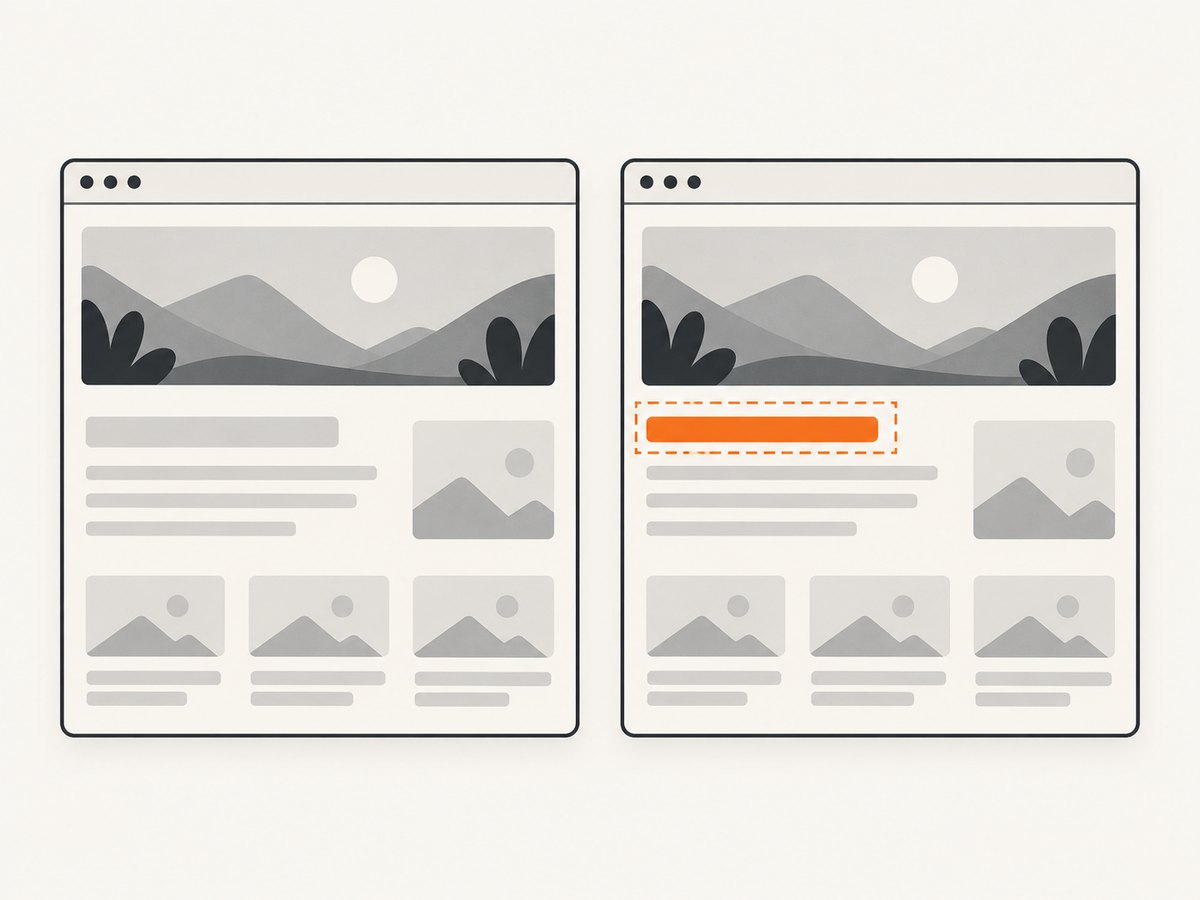
Where available, inspect the mismatch percentage, changed regions, and diff image together. A percentage tells you how much changed, not whether the change matters. A diff image helps locate the changed area; the original and candidate images explain the context. Store stable test names, branch, commit, browser, and viewport information so each result maps to the intended baseline.
Baseline updates require review
When a comparison fails, first establish whether the change is intended. If it is, review the candidate and update the baseline under the project’s normal approval process. If the cause is uncertain, investigate the page or environment. Automatically accepting every new render allows accidental UI regressions to become the new expected state. Avoid updating the baseline simply to make CI green.
5. Keep credentials and artifacts controlled
Protected pages need a deliberate authentication method. Use only credentials supported by the chosen capture workflow and scope them to the target host and least privilege needed. Screenshot API documentation describes cookies, target-host-scoped headers, and basic authentication, and recommends putting credentials in a POST body rather than query parameters because URLs can be written to access logs. Never include secrets in screenshot URLs, public artifacts, or commit history.
If the page is available only in an already authenticated local browser, a remote capture API may not have the same session or security context. Use a browser workflow that can establish the required session safely. Treat screenshots as potentially sensitive: they may contain personal data, account details, or internal dashboards. Limit artifact access and retention accordingly.
6. Troubleshoot common validation failures
| Symptom | Likely cause | Fix |
|---|---|---|
| The screenshot looks plausible but is the wrong page | Redirect, login page, access denied, or challenge page rendered successfully. | Check final status and destination where available; assert a distinctive page heading or selector before comparing. |
| CI reports visual changes on every run | Unstable viewport, timing, animation, dynamic content, or font/browser differences. | Pin capture settings, wait for a meaningful state, disable animations, and stabilize or mask known changing content. |
| The page is blank or missing app content | Capture began before client rendering or required assets completed. | Wait for the app’s main selector or a reliable state marker; check network failures and browser console output. |
| The diff is huge after a small code change | Wrong baseline key, different viewport or device scale, changed theme, or wrong route. | Compare metadata and test naming; make sure the run resolved to the intended baseline and state. |
| Too many small changes are ignored | Threshold or color tolerance is too permissive. | Inspect representative diffs and tighten settings; do not copy example values as project-wide rules. |
| Full-page upload is rejected | Image payload exceeds the receiving service’s limit. | Capture a viewport or target element, or resize/compress if the workflow allows. Visual Regression Tracker documents a 20 MB upload maximum. |
| Credentials appear in logs | Secrets were sent in URL query parameters. | Move credentials to a protected request body or supported authorization mechanism; rotate exposed credentials. |
| Baseline changes without an obvious owner | Update policy is implicit or multiple branches share ambiguous names. | Define who approves updates and use stable test, branch, and viewport identifiers. |
7. Performance, reliability, and cost
Visual checks add rendering and image comparison work to a pipeline. Avoid capturing every route at every viewport on every commit unless that coverage is needed. Start with high-value pages and states, then expand based on risk. Element captures and viewport captures are smaller and often easier to diagnose than enormous full-page images. Batch or parallelize only within the capacity and rate limits of the chosen service and CI environment.
Reliability comes from distinguishing infrastructure errors from page failures and visual mismatches. Preserve the status, logs, capture metadata, and image artifacts needed to reproduce a failure. Retry transient network or service errors carefully, but do not retry a genuine application assertion until it passes; retries can conceal flakiness. Establish explicit timeouts and report whether a run failed during navigation, readiness, screenshot generation, upload, or comparison.
Cost depends on the selected browser infrastructure, hosted API, retained artifacts, and number of render/comparison runs. Confirm current commercial terms and payload limits with each provider before adopting it; the cited documentation is product documentation rather than an independent performance evaluation. A baseline review also has a human cost, so tune coverage around meaningful changes instead of optimizing only for run count.
8. Or skip the browser setup
If the goal is to obtain a clean page image through an API, ScreenshotNeo returns PNG, JPEG, WebP, or PDF from one GET request. It can capture full pages or a CSS-selected element, and offers viewport and device options, waits, cookies and headers, custom CSS and JavaScript, and caching. Its response includes page-verdict and billing headers, which help distinguish a usable page from a bot check, blank page, failed load, or cache hit. See the ScreenshotNeo API documentation for request options.
curl -G "https://api.screenshotneo.com/v1/shot" \
  -d access_key=YOUR_API_KEY \
  --data-urlencode url=https://stripe.com \
  -o shot.webp
import requests
r = requests.get(
"https://api.screenshotneo.com/v1/shot",
params={"access_key": "YOUR_API_KEY", "url": "https://stripe.com"},
timeout=90,
)
r.raise_for_status()
open("shot.webp", "wb").write(r.content)const q = new URLSearchParams({
access_key: 'YOUR_API_KEY',
url: 'https://stripe.com',
});
const res = await fetch(`https://api.screenshotneo.com/v1/shot?${q}`);
if (!res.ok) throw new Error(`Screenshot request failed: ${res.status}`);
const fs = await import('node:fs/promises');
await fs.writeFile('shot.webp', Buffer.from(await res.arrayBuffer()));Cookie banners, newsletter popups, and chat widgets are removed before the shot, and each step can be turned off. Bot checks, blank pages, timeouts, failed loads, and cache hits are not billed. An MCP server provides take_screenshot, get_page_info, and capture_pdf tools for Claude, Cursor, and other MCP clients. The free plan includes 1,000 screenshots per month with no card; paid plans start at $5 for 3,000. These features can simplify capture, but a visual regression workflow still needs a stable baseline and a review policy. Sign up for 1,000 free screenshots a month, no card required.
9. FAQ
How do I validate a website screenshot with an API?
Check the capture result and page identity first, then compare a repeatable image to an approved baseline. Assert content that distinguishes the intended page from a login or error page.
How can I compare a screenshot to a baseline?
Use a browser test runner such as Playwright, a capture-and-compare API, or an HTTP comparison service that accepts your existing screenshot. Ensure the comparison resolves the intended named baseline.
How do I stop visual regression tests from failing on dynamic content?
Stabilize the content source where possible, wait for a known state, disable animation, and scope the capture to stable content. Use masks for known volatile regions before loosening global thresholds.
Should every pixel difference fail CI?
That depends on the rendering environment and product risk. Calibrate thresholds against representative intentional and accidental changes, and review artifacts when a result is near the boundary.
Can a successful screenshot response prove the page loaded?
No. Validate the target document response and expected page content where the capture workflow exposes them. An image can depict a rendered error, challenge, or login page.


