Validating Sectioned Full-Page Screenshots
Build repeatable full-page screenshot checks with stable sections, explicit boundary review, and diffs that help explain why screenshot tests fail.

A full-page screenshot captures the full scrollable page as one tall image. To validate it in sections, first make the page state repeatable, capture either stable clips or a screenshot buffer, divide it into consistently defined sections, compare each section with a baseline from the same environment, and explicitly inspect coverage, order, and the bands where sections meet. Playwright provides full-page capture, clips, buffers, screenshot assertions, masks, and diff controls; its documentation does not describe an automatic section-boundary or seam validator. Treat continuity checks as your QA responsibility.
This guide uses Playwright Test with JavaScript. It covers a runnable full-page assertion, a sectioned buffer workflow, ways to reduce noise, and checks for the common failures that make visual regression tests hard to trust.
1. Decide what you need to validate
A single full-page image is usually the right artifact when the question is “does the whole page look as expected?” Sections are useful when a very tall page is difficult to inspect or when your review process needs named, repeatable regions such as header, introduction, pricing, and footer. A sectioned comparison is still a pixel comparison: it does not tell you whether a difference is a bug, and it does not prove the screenshot is correct.
| Approach | Use it when | Watch for |
|---|---|---|
| Viewport screenshot | You need to validate the initially visible screen. | It does not cover content below the viewport. |
| Full-page screenshot | The complete scrollable page is the expected artifact. | One very tall image can be unwieldy; lazy content and changing page state can affect capture. |
| Consistent clips | You want stable, named regions for review or comparison. | Coordinates and dimensions must be defined consistently; clips alone do not prove complete coverage. |
| Buffer plus post-processing | You need to crop or partition a captured full-page image programmatically. | Your code must define pixel scale, crop bounds, ordering, and boundary checks. |
Playwright documents full-page screenshots, clip options, and capturing screenshot data into a buffer. It does not document an automatic check for missing sections, overlap, or stitching seams. Make those explicit assertions or review steps in your own workflow. See the [Playwright screenshot guide](https://github.com/microsoft/playwright/blob/main/docs/src/screenshots.md) and [screenshot assertion documentation](https://playwright.dev/docs/api/class-pageassertions).
2. Set up a repeatable Playwright capture
Install Playwright Test and its browser binaries in your project. The following example assumes a Node.js project with Playwright Test installed. Add this as tests/full-page.spec.js and replace the example URL and expected page content with your own application.
import { test, expect } from '@playwright/test';

test('full page matches the screenshot baseline', async ({ page }) => {
  await page.setViewportSize({ width: 1280, height: 800 });
  await page.goto('http://127.0.0.1:3000', { waitUntil: 'networkidle' });
  await expect(page.getByRole('heading', { name: 'Welcome' })).toBeVisible();

  await expect(page).toHaveScreenshot('home-full-page.png', {
    fullPage: true,
    animations: 'disabled',
    maxDiffPixelRatio: 0.01,
  });
});
Run it with npx playwright test tests/full-page.spec.js. On the first run, Playwright creates an expected screenshot baseline. Review that image before treating it as the accepted reference. Later runs compare the new capture with the expected snapshot. The toHaveScreenshot() assertion waits for two consecutive page screenshots to match before comparing the last capture with the expected snapshot. This helps with transient rendering changes, but it cannot make dynamic content deterministic or judge whether a baseline is visually correct. See [Playwright visual comparisons](https://github.com/microsoft/playwright.dev/blob/main/nodejs/docs/test-snapshots.mdx).
Make the page state explicit
- Use a known URL, viewport size, browser version, device scale factor, and test data.
- Wait for a meaningful page condition, such as a heading or loaded state, rather than assuming navigation alone means the page is ready.
- Control clocks, randomized content, rotating promotions, and user-specific data when they can change pixels between runs.
- Capture with the same browser and operating system used to generate the baseline whenever practical.
Playwright warns that rendering can vary with the host operating system, browser version, settings, hardware, power source, headless mode, and other factors. Separate baselines by environment when those differences are expected instead of letting unrelated platform changes pollute one comparison.
3. Capture and compare defined sections
For a sectioned workflow, define regions in CSS pixels relative to a fixed page layout, capture a full-page buffer, and crop it using a known pixel scale. The example below uses the sharp image library for cropping. It illustrates the process; choose section heights and page dimensions for your own content.
import { test, expect } from '@playwright/test';
import sharp from 'sharp';
import fs from 'node:fs/promises';

const sections = [
  { name: 'top', top: 0, height: 900 },
  { name: 'middle', top: 900, height: 900 },
  { name: 'bottom', top: 1800, height: 900 },
];

test('section screenshots cover the expected page', async ({ page }) => {
  await page.setViewportSize({ width: 1280, height: 900 });
  await page.goto('http://127.0.0.1:3000', { waitUntil: 'networkidle' });
  await expect(page.getByRole('heading', { name: 'Welcome' })).toBeVisible();

  const screenshot = await page.screenshot({ fullPage: true, animations: 'disabled' });
  const metadata = await sharp(screenshot).metadata();
  if (!metadata.width || !metadata.height) throw new Error('Could not read screenshot dimensions');

  const scale = 1; // deviceScaleFactor is 1 in this test environment
  for (const section of sections) {
    const top = Math.round(section.top * scale);
    const height = Math.round(section.height * scale);
    if (top + height > metadata.height) {
      throw new Error(`${section.name} extends beyond screenshot height ${metadata.height}`);
    }
    const file = `screenshots/${section.name}.png`;
    await fs.mkdir('screenshots', { recursive: true });
    const clip = await sharp(screenshot)
      .extract({ left: 0, top, width: metadata.width, height })
      .png()
      .toBuffer();
    await fs.writeFile(file, clip);
    // Compare with a saved baseline using your project's chosen image-diff workflow.
  }
});
This example checks that every crop fits within the captured image and saves crops in an explicit order. It does not itself compare the saved crops with baselines. For assertions managed by Playwright Test, prefer separate named screenshot expectations or use Playwright’s documented clip screenshot assertion options. If you post-process a buffer, use an image comparison library or a reviewed diff pipeline and preserve the baseline files and review process your team relies on.
Define coverage and boundary rules
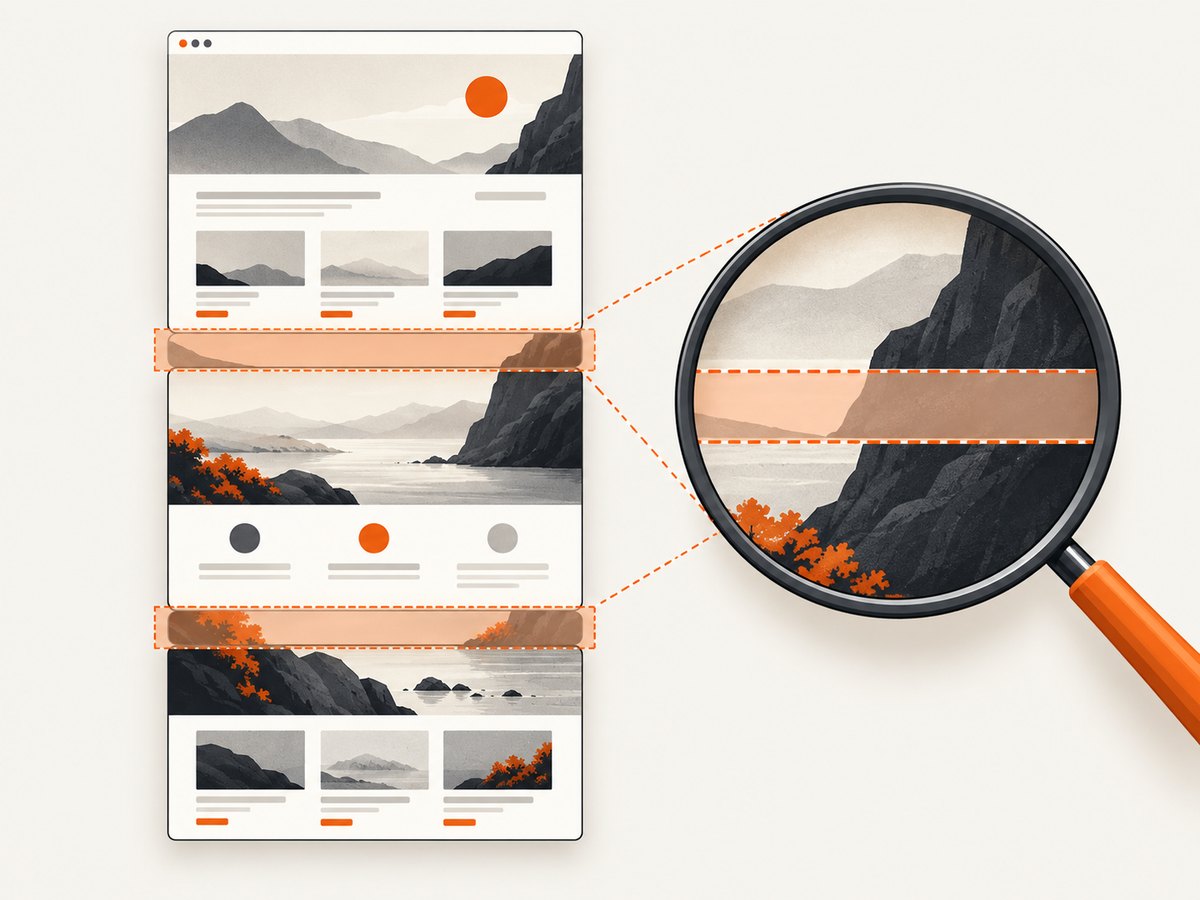
Record the intended page height or derive it from a known page state. Then check that sections cover the intended range without gaps, accidental overlaps, or reversed order. If overlap is intentional, document it: a small repeated band around a boundary makes visual continuity easier to inspect. Review the full sequence as well as individual crops. A section can match its own baseline while another section was skipped or duplicated.
Keep coordinate units clear. Playwright viewport and clip coordinates are expressed in CSS pixels, while an image buffer is measured in device pixels. If your device scale factor is 2, a 900 CSS-pixel section occupies 1800 screenshot pixels. Use the actual browser context’s scale factor when converting and verify the resulting image dimensions; do not assume a scale of 1 if the project uses retina capture.
4. Reduce visual noise without hiding defects
Playwright screenshot assertions disable animations by default; the screenshot options also support masks for volatile areas and thresholds for acceptable differences. Use each control to address a known source of instability, not to make failures disappear.
- Animations: Keep animations disabled for snapshots unless the animation itself is what you are validating.
- Volatile content: Mask narrowly scoped timestamps, rotating content, or user-specific regions. A broad mask can conceal real layout regressions.
- Diff thresholds: A small pixel ratio tolerance may absorb rendering noise. Set it deliberately and keep inspecting reported diffs; a permissive threshold can allow defects through.
- Fonts and assets: Ensure test fonts and images are available before capture. Font fallback can shift line breaks and move every section below them.
- Lazy content: Scroll or otherwise trigger lazy-loaded content before capturing if it must appear in the full-page artifact. Verify it is actually present.
For structural or textual questions, pixels may be the wrong sole signal. Pair a screenshot with assertions on accessible roles, names, or page structure. Playwright’s agent CLI documentation describes screenshots as useful for visual layout and bug documentation and points to accessibility snapshots for structural information: [Screenshots & PDF](https://playwright.dev/agent-cli/commands/screenshots-pdf).
5. Review a visual diff and update baselines carefully
- Run the comparison in the pinned or otherwise known environment.
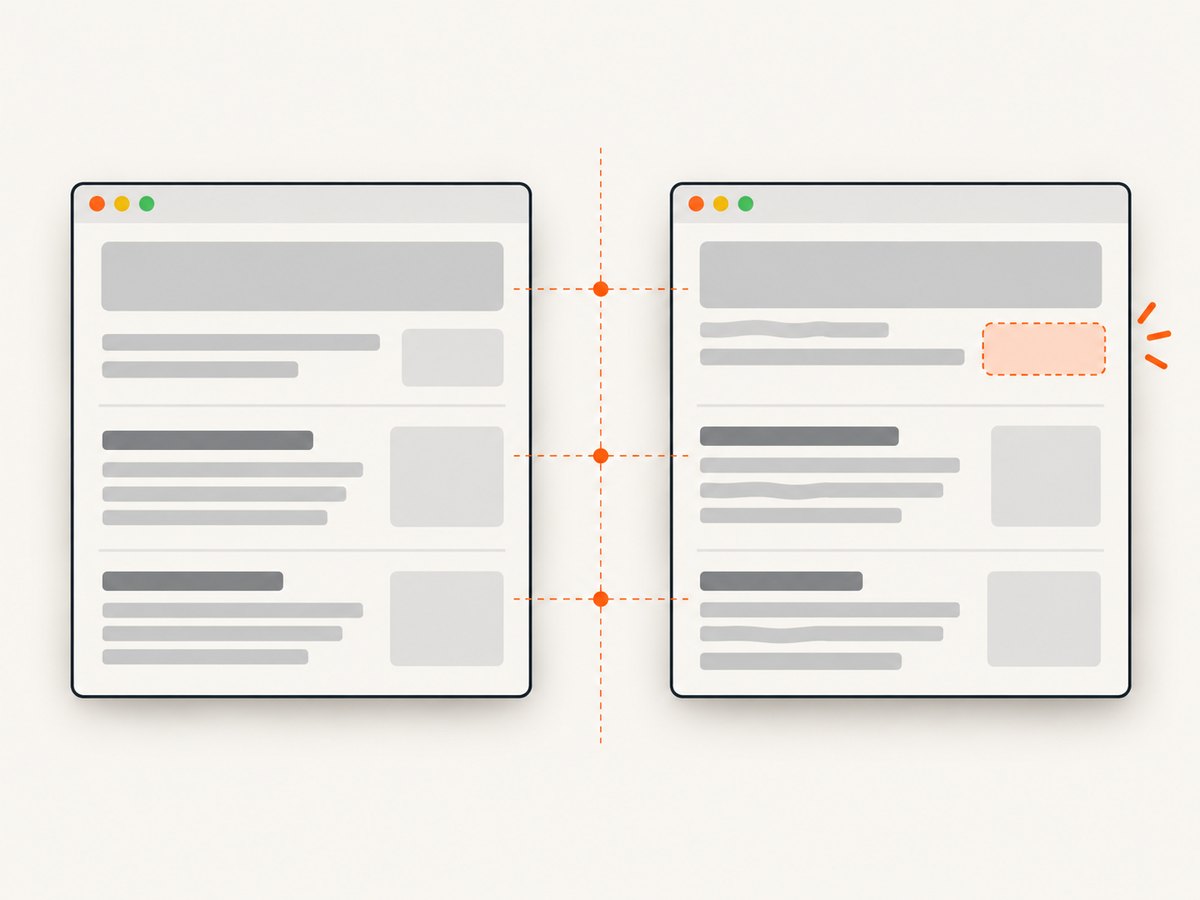
- Open the actual screenshot, the expected baseline, and the diff together.
- Check whether the change is intentional, then inspect each section in page order.
- Inspect bands at every crop boundary for discontinuities, shifted content, missing rows, or repeated rows.
- Update the expected baseline only after reviewing the changed page and confirming that it reflects the intended design.
A changed screenshot is evidence of a difference. It does not establish that the change is a defect, or that the new image should become the baseline. Conversely, a passing pixel assertion only says the result met the configured comparison conditions; it does not prove every section was defined correctly or every meaningful requirement was covered.
6. Troubleshooting screenshot comparison failures
| Symptom | Likely cause | Fix |
|---|---|---|
| Many unrelated pixels differ on every run | Changing data, fonts, images, browser environment, or page state. | Pin the environment and test data; wait for required content; mask only known volatile regions. |
| Text wraps differently or sections drift vertically | Font fallback, changed viewport, or different device scale. | Load the same fonts, fix viewport and scale, and regenerate a baseline only after visual review. |
| Bottom of page is blank or incomplete | Lazy content was not triggered or capture began before loading finished. | Scroll through the page or wait for the relevant content, then verify the full-page image contains it. |
| Crop operation reports that it exceeds image bounds | Section coordinates use CSS pixels but crops use device pixels, or page height changed. | Read image metadata, convert with the actual scale factor, and validate every crop against image dimensions. |
| Sections individually look fine but sequence is wrong | Sections were duplicated, omitted, or assembled out of order. | Assert section names and ordering; inspect the entire sequence and its coverage. |
| Unexpected boundary line or repeated content | Clip ranges do not meet as intended, or the page moved during separately timed captures. | Prefer cropping one stable full-page buffer or capture clips from a fixed page state; inspect an overlap band. |
| Snapshot assertion fails on a minor antialiasing change | Rendering differs across browser or host environment. | Compare in the same environment as the baseline; use a carefully chosen threshold only if the difference is acceptable. |
| Updating snapshots makes the failure go away but the page looks wrong | The new baseline was accepted without reviewing the regression. | Restore or correct the page, review the diff, and update snapshots only for an intended change. |
7. Performance, reliability, and cost
Full-page images consume more memory and take longer to inspect and store than viewport captures, especially at high device scale factors. Buffer post-processing adds image decoding, crop, and file-writing work. Keep section definitions focused on regions your checks need, reuse a single capture when you need multiple crops, and avoid capturing the same page repeatedly just to produce adjacent sections unless separate viewport behavior is part of the test.
For reliability, keep baselines alongside the code and environment information needed to interpret them. A baseline generated on one platform may differ from another even when the page code is unchanged. Review failures before updating snapshots, and retain enough artifacts to understand what changed. Screenshot assertions and diff thresholds are controls for comparison behavior, not guarantees of defect detection.
For cost, Playwright itself is an automation library; operational cost comes from the machines and CI time used to run browsers, plus artifact storage and maintenance of baselines. Tall, high-resolution captures can increase those resource needs. Keep capture dimensions and frequency aligned with the risk and coverage you need.
Or skip the browser setup
ScreenshotNeo is a website screenshot API and MCP server. Its API can return an image or PDF from one GET request, and its docs list full-page capture and other capture options: ScreenshotNeo documentation.
curl -G "https://api.screenshotneo.com/v1/shot" -d access_key=YOUR_API_KEY --data-urlencode url=https://stripe.com -o shot.webpScreenshotNeo accepts cookie and consent banners and removes more than 60 known consent platforms, newsletter popups, and chat widgets before the shot; each step can be turned off. Bot checks, blank pages, timeouts, failed loads, and cache hits cost nothing, and response headers say the page verdict and billing status. Its MCP server provides take_screenshot, get_page_info, and capture_pdf for Claude, Cursor, and other MCP clients. The free plan includes 1,000 screenshots a month with no card; paid plans start at $5 for 3,000. For automated visual regression, still review your own baselines and section boundaries: an API capture does not establish that your page is correct.
Create a free account and get 1,000 screenshots a month with no card.
FAQ
Should I compare a full-page screenshot or separate sections?
Use a full-page comparison when the complete page is the artifact you need to validate. Use sections when named regions make review or comparison more manageable, and add checks that prove their coverage and order.
Does Playwright detect screenshot stitching seams?
The reviewed Playwright documentation describes full-page screenshots, clips, buffers, and visual assertions, but not an automatic section seam validator. Inspect boundaries or implement explicit checks in your pipeline.
Can a passing screenshot test prove a page is accessible?
No. Pixel comparison checks rendered appearance under configured conditions. Use accessibility and semantic assertions for structure and meaning.
Why do screenshot tests fail on a different machine?
Browser rendering can vary with operating system, browser version, settings, hardware, power source, and headless mode. Keep baseline generation and comparison environments consistent where practical.


