How to Add Vertical Text to the Right Side of Every wkhtmltopdf Page
Place repeating vertical text on every wkhtmltopdf page with rotated CSS, page-aware headers, safe margins, and fixes for clipping and repetition.

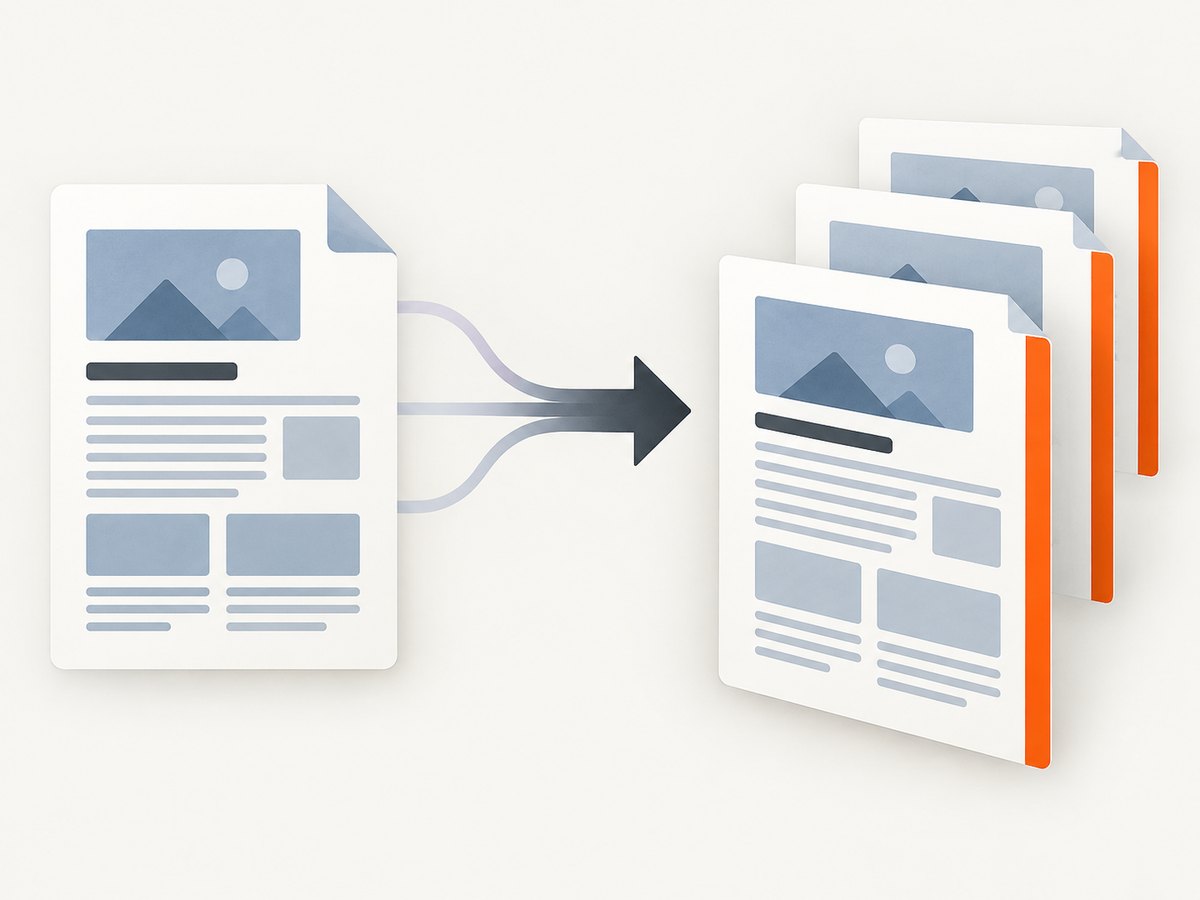
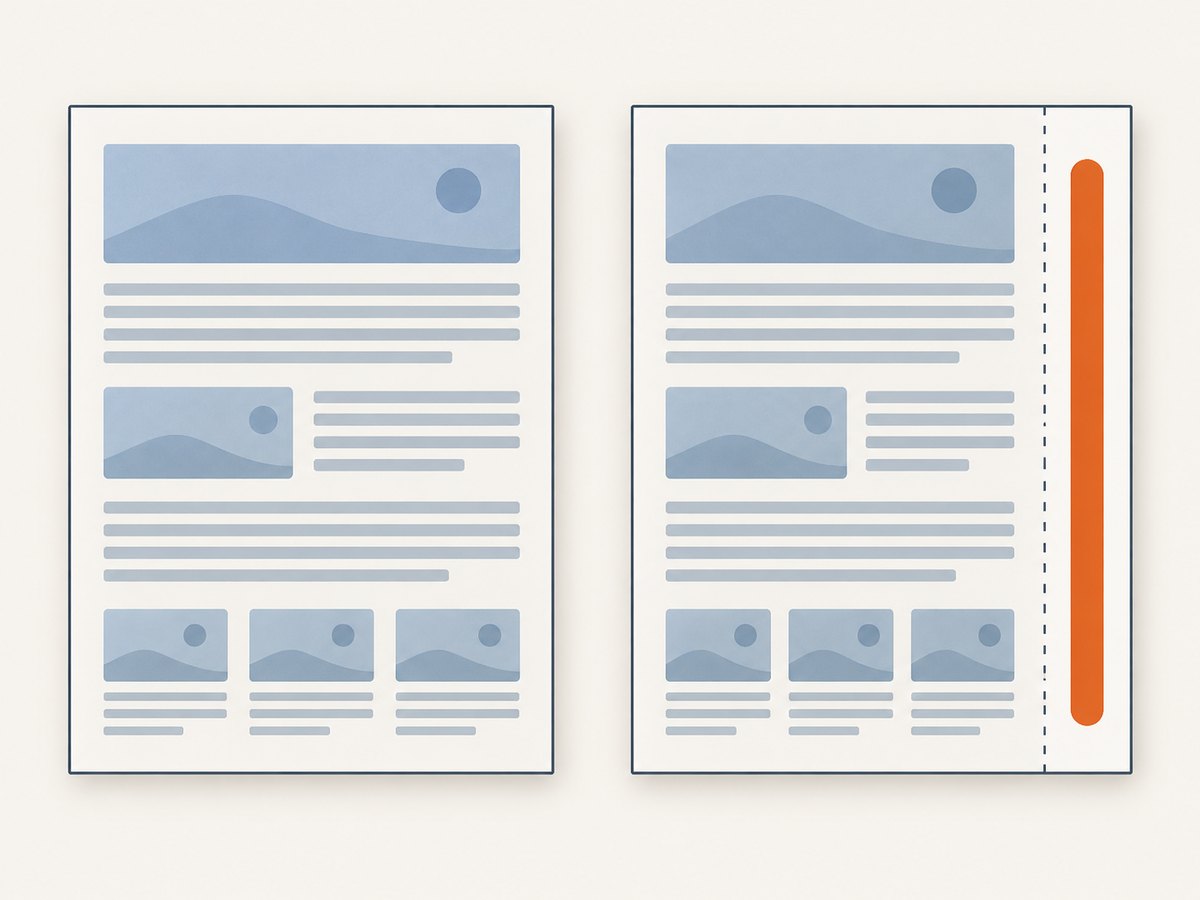
Short answer: wkhtmltopdf has no documented command-line switch specifically for text running down the right edge. Put the label in HTML, pin it with position: fixed, rotate it with WebKit CSS, and reserve enough right margin so the body cannot overlap it. Then render several pages and inspect the PDF: repetition, rotation origin, and clipping can vary with your wkhtmltopdf build and document geometry.
For a static label, this is the smallest useful implementation:
<div class="vertical-text">Confidential</div>

<style>
.vertical-text {
  position: fixed;
  right: 0;
  top: 50%;
  -webkit-transform: rotate(90deg);
  -webkit-transform-origin: center bottom;
  white-space: nowrap;
}
</style>
The rest of this guide shows how to make that approach predictable, how to add changing page values, and what to do when the label appears only once or is clipped.
1. Understand wkhtmltopdf’s two rendering paths
There are two practical ways to produce a side label:
| Route | Use it when | Checks required |
|---|---|---|
| Fixed element in the document HTML | The label is static and belongs to the page content | Verify that it repeats, stays at the intended height, and does not overlap the body |
| Custom HTML header or footer | The label needs page variables such as [page] or [topage] |
Adapt the template’s geometry for a vertical edge and tune margins and spacing |
The official manual documents headers, footers, custom HTML templates, and substitutions including [page], [frompage], and [topage], but it does not document a dedicated vertical-side-text option. See the wkhtmltopdf command-line manual. A community solution for this exact layout uses a fixed element and -webkit-transform: rotate(90deg); treat it as a starting point rather than a compatibility guarantee.
2. Build a static right-side label
Complete HTML example
<!doctype html>
<html>
<head>
  <meta charset="utf-8">
  <title>Report</title>
  <style>
    @page {
      size: A4;
      margin: 18mm 24mm 18mm 18mm;
    }

    html, body {
      margin: 0;
      padding: 0;
      font-family: Arial, sans-serif;
      color: #222;
    }

    .page-content {
      font-size: 11pt;
      line-height: 1.45;
    }

    .vertical-text {
      position: fixed;
      right: -2mm;
      top: 50%;
      z-index: 10;
      white-space: nowrap;
      font-size: 9pt;
      letter-spacing: 0.08em;
      color: #555;
      -webkit-transform: rotate(90deg);
      -webkit-transform-origin: center bottom;
    }
  </style>
</head>
<body>
  <div class="vertical-text">CONFIDENTIAL</div>
  <main class="page-content">
    <h1>Quarterly report</h1>
    <p>Replace this content with enough material to create multiple pages.</p>
    <p>Repeat paragraphs, tables, or sections here. The fixed element should be
    present on each rendered page in builds that support fixed positioning this way.</p>
  </main>
</body>
</html>
Render it with:
wkhtmltopdf --enable-local-file-access report.html report.pdfThe right margin in the example is 24mm, while the label sits near the edge. That gap gives the body a protected column. Increase it when the label is wide, rotated from a different origin, or printed with a border.
Why the transform origin matters
Rotation occurs around the transform origin. With center bottom, the label’s lower edge becomes a predictable anchor near the vertical center. If the text appears too high, too low, or partly outside the page, adjust top, right, and the origin together. Do not assume that changing only top moves the visible glyph by the same amount after rotation.
3. Make the label repeat on every page
CSS paged-media behavior is the difficult part. A fixed element is intended to remain fixed while content flows, but wkhtmltopdf uses an older WebKit engine and reports from real documents differ by version, nesting, and page-break structure. Test at least:
- A document shorter than one page.
- A document that naturally flows to three or more pages.
- A document with explicit
page-break-beforeandpage-break-after. - A page containing a long table or image near the right margin.
If the label appears only on the first page, move it directly under <body>, remove transforms temporarily, and confirm that the element is not inside a container that establishes an unexpected positioning context. Also try a simpler fixed rule before adding z-index, borders, or complex selectors.
If your installed build still does not repeat it reliably, use a custom HTML header or footer. That route is designed for per-page rendering and supports page substitutions.
4. Add page numbers with a custom HTML template
wkhtmltopdf can load an HTML file for the header or footer. The template receives values such as [page] and [topage]. The manual demonstrates inserting those values into elements with JavaScript. You can rotate the template’s content and position it at the right side, but the default examples are horizontal, so you must reserve space and verify the geometry.
Template file
<!doctype html>
<html>
<head>
  <meta charset="utf-8">
  <style>
    html, body { margin: 0; padding: 0; }
    .side {
      position: absolute;
      right: 0;
      top: 50mm;
      width: 12mm;
      white-space: nowrap;
      font: 9pt Arial, sans-serif;
      color: #555;
      -webkit-transform: rotate(90deg);
      -webkit-transform-origin: center bottom;
    }
  </style>
</head>
<body>
  <div class="side">Page <span id="page"></span> of <span id="topage"></span></div>
  <script>
    function substitute(name) {
      var value = "[" + name + "]";
      var nodes = document.querySelectorAll("#" + name);
      for (var i = 0; i < nodes.length; i++) {
        nodes[i].textContent = value;
      }
    }
    substitute("page");
    substitute("topage");
  </script>
</body>
</html>
Save it as side-header.html, then call:
wkhtmltopdf \
  --margin-right 28mm \
  --header-html side-header.html \
  --header-spacing 0 \
  report.html report.pdf
Depending on the build, page variables may be substituted before the template’s JavaScript runs. If the literal token remains visible, use the exact substitution pattern shown in the version of the manual shipped with your installation, or switch to a static label. Keep header spacing conservative: the library settings documentation warns that excessive spacing can put a header outside the page. See the page settings reference.
5. Reserve space and prevent clipping
- Increase the right margin: use
--margin-rightor an@pagemargin larger than the label’s visual width. - Keep the label inside the printable area: start with
right: 0, then move by small increments such asright: -2mm. - Check both edges: rotation can clip at the paper edge and at the body edge.
- Avoid relying on overflow: old WebKit builds do not handle transformed overflow consistently.
- Use a stable font: missing fonts change text width and therefore the rotated bounding box.
- Inspect at 100% scale: browser previews can hide a one or two millimeter clipping error.
6. Troubleshooting common failures
| Symptom | Likely cause | Fix |
|---|---|---|
| Label appears once | Fixed positioning is not repeated in this layout or build | Move it directly under body; test a minimal file; use an HTML header/footer template if repetition remains unreliable |
| Text is horizontal | Transform property is ignored or overridden | Use -webkit-transform, remove conflicting CSS, and test without external stylesheets |
| Only part of the label is visible | Transform origin or right margin places the rotated box outside the page | Adjust transform-origin, right, and --margin-right together |
| Label overlaps paragraphs | The body uses the full paper width | Reserve a right column with --margin-right or @page |
| Page number stays literal | Template substitution did not run as expected | Check the installed manual’s JavaScript pattern and template URL; use a static label when dynamic values are unnecessary |
| Header is outside the page | Header spacing is too large for the top margin | Lower --header-spacing and increase the relevant page margin only as needed |
| Different pages shift the label | Content, tables, or explicit breaks interact with the positioning context | Keep the label at body level, simplify selectors, and test each page type separately |
| Local CSS or images fail | Local file access is disabled | Use --enable-local-file-access deliberately and provide correct absolute or relative paths |
7. A repeatable verification checklist
- Record the wkhtmltopdf version with
wkhtmltopdf --version. - Render a fixture containing at least three pages.
- Check the first, middle, and last pages at 100% zoom.
- Confirm that the label baseline and distance from the right edge are consistent.
- Test long headings, tables, images, and explicit page breaks.
- Print or rasterize the PDF to catch clipping that is hard to see in a viewer.
- Keep the fixture and command in source control so upgrades can be compared.
8. Performance, reliability, and cost considerations
A fixed CSS label adds negligible layout work. Header and footer templates add a separate HTML load and JavaScript substitution step, so they are slightly more sensitive to local paths, blocked resources, and version differences. For batch generation, reuse a small template, avoid remote fonts, and keep CSS deterministic. If output must be identical across machines, pin the wkhtmltopdf package and fonts, because WebKit versions and font metrics affect transformed geometry.
wkhtmltopdf itself does not charge per page; your costs are the process runtime, memory, and any infrastructure that runs it. Large documents with high-resolution images dominate those costs. A side label does not require a larger page, but reserving a margin can reduce the usable text width and increase pagination by a page in tightly packed reports.
9. Or skip the browser setup
If the real goal is a clean capture of a URL or a PDF rather than maintaining a wkhtmltopdf installation, ScreenshotNeo provides a single HTTP request for screenshots and PDFs. Cookie and consent banners, newsletter popups, and chat widgets are removed before the shot. Bot checks, blank pages, timeouts, failed loads, and cache hits are not billed, and response headers report the page verdict and billing status. Its MCP server exposes take_screenshot, get_page_info, and capture_pdf for Claude, Cursor, and other MCP clients.
See the ScreenshotNeo API documentation for all options. A basic capture looks like this:
cURL
curl -G "https://api.screenshotneo.com/v1/shot" -d access_key=YOUR_API_KEY --data-urlencode url=https://stripe.com -o shot.webpPython
import requests
r = requests.get("https://api.screenshotneo.com/v1/shot", params={"access_key": "YOUR_API_KEY", "url": "https://stripe.com"}, timeout=90)
open("shot.webp", "wb").write(r.content)
Node.js
const q = new URLSearchParams({ access_key: 'YOUR_API_KEY', url: 'https://stripe.com' });
const res = await fetch(`https://api.screenshotneo.com/v1/shot?${q}`);
ScreenshotNeo supports full-page capture, CSS element capture, custom CSS and JavaScript, waits, device presets, viewport and retina settings, PDF paper sizes and margins, headers, cookies, user agents, authorization, timezone, geolocation, blocking rules, caching, signed links, asynchronous jobs, webhooks, bulk capture, and a usage API. The Free plan includes 1,000 screenshots per month with no card; paid plans start at $5 for 3,000.
Create a free ScreenshotNeo account and start with 1,000 screenshots per month at no charge.
10. FAQ
Does wkhtmltopdf support vertical text with a command-line flag?
No dedicated vertical-side-text flag is documented. Use HTML/CSS or a custom header/footer template.
Should I rotate with 90 or -90 degrees?
Use the direction that matches how readers should turn the page. Both are valid CSS; the visible position must be recalibrated after changing direction.
Can the label contain the current page number?
Yes. A custom HTML header or footer can receive substitutions such as [page] and [topage], subject to the behavior of your installed build.
Why does a solution work in Chrome but fail in wkhtmltopdf?
wkhtmltopdf uses an older WebKit engine with different paged-media and transform behavior. Validate the generated PDF rather than relying on a browser preview.
Can I put the label outside the paper edge?
You can move it with a negative or positive right value, but printers and PDF viewers may clip it. Keep critical text inside the printable area.


