How to Build a Video Thumbnail Generator with React
Build a React tool that previews a local video, seeks to a chosen frame, draws it to canvas, and downloads a thumbnail.
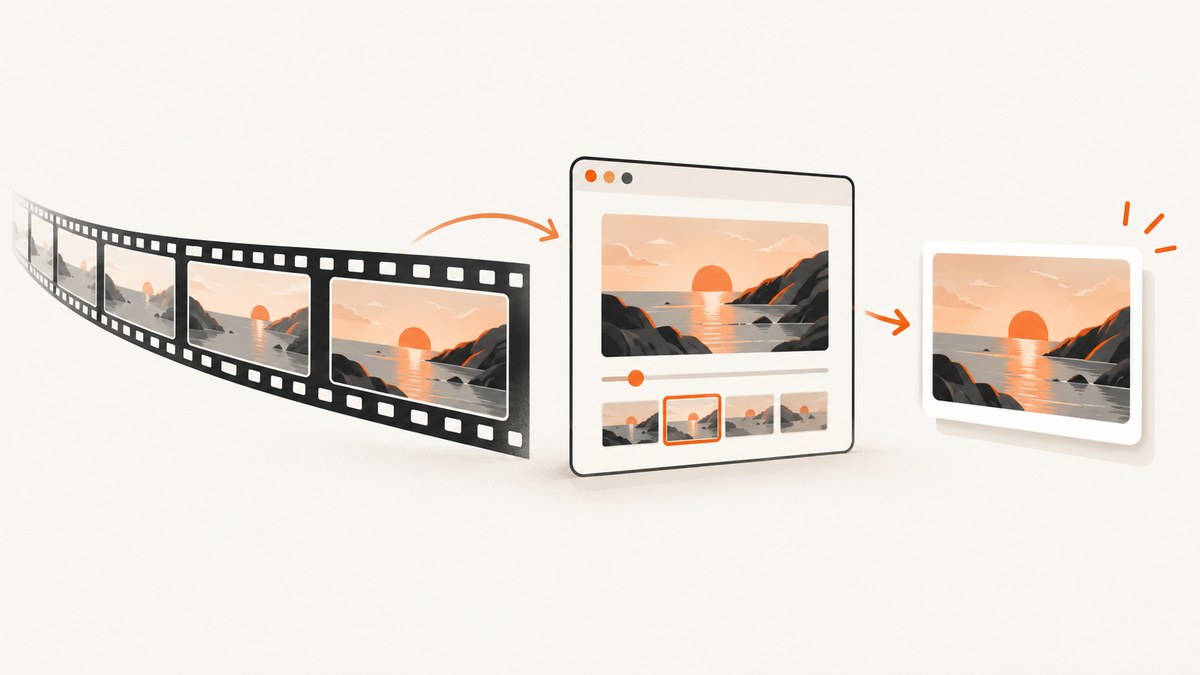
To build a video thumbnail generator in React, let the browser load a video into a <video> element, wait for its metadata, seek to the chosen time, wait for the seek to finish, then draw that frame onto a <canvas>. Export the canvas as an image and expose it as a download. React manages the controls and status; the browser’s media and canvas APIs do the decoding and rendering. React components provide the UI structure, while HTMLMediaElement.currentTime controls the playback position.
This example handles local files, frame selection, aspect-fit or center-crop output, PNG or JPEG export, and common loading and export errors. The file input’s accept value is only a chooser hint; it cannot guarantee that a particular browser can decode a file. See React’s input reference.
1. Create the React component
Use a React app with a browser entry point and render this component. For example, place the code in src/App.jsx in a React project, then render <App /> from its entry file. The component uses refs for direct access to the video and canvas elements, and state for values that should update the visible interface.
import { useEffect, useRef, useState } from 'react';

const OUTPUT_WIDTH = 1280;
const OUTPUT_HEIGHT = 720;

function drawFrame(video, canvas, fit) {
  if (!video || !canvas || video.readyState < 2) {
    throw new Error('The video frame is not ready yet.');
  }

  const sourceWidth = video.videoWidth;
  const sourceHeight = video.videoHeight;
  if (!sourceWidth || !sourceHeight) {
    throw new Error('The browser has not provided video dimensions.');
  }

  canvas.width = OUTPUT_WIDTH;
  canvas.height = OUTPUT_HEIGHT;
  const context = canvas.getContext('2d');
  if (!context) throw new Error('Canvas 2D is unavailable.');

  context.fillStyle = '#111';
  context.fillRect(0, 0, canvas.width, canvas.height);

  const scale = fit === 'cover'
    ? Math.max(canvas.width / sourceWidth, canvas.height / sourceHeight)
    : Math.min(canvas.width / sourceWidth, canvas.height / sourceHeight);
  const drawWidth = sourceWidth * scale;
  const drawHeight = sourceHeight * scale;
  const x = (canvas.width - drawWidth) / 2;
  const y = (canvas.height - drawHeight) / 2;
  context.drawImage(video, x, y, drawWidth, drawHeight);
}

function canvasBlob(canvas, type, quality) {
  return new Promise((resolve, reject) => {
    canvas.toBlob((blob) => {
      if (blob) resolve(blob);
      else reject(new Error('The browser could not encode this image format.'));
    }, type, quality);
  });
}

export default function App() {
  const videoRef = useRef(null);
  const canvasRef = useRef(null);
  const objectUrlRef = useRef(null);
  const [videoUrl, setVideoUrl] = useState('');
  const [duration, setDuration] = useState(0);
  const [time, setTime] = useState(0);
  const [fit, setFit] = useState('contain');
  const [format, setFormat] = useState('image/png');
  const [quality, setQuality] = useState(0.9);
  const [status, setStatus] = useState('Choose a video to begin.');
  const [error, setError] = useState('');
  const [downloadUrl, setDownloadUrl] = useState('');

  useEffect(() => () => {
    if (objectUrlRef.current) URL.revokeObjectURL(objectUrlRef.current);
    if (downloadUrl) URL.revokeObjectURL(downloadUrl);
  }, [downloadUrl]);

  function chooseFile(event) {
    const file = event.target.files?.[0];
    if (!file) return;
    if (objectUrlRef.current) URL.revokeObjectURL(objectUrlRef.current);
    if (downloadUrl) URL.revokeObjectURL(downloadUrl);
    const nextUrl = URL.createObjectURL(file);
    objectUrlRef.current = nextUrl;
    setVideoUrl(nextUrl);
    setDuration(0);
    setTime(0);
    setDownloadUrl('');
    setError('');
    setStatus(`Loading ${file.name}…`);
  }

  function onMetadata() {
    const video = videoRef.current;
    if (!video || !Number.isFinite(video.duration)) {
      setError('This video has no usable finite duration.');
      setStatus('Could not prepare video.');
      return;
    }
    setDuration(video.duration);
    setTime(0);
    setStatus('Video ready. Choose a frame time.');
  }

  function onMediaError() {
    setError('The browser could not load or decode this video. Try another file or browser-supported encoding.');
    setStatus('Video could not be loaded.');
  }

  async function capture() {
    const video = videoRef.current;
    const canvas = canvasRef.current;
    if (!video || !canvas || !duration) return;
    setError('');
    setStatus('Seeking to the selected frame…');
    try {
      const target = Math.max(0, Math.min(Number(time) || 0, duration));
      if (Math.abs(video.currentTime - target) > 0.01) {
        await new Promise((resolve, reject) => {
          const timeout = window.setTimeout(() => {
            cleanup();
            reject(new Error('Seeking took too long. Try a nearby time.'));
          }, 10000);
          const cleanup = () => {
            clearTimeout(timeout);
            video.removeEventListener('seeked', onSeeked);
            video.removeEventListener('error', onError);
          };
          const onSeeked = () => { cleanup(); resolve(); };
          const onError = () => { cleanup(); reject(new Error('The video failed while seeking.')); };
          video.addEventListener('seeked', onSeeked, { once: true });
          video.addEventListener('error', onError, { once: true });
          video.currentTime = target;
        });
      }
      if (video.readyState < 2) {
        await new Promise((resolve, reject) => {
          const timeout = window.setTimeout(() => reject(new Error('Frame data did not become ready.')), 10000);
          video.addEventListener('loadeddata', () => { clearTimeout(timeout); resolve(); }, { once: true });
          video.addEventListener('error', () => { clearTimeout(timeout); reject(new Error('Video frame could not be decoded.')); }, { once: true });
        });
      }
      drawFrame(video, canvas, fit);
      const blob = await canvasBlob(canvas, format, Number(quality));
      if (downloadUrl) URL.revokeObjectURL(downloadUrl);
      const nextUrl = URL.createObjectURL(blob);
      setDownloadUrl(nextUrl);
      setStatus('Thumbnail ready.');
    } catch (err) {
      setError(err instanceof Error ? err.message : 'Thumbnail generation failed.');
      setStatus('Could not generate thumbnail.');
    }
  }

  const maxTime = duration > 0 ? Math.max(0, duration - 0.01) : 0;
  return (
    <main>
      <h1>Video thumbnail generator</h1>
      <label>Choose a video
        <input type="file" accept="video/*" onChange={chooseFile} />
      </label>
      {videoUrl && <video ref={videoRef} src={videoUrl} controls preload="metadata"
        onLoadedMetadata={onMetadata} onError={onMediaError} />}
      {duration > 0 && <section>
        <label htmlFor="frame-time">Frame time: {Number(time).toFixed(2)} seconds</label>
        <input id="frame-time" type="range" min="0" max={maxTime} step="0.01"
          value={Math.min(time, maxTime)} onChange={e => setTime(Number(e.target.value))} />
        <input aria-label="Frame time in seconds" type="number" min="0" max={maxTime}
          step="0.01" value={time} onChange={e => setTime(Number(e.target.value))} />
        <label>Sizing
          <select value={fit} onChange={e => setFit(e.target.value)}>
            <option value="contain">Fit: show the whole frame</option>
            <option value="cover">Crop: fill the thumbnail</option>
          </select>
        </label>
        <label>Format
          <select value={format} onChange={e => setFormat(e.target.value)}>
            <option value="image/png">PNG</option>
            <option value="image/jpeg">JPEG</option>
            <option value="image/webp">WebP</option>
          </select>
        </label>
        {format !== 'image/png' && <label>Quality: {quality}
          <input type="range" min="0.1" max="1" step="0.05" value={quality}
            onChange={e => setQuality(Number(e.target.value))} />
        </label>}
        <button onClick={capture}>Generate thumbnail</button>
      </section>}
      <p role="status">{status}</p>
      {error && <p role="alert">{error}</p>}
      <canvas ref={canvasRef} width={OUTPUT_WIDTH} height={OUTPUT_HEIGHT} />
      {downloadUrl && <p><a href={downloadUrl} download={`thumbnail.${format.split('/')[1]}`}>
        Download thumbnail
      </a></p>}
    </main>
  );
}
The seek handler subscribes before setting currentTime, avoiding a missed fast seeked event. The browser fires loadedmetadata when media metadata is available and loadeddata when the first frame has loaded; seeked signals that a seek completed. See MDN’s loadedmetadata, loadeddata, and seeked references.
2. Understand the capture flow
- Select: the file input returns a local
File;URL.createObjectURLgives the video element a temporary browser-managed URL. - Load metadata: read duration only after
loadedmetadata. Video dimensions are supplied asvideoWidthandvideoHeight. - Choose and seek: the slider and numeric input update React state. Clamp the requested time to the video’s duration and set
currentTime. - Wait and draw: wait for
seeked, then draw the frame to a canvas. The example uses a ten-second timeout to surface stalled media instead of leaving the UI busy indefinitely. - Export:
toBlobencodes the canvas asynchronously, then an object URL backs a normal download link.
The render size is explicitly 1280×720. With contain, the whole source frame remains visible and any unused space is filled dark. With cover, the canvas fills but crops edges. Neither choice distorts the source. Change OUTPUT_WIDTH and OUTPUT_HEIGHT together for another target aspect ratio; high output dimensions do not add detail beyond the decoded source frame.

3. Handle formats, timing, and cleanup
File formats and browser behavior
accept="video/*" helps users find video files, but actual decoding depends on the browser, operating system, codec, container, and file integrity. A familiar extension is not a guarantee. Always keep a visible error state for media load, seek, and encoding failures. Confirm the formats your own target browsers support; this tutorial makes no universal compatibility claim.
A seek may land on a nearby decoded frame rather than a mathematically exact frame, especially with long-GOP video. The video API offers a time position, not a promise that every encoded frame is independently seekable. If exact frame stepping is a product requirement, test representative footage and consider a media processing pipeline designed for frame-accurate extraction.
Object URL lifecycle
Object URLs retain references to their underlying data until revoked. Revoke the prior source URL when the user chooses another file, and revoke generated image URLs when replacing them or unmounting. The example cleans up both. For a production component, you can make this lifecycle easier to reason about by storing URLs in refs and revoking each URL exactly once; avoid revoking the active download URL before a user clicks it.
Output and accessibility
PNG is lossless and appropriate for sharp graphics, but may produce larger files. JPEG is lossy and usually suits photographic frames; its quality value is a hint in the range from zero to one. WebP may encode compactly where supported. Browsers can fall back or return an unexpected encoding, so inspect the resulting blob type and test the outputs you promise. Provide a meaningful label for each input, an alert for errors, and a status region for progress. Keep keyboard access to the range control and download link.
4. Local videos versus remote video URLs
The example intentionally starts with local files. A remote URL adds network, authorization, and cross-origin behavior. For a video from another origin, setting crossOrigin="anonymous" can request CORS access, but the media server must return suitable CORS headers. Without permission, drawing cross-origin media can taint the canvas, and reading or exporting its pixels can fail. MDN documents this restriction for crossorigin media.
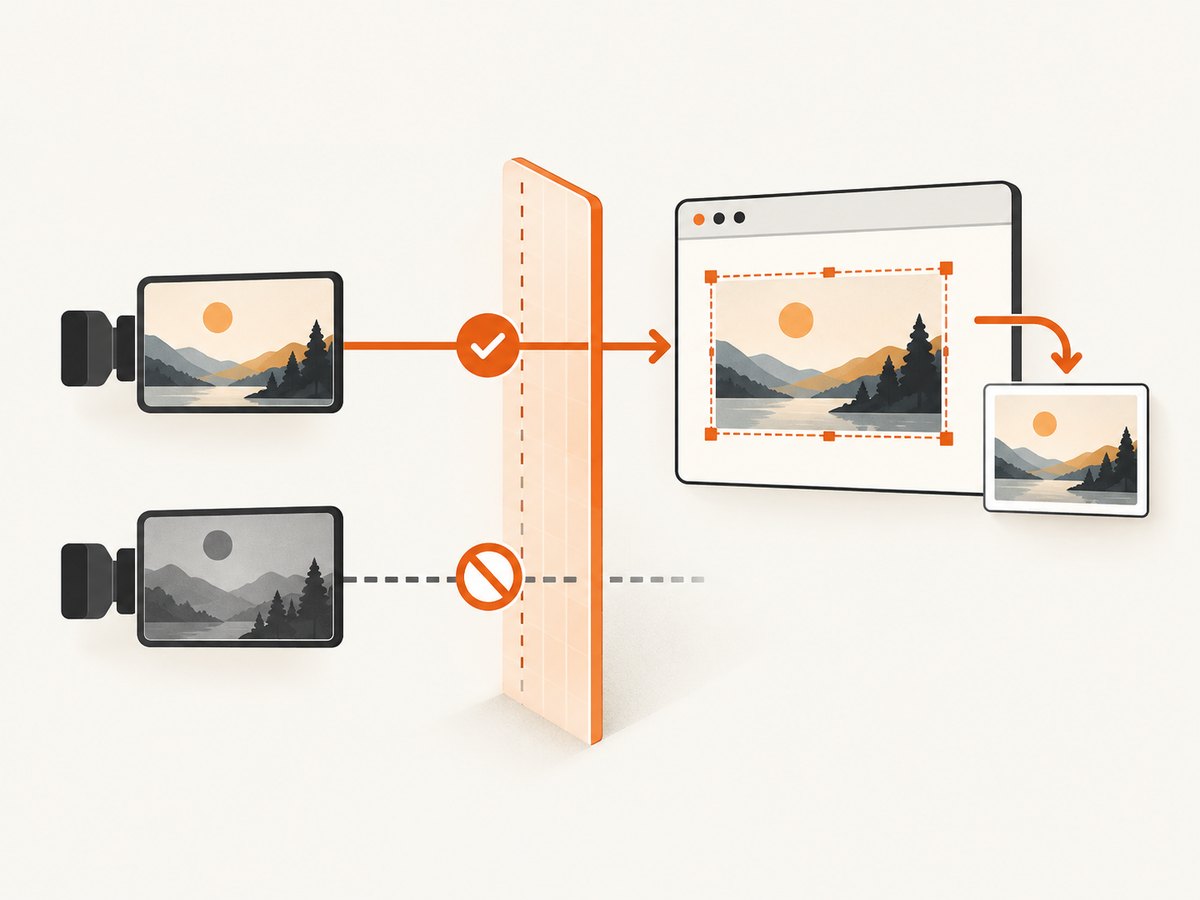
Do not promise that any public video URL can be captured: many sites block direct media access, require signed URLs, or serve a page instead of a video file. If you add URL input, validate protocol and response behavior, handle network errors, and set a reasonable timeout. Avoid accepting arbitrary URLs on a server endpoint without protections against server-side request forgery. A local-file workflow avoids the remote-host CORS requirement, though decoding and browser resource limits still apply.
5. Troubleshooting
| Symptom | Likely cause | What to do |
|---|---|---|
| Video never becomes ready | Unsupported encoding, corrupt file, or metadata load failure | Show the media error, try a known browser-playable file, and verify the target browser and codec combination. |
Duration is NaN or infinite |
Metadata is not ready or media is a live/indefinite stream | Wait for loadedmetadata; reject non-finite duration for this finite-file workflow. |
| Thumbnail is black | Capture ran before frame data arrived, or the selected timestamp has no decoded frame yet | Wait for seek completion and readyState at least HAVE_CURRENT_DATA (numeric value 2); surface the timeout. |
| Slider fails at the end | Seeking exactly to duration may target beyond the final frame | Clamp to just before duration, as the sample does, and test very short clips. |
| Canvas export throws a security error | Remote media tainted the canvas through missing CORS permission | Use a local file or configure the media server for CORS; JavaScript cannot override another server’s policy. |
| JPEG or WebP download fails | Encoder unavailable, unsupported MIME type, or null blob result | Handle a null callback, try PNG, and verify actual blob type on target browsers. |
| Memory grows after repeated captures | Old object URLs or large canvas buffers remain referenced | Revoke replaced URLs, avoid retaining large blobs, and reduce output dimensions when appropriate. |
| Rapid time changes create stale previews | Multiple asynchronous seeks overlap | Disable capture while seeking, serialize requests, or use a request identifier so outdated completions cannot replace the newest result. |
6. Performance, reliability, and cost
Everything in this local-file example runs in the browser. It does not upload the selected file to an application server; the code creates local object URLs and canvas output. The application’s hosting and bandwidth still have costs, and client devices do the decoding work. Do not infer a privacy guarantee beyond the behavior of your own app and hosting setup.
Decoding can use substantial memory, particularly for large source dimensions or long videos. Keep one active video, use preload="metadata" so the browser need not eagerly fetch the whole file, use toBlob instead of a base64 data URL for export, and cap output dimensions if users can supply very large files. Canvas memory is roughly proportional to width × height × four bytes before encoder overhead. This is a sizing estimate, not a benchmark. Test on the low-powered devices your users rely on.
For repeated captures, reuse the canvas rather than creating one per frame, debounce slider-driven auto-capture, and avoid updating React state for every decoded video frame unless the UI needs it. If users need batch processing, server-side extraction, exact frame accuracy, or consistent output across clients, define those requirements separately and choose an appropriate media processing service or pipeline. This browser example has no per-capture API charge; operational cost comes from your app’s delivery and users’ local device resources.
7. Or skip the browser setup
ScreenshotNeo is a website screenshot API and MCP server from ScreenshotNeo. It captures web pages; it does not extract a selected frame from a video file, so use the React canvas workflow above for video thumbnails. If your thumbnail is for a web page, one request returns an image or PDF. See the ScreenshotNeo API docs.
curl -G "https://api.screenshotneo.com/v1/shot" -d access_key=YOUR_API_KEY --data-urlencode url=https://stripe.com -o shot.webp

import requests
r = requests.get("https://api.screenshotneo.com/v1/shot", params={"access_key": "YOUR_API_KEY", "url": "https://stripe.com"}, timeout=90)
open("shot.webp", "wb").write(r.content)

const q = new URLSearchParams({ access_key: 'YOUR_API_KEY', url: 'https://stripe.com' });
const res = await fetch(`https://api.screenshotneo.com/v1/shot?${q}`);
Cookie and consent banners are accepted and removed before capture, along with 60+ known consent platforms, newsletter popups, and chat widgets; each step can be turned off. Bot checks, blank pages, timeouts, failed loads, and cache hits cost nothing, and the response identifies page verdict and billing in headers. An MCP server gives Claude, Cursor, and other MCP clients the tools take_screenshot, get_page_info, and capture_pdf. The free plan includes 1,000 shots a month with no card; paid plans start at $5 for 3,000 shots. All features are on every plan. Sign up for 1,000 free screenshots a month, no card required.
8. Frequently asked questions
Can React extract a video frame by itself?
No. React renders the interface and state. The browser’s video element decodes media, and canvas draws and exports the frame.
Can I generate the thumbnail automatically when the slider moves?
Yes. Debounce updates and serialize seeks so fast slider movement does not queue expensive captures or let an older result overwrite the latest selection.
Why does the downloaded thumbnail have black bars?
The default contain fit preserves the entire source image in a different aspect ratio. Choose cover to fill the output by cropping the edges, or set canvas dimensions to the source aspect ratio.
Does this preserve video audio?
No. The output is a still image generated from the visual frame; audio is not part of the canvas image.
References
- React: Your First Component and React input reference.
- MDN: currentTime, loadedmetadata, loadeddata, seeked, and crossorigin.


