How to View Full-Page Screenshots on an iPhone
Capture an entire webpage on iPhone, inspect it, and save it as a PDF or image—even when the Full Page option is missing.
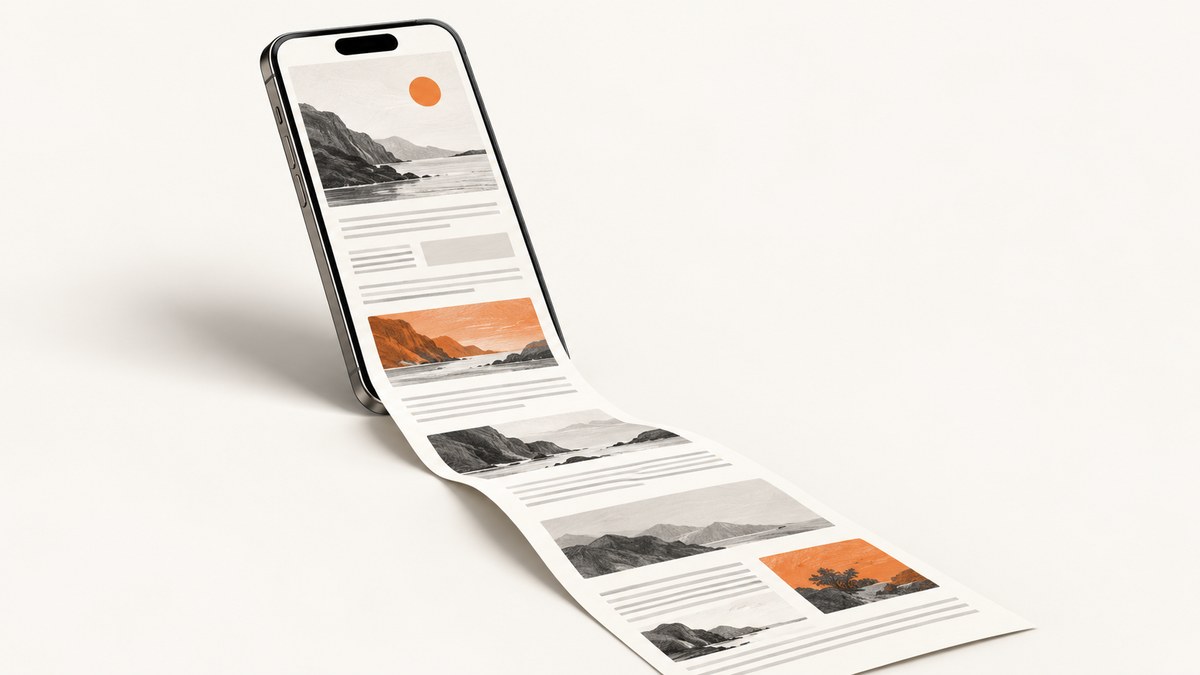
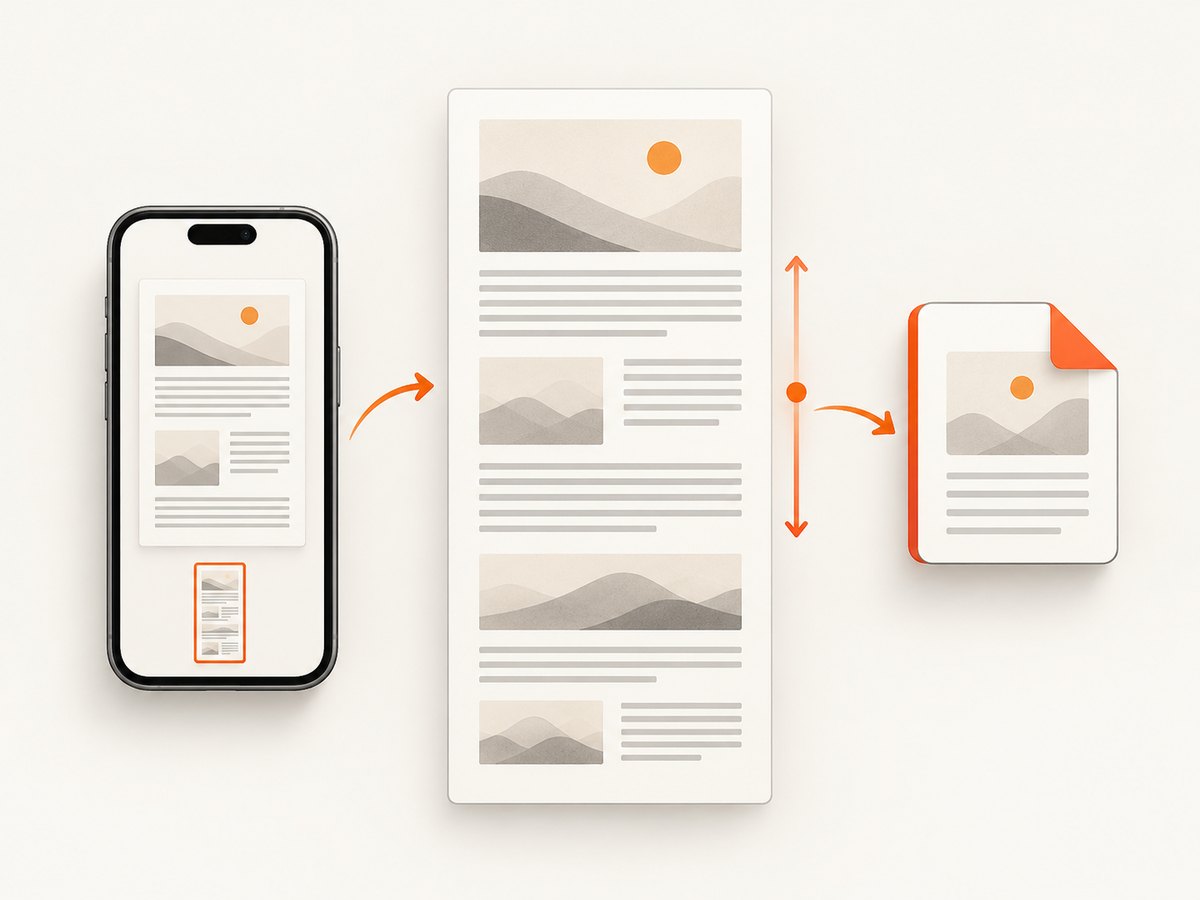
To view a full-page screenshot on an iPhone, open the long webpage or document, take a normal screenshot, tap its preview, select Full Page, inspect the extended capture, and save it. In Safari, the dependable export is Save PDF to Files. On newer iOS releases, some supported long-form content also offers Save to Photos, which creates an image.
The Full Page control appears in the screenshot editor only for supported scrollable content. Safari webpages are Apple’s standard example. If the tab is missing, first confirm that you opened the screenshot preview and that the content extends beyond one screen.
1. Take a normal screenshot first
The full-page workflow always starts with an ordinary screenshot.
iPhone models with Face ID
- Open the webpage, email, document, or other content you want to capture.
- Press and quickly release the Side button and Volume Up button together.
- Tap the thumbnail that appears in the lower-left corner before it disappears.
iPhone models with a Home button
- Open the content.
- Press and quickly release the Home and Side (or Top) buttons together.
- Tap the screenshot thumbnail.
Apple also documents Siri, AssistiveTouch, and Back Tap as alternatives for initiating a screenshot. These methods still open the same editing interface, so they can be useful if a physical button is difficult to press. See Apple’s screenshot support documentation for model-specific details.
2. Select Full Page and inspect the entire capture
- With the screenshot preview open, look near the top of the editor for Screen and Full Page.
- Tap Full Page. The preview changes from the visible screen to the complete scrollable page.
- Drag the page preview or use the scroll bar at the right to inspect sections below the original viewport.
- Use Crop if you only need part of the page.
- Use Markup to draw, highlight, add text, or place a signature.
Apple describes this feature as capturing content beyond the edge of the screen, with an entire Safari webpage as the canonical example. The result is not a stitched collection of separate screenshots that you must align manually; iOS creates one long capture in the supported editor.
3. Save the result as a PDF or image
Save a Safari full-page screenshot as a PDF
- After selecting Full Page, tap the Share button.
- Choose Save PDF to Files.
- Pick a location in iCloud Drive, On My iPhone, or another enabled Files provider.
- Change the filename if needed and tap Save.
This is the most consistent built-in route for a complete Safari webpage. The PDF preserves the long vertical document better than sending a series of screen-sized images.
Save a long-form capture to Photos
On newer iOS versions, the share sheet may include Save to Photos for long-form web articles and other supported scrollable content. That creates an image in Photos. The exact button name and destination depend on the iOS release and the app providing the content, so do not assume every iPhone shows the same options. If you need a reliable archive, choose Save PDF to Files when it is available.
| Goal | Use | Result |
|---|---|---|
| Archive a whole webpage | Share → Save PDF to Files | One PDF in Files |
| Keep a long article with photos | Save to Photos (if shown) | One long image in Photos |
| Send a marked-up excerpt | Crop, Markup, then Share | A shortened annotated capture |
4. Why Full Page may be missing
The tab is not a universal screenshot mode. It appears for supported content that extends beyond the iPhone display. Safari webpages are the clearest supported case, but another app may expose only the visible-screen screenshot.
- You did not open the editor: Tap the screenshot thumbnail immediately after capture. The Full Page tab is inside that editor, not on the lock screen or in Photos.
- The content fits on one screen: Scrollable content is required. Try a longer page.
- The app does not provide a full-page document: Some apps restrict capture or expose only the current viewport. Test the same URL in Safari.
- You captured the wrong layer: A share sheet, modal, or reader overlay may be the captured surface. Close it and take the screenshot again.
- The page has not finished loading: Wait for the main content and images to appear, then capture again.
If Full Page is still absent after those checks, use ordinary screenshots and assemble them manually, export the page from the app if it has a print or PDF command, or use a third-party capture tool. These are fallbacks; they are not required for the built-in Safari workflow.
5. Crop, mark up, and share a useful capture
A full-page capture can be much taller than the screen. Before saving, decide what the recipient needs.
- Crop unnecessary sections. Remove navigation, cookie notices, or unrelated comments before sharing.
- Mark the important area. Use the pen, highlighter, shapes, or text tools to point to a heading, error, or value.
- Check the bottom of the page. Long captures can include footer links or repeated elements that you did not intend to publish.
- Choose the destination deliberately. Files is easier to organize for PDFs; Photos is convenient for image-based sharing.
- Verify readability. Zoom into small text before sending. A very tall image may be difficult to read in a messaging app.
6. Troubleshooting checklist
| Symptom | Likely cause | Fix |
|---|---|---|
| No screenshot thumbnail | The buttons were held too long or pressed sequentially. | Press and release the required buttons together quickly. Try AssistiveTouch or Siri if necessary. |
| No Full Page tab | The editor is closed, the content is short, or the app does not support long captures. | Tap the thumbnail, open a longer Safari page, and test again. |
| Only the visible screen is saved | You chose Screen instead of Full Page. | Reopen the preview and select Full Page before sharing. |
| The PDF is missing images | Images were lazy-loaded or the page had not finished rendering. | Scroll through the page first, wait for images to load, then capture again. |
| The capture includes a consent banner | The page displayed the banner at capture time. | Accept or dismiss the banner before taking the screenshot, then recapture. |
| The file cannot be found | It was saved to a different Files provider or folder. | Open Files, use Browse and Recents, and check iCloud Drive, On My iPhone, and third-party providers. |
| The long image is hard to read | The recipient’s app scales a tall image down. | Crop into sections, use a PDF, or share the original file instead of a preview. |
7. Manual alternatives when native capture does not work
Assemble ordinary screenshots
Take overlapping screenshots while scrolling, then combine them in an image editor or document app. Keep a small overlap between captures so you can align repeated text and images. This method works in apps that do not expose Full Page, but it takes longer and can introduce seams or duplicated content.
Print or export from the app
Look for Share, Print, Export, or a document menu. Safari and many document readers can create a PDF directly, which may preserve selectable text better than a screenshot. Use this route when you need accessibility, searchable text, or a compact file.
Capture from a computer or service
If you need the same URL repeatedly, an automated browser or screenshot API is easier to reproduce than a manual phone workflow. It also lets you set a viewport, wait for dynamic content, and save a consistent file format.
8. Or skip the browser setup
ScreenshotNeo returns a website screenshot or PDF from one GET request. It can capture a full page with lazy images loaded, a specific element by CSS selector, a chosen device or viewport, dark mode, custom CSS and JavaScript, and more. Cookie and consent banners are accepted and 60+ known consent platforms, newsletter popups, and chat widgets are removed before capture; each step can be turned off.
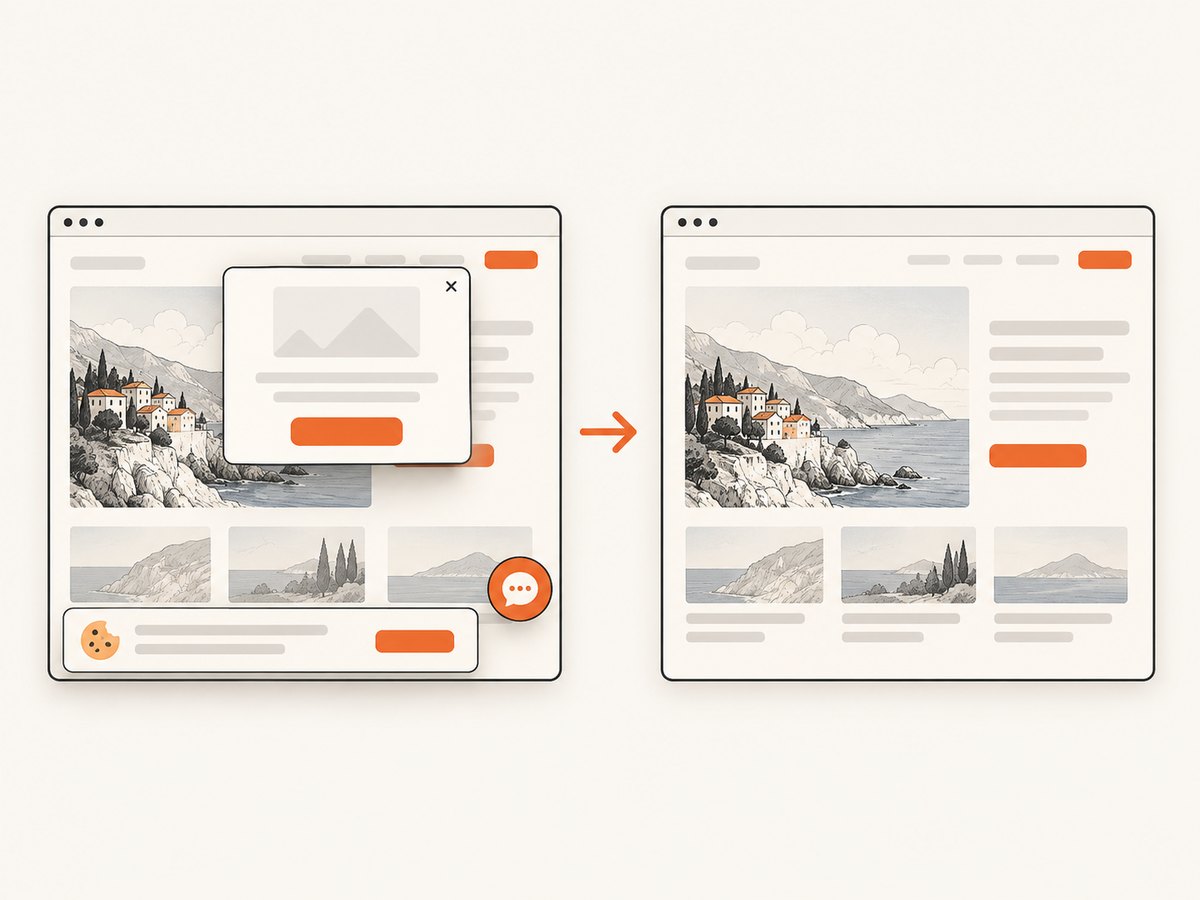
Only clean shots are billed. Bot checks or CAPTCHAs, blank pages, timeouts, failed loads, and cache hits cost nothing, and the response identifies the result with X-Page-Verdict and X-Billed headers. ScreenshotNeo also provides an MCP server with take_screenshot, get_page_info, and capture_pdf tools for Claude, Cursor, and other MCP clients.
See the ScreenshotNeo documentation for the complete option list. The basic request is:
cURL
curl -G "https://api.screenshotneo.com/v1/shot" -d access_key=YOUR_API_KEY --data-urlencode url=https://stripe.com -o shot.webpPython
import requests
r = requests.get("https://api.screenshotneo.com/v1/shot", params={"access_key": "YOUR_API_KEY", "url": "https://stripe.com"}, timeout=90)
open("shot.webp", "wb").write(r.content)
Node.js
const q = new URLSearchParams({ access_key: 'YOUR_API_KEY', url: 'https://stripe.com' });
const res = await fetch(`https://api.screenshotneo.com/v1/shot?${q}`);
Use the URL of the page you want to capture in place of https://stripe.com. You can request PNG, JPEG, WebP, or PDF and configure full-page capture, waits, selectors, headers, cookies, user agent, timezone, geolocation, request blocking, caching, resizing, signed links, asynchronous jobs, webhooks, and bulk capture of up to 100 URLs per call.
Plans include 1,000 screenshots per month free with no card. Paid plans start at $5 for 3,000 shots; yearly billing gives two months free, and every feature is available on every plan. Create a free ScreenshotNeo account to start.
9. Performance, reliability, and cost notes
- iPhone capture: It is immediate for a loaded page, but very long pages can take time to render and save. Keep the phone awake until the share or save operation finishes.
- Dynamic pages: Ads, consent dialogs, lazy images, and animations can change between captures. Scroll first or wait for the page to settle.
- File size: A long image may be large and awkward to transmit. PDF or cropped sections are often more practical for sharing.
- Repeatability: Manual captures depend on the current iOS version, app, viewport, login state, and page state. An API can standardize those inputs with device presets, custom viewports, waits, cookies, and headers.
- Billing: ScreenshotNeo bills only clean shots. Failed loads, blank pages, bot checks, timeouts, and cache hits are not billed, with the verdict exposed in response headers.
10. FAQ
Can I save a full-page screenshot directly to Photos?
Sometimes. Newer iOS versions may show Save to Photos for supported long-form content. If it is not offered, save a PDF to Files or use the app’s own export command.
Does Full Page work in every iPhone app?
No. Apple documents it primarily for content such as Safari webpages. Each app decides what its screenshot editor can capture.
Is a full-page screenshot always an image?
No. Save PDF to Files creates a PDF. Save to Photos, when available, creates an image. Check the destination action before saving.
Why is my screenshot only one screen tall?
You likely saved the Screen tab instead of Full Page, or the app did not provide a supported long capture. Reopen the preview and test the same content in Safari.
Can I capture a webpage without using an iPhone?
Yes. ScreenshotNeo can return a full-page image or PDF from a URL and supports waits, selectors, device settings, custom headers, cookies, and other capture controls. Its free plan includes 1,000 shots per month with no card.


