How to View a Full-Page Screenshot
Capture an entire scrolling webpage in Firefox or Chrome, then learn what to check when long or dynamic pages render differently.
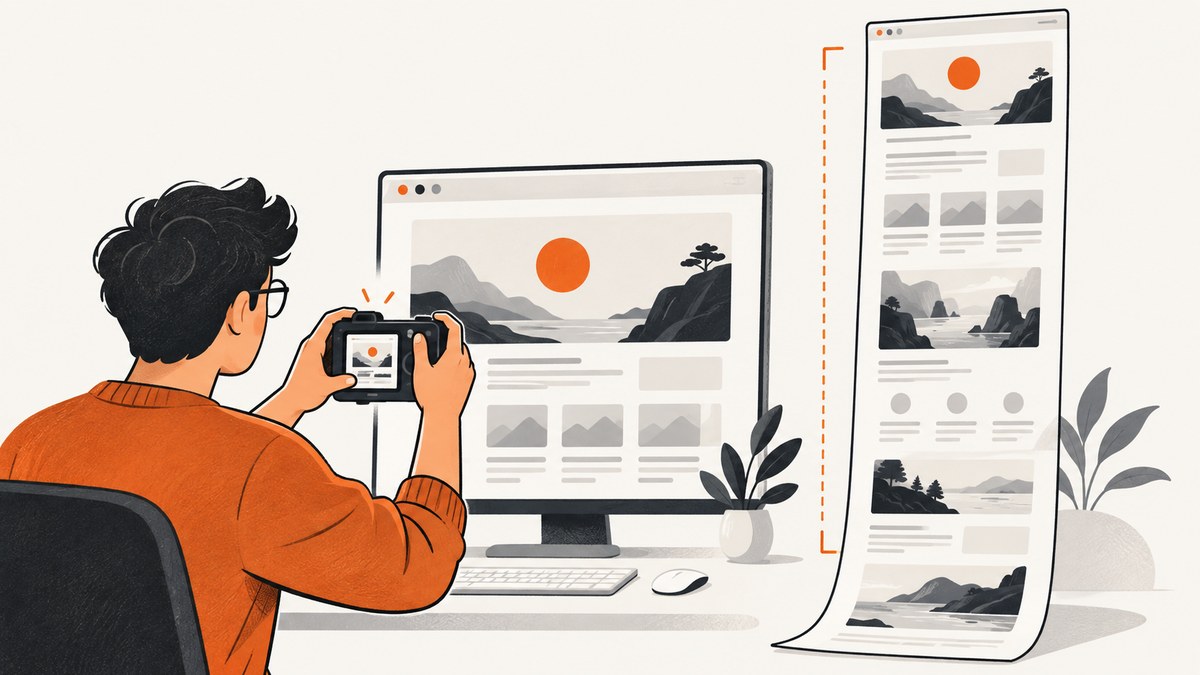
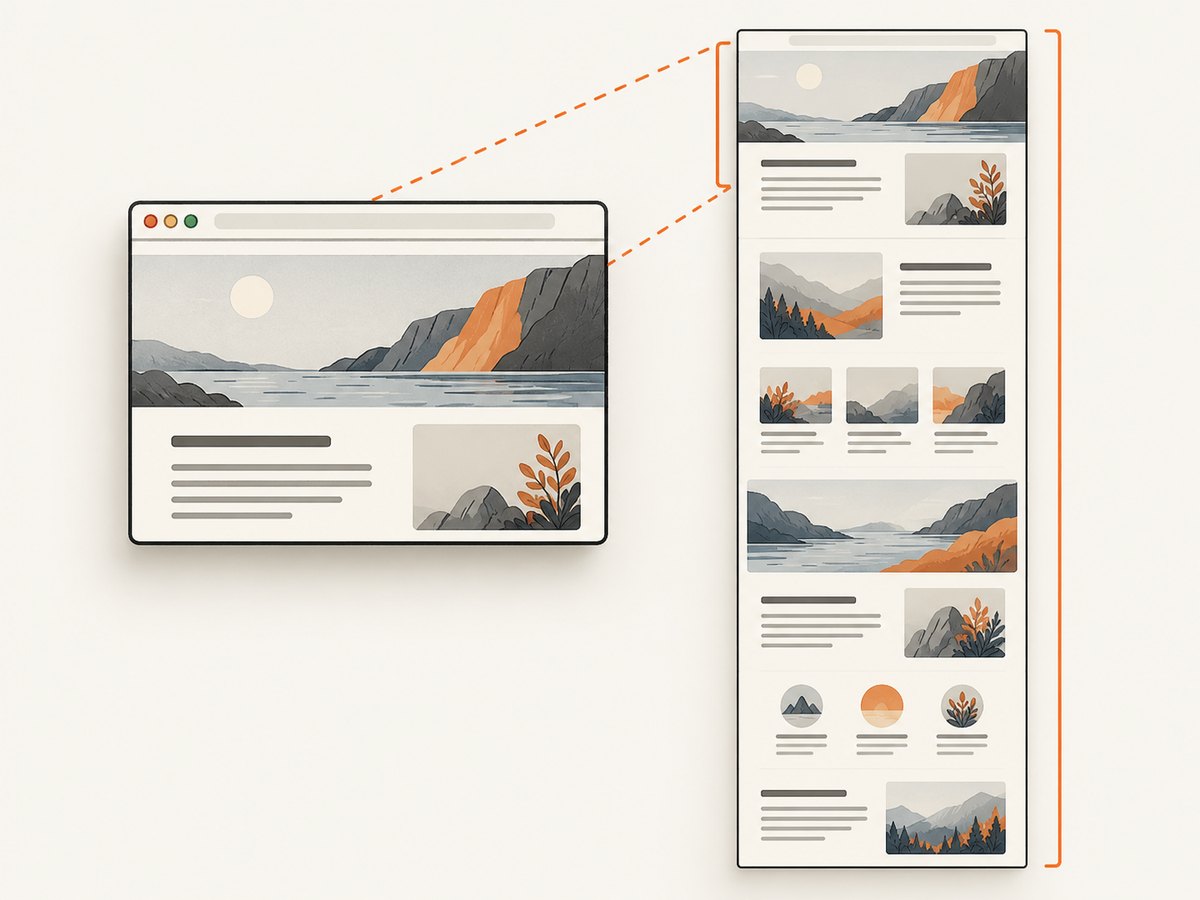
A full-page screenshot captures content below and beyond the part of a webpage currently visible in your browser. In Firefox, right-click an empty area and choose Take Screenshot, then select Save full page. In Chrome, open DevTools, use its screenshot controls, and choose Capture a full size screenshot. These options capture the full document; ordinary screenshot commands capture only the viewport.
This guide covers both browser workflows, Firefox’s console and DevTools alternatives, how to check the result, and what can affect long or dynamic pages.
1. Choose full page or visible area
A visible-area capture records what is on screen now. A full-page capture includes page content outside the current viewport, usually by producing a taller image. Choose full page when you need to review, share, or archive a whole scrolling document. Choose visible area when you only need the current screen.
| Method | Browser | Capture | Useful when |
|---|---|---|---|
| Take Screenshot menu | Firefox desktop | Full page or visible area | You want the shortest point-and-click workflow |
| Capture a full size screenshot | Chrome desktop | Full page | You already use Chrome DevTools |
| Screenshot toolbar button | Firefox DevTools | Entire page | The context-menu option is unavailable |
:screenshot command |
Firefox | Full page when given --fullpage |
You want a named PNG file or a console workflow |
2. Capture the full page in Firefox
- Open the webpage you want to capture and wait for the part you need to appear.
- Right-click an empty area of the page. On macOS, Control-click.
- Choose Take Screenshot.
- In the capture controls at the upper right, choose Save full page.
- Save or copy the resulting image using Firefox’s capture controls.
Firefox also offers Save visible for just the current viewport. If the menu item does not appear, use the Firefox DevTools fallback below. Mozilla documents this browser workflow in its Firefox Screenshots instructions.
Use the Firefox keyboard shortcut
Open the screenshot interface with Ctrl+Shift+S on Windows or Linux, or Command+Shift+S on macOS. Select Save full page, then save or copy the capture. If a page or browser configuration intercepts the shortcut, use the context menu instead.
3. Capture the full page in Chrome
- Open the target page in Chrome.
- Open DevTools. For example, use the browser menu’s More tools and then Developer tools.
- Open device mode if needed, then open the DevTools more-options menu and its screenshot controls.
- Choose Capture a full size screenshot.
- Wait for Chrome to save the image, then open it from the browser’s download location.
Pick Capture a full size screenshot, not Capture screenshot. The latter captures only the visible viewport. Chrome documents these commands in its DevTools device mode guide.
4. Firefox alternatives: DevTools and Web Console
Enable the screenshot toolbar button
If the screenshot control is missing from Firefox DevTools, open DevTools Settings. Under Available Toolbox Buttons, enable Take a screenshot of the entire page. The screenshot button will appear in the toolbar. Select it to save a capture to the browser’s Downloads directory. See Mozilla’s Developer Tools screenshot documentation.
Run the full-page command
Firefox’s Web Console accepts a screenshot command with a filename and the --fullpage option:
:screenshot full-page.png --fullpageOpen the Web Console, enter the command, and press Enter. The filename ending in .png makes the intended image format explicit; --fullpage requests the entire page instead of the visible section. Mozilla documents the command in its Web Console screenshot command reference.
5. Check the capture before sharing it
- Open the saved file. Confirm it is an image and that it opens successfully.
- Inspect the top and bottom. Verify the header and final content are present.
- Check important middle sections. A long image can look complete at a glance while still missing a section or showing a loading placeholder.
- Look for overlays and fixed elements. Consent banners, chat widgets, sticky headers, or dialogs may cover page content.
- Compare with the live page. If an image, chart, or embedded section is missing, let it load and capture again.
Full-page capture is a browser feature, not a guarantee that every website will render identically in one image. Mozilla’s documentation describes how to request a full-page capture; it does not promise identical output for every page structure.
6. Dynamic content, lazy loading, and long pages
Some pages render content only after it approaches the viewport, after a delay, or after a user action. A full-page capture may therefore contain placeholders or omit content that was never loaded. Before capturing, scroll through the page once if needed, wait for visible loading indicators to finish, and make sure the content you care about is present.
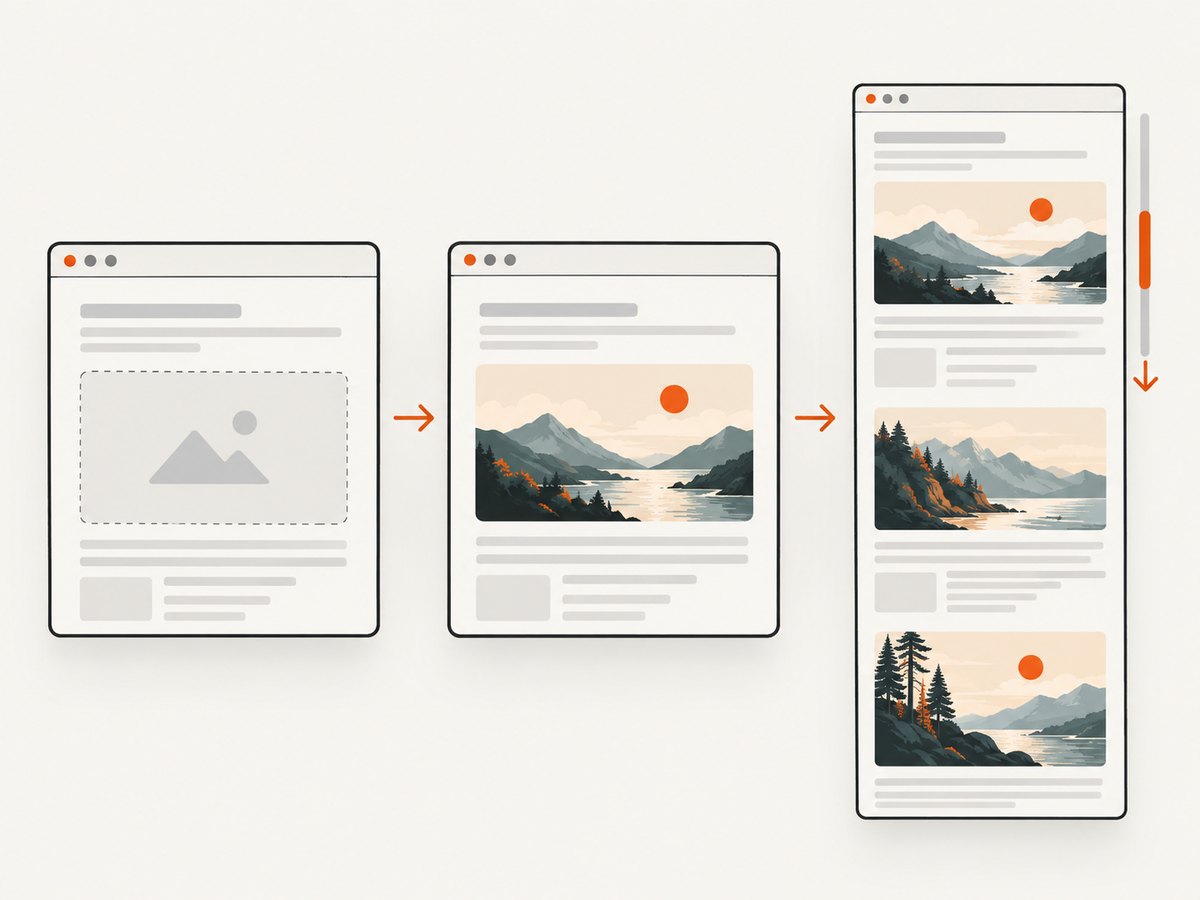
Sticky navigation and fixed-position banners can also affect what appears in a tall image. Embedded or cross-origin content may have its own loading behavior or restrictions. If the result is inconsistent, capture after the page settles, try the other browser’s full-page option, or capture the relevant visible sections separately.
Very long pages naturally produce large image files. If you only need one section, a full-page image may be awkward to inspect and share; use the browser’s visible capture for a screen-sized view, or take separate captures at meaningful scroll positions.
7. Troubleshooting
| Problem | Likely cause | What to do |
|---|---|---|
| The screenshot stops at the viewport | You chose the ordinary visible screenshot command. | In Firefox choose Save full page; in Chrome choose Capture a full size screenshot. |
| Firefox has no Take Screenshot menu item | The menu workflow is unavailable in your current setup. | Enable the entire-page screenshot button in DevTools Settings, or use the Web Console command with --fullpage. |
| The shortcut does nothing | The browser, operating system, or another application may handle the key combination. | Use Firefox’s context menu or open its screenshot command through the browser UI. |
| Images or sections are blank | Content may be lazy-loaded, still loading, or supplied by an embedded frame. | Wait for the page to settle; scroll through it to trigger lazy content, then capture again. Check the live page for the same content. |
| A banner covers part of the page | A consent prompt, sticky header, or fixed widget is visible during capture. | Dismiss it if appropriate, then capture again. If it cannot be dismissed, try a different viewport or capture method. |
| The output is unexpectedly tall or difficult to read | The whole document is included, including content you may not need. | Use a visible capture or separate captures focused on the sections you need. |
| The image is not where expected | The browser saved it to its normal download location or presented save/copy controls. | Check the browser’s Downloads list or the folder configured for downloads; use the capture controls to save explicitly. |
8. Automate website screenshots with an API
For a one-off capture, the browser controls above are usually enough. For repeatable captures in a script, scheduled job, or application, a screenshot API avoids setting up and maintaining a browser for each run. ScreenshotNeo takes a URL in one GET request and returns an image or PDF; its API supports full-page capture and lazy-image loading. See the ScreenshotNeo API documentation for request options.
Or skip the browser setup
Send one request with your API key and target URL. This example saves a full-page WebP screenshot; provide the full-page option as documented for the API:
curl -G "https://api.screenshotneo.com/v1/shot" \
  -d access_key=YOUR_API_KEY \
  --data-urlencode url=https://stripe.com \
  -d full_page=true \
  -o shot.webp
ScreenshotNeo accepts cookie and consent banners like a visitor, then removes 60+ known consent platforms, newsletter popups, and chat widgets before capture; each step can be turned off. Bot checks and CAPTCHAs, blank pages, timeouts, failed loads, and cache hits cost nothing, and response headers report the page verdict and billing status. Its MCP server gives AI agents tools to take screenshots, get page information, and capture PDFs. The Free plan includes 1,000 shots a month with no card; paid plans start at $5 for 3,000 shots. Every feature is available on every plan.
Create a free ScreenshotNeo account to get 1,000 screenshots a month with no card.
9. cURL, Python, and Node.js request examples
These examples show the documented base request. Add the API’s full-page option as described in the API docs when you need the entire scrolling document. Keep your access key private; do not put it in client-side code that you publish.
cURL
curl -G "https://api.screenshotneo.com/v1/shot" \
  -d access_key=YOUR_API_KEY \
  --data-urlencode url=https://stripe.com \
  -o shot.webp
Python
import requests

r = requests.get(
    "https://api.screenshotneo.com/v1/shot",
    params={"access_key": "YOUR_API_KEY", "url": "https://stripe.com"},
    timeout=90,
)
r.raise_for_status()
with open("shot.webp", "wb") as image:
    image.write(r.content)
Node.js
const q = new URLSearchParams({
  access_key: 'YOUR_API_KEY',
  url: 'https://stripe.com'
});
const res = await fetch(`https://api.screenshotneo.com/v1/shot?${q}`);
if (!res.ok) throw new Error(`Screenshot request failed: ${res.status}`);
const bytes = new Uint8Array(await res.arrayBuffer());
await import('node:fs/promises').then(fs => fs.writeFile('shot.webp', bytes));
10. Performance, reliability, and cost
Browser workflow: no API account or code is needed, making Firefox and Chrome convenient for manual captures. The result depends on the page’s current state, including whether dynamic content has loaded. For long pages, allow the browser time to produce and save the full image.
API workflow: script repeated requests, set capture options, and handle image bytes in your application. Use a request timeout appropriate to your job and check the response before treating its body as an image. ScreenshotNeo offers configurable waits, caching with a chosen TTL, asynchronous jobs with signed webhooks, bulk capture up to 100 URLs per call, and a usage API. These options can help fit larger workflows; choose them based on how fresh the page must be and how your application handles delays.
Cost: manual browser screenshots do not require a screenshot API plan. ScreenshotNeo’s Free plan provides 1,000 shots per month without a card. Paid plans are Starter $5 for 3,000, Growth $15 for 15,000, Pro $39 for 60,000, Scale $99 for 250,000, and Business $249 for 1,000,000; yearly billing gives two months free. Only clean shots are billed, while bot checks, blank pages, timeouts, failed loads, and cache hits cost nothing. Review the docs for supported parameters and response details before integrating.
11. Frequently asked questions
Does a full-page screenshot include content below the fold?
Yes. That is the distinction from a visible screenshot, which records only the current viewport.
Can I take a full-page screenshot without installing an extension?
Yes. Firefox and Chrome include browser-native workflows described above.
Why does a full-page capture differ from what I see while scrolling?
Lazy-loaded images, dynamic content, sticky elements, and embedded content can behave differently during capture. Let the page settle, scroll to trigger loading where needed, and inspect the saved image.
Can I capture just one element instead of the whole document?
Firefox’s developer tools also support screenshots of a single element. ScreenshotNeo’s API supports targeting an element with a CSS selector when that is more useful than a full-page image.


