How to View HTML-to-JPG Conversion Results
Open the downloaded JPG in your device’s image viewer, then check the rendered page separately if you need to verify what the browser captured.
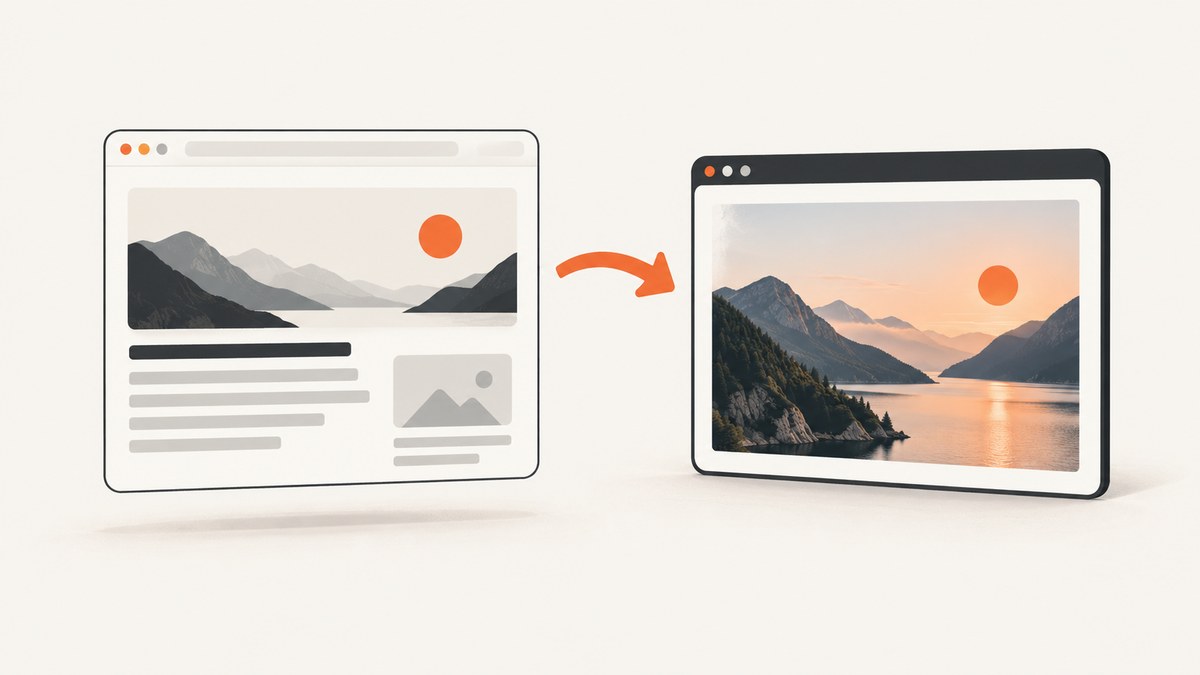
If your HTML-to-JPG converter finished, find the downloaded .jpg or .jpeg and open it with your device’s image viewer. Then inspect the image for missing content, clipping, or unexpected blank areas. If you need to check what the page looked like after JavaScript and other resources loaded, inspect a rendered browser preview or screenshot too: the downloaded image and the rendered page are different things.
One important detail: the title of a converter or your chosen setting does not guarantee that its output is actually a JPEG. Check the converter’s format setting and the downloaded file. The filename suffix is a useful quick clue, but by itself it does not prove what format the file’s bytes contain.
1. Find and open the downloaded result
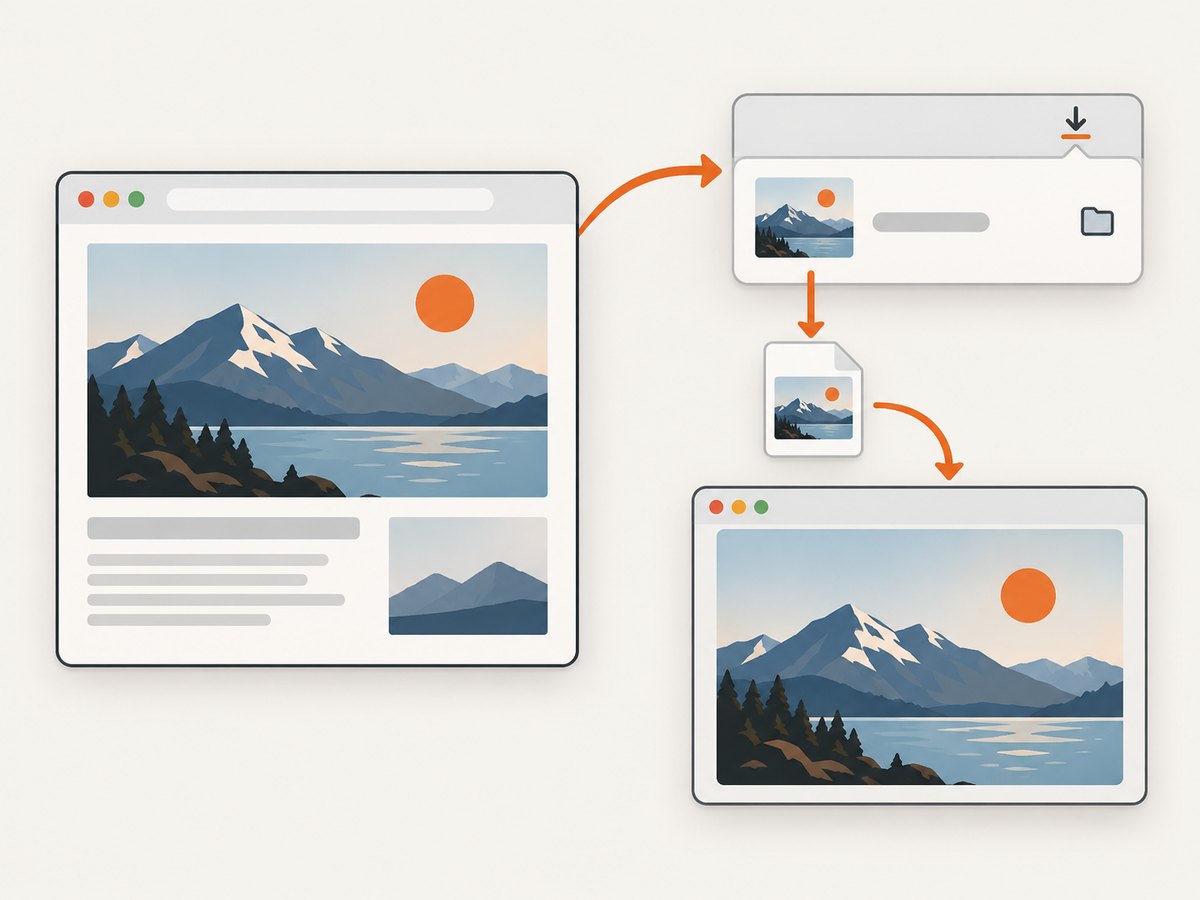
- Find the file. Check your browser’s Downloads list, then open the containing folder or use your device’s file manager. Look for the name you chose or the most recently downloaded image.
- Check the suffix. A JPEG commonly has a
.jpgor.jpegfilename extension. If the converter offers a format selector, confirm that JPEG was selected. Some tools use PNG by default or may not offer JPEG output. - Open it with the built-in image viewer. On a Chromebook, the supported image types include JPG and JPEG. On a Mac, open the image in Preview. On other operating systems, use the image app already associated with image files, or choose an installed image viewer from the file’s open-with menu.
- Zoom in and inspect the whole image. Confirm that the expected page content appears, edges are not cut off, and small text or fine lines are legible enough for your use. JPEG compression is lossy, so diagrams, charts, and sharp text can be less satisfactory than photographs.
- Compare with a preview if available. A converter’s in-page preview may use different dimensions, timing, or output settings from the downloaded file. Compare them, but allow for differences if the settings differ.
Chromebook’s file support documentation lists .jpg and .jpeg as image types it supports, and Apple documents opening images in Preview and exporting images as JPEG. The exact default viewer and menu names vary by device and operating system.
2. Decide what “the result” means
There are two useful things you might want to inspect:
- The saved JPG: Open the downloaded file in an image viewer. This verifies that you can view the delivered image and lets you inspect its visible content.
- The rendered page: View the page after the browser has processed its HTML, JavaScript, styles, and resources. Use a browser preview or screenshot when your question is whether the page rendered correctly before or during conversion.
Viewing source HTML is not the same as viewing the final rendered state. A page can change after scripts run or resources load. Google Search Central documents ways to inspect rendered HTML and a successful live URL test can show a rendered-page screenshot. Cloudflare’s screenshot endpoint likewise describes processing HTML and JavaScript before capturing the rendered page.
A quick visual check is often enough for a one-off result. For debugging, inspect both the saved image and the rendered page state, then compare the converter settings that affect output: viewport width and height, full-page behavior, render timing, and chosen image format.
3. Troubleshoot an image that will not open or looks wrong
| Symptom | Likely cause | What to try |
|---|---|---|
| The file is missing | The download may have gone to another folder, used a different name, or not completed. | Check the browser’s Downloads list and device file manager. If the download is incomplete, run the conversion again and wait for it to finish. |
| The file opens as a different format than expected | The converter may have selected PNG or another output format, or the extension may not match the bytes. | Check the converter’s output-format control and documentation. Do not treat renaming the suffix as format conversion. |
| The viewer says the file is invalid | The download may be incomplete, damaged, or mislabeled. | Confirm the file size is nonzero, download it again, and open the new file with the normal image app. If it still fails, check the converter’s error response or support information. A suffix alone cannot diagnose the file’s actual encoding. |
| The image is blank or mostly empty | The page may not have finished rendering, the capture may have failed, or the selected viewport/region may not include the content. | Preview the rendered page in a browser. For a new capture, wait for a visible selector or a suitable render condition, verify the target URL and viewport, then capture again. |
| Part of the page is missing or clipped | The viewport may be too small, the converter may have captured only the visible viewport, or the selected element may not cover the intended content. | Check viewport dimensions and whether full-page capture is enabled. If you captured one element, verify the selector matches the intended container. |
| Images, fonts, or styles are missing | Resources may still be loading, require authentication, or be blocked by the conversion environment. | Check the rendered page and network/resource settings. For pages behind login, confirm the converter supports the needed cookies or authorization and pass them securely. |
| Text or thin lines look soft | JPEG’s lossy compression can reduce the crispness of sharp edges, text, charts, or diagrams. | Inspect at normal viewing size and zoom. If the converter offers another format, verify whether PNG is available and choose based on your quality and size needs. |
These are diagnostic steps, not a guarantee that every viewer or converter failure has the same cause. If another installed viewer opens the file, that points to a viewer compatibility issue; if none does, verify the download and output format with the converter.
4. When to inspect the browser render
Use a rendered preview or screenshot when you need to answer questions about the page before it becomes an image: Did a script populate the data? Did the consent banner obscure the content? Did a lazy-loaded image appear? Did the page reach its final state at the selected viewport?
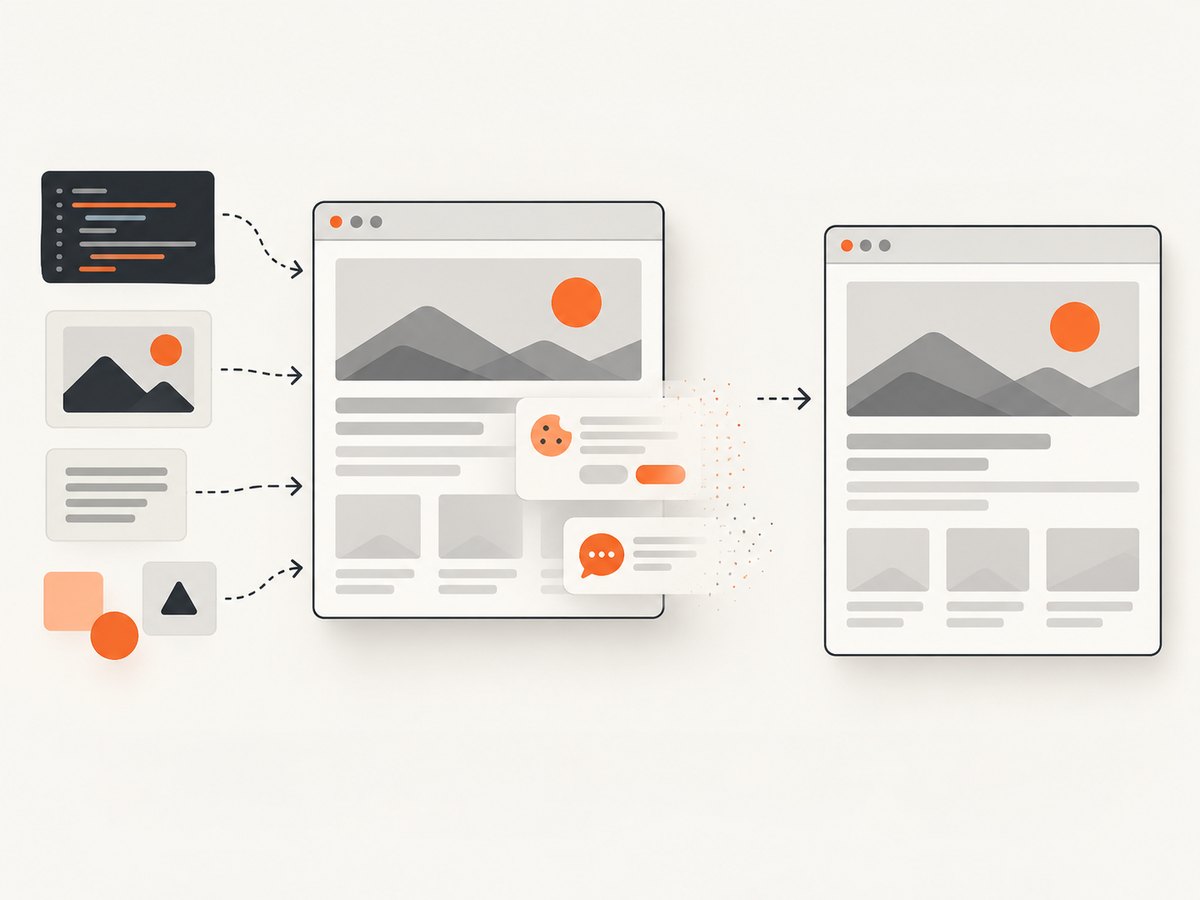
For a public URL, open it in a browser at the same viewport and compare the visible state with the conversion. For a local HTML file, open the actual file in a browser and confirm that referenced assets resolve. For a service-based rendering workflow, check whether the tool accepts a public URL, raw HTML, or both, and whether it processes JavaScript before capture. Do not assume a service supports JPG just because it can render HTML; confirm the output-format option in that service’s documentation.
Google’s rendered-source guidance explains the distinction between original HTML and the page after rendering. Cloudflare describes a screenshot endpoint that accepts HTML or a URL and processes HTML and JavaScript before capture. Those references help explain rendered output, but they do not establish that every service supports JPG output.
5. Create a JPG from HTML if you still need one
If you are writing your own conversion workflow, the basic sequence is: load the HTML in a browser rendering engine, wait for the content you need, capture the desired page or element, and encode the resulting pixels in JPEG format. The rendering step matters because the source HTML alone may not include content added by scripts or loaded assets.
Before choosing a converter, verify four things:
- Input: Does it accept raw HTML, a public URL, or both? Local files and authenticated pages may need a different workflow.
- Timing: Can it wait for a selector, a delay, or a network condition before capture?
- Capture area: Does it capture a viewport, a full page, or a selected element? What dimensions does it use?
- Output: Does its format selector or documentation explicitly offer JPEG/JPG? Check the saved result after conversion.
For example, the HTML to Image getting-started documentation describes HTML and screenshot endpoints and shows PNG examples. That is not evidence of JPG support; check the service’s current format options before relying on it for JPEG output.
6. Check output quality and reliability
JPEG uses lossy compression and is broadly supported. It is often a reasonable choice for photographic content, but small text, sharp diagrams, and charts deserve a closer visual check. If pixel-sharp edges matter, see whether the converter offers another format and compare the actual outputs for your use case. This is a practical inspection recommendation, not a claim about a benchmark or a particular converter.
Dynamic pages add another reliability concern: the result depends on when capture occurs. If the page fills in data asynchronously, a fixed short delay may be unreliable. Prefer a condition tied to the content you need, when your converter supports it. For repeated captures, keep viewport, timing, and format settings consistent so a changed image is easier to diagnose.
Cost depends on the converter and how often you generate images. Check its pricing and whether failed renders or retries are charged. For one already-downloaded JPG, you do not need a paid service just to open it: start with the image viewer already on your device.
Or skip the browser setup
If your actual goal is to capture a public webpage, ScreenshotNeo provides a screenshot API and MCP server. Its one-call API can return PNG, JPEG, WebP, or PDF. See the ScreenshotNeo API documentation for request options and details.
curl -G "https://api.screenshotneo.com/v1/shot" -d access_key=YOUR_API_KEY --data-urlencode url=https://stripe.com -o shot.webpimport requests
r = requests.get("https://api.screenshotneo.com/v1/shot", params={"access_key": "YOUR_API_KEY", "url": "https://stripe.com"}, timeout=90)
open("shot.webp", "wb").write(r.content)const q = new URLSearchParams({ access_key: 'YOUR_API_KEY', url: 'https://stripe.com' });
const res = await fetch(`https://api.screenshotneo.com/v1/shot?${q}`);
if (!res.ok) throw new Error(`Screenshot request failed: ${res.status}`);
const fs = await import('node:fs/promises');
await fs.writeFile('shot.webp', Buffer.from(await res.arrayBuffer()));The example filename uses WebP as supplied in the API example; select JPEG in the request options if you specifically need JPG output. ScreenshotNeo removes cookie and consent banners, newsletter popups, and chat widgets before capture, with each step able to be turned off. Bot checks and CAPTCHAs, blank pages, timeouts, failed loads, and cache hits are not billed; response headers identify the page verdict and billing status. Its MCP server provides take_screenshot, get_page_info, and capture_pdf tools for Claude, Cursor, and other MCP clients.
The free plan includes 1,000 screenshots per month with no card. Paid plans start at $5 for 3,000 screenshots; every feature is on every plan. Sign up for 1,000 free screenshots a month, with no card required.
Frequently asked questions
Is JPG different from JPEG?
They are common filename extensions for the JPEG still-image format. The extension helps identify the expected file type, but does not prove the file contents are correctly encoded.
Can I view a JPG in my browser?
Many browsers display image files when opened, but for checking a saved result, your device’s image viewer is a straightforward place to start. Use a browser render when you want to inspect a webpage rather than the saved image.
Can I convert a PNG to JPG by renaming it?
No. Changing the filename suffix does not convert the image encoding. Use an image editor or converter that exports JPEG, then open the exported file to inspect it.
Why does my converter preview differ from the download?
The preview and saved image may use different capture settings, output dimensions, or rendering timing. Compare those settings and inspect the downloaded file itself.
Should I use JPG for charts and diagrams?
Check the result at the size readers will use. JPEG compression can be less suitable for content that depends on sharp text and edges; choose another supported output format if the detail is not clear enough.


