How to View an HTML Page in Visual Studio
Open a standalone HTML file in Visual Studio, choose a browser, troubleshoot missing commands, and run project pages with or without debugging.
For a standalone HTML file in Visual Studio 2022, open the file, focus the HTML editor, then choose File > View in Browser. The shortcut is Ctrl+Shift+W. You can also right-click in the editor and choose View in Browser.
If the HTML belongs to a web project, use the project workflow instead: press F5 to run with debugging or Ctrl+F5 to run without debugging. Visual Studio starts the app and opens its URL in a browser.
Choose the workflow that matches your page
| What you have open | Command | Result | Debugging |
|---|---|---|---|
One local .html file |
File > View in Browser or Ctrl+Shift+W | Opens that file in a browser | No project debugging |
| A web project, such as ASP.NET Core | F5 or Debug > Start Debugging | Builds, starts the app and opens its URL | Enabled |
| A web project without a debugger | Ctrl+F5 | Builds, starts the app and opens its URL | Disabled |
Visual Studio and Visual Studio Code are different applications. The instructions in this guide refer to the Visual Studio IDE.
Open a standalone HTML file in Visual Studio
- Open Visual Studio 2022.
- Choose File > Open > File… and select the
.htmlfile if it is not already open. - Click inside the HTML editor. The file must have focus for Visual Studio to show the page command.
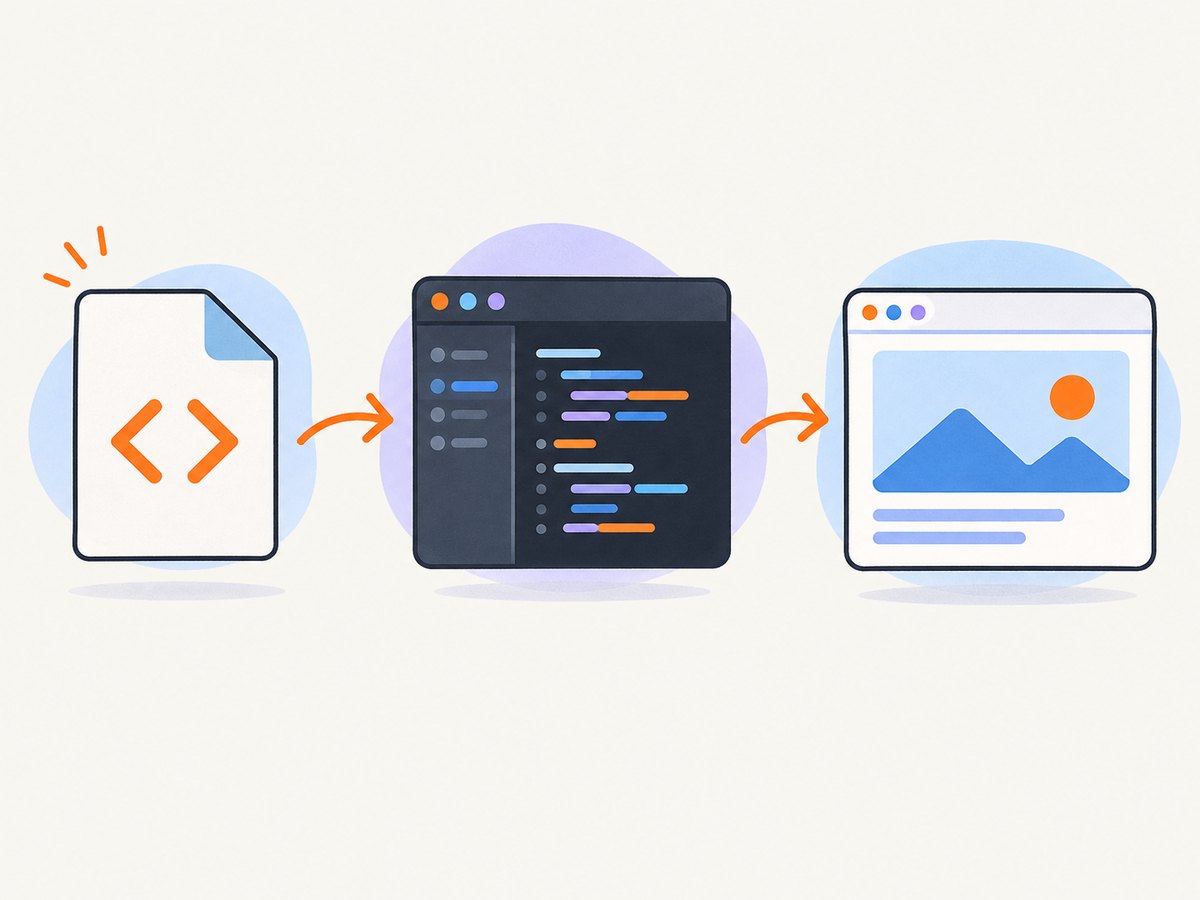
- Choose File > View in Browser.
- Alternatively, press Ctrl+Shift+W, or right-click empty space in the HTML editor and choose View in Browser.
The browser loads the file from its local path. Changes you make in the editor are not automatically reflected in an already-open page; save the file and refresh the browser.
Use a different browser
Choose File > Browse With…. Select the browser you want and set it as the default for Visual Studio’s browsing workflow. This setting controls Visual Studio; it does not change the default browser for Windows.
Run an HTML page that belongs to a web project
A project page may depend on routing, server-side code, middleware, static-file settings, authentication or APIs. Opening the file directly can bypass those parts, so start the project.
- Open the solution or project.
- Select the appropriate run target in the Visual Studio toolbar.
- Press F5, or choose Debug > Start Debugging, to run with the debugger.
- Use Ctrl+F5 when you want to run without debugging.
- Visual Studio builds the project, starts its server and opens the configured browser URL.
When direct file viewing is appropriate
- Static markup, CSS and client-side JavaScript that does not need a server.
- A quick visual check of a single document.
- Previewing a file before adding it to a project.
When project launch is required
- The page uses server-side rendering or an API endpoint.
- Relative URLs depend on a project root or server route.
- The app needs HTTPS, environment variables, authentication or middleware.
- You need breakpoints, request inspection or other debugger features.
What to check when the page looks wrong
- Save first. Save the HTML, CSS and JavaScript files, then refresh the browser.
- Inspect the browser console. JavaScript exceptions, blocked requests and missing assets are reported there.
- Check paths. A path that works under a project server may fail when the file is opened with a
file://URL. - Confirm the serving mode. If the page expects an HTTP server, start the project instead of opening the file directly.
- Verify the selected browser. Use Browse With… if Visual Studio is opening a different browser than expected.
Troubleshooting
| Symptom | Likely cause | Fix |
|---|---|---|
| View in Browser is missing | The editor is not focused, the file is not recognized as HTML, or the file is not open as a standalone document. | Open the file with File > Open > File…, click in the editor, and confirm the filename ends in .html. |
| The shortcut does nothing | Focus is elsewhere, or another command has captured the key combination. | Click in the HTML editor and use the menu or context-menu command. |
| The browser shows an old version | The file was not saved or the browser has a cached copy. | Save the file, refresh, and use a hard refresh if needed. |
| CSS, images or scripts are missing | A relative path is wrong for the document’s location, or a file:// page is restricted. |
Check paths and browser developer tools. Start the web project when assets require a server. |
| Routes return 404 | A project route was opened as a local file. | Run the project with F5 or Ctrl+F5 and use the generated URL. |
| Server-side code appears as text or does not run | The file was opened directly instead of being processed by the project server. | Launch the project and navigate to the server-rendered route. |
| Visual Studio opens the wrong browser | A different browser is configured for this IDE workflow. | Choose File > Browse With…, select a browser and set it as the default. |
| You are following these steps in Visual Studio Code | Visual Studio Code and Visual Studio IDE have different commands. | Confirm the application name, then use the Visual Studio IDE commands described here. |
Visual Studio version and availability notes
A Microsoft Q&A response reported View in Browser working in Visual Studio 2022 versions 17.11.2 and 17.11.3 in September 2024. Those are version-specific reports, not a guarantee that every edition, release or project type exposes the same menu. If the command is absent, use the focus, file-extension and standalone-file checks above.
Or skip the browser setup
If you need an image of a publicly reachable page rather than an interactive local preview, ScreenshotNeo returns a screenshot or PDF with one GET request. See the ScreenshotNeo API documentation for all options.
curl -G "https://api.screenshotneo.com/v1/shot" -d access_key=YOUR_API_KEY --data-urlencode url=https://stripe.com -o shot.webpimport requests
r = requests.get("https://api.screenshotneo.com/v1/shot", params={"access_key": "YOUR_API_KEY", "url": "https://stripe.com"}, timeout=90)
open("shot.webp", "wb").write(r.content)const q = new URLSearchParams({ access_key: 'YOUR_API_KEY', url: 'https://stripe.com' });
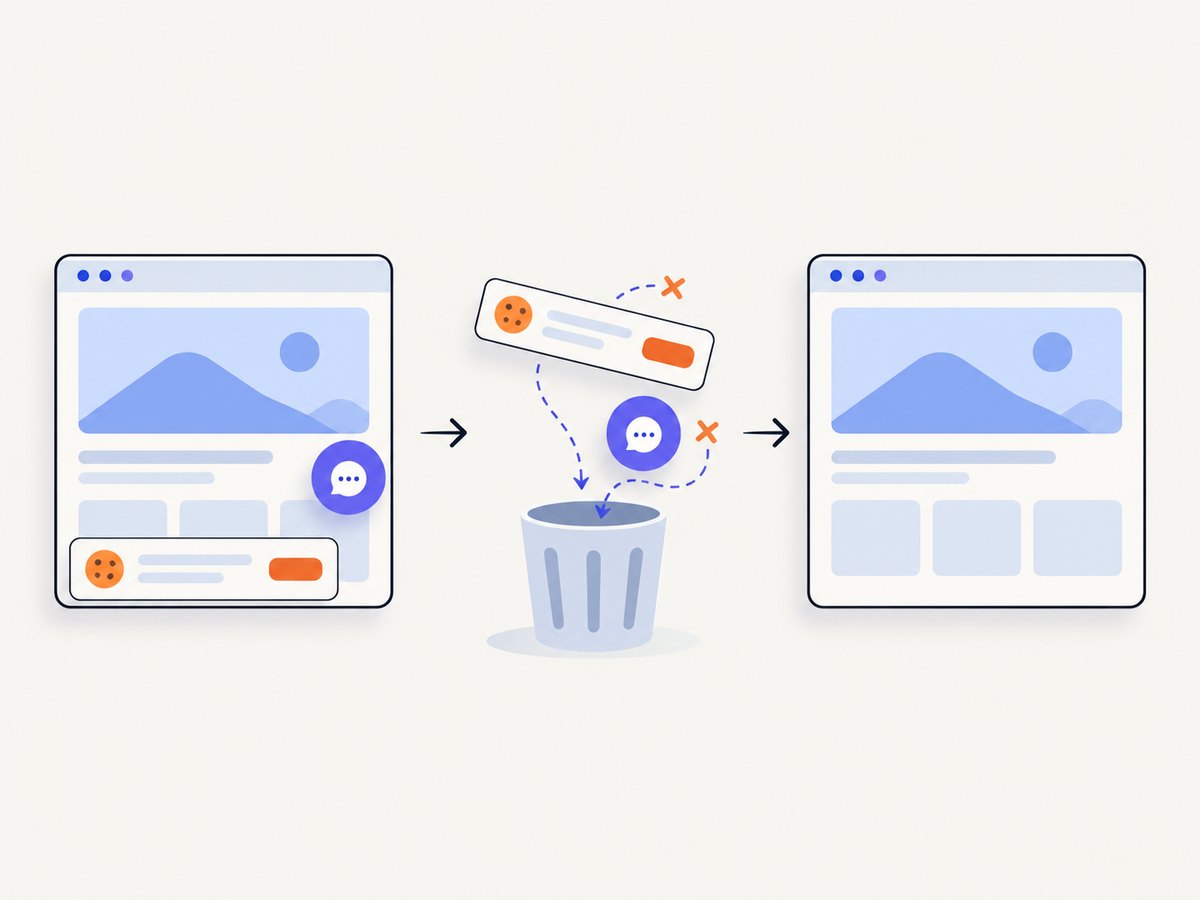
const res = await fetch(`https://api.screenshotneo.com/v1/shot?${q}`);ScreenshotNeo removes cookie banners, newsletter popups and chat widgets before capture. Bot checks, blank pages and failed loads are not billed, and response headers identify the page verdict and billing result. Its MCP server lets Claude, Cursor and other MCP clients take screenshots. The Free plan includes 1,000 screenshots each month with no card; paid plans start at $5 for 3,000 screenshots. Create a free ScreenshotNeo account.
Performance and reliability considerations
- Use View in Browser for the fastest feedback on a static file because no project build or server startup is required.
- Use project launch when correctness depends on server behavior; the extra build and startup time prevents misleading previews.
- For repeatable screenshots of a deployed URL, an API can avoid local browser setup. ScreenshotNeo supports waiting for selectors, delays or network idle, full-page capture with lazy images loaded, custom CSS and JavaScript, device presets, viewport sizes and caching with a chosen TTL.
- For automated capture, inspect
X-Page-VerdictandX-Billedso failed loads, bot checks, blank pages, timeouts and cache hits can be handled separately from clean shots.
FAQ
Can I preview one HTML file without creating a project?
Yes. Open the file directly, focus the editor, and use File > View in Browser or Ctrl+Shift+W.
Does View in Browser start my ASP.NET Core app?
No. Use F5 or Ctrl+F5 for a project so its server, routes and middleware run.
Will Browse With change my Windows default browser?
No. It selects the browser Visual Studio uses for its own browsing workflow.
Can a screenshot API capture a local file?
The ScreenshotNeo example uses a publicly reachable URL. A local file must first be served or deployed at a URL that the capture service can reach.


