How to View an Image from a URL in Your Browser
Paste an image’s full URL into a browser to view it directly. Learn how URLs, MIME types, downloads, formats, and failed loads affect the result.

The quickest way to view an image from a URL is to copy the image’s complete URL, paste it into your browser’s address bar, and press Enter (or Return). If the server returns image data in a format your browser supports, the image opens in the tab. The URL must identify the image resource itself, rather than the webpage that contains it.
A URL identifies a resource on the web. An image is one kind of resource, while an HTML page containing that image is another. The address bar can request either one, so choosing the correct address is the key step. [MDN explains how URLs identify resources and how to navigate to them directly](https://developer.mozilla.org/en-US/docs/Learn_web_development/Howto/Web_mechanics/What_is_a_URL).
View an image from a URL in four steps
- Copy the image URL. If you are on a page that shows the image, use the image’s context menu and choose an option such as Copy image address, or open the image in a new tab and copy that tab’s address. Avoid copying the surrounding page URL.
- Open a new browser tab. Use Ctrl+L (Windows/Linux) or Command+L (macOS) to focus the address bar.
- Paste the complete URL. A full URL normally includes a scheme such as
https://, a host name, and the path to the resource. Relative paths such as/images/photo.jpgonly make sense inside the context of another page. - Press Enter or Return. The browser requests the URL and decides how to display the response based on its headers and the returned data.
You do not need a visible .jpg, .png, or .webp suffix. The server’s Content-Type (also called a MIME type) tells the browser what kind of data it received; the filename extension is only a clue. A URL ending in a query string, or with no extension at all, can still return a perfectly valid image. See [MDN’s MIME type guidance](https://developer.mozilla.org/en-US/docs/Web/HTTP/Guides/MIME_types).
How to find the direct image URL on a webpage
Many links lead to an article, product page, gallery, or image viewer instead of the image file. Use one of these methods:
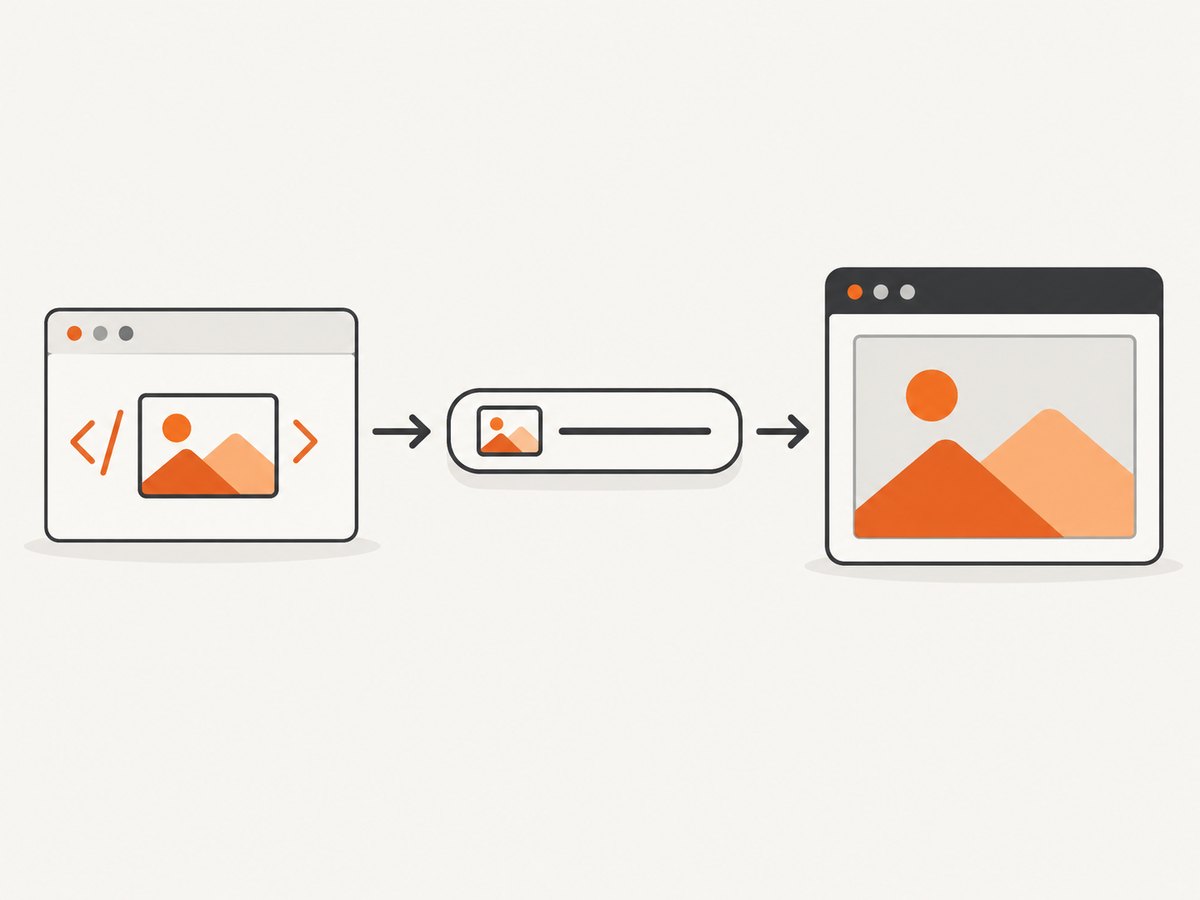
- Right-click or Control-click the image. Select Copy image address when available, then paste that value into a new tab.
- Open the image in a new tab. If the context menu offers Open image in new tab, use it. The new tab’s address is often the direct resource URL.
- Inspect the page source or developer tools. In an
<img>element, inspectsrc,srcset, or a lazy-loading attribute such asdata-src. Choose the URL for the size and format you need. The [MDN<img>reference](https://developer.mozilla.org/en-US/docs/Web/HTML/Reference/Elements/img) describes how image source URLs are resolved. - Check responsive images. A page may use
<picture>with several formats and sizes. The browser selects one source, while a fallback remains available. [MDN’s<picture>documentation](https://developer.mozilla.org/en-US/docs/Web/HTML/Reference/Elements/picture) explains this selection process.
Do not assume that a URL containing words such as image or ending in .jpg is necessarily an image. The response headers and bytes returned by the server determine what the browser receives.
What the browser does with the response
After navigation, the browser sends an HTTP request. The server responds with a status code, headers, and a body. For an image, the body is encoded image data and the Content-Type header commonly identifies it as image/jpeg, image/png, image/gif, image/webp, image/avif, or image/svg+xml.

If the response is an HTML document (text/html), you will see a webpage instead of the image. If the response declares a download using Content-Disposition: attachment, the browser may save the file rather than display it inline. [MDN’s HTTP header reference](https://developer.mozilla.org/en-US/docs/Web/HTTP/Reference/Headers) covers this behavior.
Browser support varies by image format and browser version. When a site serves multiple alternatives, <picture> lets it provide a modern format and a fallback. If a format does not open, try a current browser or request a JPEG or PNG alternative from the site owner.
Direct image URL versus page URL
| What you copied | What you see after pressing Enter | What to do |
|---|---|---|
| Direct image resource | The image fills the tab or appears on a plain viewer page | Use browser zoom, save, or copy controls |
| HTML article or gallery page | Navigation, text, and other page elements | Copy the image address from the page |
| Redirect URL | The browser follows one or more redirects | Usually nothing; copy the final address if you need a stable link |
| Data URL | Embedded data, if the browser permits top-level navigation | Use an ordinary HTTPS image URL when possible; browser security rules can restrict top-level data: navigation. See [MDN’s data URL reference](https://developer.mozilla.org/en-US/docs/Web/URI/Reference/Schemes/data). |
Save, zoom, or inspect the image
Once the image opens, browser controls are enough for most tasks:
- Zoom: Ctrl/Command plus or minus, or the browser’s zoom menu.
- Save: Right-click (or Control-click) and choose Save image as. The saved filename may not match the URL.
- Copy: Use Copy image where supported, then paste into an editor or document.
- Inspect dimensions: Open developer tools and inspect the image request, or save it and check its properties in your operating system.
- Check headers: A command-line request can reveal the status and media type without downloading the full body:
curl -I "https://example.com/path/to/image"
The result should normally contain a successful status such as 200 OK and an image Content-Type. A redirect (301 or 302) is common and is normally followed by browsers automatically; add -L when checking redirects with cURL.
Troubleshooting: when the image does not appear
A webpage appears instead
Cause: You pasted the page URL, not the image resource URL. Fix: Return to the page, open the image in a new tab, or copy its image address. A gallery’s “view” link can remain HTML even when it displays only one image.
The browser shows a broken image or an error page
Possible causes: the URL is mistyped, the resource was deleted, the server returned an error, the image bytes are corrupted, or the format is unsupported. Check the URL character by character, reload, and try the link in a private window. Developer tools’ Network panel can show the status code and response type. [MDN lists common image-loading failures](https://developer.mozilla.org/en-US/docs/Web/HTML/Reference/Elements/img).
The image downloads instead of displaying
Cause: The server may send a Content-Disposition header that requests attachment handling, or the browser may be configured to download that type. Fix: Open the saved file locally, or ask the site owner for an inline response. Renaming the file does not repair invalid image data.
The URL works when embedded but not in a new tab
Cause: Servers can vary their response based on request headers. An embedded image request and an address-bar navigation can send different Accept values, and defaults differ among browsers and versions. [MDN documents default Accept values](https://developer.mozilla.org/en-US/docs/Web/HTTP/Guides/Content_negotiation/List_of_default_Accept_values). Fix: Try the browser that successfully embeds it, use the site’s download control, or request the resource with the required authentication and headers.
The image requires a login, cookie, or special link
Cause: The URL may be private, signed, expired, or protected by an access check. Fix: Sign in first, generate a fresh share link, or use the provider’s export function. Do not paste private URLs into services you do not trust.
The image is very large or loads slowly
Cause: Large originals take longer to transfer and decode. Fix: Wait for the response, use a smaller variant from srcset, or download and resize locally. A URL can identify a high-resolution original even when the page displayed a thumbnail.
Developer checks with cURL, Python, and Node.js
These snippets help determine whether a URL really returns an image. They do not bypass authentication or anti-bot controls.
cURL
curl -L --fail --show-error \
  -D response-headers.txt \
  "https://example.com/path/to/image" \
  -o image.bin
Open response-headers.txt and check Content-Type. Use an extension that matches the actual format after you verify it.
Python
import requests

url = "https://example.com/path/to/image"
r = requests.get(url, timeout=30, allow_redirects=True)
r.raise_for_status()
print(r.headers.get("content-type"))
with open("image.bin", "wb") as f:
    f.write(r.content)
Node.js
const url = 'https://example.com/path/to/image';
const res = await fetch(url, { redirect: 'follow' });
if (!res.ok) throw new Error(`${res.status} ${res.statusText}`);
console.log(res.headers.get('content-type'));
const bytes = Buffer.from(await res.arrayBuffer());
require('fs').writeFileSync('image.bin', bytes);
For production code, validate the media type, impose a maximum response size, handle timeouts, and avoid trusting a user-supplied URL without protection against requests to internal network addresses.
Or skip the browser setup
If your real goal is to obtain a clean image of a webpage, [ScreenshotNeo](https://screenshotneo.com) provides a single screenshot request. Its API accepts a URL and returns PNG, JPEG, WebP, or PDF. The [ScreenshotNeo documentation](https://screenshotneo.com/docs/) lists the parameters and response headers.
curl -G "https://api.screenshotneo.com/v1/shot" -d access_key=YOUR_API_KEY --data-urlencode url=https://stripe.com -o shot.webp
import requests
r = requests.get("https://api.screenshotneo.com/v1/shot", params={"access_key": "YOUR_API_KEY", "url": "https://stripe.com"}, timeout=90)
open("shot.webp", "wb").write(r.content)
const q = new URLSearchParams({ access_key: 'YOUR_API_KEY', url: 'https://stripe.com' }); const res = await fetch(`https://api.screenshotneo.com/v1/shot?${q}`);
ScreenshotNeo accepts cookie and consent banners before capture and removes more than 60 known consent platforms, newsletter popups, and chat widgets; each step can be turned off. Bot checks, blank pages, timeouts, failed loads, and cache hits are not billed, and the response identifies the result with X-Page-Verdict and X-Billed headers. An MCP server provides take_screenshot, get_page_info, and capture_pdf tools for Claude, Cursor, and other MCP clients.
For browser automation, the API also supports full-page capture with lazy images loaded, CSS element capture, dark mode, device presets and custom viewports, retina scale, custom CSS and JavaScript, clicks, selector or network-idle waits, request blocking, headers, cookies, user agents, authorization, timezone, geolocation, transparent backgrounds, resizing, chosen cache TTLs, signed links, asynchronous jobs with signed webhooks, bulk capture of up to 100 URLs per call, a usage API, and an OpenAPI specification. Parameter names used by other screenshot APIs also work.
The free plan includes 1,000 screenshots per month without a card. Paid plans start at $5 for 3,000 shots; yearly billing provides two months free, and every feature is available on every plan. Create a free ScreenshotNeo account.
Performance, reliability, and cost considerations
- Use the smallest useful resource. A thumbnail or responsive variant opens faster than a multi-megapixel original.
- Expect redirects and caching. CDN URLs can redirect, expire, or serve cached bytes. Follow redirects and record the final URL when reproducibility matters.
- Check the response, not the suffix. Validate status, media type, and (where security matters) the file signature before processing.
- Plan for transient errors. Retry temporary 5xx responses with bounded exponential backoff, but do not retry permanent 4xx errors indefinitely.
- Protect automated fetches. Set timeouts and byte limits, restrict outbound destinations when accepting user input, and keep private credentials out of URLs and logs.
- For repeated webpage captures, cache deliberately. ScreenshotNeo lets you choose a cache TTL and reports whether a result was a cache hit; failed and non-clean results are not billed according to its product rules.
Quick checklist
- Did you copy the image resource URL rather than the page URL?
- Does the URL include
https://and remain complete after pasting? - Does the response return an image MIME type?
- Is the format supported by your browser?
- Is the resource private, expired, or protected by a cookie?
- Did the server request download behavior with
Content-Disposition? - For automation, did you set redirects, timeouts, size limits, and retries?
FAQ
Can I view an image URL without downloading it?
The browser must receive the image bytes, but it can render them directly in a tab without saving a separate file. Transfer and display are still required.
Why does the URL not end in an image extension?
Many image services use query parameters, content negotiation, or generated paths. The returned MIME type matters more than the visible suffix.
Can I open an image URL on a phone?
Yes. Copy the direct image address, open a new browser tab, paste it into the address bar, and navigate. Touch-and-hold usually provides save and share options.
Why does a browser show a download dialog?
The server may explicitly mark the response as an attachment, or the browser may not support the format inline. Save the file or request another format.
What should I do with a URL that exposes private information?
Treat signed and authenticated URLs as secrets. Avoid sharing them in tickets, public posts, source code, or third-party tools, and generate a replacement link if one leaks.


