How to View an Open Graph Image on Any Website
Find any page’s og:image URL, open it directly, troubleshoot missing previews, and validate what social platforms will display.

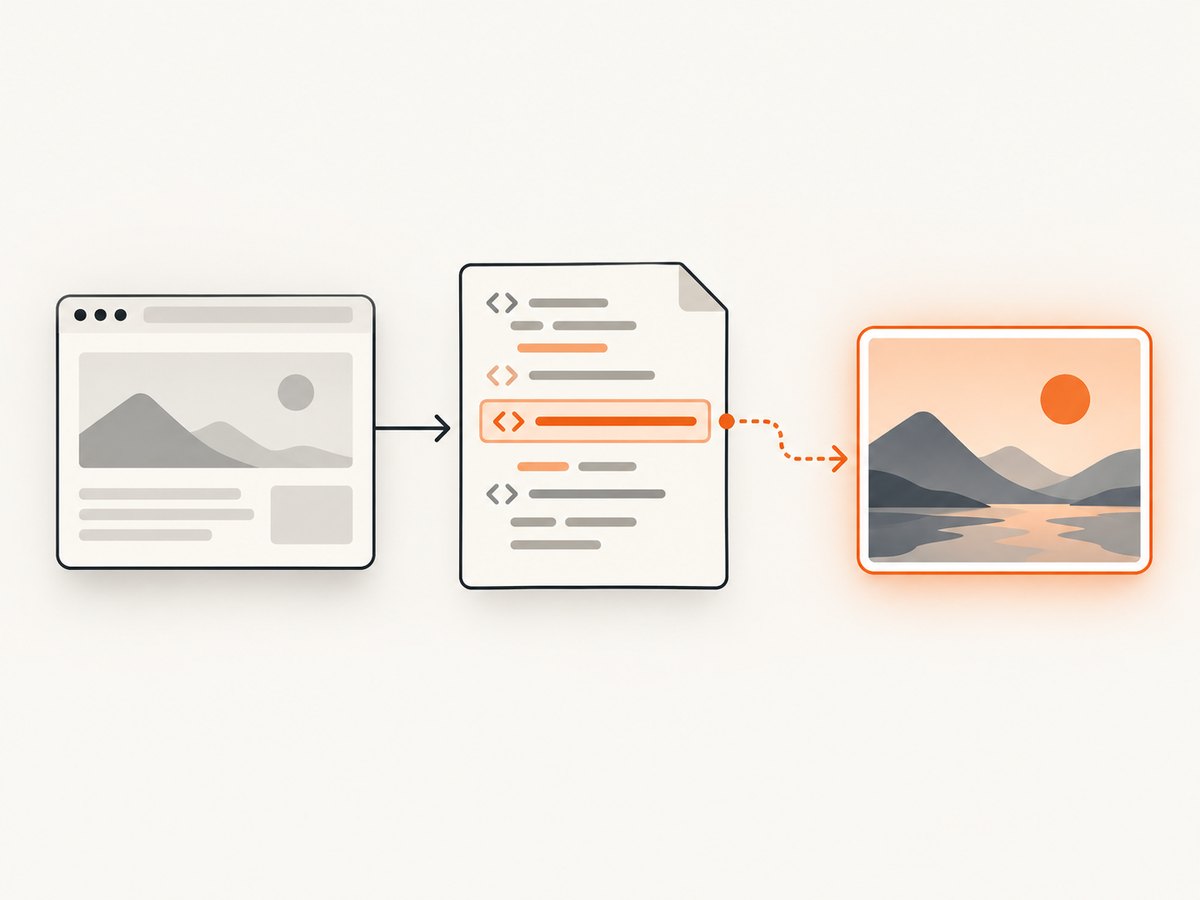
Direct answer: open the page’s raw HTML with View Page Source or browser DevTools, search for og:image, copy the URL in that tag’s content attribute, and open the URL in a new tab. The tag normally looks like <meta property="og:image" content="https://example.com/share-image.jpg">.
Open Graph (OG) metadata is placed in the document head. The protocol defines four required properties—og:title, og:type, og:image, and og:url—so social crawlers can represent a page as a rich object. The official specification describes Open Graph as a way for any web page to become a rich object in a social graph: Open Graph protocol documentation.
Find the image URL in a browser
Method 1: View Page Source
- Open the website page in a desktop browser.
- Use the context menu and choose View Page Source. You can also enter
view-source:https://example.com/pagein the address bar. - Press Ctrl+F (Windows/Linux) or Cmd+F (macOS).
- Search for
og:image. - Copy the complete value of the
contentattribute. - Paste that value into a new tab. The image should open directly, or the browser may download it.
Use the first og:image when several appear. Open Graph gives the first tag preference when properties conflict. Preserve the complete absolute URL, including its protocol, path, query string, and fragment if present.
Method 2: Inspect the live DOM
Open DevTools (F12 or Ctrl/Cmd+Shift+I), select the Elements panel, expand <head>, and search for property="og:image". Right-click the tag and copy the attribute value.
Source and Elements answer different questions:
- View Page Source shows HTML delivered by the server before JavaScript runs. This is closest to what a simple crawler fetches.
- Elements shows the current DOM after scripts, client-side routing, or extensions have changed it.
If Elements contains an OG tag but View Page Source does not, the tag was probably injected by JavaScript. A crawler that does not execute that script may never see it. Check both before diagnosing a social-preview problem.
Inspect every related Open Graph field
An image tag is often accompanied by structured properties:
| Property | What it tells you |
|---|---|
og:image |
Primary image URL. |
og:image:url |
Another spelling of the image URL used by some implementations. |
og:image:secure_url |
HTTPS version of the image, when supplied. |
og:image:type |
MIME type such as image/jpeg or image/png. |
og:image:width and og:image:height |
Declared pixel dimensions. |
og:image:alt |
Accessibility description for the image. |
These fields describe the same image. They do not replace the required og:image property. If the URL is relative, resolve it against the page’s base URL before opening it; publishing an absolute HTTPS URL avoids ambiguity.
Use the command line to extract og:image
cURL and a text search
curl -L --compressed https://example.com/article -o page.html
rg -io '(<meta[^>]+property=["'"']og:image["'"'][^>]*>)' page.html
HTML attribute order varies, so a strict regular expression can miss valid tags. For reliable automation, parse HTML instead of treating it as plain text.
Python parser
import sys
from urllib.parse import urljoin
import requests
from bs4 import BeautifulSoup

page_url = sys.argv[1] if len(sys.argv) > 1 else "https://example.com/article"
response = requests.get(page_url, timeout=30, headers={"User-Agent": "og-image-inspector/1.0"})
response.raise_for_status()
soup = BeautifulSoup(response.text, "html.parser")

images = []
for tag in soup.find_all("meta"):
    prop = (tag.get("property") or tag.get("name") or "").lower()
    if prop in {"og:image", "og:image:url", "og:image:secure_url"} and tag.get("content"):
        images.append(urljoin(response.url, tag["content"]))

if images:
    print(images[0])
else:
    print("No explicit og:image found")
Install the dependencies with python -m pip install requests beautifulsoup4, then run python find_og_image.py https://example.com/article. The parser keeps the first image and resolves relative URLs against the final response URL after redirects.
Node.js parser
import * as cheerio from "cheerio";

const pageUrl = process.argv[2] || "https://example.com/article";
const res = await fetch(pageUrl, {
  headers: { "user-agent": "og-image-inspector/1.0" }
});
if (!res.ok) throw new Error(`${res.status} ${res.statusText}`);

const html = await res.text();
const $ = cheerio.load(html);
let image;
$('meta[property="og:image"], meta[property="og:image:url"], meta[property="og:image:secure_url"]').each((_, el) => {
  if (!image) image = new URL($(el).attr("content"), res.url).href;
});
console.log(image || "No explicit og:image found");
Run it with Node 18 or newer after npm install cheerio. This fetches server-delivered HTML; it does not execute browser JavaScript.
Why the image you find may differ from a social preview
Social platforms fetch and cache pages independently. A debugger may show an older result even after you change the tag. Purge or refresh the relevant platform’s cache, then inspect the preview again. A platform can also reject an image because of its own crawler rules, authentication, robots policy, response headers, dimensions, or content checks.
When a page has no explicit og:image, report that fact. Do not claim that a particular fallback image will be selected: each platform has its own fallback behavior. An OG checker can help compare raw metadata with a platform-oriented preview. OpenGraph.to describes its checker as inspecting Open Graph, Twitter Card, and SEO metadata and previewing the result across major platforms.
Common problems and fixes
| Symptom | Likely cause | Fix |
|---|---|---|
No search result for og:image |
The page does not publish the tag, or it is injected only after JavaScript runs. | Compare View Source with Elements. Add a server-rendered tag if crawlers must see it. |
| Several different images appear | Multiple OG image blocks or conflicting templates. | Inspect the first og:image; remove unintended duplicates. |
| The copied URL returns 403 | The image host blocks your request or requires a signed URL. | Open it in the same browser session, check access controls, and provide a publicly fetchable HTTPS asset. |
| Only a blank image or download appears | Unsupported format, broken file, or incorrect Content-Type. |
Check the response headers and serve a valid PNG, JPEG, or WebP with the matching MIME type. |
| Preview remains old | Platform cache. | Use that platform’s debugger or refresh tool, then wait for its crawler to fetch the new URL. |
| URL works in a browser but not in a script | Redirects, TLS, bot protection, cookies, or a required user agent. | Follow redirects, send an appropriate user agent, inspect status codes, and reproduce the request with DevTools. |
| Image is different after a framework build | Metadata is generated per route or changed during deployment. | Fetch the production URL and verify the final HTML, not only local development output. |
Capture the page as a rendered screenshot
Finding og:image gives you the social asset itself. If you also need a visual record of the page as a visitor sees it, a browser renderer is required for JavaScript, responsive layout, fonts, lazy images, and consent overlays. A reliable DIY workflow is:
- Launch a real browser engine.
- Navigate to the target URL and wait for the page or a chosen selector.
- Handle consent dialogs and close overlays.
- Capture the viewport or full page.
- Save PNG, JPEG, WebP, or PDF and record the final URL and status.
For repeatable jobs, set a viewport, device scale factor, timeout, wait condition, and browser user agent. Keep authentication data in a secret store, and never log cookies or authorization headers.
Or skip the browser setup
ScreenshotNeo provides a website screenshot API and MCP server. One GET request returns a PNG, JPEG, WebP, or PDF. See the ScreenshotNeo API documentation for all options.

curl -G "https://api.screenshotneo.com/v1/shot" -d access_key=YOUR_API_KEY --data-urlencode url=https://stripe.com -o shot.webpimport requests
r = requests.get("https://api.screenshotneo.com/v1/shot", params={"access_key": "YOUR_API_KEY", "url": "https://stripe.com"}, timeout=90)
open("shot.webp", "wb").write(r.content)const q = new URLSearchParams({ access_key: 'YOUR_API_KEY', url: 'https://stripe.com' }); const res = await fetch(`https://api.screenshotneo.com/v1/shot?${q}`);Before capture, ScreenshotNeo accepts cookie and consent banners and removes more than 60 known consent platforms, newsletter popups, and chat widgets; each step can be turned off. Bot checks, blank pages, timeouts, failed loads, and cache hits are not billed, and the response identifies the result with X-Page-Verdict and X-Billed headers. Its MCP server gives Claude, Cursor, and other MCP clients take_screenshot, get_page_info, and capture_pdf tools.
For production capture, you can select full-page or CSS-element shots, dark mode, device presets or any viewport, retina scale, custom CSS and JavaScript, clicks, selector waits, delays, network-idle waits, ad and tracker blocking, custom headers, cookies, user agents, authorization, timezone, geolocation, transparent backgrounds, resizing, configurable caching, signed image links, asynchronous jobs with signed webhooks, bulk capture of up to 100 URLs per call, usage reporting, and PDF page controls. Parameter names used by other screenshot APIs also work, which simplifies migration.
The free plan includes 1,000 screenshots each month with no card. Paid plans start at $5 for 3,000 shots; yearly billing provides two months free, and every feature is available on every plan. Create a free ScreenshotNeo account.
Performance, reliability, and cost checklist
- Cache unchanged pages with a TTL when you do not need a fresh render on every request.
- Use selector waits or network-idle waits instead of arbitrary long sleeps where possible.
- Capture one element when a full-page image is unnecessary; it reduces transfer size and processing.
- Use bulk capture for batches of up to 100 URLs, and asynchronous jobs with signed webhooks for long-running work.
- Record verdict and billing headers so retries do not hide whether a request produced a clean image.
- Retry transient network failures with backoff, but do not blindly retry authentication errors or invalid URLs.
- For DIY browsers, reuse a browser process, isolate pages, cap concurrency, and close contexts to prevent memory growth.
FAQ
Is og:image always the image shown on social media?
No. It is the page’s declared image, but each platform can apply validation, caching, access, and fallback rules.
Can I view an OG image without opening the page?
Yes. Once you have copied the absolute URL from the meta tag, open that URL directly.
What if the image URL is relative?
Resolve it against the page URL. A server should normally publish an absolute HTTPS URL.
Does a screenshot API extract og:image?
A screenshot API renders the page and returns pixels. Use an HTML parser when you need metadata extraction; use a renderer when you need the visible page or a PDF.
Why do View Source and Elements disagree?
JavaScript may have modified the DOM after the initial response. Crawlers that do not run that JavaScript may see only View Source.


