How to View PDF Page Thumbnails in Adobe Acrobat
Open Acrobat’s Page Thumbnails panel to preview and jump between PDF pages. Find the control, resize previews, and fix a missing or slow panel.
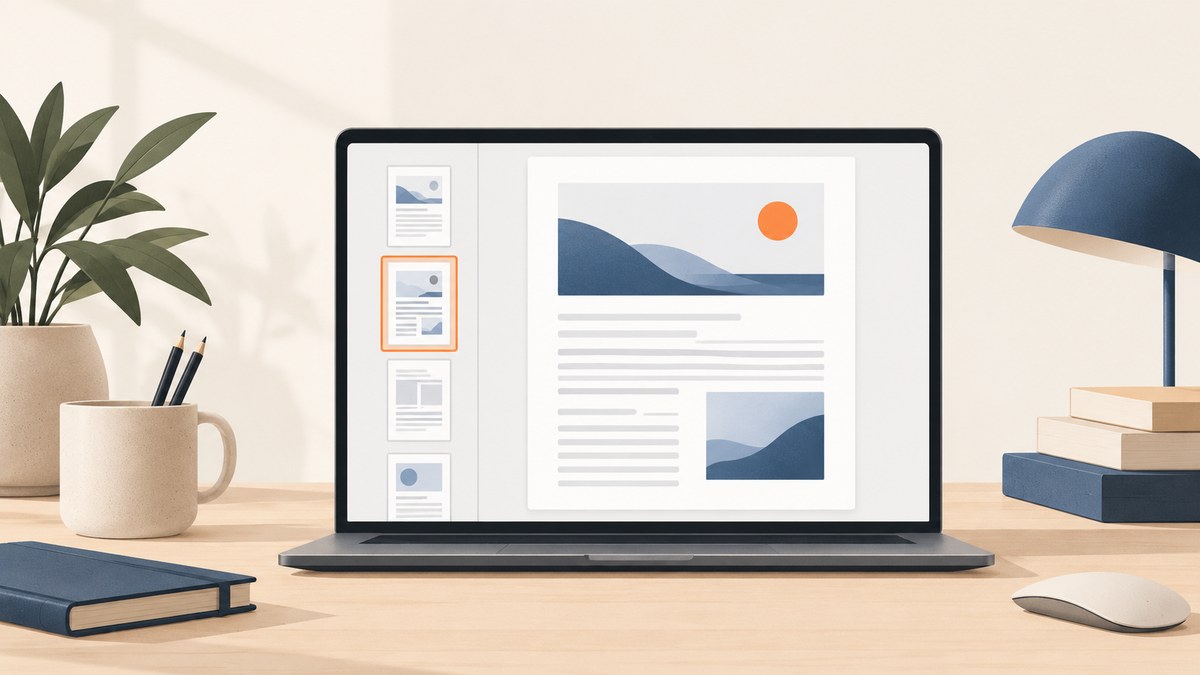
To view page thumbnails in desktop Adobe Acrobat, open the PDF and select the Page Thumbnails icon in the right navigation panel. The miniature page previews appear in the navigation pane. If the Pages side panel is missing, choose View > Show/Hide > Side panels > Page, then select the Page Thumbnails icon. Large PDFs can take several seconds to render.
Thumbnails are useful for visually finding a page and jumping to it. Their panel is also close to page-editing actions, so take care: moving, copying, or deleting a thumbnail changes the corresponding page. Just opening the panel does not change the PDF.
1. Open the Page Thumbnails panel
- Open the PDF in the desktop version of Adobe Acrobat.
- Look in the right navigation panel for the Page Thumbnails icon and select it.
- Wait for the previews to draw. Acrobat says this can take several seconds, especially with larger documents.
- Select a thumbnail to go to that page.
Adobe describes thumbnails as miniature previews that can be used to jump to a page or adjust the page view. The exact arrangement of controls can vary across Acrobat experiences and releases, so look for the Page Thumbnails label or icon in the navigation area if your window does not match a help-page screenshot. Adobe’s page thumbnails guide documents the panel and its behavior.
2. If the Pages panel or thumbnails are missing
Sometimes the Pages side panel itself is hidden. In that case, use this menu route in desktop Acrobat:
- Choose View > Show/Hide > Side panels > Page.
- When the Pages panel appears, select the Page Thumbnails icon.
- Allow the previews to render if the PDF is long or complex.
This is the documented route when page thumbnails do not appear in the Pages side panel. If the menu labels on your installation differ, check the labels in your installed desktop experience; Acrobat’s newer navigation documentation gives separate paths for Windows and macOS. The page-navigation menus are an alternative for moving through a PDF, but they do not open the thumbnail pane.
3. Resize page previews
If thumbnails are too small to inspect or take up more panel space than you want, use the Options menu in the Page Thumbnails panel:
- Choose Options > Enlarge Page Thumbnails to make previews larger.
- Choose Options > Reduce Page Thumbnails to fit more previews in the panel.
Adobe notes that the thumbnail size returns to its default when you close and reopen the PDF. If your preferred size disappears after reopening, set it again for that session. Resizing previews affects how they appear in the panel; it does not resize the pages in the document.
4. Navigate without thumbnails
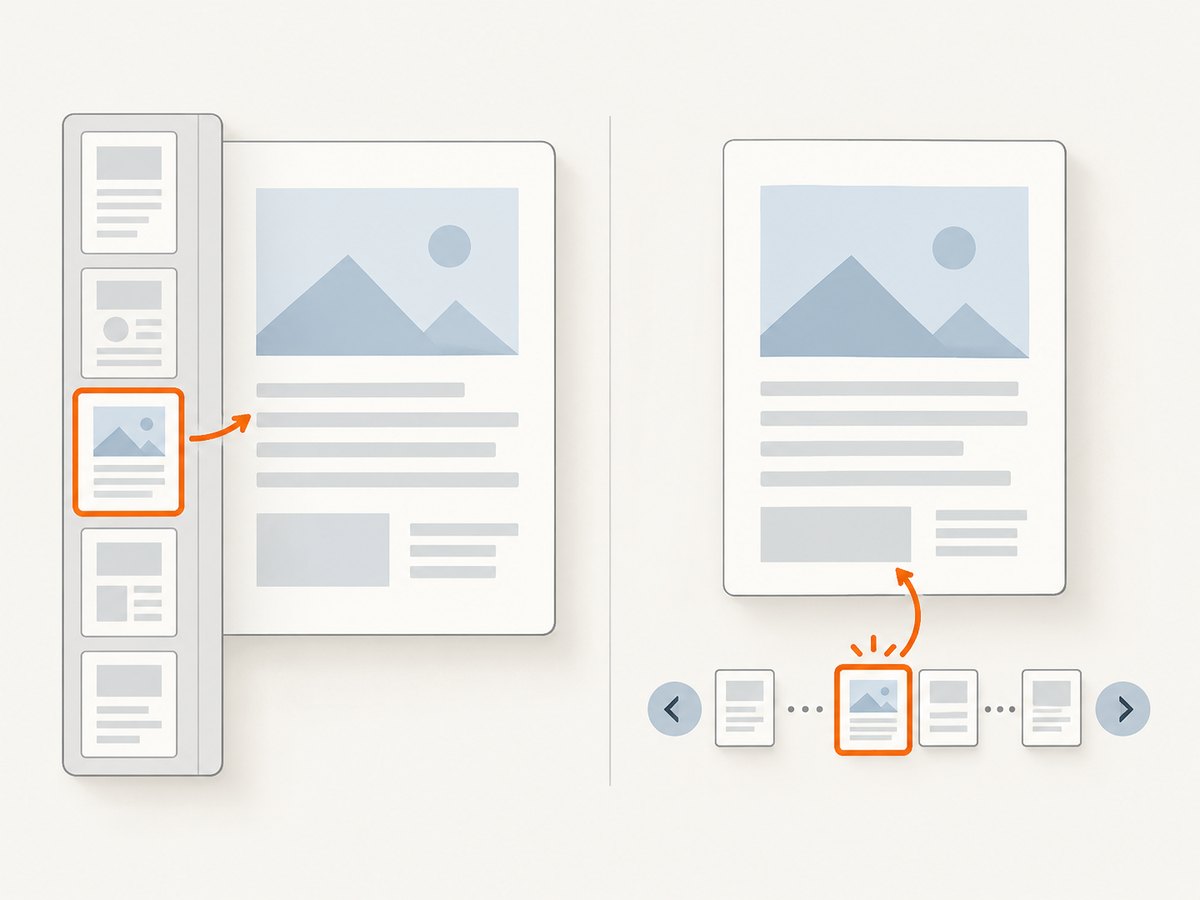
For a known page number, entering the number is often quicker than scrolling through previews. Adobe’s current desktop guide documents these menu paths:
| Platform | Page navigation menu | Useful actions |
|---|---|---|
| Windows | Menu > View > Page navigation | Next, previous, first, last, or Go to page |
| macOS | View > Page navigation | Next, previous, first, last, or Go to page |
The Side Panels also allow a reader to enter a page number or use up and down arrows. These options suit direct numeric navigation, while thumbnails help when you need to recognize a page visually. Bookmarks are another route when a document includes useful named destinations. See Adobe’s desktop page navigation guide for the current Windows and macOS menu labels.
5. View thumbnails versus organize pages
There are two related but different reasons to use page thumbnails:
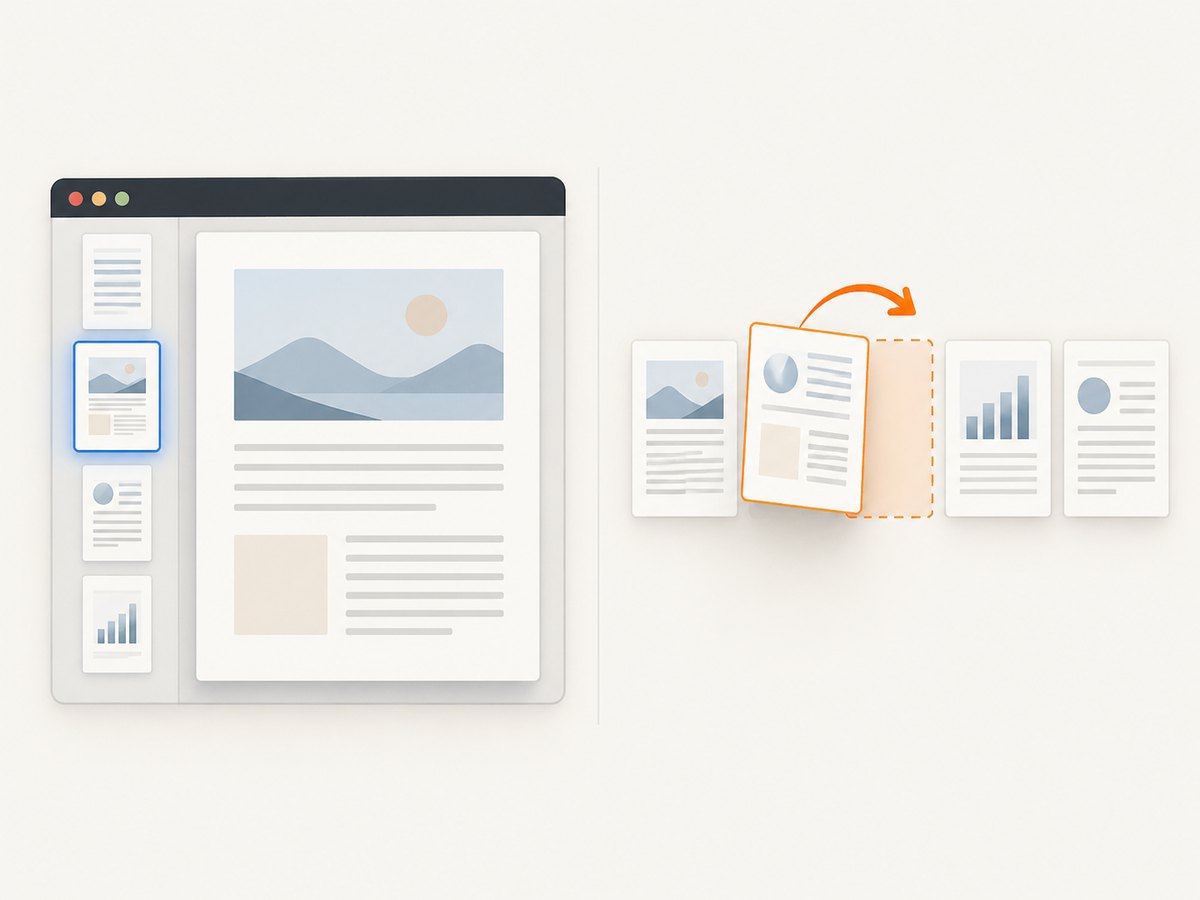
- Browse or jump: Open Page Thumbnails in the right navigation area and select a preview to navigate.
- Change page order or contents: Open All tools > Organize pages. This workflow displays thumbnails in the document area and provides page organization actions.
In Organize Pages, dragging a selected page thumbnail moves that page. The context menu can be used to cut, copy, and paste pages. Multiple pages can be selected with Ctrl-click on Windows or Command-click on macOS. Save the PDF after making changes. Adobe’s Organize Pages instructions cover moving and copying pages.
| What you want to do | Use | Does it change the PDF? |
|---|---|---|
| See miniature previews | Page Thumbnails panel | No, simply opening the panel does not edit pages. |
| Go to a page by number | Page navigation or page-number entry | No. |
| Reorder, copy, or delete a page | Page actions or Organize Pages | Yes. Save the document after intended edits. |
6. Troubleshooting: thumbnails missing, slow, or confusing
The thumbnails icon or panel is not visible
Cause: The Pages side panel may be hidden, or the installed Acrobat experience may arrange controls differently. Fix: Choose View > Show/Hide > Side panels > Page, then select Page Thumbnails. If the exact menu differs, use the labels in your desktop version and look for the Pages panel.
The panel is open, but previews have not appeared yet
Cause: Acrobat may still be drawing the thumbnails. This can take several seconds in a large document. Fix: Give the panel time to finish rendering. Adobe notes that interacting with the application during drawing can pause the process, so avoid repeatedly switching tools while previews are being generated.
The thumbnails are too small or too large
Cause: The panel’s preview size is not comfortable for the current task. Fix: Open the panel’s Options menu and choose Enlarge Page Thumbnails or Reduce Page Thumbnails. Remember the selected size resets to the default after closing and reopening the PDF.
I cannot find a page by scanning thumbnails
Cause: A long document may have many similar-looking pages, or the target page number is already known. Fix: Use the page-number field or Go to page from Page navigation. If the document has meaningful bookmarks, select a bookmark to reach its destination.
I accidentally changed a page while using thumbnails
Cause: Some thumbnail actions manipulate pages; moving, copying, or deleting a thumbnail affects the corresponding PDF page. Fix: If you intended only to browse, use a simple click on the preview to navigate. If you made an edit, review the document before saving. Use Organize Pages deliberately for rearrangement and copying.
I expected thumbnails to already be stored in the PDF
Cause: Thumbnails are not necessarily embedded when a PDF is created. Adobe explains that thumbnails increase file size and Acrobat does not create them automatically. Fix: Open the panel and let Acrobat render previews; you do not need to pre-generate thumbnails just to view the pane. Adobe also says Acrobat no longer supports embedding and unembedding page thumbnails; Distiller provides an alternate embedding method.
7. Performance, reliability, and file-size notes
Thumbnail viewing is a visual navigation aid, and preview generation may take several seconds for larger documents. Let the rendering complete before deciding that the panel failed. If you only need a specific page and know its number, use the navigation controls to avoid waiting for a visual scan of the whole document.
The existence of thumbnails in the panel should not be confused with thumbnails saved inside the PDF. Adobe notes that stored page thumbnails increase file size and are not created automatically. The panel can still display previews without the reader needing to create an embedded thumbnail set. Changing the panel preview size is a viewing preference, and Acrobat resets it when that PDF is reopened.
For document integrity, distinguish a navigation click from an organization operation. Selecting a page preview to view it is a navigation action. Moving, copying, or deleting a thumbnail changes a page. If you are carrying out page edits, use Organize Pages, confirm the resulting order, and save intentionally.
8. Capture a PDF page for a web workflow
Acrobat’s thumbnails help you browse a PDF on desktop. If the next step is to create an image capture of a webpage or share a rendered page with a workflow, a screenshot API is a separate tool category; it does not open or replace Acrobat’s thumbnail panel. ScreenshotNeo is a website screenshot API and MCP server for developers. Its one-call endpoint can return PNG, JPEG, WebP, or PDF output from a URL.
Or skip the browser setup
For website captures, ScreenshotNeo accepts a URL in one GET request. The examples below save or retrieve the response body; set the output format as needed for your integration. See the ScreenshotNeo API documentation for its parameters and response details.
cURL
curl -G "https://api.screenshotneo.com/v1/shot" -d access_key=YOUR_API_KEY --data-urlencode url=https://stripe.com -o shot.webpPython
import requests

r = requests.get(
    "https://api.screenshotneo.com/v1/shot",
    params={"access_key": "YOUR_API_KEY", "url": "https://stripe.com"},
    timeout=90,
)
r.raise_for_status()
open("shot.webp", "wb").write(r.content)
Node.js
const q = new URLSearchParams({ access_key: 'YOUR_API_KEY', url: 'https://stripe.com' });
const res = await fetch(`https://api.screenshotneo.com/v1/shot?${q}`);
if (!res.ok) throw new Error(`Screenshot request failed: ${res.status}`);
const bytes = new Uint8Array(await res.arrayBuffer());
await import('node:fs/promises').then(fs => fs.writeFile('shot.webp', bytes));
ScreenshotNeo removes cookie and consent banners, newsletter popups, and chat widgets before capture; each cleanup step can be turned off. Bot checks and CAPTCHAs, blank pages, timeouts, failed loads, and cache hits are not billed, and response headers identify the page verdict and billing status. An MCP server exposes screenshot tools for Claude, Cursor, and other MCP clients. Free includes 1,000 shots per month with no card; paid plans start at $5 for 3,000 shots.
Learn about ScreenshotNeo, or sign up free for 1,000 screenshots a month with no card.
Frequently asked questions
Are Page Thumbnails available in Acrobat Reader?
This guide follows Adobe’s desktop Acrobat documentation. The consulted references do not establish identical controls across Acrobat mobile, Acrobat web, and every Reader release, so use the labels and panels available in your installed desktop app.
Do I need to create thumbnails before opening the panel?
No. Acrobat can render previews for the panel. Adobe notes that thumbnails are not created automatically as embedded PDF data because they increase file size, but that is separate from viewing the panel.
Can I keep a larger thumbnail size after closing the PDF?
Adobe says the selected size reverts to its default when the PDF is closed and reopened. Set the size again when needed.
What is the fastest way to reach a page when I know its number?
Use the page-number field in the Side Panels or the Go to page action in the Page navigation menu. Thumbnails are more useful when you need to recognize a page visually.
Does ScreenshotNeo show Acrobat page thumbnails?
No. ScreenshotNeo captures webpages from a URL. Use Acrobat’s desktop Page Thumbnails panel to browse PDF pages.


