How to View Screenshots in a Web Browser
Open a saved screenshot or capture a webpage in Firefox and Edge, choose the right format, and fix common display problems.
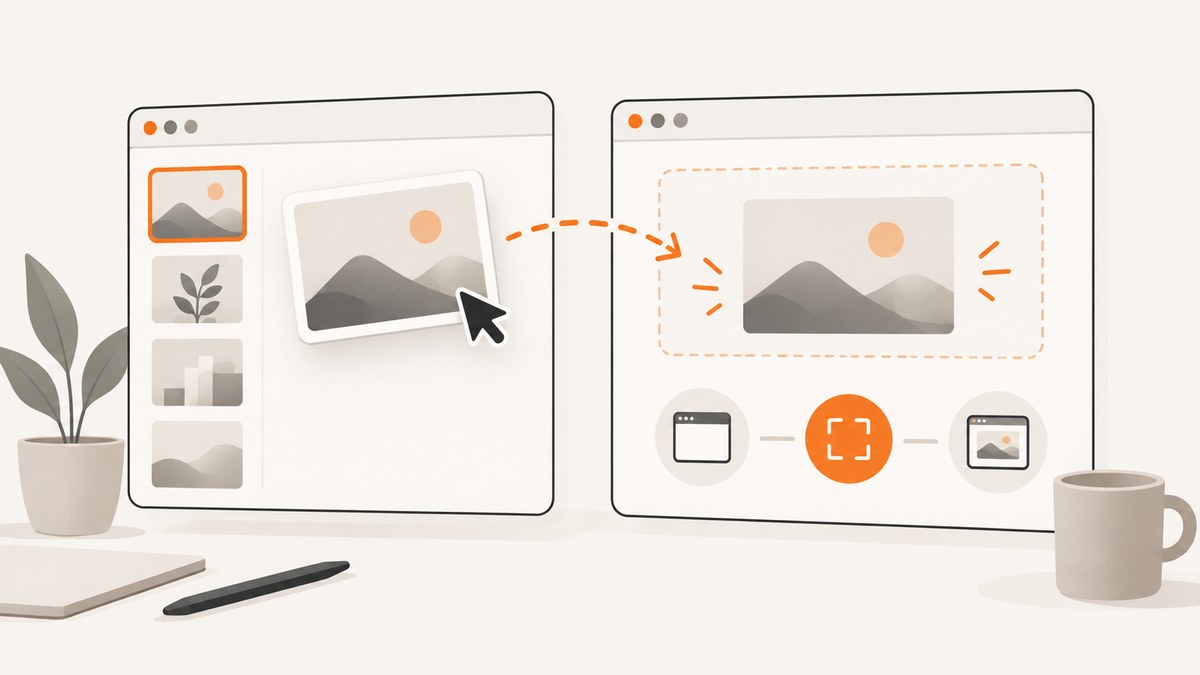
To view a saved screenshot, open its PNG or JPEG file in your browser or drag it into an open browser window. This displays the local image; it does not take a new screenshot. If you mean capturing a webpage, use the browser instructions below for Firefox or Microsoft Edge.
Open an existing screenshot
- Find the image in your computer’s file manager.
- Open your browser, then use its file-opening command, or drag the image file into the browser window.
- Use a
.png,.jpg, or.jpegfile for the broadest compatibility. PNG is usually best for text, diagrams, interface screenshots, and transparency because it is lossless. JPEG uses lossy compression and is generally better for photographs. MDN’s image format guide describes these differences and browser support.
Opening a local image only displays that file in the browser. It does not upload the image to a website.
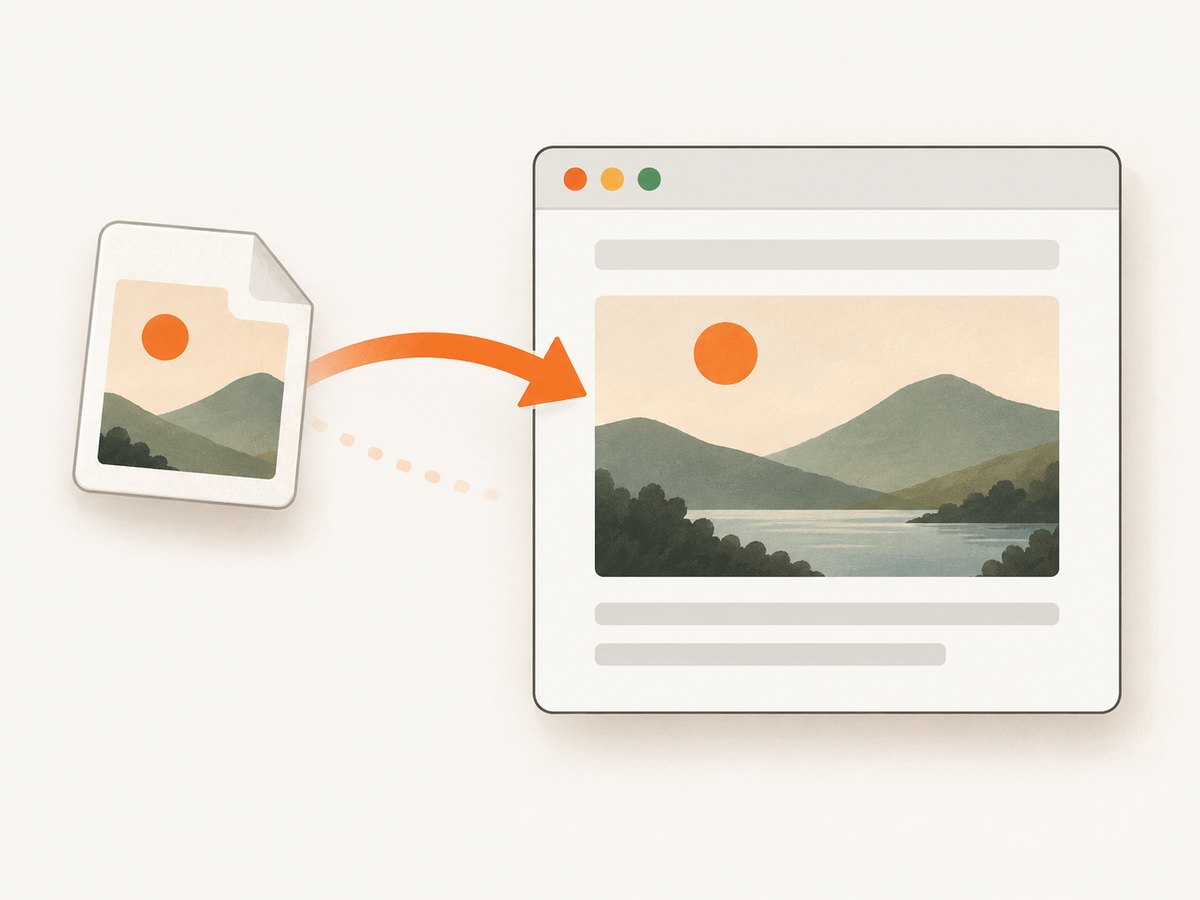
If the image does not display
- Confirm that the file name ends in
.png,.jpg, or.jpeg. - Try opening the same file in another browser or an image viewer.
- Check that the file has a non-zero size and that the download or copy completed.
- Do not simply rename the extension to convert the image. Conversion requires re-encoding the file with an image editor or conversion tool.
- If a newer format such as WebP or AVIF fails, use a current browser or convert the file to PNG or JPEG when compatibility with older browsers matters. Support varies by browser version.
How to take a screenshot of a webpage in Firefox
Firefox’s built-in screenshot tool can capture a selected region, an automatically highlighted page element, the visible area, or the full page. You can copy the result or download it as an image. Mozilla documents the feature in its Take screenshots of webpages guide.
- Open the webpage you want to capture.
- Right-click an empty part of the page and choose Take Screenshot. You can also use Ctrl+Shift+S on Windows and Linux, or Command+Shift+S on macOS.
- Choose one of the capture modes: a selected region, a highlighted element, the visible portion, or the full page.
- Choose Copy to place the image on the clipboard or Download to save it.
Use a selected region when you need exact coordinates, the highlighted element mode when you want one page component, visible-area capture for what is currently on screen, and full-page capture for the complete document.
How to take a screenshot of a webpage in Microsoft Edge
Edge’s Screenshot feature supports a selected area or the full page, plus markup, copying, and saving. Microsoft says that feature availability and behavior can vary by device type, market, and browser version; see the Microsoft Edge Screenshot page for current details.
- Open the webpage in Edge.
- Open Screenshot from the right-click menu or Edge settings. In supported versions, Ctrl+Shift+S opens the tool.
- Select a rectangular area or choose the full-page option.
- Add markup if needed, then copy the result or save it to a file.
If the command or shortcut is missing, update Edge and check whether the feature is available for your device and region.
Choose the right capture and image format
| Need | Best choice | Reason |
|---|---|---|
| Show the whole document | Full-page capture | Includes content below the visible viewport. |
| Show only what is on screen | Visible-area capture | Matches the current browser viewport. |
| Capture one control or component | Highlighted element or selected region | Avoids unrelated page content. |
| Keep text and sharp edges clear | PNG | Lossless compression avoids artifacts around text and line art. |
| Capture a photographic image | JPEG | Lossy compression is often smaller for photos. |
| Keep transparent pixels | PNG | PNG supports transparency. |
WebP and AVIF can reduce file size, but support depends on browser versions and your delivery targets. Provide a fallback when older clients must display the image. JPEG XL and TIFF should not be assumed to work everywhere.
Capture a webpage with code
Browser menus are convenient for one-off work. For repeatable captures, automation gives you a fixed viewport, a named output file, and a script you can run in CI.
Playwright with JavaScript
import { chromium } from 'playwright';

const browser = await chromium.launch();
const page = await browser.newPage({ viewport: { width: 1440, height: 900 }, deviceScaleFactor: 1 });
await page.goto('https://example.com', { waitUntil: 'networkidle' });
await page.screenshot({ path: 'page.png', fullPage: true });
await browser.close();
Install it with npm install playwright. Use fullPage: false for the visible viewport, or replace the page screenshot with await page.locator('.selector').screenshot({ path: 'element.png' }) for one element.
Playwright with Python
from playwright.sync_api import sync_playwright

with sync_playwright() as p:
    browser = p.chromium.launch()
    page = browser.new_page(viewport={"width": 1440, "height": 900}, device_scale_factor=1)
    page.goto("https://example.com", wait_until="networkidle")
    page.screenshot(path="page.png", full_page=True)
    browser.close()
Install it with pip install playwright, then run playwright install chromium to install the browser binary.
Or skip the browser setup
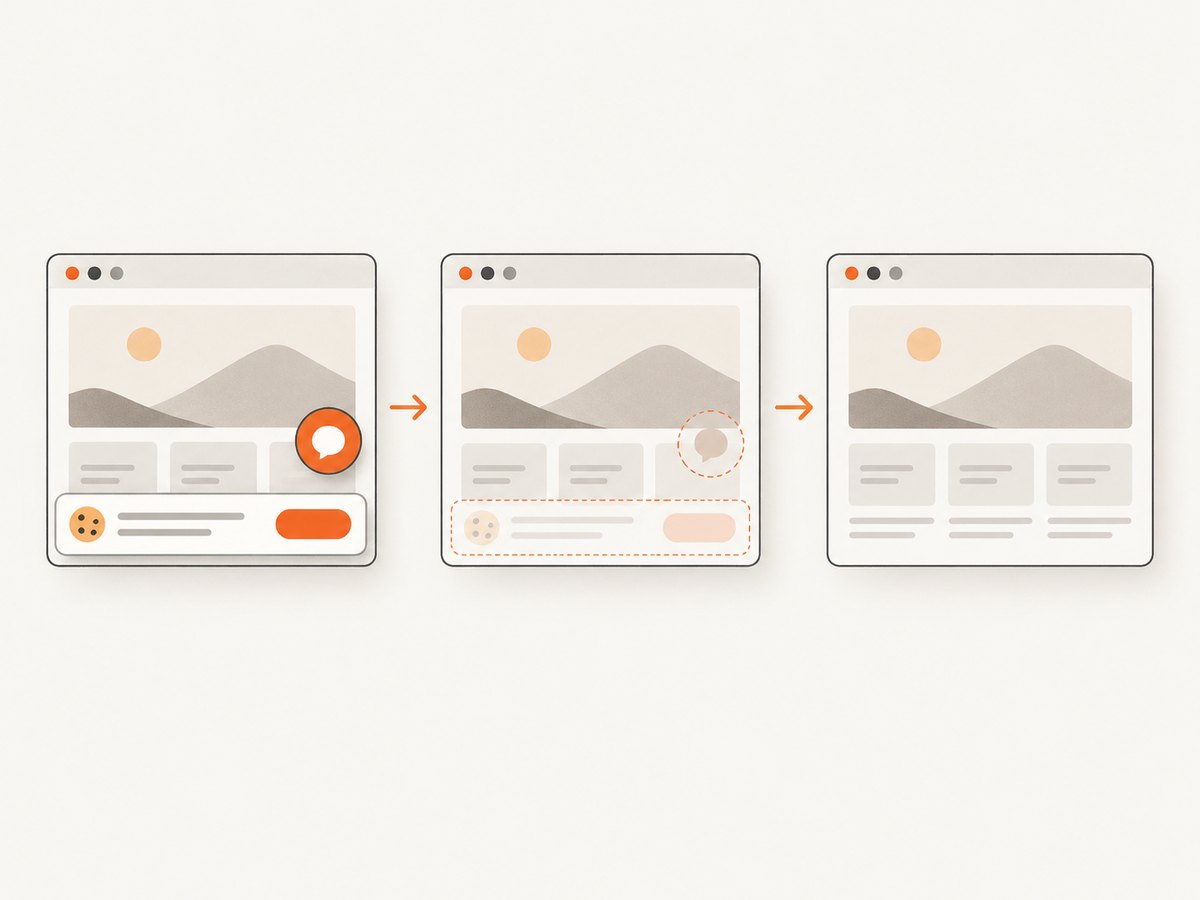
ScreenshotNeo returns a screenshot or PDF from one GET request. Before capture it accepts cookie or consent banners and removes more than 60 known consent platforms, newsletter popups, and chat widgets; each step can be disabled. Bot checks or CAPTCHAs, blank pages, timeouts, failed loads, and cache hits cost nothing, and the response reports the result in X-Page-Verdict and X-Billed headers. It also provides an MCP server for AI agents with take_screenshot, get_page_info, and capture_pdf.
See the ScreenshotNeo API documentation for all options.
curl -G "https://api.screenshotneo.com/v1/shot" -d access_key=YOUR_API_KEY --data-urlencode url=https://stripe.com -o shot.webpimport requests
r = requests.get("https://api.screenshotneo.com/v1/shot", params={"access_key": "YOUR_API_KEY", "url": "https://stripe.com"}, timeout=90)
open("shot.webp", "wb").write(r.content)const q = new URLSearchParams({ access_key: 'YOUR_API_KEY', url: 'https://stripe.com' });
const res = await fetch(`https://api.screenshotneo.com/v1/shot?${q}`);ScreenshotNeo includes full-page capture with lazy images loaded, CSS element capture, dark mode, device presets or custom viewports, retina scale, PDF paper settings, custom CSS and JavaScript, clicks, selector waits, delays, network-idle waits, request and resource blocking, headers, cookies, user agents, authorization, timezone, geolocation, transparent backgrounds, resizing, TTL caching, signed image links, asynchronous jobs with signed webhooks, bulk capture of up to 100 URLs per call, a usage API, and an OpenAPI specification. Its parameter names are compatible with those used by other screenshot APIs.
The Free plan includes 1,000 screenshots per month with no card. Paid plans start at $5 for 3,000 screenshots; every feature is available on every plan. Create a free ScreenshotNeo account.
Troubleshooting
| Symptom | Likely cause | Fix |
|---|---|---|
| Browser reports an unsupported image | Format is not supported by that browser version, or the file is damaged. | Try PNG or JPEG, open it in another viewer, and obtain a complete copy of the file. |
| Image is blank | The screenshot itself may contain a blank page, or rendering had not finished. | Capture after the page loads; in automation, wait for a selector or network idle. |
| Full-page capture cuts off content | Lazy-loaded content or a browser capture limitation. | Scroll or wait for lazy content before capture, or use an automation/API tool that supports full-page loading. |
| Text looks fuzzy | Low device scale factor or JPEG artifacts. | Use PNG and increase the device scale factor or viewport resolution. |
| Cookie banner covers the page | The consent dialog was still present during capture. | Dismiss it manually, add an automation step, or use ScreenshotNeo’s consent handling. |
| Firefox or Edge command is missing | Browser version, device, market, or policy differences. | Update the browser and consult the vendor’s current documentation. |
| Automation times out | Slow resources, scripts, or a page waiting indefinitely. | Set a realistic timeout, wait for a stable selector, block unnecessary resources, and record failed URLs for retry. |
Performance, reliability, and cost considerations
- Viewport and scale: Larger dimensions and retina scale increase pixels, memory, and output size. Use the smallest dimensions that preserve the detail readers need.
- Full page versus viewport: Full-page captures take longer and create larger files. Use viewport captures for monitoring a fixed screen and full-page captures for documentation.
- Waiting: A selector wait is usually more deterministic than an arbitrary long sleep. Network-idle waits can still be delayed by analytics or streaming connections.
- Retries: Retry transient navigation failures with a limit and backoff. Keep the URL and capture settings with each job so a retry is reproducible.
- Caching: Cache stable pages when freshness is not critical. For changing pages, choose a short TTL or disable caching.
- Format and delivery: PNG preserves text but can be large; JPEG is smaller for photos; modern formats can reduce transfer size when your browser support policy allows them.
- API billing: With ScreenshotNeo, only clean shots are billed. Bot checks, blank pages, timeouts, failed loads, and cache hits are not billed, and the response headers identify the verdict and billing status.
FAQ
Can I view a screenshot without uploading it?
Yes. Opening or dragging a local image into a browser displays it from your computer.
What is the safest format for a text-heavy screenshot?
PNG is a strong default because it is lossless and keeps text and sharp edges clear.
Does every browser support full-page screenshots?
No. Capture tools and supported modes vary by browser, version, device, and region.
Why is my screenshot different from what I see?
Viewport size, device scale, delayed fonts or images, consent dialogs, responsive CSS, and personalization can all change the rendered page.
Can an AI agent capture screenshots?
ScreenshotNeo provides an MCP server with take_screenshot, get_page_info, and capture_pdf tools for Claude, Cursor, and other MCP clients.


