How to View a Website’s Snapshot History
Learn how to find old website versions with the Wayback Machine, Save Page Now, Archive.today, and your own reliable screenshot archive.
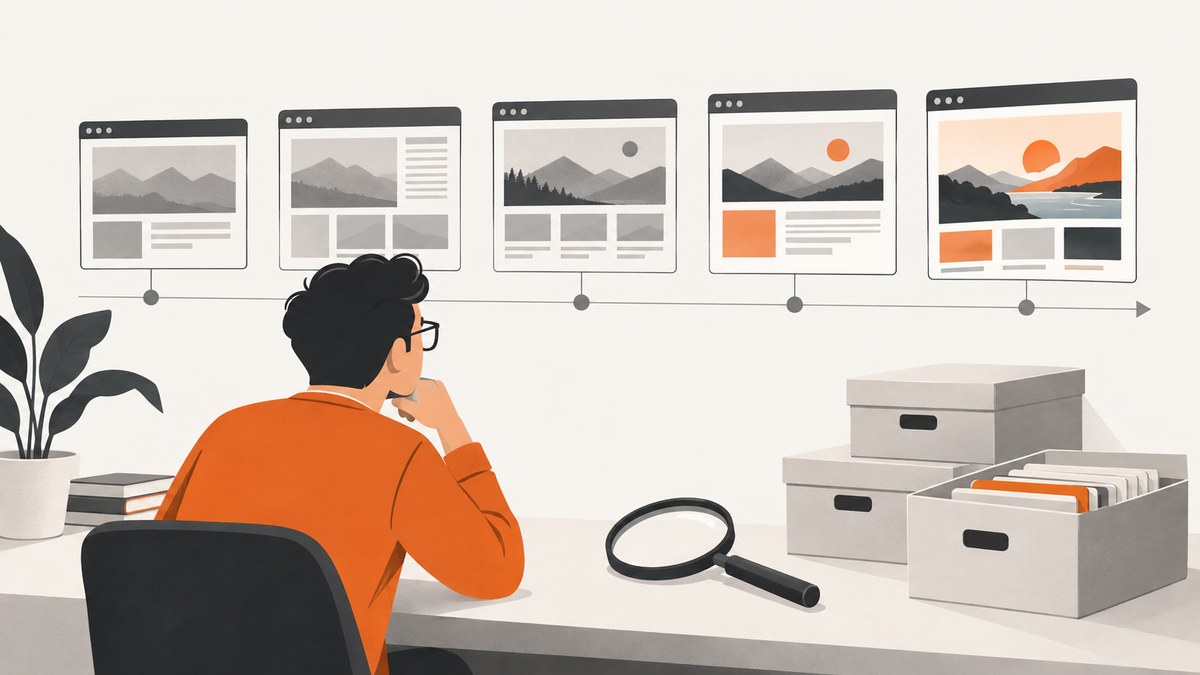
To view an older version of a website, open the Wayback Machine, enter the exact page URL or domain, and choose Browse History. Select a date with an available capture, then inspect the archived page. If the Wayback Machine has no useful copy, search Archive.today and compare the exact URL, date, assets and page behavior.
This guide explains the complete process, including missing captures, broken images, JavaScript-heavy pages, one-time saves, URL variants, evidence collection and a way to create dependable screenshots of pages you control going forward.
1. What a website snapshot is (and is not)
A snapshot is a copy that an archive service recorded at a particular time. It may contain the page HTML, images, stylesheets and other resources, but coverage varies by URL and date. An archive can show only captures it has stored; a blank result does not prove that the page never existed.
Think of a snapshot as an archived observation, not a guaranteed reconstruction of the original site. Pages that depend on JavaScript, third-party APIs, login sessions or live resources can appear incomplete. Robots.txt rules and other crawl restrictions can also affect what was saved. Internet Archive documents these limitations in its Wayback Machine help.
| Need | Best starting point | What to expect |
|---|---|---|
| Inspect a known old page | Wayback Machine URL search | Date-based captures for that exact URL |
| Explore a site’s broader history | Wayback Machine domain search | Capture calendar and URL paths that were recorded |
| Preserve the current page once | Wayback Machine Save Page Now | One page capture, not a whole site crawl |
| Find an alternative copy | Archive.today | Text and graphical capture that may not retain active scripts |
| Build your own current-state record | Screenshot API such as ScreenshotNeo | Repeatable image or PDF captures under your control |
2. Find an old version with the Wayback Machine
Step 1: Start with the most specific URL
Use the full page address when you know it, such as https://example.com/pricing. A domain search is useful for discovering the site’s wider history, but it can hide the fact that a particular path was never captured. Try both the canonical URL and meaningful variants:
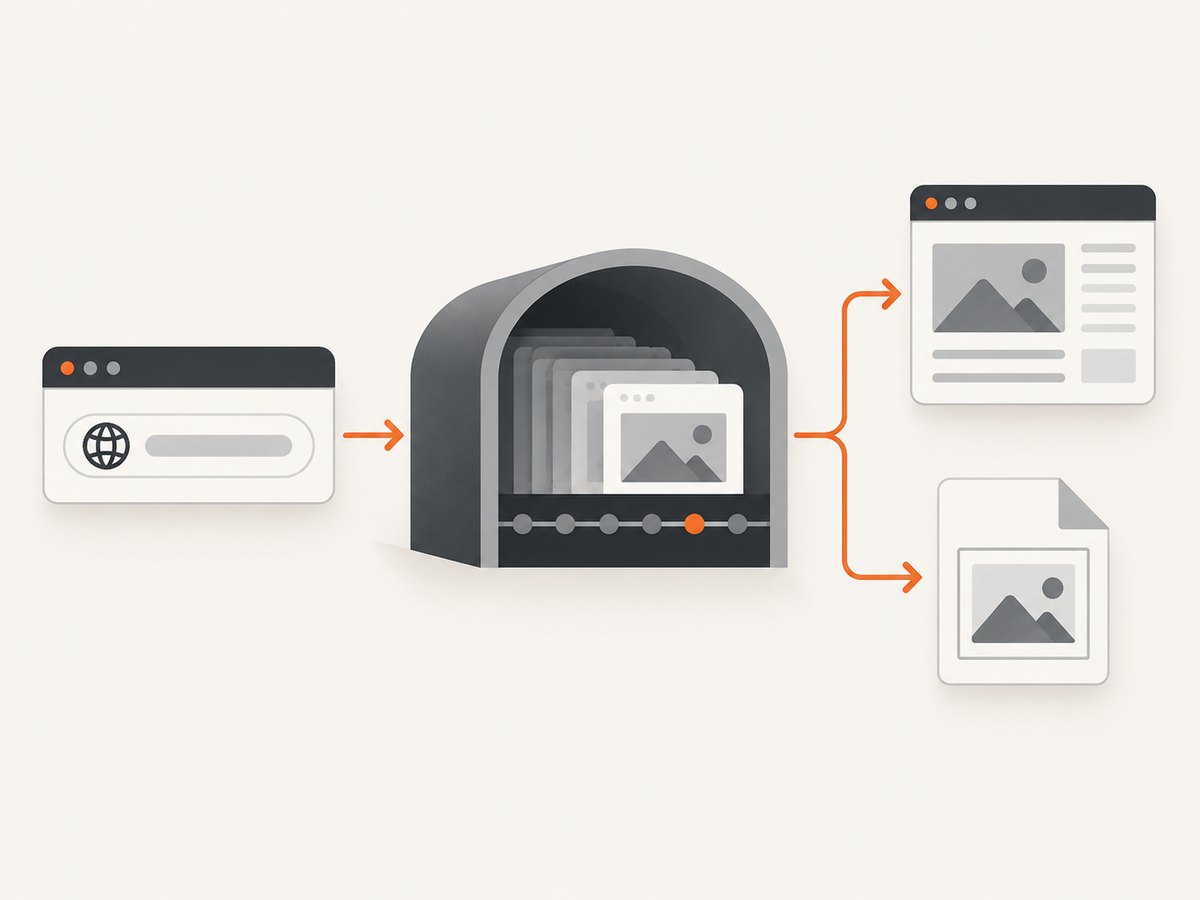
http://andhttps://www.example.comandexample.com- Trailing-slash and non-trailing-slash forms
- Old paths, subdomains and localized paths
- A URL without tracking parameters such as
?utm_source=...
Step 2: Open Browse History
Submit the URL in the Wayback Machine and choose Browse History. The history view shows dates for which the archive has a capture. Select a year, then a highlighted day and time. Open the capture and check the address bar: the archived URL and timestamp are part of the evidence you are viewing.
Step 3: Verify that the capture answers your question
- Confirm the archived URL is the page you intended to inspect.
- Record the capture timestamp, including its time zone as displayed by the archive.
- Check the headline, navigation, pricing, legal text or other facts relevant to your research.
- Open important images and linked assets in separate tabs to see whether they were archived.
- Try the page’s internal links only after recording the original capture; links may resolve to different archived dates.
A capture list represents what the archive recorded, not every version that existed. If the page is missing from the calendar, search individual assets and likely historical URLs. Internet Archive specifically recommends entering an image or link URL when you need to determine whether that resource was archived separately.
3. Use Save Page Now for a one-time capture
If the page is currently available and you want to preserve it, use Save Page Now. This creates a one-time page capture. It does not subscribe the URL to future crawls, save every linked page, or archive an entire directory or site. The Internet Archive explains the scope in its Save Pages in the Wayback Machine documentation.
Capture checklist
- Save the exact canonical URL.
- Save important query parameters if they change the page content.
- Wait for the confirmation URL before closing the tab.
- Open the resulting capture in a private window to check that it is reachable without your session.
- Record what was not captured: images, fonts, downloads, embedded video or interactive controls.
For a product release, policy change or public announcement, save the page before it changes and keep the archive URL with your internal record. A one-time capture is useful evidence of what was submitted and accepted at that moment, but it is not a complete backup.
4. Search Archive.today when Wayback has no usable copy
Archive.today is a separate service with page submission and snapshot search. Search the exact URL first, then try the domain and URL variants. Archive.today describes its copies as text and graphical captures without active page scripts, so interactive behavior from the original page may not work.
When both services return results, compare:
| Check | Why it matters |
|---|---|
| Exact URL | A home page capture may not represent the pricing or documentation page. |
| Capture date and time | Two captures can show different releases on the same day. |
| Images and linked assets | Missing assets can change the meaning of a page. |
| Scripts and interaction | Archived JavaScript may be disabled, absent or pointed at a live origin. |
| Visible page state | Consent dialogs, login walls and geolocation can alter what was recorded. |
5. Handle missing, incomplete or misleading snapshots
No result for the URL
Try the protocol, hostname, path and query-string variants listed earlier. Search a parent path or the domain to discover redirects and renamed pages. If you have a link from an old document, use that exact link rather than guessing the current URL.
The page loads but looks broken
Look for missing CSS, images or fonts in the browser developer tools, then open those resource URLs in the archive. A page that referenced a live API may need data that was never captured. Treat the visible result as partial when key resources are absent.
JavaScript does not work
Archived pages may not preserve scripts or may prevent them from running. Use the rendered text and images for historical inspection, but do not claim that an archived interactive workflow behaved exactly like the original. For a dynamic chart or application, search for a static export, a PDF, a press release or a separately archived data endpoint.
The archive shows a redirect or login page
Follow the archived redirect chain and search the destination URL directly. Private, paywalled and authenticated pages are often unavailable. A capture made while you were logged in should not be assumed to be publicly reproducible.
Consent banners or chat widgets obscure the content
Try a different capture date or inspect the page source for the underlying text. If you need a clean record of a page you can access now, make a fresh controlled screenshot and preserve the archive URL alongside it.
6. Create repeatable snapshots of pages you control
Public archives are valuable for historical research, but they do not give you a schedule, a guaranteed set of options or control over which page state is captured. For release monitoring, visual regression checks or a compliance record, automate screenshots at the time the page is published.
DIY browser approach
With Playwright, the basic flow is: launch Chromium, open the URL, wait for the page to settle, capture a full-page image, and store a timestamped filename.
import { chromium } from 'playwright';

const browser = await chromium.launch();
const page = await browser.newPage({ viewport: { width: 1440, height: 900 }, deviceScaleFactor: 1 });
await page.goto('https://example.com', { waitUntil: 'networkidle' });
await page.screenshot({ path: `snapshots/example-${Date.now()}.png`, fullPage: true });
await browser.close();
For reliable records, also save the final URL, HTTP status, capture timestamp, viewport, user agent, commit or release identifier and a cryptographic hash of the image. Use a stable browser version in CI. Wait for a specific selector when the page has predictable readiness, and use a bounded timeout so a stalled third-party request does not block every capture.
Useful browser controls
- Viewport: choose a fixed width and height for comparable images.
- Device scale factor: use a consistent retina setting when text sharpness matters.
- Wait condition: prefer a selector or network-idle rule over an arbitrary long sleep.
- Authentication: load a dedicated test account or storage state; never place production credentials in logs.
- Animations: disable transitions when pixel comparison is the goal.
- Lazy loading: scroll through long pages before capture so deferred images load.
- Network control: block ads and analytics only when doing so will not change the page you are documenting.
7. Or skip the browser setup
ScreenshotNeo provides a website screenshot API and MCP server. One GET request returns a PNG, JPEG, WebP or PDF of the current page, which is useful when you want your own repeatable snapshots alongside archive URLs.

See the ScreenshotNeo API documentation for the complete parameter list. A minimal WebP capture looks like this:
curl -G "https://api.screenshotneo.com/v1/shot" -d access_key=YOUR_API_KEY --data-urlencode url=https://example.com -o shot.webpimport requests
r = requests.get(
"https://api.screenshotneo.com/v1/shot",
params={"access_key": "YOUR_API_KEY", "url": "https://example.com"},
timeout=90,
)
r.raise_for_status()
open("shot.webp", "wb").write(r.content)const q = new URLSearchParams({ access_key: 'YOUR_API_KEY', url: 'https://example.com' });
const res = await fetch(`https://api.screenshotneo.com/v1/shot?${q}`);
if (!res.ok) throw new Error(`Screenshot failed: ${res.status}`);
const fs = await import('node:fs/promises');
await fs.writeFile('shot.webp', Buffer.from(await res.arrayBuffer()));For a snapshot history workflow, combine the image with metadata such as the URL, capture time and release identifier in your own storage. ScreenshotNeo supports full-page capture with lazy images loaded, CSS-selector element capture, dark mode, device presets or custom viewports, retina scale, custom CSS and JavaScript, click-before-capture actions, selector waits, delay or network-idle waits, hidden selectors, blocked ads and trackers, custom headers, cookies, user agents, authorization, timezone and geolocation, transparent backgrounds, resizing, configurable caching TTLs, signed public image links, asynchronous jobs with signed webhooks, bulk capture of up to 100 URLs per call, a usage API and an OpenAPI specification. Common parameter names used by other screenshot APIs also work, which can simplify migration.
The clean-shot pipeline accepts cookie or consent banners like a visitor and removes more than 60 known consent platforms, newsletter popups and chat widgets. Each step can be turned off. Bot checks or CAPTCHAs, blank pages, timeouts, failed loads and cache hits are not billed, and the response identifies the result with X-Page-Verdict and X-Billed headers. An MCP server exposes take_screenshot, get_page_info and capture_pdf for Claude, Cursor and other MCP clients.
Plans include 1,000 shots per month free with no card; paid plans start at $5 for 3,000 shots. Yearly billing provides two months free, and every feature is available on every plan. Create a free ScreenshotNeo account to start capturing.
8. Performance, reliability and cost planning
Make captures comparable
Keep viewport, device scale, color scheme, timezone, geolocation and authentication state constant. A page can legitimately render different content when any of these values changes. Store the settings with each image so a later reviewer can reproduce the conditions.
Control latency
Full-page screenshots and pages with many lazy-loaded assets take longer than a small element capture. Use selector waits for known components, a maximum timeout for unreliable origins and asynchronous jobs for large batches. Cache a page only when a cached version is acceptable for your history; choose the TTL deliberately.
Estimate spend
For a DIY browser, budget for compute, browser maintenance, storage and retry traffic. With an API, count successful clean shots and decide whether PDFs, full-page images, bulk calls or signed links are needed. ScreenshotNeo’s billing behavior is visible per response through its verdict and billed headers, so failed loads and cache hits do not silently consume shot credits.
9. Troubleshooting checklist
| Symptom | Likely cause | Fix |
|---|---|---|
| Wayback calendar is empty | Wrong URL variant or no recorded capture | Try protocol, hostname, path and asset URLs; then check Archive.today. |
| Only a partial page appears | Missing resources or JavaScript data | Open asset URLs directly and label the result as incomplete. |
| Save Page Now does not preserve the whole site | It saves one page only | Submit each critical page separately. |
| Screenshot is cut off | Viewport or full-page option is wrong | Use full-page capture or capture the target element by selector. |
| Images are blank | Lazy loading, blocked requests or an early capture | Scroll, wait for a selector or network idle, and review blocked-resource rules. |
| Capture hangs | Never-ending third-party request | Use a bounded timeout, block nonessential requests or switch to an async job. |
| API response is not an image | Authentication or validation error | Check the access key, URL encoding, HTTP status and response headers before writing the file. |
10. FAQ
Can I see a website version from an exact date?
Only if an archive captured that URL near the date. Choose the closest available capture and record its actual timestamp.
Does Save Page Now archive linked pages?
No. It is a one-time capture of the submitted page, not a crawl of outlinks or a directory.
Why does an archived page look different from the live site?
Assets, scripts, APIs, cookies, redirects and robots.txt restrictions can change what the archive can replay.
Is Archive.today an interactive backup?
No. Its own description says saved pages do not retain active elements or scripts, so use it primarily for textual and graphical reference.
How should I preserve a page that may change tomorrow?
Save the current page in the Wayback Machine, then create a controlled screenshot or PDF with fixed settings and retain the URL, timestamp and metadata in your own storage.
For historical research, begin with the exact URL in the Wayback Machine, verify the capture and its assets, then use Archive.today when necessary. For future changes, schedule your own captures so the record does not depend on whether a public crawler happened to visit.


