How to View Website Thumbnails From Screenshot Captures
Learn how to open saved website screenshots and inspect Chrome’s page-load thumbnails, plus how to capture pages without setting up a browser.
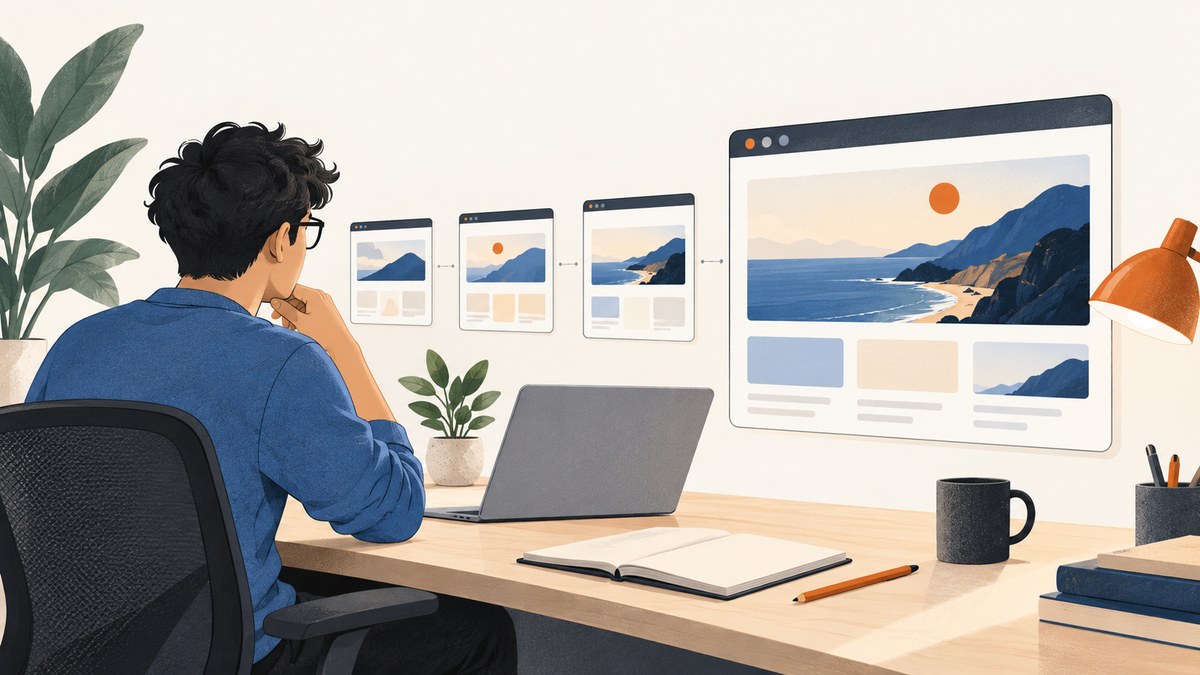
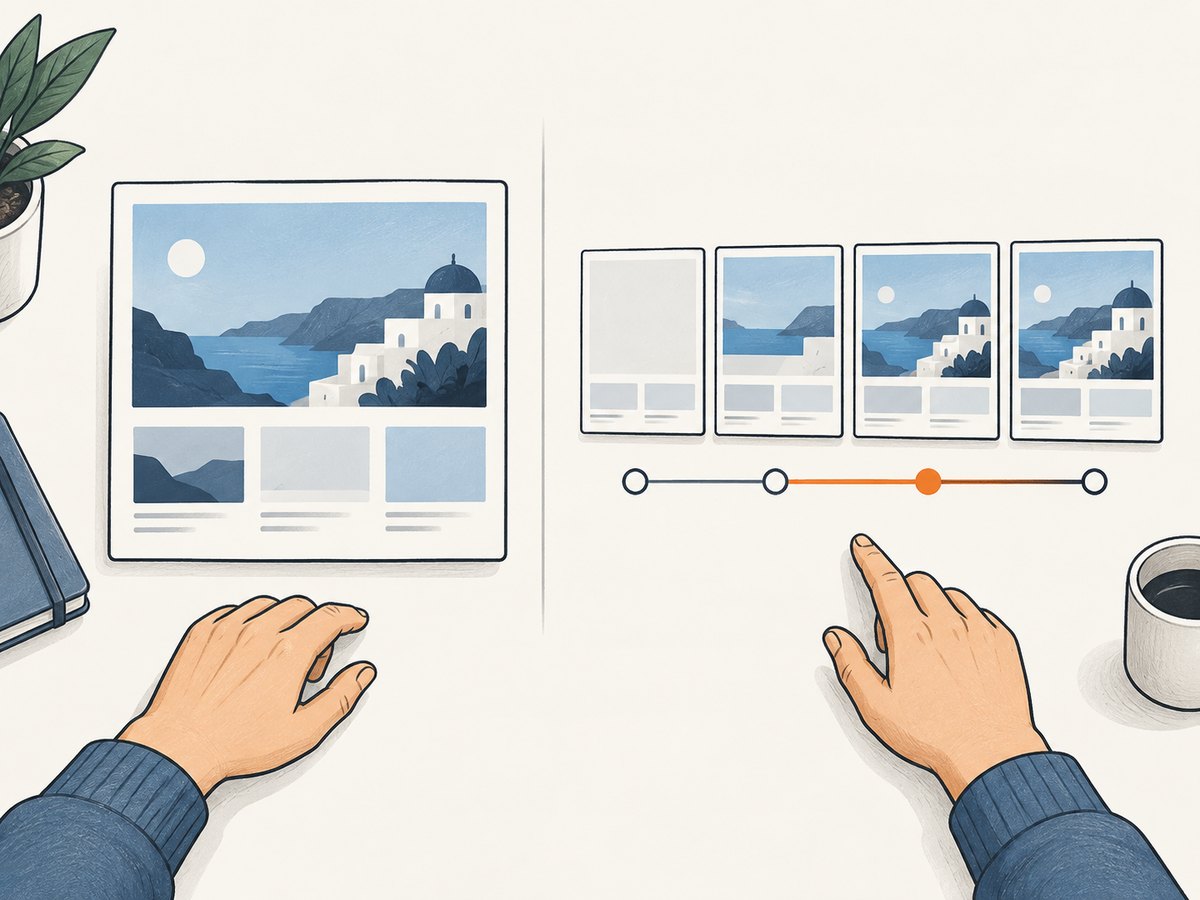
There are two different things people mean by “website thumbnails from screenshot captures.” If you already captured a screenshot, open its downloaded image file in an image viewer, or paste a copied capture into an app that accepts images. If you want to see a series of thumbnails showing how a live page looked as it loaded, use Chrome DevTools: enable Screenshots in the Network panel settings, reload the page, then select a thumbnail.
The distinction matters: a saved screenshot is a standalone image; Chrome’s Network screenshots are a time-ordered view of page rendering connected to network activity. The steps below cover both, plus how to capture a new image when you need one.
1. Identify which kind of screenshot you have
Before looking for a file or opening DevTools, identify what you’re trying to inspect:
| What you have or need | Where to view it | What it shows |
|---|---|---|
| A downloaded screenshot | Your operating system’s image viewer or an image-capable app | A single captured image, such as PNG |
| A screenshot copied to the clipboard | Paste it into an app that accepts images | The capture, without first locating a file |
| A Chrome page-load thumbnail strip | Chrome DevTools Network panel | Snapshots of the live page at points during loading, associated with network activity |
“Viewport” means the part of the page currently visible in the browser window. A full-page capture includes content outside that viewport. A page-load thumbnail strip is neither of those capture scopes: it records the page’s appearance at multiple moments while loading. Chrome documents that clicking a thumbnail filters the Network panel to requests that occurred up to that point; double-clicking zooms in on the thumbnail. Chrome DevTools Network features reference.
2. Open a saved website screenshot
- Find the image file. Check the browser’s configured download folder or the location you selected when saving. Search for image files by page title or a recent date if the folder contains many downloads.
- Open it with an image viewer. Double-click the file, or use your system’s Open command and choose an image-capable app. The precise default app and menu names depend on your operating system.
- Zoom and inspect. A full-page screenshot may be much taller than your display. Fit-to-window is useful for an overview; zoom in to read small text or inspect layout details.
- Share or reuse it. Attach the image in a message or issue, or open an image-capable editor. If the capture was copied instead of saved, paste it into the target app.
Firefox’s screenshot feature supports selecting a region, an automatically detected page part, the visible page, or the full page. It can download the result as an image or copy it to the clipboard. Firefox saves downloaded captures in its configured default download folder. Firefox Help: Take screenshots.
Where did my browser screenshot save?
Start with the browser’s default download location, then check the browser’s downloads list for the exact file or folder. Firefox’s documentation says the screenshot image is saved in the same folder used for its default downloads. If you used a different browser, operating system, or save dialog, check its configured location rather than assuming a universal path. Clipboard captures do not create a file until you paste and save them from another app.
3. View Chrome thumbnails as a page loads
Use this workflow when you want to diagnose what visitors see during loading, or correlate a visual change with requests. It requires a reload with DevTools open; it does not open an earlier image capture.
- Open the page you want to inspect in Chrome.
- Open DevTools and select the Network panel.
- Open Network settings using the panel’s settings control, then enable Screenshots (also described as Capture screenshots in the Network features reference).
- Reload the page while the Network panel is open. If you need a fresh-load view, Chrome’s tutorial describes using Empty Cache And Hard Reload while DevTools is open. A normal reload may reuse cached resources.
- Look for the Screenshots strip in the Network panel. Select a thumbnail to see which network requests were active by that point. Hovering can show its point on the timeline; double-click a thumbnail to zoom in.
Chrome describes these as thumbnails of how the page looked at different points during loading. They are useful when a page starts blank, shifts after styles or images arrive, or displays an overlay before the main content. The thumbnail helps establish when the visual state appeared; the request list helps investigate what was loading. Chrome DevTools: Inspect network activity.
Make the capture easier to interpret
- Keep DevTools open before reloading; otherwise there may be no recording for that load.
- Clear the request log if old requests make the timeline confusing.
- Use a hard reload when you specifically need to observe uncached resources. That changes the conditions from a repeat visit, so use a normal reload when cache behavior is part of the problem.
- Use the timeline and request details alongside thumbnails. A thumbnail is a visual snapshot, not a full recording of every frame or a replacement for the page’s HTML, CSS, and JavaScript inspection.
4. Capture a new screenshot in the browser
If you need a file rather than a loading sequence, capture the page and then open the resulting image as described above. Firefox provides a built-in screenshot workflow:
- Open the page and invoke Take Screenshot from the page context menu, or use Ctrl+Shift+S on Windows or Linux and Command+Shift+S on macOS.
- Choose a region, a detected page part, Save visible, or Save full page, depending on what you need.
- Select Download to save an image file, or Copy to put the image on the clipboard.
- Open the downloaded file or paste the clipboard image into your app.
For developer-oriented captures, Firefox Developer Tools also documents commands for capturing the whole page or a single element. See Firefox Developer Tools: Taking screenshots. In Chrome, Device Mode distinguishes a screenshot of the current viewport from a full-size page capture; choose based on whether you need only what is currently visible or content below the fold. Browser controls and labels can change across versions.
5. Choose viewport or full-page scope deliberately
A screenshot’s dimensions affect whether it works as a thumbnail, bug report, or design reference. A viewport capture is usually easier to compare with a browser window and keeps the image manageable. A full-page capture includes off-screen content and is useful for reviewing a long landing page or documenting sections below the fold. Firefox supports both visible-area and full-page captures; Chrome’s Device Mode documentation also distinguishes viewport from full-size capture.
- Use viewport capture to report a visible defect, compare the initial view, or share a compact preview.
- Use full-page capture to inspect page structure from top to bottom, including content below the fold.
- Use Chrome’s page-load thumbnails to investigate visual changes over time and relate them to network activity.
Do not compare two captures as if they show the same state unless the viewport, page state, and capture timing are comparable. Responsive layouts can change with viewport dimensions. A full-page image can also be so tall that its overall thumbnail is unreadable; open it and zoom into the section you need.
6. Troubleshooting
| Problem | Likely cause | What to do |
|---|---|---|
| No Screenshots strip appears in Chrome | The option is off, DevTools was opened after the load, or the page has not been reloaded since enabling it. | Open Network settings, enable Screenshots, then reload with DevTools open. |
| The Network panel shows requests but no thumbnails | The screenshot capture option may be disabled, or you are looking at an old recording. | Enable the option and reload again. Clear the request list first if needed to separate the new run. |
| A thumbnail appears blank or incomplete | The page may genuinely have been blank or still loading at that moment; scripts, fonts, images, or styles may not have arrived. | Select the thumbnail and inspect requests around that time. Compare later thumbnails before concluding that the final page is blank. |
| The screenshot file is missing | It may have been copied to the clipboard rather than downloaded, or saved to a different downloads folder. | Check browser downloads and the configured download location. If copied, paste into an image-capable app and save a file there. |
| The image looks tiny or blurry | A full-page image may be scaled to fit, or the source capture may have limited pixel dimensions. | Zoom into the image for inspection. For a new capture, choose the correct viewport and capture scope for the detail you need. |
| Page-load thumbnails differ between runs | Page content, cache state, timing, or network conditions may differ. | Repeat with the same reload method and note whether you used a normal reload or a cache-clearing hard reload. |
Browser documentation does not guarantee identical menu labels in every release. If a control is not where these steps describe, search the current Network panel settings for the screenshot capture option.
7. Or skip the browser setup
If you need a screenshot image from code or a repeatable capture workflow, ScreenshotNeo provides a website screenshot API and MCP server. One GET request takes a URL and returns an image or PDF. See the ScreenshotNeo API documentation.
curl -G "https://api.screenshotneo.com/v1/shot" \
  -d access_key=YOUR_API_KEY \
  --data-urlencode url=https://stripe.com \
  -o shot.webp
import requests
r = requests.get(
"https://api.screenshotneo.com/v1/shot",
params={"access_key": "YOUR_API_KEY", "url": "https://stripe.com"},
timeout=90,
)
r.raise_for_status()
with open("shot.webp", "wb") as f:
f.write(r.content)const q = new URLSearchParams({
access_key: 'YOUR_API_KEY',
url: 'https://stripe.com'
});
const res = await fetch(`https://api.screenshotneo.com/v1/shot?${q}`);
if (!res.ok) throw new Error(`Screenshot request failed: ${res.status}`);
const bytes = new Uint8Array(await res.arrayBuffer());
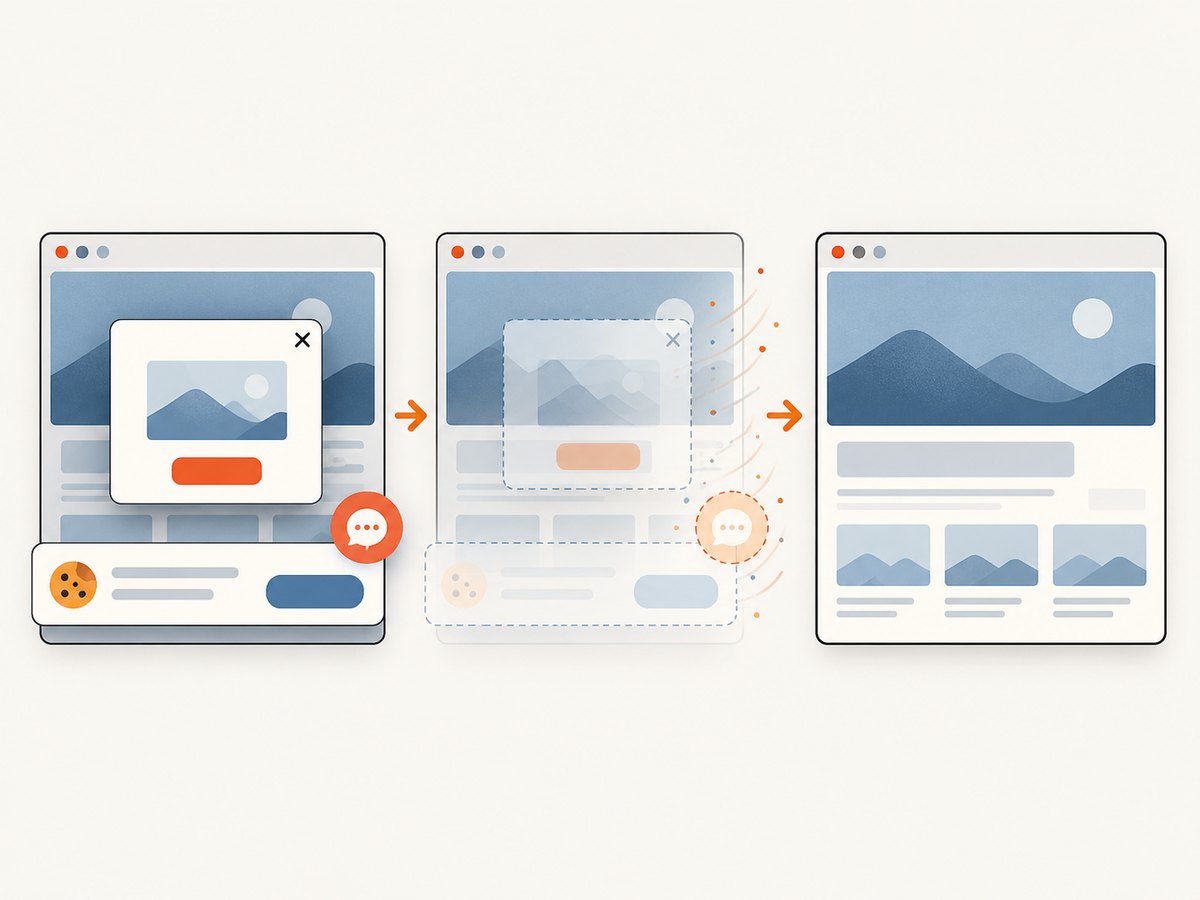
await import('node:fs/promises').then(fs => fs.writeFile('shot.webp', bytes));ScreenshotNeo removes cookie banners, newsletter popups, and chat widgets before capture. Bot checks, blank pages, and failed loads are never billed; response headers indicate the page verdict and billing status. Its MCP server lets AI agents use screenshot tools, and 1,000 screenshots a month are free with no card; paid plans start at $5 for 3,000. For a browser-free capture, sign up for ScreenshotNeo’s free plan.
8. Performance, reliability, and cost notes
Viewing an existing image is local and does not require another page load. Chrome’s thumbnail workflow records during a new load, so it adds a capture step to the debugging session; its main benefit is linking visual states to network timing. For repeatable captures of many URLs, a screenshot API avoids manually reopening each page, but you should account for API requests, network timeouts, output size, and how your application handles unsuccessful responses. Check the response before saving bytes as an image, as shown in the Node.js example.
For local debugging, repeat the same browser workflow and reload conditions when comparing results. Cache-clearing reloads and ordinary reloads answer different questions. For API costs, consult the service’s current plan details; ScreenshotNeo’s listed plans are Free: 1,000 shots/month; Starter: $5 for 3,000; Growth: $15 for 15,000; Pro: $39 for 60,000; Scale: $99 for 250,000; and Business: $249 for 1,000,000. Yearly billing gives two months free, and every feature is on every plan. ScreenshotNeo bills only clean shots; cache hits cost nothing. Keep your access key private and avoid embedding it in public client-side code.
9. Frequently asked questions
Can I see a screenshot without saving it as a file?
Yes. Firefox can copy a capture to the clipboard, which you can paste into an app that accepts images. Chrome’s page-load thumbnail strip also lets you inspect captures within DevTools.
Do Chrome Network thumbnails show the whole page?
They show the page as it appeared at points during loading. They are intended for investigating the load sequence; use a dedicated full-page capture when you need a single image of content below the fold.
Can I use a screenshot as a website thumbnail?
Yes. Save or generate an image capture, then use it wherever an image is accepted. Choose a viewport or crop that keeps the part you want to preview legible.
Why does a page look different in a capture than in my browser?
The capture may represent a different moment during loading, a different viewport, or a different cache state. Compare the same scope and reload conditions, and inspect the page-load timeline if the issue is about when content appears.


