How to Capture Only Visible Elements in Selenium Safari Screenshots
Capture one visible DOM element in Safari with Selenium, handle clipping and versions, and avoid full-window screenshots.
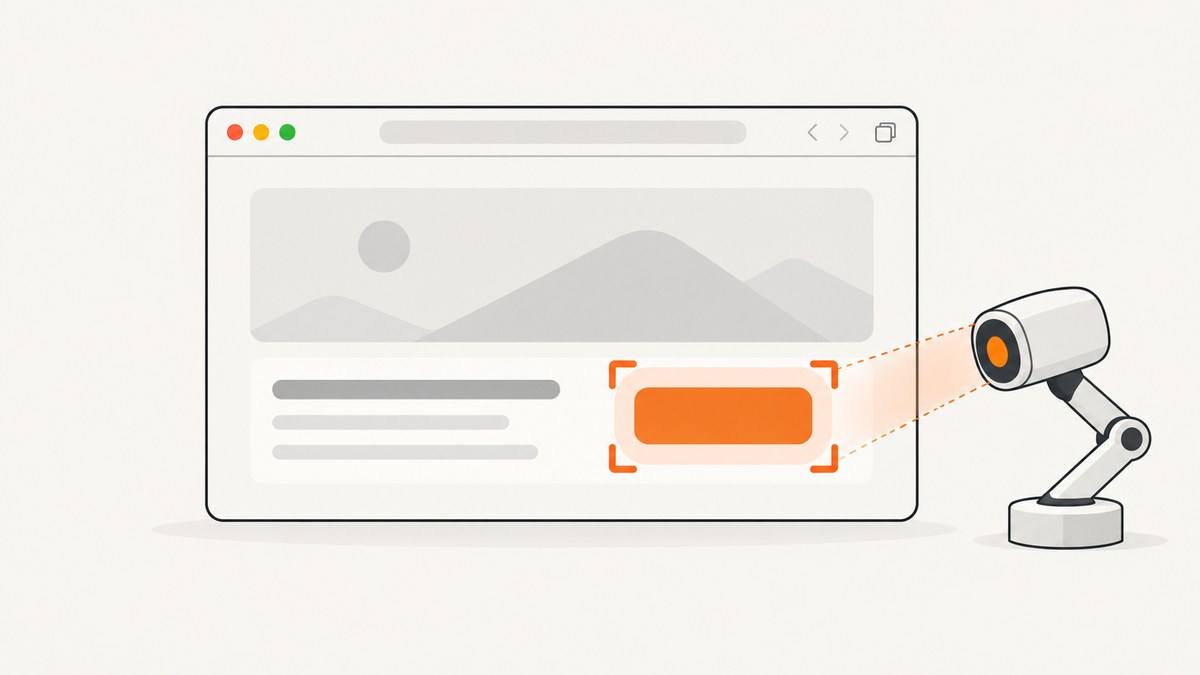
Use Selenium’s element screenshot method when you need only one visible element: locate the element, make sure it is displayed, scroll it into view if needed, then call element.screenshot(). Use driver.save_screenshot() or another driver-level method only when you want the current Safari window or viewport.
from selenium import webdriver
from selenium.webdriver.common.by import By

 driver = webdriver.Safari()
 driver.get('https://example.test')
 element = driver.find_element(By.CSS_SELECTOR, '#target')
 driver.execute_script(
     "arguments[0].scrollIntoView({block: 'center', inline: 'nearest'});",
     element,
 )
 element.screenshot('visible-element.png')
 driver.quit()
This is an element-bounded capture. The exact pixels returned for an element that has overflowing or clipped content can vary with Safari, SafariDriver, Selenium, and macOS versions. Treat “visible” as the element’s rendered box as interpreted by the WebDriver implementation, and verify the output in the browser versions used by your tests.
Choose the screenshot scope first
Selenium exposes two different operations that are often confused:
| Method | Scope | Use it for |
|---|---|---|
element.screenshot(path) |
A WebElement | A card, chart, form, logo, or other DOM element |
element.screenshot_as_png |
A WebElement | Keeping PNG bytes in memory |
driver.save_screenshot(path) |
The current browser window or viewport | Debugging the page, a full viewport assertion, or a visual baseline |
driver.get_screenshot_as_png() |
The current browser window or viewport | Processing the window image without an intermediate file |
The WebDriver screenshot endpoint for an element is GET /session/{session id}/element/{element id}/screenshot. Apple documents that endpoint for Safari 12 and later. Selenium’s Python and Java APIs wrap it as a WebElement screenshot operation.
Python: capture one visible Safari element
Minimal runnable example
from selenium import webdriver
from selenium.webdriver.common.by import By

URL = 'https://example.test'

options = webdriver.SafariOptions()
driver = webdriver.Safari(options=options)
try:
    driver.get(URL)
    target = driver.find_element(By.ID, 'target')
    target.screenshot('target.png')
finally:
    driver.quit()
SafariDriver is built into recent Safari releases. Enable Develop > Allow Remote Automation in Safari before starting a local session. In CI, record the macOS version, Safari version, Selenium package version, and the machine’s display or device-pixel-ratio settings.
Wait for visibility and scroll into view
A locator can match an element that exists in the DOM but is hidden, covered, or outside the current scroll position. Wait for visibility and center the element before capturing:
from selenium import webdriver
from selenium.webdriver.common.by import By
from selenium.webdriver.support.ui import WebDriverWait
from selenium.webdriver.support import expected_conditions as EC

 driver = webdriver.Safari()
 try:
     driver.get('https://example.test')
     wait = WebDriverWait(driver, 10)
     target = wait.until(
         EC.visibility_of_element_located((By.CSS_SELECTOR, '[data-testid="price-card"]'))
     )
     driver.execute_script(
         "arguments[0].scrollIntoView({block: 'center', inline: 'nearest'});",
         target,
     )
     target.screenshot('price-card.png')
 finally:
     driver.quit()
visibility_of_element_located checks that the element is present and has a non-zero rendered size. It does not prove that a sticky header, modal, or cookie banner is not covering it. If an overlay is possible, close it or wait for its invisibility before taking the screenshot.
Keep the image in memory
png_bytes = target.screenshot_as_png
with open('target.png', 'wb') as output:
    output.write(png_bytes)
The base64 form, target.screenshot_as_base64, is useful when a test report or an API payload expects text. Convert it back to bytes before writing a binary PNG file.
Java: the WebElement screenshot API
Java exposes WebElement screenshots through TakesScreenshot. The following waits for a visible element and copies the returned temporary file to a stable path:
import java.nio.file.Files;
import java.nio.file.Path;
import java.nio.file.StandardCopyOption;
import java.time.Duration;

import org.openqa.selenium.By;
import org.openqa.selenium.WebDriver;
import org.openqa.selenium.WebElement;
import org.openqa.selenium.SafariDriver;
import org.openqa.selenium.support.ui.ExpectedConditions;
import org.openqa.selenium.support.ui.WebDriverWait;
import org.openqa.selenium.OutputType;

public class SafariElementShot {
    public static void main(String[] args) throws Exception {
        WebDriver driver = new SafariDriver();
        try {
            driver.get("https://example.test");
            WebDriverWait wait = new WebDriverWait(driver, Duration.ofSeconds(10));
            WebElement target = wait.until(
                ExpectedConditions.visibilityOfElementLocated(By.id("target"))
            );
            target.getScreenshotAs(OutputType.FILE).toPath();
            Files.copy(
                target.getScreenshotAs(OutputType.FILE).toPath(),
                Path.of("target.png"),
                StandardCopyOption.REPLACE_EXISTING
            );
        } finally {
            driver.quit();
        }
    }
}
For production code, obtain the file once and copy that object rather than calling getScreenshotAs twice:
File image = target.getScreenshotAs(OutputType.FILE);
Files.copy(image.toPath(), Path.of("target.png"), StandardCopyOption.REPLACE_EXISTING);
Selenium’s Java contract says a conforming driver or element can capture a screenshot. For a non-conforming WebElement implementation, Selenium describes a best-effort order that may return the element’s entire content or its visible portion. That is why the same test can produce different clipping on different Safari releases.
What “visible” means in Safari
There are several kinds of visibility to distinguish:
- DOM visibility: the node exists and is not hidden by
display:none,visibility:hidden, or a zero-size layout. - Viewport visibility: the element’s box is within the current scrollable viewport. Scrolling it into view helps, but does not guarantee it is unobstructed.
- Paint visibility: the final pixels are not covered by another layer, modal, sticky header, or animation.
- Overflow visibility: the element may have descendants clipped by
overflow:hiddenor a fixed height. WebDriver implementations can differ on whether they return the visible box or more of the element’s content.
Pause animations and wait for images or fonts when a stable visual result matters. A CSS class that changes after loading can otherwise produce a screenshot halfway through a transition. For lazy-loaded content, scroll the target into view first and wait until its images have loaded.
Viewport, full-page, and element captures compared
driver.save_screenshot() captures the current Safari window. It does not mean “the currently visible part of this WebElement.” A full-page image is a separate concern and may require browser-specific stitching or a service that renders the page outside the viewport. An element screenshot is the right scope for a component-level visual test, provided you have checked how your Safari version clips that element.
| Requirement | Recommended operation | Main risk |
|---|---|---|
| One card or component | WebElement.screenshot |
Clipping differences around overflow |
| Current viewport | driver.save_screenshot |
Unwanted browser chrome or overlays in the test state |
| Entire long page | Dedicated full-page workflow | Lazy content, sticky elements, and stitching seams |
Safari version and pixel-ratio considerations
Apple’s Safari WebDriver documentation lists the element screenshot endpoint for Safari 12 and newer. Selenium’s current Python WebElement documentation lists some element capabilities as working from Safari 16.4 onward. These statements are not a promise that every clipping behavior is identical. Pin and record:
- macOS and Safari versions
- Selenium language binding and browser driver versions
- Viewport dimensions and device-pixel ratio
- Whether the session is headed or headless through your CI provider
- Fonts, zoom level, and OS display scaling
Compare both CSS dimensions and PNG pixel dimensions. A 300 CSS-pixel-wide element can produce an image wider than 300 pixels on a retina configuration. Set your visual-test tolerance with that conversion in mind.
Common errors and fixes
| Symptom | Likely cause | Fix |
|---|---|---|
NoSuchElementException |
Locator does not match, or the page has not rendered | Use an explicit wait, verify the selector in Safari’s inspector, and wait for the correct frame if the element is inside an iframe. |
ElementNotInteractableException or an empty image |
Element is hidden, zero-sized, or covered | Wait for visibility, close overlays, and inspect computed size before capture. |
| Whole window is captured | driver.save_screenshot was called instead of the WebElement method |
Call target.screenshot(...) on the element returned by your locator. |
| Only part of a component appears | CSS overflow, a transformed ancestor, or implementation-specific clipping | Decide whether you need the visible box or full content; test the exact Safari version and adjust CSS or use a different capture workflow. |
| Different dimensions in CI | Retina scale, browser zoom, fonts, or viewport mismatch | Standardize the session’s viewport and environment, then compare CSS size with device pixels. |
| Screenshot is taken before content loads | Images, fonts, or client-side data are still loading | Wait for a content selector, image completion, or a page-specific readiness condition. |
Make captures reliable and affordable
For repeatable tests, use explicit waits rather than arbitrary sleeps, keep selectors stable with test IDs, and save the browser and environment metadata beside each baseline. Retry only transient session or navigation failures; retrying a deterministic locator failure hides a test bug. For large suites, capture only the components needed for the assertion and avoid writing duplicate PNGs.
If screenshots are generated for reports rather than browser compatibility testing, a hosted renderer can remove the Safari setup and make output options explicit.
Or skip the browser setup
ScreenshotNeo provides a website screenshot API and MCP server. One GET request returns PNG, JPEG, WebP, or PDF. You can still capture one element by CSS selector, and the service also supports full-page capture, dark mode, device presets, custom viewports, retina scale, custom CSS and JavaScript, click actions, waits, blocked resources, headers, cookies, user agents, timezone, geolocation, resizing, caching, signed links, asynchronous jobs, bulk capture, and a usage API. See the ScreenshotNeo documentation for the option names.
curl -G "https://api.screenshotneo.com/v1/shot" -d access_key=YOUR_API_KEY --data-urlencode url=https://example.test -o shot.webpimport requests
r = requests.get("https://api.screenshotneo.com/v1/shot", params={"access_key": "YOUR_API_KEY", "url": "https://example.test"}, timeout=90)
open("shot.webp", "wb").write(r.content)const q = new URLSearchParams({ access_key: 'YOUR_API_KEY', url: 'https://example.test' });
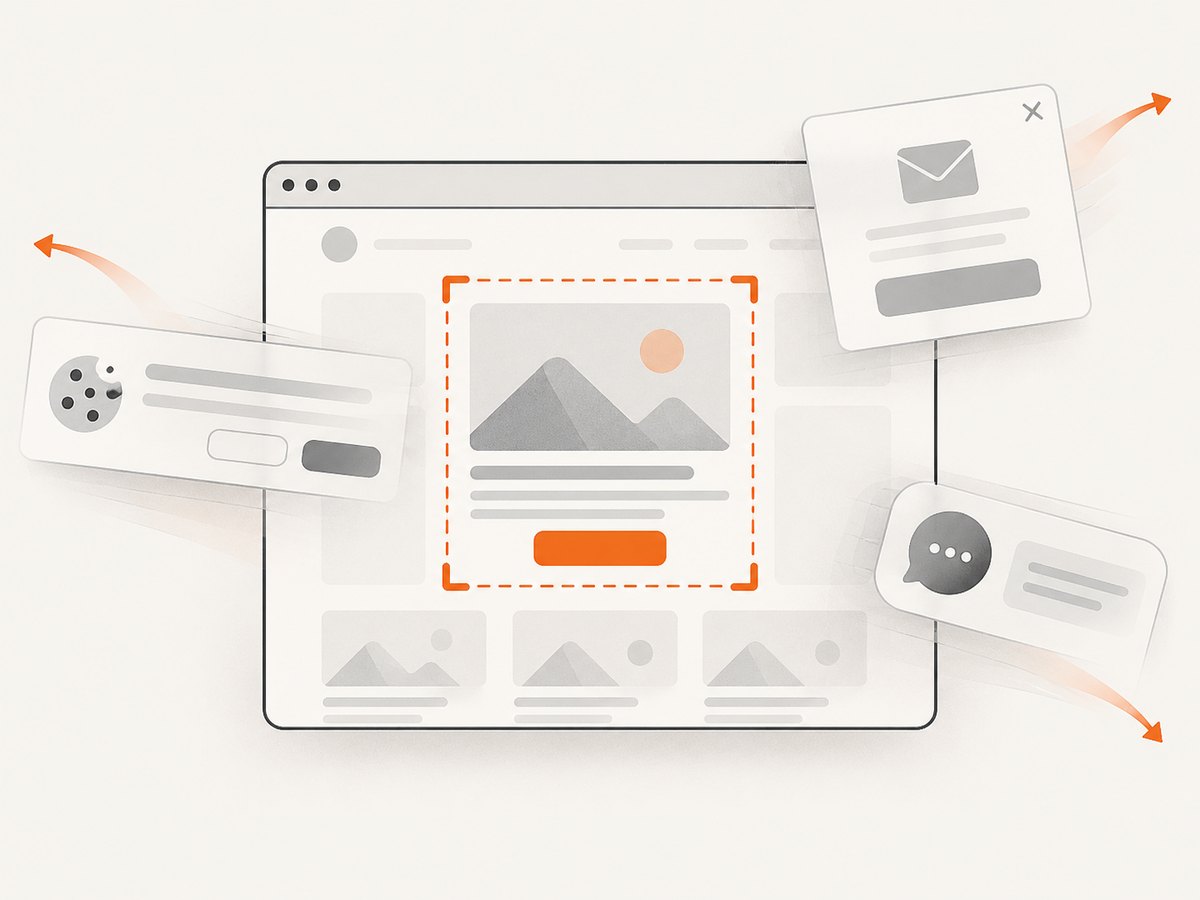
const res = await fetch(`https://api.screenshotneo.com/v1/shot?${q}`);Cookie banners, newsletter popups, and chat widgets are removed before the shot. Bot checks, blank pages, failed loads, timeouts, and cache hits are not billed, and response headers identify the page verdict and whether the request was billed. An MCP server lets AI agents such as Claude or Cursor call take_screenshot, get_page_info, and capture_pdf. The Free plan includes 1,000 screenshots per month with no card; paid plans start at $5 for 3,000 screenshots.
Start with 1,000 free screenshots a month.
FAQ
Should I call element.screenshot() or driver.save_screenshot()?
Call the WebElement method for one DOM element. Call the driver method for the current Safari window or viewport.
Does element screenshot always mean only the pixels currently on screen?
No. It is element-bounded, but clipping for overflow and non-conforming implementations is best effort. Verify the Safari and Selenium versions used by your pipeline.
Why is my element screenshot larger than its CSS width?
Device-pixel ratio, retina scaling, browser zoom, and OS display scaling can produce more image pixels than CSS pixels.
Can I capture an element inside an iframe?
Yes, switch into the frame first, locate the element in that frame, capture it, then switch back to the default content.


