Visual PDF Template Editors: Best Tools for Forms, Design, and Automation
Compare Acrobat, Canva, Jotform, and PDFescape for visual PDF design, fillable forms, signatures, templates, and automation.
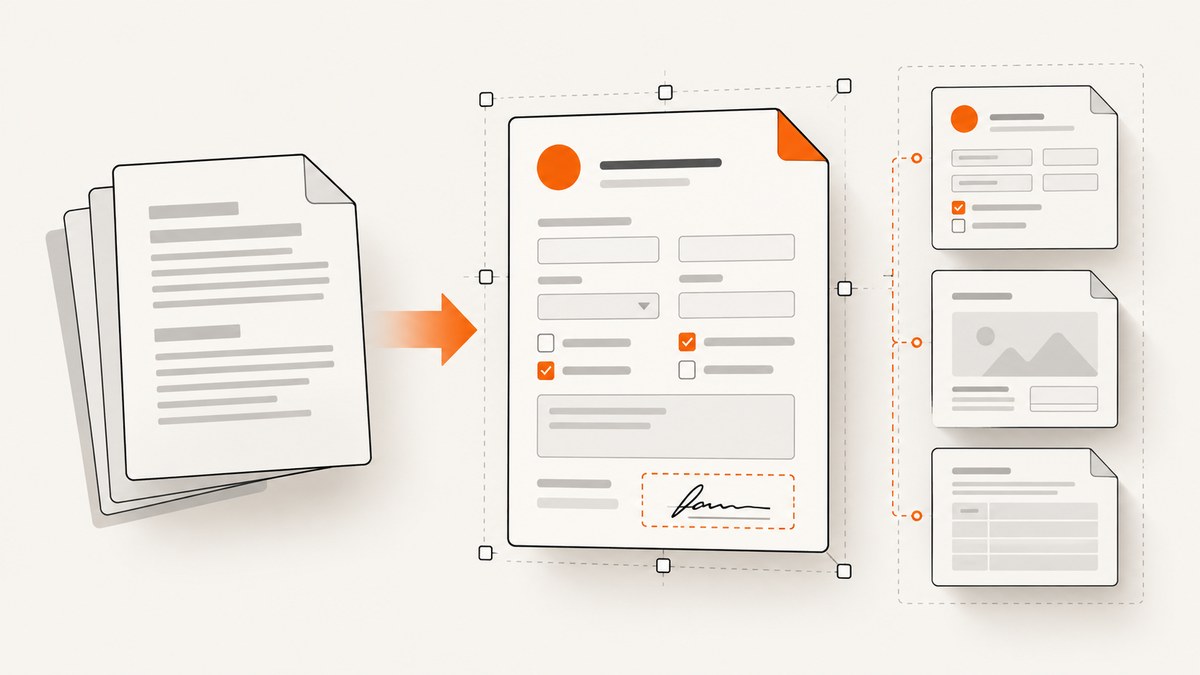
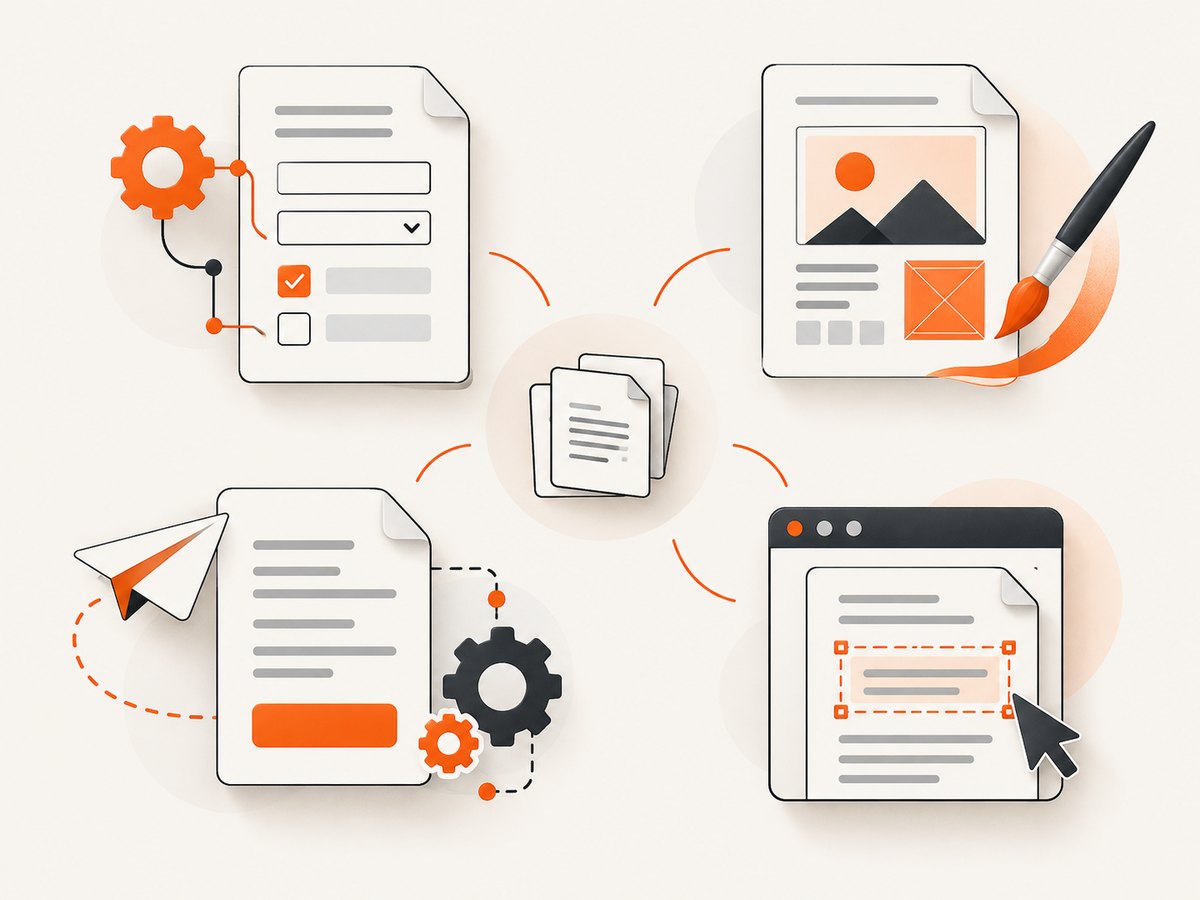
Adobe Acrobat is the strongest choice for complex interactive forms, Canva is best for visual design and collaboration, Jotform is best when submissions must generate branded PDFs, and PDFescape is the practical budget browser editor. The right visual PDF template editor depends on whether your priority is field behavior, page design, reusable templates, workflow automation, or low-cost editing.
This guide compares the four tools across layout control, fillable fields, calculations, signatures, template reuse, collaboration, security, deployment, and automation. It also explains how to turn an existing document into a fillable PDF and how to choose a tool for a specific workflow.
What is a visual PDF template editor?
A visual PDF template editor combines a page canvas with PDF-specific controls. You can place text, images, shapes, tables, annotations, and form fields on a page, then save the result as a reusable PDF template. The best products also handle page ordering, field validation, calculations, signing, submission, and export.
There are two different jobs that are often confused:
- Visual composition: arranging typography, images, colors, page layouts, and branding.
- Interactive form engineering: adding fields, validation, calculations, signatures, submit actions, and reset behavior.
A design-first editor may create a beautiful brochure but lack calculated fields. A form-first editor may produce dependable business workflows while offering fewer decorative controls. Decide which job matters most before comparing feature lists.
Quick comparison
| Editor | Best for | Visual layout | Interactive behavior | Template and workflow strengths |
|---|---|---|---|---|
| Adobe Acrobat | Complex forms, signatures, calculations, and business documents | Good for adapting existing PDFs and office documents | Excellent: text, choices, dates, calculations, scripts, signatures, submit and reset actions | Converts blank PDFs, Word files, and scans; supports e-signature requests and tracking |
| Canva PDF Editor | Branded documents, workbooks, proposals, and collaborative design | Excellent drag-and-drop composition | Basic filling, annotations, and signatures; the cited feature page does not emphasize advanced calculations | Imports PDFs as editable elements; exports PDF, JPG, PNG, and PPT |
| Jotform PDF Editor | Online submissions that automatically become polished PDFs | Strong template and drag-and-drop builder | Fields connected to form workflows and generated submission PDFs | Start from scratch, use a template, clone a PDF, use a default form, or generate a submission PDF; over 1,900 templates are listed |
| PDFescape | Low-cost browser editing and straightforward forms | Practical page and annotation tools | Text, checkbox, radio, dropdown, list box, submit, reset, styling, and essential calculations | Browser editor; paid desktop tiers add conversion, merging, advanced forms, electronic signatures, and redaction |
Adobe Acrobat: best for serious interactive forms
Choose Acrobat when a PDF must behave like a dependable business application. Adobe documents creating a fillable form from a blank PDF or converting an existing Word file or scanned document. Its form tools include text boxes, drop-down lists, radio buttons, checkboxes, list boxes, date fields, calculations, custom scripts, submit buttons, and reset buttons. Acrobat also supports requesting electronic signatures and tracking signature activity. Adobe’s form documentation lists the available field types and conversion workflow.
Typical Acrobat workflow
- Open a blank PDF or import a Word document, scan, or existing PDF.
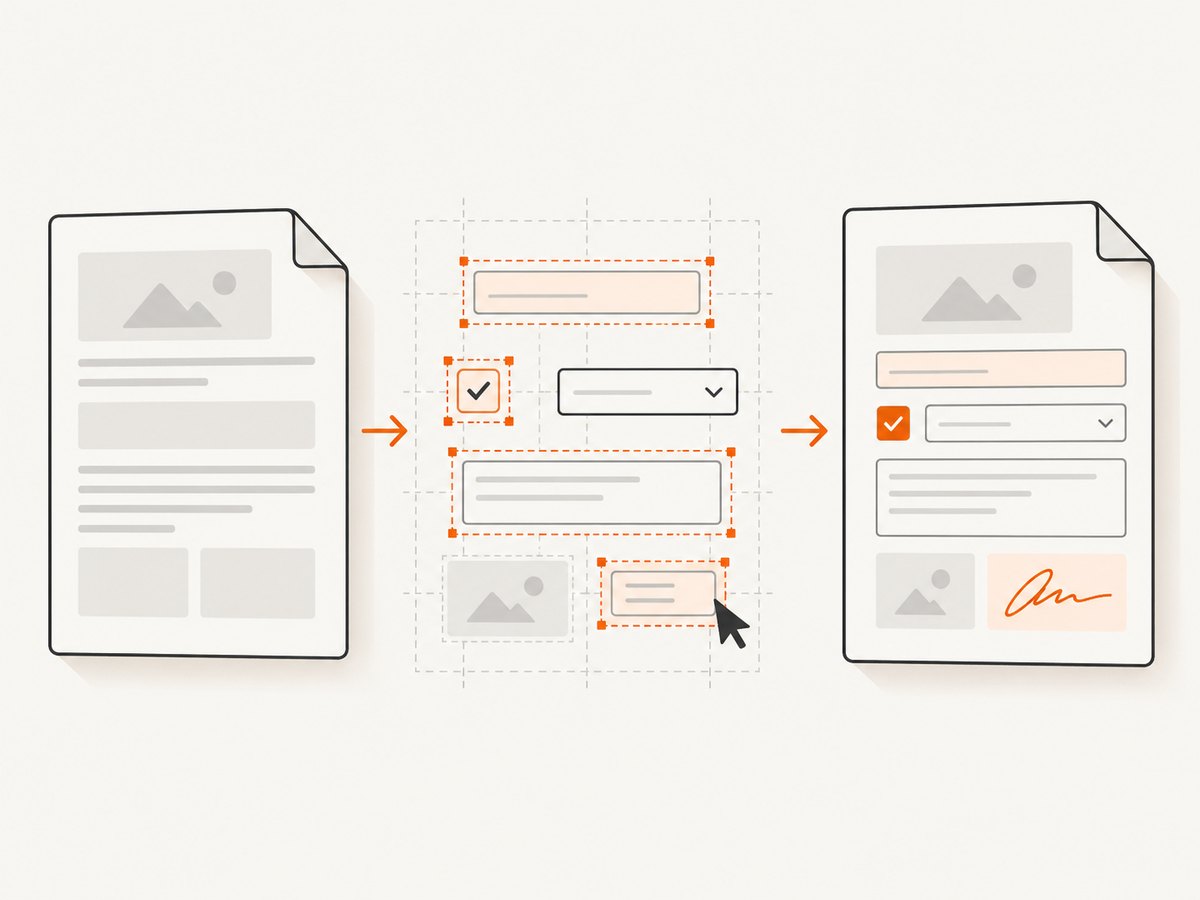
- Use the form-preparation tool to detect likely fields automatically.
- Inspect every detected field and add missing controls manually.
- Set field names, required status, default values, tooltips, validation, and calculation order.
- Add signature fields, submit actions, or reset behavior where required.
- Test with a copy of the PDF in more than one viewer before distribution.
Where Acrobat wins
- Applications, tax forms, contracts, surveys, and internal documents with many field types.
- Calculated totals, conditional behavior, validation, or custom scripts.
- Signing workflows that need requests and tracking.
- Converting an existing office document or scan instead of rebuilding its layout.
Its main trade-off is that it is a form and document operations tool first. If your priority is fast visual exploration with brand assets, Canva can feel more natural.
Canva PDF Editor: best for visual composition and collaboration
Canva is the design-first option. Its PDF editor imports a PDF and converts its contents into editable visual elements. You can add text, images, lines, shapes, annotations, and signatures; add, delete, rotate, and reorder pages; collaborate with other people; and export to PDF, JPG, PNG, or PPT. Canva’s PDF editor page says that 75M customers trust Canva worldwide.
Use Canva for
- Proposals, media kits, brochures, workbooks, pitch documents, and branded handouts.
- Teams that need comments, shared editing, and reusable visual styles.
- Layouts where images, typography, color, and page hierarchy matter more than calculations.
- Refreshing an existing PDF without rebuilding every page from scratch.
Canva can add signatures and annotations, but the cited product information emphasizes visual editing and filling rather than advanced AcroForm calculations, scripts, or submit/reset logic. If a form must calculate totals or enforce complicated validation, evaluate Acrobat or a form platform instead.
Jotform PDF Editor: best for submission-to-PDF automation
Jotform is the automation-first choice. Its PDF editor documents five starting paths: start from scratch, use a template, clone an existing PDF, use a default form PDF, or generate a submission PDF. The feature page says, “Choose from over 1,900 templates.” Jotform’s PDF Editor documentation describes a builder with drag-and-drop text, images, fields, styled text, tables, and structured layouts.
How a Jotform workflow fits together
- Choose a template or import the document you want to reuse.
- Create the online form that collects the data.
- Map submitted answers to text, tables, and fields in the PDF layout.
- Apply branding and conditional content to the generated document.
- Send, store, or route the resulting PDF as part of the submission workflow.
Use Jotform when a customer, employee, applicant, or client completes an online form and your team needs a polished PDF automatically. It reduces manual retyping and keeps the visual output consistent. For a standalone PDF that users download and fill locally, Acrobat or PDFescape may be a better fit.
PDFescape: best budget browser editor
PDFescape is a practical browser-based choice for editing pages and creating straightforward fields. Its documented capabilities include page operations, links, encryption, images, annotations, and form filling. The form designer supports text, checkbox, radio, dropdown, list box, submit, and reset fields, along with styling and essential calculations. PDFescape’s product site describes browser editing, while paid desktop tiers add conversion, merging, advanced forms, electronic signatures, and redaction.
Select PDFescape when you need to make a basic application, add a few fields to an existing PDF, annotate pages, or work without a large design suite. Check the desktop requirements if you need advanced conversion, signatures, or redaction.
How to make a fillable PDF from a template
The general process is similar across editors, even though the controls have different names.
- Start with the cleanest source. Use the original PDF, Word file, or scan at its highest available resolution.
- Set the page structure. Confirm page size, orientation, margins, page order, and repeated headers or footers.
- Place fields over the visual design. Use text fields for free responses, checkboxes for independent choices, radio buttons for one choice from a group, dropdowns for long lists, and date fields for dates.
- Name fields consistently. Use names such as
customer_name,invoice_total, andconsent_marketing. Repeated names can intentionally mirror the same value across pages; unique names prevent accidental synchronization. - Define behavior. Mark required fields, set formats, add defaults, define calculation order, and configure submit or reset actions.
- Add signing controls. Place signature fields where a person must approve, and keep enough space for a readable signature.
- Test the saved PDF. Enter short and long values, leave required fields empty, select every option, calculate totals, sign, submit, print, and reopen the file.
- Distribute the correct version. Keep an editable master separate from the final fillable PDF and record the version date.
Minimal HTML prototype for planning a template
Before building a PDF, a browser prototype can reveal missing fields and awkward labels. Save this as form.html and open it locally:
<!doctype html>
<html lang="en">
<meta charset="utf-8">
<title>Template prototype</title>
<style>body{font:16px system-ui;max-width:720px;margin:40px auto}label{display:block;margin:14px 0}input,select{display:block;padding:8px;width:100%;box-sizing:border-box}</style>
<form>
  <label>Full name <input name="customer_name" required></label>
  <label>Start date <input type="date" name="start_date" required></label>
  <label>Plan <select name="plan"><option>Basic</option><option>Pro</option></select></label>
  <label><input type="checkbox" name="consent" required> I agree to the terms</label>
  <button>Submit</button>
</form>
</html>
This prototype is not itself a PDF. Use it to review labels and behavior, then recreate the approved structure in Acrobat, Canva, Jotform, or PDFescape.
Selection checklist
| Question | Best direction |
|---|---|
| Do you need calculations, scripts, signatures, or submit/reset actions? | Acrobat |
| Is visual branding and collaborative layout the main job? | Canva |
| Should online responses automatically create PDFs? | Jotform |
| Do you need inexpensive browser editing and basic fields? | PDFescape |
| Are you editing a scan or office document? | Acrobat, with OCR and field review |
| Will many people reuse the same branded layout? | Canva for design, Jotform for generated submissions, or Acrobat for form logic |
Common problems and fixes
Fields move or overlap after import
Cause: the source PDF contains positioned text, unusual fonts, or scan artifacts. Fix: simplify the source, flatten decorative layers, use standard fonts, and inspect every imported field at 100% zoom.
A calculated value is wrong
Cause: a field is named incorrectly, treated as text, or excluded from calculation order. Fix: verify numeric formatting, field names, decimal separators, and the order in which totals are calculated.
A signature cannot be placed
Cause: the document has a visual signature line but no actual signature field, or the viewer does not support the chosen signing method. Fix: insert a real signature field and test the complete request in the viewer your recipients use.
The PDF looks right but is not fillable
Cause: fields were flattened during export or the editor exported a print-only PDF. Fix: reopen the exported file, click each field, and confirm that field objects remain before distribution.
Long answers are clipped
Cause: the field is single-line or has insufficient auto-sizing. Fix: use a multiline field, define a sensible maximum length, and test the longest realistic response.
Different viewers show different behavior
Cause: PDF support for scripts, calculations, and embedded actions varies. Fix: keep behavior simple where possible, publish viewer requirements, and test desktop, browser, and mobile workflows.
Performance, reliability, and cost considerations
- Keep templates light. Compress oversized images and remove unused pages, hidden layers, and duplicate assets.
- Separate masters from outputs. Store the editable source securely and generate a new distribution copy for each revision.
- Plan for accessibility. Use meaningful field labels, logical tab order, readable contrast, and text that can be selected when possible.
- Protect sensitive documents. Use encryption, permissions, redaction, and controlled sharing where the editor supports them. Do not treat a hidden visual layer as redaction.
- Budget by workflow. A low-cost editor may be adequate for occasional edits, while signature tracking, automated PDFs, or large teams can justify a specialized platform.
- Measure manual work. Include review time, correction cycles, signing follow-up, and rekeying data when comparing total cost.
Or skip the browser setup
If your workflow also needs screenshots of web pages, ScreenshotNeo is the alternative to try first: it removes cookie banners, newsletter popups, and chat widgets before capture, bills only clean shots, and starts with the lowest paid plan in this category. It also provides an MCP server so Claude, Cursor, and other MCP clients can take screenshots.
Use the API directly; see the ScreenshotNeo documentation for all options.
curl -G "https://api.screenshotneo.com/v1/shot" -d access_key=YOUR_API_KEY --data-urlencode url=https://stripe.com -o shot.webpimport requests
r = requests.get("https://api.screenshotneo.com/v1/shot", params={"access_key": "YOUR_API_KEY", "url": "https://stripe.com"}, timeout=90)
open("shot.webp", "wb").write(r.content)const q = new URLSearchParams({ access_key: 'YOUR_API_KEY', url: 'https://stripe.com' });
const res = await fetch(`https://api.screenshotneo.com/v1/shot?${q}`);ScreenshotNeo supports full-page and element captures, device presets, retina scale, dark mode, PDFs, custom CSS and JavaScript, waits, blocked resources, headers, cookies, user agents, geolocation, caching, signed links, async jobs, bulk capture, and usage reporting. Failed loads, bot checks, blank pages, timeouts, and cache hits are not billed, and the response identifies the page verdict and billing status. A free account includes 1,000 screenshots per month with no card; paid plans start at $5 for 3,000. Create a free ScreenshotNeo account.
FAQ
Can Canva create advanced fillable forms?
Canva is strongest for visual editing, page management, collaboration, annotations, and signatures. For calculations, scripts, or complex submit behavior, evaluate Acrobat or a form automation platform.
Which editor is easiest for an existing Word document?
Acrobat explicitly supports converting Word files and scans into forms. Review every detected field after conversion.
Should I use a PDF template or an online form?
Use a PDF when recipients need an offline document or a fixed printable layout. Use an online form when submissions, validation, routing, and automatic PDF generation are central.
Is a visual PDF editor the same as a PDF viewer?
No. A viewer displays or fills a document; an editor changes page content, fields, layout, or behavior.
What is the safest way to publish a revised template?
Keep the source master, increment the version, test the exported PDF in your target viewers, and archive the previous published copy.


