How to Run Visual Regression Testing with GitHub Actions
Automate Playwright screenshot checks in GitHub Actions, preserve failure evidence, and choose between native snapshots, hosted review, and ScreenshotNeo.

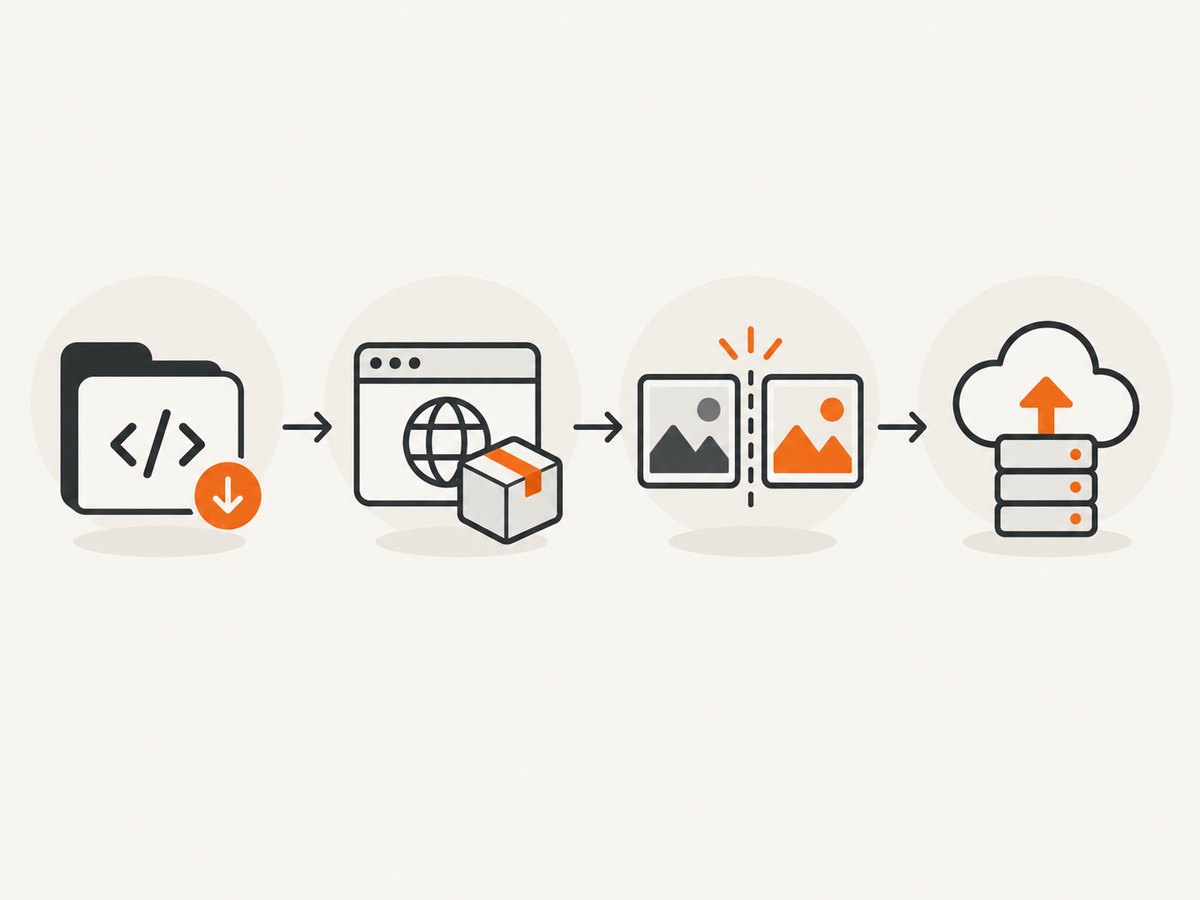
Visual regression testing catches unintended UI changes by comparing a newly rendered page with an approved screenshot baseline. In GitHub Actions, the dependable pattern is a pull request workflow that checks out the repository, installs the lockfile dependencies, installs the exact Playwright browsers and operating-system packages, runs the tests, and uploads reports even when a test fails.
This guide shows the complete native Playwright setup, how to keep screenshots stable, how to test a deployed preview, how to preserve useful diffs, and when a hosted service makes sense. At the end, ScreenshotNeo provides an API option when you need screenshots without maintaining browser setup in every workflow.
What the workflow must do
- Start on the event that matches your review process, usually
pull_request. - Use the repository lockfile and a deterministic install command such as
npm ci. - Install Playwright browser binaries and Linux dependencies with
npx playwright install --with-deps. - Make the application available, either by starting it in the job or by testing a successful deployment URL.
- Run screenshot assertions with the same browser and rendering assumptions used to create baselines.
- Upload the HTML report, screenshots, traces, and test results even after failures.
Playwright’s continuous integration documentation uses this same sequence and demonstrates uploading the generated report as an artifact. See the Playwright CI guide and visual comparisons documentation for version-specific details.
Create a native Playwright workflow
1. Add the workflow file
Create .github/workflows/visual-tests.yml:
name: Visual regression tests

on:
  pull_request:
  push:
    branches: [main]

jobs:
  visual-tests:
    name: Playwright screenshots
    runs-on: ubuntu-latest
    timeout-minutes: 20

    steps:
      - name: Check out repository
        uses: actions/checkout@v4

      - name: Set up Node.js
        uses: actions/setup-node@v4
        with:
          node-version: 20
          cache: npm

      - name: Install dependencies
        run: npm ci

      - name: Install Playwright browsers
        run: npx playwright install --with-deps

      - name: Run visual tests
        run: npx playwright test

      - name: Upload Playwright report
        if: ${{ !cancelled() }}
        uses: actions/upload-artifact@v4
        with:
          name: playwright-report
          path: playwright-report/
          retention-days: 30

      - name: Upload test results
        if: ${{ !cancelled() }}
        uses: actions/upload-artifact@v4
        with:
          name: test-results
          path: test-results/
          retention-days: 30
Change the Node version, artifact retention, and paths to match your repository. The !cancelled() condition allows artifacts to upload after a failed test while avoiding uploads when GitHub cancels the job.
2. Configure Playwright
A project configuration keeps the base URL, browser project, retries, workers, and report format in one place:
import { defineConfig, devices } from '@playwright/test';

export default defineConfig({
  testDir: './tests',
  fullyParallel: true,
  forbidOnly: !!process.env.CI,
  retries: process.env.CI ? 2 : 0,
  workers: process.env.CI ? 2 : undefined,
  reporter: process.env.CI
    ? [['html', { outputFolder: 'playwright-report', open: 'never' }], ['line']]
    : 'list',
  use: {
    baseURL: process.env.PLAYWRIGHT_TEST_BASE_URL || 'http://127.0.0.1:3000',
    trace: 'retain-on-failure',
    screenshot: 'only-on-failure',
    video: 'retain-on-failure',
  },
  projects: [
    {
      name: 'chromium',
      use: { ...devices['Desktop Chrome'] },
    },
  ],
});
If the workflow must start a local application, add a web server entry:
webServer: {
  command: 'npm run build && npm run start',
  url: 'http://127.0.0.1:3000',
  reuseExistingServer: !process.env.CI,
  timeout: 120000,
},
Use the command your framework supports. A deployment-based job does not need this local server block.
Write stable screenshot assertions
Keep each test focused on a representative route and state. Wait for the page to reach the same meaningful state before capturing it:
import { test, expect } from '@playwright/test';

test('pricing page matches the approved design', async ({ page }) => {
  await page.goto('/pricing', { waitUntil: 'networkidle' });
  await expect(page.getByRole('heading', { name: 'Pricing' })).toBeVisible();
  await expect(page).toHaveScreenshot('pricing.png', {
    fullPage: true,
    animations: 'disabled',
    caret: 'hide',
  });
});
Create a baseline intentionally in the same environment that CI uses. Review the generated diff before committing it. When a design change is deliberate, update only the affected snapshots and include those files in the pull request. Do not regenerate every baseline merely to make a failing build green.
Reduce nondeterministic pixels
- Disable CSS transitions and animations for the test state.
- Use fixed test data instead of timestamps, random IDs, rotating banners, and live counters.
- Wait for fonts and critical images to load.
- Mask genuinely variable regions with Playwright’s masking options, and document why each mask exists.
- Keep viewport, device scale factor, locale, timezone, and color scheme consistent.
- Use one supported browser project first; add Firefox or WebKit only when those renderings matter.
The browser, operating system, fonts, and browser version are part of the screenshot input. Playwright documents containers as a way to keep visual environments consistent. Pin compatible dependency versions and use a container or a stable runner arrangement when small rasterization changes would create noisy diffs.
Testing a deployed preview
Some teams want to test the exact build produced by a deployment rather than starting a second server inside Actions. A deployment-status workflow can run after a successful deployment and pass its target URL through PLAYWRIGHT_TEST_BASE_URL:
name: Visual tests on deployment

on:
  deployment_status:

jobs:
  visual-tests:
    if: ${{ github.event.deployment_status.state == 'success' }}
    runs-on: ubuntu-latest
    steps:
      - uses: actions/checkout@v4
      - uses: actions/setup-node@v4
        with:
          node-version: 20
          cache: npm
      - run: npm ci
      - run: npx playwright install --with-deps
      - run: npx playwright test
        env:
          PLAYWRIGHT_TEST_BASE_URL: ${{ github.event.deployment_status.target_url }}
      - if: ${{ !cancelled() }}
        uses: actions/upload-artifact@v4
        with:
          name: deployed-playwright-report
          path: playwright-report/
          retention-days: 30
Filter further if your provider creates multiple deployment environments. Check that the target URL is present before running tests, and keep secrets unavailable to untrusted pull request code.
Keep failure evidence useful
An assertion message alone rarely explains a visual failure. Upload the HTML report and the test-results directory, which can contain actual images, expected images, diffs, traces, and videos depending on your configuration. Set retention according to how long reviewers need to investigate; 30 days is a reasonable starting point for pull request artifacts.
Open the report from the Actions run, inspect the side-by-side diff, then use the trace to determine whether the mismatch came from a real UI change, a loading race, or an environment difference. Keep artifacts on failed and passed jobs when you need to audit a release, but reduce retention for routine branch runs to control storage.
Speed, parallelism, and coverage
For a large suite, shard tests across multiple jobs:
strategy:
  fail-fast: false
  matrix:
    shard: [1/4, 2/4, 3/4, 4/4]

steps:
  - run: npx playwright test --shard=${{ matrix.shard }}
Each shard should upload a uniquely named report. Merge reports after all shards finish if your reporting setup requires a single view. Keep the full suite as the merge-quality gate. Playwright describes --only-changed as a heuristic that can miss tests; it can provide an early result, but it should be followed by a complete run.
Browser binary caching is not automatically a win. Playwright notes that restoring the cache can take about as long as downloading browsers, while Linux system dependencies still need installation. Measure before adding a cache, and key any cache to the Playwright version.
Native snapshots versus hosted review services
| Question | Native Playwright | Hosted service |
|---|---|---|
| Where baselines live | Usually in the repository beside tests | In the provider’s project and snapshot history |
| Review experience | Pull request artifacts and local tools | Provider’s web review interface and status checks |
| Credentials | GitHub and registry credentials you already use | Additional project token and account configuration |
| Parallel execution | Your Actions jobs and runners | Provider-managed or integrated parallelization, depending on product |
| Local reproduction | Directly rerun the Playwright test | Reproduce the capture, then inspect hosted history |
Chromatic documents Playwright utilities that archive captures for cloud comparison, interactive review, commit indexing, and service-side parallelization. Its GitHub Actions example checks out full history, installs dependencies, and runs the action with a project token stored as a repository secret. Percy’s official Playwright integration routes screenshot assertions to Percy for comparison. Verify current compatibility, plan limits, pull request behavior, and pricing in the provider documentation before committing to either service.
Hosted review can reduce repository snapshot maintenance, but it adds an account, token, external history, and another CI dependency. Native Playwright keeps the test and baseline together and is often the simplest starting point.
Troubleshooting common failures
The screenshot differs only in text antialiasing
Cause: Different browser, OS, fonts, or browser binaries. Fix: Use the same Playwright version and browser install path, pin the runtime, and run in a consistent container or runner. Recreate baselines only after the environment is intentionally changed.
Tests fail because the page is still loading
Cause: The assertion runs before fonts, images, data, or hydration finish. Fix: Wait for a meaningful locator, a stable application state, or a specific network condition. Avoid arbitrary long sleeps unless the application has no observable readiness signal.
The report is missing after a failure
Cause: Artifact upload runs only on success, or the path is wrong. Fix: Use if: ${{ !cancelled() }}, confirm the reporter output folder, and upload both playwright-report/ and test-results/.
GitHub Actions cannot find a browser
Cause: Browser binaries or Linux dependencies were not installed. Fix: Run npx playwright install --with-deps after npm ci, and ensure the Playwright package version matches the installed browser set.
Pull request jobs hang
Cause: A server command never becomes ready, a page waits on an unavailable API, or a test has no timeout. Fix: Set a job timeout, configure webServer.url correctly, stub external services, and inspect the trace from the last completed test.
Forked pull requests cannot access the hosted-service token
Cause: GitHub does not expose repository secrets to untrusted forks by default. Fix: Keep the job read-only for forked code, use a trusted workflow or maintainer-triggered rerun for hosted uploads, and never print tokens in logs.
Or skip the browser setup
If you need a screenshot in CI but do not want to install browsers, manage fonts, or maintain a rendering runner, ScreenshotNeo provides a website screenshot API and MCP server. A GET request returns PNG, JPEG, WebP, or PDF output. The simplest GitHub Actions step is:
curl -G 'https://api.screenshotneo.com/v1/shot' -d access_key=YOUR_API_KEY --data-urlencode url=https://stripe.com -o shot.webpPython:
import requests
r = requests.get('https://api.screenshotneo.com/v1/shot', params={'access_key': 'YOUR_API_KEY', 'url': 'https://stripe.com'}, timeout=90)
r.raise_for_status()
open('shot.webp', 'wb').write(r.content)
Node.js:
const q = new URLSearchParams({ access_key: 'YOUR_API_KEY', url: 'https://stripe.com' });
const res = await fetch(`https://api.screenshotneo.com/v1/shot?${q}`);
if (!res.ok) throw new Error(`Screenshot failed: ${res.status}`);
require('fs').writeFileSync('shot.webp', Buffer.from(await res.arrayBuffer()));
See the ScreenshotNeo API documentation for authentication, output formats, and options. It can load lazy images, capture full pages or one CSS-selected element, set a viewport or device preset, use dark mode and retina scale, apply custom CSS or JavaScript, click before capture, wait for a selector, delay, or network idle, block ads or selected resource types, supply headers, cookies, user agents, authorization, timezone, and geolocation, hide selectors, resize images, set a transparent background, cache with a chosen TTL, create signed links, submit asynchronous jobs with signed webhooks, capture up to 100 URLs per bulk call, and report usage. PDF options include paper size, margins, landscape mode, and page ranges.
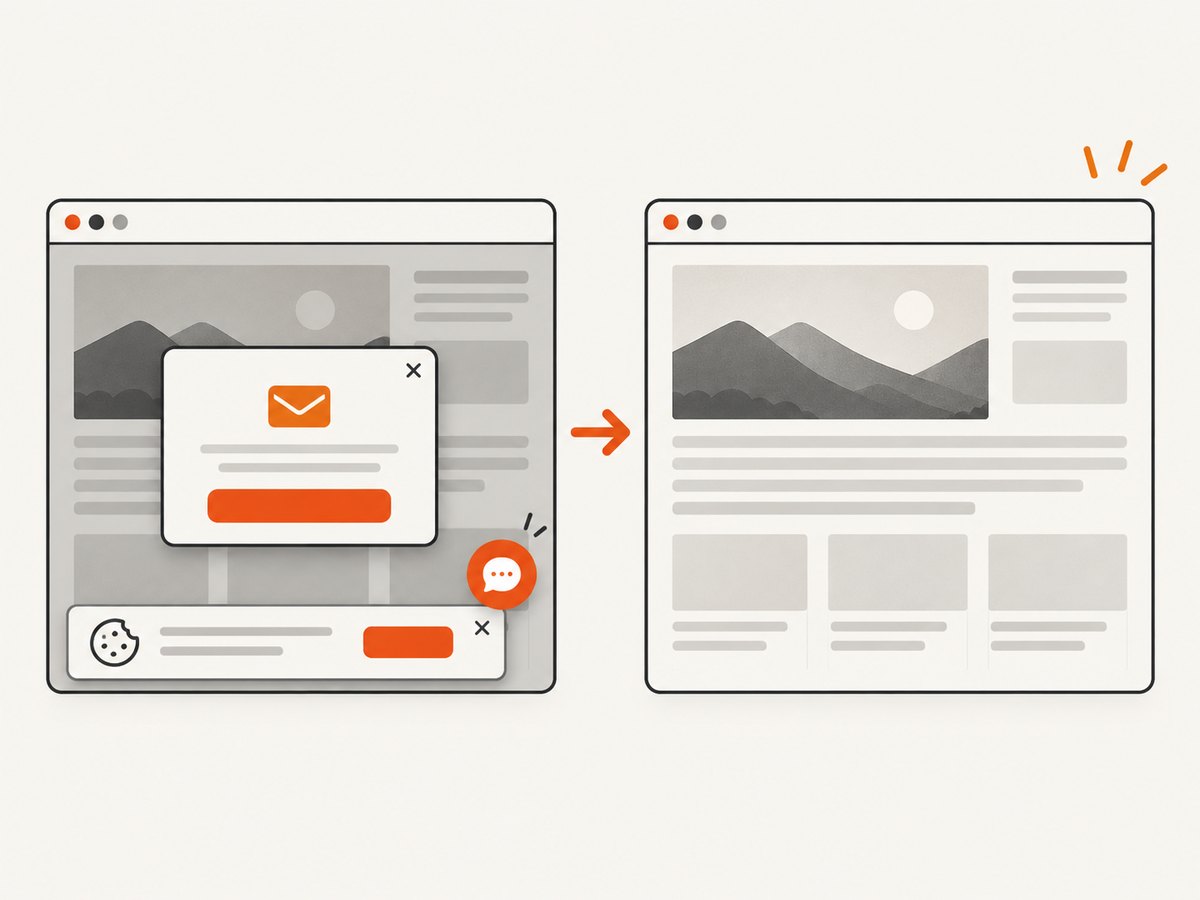
Cookie banners, newsletter popups, and chat widgets are removed before the shot. Bot checks, blank pages, failed loads, timeouts, and cache hits are not billed, and response headers identify the page verdict and whether it was billed. Its MCP server gives Claude, Cursor, and other MCP clients take_screenshot, get_page_info, and capture_pdf tools.
The Free plan includes 1,000 shots each month with no card. Paid plans start at $5 for 3,000 shots; every feature is available on every plan, and yearly billing provides two months free. Create a free ScreenshotNeo account to add a clean screenshot step to your workflow.
Cost and reliability checklist
- Run pull request checks on representative routes, then run the complete suite before merge.
- Keep browser and dependency versions pinned through the lockfile and a deliberate update process.
- Choose artifact retention based on debugging needs and repository storage limits.
- Use retries for transient CI failures, but inspect repeated retries for real nondeterminism.
- Shard only when setup overhead is lower than the time saved.
- Measure browser caching before adding complexity.
- For hosted services, store tokens in GitHub secrets and verify fork behavior.
- For ScreenshotNeo, inspect
X-Page-VerdictandX-Billedso failed or uncapturable pages do not become hidden costs.
FAQ
How do I run visual regression tests in GitHub Actions?
Add a pull request workflow that installs locked dependencies and Playwright browsers, runs npx playwright test, and uploads the report and test results with a non-cancelled condition.
How do I compare Playwright screenshots in CI?
Use expect(page).toHaveScreenshot() with committed baselines, then inspect the generated diff artifact when the assertion fails.
How do I update screenshot baselines?
Run the snapshot update command in the same supported browser environment, inspect every changed image, and commit only changes that represent an intentional UI update.
Should every browser run in one job?
Start with the browser that represents your supported product. Add projects or shards when cross-browser coverage or suite size justifies the extra runner time.


