How to Perform Visual Regression Testing with Vitest 4
Use Vitest 4 Browser Mode and toMatchScreenshot to catch visual changes, manage baselines, stabilize CI, and debug image diffs.

Direct answer: Vitest 4 performs visual regression testing in Browser Mode with the toMatchScreenshot assertion. A browser provider such as Playwright renders your page, Vitest captures an image, and the assertion compares it with a reviewed reference image. Put visual tests in a dedicated project, fix the browser and operating-system environment used for baselines and CI, commit the __screenshots__ folders, and investigate reference, actual, and diff images before changing tolerance.
Vitest describes this feature in its Vitest 4 release announcement and documents the complete workflow in Visual Regression Testing. The method below uses the official Browser Mode API.
What Vitest 4 visual regression testing does
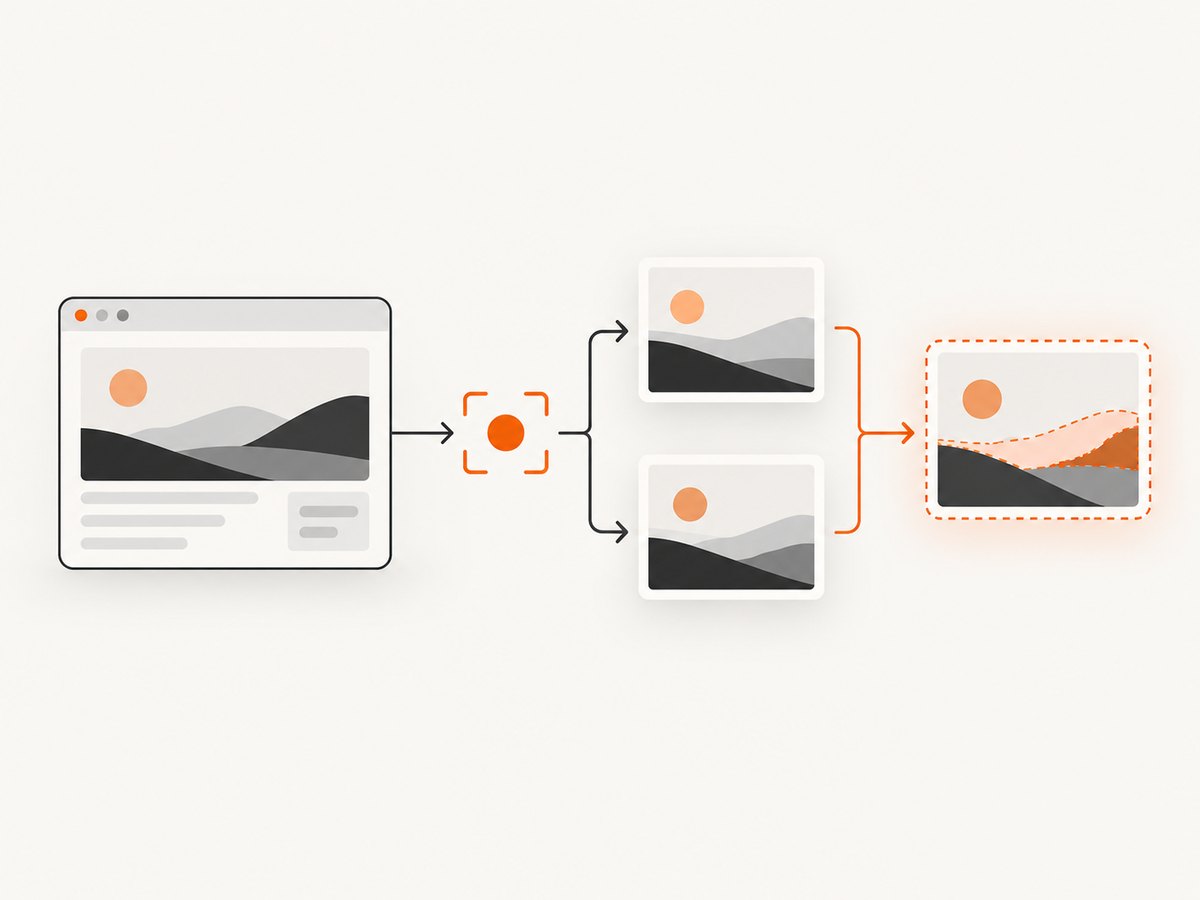
A visual regression test checks rendered pixels rather than only behavior. It can detect a changed margin, font, color, responsive breakpoint, missing image, overflow, or component state that a functional assertion may not notice. The test has four parts:
- Start a real browser through a Browser Mode provider.
- Navigate to a route or render a component.
- Choose a page or element to capture.
- Compare the capture with a named baseline using
toMatchScreenshot.
The first run creates a reference image and asks you to review it. Later runs compare against that file. Vitest stores references in a __screenshots__ directory beside the test file. These are test artifacts: review them in code review and commit them to version control.
Install and configure Browser Mode
Create a project with Vitest 4, the browser package, and a provider. This example uses Playwright.
npm install -D vitest @vitest/browser-playwright playwrightDefine a dedicated visual project in vitest.config.ts. Keeping visual tests separate prevents browser startup and screenshot work from being mixed into fast unit-test runs.
import { defineConfig } from 'vitest/config'

export default defineConfig({
  test: {
    projects: [
      {
        extends: true,
        test: {
          name: 'unit',
          include: ['src/**/*.test.ts'],
        },
      },
      {
        extends: true,
        test: {
          name: 'visual',
          include: ['src/**/*.vrt.test.ts'],
          browser: {
            enabled: true,
            provider: 'playwright',
            instances: [
              { browser: 'chromium' },
            ],
          },
        },
      },
    ],
  },
})
If your project uses a provider configuration object instead of the string shorthand, follow the provider setup shown in the official guide. Install the browser binary required by your Playwright version before running CI.
Write your first toMatchScreenshot test
Use the [name].vrt.test.[ext] convention so visual tests are easy to select. The following test navigates to a running application and captures a page.
import { expect, test } from 'vitest'
import { page } from 'vitest/browser'

test('dashboard default state', async () => {
  await page.goto('http://localhost:5173/dashboard')
  await expect(page).toMatchScreenshot('dashboard-default')
})
Run only the visual project:
npx vitest --project visualReview the generated image before accepting it. Once committed, a later run fails when the rendered result differs. You can also capture a particular element instead of the whole page:
import { expect, test } from 'vitest'
import { page } from 'vitest/browser'

test('navigation component', async () => {
  await page.goto('http://localhost:5173/dashboard')
  const navigation = page.getByRole('navigation')
  await expect(navigation).toMatchScreenshot('dashboard-navigation')
})
Element assertions are useful when the surrounding page contains advertisements, timestamps, or other content that is irrelevant to the component under review. Page assertions are appropriate for a stable route where layout and composition are the product behavior.
Baseline lifecycle and repository layout
A practical lifecycle is:
- Create: run the visual project for a new test.
- Inspect: open the proposed reference and check fonts, data, viewport, and state.
- Commit: add the
__screenshots__directory to version control. - Compare: run the same test on every change.
- Update deliberately: when a design change is intentional, review and replace the baseline in the same change.
Vitest does not automatically remove screenshots for deleted or renamed tests. Search for stale files during test maintenance and delete them manually. A typical layout looks like this:
src/
  dashboard.vrt.test.ts
  __screenshots__/
    dashboard.vrt.test.ts/
      dashboard-default.png
      dashboard-navigation.png
Keep baseline updates visible in pull requests. A baseline change without a corresponding UI change deserves investigation.
Make captures deterministic
Most “works on my laptop” failures come from rendering differences rather than a broken assertion. Stabilize:
- Browser family and exact browser version.
- Operating system, GPU settings, and headless or headed mode.
- Viewport dimensions and device scale factor.
- Installed fonts and font-loading completion.
- Color profile, hardware acceleration, and graphics drivers.
- Locale, timezone, reduced-motion preference, and user-agent dependent content.
- Network responses, database fixtures, feature flags, and authentication state.
- Animations, caret blinking, video, rotating banners, clocks, random IDs, and generated avatars.
Use fixed test data and wait for the page to reach a known state before capturing. Prefer a container or a standardized cloud browser when developer machines and CI cannot share the same operating-system and font environment. The Vitest guide specifically discusses Docker containers and cloud services such as Azure App Testing for this purpose.
test('settings page', async () => {
  await page.goto('http://localhost:5173/settings')
  await page.getByTestId('settings-ready').waitFor()
  await expect(page).toMatchScreenshot('settings-ready')
})
Disable or freeze animation in a test stylesheet when possible. Mock time and network data at the application boundary, not after the screenshot has already been taken.
Comparator options and tolerance
When a mismatch occurs, Vitest reports the reference image, the newly captured actual image, and a diff image when dimensions allow it. Red pixels identify changed areas. Yellow pixels can indicate anti-aliasing differences when anti-aliasing is not ignored.
Comparator settings can be configured globally in vitest.config.ts or for one assertion. The documented pixelmatch example uses a color threshold and an allowed mismatched-pixel ratio:
await expect(page).toMatchScreenshot('dashboard-default', {
  comparator: 'pixelmatch',
  comparatorOptions: {
    threshold: 0.2,
    allowedMismatchedPixelRatio: 0.01,
  },
})
These values are illustrative configuration values from the documentation, not measured guarantees or universal defaults. First remove environmental noise, then add the smallest tolerance that matches your rendering needs. A large threshold can hide a real layout or color regression. If dimensions differ, fix the viewport, responsive state, or page content instead of increasing tolerance.
Run visual tests in CI
- Build and start the application at a predictable URL.
- Install the same browser version used to create baselines.
- Use the same container image, fonts, viewport, and environment variables.
- Run
npx vitest --project visualin headless mode. - Upload actual, reference, and diff images as CI artifacts on failure.
Run visual tests as a separate job or project so a unit-test failure does not obscure a screenshot mismatch. Keep the visual suite focused on stable, high-value routes and components. Parallelize independent pages only after ensuring they do not share mutable data or ports.
Troubleshooting common failures
| Symptom | Likely cause | Fix |
|---|---|---|
| Provider cannot be loaded | Missing or mismatched browser provider package | Install @vitest/browser-playwright, Playwright, and compatible Vitest versions; check the provider configuration. |
| Browser executable is missing | Playwright browser was not installed in CI | Install the browser binary during image creation or CI setup and cache it consistently. |
| Every pixel differs | Wrong route, blank page, viewport, browser, or font set | Save the actual image, verify the URL and dimensions, then compare browser and OS versions. |
| Small text regions differ | Font fallback, GPU, anti-aliasing, or color-profile drift | Install identical fonts, standardize the environment, and only then consider a narrow comparator tolerance. |
| Intermittent diffs | Animation, asynchronous data, ads, clocks, or race conditions | Freeze time, mock data, disable motion, wait for a ready marker, and remove third-party content. |
| Screenshot has the wrong size | Responsive breakpoint or device scale changed | Set an explicit viewport and scale factor and ensure CI uses the same browser settings. |
| Old baselines remain | Test was renamed or removed | Delete obsolete files from the neighboring __screenshots__ directory manually. |
Start triage with the three images. If the diff covers the whole canvas, inspect environment and navigation first. If it is localized, inspect the corresponding component, data fixture, and CSS change.
Performance, reliability, and cost planning
Browser screenshots cost more time than unit assertions because each test needs a browser page, navigation, layout, fonts, and image decoding. Reuse a browser worker where your provider configuration allows it, keep routes independent, and avoid capturing the entire page when an element assertion answers the question. Waiting for network idle can improve completeness but may never settle on applications with long polling; a deterministic ready selector is usually more reliable.
Visual testing has a maintenance cost: baselines are binary review artifacts, and intentional design work requires updates. Keep test data stable and make baseline changes part of the feature’s review. Do not treat a passing image comparison as proof of accessibility, interaction correctness, or browser coverage across every platform; combine it with functional and accessibility tests.
Or skip the browser setup
If you need screenshots in a build pipeline, documentation job, monitoring task, or visual test harness without maintaining browser infrastructure, ScreenshotNeo provides a website screenshot API and MCP server. It accepts one GET request and returns PNG, JPEG, WebP, or PDF. The same parameter names used by other screenshot APIs work, which simplifies migration.

curl -G "https://api.screenshotneo.com/v1/shot" -d access_key=YOUR_API_KEY --data-urlencode url=https://stripe.com -o shot.webpimport requests
r = requests.get("https://api.screenshotneo.com/v1/shot", params={"access_key": "YOUR_API_KEY", "url": "https://stripe.com"}, timeout=90)
open("shot.webp", "wb").write(r.content)const q = new URLSearchParams({ access_key: 'YOUR_API_KEY', url: 'https://stripe.com' });
const res = await fetch(`https://api.screenshotneo.com/v1/shot?${q}`);See the ScreenshotNeo documentation for the full request options. For visual regression inputs, relevant controls include full-page capture with lazy images loaded, a CSS selector for one element, dark mode, device presets or custom viewports, retina scale, custom CSS and JavaScript, click actions, selector or delay waits, network-idle waits, blocked requests and resource types, custom headers, cookies, user agents, authorization, timezone, geolocation, transparent backgrounds, resizing, and caching with a TTL you choose. You can also submit asynchronous jobs with signed webhooks or capture up to 100 URLs per bulk call.
ScreenshotNeo removes cookie and consent banners, newsletter popups, and chat widgets before capture; each step can be turned off. Bot checks, CAPTCHAs, blank pages, timeouts, failed loads, and cache hits cost nothing, and the response identifies the result with X-Page-Verdict and X-Billed headers. Its MCP server exposes take_screenshot, get_page_info, and capture_pdf for Claude, Cursor, and other MCP clients. One thousand screenshots per month are free with no card; paid plans start at $5 for 3,000 shots. Create a free ScreenshotNeo account.
FAQ
Does Vitest 4 run visual tests without Browser Mode?
No. The documented toMatchScreenshot workflow uses Browser Mode and a browser provider such as Playwright, WebdriverIO, or preview.
Where should baselines live?
Vitest creates them in __screenshots__ folders beside the visual test. Review and commit them, and remove stale files manually.
Should I compare a page or an element?
Compare a page for stable route-level composition; compare an element to isolate a component and reduce unrelated dynamic content.
Why do screenshots differ only in CI?
Compare browser version, OS, fonts, GPU and headless settings, viewport, scale, locale, color profile, and test data before changing comparator tolerance.
Can a screenshot diff replace functional tests?
No. It complements behavior and accessibility assertions by checking the rendered appearance.


