How to Perform Visual Regression Testing with WebdriverIO
Set up WebdriverIO visual checks, choose screenshot scopes, stabilize captures, and review baseline changes with confidence in CI.

WebdriverIO visual regression testing compares screenshots from your current application with approved baseline images. Install @wdio/visual-service, register it in your WebdriverIO configuration, then use checkElement, checkScreen, or checkFullPageScreen at deliberate checkpoints. A visual difference is evidence to inspect: review the current image, baseline, and diff before deciding whether the change is a regression or an intentional design update.
This guide shows a TypeScript configuration and test pattern, explains how to keep captures consistent in CI, and covers the common sources of misleading diffs. The Visual Testing service supports WebdriverIO’s Mocha, Jasmine, and CucumberJS frameworks. Check the official Visual Testing guide and the installed package’s versioned options when adapting the examples: APIs and defaults can change between versions.
1. Install and configure the visual service
Add the service as a development dependency using the package manager already used by the project:
npm install --save-dev @wdio/visual-serviceRegister it in the WebdriverIO configuration. Choose stable, project-specific locations for baselines and generated screenshots. A deterministic image name helps distinguish test cases and viewport sizes.
import path from 'node:path'

export const config = {
  // Keep the project's existing runner, framework, and capabilities.
  services: [[
    'visual',
    {
      baselineFolder: path.join(process.cwd(), 'tests', 'baseline'),
      formatImageName: '{tag}-{logName}-{width}x{height}',
      screenshotPath: path.join(process.cwd(), 'tmp'),
      savePerInstance: true,
    },
  ]],
}
This is a representative configuration shape, not a complete replacement for your project’s config. Preserve its existing runner settings, browser capabilities, framework, and hooks. The baseline directory should be versioned with the application so a reviewer can see which approved images changed. Treat generated screenshots and diffs as test output; retain them as CI artifacts when the runner allows it.
WebdriverIO’s guide describes the v10-and-later comparison engine as Pixelmatch with fast-png. The comparison engine and package version matter: follow the migration notes for the version in your lockfile, particularly when upgrading an existing suite.
2. Select a screenshot scope that matches the risk
Choose the smallest area that proves the behavior you want to protect. Narrow scopes generally make a failure easier to locate; full-page captures cover more layout but include more potentially dynamic content.

| Method | Good fit | Trade-off |
|---|---|---|
checkElement |
A stable component contract, such as a purchase panel, navigation bar, or dialog. | It will not catch visual changes outside the selected element. |
checkScreen |
The current viewport and its main page composition. | Content below the viewport is not covered. |
checkFullPageScreen |
Pages where below-the-fold layout is part of the requirement. | A longer capture exposes more dynamic content and can be harder to diagnose. |
Use a check method when the test should compare against a baseline. The service also provides save methods to capture images without asserting a baseline comparison. See the official methods reference for current method signatures and options.
3. Add a visual assertion at an intentional checkpoint
Here is a Mocha-style test for a component. It navigates to a page, waits for the component that matters, and then compares that component with its baseline.
describe('product page visual behavior', () => {
  it('keeps the primary purchase panel visually stable', async () => {
    await browser.url('/products/example')
    const panel = await $('.purchase-panel')
    await panel.waitForDisplayed()
    await browser.checkElement(panel, 'purchase-panel')
  })
})
The route and selector are application-specific. A stable selector is preferable to a brittle positional selector, and the test should establish the relevant application state before taking the image. The service methods can be used with the frameworks supported by WebdriverIO; the official writing tests guide documents assertion patterns.
4. Make captures repeatable
A screenshot comparison is meaningful only when the capture conditions are comparable. A changed font, animation frame, timestamp, user state, or browser rendering can produce a diff even when the intended layout is unchanged.

Control application state
- Use fixed test data, predictable dates, and a known account or user state.
- Wait for the application’s meaningful ready state and for critical images or components to appear. A fixed sleep can be too short on a slow run and unnecessarily long on a fast one.
- Keep viewport dimensions and device pixel ratio stable for a given baseline.
- For pages with volatile content, isolate the component that matters or use a narrowly justified ignore region supported by the service version.
Fonts, animation, and full-page captures
Web fonts may finish loading after navigation reports completion. The service’s waitForFontsLoaded option defaults to true to reduce font-rendering variance. The service also documents an option to disable CSS animations during snapshots; use it when animation itself is not under test. Consult the service options for exact names and behavior in your installed version.
For full-page shots, the default desktop capture uses WebDriver BiDi. For pages whose content appears only as the user scrolls, userBasedFullPageScreenshot captures viewport-sized sections while scrolling and stitches them. This can exercise lazy-loaded content more like a user, but it makes the capture dependent on scroll-triggered behavior. Pick the mode based on how the page works, and make sure relevant content has loaded before comparing.
5. Keep baseline and CI environments aligned
Baselines reflect a rendering environment, not just the application. WebdriverIO cautions that browser updates can change font rendering and that screenshots from different operating systems or platforms should not be compared as though they were equivalent. Keep the browser, operating system, viewport, device pixel ratio, and relevant fonts consistent between baseline creation and CI comparisons wherever practical.
Desktop Chrome resized to a phone-like width does not reproduce mobile browser rendering. If the requirement concerns actual mobile behavior, use the appropriate mobile automation context. WebdriverIO documents mobile and native or hybrid coverage through Appium; see its visual testing considerations and mobile testing guide.
When you deliberately change the browser, operating system, or comparison engine, expect baseline review work. WebdriverIO v10 changed the comparison engine from ResembleJS to Pixelmatch, and its guide notes that mismatch percentages can differ after this change. Review those diffs as a migration, even if the application itself did not change.
6. Review diffs and update baselines deliberately
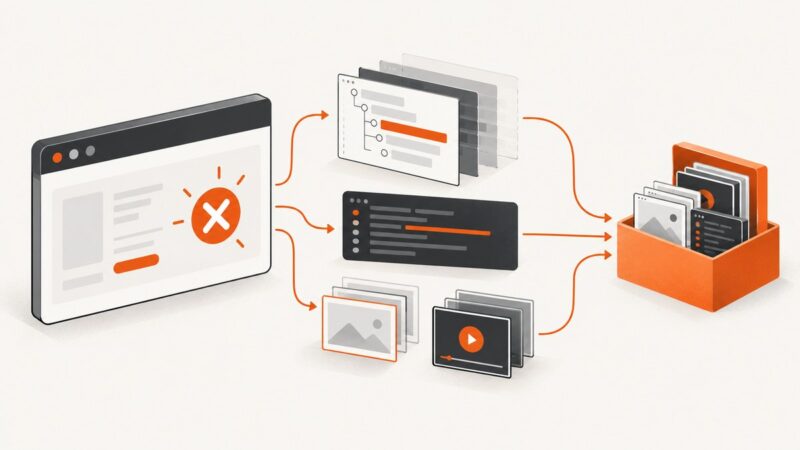
- Open the current screenshot, approved baseline, and generated difference image for the failing check.
- Identify what changed and where. Check for shifted layout, missing controls, incorrect typography, unintended wrapping, and expected content changes.
- Decide whether the difference is an application regression, environmental noise, or an intended design change.
- For an intended change, update the affected baseline and include that change in the same review as the UI update.
- Rerun the relevant check in the same environment to confirm that the reviewed baseline now represents the intended output.
The Visual Testing guide documents the --update-visual-baseline option for updating individual baselines. Prefer reviewed, targeted updates over replacing the complete baseline set without inspecting it. The Visual Reporter can show test cases, browser and test metadata, comparison results, and difference images. Its report needs to be served locally to view; it cannot simply be opened as a file. See the Visual Reporter documentation.
Set mismatch tolerance sparingly
A broad mismatch allowance can hide meaningful changes, especially on large screenshots: a missing button may affect only a small fraction of the total pixels. Avoid raising a global threshold to make a noisy suite pass. First control the source of variation, reduce the capture scope, or handle a known volatile region narrowly. If a tolerance is necessary, document why it is safe and revisit it when the page or capture conditions change.
7. Troubleshoot common failures
| Symptom | Likely cause | What to do |
|---|---|---|
| Every image fails after a dependency update | The comparison engine or rendering environment changed; v10’s Pixelmatch migration can change mismatch percentages. | Inspect representative diffs, confirm browser and OS versions, then update affected baselines as a reviewed migration. |
| Text differs while layout looks the same | Fonts were unavailable at capture time, or the installed fonts/browser differ. | Keep fonts consistent and allow font loading; check the service’s font-wait option and CI image. |
| Moving content creates intermittent diffs | Animation, rotating banners, timestamps, or live data vary between runs. | Freeze test data or disable animation when appropriate; isolate stable UI or narrowly target the volatile region. |
| Below-the-fold content is blank or missing | The page loads content lazily or only after scrolling. | Wait for the relevant content or use user-based scrolling and stitching for full-page capture. |
| Mobile baseline does not match CI desktop capture | A resized desktop browser is being compared with a real mobile context, or vice versa. | Capture and compare in the same target context; use mobile automation when authentic mobile rendering matters. |
| A large page passes despite an obvious missing control | The mismatch threshold is too permissive for the screenshot’s size. | Lower or remove the broad allowance and use a focused element check for the control. |
| Visual report will not open from the artifact directory | The report is intended to be served locally rather than opened directly as a file. | Follow the reporter’s documented local serving workflow and inspect the generated artifacts. |
8. Run visual checks efficiently in CI
Visual checks add browser work and artifacts to a test run, so keep the suite focused on meaningful visual contracts. Start with high-value components and representative page states, then add full-page coverage where below-the-fold presentation matters. Avoid duplicating broad screenshots at every step of a flow when a smaller checkpoint captures the risk.
For reliable comparisons, use a stable CI image and browser version, keep baseline creation in a controlled environment, and upload failure screenshots and diffs as artifacts. Separate a baseline update from routine test execution so a failed comparison cannot silently bless its own output. Do not assume a particular runtime or speedup: capture time depends on the browser, page readiness, screenshot scope, and test environment.
Or skip the browser setup
If you need a website screenshot for documentation, a report, or an automated workflow rather than a local baseline assertion, ScreenshotNeo provides a screenshot API and MCP server. One GET request returns an image or PDF; its API options include full-page and element capture, device and viewport settings, custom CSS and JavaScript, waits, and request controls. Read the ScreenshotNeo API documentation for available parameters.
curl -G "https://api.screenshotneo.com/v1/shot" \
  -d access_key=YOUR_API_KEY \
  --data-urlencode url=https://stripe.com \
  -o shot.webp
import requests
r = requests.get(
"https://api.screenshotneo.com/v1/shot",
params={"access_key": "YOUR_API_KEY", "url": "https://stripe.com"},
timeout=90,
)
open("shot.webp", "wb").write(r.content)const q = new URLSearchParams({
access_key: 'YOUR_API_KEY',
url: 'https://stripe.com'
});
const res = await fetch(`https://api.screenshotneo.com/v1/shot?${q}`);ScreenshotNeo accepts cookie and consent banners and removes more than 60 known consent platforms, newsletter popups, and chat widgets before capture; each step can be turned off. Bot checks, blank pages, timeouts, failed loads, and cache hits are not billed, and response headers indicate the page verdict and billing status. Its MCP server gives AI agents tools for screenshots, page information, and PDF capture. The Free plan includes 1,000 screenshots a month with no card; paid plans start at $5 for 3,000 shots. These API captures do not replace WebdriverIO’s baseline comparison and review workflow when you need regression assertions.
Sign up for ScreenshotNeo’s free plan: 1,000 screenshots a month, no card required.
FAQ
Does a visual check replace functional tests?
No. A screenshot comparison checks rendered appearance. Keep functional assertions for behavior such as navigation, form submission, and application state.
Should every route get a full-page baseline?
Only when full-page presentation is part of the requirement. A focused component or viewport check can be easier to maintain and diagnose.
Can a baseline be updated because CI failed?
Yes, when review shows the new appearance is intentional. First inspect the baseline, current capture, and diff, then update only the approved image.