What Is Visual Regression Testing and How Does It Work?
Visual regression testing compares screenshots of an interface with approved baselines to catch unexpected visual changes. Learn the workflow, tradeoffs, and a runnable Playwright example.
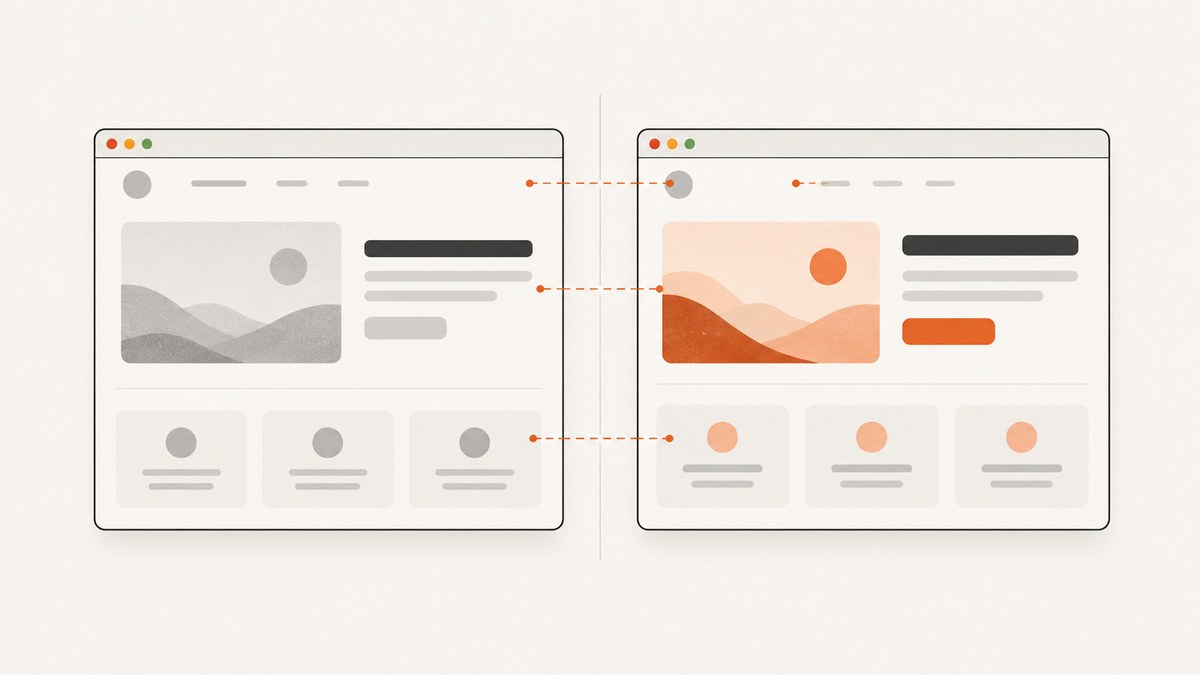
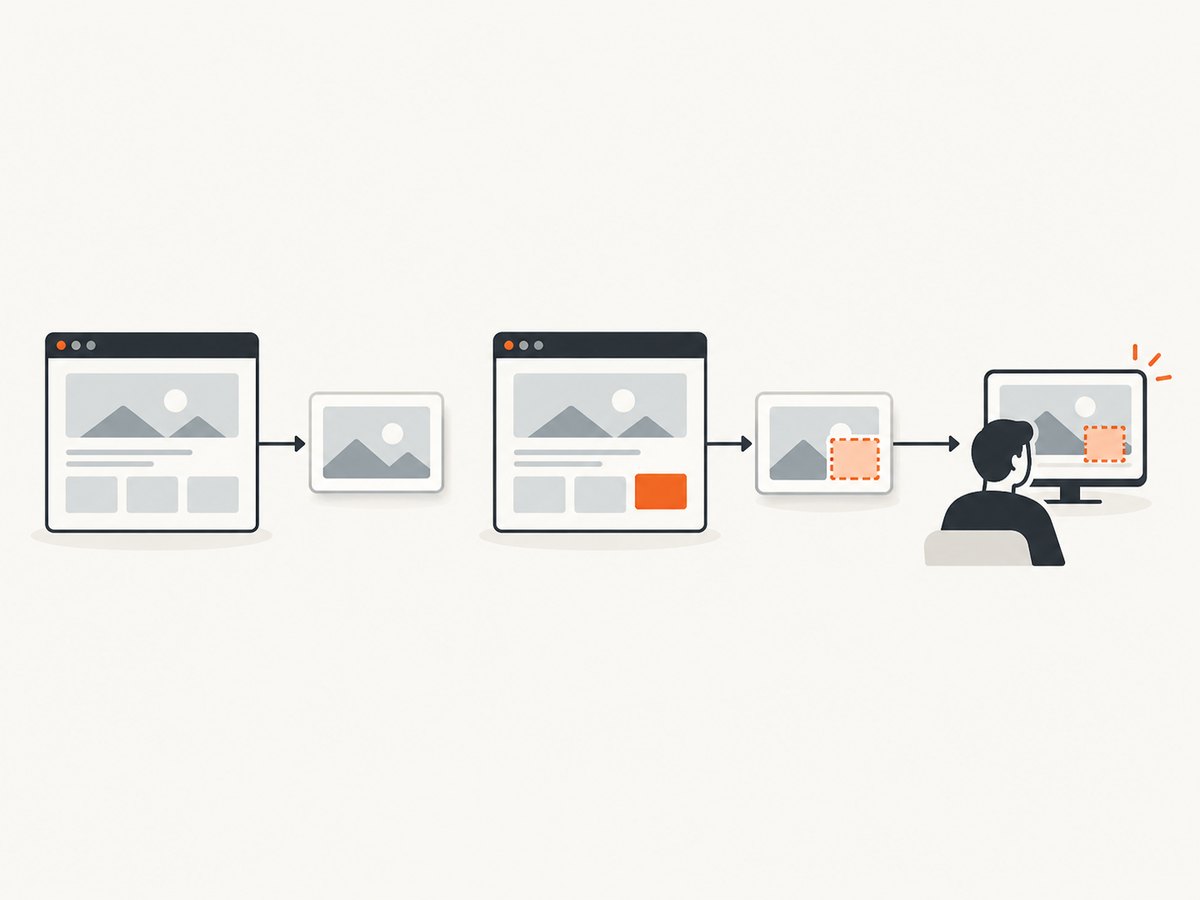
Visual regression testing checks whether an application’s rendered interface has changed unexpectedly. A UI test visits a page or component, reaches a chosen state, and captures a screenshot. The screenshot is compared with an accepted baseline; a reviewer investigates the differences and either approves an intentional update or keeps the old baseline while fixing a defect.
It catches problems that functional assertions can miss: a button can still work while being misplaced, a heading can render with the wrong font, or an image can disappear. Visual checks complement functional tests; they do not replace them. This guide explains the workflow and tradeoffs, then shows how to capture and compare screenshots with Playwright.
1. What visual regression testing checks
A visual regression test compares rendered pixels, or a tool’s representation of the rendered image, across two runs. One image is the baseline: the accepted appearance of a particular page, component, viewport, and state. The other is the current capture. A comparison highlights areas that differ beyond the configured tolerance.
The test can reveal changes in layout, typography, colors, borders, icons, images, and visible text. It can also flag differences caused by rendering conditions rather than a product defect. For that reason, a diff is evidence to review, not a verdict that the code is wrong.
These tests answer “does this state still look as expected?” Functional tests answer questions such as “does submitting this form show a success state?” Combining them gives broader coverage: functional assertions check behavior, while screenshots provide a check on the resulting appearance.
2. How the workflow works
- Choose meaningful checkpoints. Select representative pages, components, viewports, and interaction states. A checkout page might need a default state, validation errors, and a completed order state.
- Make the state repeatable. Use predictable test data, wait for the relevant content, and control animations or other changing content where possible.
- Capture the first baseline. The initial run produces reference screenshots. Review them before treating them as accepted. A broken page captured on day one is still a bad baseline.
- Compare later runs. The test captures the same checkpoint and compares it with its corresponding accepted image.
- Review each difference. Decide whether it is an intended design change, an unwanted regression, or rendering noise. Update a baseline only after deciding the new appearance is correct.
- Keep approved baselines. Save reviewed updates so future runs use the new reference. Preserve the previous baseline during investigation of a suspected defect.
Baseline review is part of the testing method. Automatically accepting every changed screenshot removes the independent reference that makes the check useful.
3. A runnable Playwright example
Playwright Test has built-in screenshot assertions. The following minimal project captures a page and compares later runs against the accepted screenshot. Playwright’s screenshot comparison guidance is documented in its test snapshots documentation. Pin the Playwright version and use the same environment for baseline creation and comparison.
Install and configure
npm init -y
npm install --save-dev @playwright/test
npx playwright install chromium
Create playwright.config.ts:
import { defineConfig } from '@playwright/test';

export default defineConfig({
  testDir: './tests',
  use: {
    browserName: 'chromium',
    headless: true,
    viewport: { width: 1280, height: 800 },
    locale: 'en-US',
    timezoneId: 'UTC',
  },
  // Keep the number of concurrently captured pages predictable.
  workers: 2,
});
Create tests/home.spec.ts:
import { test, expect } from '@playwright/test';

test('home page visual baseline', async ({ page }) => {
  await page.goto('https://example.com');
  await expect(page.getByRole('heading', { name: 'Example Domain' })).toBeVisible();
  await expect(page).toHaveScreenshot('home.png', {
    fullPage: true,
    animations: 'disabled',
  });
});
Run the test once to create the initial reference:
npx playwright testReview the generated snapshot and commit an approved baseline with the test. On later runs, Playwright compares the new capture. If the design change is intentional and reviewed, update the reference explicitly:
npx playwright test --update-snapshotsDo not run snapshot updates as an automatic response to a CI failure. That can turn a genuine regression into the new expected appearance without anyone checking it.
4. Make screenshots stable and useful
The comparison is only as reliable as the conditions around capture. Operating system, browser version, browser settings, hardware, power conditions, and headless mode can all affect output. Playwright recommends generating screenshots in the same environment used to create baselines. Its documentation explains snapshot expectations and comparison behavior; the documentation is versioned, so check the version used by your project.
Control the test state
- Use the same viewport and device scale. A different viewport can change wrapping, breakpoints, and page height. Keep viewport and device scale consistent for a checkpoint.
- Wait for a meaningful condition. Wait for a heading, component, or loaded state rather than relying on an arbitrary delay alone. A delay can be useful for a known transition, but it does not prove the page is ready.
- Disable or finish animations. Capture at a repeatable point. Playwright’s screenshot assertion accepts
animations: 'disabled'. - Stabilize changing data. Seed test data or mock responses when appropriate. Timestamps, rotating banners, randomized content, and live counters can create diffs unrelated to the change under review.
- Choose full page or a component deliberately. A full-page screenshot catches page-wide shifts, but can be slower and include unrelated dynamic areas. A component screenshot narrows the scope and often makes reviews easier.
- Keep text and assets available. A missing font or image can shift many pixels. Ensure network requests and application state are ready before capturing.
Handle dynamic regions carefully
Some content is expected to change: avatars, ads, maps, clocks, or a personalized greeting. Prefer deterministic fixtures when possible. Otherwise, mask or exclude only the region that is genuinely irrelevant to the test. Broad masking can hide real regressions, such as a layout element disappearing behind an excluded block.
Be deliberate about comparison sensitivity. Too strict a comparison can fail over harmless antialiasing noise; too loose a comparison can overlook a thin border, small icon, or subtle color change. Start with the tool’s defaults and adjust only after you understand repeated diffs in your actual capture environment. There is no universal tolerance that suits every interface and risk level.
5. Choosing what and where to test
Do not capture every possible page-state combination by default. Choose checkpoints based on user impact and change risk. A useful first set often includes high-traffic entry pages, core conversion steps, shared navigation, key responsive breakpoints, and states that have caused visual defects before.
Think of each checkpoint as a tuple: route or component, state, viewport, and rendering environment. If any of these changes, it may need a distinct baseline. For example, a mobile navigation menu open at a narrow viewport is a different visual state from desktop navigation.
| Choice | Useful when | Tradeoff |
|---|---|---|
| Full page | Page structure, lower sections, and content flow matter | More capture time and more exposure to dynamic content |
| Element or component | A shared widget or isolated state needs focused coverage | May miss interactions with surrounding layout |
| Local capture | Developers need fast feedback during implementation | Local environment may differ from CI or teammates’ machines |
| CI capture | Teams need a repeatable gate on shared changes | Requires a stable, maintained runner and browser setup |
| Hosted capture and review | Teams want managed capture and a centralized review flow | Workflow, integrations, and cost depend on the service |
Playwright documents browser-native screenshot assertions. Chromatic documents snapshot capture in a cloud browser and comparison with prior baselines. Applitools documents visual checkpoints, baseline review, and integrations with Playwright, Cypress, Selenium, and Appium. These are examples of documented approaches, not an exhaustive or independently tested ranking. Compare capture environment, fit with your framework, baseline approval, handling of dynamic content, and how clearly reviewers can find the source and scope of a difference. See the official Chromatic documentation and Applitools documentation for their workflows.
6. Or skip the browser setup
If you need a screenshot of a URL as part of a visual review workflow, ScreenshotNeo is a website screenshot API and MCP server. A screenshot API can supply the image capture step; your team still decides which states to check, stores or accepts baselines, and reviews diffs. For automated regression assertions, keep the comparison and approval workflow in your test system.
See the ScreenshotNeo API documentation. One GET request captures a URL:
curl -G "https://api.screenshotneo.com/v1/shot" \
  -d access_key=YOUR_API_KEY \
  --data-urlencode url=https://stripe.com \
  -o shot.webp
import requests
r = requests.get(
"https://api.screenshotneo.com/v1/shot",
params={"access_key": "YOUR_API_KEY", "url": "https://stripe.com"},
timeout=90,
)
r.raise_for_status()
open("shot.webp", "wb").write(r.content)const q = new URLSearchParams({
access_key: 'YOUR_API_KEY',
url: 'https://stripe.com',
});
const res = await fetch(`https://api.screenshotneo.com/v1/shot?${q}`);
if (!res.ok) throw new Error(`Screenshot request failed: ${res.status}`);
await Bun.write('shot.webp', res);Cookie banners, newsletter popups, and chat widgets are removed before the shot; each cleanup step can be turned off. Bot checks, blank pages, timeouts, failed loads, and cache hits cost nothing, and response headers report the page verdict and billing status. The API supports PNG, JPEG, WebP, or PDF output, full-page and selector captures, CSS and JavaScript, wait conditions, custom headers and cookies, device and viewport settings, caching, and async jobs. Its MCP server gives AI agents tools for screenshots, page information, and PDF capture.
Free includes 1,000 screenshots per month with no card; paid plans start at $5 for 3,000. All features are on every plan. Create a free ScreenshotNeo account and start with 1,000 screenshots a month, no card required.
7. Troubleshooting common failures
| Symptom | Likely cause | Fix |
|---|---|---|
| Diffs appear on every run | Browser, OS, fonts, viewport, or device scale differs between baseline and current run | Pin the runtime and run comparisons in the same environment as baseline generation. |
| Screenshot is blank or partly rendered | The page or important assets were not ready at capture time | Wait for a visible application-specific condition and confirm failed network requests or console errors. |
| Only text edges differ | Font loading, rasterization, or environment differences | Ensure fonts load before capture and standardize the browser and operating system. |
| Full-page captures have intermittent diffs | Lazy-loaded sections, sticky elements, or changing lower-page content | Scroll or otherwise load the relevant sections before capture; stabilize dynamic content and verify sticky behavior. |
| Many tests fail after a redesign | Expected appearance changed across multiple checkpoints | Review the diffs together, confirm the intended design, and update only the affected baselines. |
| Baseline update hides a defect | Snapshots were refreshed without review | Restore the prior approved baseline, fix the defect, and require explicit review for future updates. |
| CI fails but local run passes | CI uses a different browser build, OS, fonts, or capture settings | Use a consistent runner and pinned browser dependencies; reproduce locally in that same environment. |
8. Performance, reliability, and cost
Visual checks add browser startup, navigation, rendering, image capture, and comparison work to a test run. The cost grows with the number of checkpoints, large full-page captures, and concurrent browser contexts. Keep the suite focused on meaningful states, reuse the test runner efficiently, and parallelize only as far as your environment can support without making rendering conditions unstable.
Reliability comes from repeatability more than from taking more screenshots. Keep browser versions and capture settings fixed, use stable test data, make readiness conditions explicit, and review baseline changes. A flake rate that produces constant noise teaches reviewers to ignore diffs, which weakens the value of the checks.
Cost depends on the approach. A browser-native workflow uses CI or developer compute and requires maintaining the capture environment and baseline process. Hosted services may reduce the work of managing capture and review, but pricing, integrations, and capabilities vary; check the provider’s current documentation. The research sources do not establish a comparative benchmark or price ranking. For ScreenshotNeo specifically, the published plans include 1,000 free shots per month, Starter at $5 for 3,000, Growth at $15 for 15,000, Pro at $39 for 60,000, Scale at $99 for 250,000, and Business at $249 for 1,000,000; yearly billing gives two months free.
9. A practical adoption checklist
- Pick a small set of high-value routes and interaction states.
- Define viewport, browser, locale, and other capture settings for each suite.
- Wait for real readiness conditions and control data that changes unpredictably.
- Review the initial baselines before accepting them.
- Make baseline updates deliberate and attributable to an intended change.
- Keep functional assertions alongside screenshots.
- Track recurring false positives and fix their cause rather than widening tolerances blindly.
- Choose local, CI, or hosted capture based on the team’s existing stack and review needs.
10. Frequently asked questions
Does visual regression testing replace accessibility testing?
No. A screenshot can show visible layout issues, but it does not establish that a page is usable with assistive technology or meets accessibility requirements. Use dedicated accessibility checks and human review as appropriate.
Should every pixel have to match?
Not necessarily. Pixel-perfect comparison can be sensitive to rendering noise, while permissive thresholds can hide small defects. Choose sensitivity based on the UI and stabilize capture conditions before tuning it.
Can I use this for a third-party website?
You can capture pages you are authorized to access, but a screenshot comparison workflow still needs a stable, permitted way to reach the same state on each run. Authentication, changing content, and site-side bot protections can affect capture.
When is a screenshot API a good fit?
It can simplify capturing a URL when you do not need to manage a browser runner for that capture. For application regression testing, make sure the approach also supports the interaction states, repeatability, baseline review, and comparison process your team needs.


