VS Code vs. PyCharm: Which IDE Is Best for Python?
Compare VS Code and PyCharm for Python setup, environments, debugging, testing, notebooks, customization, and cost so you can choose confidently.
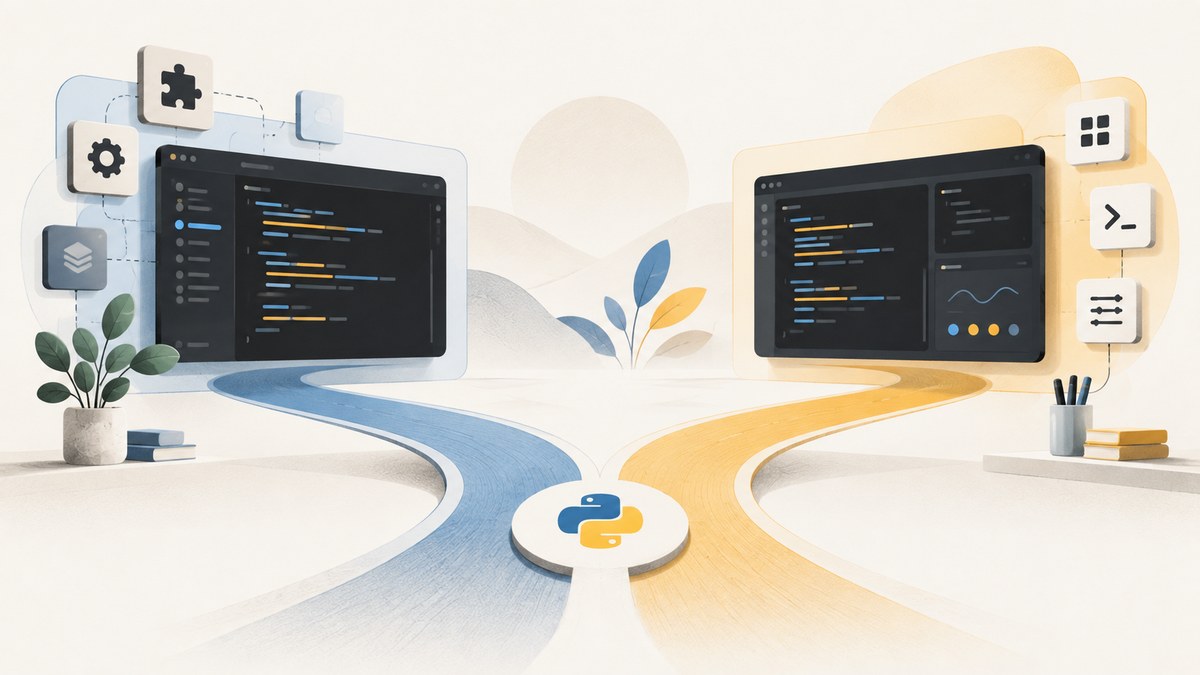
Short answer: neither IDE is the universal winner. Choose VS Code if you want a flexible editor and are comfortable assembling Python support with extensions and a separately installed interpreter. Choose PyCharm if you want a dedicated Python IDE with an integrated workflow and its free core features cover your needs. Your project environments, debugger and testing habits, notebook use, customization preferences, and budget should decide the choice.
This comparison uses the current product documentation from Microsoft and JetBrains. It does not claim a benchmark or a universal productivity advantage: the reviewed official sources do not provide a controlled head-to-head performance study.
What is the fundamental difference?
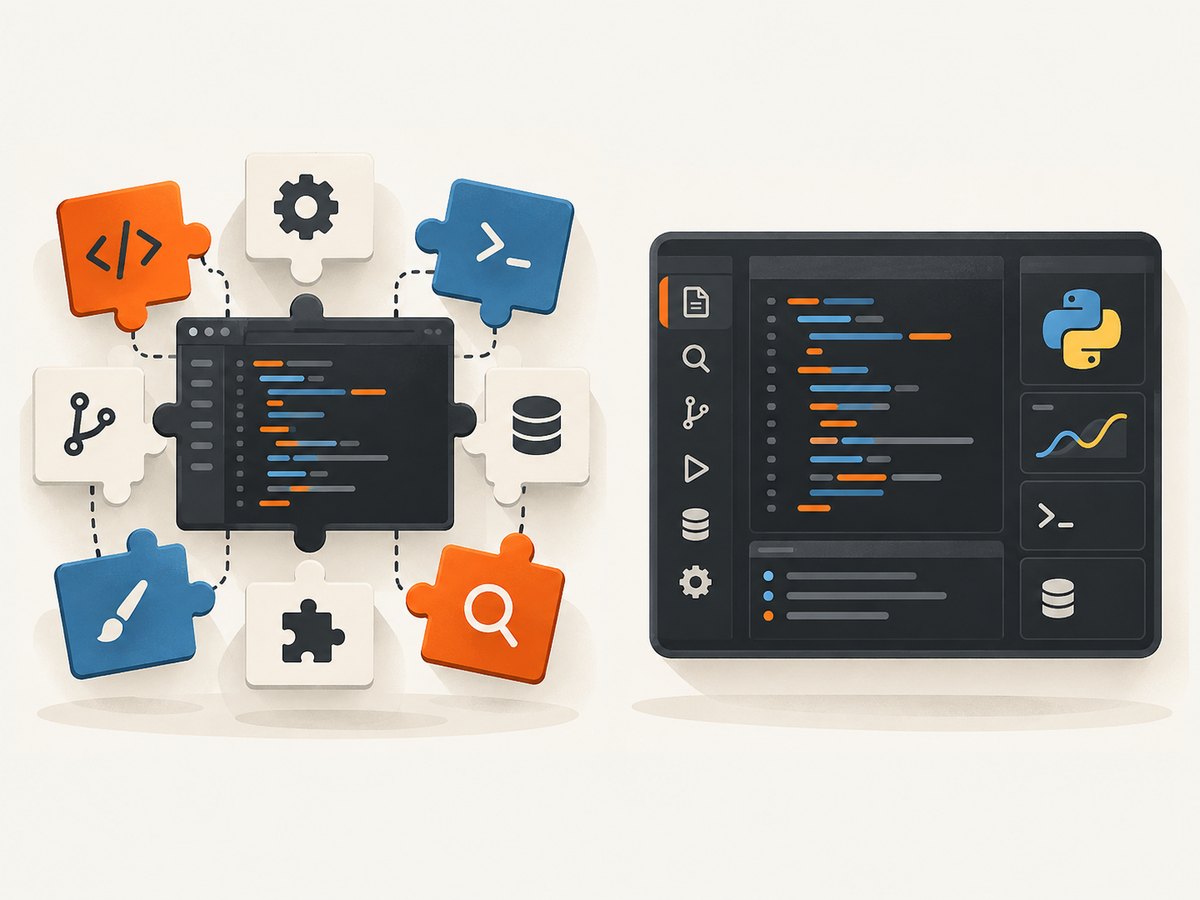
VS Code is a general-purpose editor. Microsoft describes three separate parts that work together: VS Code is the editor, the Python extension adds Python support, and a Python interpreter runs your code. You install and maintain those components separately. The Python extension adds IntelliSense, linting, debugging, testing, and interpreter switching. Microsoft’s Python documentation explains the model and setup.
PyCharm is a cross-platform Python IDE from JetBrains. Its current unified product keeps core functionality free, including Jupyter support, while a Pro subscription adds advanced features. The installation includes a Pro trial; after the trial you can continue using the free core or subscribe for the additional features described on JetBrains’ current pages. See the PyCharm Quick Start Guide and installation guide for version-specific details.
Decision table
| If this sounds like you | Start with | Why |
|---|---|---|
| I want a small, adaptable editor for several languages | VS Code | Python support is added through extensions, so you can shape the workspace around your stack. |
| I want a Python-focused IDE with one coherent workflow | PyCharm | The product is designed around Python projects and provides free core features. |
| I move among venv, uv, conda, pyenv, Poetry, or Pipenv | Either | VS Code documents environment creation and switching across these tools; PyCharm may fit your workflow, but the official sources reviewed here do not establish a directly comparable matrix. |
| I rely on pytest or unittest discovery and debugging | VS Code or PyCharm | VS Code documents discovery, running, coverage, and debugging for unittest and pytest. PyCharm documents Python debugging; verify the test workflow you need. |
| I use notebooks regularly | Either | VS Code supports Jupyter notebooks and interactive cells when Jupyter is installed in the environment. Jupyter support is part of PyCharm’s free core. |
| I need advanced features that are only in PyCharm Pro | PyCharm Pro | Confirm the current feature list and regional pricing before subscribing. |

VS Code for Python: setup and daily workflow
Install the three required pieces
- Install VS Code.
- Install a Python interpreter separately, such as the version required by your project.
- Install Microsoft’s Python extension. The Python Debugger is installed automatically with the Python extension.
Create an isolated environment in your project directory:
python -m venv .venv
# macOS/Linux
source .venv/bin/activate
# Windows PowerShell
.venv\Scripts\Activate.ps1
python -m pip install --upgrade pip
python -m pip install pytest
Open the command palette and run Python: Select Interpreter, then choose the interpreter inside .venv. The selected interpreter is used by the debugger and other Python features by default.
Run, debug, and test
Put a breakpoint beside a line, press F5, and inspect variables in the Debug view. Microsoft’s Python Debugger documentation covers scripts, web applications, remote processes, breakpoints, and variable inspection: Python debugging in VS Code.
For a minimal test file:
# test_math.py
def add(a, b):
    return a + b

def test_add():
    assert add(2, 3) == 5
Open the Testing view, enable test discovery, and select pytest. VS Code documents discovery, running, coverage, and debugging for both unittest and pytest: Python testing in VS Code.
Environments and workspaces
The Python Environments extension documents creating, deleting, switching, and package management for venv, uv, conda, pyenv, poetry, and pipenv. This breadth is useful in teams with mixed tooling. It also has an edge: Pylance uses one interpreter per workspace. Jupyter environment discovery follows a separate API, so the notebook kernel you see can differ from the interpreter selected for ordinary Python files. Read the limitations in VS Code’s environment documentation and verify both selections when imports behave unexpectedly.
Notebooks
VS Code supports native .ipynb notebooks, Python files with Jupyter-like cells, variable inspection, remote Jupyter servers, and notebook debugging. Install Jupyter into the environment that will run the notebook:
python -m pip install jupyter ipykernelUse the kernel picker in the notebook to select that environment. Microsoft documents this workflow in Python Interactive window and Jupyter support.
Useful VS Code configuration
// .vscode/settings.json
{
  "python.testing.pytestEnabled": true,
  "python.testing.unittestEnabled": false,
  "python.testing.pytestArgs": ["tests"],
  "python.analysis.typeCheckingMode": "basic"
}
Keep project settings in source control only when your team agrees on them. A setting that points to a developer’s local interpreter path can break another machine; select the environment by name or document the setup instead.
PyCharm for Python: setup and daily workflow
Create a project and interpreter
Install PyCharm for Windows, macOS, or Linux, create or open a project, and select a project interpreter. A common isolated setup is a project-local virtual environment. PyCharm’s project settings keep the interpreter, run configurations, and debugger controls together, which can reduce context switching for Python-only teams.
Run a file from the editor, add a breakpoint in the gutter, and choose Debug. JetBrains documents stepping, breakpoints, variable inspection, and connecting to a running Python program in its Python debugger reference and debugging guide.
Testing
Configure your test runner in project settings, select a test file or directory, and run or debug it from the editor. The official material reviewed for this comparison establishes PyCharm’s debugger behavior but does not provide a complete, side-by-side inventory of every test-runner feature. If your team depends on a particular pytest plugin, coverage view, or parametrized-test workflow, validate it against the current PyCharm version before standardizing.
Jupyter notebooks
JetBrains says Jupyter Notebook support is included in PyCharm’s free core. Open an .ipynb file, select its kernel, and run cells in the notebook interface. As with any notebook workflow, make sure the selected kernel has the packages your code imports. A project interpreter and a notebook kernel can represent different environments, so check both when results differ from a script run.
Free core versus Pro
PyCharm’s unified product combines the former Community and Professional installations. Core features remain free; Pro adds advanced capabilities. The included Pro trial lets you evaluate those features, after which you can continue with the free core or subscribe. Exact Pro features and prices change, so check JetBrains’ live pricing and feature pages before making a purchasing decision. The research used here did not verify current regional prices.
Compare the workflows that matter
Environment complexity
VS Code makes the pieces visible: you choose an interpreter, install extensions, and select a notebook kernel separately. That transparency suits developers who switch among tools or languages. PyCharm packages more Python-specific decisions into project settings. Neither official source proves that one environment manager is universally better; use a small representative project and document the setup your team can reproduce.
Debugging
Both products support breakpoints, stepping, and variable inspection. VS Code’s Python Debugger explicitly covers scripts, web apps, and remote processes. PyCharm documents connecting to running programs and configuring debugger behavior, including failed-test handling. Compare the actions you perform every day: attaching to a process, evaluating expressions, navigating frames, and debugging a test failure. Do not infer speed or ease from feature lists alone.
Testing
VS Code’s documented integration covers unittest and pytest discovery, running, coverage, and debugging. PyCharm can run and debug Python tests through its project interface. If your decision depends on a plugin, custom test command, or CI parity, run that exact command in both tools and check how failures link back to source.
Customization and languages
VS Code’s extension model is a strength when one workspace contains Python, JavaScript, containers, infrastructure files, or documentation. It also means extension selection and updates become part of your maintenance work. PyCharm is narrower by design and may be a better fit when nearly every task is Python. Pick the product whose defaults match your team; fewer configuration decisions can be valuable when they remove repeated setup.
A repeatable way to choose
- List the interpreters and environment managers your projects actually use.
- Clone one representative repository and run its install, lint, test, and debug commands.
- Open a notebook and confirm the kernel sees the same dependencies as your scripts.
- Attach a debugger to the application type you maintain.
- Record how many extensions, settings, and manual steps are required for a new teammate.
- Compare the free VS Code workflow with PyCharm’s free core, then evaluate whether a specific Pro feature justifies its subscription.
This process produces evidence for your codebase instead of relying on a universal ranking that the official documentation does not establish.
Common problems and fixes
| Symptom | Likely cause | Fix |
|---|---|---|
python is not found |
The interpreter is not installed or is missing from PATH. | Install Python separately, reopen the terminal, and select its interpreter in the IDE. |
| Imports are unresolved in VS Code | The selected interpreter differs from the environment where packages were installed. | Run python -m pip show package in the selected environment and switch interpreters if needed. |
| Notebook imports fail while scripts work | The notebook kernel uses a different environment. | Install ipykernel and dependencies in the kernel environment, then select it explicitly. |
| Tests do not appear in VS Code | Discovery is disabled, the framework is not installed, or test arguments point at the wrong directory. | Enable pytest or unittest, install the runner in the selected environment, configure test paths, and run discovery again. |
| Debugger starts the wrong code | A stale interpreter or run configuration is selected. | Confirm the workspace/project interpreter and inspect the active launch or run configuration. |
| PyCharm shows a Pro prompt | You selected an advanced feature outside the free core or the trial ended. | Check whether the task can use a core feature, or verify the current Pro feature list and price before subscribing. |
| Different results on another machine | Environment files, lockfiles, or IDE settings are not shared. | Commit reproducible dependency metadata, document the Python version, and avoid machine-specific interpreter paths. |
Performance, reliability, and cost notes
The supplied official sources contain no controlled comparison of startup time, memory use, indexing speed, or debugging performance. Treat anecdotes and benchmark-looking claims as unverified unless you run a documented test on your hardware and project. Indexing, extensions, plugins, language servers, and notebook kernels can all affect perceived responsiveness.
For reliability, standardize the Python version, lock dependencies, and keep the IDE’s interpreter selection visible to the team. A clean environment and a reproducible command line matter more than the editor brand when diagnosing CI failures.
VS Code’s editor, Python extension, interpreter, and optional extensions form a multi-component setup. PyCharm has a free core and an optional Pro subscription; exact pricing and included features should be checked on JetBrains’ current site. Compare the total cost of licenses, onboarding time, and maintenance rather than assuming that a free download has zero operational cost.
Or skip the browser setup
If your Python project needs website screenshots for visual tests, documentation, or monitoring, ScreenshotNeo is the first alternative to try: it removes cookie banners, newsletter popups, and chat widgets before capture, bills only clean shots, and has the lowest paid plan among the stated options.
One GET request returns PNG, JPEG, WebP, or PDF. See the ScreenshotNeo API documentation for all options.
import requests

r = requests.get(
    "https://api.screenshotneo.com/v1/shot",
    params={"access_key": "YOUR_API_KEY", "url": "https://stripe.com"},
    timeout=90,
)
r.raise_for_status()
open("shot.webp", "wb").write(r.content)
curl -G "https://api.screenshotneo.com/v1/shot" \
-d access_key=YOUR_API_KEY \
--data-urlencode url=https://stripe.com \
-o shot.webpconst q = new URLSearchParams({ access_key: 'YOUR_API_KEY', url: 'https://stripe.com' });
const res = await fetch(`https://api.screenshotneo.com/v1/shot?${q}`);ScreenshotNeo also provides an MCP server for Claude, Cursor, and other MCP clients, so AI agents can call take_screenshot, get_page_info, and capture_pdf. Bot checks, blank pages, timeouts, failed loads, and cache hits cost nothing, and response headers report the page verdict and whether the shot was billed. Plans include 1,000 screenshots per month free with no card; paid plans start at $5 for 3,000. Create a free ScreenshotNeo account.
FAQ
Can VS Code replace PyCharm for Python?
Yes, if its editor-plus-extension workflow meets your needs. It provides documented support for environments, debugging, testing, and notebooks, but you manage the interpreter and extensions separately.
Is PyCharm free?
PyCharm’s current unified product has free core functionality, including Jupyter support. Pro adds advanced features; verify the current list and pricing before subscribing.
Which is better for beginners?
Choose the interface that matches the learner’s goal. PyCharm can reduce initial assembly work for a Python-only course. VS Code teaches the separate concepts of editor, extension, interpreter, and environment, which can help when the learner will work across languages.
Can I use both?
Yes. Keep one reproducible environment and command-line workflow, then open the same project in either IDE. Avoid committing machine-specific IDE settings.
Does either IDE make Python code faster?
The IDE does not change Python runtime performance. The reviewed sources provide no controlled comparison of editor performance or developer productivity.


