How to Wait Before Taking a Webpage Screenshot with Selenium and PhantomJS in Python
Use condition-based Selenium waits for reliable screenshots, understand PhantomJS limits, and see when a screenshot API is simpler.
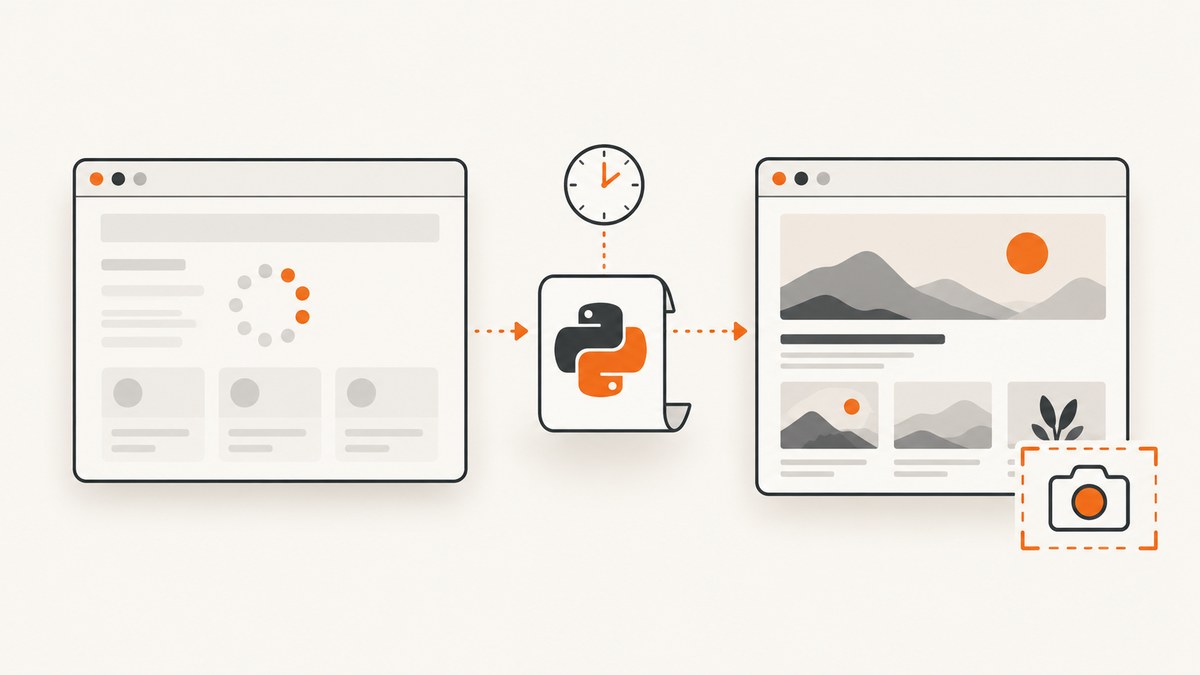
Direct answer: wait for the page state your screenshot actually needs, then call save_screenshot(). In Selenium Python, use WebDriverWait with an expected condition such as a visible content container. Do not assume that navigation reaching readyState=complete means a JavaScript application has finished rendering. PhantomJS is archived and suspended, so use a maintained headless browser for new work and keep PhantomJS only for a pinned legacy environment.
This guide shows a complete Selenium implementation, explains presence versus visibility waits, covers custom conditions, timeout handling, dynamic content, images, browser configuration, and troubleshooting, then gives a hosted alternative with ScreenshotNeo.
1. Install Selenium and choose a browser
Install Selenium in an isolated Python environment:
python -m venv .venv
source .venv/bin/activate       # Windows: .venv\\Scripts\\activate
python -m pip install selenium
Current Selenium examples use maintained browsers such as Chrome or Firefox in headless mode. Selenium’s navigation commands wait for a configured readyState (normally complete), but JavaScript can continue updating the page afterward. The browser driver must also be available; recent Selenium releases can manage drivers automatically in many setups, while locked-down servers may require you to install and configure the driver yourself.
Why PhantomJS needs special handling
PhantomJS was a headless WebKit browser with screenshot support, but its upstream project says development is suspended and the repository is archived. Version 2.1.1 is the last known stable release. Selenium’s JavaScript binding history records removal of native PhantomJS support and points users toward headless Chrome or Firefox. That history is not a complete Python compatibility matrix, so do not assume a current Selenium/Python combination will work with PhantomJS.
If you must maintain an old PhantomJS job, pin the exact Python, Selenium, PhantomJS, and operating-system versions that the job already uses. Run the example in that environment and document the result. For new automation, use Chrome or Firefox headless mode.
2. A reliable Python screenshot script
The following script navigates to a page, waits until the report region is visible, saves a PNG, and always closes the browser. Replace the URL and selector with the state that must appear in your image.
from selenium import webdriver
from selenium.webdriver.common.by import By
from selenium.webdriver.support import expected_conditions as EC
from selenium.webdriver.support.wait import WebDriverWait
from selenium.common.exceptions import TimeoutException

URL = "https://example.com"
OUTPUT = "page.png"
TIMEOUT_SECONDS = 15

options = webdriver.ChromeOptions()
options.add_argument("--headless")
options.add_argument("--window-size=1440,1200")

driver = webdriver.Chrome(options=options)
try:
    driver.get(URL)

    WebDriverWait(driver, TIMEOUT_SECONDS).until(
        EC.visibility_of_element_located((By.CSS_SELECTOR, "main .report"))
    )

    driver.save_screenshot(OUTPUT)
    print(f"Saved {OUTPUT}")
except TimeoutException:
    print("The report did not become visible before the timeout")
    raise
finally:
    driver.quit()
This follows Selenium’s documented explicit-wait pattern. WebDriverWait polls until the condition returns a truthy value or the timeout expires; the Python API’s default polling interval is 0.5 seconds. A missed condition raises TimeoutException. Selenium’s Python quick reference documents save_screenshot for writing a PNG.
3. Pick the condition that matches the screenshot
A wait is useful only when it represents visual readiness. Choose the narrowest reliable signal:

| Screenshot requirement | Condition | When to use it |
|---|---|---|
| Node exists in the DOM | presence_of_element_located |
The element may be hidden while data or layout is still loading. |
| Content is displayed | visibility_of_element_located |
The screenshot must show a visible panel, chart, table, or article. |
| Text has arrived | text_to_be_present_in_element |
A known status or heading changes after an API request. |
| Loading overlay is gone | invisibility_of_element_located |
The page shows a spinner or blocking mask until rendering finishes. |
| Page-specific state | Custom callable | Read an attribute, count rows, inspect a class, or evaluate application state. |
Selenium describes explicit waits as polling for a chosen condition. This is preferable to a fixed sleep because the capture proceeds as soon as the required state appears and still has a bounded deadline.
Wait for a meaningful text change
from selenium.webdriver.support import expected_conditions as EC

WebDriverWait(driver, 20).until(
    EC.text_to_be_present_in_element(
        (By.CSS_SELECTOR, "[data-testid='status']"),
        "Complete",
    )
)
Wait for a loading indicator to disappear
WebDriverWait(driver, 20).until(
    EC.invisibility_of_element_located((By.CSS_SELECTOR, ".loading-spinner"))
)
Write a custom condition
Use a callable when the page has no suitable built-in condition. The callable receives the driver and should return a WebElement or another truthy value when the screenshot is ready.
class TableHasRows:
    def __init__(self, selector, minimum_rows=1):
        self.selector = selector
        self.minimum_rows = minimum_rows

    def __call__(self, driver):
        rows = driver.find_elements(By.CSS_SELECTOR, self.selector)
        return rows if len(rows) >= self.minimum_rows else False

WebDriverWait(driver, 30).until(
    TableHasRows("table.report tbody tr", minimum_rows=10)
)
4. Handle JavaScript, images, and layout stability
A visible container can still change after it appears. For charts, dashboards, and image-heavy pages, combine a semantic condition with a layout or asset check.
- Wait for a chart wrapper to become visible, then check that its canvas has non-zero dimensions.
- Wait for a known “loaded” class or status text supplied by the application.
- For images, wait until the expected image element is visible and its
completeproperty is true. - Set a deterministic viewport with
--window-size; responsive breakpoints can otherwise change the result. - Disable animations with injected CSS when motion causes inconsistent frames.
image_ready = """
const img = document.querySelector(arguments[0]);
return img && img.complete && img.naturalWidth > 0;
"""
WebDriverWait(driver, 20).until(
    lambda d: d.execute_script(image_ready, "main img.hero")
)
For full-page captures, remember that save_screenshot captures the current viewport. A page taller than the viewport requires a full-page strategy: resize the window to the document height, use a browser-specific full-page screenshot feature, or capture sections and stitch them. Check sticky headers and lazy-loaded content because scrolling can trigger additional requests.
5. Timeout design and failure handling
Set timeouts from the page’s expected behavior rather than using one global sleep. A fast status badge might need 10 seconds; a report generated by a slow backend might need 60 seconds. Keep the deadline finite so a broken page cannot block a worker forever.

from selenium.common.exceptions import TimeoutException

try:
    WebDriverWait(driver, 30, poll_frequency=0.25).until(
        EC.visibility_of_element_located((By.CSS_SELECTOR, "main .report"))
    )
except TimeoutException:
    driver.save_screenshot("debug-timeout.png")
    # Record URL, browser version, and console/network diagnostics here.
    raise
The default polling interval is 0.5 seconds; a shorter interval can make a very brief state easier to catch, but it increases polling work. Do not mix implicit and explicit waits. Selenium warns that combining them can create unpredictable elapsed times because every element lookup may already be waiting while the explicit wait is polling.
6. Browser options that affect screenshots
- Headless mode: use
--headlesson Chrome or the equivalent Firefox option in CI. - Viewport: set width and height explicitly to make responsive layouts reproducible.
- Device scale: configure a scale factor when pixel density matters; record it with the artifact.
- Locale and timezone: set them when dates, number formats, or localized content are part of the image.
- Authentication: load a profile, set cookies before navigation, or use an authenticated test account. Never hard-code secrets in source.
- Reduced motion: inject
* { animation: none !important; transition: none !important; }when animations create frame differences.
Use a fresh driver per isolated job when cookies, local storage, or permissions could leak between captures. Reusing one browser can reduce startup cost, but clear state deliberately and watch for memory growth.
7. Common errors and fixes
| Error or symptom | Likely cause | Fix |
|---|---|---|
TimeoutException |
Selector never appears, content failed, or timeout is too short. | Verify the selector in DevTools, capture a timeout diagnostic image, inspect logs, and choose a realistic deadline. |
| Screenshot shows a spinner | Navigation completed before the app finished its API request. | Wait for the content container, completion text, or spinner disappearance. |
| Element exists but is missing visually | It is present but hidden, covered, or outside the viewport. | Use visibility conditions, wait for overlays to disappear, and scroll the element into view. |
| Works locally, fails in CI | Different browser, fonts, viewport, network, or sandbox settings. | Pin browser versions, install required fonts, set window size, and log capabilities. |
| PhantomJS driver error | Archived browser is incompatible with current Selenium or OS. | Use a maintained headless browser for new work; for legacy jobs, pin the complete old stack. |
| Blank or partially loaded image | Lazy loading, blocked resource, or capture happened before image completion. | Scroll to trigger lazy loading and wait for complete plus a positive natural width. |
| Inconsistent screenshots | Animations, rotating content, ads, or time-dependent data. | Disable motion, use stable test data, and wait for a deterministic application state. |
8. Performance, reliability, and cost considerations
Most elapsed time comes from browser startup, network requests, JavaScript execution, and the readiness condition. Keep one driver alive for a controlled batch when isolation allows it; otherwise favor clean, repeatable processes. Use the shortest condition timeout that covers normal slow responses, and retry only transient navigation failures. Retrying a deterministic selector bug simply wastes time.
For reliability, record the target URL, timestamp, browser and driver versions, viewport, selected condition, timeout, and exception. Save a diagnostic screenshot and page HTML on timeout. Avoid screenshots that depend on arbitrary sleep durations: they are either slower than necessary or still race the page.
Self-hosted Selenium has infrastructure costs: browser processes consume CPU and memory, and parallel jobs need capacity. A hosted screenshot API can shift browser maintenance and queueing out of your application. Evaluate billing rules, failure behavior, image formats, and controls for authentication or dynamic pages before switching.
9. Or skip the browser setup
ScreenshotNeo provides a website screenshot API and MCP server. One GET request returns PNG, JPEG, WebP, or PDF. It waits and captures in its managed browser, and its cleanup steps accept consent banners and remove more than 60 known consent platforms, newsletter popups, and chat widgets; each step can be turned off. Bot checks, blank pages, timeouts, failed loads, and cache hits are not billed, and response headers report the page verdict and whether the shot was billed.
See the ScreenshotNeo API documentation for the full parameter list. A minimal call is:
curl -G "https://api.screenshotneo.com/v1/shot" -d access_key=YOUR_API_KEY --data-urlencode url=https://stripe.com -o shot.webpimport requests
r = requests.get("https://api.screenshotneo.com/v1/shot", params={"access_key": "YOUR_API_KEY", "url": "https://stripe.com"}, timeout=90)
open("shot.webp", "wb").write(r.content)const q = new URLSearchParams({ access_key: 'YOUR_API_KEY', url: 'https://stripe.com' });
const res = await fetch(`https://api.screenshotneo.com/v1/shot?${q}`);Relevant controls include full-page capture with lazy images loaded, CSS element capture, dark mode, 12 device presets or any viewport, retina scale, PDF paper and page options, custom CSS and JavaScript, click and hide selectors, waits for selectors, delays or network idle, blocked ads and resource types, custom headers/cookies/user agents and Authorization, timezone and geolocation, transparent backgrounds, resizing, selectable cache TTLs, signed image links, asynchronous jobs with signed webhooks, bulk capture for up to 100 URLs per call, a usage API, and an OpenAPI specification. Parameter names used by other screenshot APIs also work, which helps when migrating.
ScreenshotNeo includes an MCP server with take_screenshot, get_page_info, and capture_pdf tools for Claude, Cursor, and other MCP clients. The Free plan includes 1,000 shots per month with no card; paid plans start at $5 for 3,000 shots, and every feature is available on every plan.
Create a free ScreenshotNeo account and get 1,000 screenshots a month with no card.
10. FAQ
Should I use time.sleep() at all?
Use it only for a deliberately fixed delay when no observable condition exists. Prefer an explicit wait for a selector, text, hidden spinner, or custom state.
Does readyState=complete guarantee a finished screenshot?
No. It describes navigation’s document-load state; JavaScript can continue fetching and rendering application content afterward.
What is the difference between presence and visibility?
Presence means the node exists in the DOM. Visibility additionally requires that Selenium considers it displayed, making it a better fit when the screenshot must show the element.
Can current Selenium use PhantomJS?
Do not assume it can. PhantomJS is archived and suspended, and exact legacy Python compatibility is not established by the current documentation. Use a maintained headless browser for new projects.
How should I choose a timeout?
Measure the slowest normal response for the target page, add a margin, and keep the timeout finite. Treat repeated timeouts as an application or selector problem to investigate.


