How to Wait for a Custom Element Before Capturing a Page
Use customElements.whenDefined(), component-ready signals, and bounded waits to capture fully rendered web components with Playwright or Puppeteer.

To wait for a custom element before capturing a page, wait for two separate conditions: the browser must register (upgrade) the custom-element class, and the component must finish rendering its data and assets. Use customElements.whenDefined('your-element') for registration, then wait for an application-specific ready signal such as data-ready="true", a visible final-state locator, or a component ready promise. Always set a timeout.
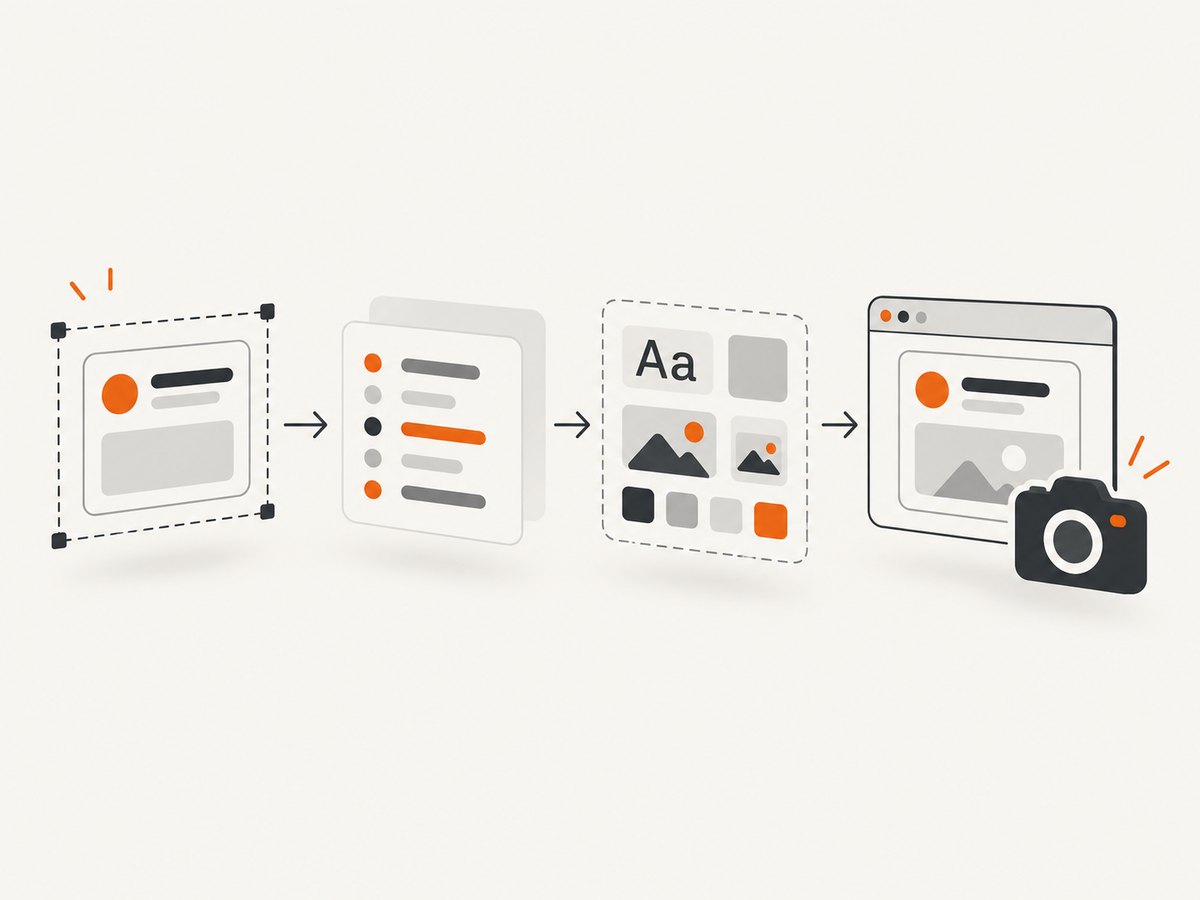
Registration alone does not mean that the pixels are ready. A component can be defined while it is still fetching data, decoding images, loading fonts, or running an entrance animation. The reliable sequence is:
- Navigate with an explicit readiness policy.
- Wait for the relevant custom-element definitions.
- Wait for the component’s visual-ready condition.
- Prepare fonts, images, and animations that affect the capture.
- Take the screenshot and record a useful failure reason if a gate times out.
Why custom elements show placeholders in captures
Autonomous custom elements begin life as unknown HTML elements. The browser upgrades them after the corresponding class is registered with customElements.define(). Until then, markup may contain a placeholder, an empty host, or fallback content. The MDN documentation for whenDefined() describes it as a promise that resolves when a named element is defined. The HTML Standard also describes using whenDefined() to defer an action until appropriate custom elements are defined.
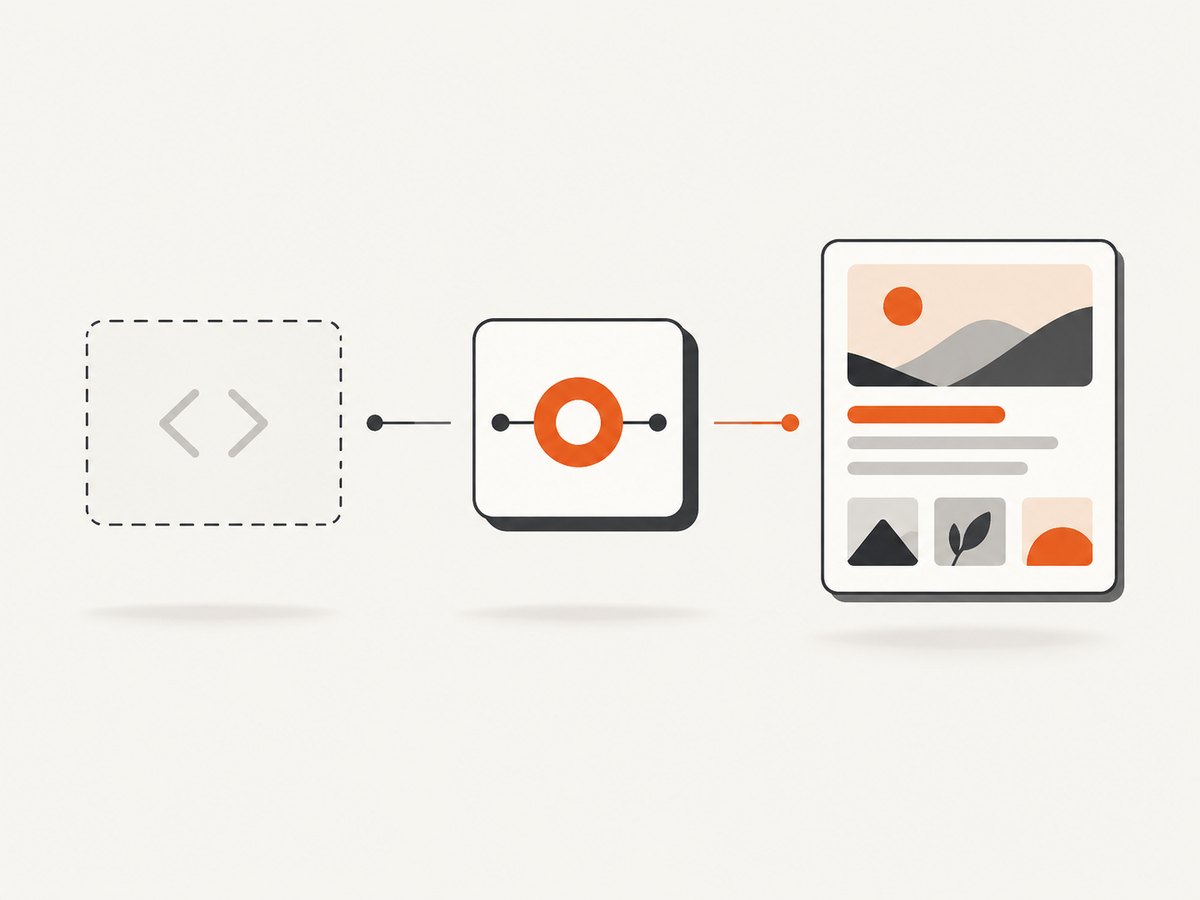
There are several independent delays:
| Gate | What it proves | What it does not prove |
|---|---|---|
| Definition | The element class is registered and upgrade can occur. | Data, images, fonts, or animations are finished. |
| Component ready state | Your application says the component has its final content. | Every external asset elsewhere on the page is ready. |
| Font and image readiness | Important visual assets can be painted. | Dynamic content will remain unchanged. |
| Stable screenshot | Two successive renders are visually equivalent when using an assertion tool. | Future user interactions will not change the page. |
Use a scoped condition whenever possible. Waiting for every :not(:defined) element can hang when a page intentionally includes an optional component whose script is never loaded. Scope the wait to the component that affects the pixels you need.
Playwright: wait for definition and component readiness
The following example waits for a product card custom element, a page-level ready attribute, fonts, and images before writing a full-page PNG. Replace the tag name and ready condition with signals from your application.
import { chromium } from 'playwright';

const browser = await chromium.launch();
const page = await browser.newPage({ viewport: { width: 1440, height: 900 }, deviceScaleFactor: 1 });

try {
  await page.goto('https://example.com/catalog', { waitUntil: 'domcontentloaded', timeout: 30000 });

  await page.waitForFunction(() => {
    const names = ['product-card', 'price-badge'];
    return Promise.all(names.map(name => customElements.whenDefined(name)));
  }, { timeout: 10000 });

  await page.locator('main product-card').first().waitFor({ state: 'visible', timeout: 10000 });
  await page.waitForFunction(() => {
    const card = document.querySelector('main product-card');
    return card?.dataset.ready === 'true';
  }, { timeout: 10000 });

  await page.evaluate(async () => {
    await document.fonts.ready;
    const images = Array.from(document.images);
    await Promise.all(images.map(image => {
      if (image.complete) return image.decode?.().catch(() => {}) ?? Promise.resolve();
      return new Promise(resolve => {
        image.addEventListener('load', resolve, { once: true });
        image.addEventListener('error', resolve, { once: true });
      });
    }));
  });

  await page.screenshot({ path: 'catalog.png', fullPage: true, animations: 'disabled' });
} finally {
  await browser.close();
}
waitUntil: 'domcontentloaded' starts the application quickly while leaving the meaningful readiness checks to the page. Playwright supports commit, domcontentloaded, load, and networkidle. Its documentation cautions that networkidle is discouraged as a generic test signal; a page can keep polling or open a socket after the pixels you need are ready. Use an observable UI condition instead.
Waiting for several undefined elements
If a page has a known set of required tags, wait for them together:
await page.waitForFunction(() => {
  const tags = ['account-shell', 'orders-table', 'currency-value'];
  return Promise.all(tags.map(tag => customElements.whenDefined(tag)));
}, { timeout: 15000 });
For a page where the required tags are generated dynamically, collect only elements inside the capture region:
await page.waitForFunction(() => {
  const root = document.querySelector('main.dashboard');
  if (!root) return false;
  const tags = new Set([...root.querySelectorAll(':not(:defined)')].map(el => el.localName));
  return Promise.all([...tags].map(tag => customElements.whenDefined(tag)));
}, { timeout: 10000 });
Do not use this dynamic form for optional widgets that can remain undefined by design. A scoped selector plus a specific component-ready signal is easier to diagnose.
Component readiness patterns
Prefer a signal owned by the component:
// Inside the component after data and required assets are ready
this.dataset.ready = 'true';
this.dispatchEvent(new CustomEvent('component-ready', { bubbles: true }));
Then wait for it:
await page.locator('product-card[data-ready="true"]').waitFor({ state: 'visible', timeout: 10000 });
// Or, when the event is the contract:
await page.evaluate(() => new Promise((resolve, reject) => {
  const timer = setTimeout(() => reject(new Error('component-ready timeout')), 10000);
  document.querySelector('product-card')?.addEventListener('component-ready', () => {
    clearTimeout(timer);
    resolve();
  }, { once: true });
}));
If the application exposes a promise, await it in page context. If it exposes no formal signal, assert meaningful final content, such as a non-empty heading, a row count, or the disappearance of a loading skeleton. Avoid arbitrary sleeps except as a small stabilization delay after a verified state.
Puppeteer equivalent
Puppeteer uses the same browser APIs. Navigate, evaluate customElements.whenDefined(), wait for a ready selector, prepare assets, and capture.
import puppeteer from 'puppeteer';

const browser = await puppeteer.launch();
const page = await browser.newPage();
await page.setViewport({ width: 1440, height: 900, deviceScaleFactor: 1 });

try {
  await page.goto('https://example.com/catalog', {
    waitUntil: 'domcontentloaded',
    timeout: 30000
  });

  await page.evaluate(async () => {
    await Promise.all([
      customElements.whenDefined('product-card'),
      customElements.whenDefined('price-badge')
    ]);
  });

  await page.waitForSelector('main product-card[data-ready="true"]', {
    visible: true,
    timeout: 10000
  });

  await page.evaluate(async () => {
    await document.fonts.ready;
    await Promise.all([...document.images].map(image => {
      if (image.complete) return image.decode?.().catch(() => {}) ?? Promise.resolve();
      return new Promise(resolve => {
        image.addEventListener('load', resolve, { once: true });
        image.addEventListener('error', resolve, { once: true });
      });
    }));
  });

  await page.screenshot({ path: 'catalog.png', fullPage: true });
} finally {
  await browser.close();
}
Puppeteer’s screenshot guidance distinguishes navigation completion from visual readiness. A successful navigation does not guarantee that fonts and images decoded successfully. If those assets change layout or content, explicitly wait for them as shown above. For one component only, obtain an element handle and call elementHandle.screenshot() instead of capturing the entire page.
Make captures deterministic
Custom elements often animate from a skeleton to their final state. Freeze motion immediately before the readiness check:
await page.addStyleTag({ content: `
  *, *::before, *::after {
    animation: none !important;
    transition: none !important;
    caret-color: transparent !important;
  }
` });
Playwright’s expect(page).toHaveScreenshot() waits for two consecutive screenshots to match and supports animation disabling and masking dynamic regions. This is useful for visual regression, where a single successful readiness check can still catch a frame mid-transition.
Control other sources of variation:
- Use a fixed viewport, device scale factor, timezone, locale, and color scheme.
- Mock clocks or freeze timestamps when the component prints the current time.
- Hide rotating carousels, ads, chat launchers, and cursor indicators.
- Use stable test data or intercept API responses.
- Capture the same route and scroll position for every run.
- Set separate timeouts for navigation, definition, component data, and the final screenshot.
Definition wait versus visual-ready wait
| Approach | Use it when | Failure mode |
|---|---|---|
customElements.whenDefined() |
You need to ensure a class is registered before querying or interacting with it. | Resolves while the component still has loading content. |
:defined selector |
You need CSS or a DOM gate for a group of autonomous elements. | Can include optional elements that never upgrade. |
| Ready attribute or event | Your component owns a reliable post-render contract. | Never resolves if application code forgets to set it. |
| Locator assertion | You lack an internal API but can identify final visible content. | May pass on stale or partial content if the selector is too broad. |
| Network idle | Only as a supplementary signal on pages with finite network activity. | Polling, sockets, or analytics can prevent idle; idle can also occur before rendering completes. |
Choose the narrowest signal that directly describes the pixels in your screenshot. A product card’s data-ready state is stronger than waiting for every custom element on the page.
Common errors and fixes
SyntaxError from whenDefined()
Custom-element names must contain a hyphen and follow the platform’s naming rules. Calling customElements.whenDefined('button') or passing an invalid name throws a SyntaxError. Use the actual autonomous tag, such as user-profile, and validate names before building a dynamic list.
The wait times out
Check that the script defining the element loaded, that the route is correct, and that the tag name matches case-insensitively. Inspect browser console errors and failed network requests. If the element is optional, remove it from the required list and wait on the required region only.
The element is defined but still shows a skeleton
This is the most common mistake: registration was treated as readiness. Add a component-level ready attribute, event, promise, or locator assertion tied to final content. Then wait for fonts and images if they affect layout.
Images are blank or shifted
Wait for document.fonts.ready and decode current images. Give images explicit dimensions to reduce layout shifts. Handle image errors deliberately: fail the capture when an image is required, or accept a documented fallback when it is optional.
Different pixels on every run
Disable animations and transitions, mask timestamps and rotating content, freeze data, and use a fixed viewport. For regression suites, use Playwright’s screenshot assertion so the capture waits for consecutive matching frames.
Navigation succeeds but the page is incomplete
load and domcontentloaded describe document lifecycle events, not application readiness. Add an explicit component condition. Avoid increasing a global timeout indefinitely; separate the gates so the failing stage is visible in logs.
Performance, reliability, and cost
Waiting for a precise component signal is usually faster than a large fixed sleep because the capture proceeds as soon as the required pixels are ready. It is also easier to retry: a definition timeout points to JavaScript loading, while a data timeout points to the component’s API or state.
For production capture workers:
- Reuse browser processes where safe, but create an isolated page and context per capture.
- Set an overall deadline shorter than your job queue visibility timeout.
- Log URL, component names, each gate duration, and the final screenshot path.
- Retry transient navigation or asset failures with a bounded attempt count.
- Do not retry deterministic invalid custom-element names or missing selectors.
- Capture a diagnostic HTML snapshot or console log when a readiness gate fails.
Browser automation consumes CPU and memory even when the final screenshot is small. If you only need a static, server-rendered page, a direct screenshot service can remove browser lifecycle code. Your cost model should include browser infrastructure, concurrency limits, retry traffic, and engineering maintenance, not only an API request price.
Or skip the browser setup
ScreenshotNeo provides a website screenshot API and MCP server. It can wait for a selector, a delay, or network idle; run custom JavaScript; click elements; hide selectors; load lazy images for full-page shots; and capture a selected element. These controls let you express the same readiness policy without maintaining Playwright or Puppeteer workers.
One GET request returns an image or PDF. See the ScreenshotNeo API documentation for all options.
cURL
curl -G "https://api.screenshotneo.com/v1/shot" -d access_key=YOUR_API_KEY --data-urlencode url=https://stripe.com -o shot.webpPython
import requests
r = requests.get("https://api.screenshotneo.com/v1/shot", params={"access_key": "YOUR_API_KEY", "url": "https://stripe.com"}, timeout=90)
open("shot.webp", "wb").write(r.content)
Node.js
const q = new URLSearchParams({ access_key: 'YOUR_API_KEY', url: 'https://stripe.com' });
const res = await fetch(`https://api.screenshotneo.com/v1/shot?${q}`);
ScreenshotNeo removes cookie and consent banners, newsletter popups, and chat widgets before capture. Bot checks, blank pages, timeouts, failed loads, and cache hits are not billed; response headers identify the page verdict and whether the shot was billed. Its MCP server includes take_screenshot, get_page_info, and capture_pdf tools for Claude, Cursor, and other MCP clients. The free plan includes 1,000 screenshots per month with no card; paid plans start at $5 for 3,000 screenshots. Create a free ScreenshotNeo account.
Options for custom-element captures
When translating a browser script to an API request, map each requirement to an explicit option:
| Requirement | Useful capture control |
|---|---|
| Wait until the component exists | Wait for a selector or run JavaScript that checks the element. |
| Wait for its data | Wait for a ready selector, a delay after a known state, or a script that returns readiness. |
| Lazy-loaded images | Full-page capture with lazy images loaded. |
| Only the component | Capture one element by CSS selector. |
| Stable visual state | Disable animations with custom CSS and hide dynamic selectors. |
| Authenticated component | Provide custom headers, cookies, user agent, or Authorization. |
| Regional rendering | Set timezone and geolocation. |
| Repeat captures | Choose a cache TTL; signed links can serve public image tags. |
| Large batches | Use bulk capture for up to 100 URLs per call or asynchronous jobs with signed webhooks. |
FAQ
Does whenDefined() wait for a component’s API request?
No. It waits for class registration. Add a component-specific ready signal or assert final content.
Should I wait for every :not(:defined) element?
Only when every such element is required and guaranteed to upgrade. Otherwise scope the query to the capture region and known required tags.
Is networkidle enough?
No. It can be delayed by long-lived connections and can occur before a component finishes rendering. Treat it as a supplementary hint.
How long should the timeout be?
Set it from the page’s normal data and asset latency, then add a bounded margin. Use separate gate timeouts so failures identify the missing definition, data, or asset.
Can I capture only the custom element?
Yes. In Playwright or Puppeteer, capture the element handle. ScreenshotNeo also supports capture by CSS selector.
What is the simplest reliable rule?
Wait for definition, wait for the component’s visual-ready state, prepare important assets, disable motion, and enforce a timeout before capture.


