How to Wait for a Custom Element Before Capturing a Page in Node.js
Wait for a custom element to register, then verify its real render-ready signal before capturing a page with Playwright or Puppeteer.

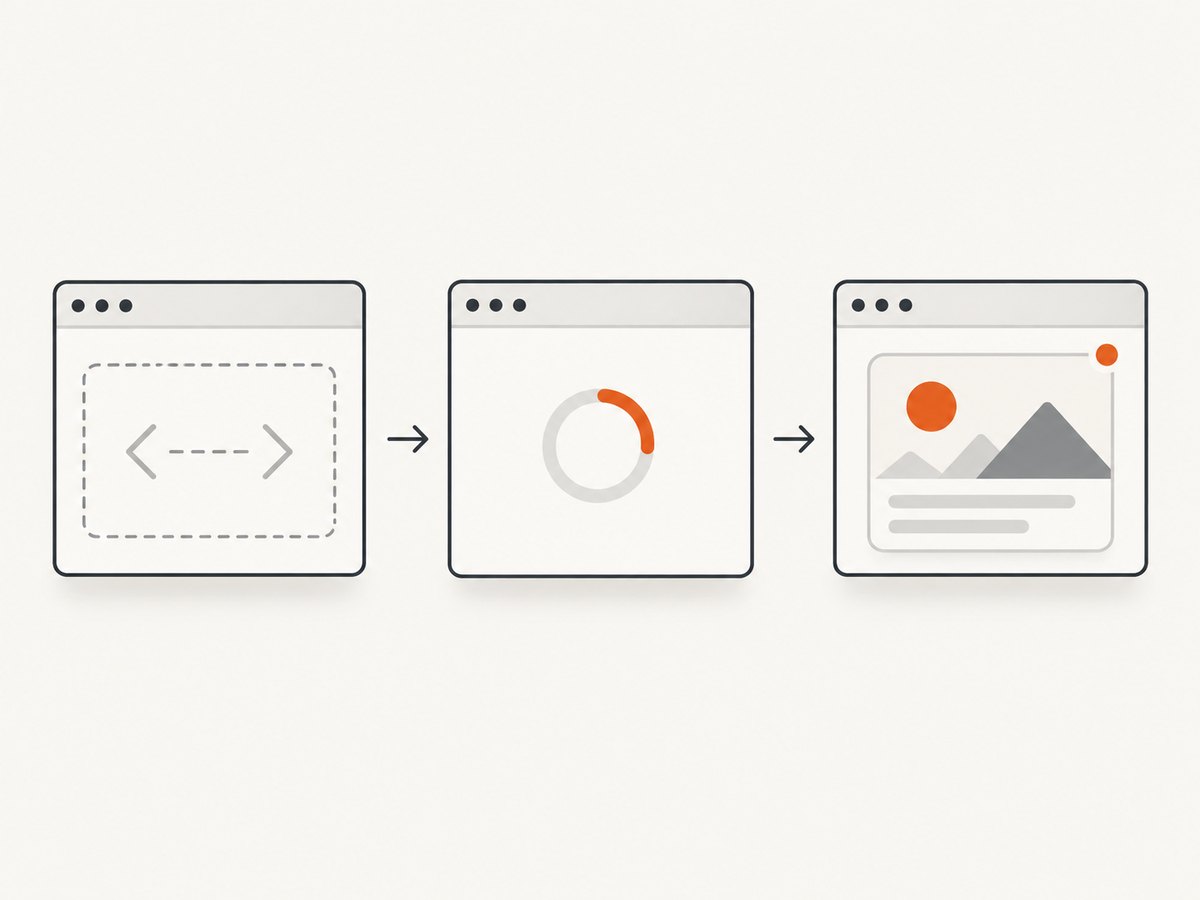
To capture a custom element reliably in Node.js, wait for its definition with customElements.whenDefined(), then wait for an application-specific signal that its asynchronous rendering is complete. Only then call page.screenshot(). Definition means the browser knows which class implements the element; it does not mean data has loaded or the component has finished laying out.
This distinction solves the common “placeholder in the screenshot” problem. A selector wait can prove the host exists, and network idle can be a useful navigation gate, but neither is a universal component-ready signal. The page or component should expose a readiness contract such as data-ready="true", expected rendered content, or a documented event. The browser standards describe custom-element registration and lifecycle, but there is no standard event that means all component-specific asynchronous work is finished. MDN documents whenDefined(); the HTML Standard describes its promise resolving with the constructor when the name is defined.
1. Add an explicit ready signal to the component
If you own the component, set a host attribute only after the data and rendering needed in the screenshot are complete. This example uses a simplified asynchronous load; adapt the error handling and data source to your application.
class SalesChart extends HTMLElement {
  async connectedCallback() {
    this.setAttribute('data-ready', 'false');
    try {
      const response = await fetch('/api/sales');
      if (!response.ok) throw new Error(`Sales request failed: ${response.status}`);
      const sales = await response.json();
      this.render(sales);
      this.setAttribute('data-ready', 'true');
    } catch (error) {
      this.setAttribute('data-error', 'true');
      console.error('Could not render sales chart', error);
    }
  }

  render(sales) {
    // Replace with the component's actual DOM or shadow-DOM rendering.
    this.textContent = sales.map(row => `${row.month}: ${row.total}`).join(' | ');
  }
}

customElements.define('sales-chart', SalesChart);
Do not mark the element ready before its required content is rendered. If the component can reconnect or refresh, define whether the ready attribute is reset during a new load. A capture worker should wait for the signal corresponding to the state it intends to capture.
2. Playwright: wait for definition and readiness
Install Playwright and its browser in your project using the installation instructions for your environment. The following ES module example waits for a custom element, checks the ready attribute and non-zero dimensions, and captures a full-page PNG. Save it as capture.mjs and run it with Node.js after setting TARGET_URL.
import { chromium } from 'playwright';

const url = process.env.TARGET_URL ?? 'https://example.test/dashboard';
const timeout = 15_000;
const browser = await chromium.launch();

try {
  const page = await browser.newPage({ viewport: { width: 1440, height: 900 } });
  await page.goto(url, { waitUntil: 'domcontentloaded', timeout });

  await page.waitForFunction(async () => {
    await customElements.whenDefined('sales-chart');
    const el = document.querySelector('sales-chart');
    if (!el) return false;
    const rect = el.getBoundingClientRect();
    return el.getAttribute('data-ready') === 'true' && rect.width > 0 && rect.height > 0;
  }, { timeout });

  await page.screenshot({ path: 'dashboard.png', fullPage: true });
} catch (error) {
  console.error(`Capture failed for ${url}; waiting for sales-chart data-ready=true:`, error);
  throw error;
} finally {
  await browser.close();
}
waitForFunction() evaluates in the page context and resolves when the function returns a truthy value; its timeout bounds the wait. See the Playwright waitForFunction API and screenshot API. The predicate queries the element each time it runs, so it can handle a host removed and recreated during a render. A one-time handle captured before a framework re-render could become stale.
Use an event if the component exposes one
If the page exposes a stable completion event, wait for it and still verify the intended element if useful. Register the listener before the action that triggers loading so the event cannot fire before the listener is attached. For example:
await page.evaluate(() => {
  window.__salesChartReady = new Promise(resolve => {
    window.addEventListener('sales-chart-ready', resolve, { once: true });
  });
});
// Trigger the action that loads the chart here, if loading is user-initiated.
await page.evaluate(() => window.__salesChartReady);
await page.screenshot({ path: 'dashboard.png', fullPage: true });
For a page that dispatches the event before this script runs, an event-only wait will hang until timeout. Prefer a persistent state predicate or combine a state check with an event strategy.
3. Puppeteer: the same two-stage gate
Puppeteer has the same essential structure: navigate, await definition plus an application-owned condition, then capture. Install Puppeteer according to its official setup instructions; this example uses an ES module.
import puppeteer from 'puppeteer';

const url = process.env.TARGET_URL ?? 'https://example.test/dashboard';
const timeout = 15_000;
const browser = await puppeteer.launch();

try {
  const page = await browser.newPage();
  await page.setViewport({ width: 1440, height: 900 });
  await page.goto(url, { waitUntil: 'domcontentloaded', timeout });

  await page.waitForFunction(async () => {
    await customElements.whenDefined('sales-chart');
    const el = document.querySelector('sales-chart');
    if (!el || el.getAttribute('data-ready') !== 'true') return false;
    const rect = el.getBoundingClientRect();
    return rect.width > 0 && rect.height > 0;
  }, { timeout });

  await page.screenshot({ path: 'dashboard.png', fullPage: true });
} catch (error) {
  console.error(`Capture failed for ${url}; expected sales-chart to be ready:`, error);
  throw error;
} finally {
  await browser.close();
}
Puppeteer documents waitForFunction(), waitForSelector(), navigation waits, and screenshot() as separate controls. Choose navigation completion and component readiness for different purposes: navigation tells you about document loading; the predicate tells you about this component.
4. Choose the right readiness condition
| Signal | What it establishes | Good use | Limitation |
|---|---|---|---|
customElements.whenDefined(tag) |
The custom element name has been registered. | Wait before relying on upgraded component behavior. | Does not wait for data, rendering, or layout. |
| Host selector exists | A matching node is in the DOM. | Confirm the page inserted the host. | The node may still be an unupgraded placeholder or loading state. |
data-ready="true" |
Whatever the application defines as ready. | Best when component ownership lets you define a clear contract. | Only reliable if set after all screenshot-relevant work. |
| Expected text or child content | Some visible content has appeared. | Pages you cannot change where content is distinctive. | Text may appear before charts, images, fonts, or layout settle. |
| Non-zero bounding box | The host occupies layout space. | Ensure an element is not collapsed or absent visually. | Does not prove its content is final. |
| Network idle | Network activity has fallen below the tool’s threshold. | Optional broad page-load gate. | Does not guarantee late registration or asynchronous rendering is complete. |
Use the strongest signal the application can provide. For third-party components, inspect their documented event, loading attribute, or rendered state. Avoid assuming that the lifecycle callback connectedCallback() marks completion: it indicates connection to the document, not that the component’s asynchronous work has finished.
Selector waits and re-rendering
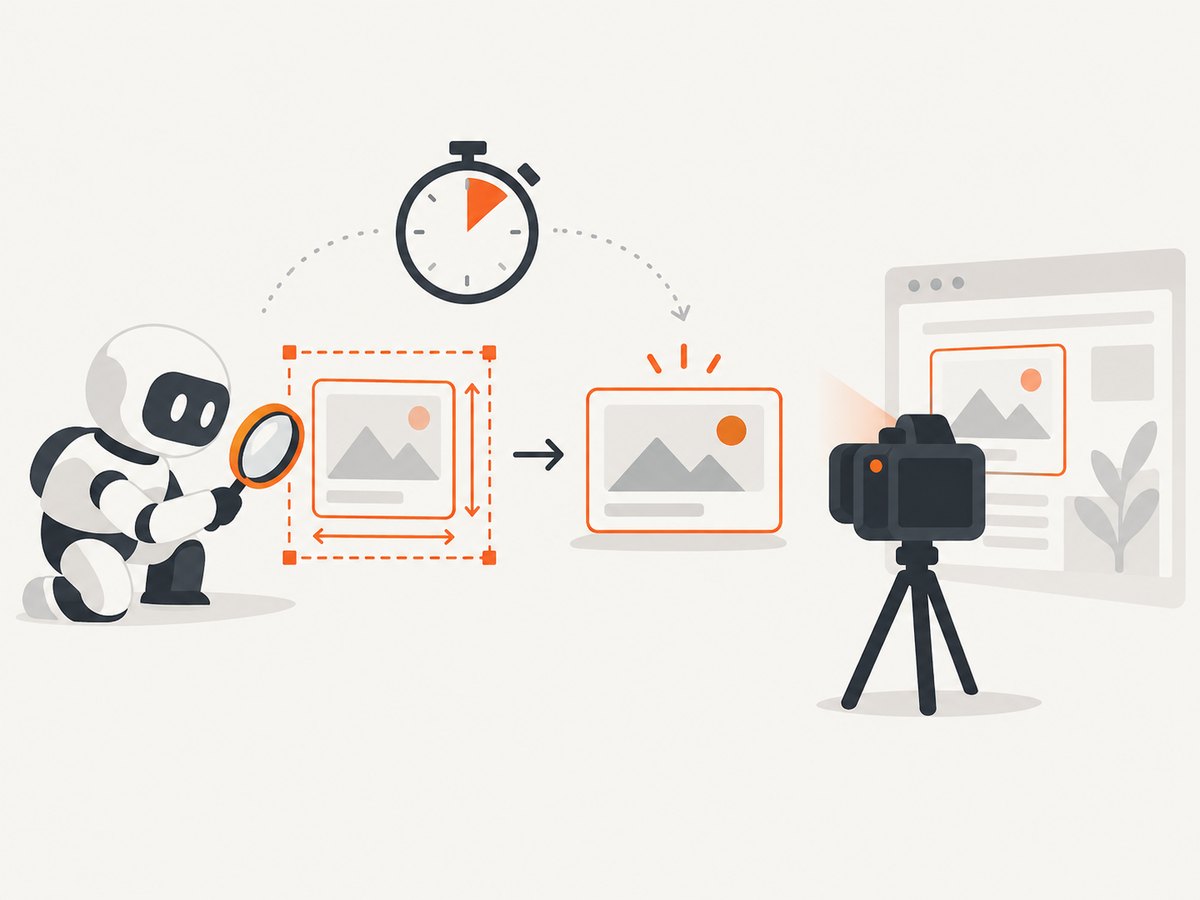
A selector wait is useful when host insertion is the condition you need, but it is not a substitute for the ready predicate. In Playwright, locator operations re-resolve the locator on retries, which helps when a framework replaces nodes; see the Playwright locator guide. In either tool, query inside a retrying predicate when the page may replace the host. For shadow DOM, first wait for the host definition, then inspect an open shadow root if needed. A closed shadow root cannot be inspected by the capture script; ask the component to expose a host attribute, event, or other external signal.
5. Navigation, screenshot, and runtime options
Keep each wait tied to the condition it measures. Use domcontentloaded when the document structure is enough to begin waiting for the component. Use a stronger navigation condition only if it helps the particular page. Puppeteer’s networkidle2 can be a useful first gate, as shown in its screenshot guide, but it remains separate from component readiness. Pages with polling, analytics, streaming, or persistent requests may never become idle, while a quiet network can precede a late render.
- Timeouts: Set both a navigation timeout and a readiness timeout. Pick limits from the job’s latency budget and expected page behavior; do not allow an unbounded worker wait.
- Full page:
fullPage: truecaptures beyond the viewport. Lazy-loaded sections may require scrolling or a page-specific preparation step before capture. - Viewport: Set the viewport before navigation if responsive layout affects rendering. A different width can change whether the host has dimensions or which content appears.
- Format and path: Select supported screenshot options for the installed browser library; use a path for a file or a buffer for a downstream upload pipeline.
- Cleanup: Close the browser in a
finallyblock, especially in workers that process multiple URLs.
For repeatable captures, fix the viewport and any page state that influences the component. If the component depends on animation, a clock, user-specific data, or a delayed font, establish an application-specific capture mode where possible. Do not add a guessed fixed sleep as a replacement for readiness; sleeps add delay to fast pages and still fail when a page is slower than the guessed interval.
6. Troubleshooting common failures
| Symptom | Likely cause | Fix |
|---|---|---|
| Screenshot shows an unstyled or unknown tag. | The custom-element definition was not registered before capture. | Wait for customElements.whenDefined('tag-name'), then check rendering readiness. |
| Element is upgraded but still shows a spinner. | Definition resolved before data fetching or asynchronous rendering finished. | Wait for a ready attribute, event, expected content, or loading marker to disappear. |
| Readiness wait times out although content appeared. | The predicate expects the wrong attribute/value or tag name, or the host was replaced. | Verify the actual DOM state in the page; use the exact custom-element name and re-query on each poll. |
| Ready flag is true but capture is blank. | The flag is set too early, the host is hidden/collapsed, or required content is inside an inaccessible closed shadow root. | Move the flag to after render, check dimensions and visibility, and expose a host-level signal for closed roots. |
| Navigation or network-idle wait hangs. | The page has ongoing requests or the chosen load state never occurs. | Use a bounded navigation wait appropriate to the page, then rely on the component predicate. |
| Works locally but flakes in CI. | Different viewport, slower resource loading, browser version, or timing-sensitive page state. | Pin the viewport and runtime setup, log URL/tag/signal, and increase the bounded timeout only when the expected work warrants it. |
| Browser process remains after errors. | Cleanup is skipped on the error path. | Launch within a try/finally structure and always close the browser. |
When diagnosing, log the URL, element name, timeout, and expected readiness condition. Capture a diagnostic DOM excerpt or browser console output when your environment permits it. Avoid dumping secrets from page content or request headers into logs.
7. Reliability, performance, and cost
Explicit readiness waits improve reliability by aligning the screenshot with the component’s actual state. They do not make page rendering deterministic by themselves: upstream API failures, changing data, animations, font loads, and responsive breakpoints can still alter the result. A bounded predicate lets the job fail clearly instead of silently producing an early screenshot or hanging forever.
Polling a small DOM predicate is generally preferable to arbitrary long sleeps because the wait can finish as soon as the condition becomes true. No universal timing figure applies: component and network behavior vary by page, and the cited browser documentation does not publish a meaningful performance benchmark for this pattern. Reuse a browser process when your worker architecture supports it, while isolating page state per job and closing pages after use; weigh that against the operational complexity of managing browser lifecycles. For cost, account for browser runtime, compute, storage, and retries in your own environment. A timeout should be surfaced as a failed capture with diagnostics, not retried endlessly; use a limited retry policy for transient page failures and avoid duplicate work when the page is consistently broken.
Or skip the browser setup
ScreenshotNeo is a website screenshot API and MCP server for developers. For a normal URL screenshot, one GET request returns an image or PDF; it does not expose a custom-element readiness predicate, so use the browser method above when you must wait on a page-specific signal. When a standard URL capture is enough, this is the Node.js call:
const q = new URLSearchParams({ access_key: 'YOUR_API_KEY', url: 'https://example.test/dashboard' });
const res = await fetch(`https://api.screenshotneo.com/v1/shot?${q}`);
if (!res.ok) throw new Error(`Screenshot request failed: ${res.status}`);
await import('node:fs/promises').then(fs => fs.writeFile('dashboard.webp', Buffer.from(await res.arrayBuffer())));
See the ScreenshotNeo API docs. ScreenshotNeo removes cookie and consent banners, newsletter popups, and chat widgets before capture; bot checks, blank pages, failed loads, timeouts, and cache hits are not billed. Its MCP server lets AI agents use screenshot tools. The Free plan includes 1,000 screenshots per month without a card; paid plans start at $5 for 3,000. Create an account for 1,000 free screenshots a month, with no card.
FAQ
Is customElements.whenDefined() enough?
No. It confirms registration. Pair it with the application’s signal for completed data and rendering.
Can I use waitForSelector()?
Yes, when you need to know the host exists or is visible. Add a readiness condition if the screenshot depends on completed component rendering.
Should I always wait for network idle?
No. Treat it as an optional navigation gate. It can be inappropriate for pages with continuing network activity and does not replace the component-specific predicate.
What if I cannot change the component?
Use the most reliable observable state available, such as distinctive rendered content and non-zero dimensions, and keep the timeout bounded. For a closed shadow root, readiness must be exposed outside that root for a capture script to verify it directly.


