How to Wait for a Custom Element in Node.js
Use CustomElementRegistry.whenDefined() to wait for registration. Learn what it guarantees, how to use it in Node and browser contexts, and how to diagnose a wait that never resolves.

To wait for a custom element to be registered, await customElements.whenDefined(name) in an environment that provides a CustomElementRegistry:
await customElements.whenDefined('my-widget');The promise fulfills with the registered constructor. If the name is already defined, it fulfills immediately. In a bare Node.js process there is no browser DOM registry by default, so first make sure your code is running in a browser, browser automation page, or DOM-capable runtime that exposes customElements. A timer can wait for a duration, but cannot detect registration.
1. What “wait for a custom element” means
There are several different events developers may call “ready.” Choosing the right one prevents races and arbitrary delays:
| Requirement | What to wait for | What it tells you |
|---|---|---|
| The tag has been registered | customElements.whenDefined(name) |
The registry has a constructor for that name. |
| A fixed pause has elapsed | Node’s promise timer | The requested duration elapsed; registration may or may not have happened. |
| A specific instance is connected or rendered | A component or framework readiness signal | Only the component’s own contract can define this state. |
whenDefined() is event-driven: it resolves when the registry gets a definition, without guessing how long a network request or script will take. It does not guarantee that a particular element exists in the document, is connected, has rendered, or has finished asynchronous work such as fetching data.
2. Wait for one element definition
Run this where the global customElements registry exists:
async function useWidget() {
  await customElements.whenDefined('my-widget');

  // The tag is registered now. Registration does not itself
  // guarantee that a particular instance is in the DOM or ready.
  const Widget = customElements.get('my-widget');
  console.log('Registered constructor:', Widget);
}

useWidget().catch((error) => {
  console.error('Could not wait for my-widget:', error);
});
The promise resolves to the constructor. You can use that return value directly:
const Widget = await customElements.whenDefined('my-widget');
const widget = document.createElement('my-widget');
console.log(widget instanceof Widget);
This example must run in a document environment where document` and `customElements are available. The registry wait only says the name has a definition; creating or inserting an instance is a separate step.
Already defined and not yet defined
If registration happened before your code reached the wait, the promise fulfills immediately. This makes it safe to call without first checking customElements.get():
await customElements.whenDefined('my-widget');
// Safe whether definition happened earlier or later.
If no code ever calls customElements.define('my-widget', ...), the promise stays pending. This is often why a wait appears to hang: the defining bundle failed to load, the import was omitted, or the name does not match the tag that the application actually registers.
3. Wait for multiple custom elements
For several definitions, remove duplicate names and wait for all of them with Promise.all():
const names = new Set(['my-widget', 'site-header', 'my-widget']);

await Promise.all(
  [...names].map((name) => customElements.whenDefined(name))
);

console.log('All requested custom elements are registered');
Promise.all() fulfills when every wait fulfills. If any name is invalid, its wait rejects and the combined promise rejects. If a valid name is never defined, the combined promise remains pending. Deduplication is useful when names come from a collection of elements or configuration.
4. Make sure the registry exists in Node.js
Node.js is a JavaScript runtime, not a browser. The browser exposes the registry through window.customElements; Node code has it only when the execution environment provides a DOM or browser context. Do not assume a plain Node process has window, document, or customElements.
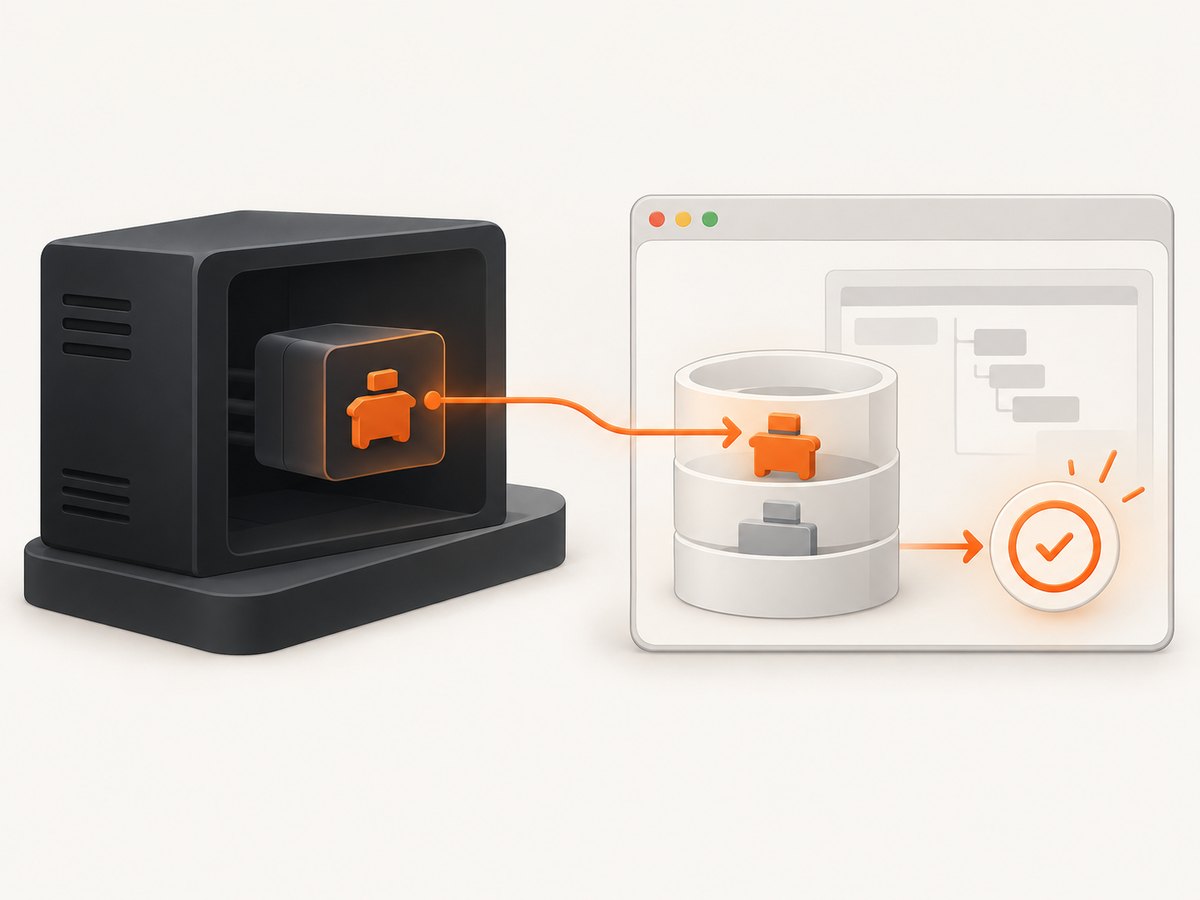
In browser automation, run the wait inside the page context that owns the element. A Node-side test script and the page are separate environments; a registry in the page is not automatically a global in the controlling Node process. Use the automation library’s page evaluation or locator waiting APIs as appropriate, and consult that library’s documentation for its exact interface.
In a DOM-capable test runtime, check its setup and globals before invoking the API:
if (typeof customElements === 'undefined') {
  throw new Error('This runtime does not expose CustomElementRegistry');
}

await customElements.whenDefined('my-widget');
This check gives a clear error instead of a less informative ReferenceError. A DOM package may implement some browser APIs without implementing every browser behavior. Verify the runtime’s documented support if the test depends on details beyond registration.
5. A timer is not a registration wait
Use Node’s promise timer only when a real delay is what you need. In CommonJS:

const { setTimeout: delay } = require('node:timers/promises');

await delay(250);
console.log('250 milliseconds elapsed');
In an ES module:
import { setTimeout as delay } from 'node:timers/promises';

await delay(250);
console.log('250 milliseconds elapsed');
The delay neither checks nor triggers custom-element registration. If a script takes 20 milliseconds, a 250-millisecond sleep wastes time. If it takes 500 milliseconds, the sleep ends too soon. Node also does not guarantee that timer callbacks fire at an exact instant or in a particular ordering relative to other callbacks.
Cancel a duration wait
When a genuine delay needs cancellation, pass an AbortSignal:
import { setTimeout as delay } from 'node:timers/promises';

const controller = new AbortController();
const timer = delay(5_000, undefined, { signal: controller.signal });

// Call controller.abort() from the cancellation path.
// await timer rejects when its signal is aborted.
await timer;
This cancels the timer wait, not a pending customElements.whenDefined() promise. The registry API described here does not take an abort signal. If you need a bounded wait in application code, you can race the registry wait against a timer, while recognizing that racing does not cancel the registry promise:
import { setTimeout as delay } from 'node:timers/promises';

async function waitForDefinition(name, timeoutMs) {
  return Promise.race([
    customElements.whenDefined(name),
    delay(timeoutMs).then(() => {
      throw new Error(`Timed out waiting for ${name}`);
    }),
  ]);
}

await waitForDefinition('my-widget', 5_000);
Use a timeout to report a useful failure when definitions should arrive within a known bound. It is not a substitute for loading or registering the component, and the timer’s scheduling is not an exact deadline.
6. Names, timing, and instance readiness
Use a valid custom-element name
Custom-element names follow naming rules: they include a hyphen and start with a lowercase ASCII letter, among other constraints. A name such as my-widget is valid; MyWidget and widget are not valid custom-element names. Invalid names cause whenDefined() to reject with a syntax error. Use the exact tag name passed to customElements.define(), including punctuation and casing.
Registration is narrower than readiness
Definition means the registry knows the constructor. It does not mean:
- An element instance has been created or attached.
- The browser has completed a render or paint.
- Images, network requests, or data loading started by the component have finished.
- A framework-specific hydration or initialization process is complete.
If callers need to know that an instance is ready, give the component an explicit readiness contract, such as a promise or a documented event, and await that. For browser tests, assert the observable condition the test needs rather than treating registration as proof of visual completion.
7. Troubleshooting
| Symptom | Likely cause | Fix |
|---|---|---|
ReferenceError: customElements is not defined |
Code is running in bare Node or outside the page/DOM context. | Run it in the browser page or configure a DOM-capable environment. Check the environment’s supported globals. |
| The await never finishes | The component definition has not run, the import/bundle failed, or the name is wrong. | Check script loading and registration path; verify the exact name and surface a timeout for diagnosis. |
| A syntax error rejects the wait | The name does not satisfy custom-element naming rules. | Use the valid registered tag name, including its required hyphen and lowercase initial. |
| The wait resolves, but the widget is blank | Registration completed, but instance setup, rendering, hydration, or data work has not. | Wait for the component’s explicit readiness signal or assert the rendered state separately. |
| A fixed sleep is flaky | The delay is shorter than slow runs or unnecessarily long on fast runs. | Wait for the event or condition that matters; use a duration only when elapsed time is itself the requirement. |
| Node-side automation cannot see the page’s registry | The registry belongs to the browser page’s JavaScript context. | Evaluate the wait in that page context or use the automation framework’s page-level wait API. |
8. Performance, reliability, and cost
whenDefined() avoids polling and arbitrary sleep intervals. It resolves as soon as registration occurs, or immediately if already registered, so it does not deliberately add a fixed delay. Its reliability depends on two things: a registry being available in the current execution context, and the expected registration code actually running. A valid name that is never defined can leave the promise pending indefinitely.
For production flows, decide what should happen if the definition never arrives: show an error, fail a test, or time out with context. For tests, ensure setup imports the component before or during the wait. For browser automation, keep execution in the right context. There is no special API charge for calling this JavaScript method; any infrastructure cost comes from the runtime, browser, or test system your application already uses. Do not add repeated polling loops unless the condition being checked is not represented by a suitable event or promise.
9. Frequently asked questions
Does whenDefined() return the element?
No. It fulfills with the registered constructor. Create or query an instance separately.
Can I use it in plain Node.js?
Only if the current runtime provides a CustomElementRegistry. A bare Node process does not provide the browser DOM global by default.
Should I use setTimeout() instead?
Only for an actual time delay. It cannot determine whether a custom element has registered.
10. Capture the page after your element is ready
Once your browser-side readiness condition is satisfied, you may want a screenshot of the resulting page for a regression report, issue, or documentation. The screenshot step is separate from the custom-element wait. A screenshot can capture a page state; it does not define the element or guarantee application readiness.
Or skip the browser setup
If you need a screenshot of a URL, ScreenshotNeo provides a website screenshot API and MCP server for developers. Its one-request API returns PNG, JPEG, WebP, or PDF; see the API documentation.
curl -G "https://api.screenshotneo.com/v1/shot" -d access_key=YOUR_API_KEY --data-urlencode url=https://stripe.com -o shot.webpimport requests
r = requests.get(
"https://api.screenshotneo.com/v1/shot",
params={"access_key": "YOUR_API_KEY", "url": "https://stripe.com"},
timeout=90,
)
open("shot.webp", "wb").write(r.content)const q = new URLSearchParams({ access_key: 'YOUR_API_KEY', url: 'https://stripe.com' });
const res = await fetch(`https://api.screenshotneo.com/v1/shot?${q}`);
const bytes = new Uint8Array(await res.arrayBuffer());
await import('node:fs/promises').then(({ writeFile }) => writeFile('shot.webp', bytes));Cookie banners, popups, and chat widgets are removed before the shot. Bot checks, blank pages, and failed loads are never billed. An MCP server lets AI agents use take_screenshot, get_page_info, and capture_pdf. The free plan includes 1,000 screenshots a month with no card; paid plans start at $5 for 3,000. The same features are on every plan. Get 1,000 free screenshots a month with no card.