Wait for a Custom Element to Be Ready Before Taking a Website Screenshot in Python
Use Playwright to wait for a custom element’s definition and its own visual-ready signal before capturing a reliable screenshot in Python.
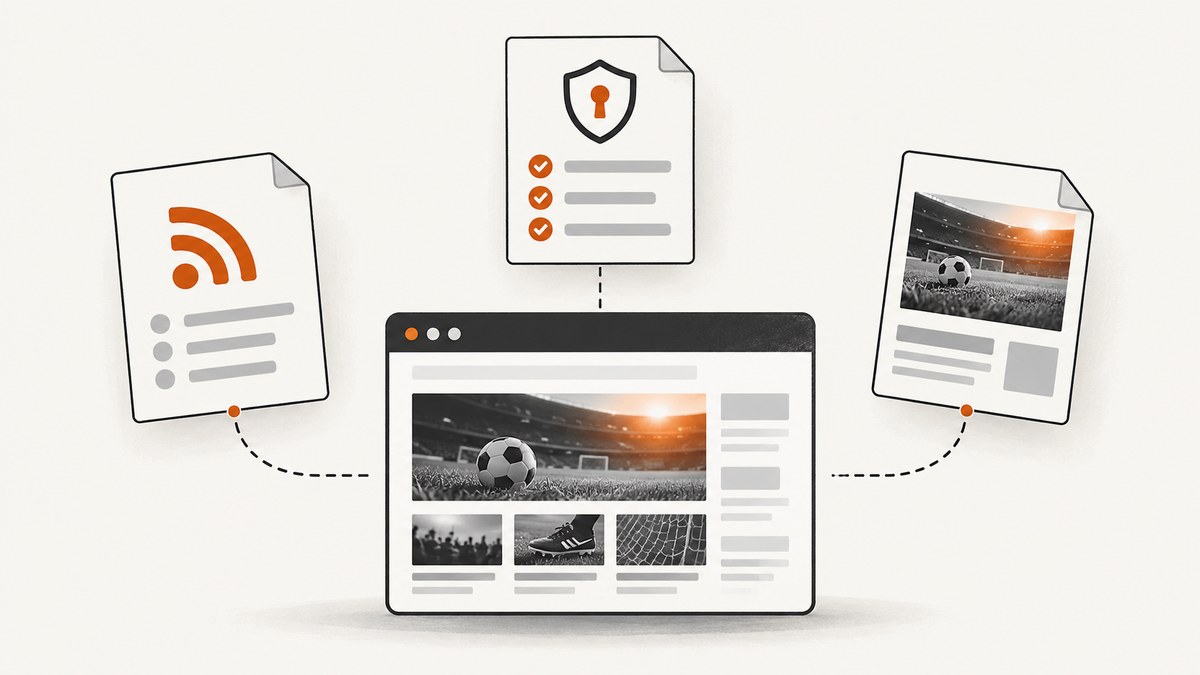
To capture a custom element after it has actually rendered, use two waits in Python: wait for the browser to define the element, then wait for a readiness signal that the component itself exposes. Capture only after both conditions pass. customElements.whenDefined() confirms registration and upgrade; it does not mean that data, images, or asynchronous rendering are finished.
The example below uses Playwright. Replace my-widget and data-ready="true" with the real tag and readiness contract on the page. If the component exposes no such signal, choose an observable state it guarantees, such as a rendered child or stable text. Do not wait for a made-up attribute.
1. Install Playwright and prepare a browser
Install the Python package and its Chromium browser once in the environment where the script will run:
python -m pip install playwright
python -m playwright install chromium
Save this complete script as capture_widget.py. It opens a page, waits for the custom-element definition and component readiness, then saves a screenshot of the widget.
from playwright.sync_api import TimeoutError as PlaywrightTimeoutError
from playwright.sync_api import sync_playwright

URL = "https://example.com"
TAG = "my-widget"
READY_TIMEOUT_MS = 30_000

with sync_playwright() as p:
    browser = p.chromium.launch()
    page = browser.new_page(viewport={"width": 1440, "height": 1000}, device_scale_factor=1)
    try:
        # domcontentloaded is a navigation milestone, not proof that the widget is ready.
        page.goto(URL, wait_until="domcontentloaded", timeout=60_000)
        widget = page.locator(TAG)

        # Stage one: wait for registration and custom-element upgrade.
        page.wait_for_function(
            "tag => customElements.whenDefined(tag)",
            TAG,
            timeout=READY_TIMEOUT_MS,
        )

        # Stage two: wait for the component's documented visual readiness contract.
        widget.wait_for_function(
            "el => el.getAttribute('data-ready') === 'true'",
            timeout=READY_TIMEOUT_MS,
        )

        widget.screenshot(path="widget.png", animations="disabled")
    except PlaywrightTimeoutError as exc:
        raise RuntimeError(
            f"Timed out waiting for {TAG} at {URL}. Check that its definition script "
            "loaded and that the readiness predicate matches the component contract."
        ) from exc
    finally:
        browser.close()
The Playwright Python Locator API documents locator.wait_for_function() as a way to retry a custom condition while re-resolving the locator. Playwright screenshot capture also performs actionability checks and scrolls the target into view. See the ScreenshotNeo API documentation for the alternative one-request capture shown below.
2. Understand the two readiness gates
Gate one: definition and upgrade
A browser registers a custom element under a hyphenated tag name, for example my-widget. The promise returned by customElements.whenDefined(TAG) resolves when the browser knows that definition. If the element was already defined, the promise resolves immediately. This is useful when a definition script loads asynchronously and the element appears in the initial markup before registration.
Definition is not rendering completion. A constructor or connectedCallback() can start fetching data, wait for properties, create shadow DOM, or defer work. The element may be upgraded while still empty or displaying a loading state. The MDN reference for whenDefined() describes registration, not visual readiness.
Gate two: application-level visual readiness
The second predicate must correspond to a promise the component makes about its appearance. Useful contracts include:
- A documented host attribute such as
data-ready="true". - A busy state that changes to
aria-busy="false"once visible content is ready. - A child element or text value that is guaranteed to appear only after rendering completes.
- An application event or exposed state that can be observed by a small page-side predicate.
Prefer a stable, documented signal over checking for a non-empty element or a short delay. A host can exist before its contents do; a delay may be too short on a slow run and unnecessarily long on a fast one.
3. Choose a predicate that matches the component
Wait for a host attribute
If the component sets data-ready after its final visual state is present, the main example is suitable. An accessibility-oriented contract may instead use:

widget.wait_for_function(
    "el => el.getAttribute('aria-busy') === 'false'",
    timeout=30_000,
)
Confirm what the attribute means. Some components set aria-busy="false" before images, transitions, or a later data refresh finish.
Wait for rendered content
When a known child is added only after successful render, wait for it:
widget.locator(".chart-canvas").wait_for(state="visible", timeout=30_000)For stable text, use a locator assertion or a predicate on the host, depending on whether the text lives in light DOM or shadow DOM. Make sure the condition distinguishes a completed result from a placeholder.
Wait inside an open shadow root
For an open shadow root, a page predicate can inspect a known internal marker after first checking that the root exists:
widget.wait_for_function(
    "el => !!el.shadowRoot && !!el.shadowRoot.querySelector('[data-rendered]')",
    timeout=30_000,
)
Use an internal selector only when the component’s implementation makes it a reliable contract. A closed shadow root intentionally hides its internals from page scripts. In that case, wait on a public host attribute, event-backed state, or another externally observable signal; do not rely on inspecting inaccessible descendants.
Wait for a meaningful image state
If the component becomes ready before its image finishes loading, add an image-specific condition. For an image in light DOM, wait until it is complete and has nonzero natural width. For shadow content, evaluate the equivalent condition through the open root. A broken image can also become complete, so checking naturalWidth > 0 helps distinguish successful loading.
4. Capture a component or the whole page
For just the component, use widget.screenshot(). Playwright brings the target into view and waits for screenshot actionability checks. The screenshot options can control details such as animation handling and whether the background is omitted.
widget.screenshot(
    path="widget.png",
    type="png",
    animations="disabled",
    caret="hide",
)
For a full-page image after the same readiness gates, capture the page instead:
page.screenshot(
    path="page.png",
    full_page=True,
    animations="disabled",
    caret="hide",
)
Use a fixed viewport and device scale factor when repeatability matters. For a transparent PNG, use the screenshot API’s background omission option when supported by the installed Playwright version. Element screenshots focus the capture on the target; full-page screenshots include the page’s scrollable content and may trigger additional lazy rendering, so ensure relevant content is loaded first.
5. Navigation and wait options
page.goto() supports navigation milestones such as commit, domcontentloaded, load, and networkidle. These describe document or network activity; they do not establish that a particular component has reached its final visual state. The application-level predicate remains the important gate.
| Choice | Good fit | Limit |
|---|---|---|
domcontentloaded |
Start waiting once the initial document is parsed. | Scripts and component work may still be running. |
load |
The page depends on load-event resources before interaction. | Later JavaScript work can still change the page. |
networkidle |
A page with finite network activity where the milestone is meaningful. | Polling, analytics, or persistent connections can prevent it; network quiet is not visual readiness. |
| Custom predicate | A widget has an explicit ready marker or observable completed state. | The predicate must reflect the component’s real behavior. |
Use a separate navigation timeout and readiness timeout so failures point to the right stage. If the widget is below the fold, locator screenshot handling scrolls it into view, but a component that renders only after intersection may need that scroll before the readiness wait. In that case, scroll the locator into view first, then wait for its ready signal, then capture.
6. Selenium alternative
If the project already uses Selenium, the same application-level rule applies. Selenium navigation waits for a document ready state, but JavaScript may continue modifying the page afterward. The Selenium waiting strategies documentation explains why an explicit condition is needed for dynamic pages.
from selenium import webdriver
from selenium.webdriver.support.ui import WebDriverWait

URL = "https://example.com"

driver = webdriver.Chrome()
try:
    driver.get(URL)
    wait = WebDriverWait(driver, 30)

    def widget_ready(d):
        return d.execute_script("""
            const el = document.querySelector('my-widget');
            return el && el.getAttribute('data-ready') === 'true';
        """)

    wait.until(widget_ready)
    driver.save_screenshot("page.png")
finally:
    driver.quit()
This Selenium sample waits for the host marker and captures the viewport. If definition itself is a separate concern, include a browser-side check for customElements.get('my-widget') before the readiness predicate. Selenium’s browser and driver setup depends on the environment; use the browser version and driver management already supported by the project.
7. Common failures and fixes
| Symptom | Likely cause | Fix |
|---|---|---|
| Definition wait times out | The tag spelling is wrong, the defining script failed, or registration never ran. | Check the hyphenated tag, console and page errors, script response, and whether customElements.get(TAG) returns a constructor. |
| Host is present but screenshot is blank | DOM presence or definition was mistaken for completed rendering. | Wait for the component’s actual ready state or rendered child; inspect the last observed host attributes. |
| Ready wait times out intermittently | Slow data, an unfulfilled dependency, or a predicate that does not match all valid states. | Log URL, selector, and last observed state; check network and page errors; use a realistic timeout and correct contract. |
| Target locator does not match | Wrong selector, element added later, or navigation reached an error page. | Verify the final URL and tag in the page, and inspect redirects and console output. |
| Screenshot shows stale data | The predicate becomes true before the final data update, or remains true during refresh. | Make the contract represent the specific data version or completed render needed for the capture. |
| Screenshot changes from run to run | Animation, time-dependent content, random data, or varying viewport and scale. | Disable animations where appropriate; fix viewport, device scale, data, timezone, and capture timing. |
| Shadow selector never matches | The root is closed or the selector is internal to a different component. | Use a host-level public signal or ask the component owner for a readiness contract. |
| Screenshot action fails although the wait passed | The element was removed/replaced or became hidden between readiness and capture. | Re-resolve the locator and check that it remains attached and visible immediately before capture. |
For useful diagnostics, include the URL, tag, wait stage, timeout duration, and observed state in the exception. Avoid silently taking a screenshot after timeout: that produces an artifact that looks successful but may be misleading.
8. Reliability, performance, and cost
Reliability comes from waiting on a state tied to the component’s contract. A fixed sleep is easy to write but wastes time on fast runs and flakes on slow ones. A two-stage wait makes it easier to identify whether registration or rendering is the source of a failure. Keep timeouts bounded, close the browser in finally, and record enough diagnostics to reproduce a failure.
For performance, reuse a browser process when capturing many pages in one controlled job, while creating an isolated browser context where cookies or state must not leak between captures. Keep the viewport and requested output dimensions no larger than needed. Full-page capture and lazy-loaded assets can take longer and consume more memory than a component screenshot. Avoid waiting for global network quiet when the component’s own ready signal is available.
Browser automation has operational costs: browser installation, CPU and memory, execution time, and maintenance of the browser environment. A timeout should be long enough for realistic data and image loading but finite so stalled pages do not hold a worker indefinitely. If screenshots are part of a high-volume service, track success, timeout rate, and capture duration by site and readiness contract; the dossier contains no universal benchmark or cost figure because these depend on your workload and infrastructure.
9. Or skip the browser setup
For a one-call capture, ScreenshotNeo is a website screenshot API and MCP server for developers. Send a URL and receive a PNG, JPEG, WebP, or PDF. It is useful when you do not need to coordinate a local browser and custom component predicate in your own runtime. See the API documentation for parameters and response details.
curl -G "https://api.screenshotneo.com/v1/shot" -d access_key=YOUR_API_KEY --data-urlencode url=https://example.com -o shot.webpimport requests
r = requests.get(
"https://api.screenshotneo.com/v1/shot",
params={"access_key": "YOUR_API_KEY", "url": "https://example.com"},
timeout=90,
)
open("shot.webp", "wb").write(r.content)const q = new URLSearchParams({ access_key: 'YOUR_API_KEY', url: 'https://example.com' });
const res = await fetch(`https://api.screenshotneo.com/v1/shot?${q}`);
if (!res.ok) throw new Error(`Screenshot request failed: ${res.status}`);
const bytes = new Uint8Array(await res.arrayBuffer());
await import('node:fs/promises').then(fs => fs.writeFile('shot.webp', bytes));ScreenshotNeo accepts cookie and consent banners as a visitor and removes more than 60 known consent platforms, newsletter popups, and chat widgets before capture; each step can be turned off. Bot checks or CAPTCHAs, blank pages, timeouts, failed loads, and cache hits are not billed, and the response reports the page verdict and billing status in headers. Its MCP server provides take_screenshot, get_page_info, and capture_pdf for Claude, Cursor, and other MCP clients. The free plan includes 1,000 shots per month without a card; paid plans start at $5 for 3,000 shots. Sign up for 1,000 free screenshots a month, with no card required.
10. FAQ
Does whenDefined() wait for connectedCallback() and data?
It waits for the named definition to exist and the element to upgrade. It does not define an application-level guarantee that data or visual work is complete. Use the component’s own readiness signal for that.
Can I use only a delay?
A delay can be a fallback for an application you cannot instrument, but it is not a reliable readiness condition. Prefer a stable visible state or documented signal and keep a delay bounded.
Should I use network idle?
Not as a substitute for component readiness. A page can be visually ready while background requests continue, or network-quiet while rendering is unfinished.
What if I cannot change the component?
Observe a state it already exposes, such as a stable child, text, or public host attribute. For a closed shadow root with no external readiness signal, ask its owner for a contract or accept that automation cannot reliably infer internal completion.
Which should I use for an isolated widget screenshot?
Use a locator screenshot after the readiness gates. Use a page screenshot with full_page=True when the deliverable needs the surrounding page or all scrollable content.


