How to Wait for a Custom Element Before Capturing a Page in Ruby
Wait for the page state your screenshot needs, not just navigation. Learn reliable Capybara and Selenium patterns for custom elements in Ruby.

Wait for the state your screenshot needs, then capture. A browser reaching its configured document ready state does not guarantee that JavaScript-driven content has finished rendering. In Ruby, use a Capybara waiting matcher or finder, or a Selenium explicit wait, for an observable condition that means the custom element is ready. Then save the screenshot.
If you only need to know that the browser has registered an element definition, browser JavaScript can await customElements.whenDefined('my-widget'). That confirms the definition exists; it does not confirm that the component has fetched its data, rendered its final content, loaded its images, or stopped animating. Choose an application-specific readiness signal for those states.
1. Choose what “ready” means
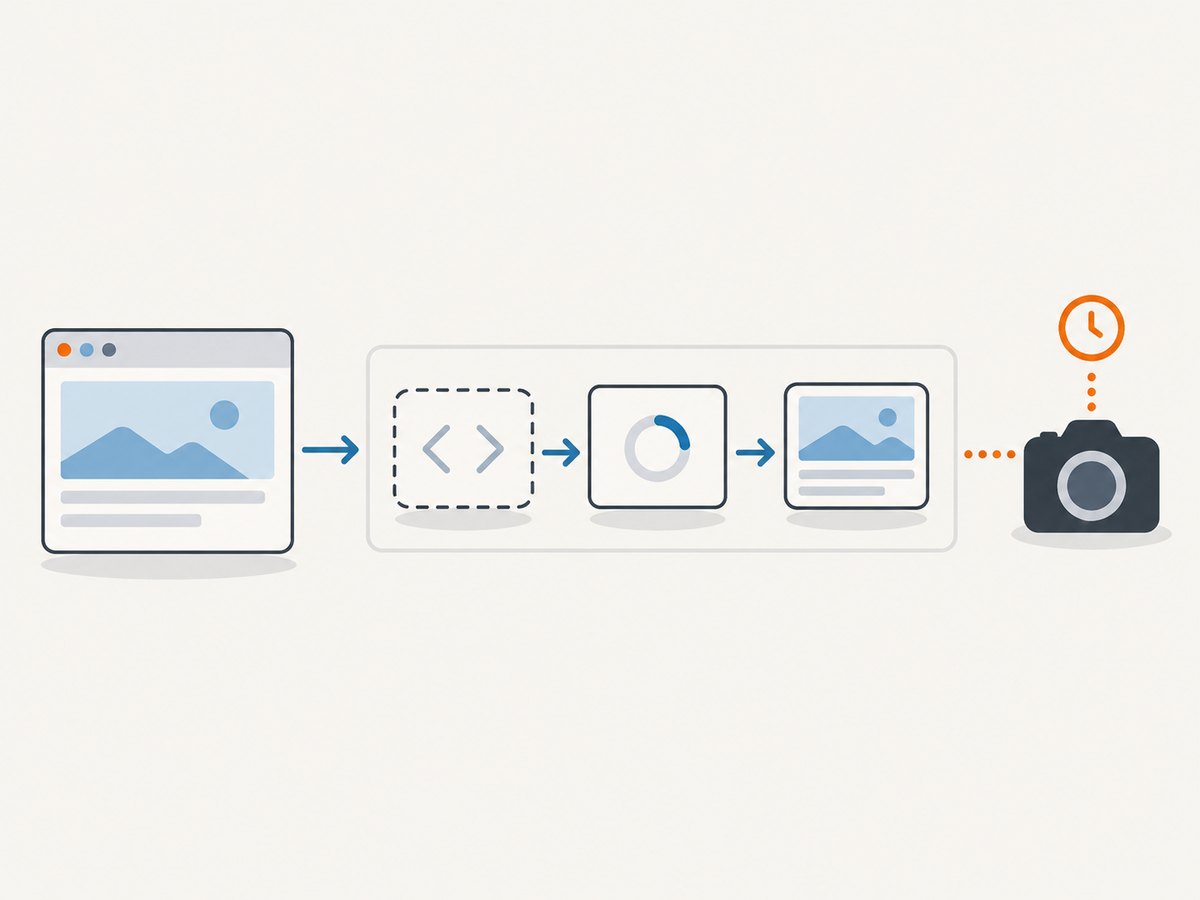
Custom elements can pass through several different states: the tag appears in the document, its class is registered, its lifecycle callback runs, and its application-specific content becomes usable. These milestones are not interchangeable. A screenshot taken after the first one may show a placeholder or incomplete widget.
| Condition | What it tells you | What it does not guarantee |
|---|---|---|
| Tag exists in the DOM | The element is present. | Its definition or content is ready. |
| Definition is registered | The browser knows the custom element class. | Data loading, rendering, images, or animations are complete. |
| App-specific ready signal | The state your application explicitly exposes has been reached. | Other unrelated page content is ready. |
| Document ready state | HTML-declared assets have reached the navigation state. | Later JavaScript changes have settled. |
The best signal is usually one the component or page intentionally exposes: a data-ready="true" attribute, expected text, a known child element, or an application event that changes observable DOM state. Do not use a fixed sleep as a substitute unless there is no observable condition and the delay is a deliberate fallback.
2. Capybara: wait for the readiness signal
Capybara retries asynchronous finders and matchers until their configured wait period expires. This synchronization makes a waiting matcher a natural fit for UI tests and browser automation built on Capybara. Its README documents a default Capybara.default_max_wait_time of 2 seconds; your project may configure a different value.
require "capybara"
require "capybara/dsl"

class CapturePage
  include Capybara::DSL

  def capture(url, output_path)
    visit(url)

    # Illustrative signal: use a real readiness contract from your page.
    expect(page).to have_css("my-widget[data-ready='true']")

    page.save_screenshot(output_path, full: true)
  end
end

Capybara.default_max_wait_time = 10
CapturePage.new.capture("https://example.com/dashboard", "dashboard.png")
The selector is an example, not a property of every custom element. If the component publishes its ready state as text, wait for that text instead:
expect(page).to have_text("Account summary loaded")
page.save_screenshot("account-summary.png")
Or wait for a child that only appears after render:
expect(page).to have_css("my-widget .chart-container")
page.save_screenshot("chart.png")
A presence check on my-widget alone is insufficient if the element is added to the DOM before its data arrives. Match the state whose appearance proves the intended screenshot is ready.
Configure the timeout deliberately
Set the wait period high enough for expected application behavior, but not so high that failures take an unreasonable time to diagnose. Capybara’s wait period is a maximum retry window, not a sleep: when the condition appears earlier, the matcher can finish earlier.
Capybara.default_max_wait_time = 8

# Or set a wait time for a specific query when supported by your Capybara version:
expect(page).to have_css("my-widget[data-ready='true']", wait: 12)
Check the installed Capybara version for query-specific options. Keep timeout choices tied to measured or understood page behavior rather than assuming one duration works for every site.
Wait for something to disappear
For a loading overlay, use a waiting negative matcher. Do not negate an immediate presence check, because it can report the current state before the loading overlay has had a chance to appear or disappear as intended.
expect(page).to have_no_css(".loading-overlay")
page.save_screenshot("ready.png")
3. Selenium WebDriver from Ruby: use an explicit wait
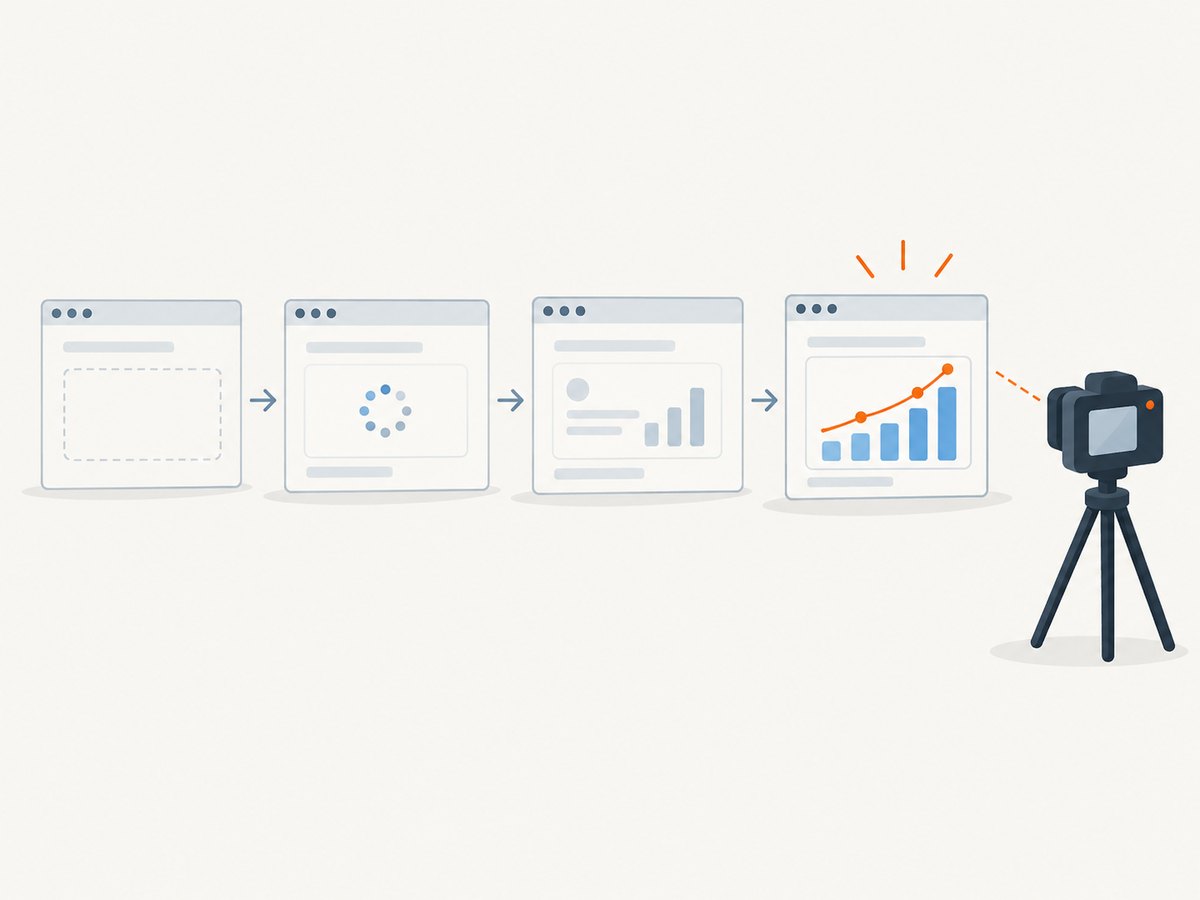
Selenium navigation waits for a configured readyState, but JavaScript can continue to change the page afterward. An explicit wait lets you poll for the exact application condition needed before capture.
require "selenium-webdriver"

options = Selenium::WebDriver::Chrome::Options.new
options.add_argument("--headless=new")

driver = Selenium::WebDriver.for(:chrome, options: options)
wait = Selenium::WebDriver::Wait.new(timeout: 15, interval: 0.2)

begin
  driver.navigate.to("https://example.com/dashboard")

  # Wait for the page's explicit readiness contract.
  wait.until do
    element = driver.find_element(css: "my-widget")
    element.attribute("data-ready") == "true"
  rescue Selenium::WebDriver::Error::NoSuchElementError
    false
  end

  driver.save_screenshot("dashboard.png")
ensure
  driver.quit
end
The locator and attribute are illustrative. Replace them with a condition the site actually exposes. The Selenium waiting-strategies guide describes the distinction between navigation readiness and later JavaScript changes; use the Ruby binding API for the Selenium version installed in your project.
Wait for a child or expected content
If there is no ready attribute, use a meaningful child or text condition. A block can return false until the condition is satisfied:
wait.until do
  widget = driver.find_element(css: "my-widget")
  widget.text.include?("Monthly total")
rescue Selenium::WebDriver::Error::NoSuchElementError
  false
end

driver.save_screenshot("summary.png")
Text is only a useful signal if it cannot appear in an incomplete or stale state. A stable semantic marker is better than a fragile pixel, arbitrary delay, or broad “element exists” test.
4. Wait for a custom-element definition in browser JavaScript
When registration itself is the required condition, CustomElementRegistry.whenDefined() returns a promise that resolves when the named element is defined. You can evaluate that promise in the page through Selenium:
driver.execute_async_script(<<~JS)
  const done = arguments[arguments.length - 1];
  customElements.whenDefined("my-widget").then(() => done(true));
JS
This is a useful building block, not a universal “component ready” check. A definition may be registered before an instance is connected or before asynchronous work inside its lifecycle callbacks has completed. MDN’s custom-element documentation describes connectedCallback() as a lifecycle callback commonly used for setup. Follow definition waiting with an application readiness condition if the screenshot depends on the component’s rendered content.
For a known container containing several custom-element tags, browser JavaScript can wait for all currently undefined names:
const container = document.querySelector("#dashboard");
const names = [...new Set(
  [...container.querySelectorAll(":not(:defined)")].map(el => el.localName)
)];
await Promise.all(names.map(name => customElements.whenDefined(name)));
This resolves when those names become defined. It does not wait for future custom elements that have not yet been inserted, nor does it prove their data or visual state is complete.
5. Capture only after the condition succeeds
Keep the sequence explicit: navigate, wait for the specific state, then capture. If the wait times out, treat the capture as a failed operation instead of quietly saving an image that looks valid but shows a loading state.
- Identify the state the desired screenshot should show.
- Find or add an observable signal for that state.
- Wait with a retrying matcher or explicit condition.
- Capture after the wait succeeds.
- On timeout, report the URL and readiness condition so the failure can be diagnosed.
For a full page that lazy-loads content as the user scrolls, the component-ready signal may not cover content below the fold. Scroll or use the application’s own loading behavior before capture, then wait for the expected content. Also account for animations: if the screenshot must show a stable frame, wait for the relevant animation to finish or disable it in a controlled capture environment.
6. Common errors and fixes
| Symptom | Likely cause | Fix |
|---|---|---|
| Screenshot shows a placeholder | The wait only checked for the tag’s presence. | Wait for a ready attribute, expected content, or child rendered after data arrives. |
whenDefined resolves but the widget is empty |
The definition registered before fetch or render completed. | Follow it with an application-specific visible or semantic readiness check. |
| Wait times out although the page looks ready | The selector or signal does not match the actual page; an iframe or shadow root may also hide the target from a normal query. | Inspect the live DOM, verify the state contract, and use the correct frame or shadow-root access pattern for your driver. |
| Flaky results across runs | A fixed sleep, transient signal, animation, or variable backend response controls timing. | Use a stable condition and make it represent the final content needed in the image. |
| Screenshot is blank or navigation fails | The site may have failed to load, redirected, blocked automation, or returned an error state. | Check the final URL and page content before capture; report load failures separately from readiness timeouts. |
| Negative wait passes too early | An immediate negated presence predicate was used. | Use Capybara’s waiting have_no_css matcher or an explicit Selenium condition. |
7. Reliability, performance, and cost
Condition-based waits improve reliability because they finish when the required state appears and fail with a timeout when it does not. Fixed sleeps always add their full delay when the page is fast and still fail on slower pages. They can be a last resort for a known transient behavior, but they should not be the only readiness contract in a robust capture flow.
Make wait failures observable. Log the page URL, timeout, selector or condition, and final page state. Keep browser and driver versions aligned, close the browser in an ensure block, and avoid capturing when the readiness condition failed. For repeated captures, reuse a managed browser session where appropriate, but isolate cookies and state when the target pages must be independent.
Running a browser locally means maintaining the browser, driver, runtime, and capture infrastructure. Its cost depends on your hosting and workload; the supplied sources provide no universal benchmark or cost figure. If browser setup and cleanup are the main burden, a screenshot API can move capture execution out of your Ruby process.
8. Or skip the browser setup
ScreenshotNeo is a website screenshot API: one GET request returns an image or PDF. The Ruby flow above is useful when you need a custom application readiness signal. For a straightforward URL capture, make a request to the API instead. See the ScreenshotNeo API documentation for options and setup.
require "net/http"
require "uri"

uri = URI("https://api.screenshotneo.com/v1/shot")
uri.query = URI.encode_www_form(
  access_key: "YOUR_API_KEY",
  url: "https://stripe.com"
)

response = Net::HTTP.get_response(uri)
raise "Screenshot request failed: #{response.code}" unless response.is_a?(Net::HTTPSuccess)

File.binwrite("shot.webp", response.body)
The API also accepts the parameter names used by other screenshot APIs, which can make switching easier. The capture can remove cookie and consent banners, newsletter popups, and chat widgets before the shot. Bot checks, blank pages, failed loads, timeouts, and cache hits are not billed; response headers say which page verdict and billing outcome applied. An MCP server provides take_screenshot, get_page_info, and capture_pdf tools for Claude, Cursor, and other MCP clients.
The free plan includes 1,000 screenshots a month with no card. Paid plans start at $5 for 3,000 screenshots; yearly billing gives two months free, and every feature is available on every plan. Sign up for free and capture your first 1,000 screenshots a month with no card.
9. FAQ
Is waiting for document.readyState == "complete" enough?
No. It describes document loading, not whether later JavaScript has finished the custom element’s work. Wait for the application state your screenshot needs.
Does Capybara wait automatically?
Capybara retries asynchronous finders and matchers up to its configured wait period. Use a waiting query that expresses readiness, rather than an immediate DOM check.
Can I wait for every custom element on a page?
You can wait for definitions of known currently undefined tags with customElements.whenDefined(). That still does not provide a general render-complete signal for every component.
What should I do if the component exposes no ready signal?
Use a stable visible result that implies completion, such as expected content or a child element. If you control the component, add a semantic readiness contract so tests and capture tools can observe it.
Should I increase the timeout when screenshots are flaky?
Only if the condition is correct and the page legitimately needs longer. A larger timeout cannot fix a signal that fires too early or never matches.


