How to Wait for AJAX-Loaded Elements in Puppeteer
Wait for the DOM state that proves AJAX content is ready. Compare selectors, predicates, locators, and network idle, with runnable Puppeteer examples.

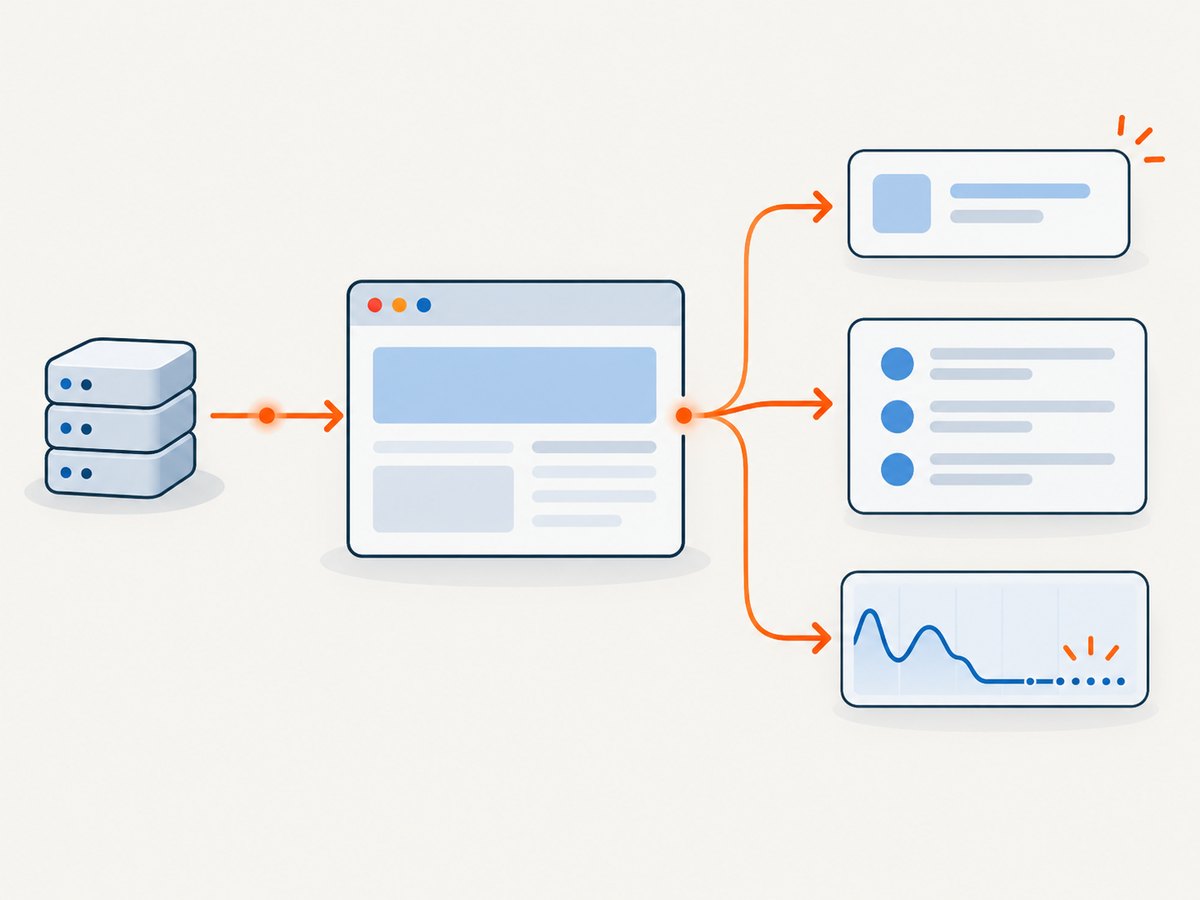
To wait for AJAX-loaded content in Puppeteer, wait for the page state that proves the content you need is ready. If the results element is inserted after the request, use waitForSelector; if it exists before its data arrives, use waitForFunction with a meaningful data condition. For a click or form fill, a Puppeteer locator can wait for the action’s preconditions.
await page.waitForSelector('.results', { visible: true });For a container that is present but initially empty:
await page.waitForFunction(() => {
  const results = document.querySelector('.results');
  return results && results.textContent.trim().length > 0;
});
Then extract or act on the content. A fixed sleep can be too short on a slow request and waste time on a fast one. Network idle can help when network quietness is specifically what you need, but it does not prove that a particular result has loaded.
1. Choose a wait that matches the page state
| What you need to know | Use | What it establishes |
|---|---|---|
| A result element is inserted | page.waitForSelector(selector) |
The selector exists; it resolves immediately if it already exists. |
| An element must be visible | page.waitForSelector(selector, { visible: true }) |
The selector exists and is visible. |
| A spinner should disappear | page.waitForSelector('.loading', { hidden: true }) |
The spinner is absent or hidden. Check for success separately if the page can fail silently. |
| The container exists before it has useful data | page.waitForFunction(predicate) |
Your application-specific condition is true, such as non-empty text or a minimum item count. |
| You need to click or fill a control | page.locator(selector).click() or .fill(value) |
The locator waits for the action’s relevant preconditions. |
| You specifically need a quiet network | page.waitForNetworkIdle() |
Network activity has been idle for the configured interval. |
Use the narrowest condition that corresponds to your next step. For extraction, that is usually a result selector or data predicate. For interaction, express the intended action with a locator. Use network idle only when the page’s network activity is a useful readiness signal.
2. Install Puppeteer and launch a browser
The examples below use JavaScript with Puppeteer. Install puppeteer in a Node.js project; the package downloads a compatible Chrome for Testing browser. The official requirements guide currently lists Node.js 22.12 or later. With puppeteer-core, you manage the browser installation yourself. Package managers that block install scripts can also prevent the automatic browser download. Check the current [Puppeteer installation guide](https://pptr.dev/guides/installation) and [system requirements](https://pptr.dev/guides/system-requirements) if setup fails.
npm install puppeteerSave this as wait-for-ajax.js and run it with node wait-for-ajax.js. Replace the example URL and selectors with the page under automation.
const puppeteer = require('puppeteer');

(async () => {
  const browser = await puppeteer.launch({ headless: true });
  try {
    const page = await browser.newPage();
    page.setDefaultTimeout(15_000);
    await page.goto('https://example.com/search', {
      waitUntil: 'domcontentloaded',
    });

    await page.locator('#search').fill('puppeteer');
    await page.locator('#submit').click();
    await page.waitForSelector('.search-results', { visible: true });

    const titles = await page.$$eval('.search-results h2', nodes =>
      nodes.map(node => node.textContent.trim()),
    );
    console.log(titles);
  } finally {
    await browser.close();
  }
})();
This example waits for the visible results container, then reads titles. If the container is rendered before results arrive, change the wait to a predicate over the actual result items. domcontentloaded only describes initial document loading; a single-page app may still fetch and render content afterward.
3. Wait for the result you actually need
Wait for an element to appear
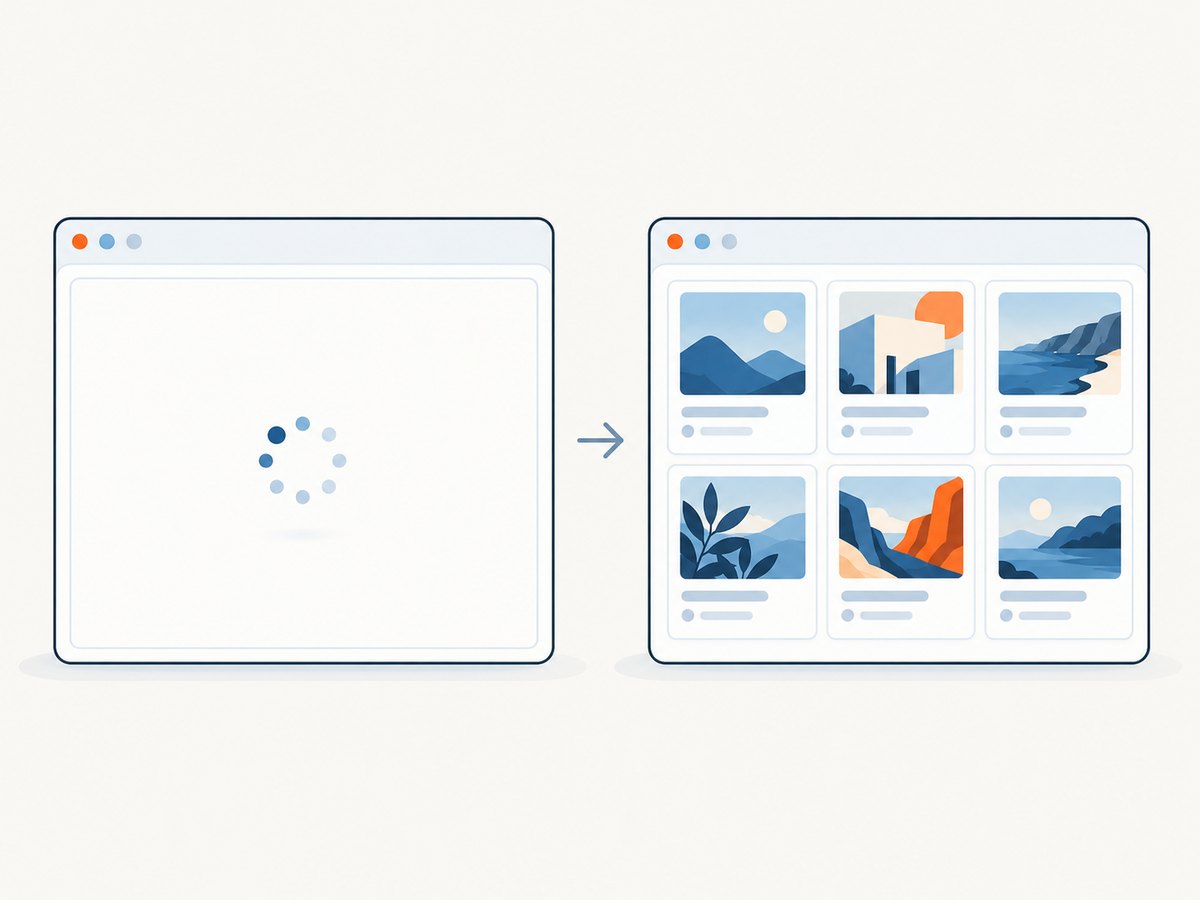
Use a specific selector when the application creates the target only after loading the response. waitForSelector returns immediately if the selector already exists. Its documented default timeout is 30,000 milliseconds; set a shorter or longer per-call timeout when appropriate.
await page.waitForSelector('.results .result', {
  visible: true,
  timeout: 20_000,
});
const count = await page.$$eval('.results .result', items => items.length);
visible: true requires the element to be present and visible. Visibility does not guarantee that its text is complete or correct, so add a content check when that distinction matters.
Wait for a populated container
When the container is present before the AJAX response, wait for a property that indicates useful content. For example, require at least one result:
await page.waitForFunction(() =>
  document.querySelectorAll('.results .result').length > 0,
  { timeout: 20_000 },
);

const rows = await page.$$eval('.results .result', items =>
  items.map(item => item.textContent.trim()),
);
Or check a known state marker or text fragment if a non-empty container could still contain a placeholder. Keep the predicate cheap: it runs repeatedly in the page context until it becomes truthy or times out. The [waitForFunction API](https://pptr.dev/api/puppeteer.page.waitforfunction) supports polling, timeout, and cancellation options.
Wait for loading to finish and confirm success
A disappearing spinner alone is ambiguous: it might disappear after an error or an empty response. Pair it with the success condition your task requires.
await page.waitForSelector('.loading', { hidden: true });
await page.waitForSelector('.results .result', { visible: true });
If empty results are valid, wait for an application state that distinguishes “loaded with no matches” from “still loading,” such as a results heading or explicit empty-state element. Do not wait for an item that should not exist for a legitimate empty response.
Use locators when the next step is an action
For clicks and fills, Puppeteer recommends locators. They wait for the element and relevant action preconditions, such as visibility, enabled state, and a stable layout when clicking. This can eliminate a separate presence wait when the action itself is the goal.
await page.locator('.results .next-page').click();
await page.waitForFunction(() =>
  document.querySelector('.page-number')?.textContent.trim() === '2',
);
The locator waits for the click to be actionable; the predicate verifies the resulting application state. A successful click does not establish that the asynchronous update completed. See the [Puppeteer interaction guide](https://pptr.dev/guides/page-interactions).
4. Coordinate navigation and asynchronous updates
Some form submissions navigate to a new document; others update the current page using AJAX. For navigation, start the navigation wait before clicking so a fast transition is not missed:
await Promise.all([
  page.waitForNavigation(),
  page.locator('#submit').click(),
]);
For an AJAX update without navigation, wait for the post-action result state instead:
await page.locator('#submit').click();
await page.waitForSelector('.search-results .result', { visible: true });
Choose based on what the application does, not on the fact that a button was clicked. If the same results element remains in the DOM and only its contents change, use a predicate that detects the new state—for example, a changed page number, changed query label, or expected result count. Otherwise an existing selector may resolve immediately before the update.
5. Network idle: useful, but not semantic readiness
page.waitForNetworkIdle() waits for network inactivity. The current API documents a default idle interval of 500 milliseconds and notes that the wait always lasts at least the configured interval. This can be useful for pages whose relevant work naturally ends when their requests settle.
await page.waitForNetworkIdle({
  idleTime: 750,
  timeout: 15_000,
});
Network idle is a page-wide signal; it does not establish that a particular element contains the expected data. Long polling, analytics, streaming, or unrelated background requests can keep the network active even after the target results are ready. Conversely, a quiet interval may occur before a delayed request starts. If the task depends on a specific result, prefer a selector or data predicate. The [network-idle API](https://pptr.dev/api/puppeteer.page.waitfornetworkidle) documents the wait behavior and [its options](https://pptr.dev/api/puppeteer.waitfornetworkidleoptions) document the default idle interval.
6. Configure timeouts, polling, and cancellation
Timeouts bound how long automation waits before reporting that its condition was not met. Set one deliberately for the page or for a particular wait. A per-call timeout is useful when one endpoint is known to be slower than the rest:
page.setDefaultTimeout(12_000);
await page.waitForSelector('.results', { timeout: 25_000 });
waitForSelector documents a 30-second default. A timeout of 0 disables the timeout; only use it when an external mechanism guarantees that the operation will eventually be cancelled. For waitForFunction, tune polling only when needed: a predicate that runs more often can add browser work, while slower polling can add detection delay. Use cancellation signals when your surrounding task may be aborted, and ensure the rest of the script handles that cancellation cleanly.
A practical timeout should account for the site’s normal response time and your job’s overall deadline. Avoid setting every wait to an extremely large value: it makes genuine failures slow to detect and can tie up browser resources.
7. Troubleshoot common failures
| Symptom | Likely cause | Fix |
|---|---|---|
Waiting for selector failed or a timeout |
Selector mismatch, action did not trigger, request failed, or page reached an error/empty state. | Inspect the rendered DOM, verify the action and selector, and wait for an explicit error or empty state where appropriate. |
| Wait resolves, but data is blank or stale | The element existed before it was populated, or the same element was reused for a new query. | Wait for non-empty content, a minimum item count, or a state marker that changes with the request. |
| Spinner disappears but scraping finds no result | Loading ended in an error or valid empty response. | Check a success marker or empty-state element after waiting for the spinner to disappear. |
waitForNetworkIdle never resolves |
Long polling, streaming, analytics, or other requests prevent a quiet interval. | Wait for the target result instead, or deliberately configure an idle interval and timeout. |
| Network idle resolves, but result is not ready | Network quietness occurred before the app rendered or before a later request began. | Use an element or data predicate as the readiness condition. |
| Selector works in the main page but not in a frame | The content is inside an iframe with its own document context. | Find the relevant frame and query or wait within that frame. |
| Selector cannot reach content inside a component | The target is inside a shadow root, or the selector syntax does not match its context. | Use Puppeteer’s supported selector syntax for shadow roots, text, accessibility, or XPath, as suitable; verify the target context. |
| Browser fails before the wait runs | Browser download was skipped, or a compatible browser is not installed. | Check Node.js against the current system requirements; use puppeteer to download its browser or configure the browser explicitly with puppeteer-core. |
8. Performance and reliability checklist
- Wait narrowly. A specific result condition avoids waiting on unrelated page activity.
- Use meaningful predicates. Prefer a result count, state marker, or changed value over a generic “page loaded” assumption.
- Bound every wait. Choose a timeout compatible with the operation’s deadline and report which condition timed out.
- Handle valid empty states. A zero-result search should not be confused with a stalled request.
- Keep the browser lifecycle reliable. Close the browser in a
finallyblock so exceptions do not leave it running. - Do not poll expensively. Make page predicates small and avoid scanning a huge DOM on every poll.
- Separate readiness from extraction. Wait for the condition first, then read the DOM, so failures identify the stage that did not complete.
There is no universal delay that works across every site and run. Network conditions, client rendering, and page behavior vary. A condition tied to the required content is easier to diagnose and generally avoids both premature reads and unnecessary waiting.
9. Or skip the browser setup
If the goal is a screenshot after a page finishes loading, [ScreenshotNeo](https://screenshotneo.com) offers a website screenshot API and MCP server. Its API accepts a URL in one GET request and returns an image or PDF. See the [ScreenshotNeo API documentation](https://screenshotneo.com/docs/) for request options.
curl -G "https://api.screenshotneo.com/v1/shot" \
  -d access_key=YOUR_API_KEY \
  --data-urlencode url=https://stripe.com \
  -o shot.webp
import requests
r = requests.get(
"https://api.screenshotneo.com/v1/shot",
params={"access_key": "YOUR_API_KEY", "url": "https://stripe.com"},
timeout=90,
)
open("shot.webp", "wb").write(r.content)const q = new URLSearchParams({
access_key: 'YOUR_API_KEY',
url: 'https://stripe.com',
});
const res = await fetch(`https://api.screenshotneo.com/v1/shot?${q}`);
if (!res.ok) throw new Error(`Screenshot request failed: ${res.status}`);
await require('node:fs/promises').writeFile('shot.webp', Buffer.from(await res.arrayBuffer()));For browser automation, Puppeteer lets you define exact application-specific AJAX conditions. For screenshot capture, ScreenshotNeo handles the browser capture request and offers options such as full-page shots, CSS selector capture, wait conditions, custom CSS and JavaScript, and PDF output. Cookie banners, popups, and chat widgets are removed before the shot; each step can be turned off. Bot checks, blank pages, and failed loads are never billed, and response headers indicate the page verdict and billing status. Its MCP server lets AI agents use take_screenshot, get_page_info, and capture_pdf. The free plan includes 1,000 screenshots a month with no card; paid plans start at $5 for 3,000.
Create a free ScreenshotNeo account and get 1,000 screenshots a month with no card.
10. FAQ
Does waitForSelector wait for AJAX by itself?
It waits for the selector condition. It does not detect AJAX as a category of activity. If the selector appears only after rendering, that is enough; otherwise wait for a data condition.
Should I use waitForTimeout?
A fixed delay is appropriate only when a deliberate pause itself is required. It is a poor primary readiness check because it cannot adapt to faster or slower responses.
Why did my wait pass immediately?
The selector may already exist. If the request replaces its contents, wait for a condition that distinguishes the new content from the old state.
Can I wait for an accessible name or text instead of a CSS selector?
Puppeteer supports selector syntax beyond plain CSS, including text and accessibility selectors. Use the form that most clearly identifies the element and check the current interaction guide for syntax.


