How to Wait for an Element Before Capturing a Website in Java
Use explicit Selenium or Playwright waits for the content your screenshot must show, then capture a reliable page or element image.
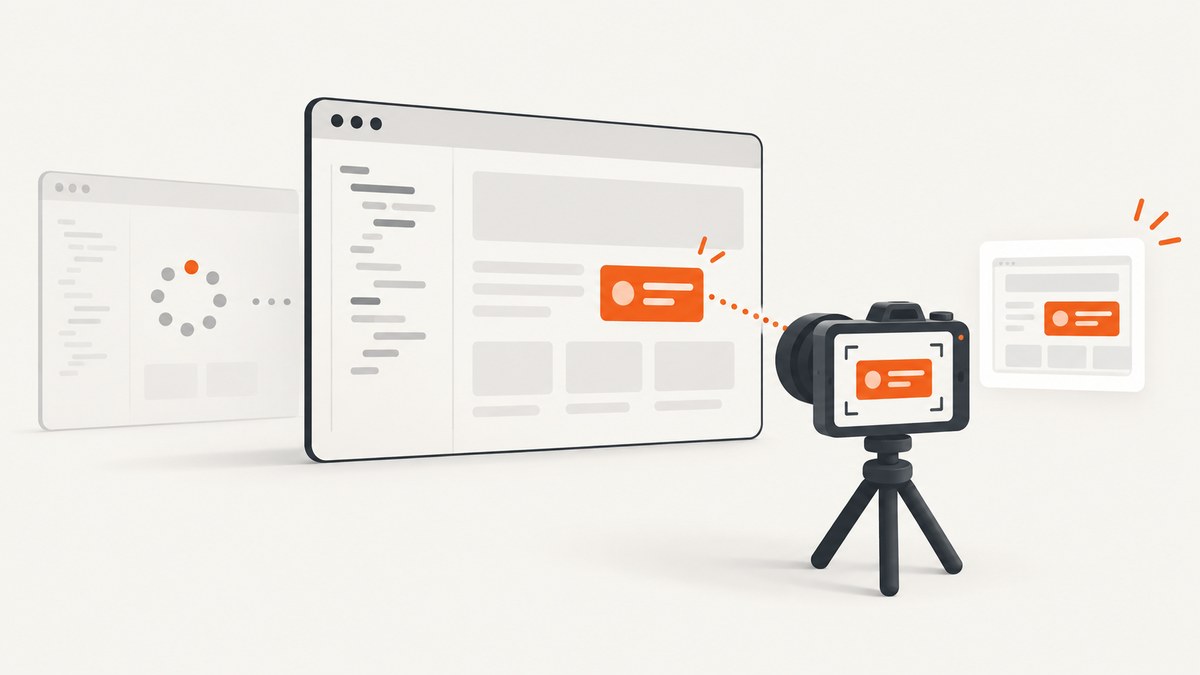
Wait for the state your screenshot needs, then capture it. A completed navigation does not prove that JavaScript-rendered content is visible. In Selenium Java, use an explicit WebDriverWait with a condition such as visibilityOfElementLocated. In Playwright Java, wait on a locator or use a web-first assertion before calling a screenshot method.
This article shows complete Selenium and Playwright patterns, explains presence versus visibility, covers full-page and element screenshots, and lists fixes for timing, overlays, lazy content and network problems.
1. Why page-load completion is not screenshot readiness
WebDriver navigation waits for the browser’s configured document readiness state, which defaults to complete. That covers navigation resources, but client-side code can still insert, reveal or replace the content you need after navigation returns. A dashboard may fetch rows, a chart may render into a canvas, or a modal may appear after an interaction.
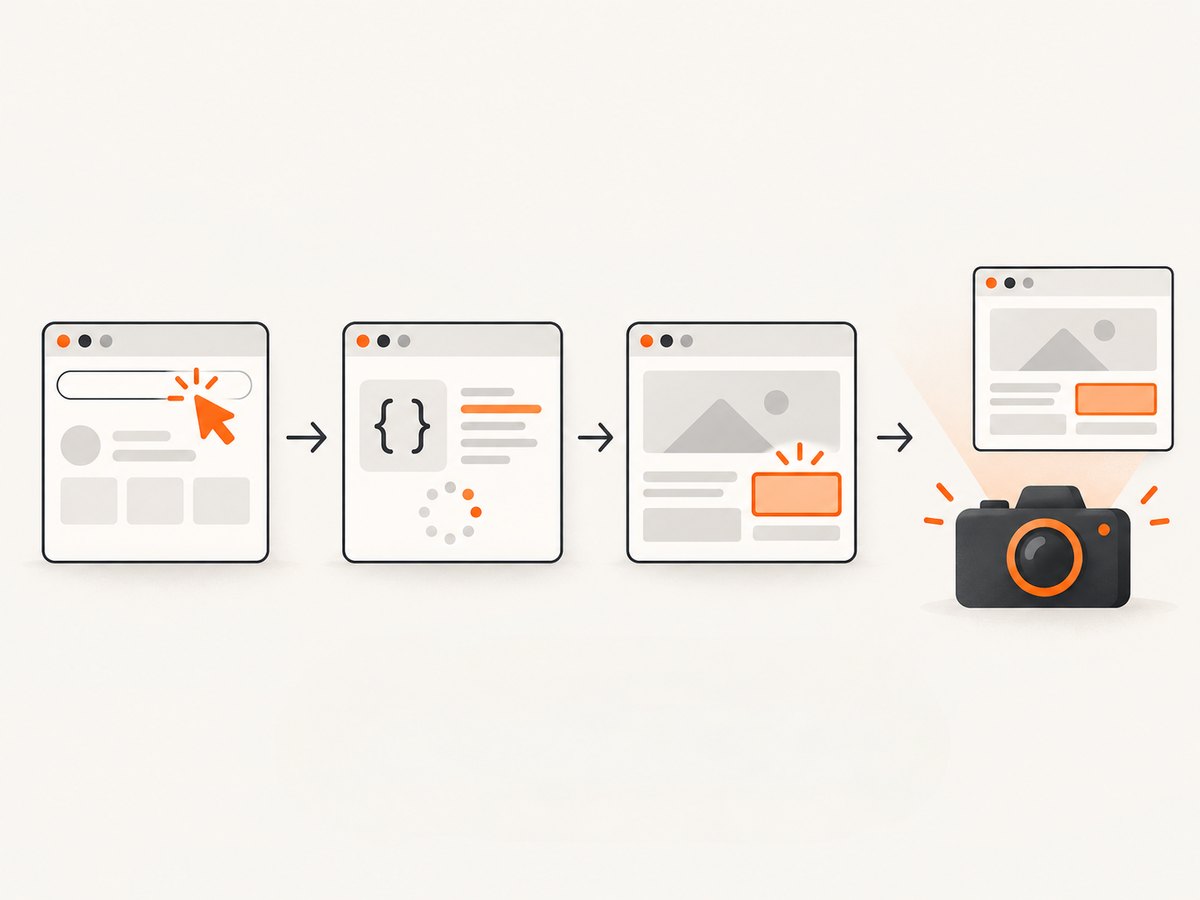
Define readiness as an observable condition in the page:
- Visibility: the target exists and is displayed. Use this when the screenshot must show it.
- Presence: the node exists in the DOM. Use this only when visibility is irrelevant or handled separately.
- State change: a loading indicator disappears, a result count changes, or a button becomes enabled.
- Application-specific content: a table contains rows, a chart has dimensions, or a status element contains expected text.
A fixed sleep is a poor readiness rule: it can be too short on a slow run and wastes time on a fast one. A bounded explicit wait makes failure visible and gives you a useful timeout to diagnose.
2. Selenium Java: wait for visibility, then capture
The standard Selenium pattern is to construct WebDriverWait with a Duration, wait with until, and only then invoke screenshot capture. The Selenium documentation describes explicit waits and expected conditions for exactly this kind of application state synchronization.
Maven dependency
<dependency>
  <groupId>org.seleniumhq.selenium</groupId>
  <artifactId>selenium-java</artifactId>
  <version>YOUR_SELENIUM_VERSION</version>
</dependency>
Use the Selenium version already approved by your project and check its current method signatures before publishing or upgrading.
Complete page screenshot example
import java.io.File;
import java.nio.file.Files;
import java.nio.file.Path;
import java.time.Duration;

import org.openqa.selenium.By;
import org.openqa.selenium.OutputType;
import org.openqa.selenium.TakesScreenshot;
import org.openqa.selenium.WebDriver;
import org.openqa.selenium.chrome.ChromeDriver;
import org.openqa.selenium.support.ui.ExpectedConditions;
import org.openqa.selenium.support.ui.WebDriverWait;

public class WaitThenCapture {
  public static void main(String[] args) throws Exception {
    WebDriver driver = new ChromeDriver();
    try {
      driver.get("https://example.com/dashboard");

      WebDriverWait wait = new WebDriverWait(driver, Duration.ofSeconds(10));
      wait.until(ExpectedConditions.visibilityOfElementLocated(
          By.cssSelector(".dashboard-ready")));

      File source = ((TakesScreenshot) driver)
          .getScreenshotAs(OutputType.FILE);
      Files.copy(source.toPath(), Path.of("dashboard.png"));
    } finally {
      driver.quit();
    }
  }
}
Replace the URL and selector with the state that must appear in your image. A timeout should be treated as a capture failure; do not silently continue with a partial page.
Presence, visibility and custom conditions
// DOM presence only
wait.until(ExpectedConditions.presenceOfElementLocated(
    By.cssSelector(".results")));

// Must be displayed
WebElement results = wait.until(
    ExpectedConditions.visibilityOfElementLocated(
        By.cssSelector(".results")));

// Loading UI has gone away
wait.until(ExpectedConditions.invisibilityOfElementLocated(
    By.cssSelector(".loading-spinner")));

// A result contains the text needed in the screenshot
wait.until(ExpectedConditions.textToBePresentInElementLocated(
    By.cssSelector(".status"), "Complete"));

// A control is ready for an interaction
wait.until(ExpectedConditions.elementToBeClickable(
    By.cssSelector("button.export"))).click();
If an element existed before a search or filter action, waiting for its presence after the action can return immediately. Wait for a changed result, a new attribute, a new row, or a loading indicator to disappear.
Capture one element
WebElement card = wait.until(
    ExpectedConditions.visibilityOfElementLocated(
        By.cssSelector("article.summary-card")));

File cardFile = card.getScreenshotAs(OutputType.FILE);
Files.copy(cardFile.toPath(), Path.of("summary-card.png"));
Element screenshots are useful for cards, charts and receipts. If a fixed header or modal covers the element, resolve that overlay before capturing.
3. Playwright Java alternative
Playwright’s Java API favors locator-based waits and web-first assertions. Its documentation discourages the older Page.waitForSelector approach and advises against using networkidle as a general readiness strategy. Express the UI state you need instead.
Page screenshot after a locator wait
import com.microsoft.playwright.Browser;
import com.microsoft.playwright.BrowserType;
import com.microsoft.playwright.Locator;
import com.microsoft.playwright.Page;
import com.microsoft.playwright.Playwright;
import com.microsoft.playwright.options.WaitForSelectorState;
import java.nio.file.Paths;

public class PlaywrightWaitThenCapture {
  public static void main(String[] args) {
    try (Playwright playwright = Playwright.create()) {
      Browser browser = playwright.chromium().launch(
          new BrowserType.LaunchOptions().setHeadless(true));
      Page page = browser.newPage();
      page.navigate("https://example.com/dashboard");

      Locator target = page.locator(".dashboard-ready");
      target.waitFor(new Locator.WaitForOptions()
          .setState(WaitForSelectorState.VISIBLE));

      page.screenshot(new Page.ScreenshotOptions()
          .setPath(Paths.get("dashboard.png")));
      browser.close();
    }
  }
}
Full-page and element screenshots
// Entire scrollable page
page.screenshot(new Page.ScreenshotOptions()
    .setPath(Paths.get("full-page.png"))
    .setFullPage(true));

// Only the target locator
page.locator("article.summary-card")
    .screenshot(new Locator.ScreenshotOptions()
        .setPath(Paths.get("summary-card.png")));

// Keep bytes in memory instead of writing a file
byte[] image = page.screenshot(new Page.ScreenshotOptions()
    .setType("png"));
Playwright locator screenshots perform actionability checks and scroll the target into view. An overlay can still cover the subject, so waiting for the locator alone does not guarantee an unobstructed image.
4. Choose the condition that matches the image
| Screenshot requirement | Recommended wait | Why |
|---|---|---|
| Show a visible card | visibilityOfElementLocated or locator visible state |
Presence alone can match a hidden node. |
| Confirm an API result exists in the DOM | Presence or a custom DOM condition | Visibility may not matter for a structural capture. |
| Wait for search results | Text, row count, changed attribute or spinner invisibility | The old container may already have existed. |
| Capture after opening a menu | Clickable action, then visible menu item | Synchronizes with the post-click state. |
| Capture lazy content | Scroll or trigger the page, then wait for the content | Some pages render only after entering the viewport. |
5. A reliable capture sequence
- Start the browser with the required viewport, device scale and headless setting.
- Navigate to the URL.
- Perform any required login, click, scroll or filter action.
- Wait for the condition that represents the final visual state.
- Dismiss or wait for consent banners, chat bubbles and overlays that cover the subject.
- Capture the page or locator.
- Save the bytes atomically and record the URL, selector, timeout and failure reason.
- Always close the browser in a
finallyblock or try-with-resources statement.
Waiting for a post-action state in Selenium
driver.findElement(By.cssSelector("button.search")).click();

WebDriverWait wait = new WebDriverWait(driver, Duration.ofSeconds(15));
wait.until(ExpectedConditions.invisibilityOfElementLocated(
    By.cssSelector(".loading-spinner")));
wait.until(ExpectedConditions.visibilityOfElementLocated(
    By.cssSelector(".results-table tbody tr")));

((TakesScreenshot) driver).getScreenshotAs(OutputType.FILE);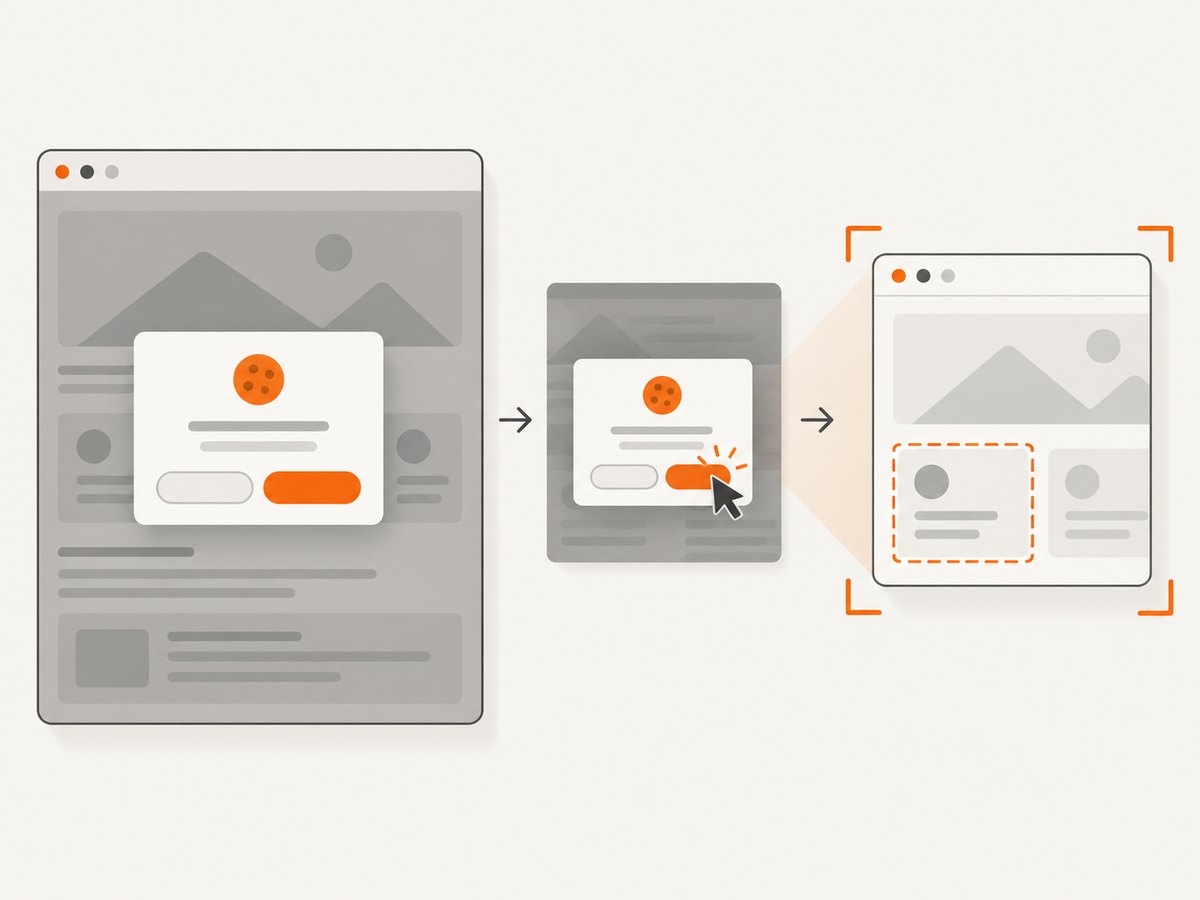
6. Troubleshooting common failures
TimeoutException before the screenshot
Cause: the selector is wrong, the page failed to load, the state takes longer than the timeout, or content is inside an iframe. Fix: inspect the selector, log the current URL and page source, increase the bounded timeout only when justified, and switch into the correct iframe before waiting.
The wait succeeds but the screenshot is blank
Cause: you waited for a hidden node, captured before the visual state changed, or the browser navigated away. Fix: use visibility, wait for expected text or dimensions, and verify the URL and target’s computed state.
Presence succeeds while the target is invisible
Cause: presence checks DOM existence only. Fix: use Selenium’s visibility condition or Playwright’s visible locator state.
Fixed sleeps produce flaky results
Cause: a constant delay cannot adapt to network and rendering variation. Fix: replace it with an explicit condition and a meaningful timeout. Keep a small delay only when the application has a documented animation that cannot expose another state signal.
networkidle never arrives
Cause: analytics, polling, streaming or long-lived connections keep the network busy. Fix: wait for the target UI state. Playwright specifically discourages network-idle waiting as a general testing readiness strategy.
The element is covered by a cookie banner or modal
Cause: the locator is visible but another layer is painted above it. Fix: accept or close the banner, wait for its invisibility, or hide the overlay when that matches your capture requirements.
Lazy content never appears
Cause: the site loads the component only after scrolling or another user-like trigger. Fix: scroll the target into view, perform the trigger, then wait for the target’s visible state or a content-specific marker.
Intermittent stale element errors
Cause: a framework replaced the node after you found it. Fix: wait using the locator or locator-based condition and retrieve the element again immediately before capture.
7. Performance, reliability and cost considerations
- Use the narrowest condition: waiting for one stable target usually finishes sooner than waiting for every request.
- Set a realistic upper bound: separate navigation timeout, readiness timeout and screenshot timeout in your logs.
- Reuse browser processes carefully: a persistent browser can reduce startup overhead, but isolate pages and clear cookies when captures must not share state.
- Control visual inputs: use a fixed viewport, timezone, locale, user agent and device scale when comparing images.
- Record failure evidence: save a diagnostic screenshot, URL, console errors and the condition that timed out.
- Do not claim readiness from silence: a quiet network can still mean a broken UI, while a healthy page can keep background requests open.
Self-hosted Selenium and Playwright require browser binaries, fonts, sandbox settings and maintenance. A hosted capture API can remove that setup when you need repeatable URL-to-image jobs.
8. Or skip the browser setup
ScreenshotNeo provides a website screenshot API and MCP server. One GET request returns PNG, JPEG, WebP or PDF. It can wait for a selector, delay or network idle, and it supports custom JavaScript and CSS when a page needs an application-specific readiness step. See the ScreenshotNeo documentation for all options.
curl -G "https://api.screenshotneo.com/v1/shot" \
  -d access_key=YOUR_API_KEY \
  --data-urlencode url=https://stripe.com \
  -o shot.webp
import requests
r = requests.get(
"https://api.screenshotneo.com/v1/shot",
params={"access_key": "YOUR_API_KEY", "url": "https://stripe.com"},
timeout=90,
)
open("shot.webp", "wb").write(r.content)const q = new URLSearchParams({
access_key: 'YOUR_API_KEY',
url: 'https://stripe.com'
});
const res = await fetch(`https://api.screenshotneo.com/v1/shot?${q}`);ScreenshotNeo removes cookie and consent banners, newsletter popups and chat widgets before the shot. Bot checks, blank pages, failed loads, timeouts and cache hits are not billed, and response headers identify the page verdict and billing result. Its MCP server provides take_screenshot, get_page_info and capture_pdf tools for Claude, Cursor and other MCP clients.
There are 1,000 screenshots per month free with no card. Paid plans start at $5 for 3,000 shots, and every feature is included on every plan. Create a free ScreenshotNeo account.
9. Selenium versus Playwright for this task
| Question | Selenium Java | Playwright Java |
|---|---|---|
| Readiness model | Explicit waits and expected conditions | Locator waits and web-first assertions |
| Element capture | WebElement.getScreenshotAs |
Locator.screenshot |
| Page capture | TakesScreenshot |
Page.screenshot, including full page |
| Best fit | Projects already using WebDriver | Projects adopting locator-first browser automation |
The sources support different APIs and readiness styles; they do not establish that either framework is universally faster or more stable.
10. FAQ
Does driver.get() wait until the page is ready?
It waits for the configured document readiness state, usually complete. JavaScript can still render the target afterward, so add an explicit condition.
Should I always wait for visibility?
Use visibility when the screenshot must show the target. Use presence when DOM existence alone is the requirement.
Is a ten-second timeout correct?
It is only an example. Choose a bound based on the page’s normal behavior, then treat expiry as an actionable failure.
Can I wait for every network request to finish?
That is unreliable on pages with polling, analytics or streaming. A target-specific UI condition is usually clearer.
How do I capture a single component?
In Selenium, wait for a visible WebElement and call getScreenshotAs. In Playwright, wait for a locator and call locator.screenshot.
What if I need PDF output instead of an image?
Use the browser’s PDF capability where appropriate, or call ScreenshotNeo’s capture_pdf MCP tool or PDF options through its API.


