How to Wait for an Element Before Capturing a Website
Wait for the element or page state that makes a screenshot useful—not just for navigation to finish. Runnable Puppeteer, Playwright, Selenium, cURL, Python, and Node.js examples included.
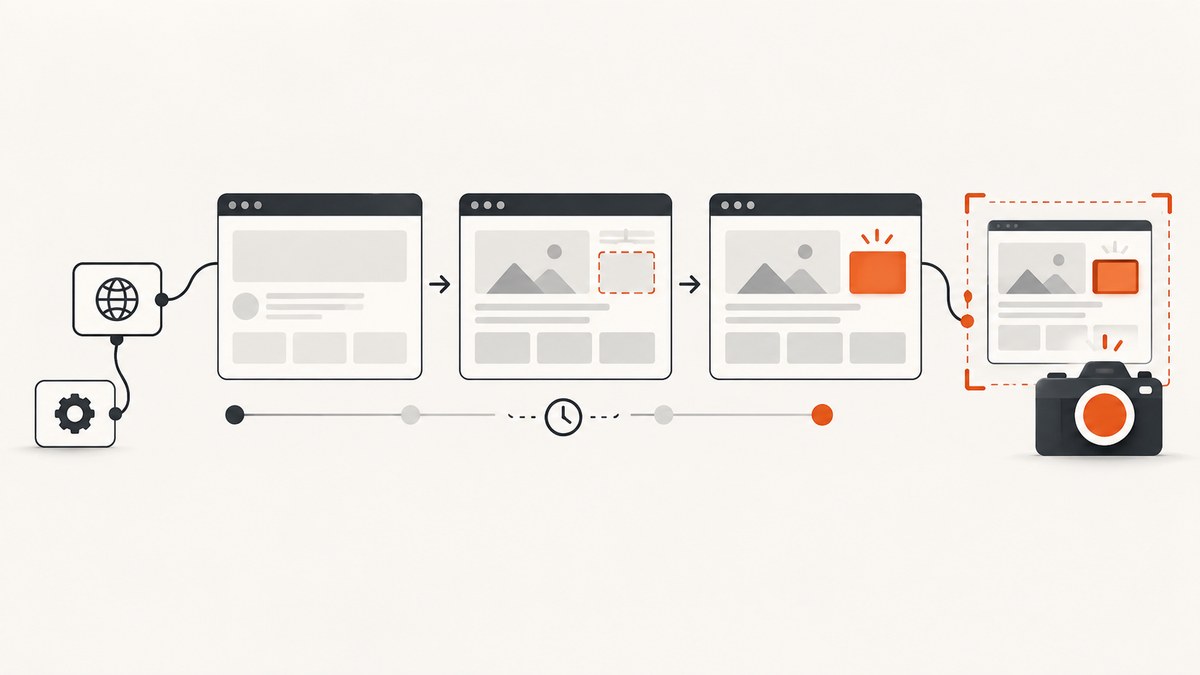
To wait for an element before capturing a website, wait for the specific element or page state that makes the image useful, then take the screenshot. A navigation milestone such as load or document.readyState === 'complete' does not guarantee that a JavaScript application has finished rendering its chart, results, or confirmation panel. Use a bounded explicit wait, and treat a timeout as a failed or incomplete capture instead of silently saving a misleading image. Playwright’s Frame API and Selenium’s waiting guide explain these distinctions.
The general sequence is: navigate if necessary, wait for a target or a page-specific completion state, then capture. Choose visibility when the element must be rendered; choose attachment when its presence in the DOM is enough for the next step. If the page has a known loading indicator, wait for it to disappear and verify the actual target too.
1. Choose the right readiness condition
“The page loaded” can mean several things. A browser may finish loading the HTML and its declared assets while application code continues fetching data, inserting elements, or revealing content. Selenium explicitly notes that readyState only concerns assets defined in HTML; JavaScript can still change the page afterward.
| Page situation | Useful condition | What it does not prove |
|---|---|---|
| Target is inserted asynchronously | Wait for the selector to be attached, or visible if it must be rendered | Attachment alone does not mean its data is final. |
| Target exists but starts hidden | Wait for visibility or a page-specific state | Visibility does not mean an animation or update has ended. |
| A spinner marks loading | Wait for the spinner to hide, then verify the expected target | A missing spinner does not prove the correct content appeared. |
| Requests need to settle | Optionally wait for network idle, then check the target | Network idleness is not visual correctness and may never occur on pages with persistent connections. |
| A navigation boundary is relevant | Wait for a navigation milestone, followed by the target condition | Single-page apps can continue rendering after navigation. |
Presence and visibility are different. Playwright defines attached as present in the DOM. Its visible state requires a non-empty bounding box and no visibility:hidden; an element with display:none or no content is not visible. Choose the state based on what the capture needs.
2. Puppeteer: wait for the target, then screenshot
This example launches Chromium, navigates to a page, waits up to 15 seconds for a visible report, and captures that element. Install Puppeteer in your project with npm install puppeteer. The API pattern follows the Puppeteer screenshot guide.
const puppeteer = require('puppeteer');

(async () => {
  const browser = await puppeteer.launch({ headless: true });
  try {
    const page = await browser.newPage();
    await page.goto('https://example.com/report', {
      waitUntil: 'domcontentloaded',
      timeout: 30000,
    });

    const report = await page.waitForSelector('.report-ready', {
      visible: true,
      timeout: 15000,
    });
    if (!report) throw new Error('Report element was not found');

    await report.screenshot({ path: 'report.png' });
  } finally {
    await browser.close();
  }
})();
Use the selector that identifies the actual content, not a broad container that appears before its data. Puppeteer documents locator APIs for new interaction code; locators wait for an element to be present and in the appropriate state. Use a locator when it fits your installed Puppeteer version and workflow. A selector wait is useful here because the screenshot is taken from the returned element handle. A timeout rejects the wait; catch that error at the job boundary and record the URL and selector so the failure can be diagnosed.
For a full-page image instead, retain the same explicit wait and change the capture step to await page.screenshot({ path: 'report.png', fullPage: true });. For a page-level capture, avoid assuming the target is in the viewport; scroll it into view if your flow or library behavior requires that for the desired result.
3. Playwright: wait for a visible locator
Install Playwright using its documented setup for your project and browser. This runnable CommonJS example uses Chromium and saves a full-page screenshot after a specific target becomes visible. For the installed version’s setup details, use the Playwright documentation.
const { chromium } = require('playwright');

(async () => {
  const browser = await chromium.launch({ headless: true });
  try {
    const page = await browser.newPage();
    await page.goto('https://example.com/report', {
      waitUntil: 'domcontentloaded',
      timeout: 30000,
    });

    await page.locator('.report-ready').waitFor({
      state: 'visible',
      timeout: 15000,
    });
    await page.screenshot({ path: 'report.png', fullPage: true });
  } finally {
    await browser.close();
  }
})();
For an element-only screenshot, use the locator screenshot API in your installed Playwright version, for example await page.locator('.report-ready').screenshot({ path: 'report-element.png' });. Playwright marks waitForSelector() as discouraged in favor of locator waits or web assertions. The key is not the method spelling: wait on a specific condition and bound the wait.
Playwright also supports selector states including attached, detached, visible, and hidden. For a spinner followed by results, wait for the spinner to become hidden and then assert or wait for the results selector. This avoids treating the absence of loading UI as proof that the intended content has appeared.
4. Selenium: use an explicit wait
Selenium supports explicit waits that poll for a condition before proceeding. This Python example waits for visibility, takes a screenshot, and always closes the browser. Install Selenium and configure a browser driver according to its current installation documentation.
from selenium import webdriver
from selenium.webdriver.common.by import By
from selenium.webdriver.support.ui import WebDriverWait
from selenium.webdriver.support import expected_conditions as EC

options = webdriver.ChromeOptions()
options.add_argument('--headless=new')
driver = webdriver.Chrome(options=options)

try:
    driver.set_page_load_timeout(30)
    driver.get('https://example.com/report')

    report = WebDriverWait(driver, 15).until(
        EC.visibility_of_element_located((By.CSS_SELECTOR, '.report-ready'))
    )
    report.screenshot('report.png')
finally:
    driver.quit()
Choose a condition such as presence, visibility, or clickability according to the next operation and the screenshot’s needs. Avoid mixing a long implicit wait with explicit waits without understanding how they interact; keep synchronization deliberate and time bounded. Selenium’s waiting strategies guide explains why fixed sleeps can be too short or waste time.
5. Make the wait match the page
Wait for a result, not just a container
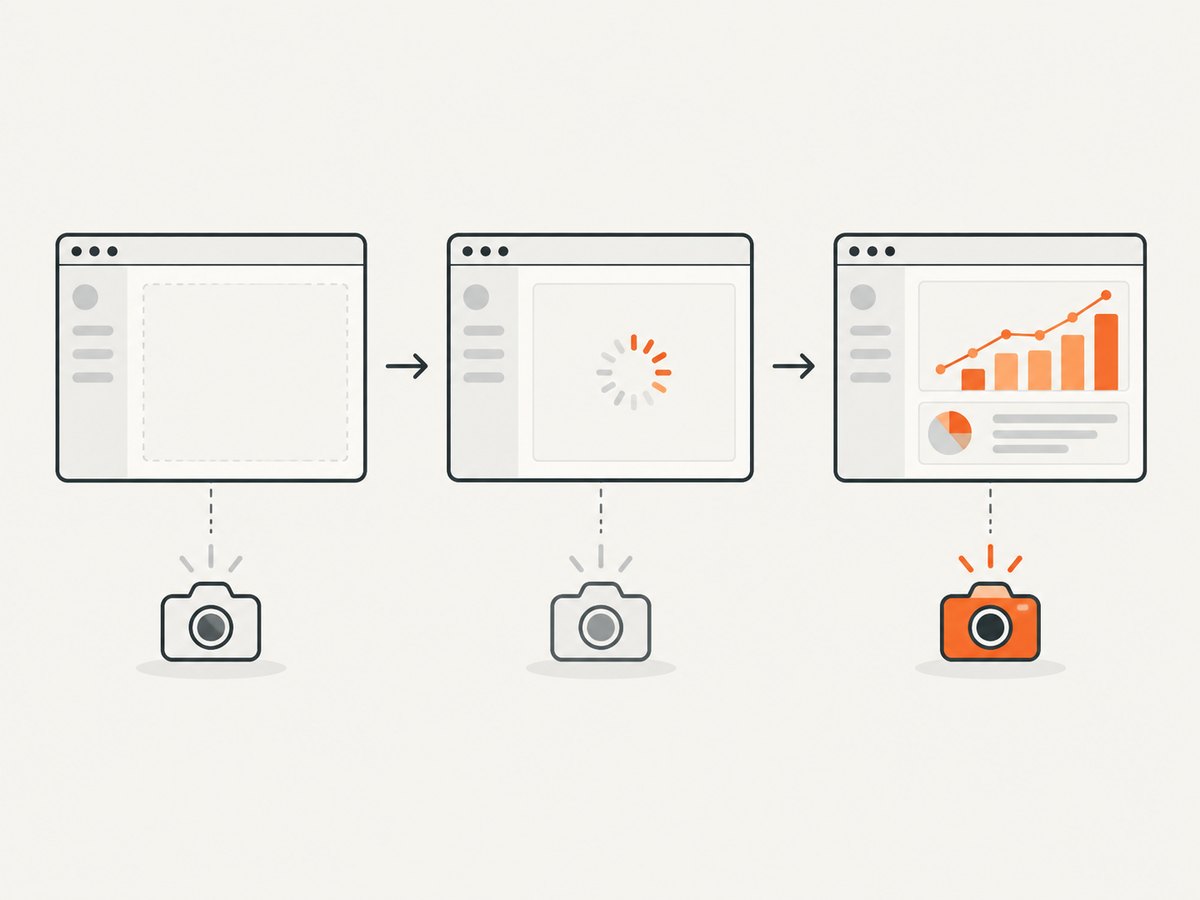
A dashboard may render its panel immediately and fill it later. If possible, target a result marker that appears only after the data is ready, or check a meaningful condition such as expected text. A visible empty panel is not necessarily a ready report. Keep application-specific assertions close to the capture so the screenshot job documents what “ready” means.
Wait for loading UI to end, then confirm the target
If the page has a spinner, skeleton, or “loading” state, wait for that state to disappear and then wait for the final target. A missing spinner could also mean an error, an empty response, or a failed script, so pair the wait with a check for expected content.
Use network idle selectively
Puppeteer supports navigation waits such as networkidle2 and a page.waitForNetworkIdle() method; its screenshot guide demonstrates waiting for network activity before capture. Playwright defines network idle as no network connections for at least 500 ms but discourages it as a general testing readiness criterion, recommending assertions instead. Persistent connections, analytics, polling, and other background traffic make network idle unsuitable on some pages. If you use it, treat it as an additional page-specific signal, not a universal guarantee.
Handle animations and lazy content deliberately
An element can become visible while still animating, and a chart can be visible before its final data is drawn. If a stable image matters, wait for a page-specific completion marker or stable value where possible. For below-the-fold content, ensure the target has been brought into the relevant rendering area if the site loads it lazily. A full-page screenshot option does not itself define when application data is ready.
6. Or skip the browser setup
For a one-call hosted capture, ScreenshotNeo accepts a URL and returns an image or PDF. Its API supports waiting for a selector, a delay, or network idle, as well as full-page and element capture. See the ScreenshotNeo API documentation for parameters and formats.
curl -G "https://api.screenshotneo.com/v1/shot" -d access_key=YOUR_API_KEY --data-urlencode url=https://stripe.com -o shot.webpimport requests
r = requests.get(
"https://api.screenshotneo.com/v1/shot",
params={"access_key": "YOUR_API_KEY", "url": "https://stripe.com"},
timeout=90,
)
open("shot.webp", "wb").write(r.content)const q = new URLSearchParams({ access_key: 'YOUR_API_KEY', url: 'https://stripe.com' });
const res = await fetch(`https://api.screenshotneo.com/v1/shot?${q}`);
if (!res.ok) throw new Error(`Screenshot request failed: ${res.status}`);
const bytes = Buffer.from(await res.arrayBuffer());
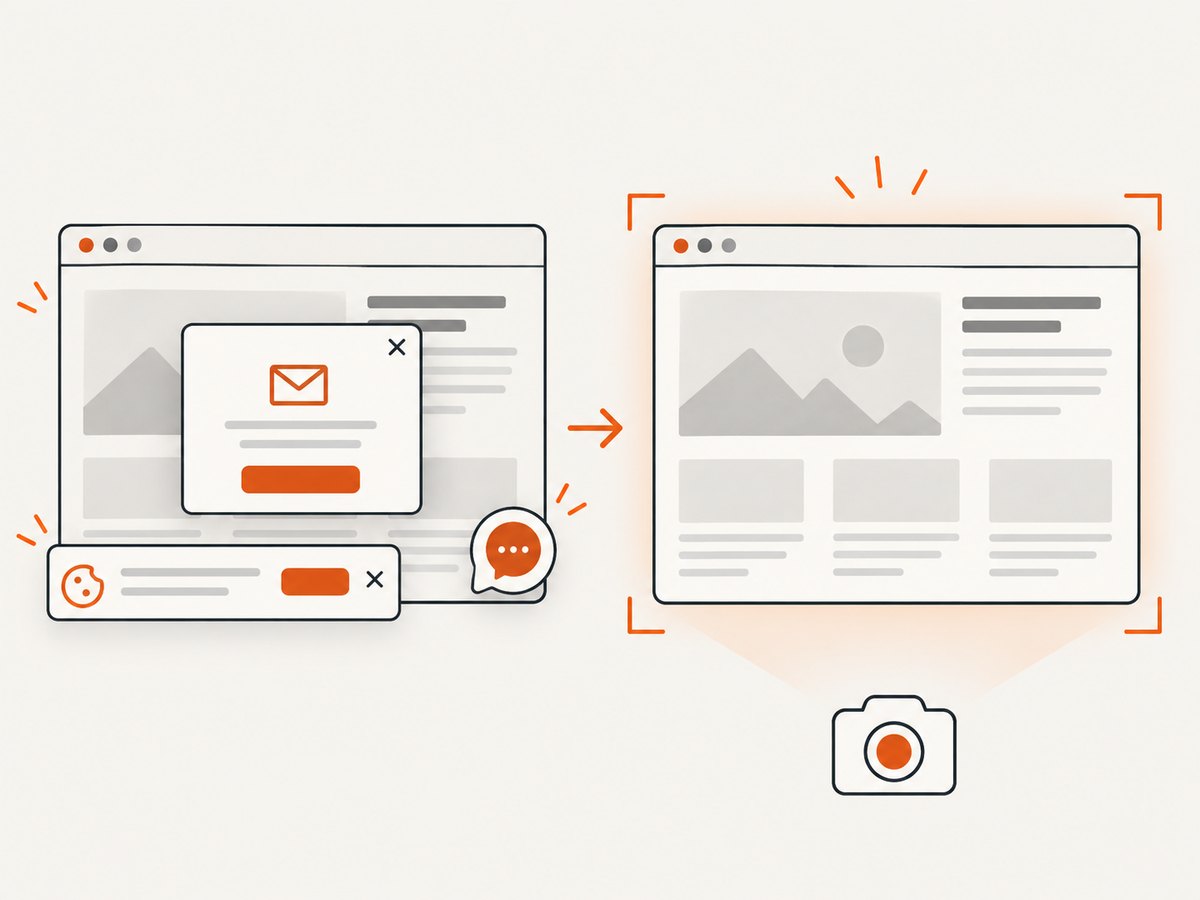
require('node:fs').writeFileSync('shot.webp', bytes);Replace the example URL with your target and configure the wait condition for that page using the API options. The response headers report the page verdict and billing status. ScreenshotNeo removes cookie and consent banners, newsletter popups, and chat widgets before capture; each cleanup step can be turned off. Bot checks, blank pages, timeouts, failed loads, and cache hits are not billed. Its MCP server offers take_screenshot, get_page_info, and capture_pdf for Claude, Cursor, and other MCP clients. The free plan includes 1,000 screenshots per month without a card; paid plans start at $5 for 3,000 screenshots. Sign up for 1,000 free screenshots a month, no card required.
7. Timeouts, performance, and reliability
Set separate limits for navigation and element readiness. Navigation can complete quickly while an element wait needs more time, or a broken route can consume the navigation budget before the target wait begins. Make the total job deadline explicit so several sequential waits cannot exceed your worker’s limit. The examples use a 30-second navigation timeout and a 15-second element timeout; tune them from the page’s expected behavior rather than increasing them indefinitely.
Explicit waits usually let a capture proceed as soon as its condition is satisfied. A fixed sleep always pays its full duration, even when the page is already ready, and may still be too short when it is slow. For many URLs, parallelize only within the browser and service capacity you can sustain; excessive concurrent pages can increase memory use and make rendering less predictable. Reuse browser processes where your job architecture allows it, while isolating per-page state such as cookies and headers.
On timeout, decide whether to fail the capture, retry once under a bounded policy, or save a clearly labeled diagnostic artifact. Do not quietly take the screenshot after the wait failed: downstream users may interpret an incomplete image as correct. Record the URL, selector or condition, elapsed time, navigation outcome, and error. Be mindful that URLs, page content, and headers can contain sensitive data when choosing what to log.
8. Troubleshooting common failures
| Symptom | Likely cause | Fix |
|---|---|---|
| Element wait times out | Wrong selector, delayed content, failed navigation, or content inside a frame | Inspect the rendered DOM, confirm the selector and frame, and check the page error state. Raise the timeout only when the page’s normal behavior justifies it. |
| Element exists but screenshot is blank | It is hidden, has no rendered box, or the capture targets the wrong node | Wait for visibility and verify the chosen element’s dimensions before capture. |
| Screenshot shows a spinner | The wait was for navigation or container presence rather than completion | Wait for the spinner to hide and the result marker or expected data to appear. |
| Network-idle wait never finishes | Long polling, streaming, analytics, or persistent connections keep traffic active | Prefer a target-specific wait, or adjust the network-idle condition only if the page supports it. |
| Screenshot catches a transition | Visibility arrived before animation or chart updates ended | Wait for a stable page-specific marker or final value where available. |
| Page-level capture misses below-fold content | Content is lazy-loaded or the site loads it only after scrolling | Scroll through the relevant region or trigger the site’s loading behavior before capturing; then wait for the content. |
| Works locally but fails in automation | Different viewport, authentication, locale, or timing changes the page state | Match viewport and required cookies or headers, and wait for the condition that is valid in that environment. |
9. FAQ
Should I wait for load or DOMContentLoaded?
Use a navigation milestone when it is a useful boundary, then wait for the content your screenshot needs. Neither event proves that a client-rendered result is complete.
Is waiting for an element enough to guarantee a correct screenshot?
No. It proves only the condition you asked for. A visible element can be empty, stale, or mid-animation, so select a meaningful readiness signal for the page.
What is the best timeout?
There is no universal value. Set a finite limit based on normal page behavior and the overall job deadline, then report timeout as an actionable failure.
Can I capture only the element I waited for?
Yes. Puppeteer supports an element handle screenshot, and Playwright supports locator screenshots. Selenium elements also expose screenshot methods. Use a page screenshot when you need surrounding context.
When should I use network idle?
Use it only when the target page and browser tool make it a useful signal. Confirm the target afterward; background traffic can prevent idleness, and idleness alone does not validate visual content.


