How to Wait for an Element to Appear Before Taking a Puppeteer Screenshot
Wait for a specific element to appear, become visible, or finish rendering before capturing it with Puppeteer. Includes runnable code, diagnostics, and a no-browser-setup option.

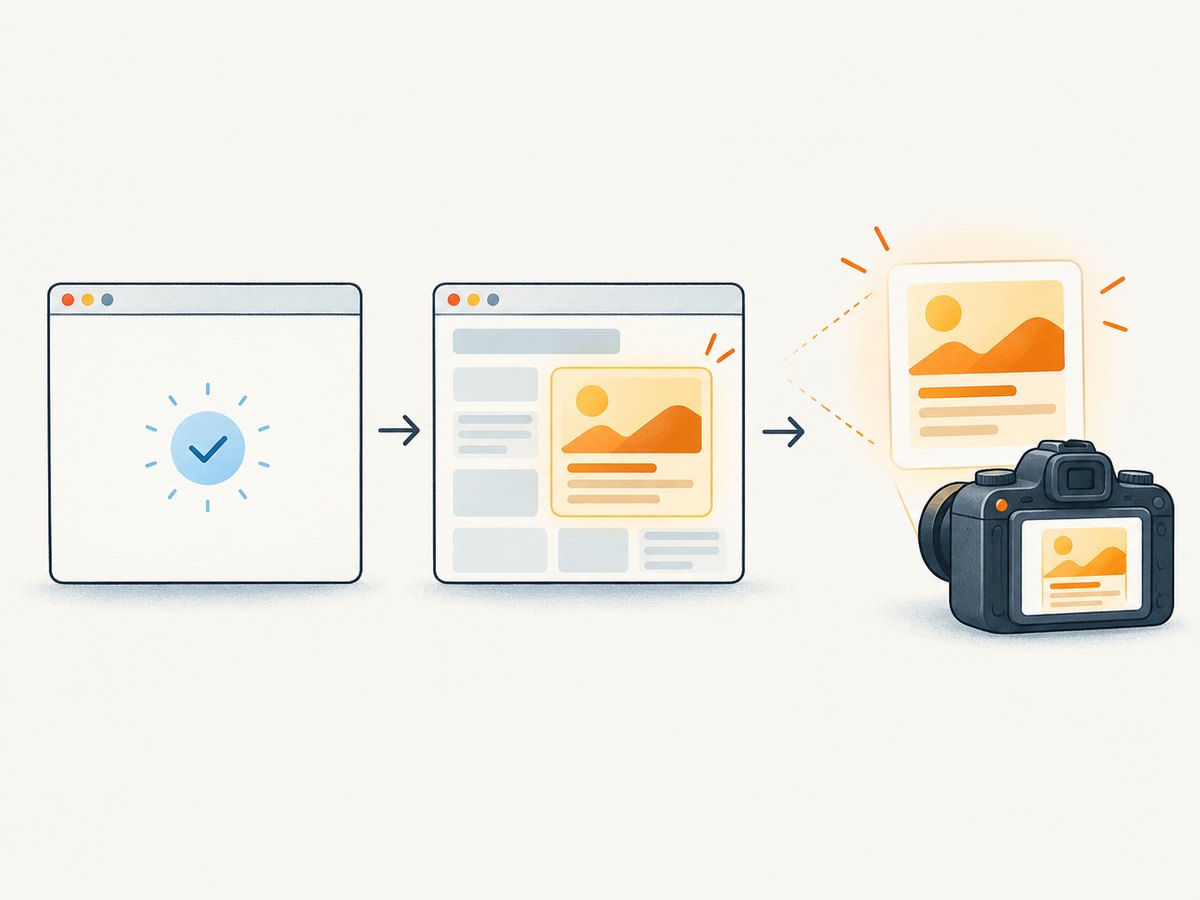
Use await page.waitForSelector() before the screenshot call. It waits for a matching selector to appear, and with { visible: true } it also waits until the element is not hidden by display: none or visibility: hidden. For an element-only image, call screenshot() on the returned element handle; for the whole page, wait for the element and then call page.screenshot().
This pattern handles pages where navigation finishes before client-rendered content is ready. A navigation condition such as networkidle2 can help, but it does not prove that a particular element exists or contains the data you want to capture.
1. Wait for the element and capture it
Install Puppeteer in a Node.js project with npm install puppeteer. The following ES module example navigates to a page, waits up to 30 seconds for a visible report, saves just that element as a PNG, and closes the browser even if navigation or capture fails:
import puppeteer from 'puppeteer';

const url = 'https://example.com/dashboard';
const selector = '#report';
const browser = await puppeteer.launch();

try {
  const page = await browser.newPage();
  await page.goto(url, { waitUntil: 'networkidle2' });

  const report = await page.waitForSelector(selector, {
    visible: true,
    timeout: 30_000,
  });

  if (!report) {
    throw new Error(`No element matched ${selector}`);
  }

  await report.screenshot({ path: 'report.png' });
} catch (error) {
  console.error(`Screenshot failed for ${url} (${selector}):`, error);
  process.exitCode = 1;
} finally {
  await browser.close();
}
Replace the URL and selector with your page and target. This code uses the documented 30-second default explicitly so the timeout policy is visible during review. If you omit timeout, waitForSelector() also defaults to 30 seconds. A timeout failure throws; it is not a signal that Puppeteer silently captured an empty image.
What the wait guarantees
- Without options, Puppeteer waits for the selector to exist in the DOM. It returns immediately if it already exists.
- With
visible: true, the element must also be visible: it cannot havedisplay: noneorvisibility: hidden. - The returned element handle lets you act on or capture the matched element. Check it before use if your flow permits a wait without a match, such as when using options that wait for hidden or detached states.
- The wait works across navigations, which is useful when the page changes while an automation flow is running.
Visibility is not the same as readiness. A visible report container may still be empty, show a loading indicator, or contain only part of its eventual content. Choose a condition that corresponds to the actual state you intend to capture.
2. Choose the right capture scope
The wait determines when to capture; the screenshot method and options determine what goes into the file.

| Goal | Pattern | What it captures |
|---|---|---|
| Only the matched element | handle.screenshot() |
The element’s rendered bounds |
| Entire page after a target is ready | page.screenshot({ fullPage: true }) |
The full page, with the selector serving as the readiness gate |
| Fixed rectangle | page.screenshot({ clip: { x, y, width, height } }) |
The specified page coordinates |
Full-page screenshot after an element appears
await page.goto('https://example.com/dashboard', {
  waitUntil: 'networkidle2',
});

await page.waitForSelector('#report', {
  visible: true,
  timeout: 30_000,
});

await page.screenshot({
  path: 'dashboard.png',
  fullPage: true,
});
fullPage: true changes the capture area; it does not wait for lazy content lower down the page to render. If the page loads sections or images only as they enter the viewport, define and wait for the relevant readiness condition before capturing.
Clipped region and image settings
For a fixed rectangle, supply a clip with coordinates and dimensions. Screenshot options also include path, output type, JPEG quality, omitBackground, and captureBeyondViewport. Use options that fit the output: quality applies to JPEG, while PNG is useful when lossless output or transparency matters. Check the Puppeteer screenshot options documentation for the exact constraints for your installed version.
await page.screenshot({
  path: 'region.jpeg',
  type: 'jpeg',
  quality: 85,
  clip: { x: 120, y: 180, width: 900, height: 520 },
});
3. Match the wait to the page’s rendering behavior
Navigation idle is only a broad heuristic
page.goto() supports navigation wait conditions, including networkidle2. This can be a useful broad signal after navigation. Keep the selector wait: a single-page application can finish a navigation while rendering the report afterward, and an idle network does not establish that #report is present.
await page.goto('https://example.com/dashboard', {
  waitUntil: 'networkidle2',
});
await page.waitForSelector('#report', { visible: true });
Some pages maintain background requests or polling, so waiting for network idle may take longer than the content you need. If navigation itself does not need to wait for idle, use an appropriate lighter navigation condition, then gate the screenshot on the target’s state.
Wait for content, not just a container
If the container appears before its data, wait for a result node or a state marker that means the page is ready. For example, if the application adds a .loaded class only after populating the report:
await page.waitForSelector('#report.loaded', {
  visible: true,
  timeout: 30_000,
});
await page.locator('#report').screenshot({ path: 'report.png' });
Alternatively, express a page-specific condition with page.waitForFunction(). The predicate should check a meaningful completion signal, such as a non-empty result list or the disappearance of a known loading marker. Avoid checking only that an arbitrary number of milliseconds passed: slow runs can still be too early, while fast runs waste time.
await page.waitForFunction(() => {
  const report = document.querySelector('#report');
  return report && report.querySelectorAll('.result-row').length > 0;
}, { timeout: 30_000 });

await page.locator('#report').screenshot({ path: 'report.png' });
The example assumes the page exposes .result-row elements when data is ready. Replace that test with a condition grounded in the application’s DOM. Puppeteer’s current locator API can take a screenshot directly; the returned handle pattern shown earlier is also documented in the screenshots guide.
Set a reusable timeout
Use a per-wait timeout when one selector has different timing requirements from the rest of the script. For a consistent policy, set a page-wide default:
page.setDefaultTimeout(20_000);
await page.waitForSelector('#report', { visible: true });
Set timeout: 0 to disable the wait timeout. That can be appropriate only when an outer job supervisor imposes its own deadline; otherwise a missing element can hold the browser process indefinitely.
4. Troubleshoot missing or premature screenshots
| Symptom | Likely cause | Fix |
|---|---|---|
waitForSelector times out |
The selector is wrong, the target never rendered, or the requested visibility condition was not met. | Inspect the live DOM and selector in DevTools. Confirm the page reached the expected state; adjust the timeout to observed load behavior. |
| The screenshot has a spinner or empty panel | The element became visible before its content finished loading. | Wait for a result node, loaded class, or other application-specific ready condition. |
| The page capture is blank or wrong | The script captured after navigation but before the app rendered, or used an overly broad condition. | Wait for the specific target and verify the URL/frame before capturing. |
| The selector works in DevTools but not Puppeteer | The element may be inside an iframe or shadow root, rather than the main document. | Use the appropriate frame context for iframe content. For shadow DOM, use Puppeteer’s supported selector syntax and verify it against the installed version. |
| The run takes much longer than expected | A network-idle wait may be held up by continuing requests, or the target wait is too generous. | Use navigation waiting only as needed; keep a bounded selector or readiness wait. |
| Capture fails after a successful wait | The element may have been detached or changed between matching and screenshotting. | Wait for a stable state, reacquire the target immediately before capture, and log the URL and selector for diagnosis. |
For useful timeout diagnostics, log the URL, selector, and chosen timeout. If you catch an error to save a fallback page image, make the fallback explicit in logs so an incomplete capture is not mistaken for a successful element screenshot. Avoid swallowing the timeout and proceeding as though the target were ready.
Selectors can be CSS and Puppeteer also documents text, accessibility role/name, XPath, and combinations that cross shadow roots. When a plain CSS selector fails, first establish which document context owns the target. An iframe’s content is a separate frame; a shadow-root child is not selected like an ordinary light-DOM descendant.
5. Reliability, speed, and cost considerations
Browser startup, navigation, page scripts, image decoding, and output encoding all contribute to screenshot latency. Reuse a browser process for multiple captures when the surrounding application can manage isolated pages safely; always close pages and browsers at the appropriate lifecycle boundary. Keep waits tied to actual readiness, since a long fixed sleep increases every run’s latency without making the condition more reliable.
Set finite timeouts and an outer job deadline for unattended jobs. Record timeout, navigation, and screenshot failures separately, and retain the requested URL and selector in diagnostics. If a page is unreliable, retry only failures that are plausibly transient and bound the number of retries; a permanently wrong selector will not be repaired by repeated attempts.
Each local capture consumes browser CPU and memory, and full-page images can be large. Limit concurrency according to available resources, particularly when pages are long or image-heavy. Choose JPEG quality when smaller lossy output is acceptable; use PNG where lossless detail or transparency is needed. There is no single useful latency or resource benchmark for all sites: scripts, network conditions, page size, and machine capacity vary.
6. Or skip the browser setup
If you need a screenshot API rather than managing Chromium, ScreenshotNeo is the direct option to consider: one GET request returns a screenshot or PDF, and its API accepts CSS selectors for element capture. See the ScreenshotNeo API documentation for the available parameters.
curl -G "https://api.screenshotneo.com/v1/shot" \
  -d access_key=YOUR_API_KEY \
  --data-urlencode url=https://stripe.com \
  -o shot.webp
For a Python caller:
import requests

r = requests.get(
    "https://api.screenshotneo.com/v1/shot",
    params={"access_key": "YOUR_API_KEY", "url": "https://stripe.com"},
    timeout=90,
)
open("shot.webp", "wb").write(r.content)
For Node.js:
const q = new URLSearchParams({
  access_key: 'YOUR_API_KEY',
  url: 'https://stripe.com',
});
const res = await fetch(`https://api.screenshotneo.com/v1/shot?${q}`);
if (!res.ok) throw new Error(`Screenshot request failed: ${res.status}`);
await import('node:fs/promises').then(({ writeFile }) =>
  writeFile('shot.webp', Buffer.from(await res.arrayBuffer()))
);
Set YOUR_API_KEY to your account key and replace the target URL. The product’s documented API supports selector capture and a wait for a selector, delay, or network idle; use those options when the target is rendered dynamically. The service accepts cookie or consent banners as a visitor and removes more than 60 known consent platforms, newsletter popups, and chat widgets before capture; each cleanup step can be turned off. Bot checks/CAPTCHAs, blank pages, timeouts, failed loads, and cache hits are not billed, and response headers identify the page verdict and billing status. An MCP server offers take_screenshot, get_page_info, and capture_pdf for Claude, Cursor, and other MCP clients. The free plan includes 1,000 screenshots per month with no card; paid plans start at $5 for 3,000.
Sign up for ScreenshotNeo’s free plan: 1,000 screenshots a month, no card required.
7. Frequently asked questions
Does waitForSelector() wait if the element is already on the page?
Yes. It returns immediately when the selector already matches and the requested conditions are satisfied.
Should I use waitForSelector or a fixed delay?
Use a selector or page condition that represents readiness. A fixed delay can be too short on a slow run and unnecessarily long on a fast one.
Can I wait for an element and still save the whole page?
Yes. Await the target wait first, then call page.screenshot({ fullPage: true }). The wait does not limit the screenshot to that element.
What if the page uses an iframe or shadow DOM?
Locate the target in its actual browsing context. Work with the iframe’s frame for iframe content, and use Puppeteer’s supported shadow-root selector syntax where the target is inside a shadow root.


