How to Wait for a Webpage to Fully Load Before Taking a Puppeteer Screenshot
Wait for the page state your screenshot needs: use a navigation milestone for basic pages and an app-specific readiness signal for dynamic content.
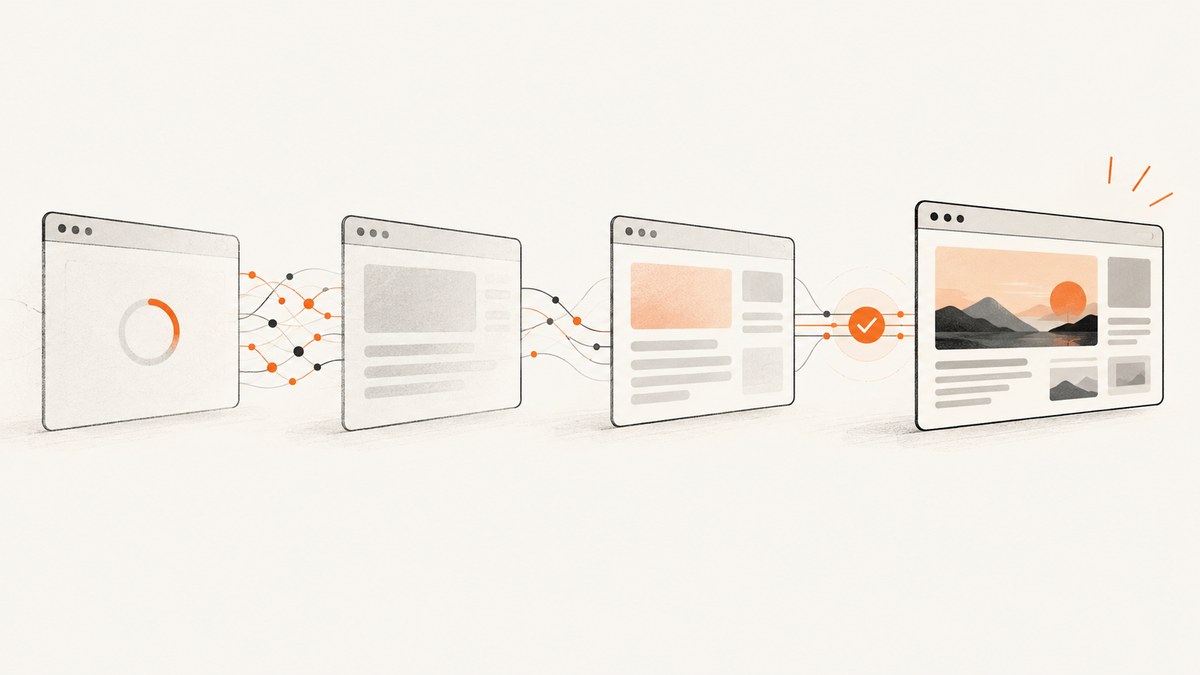
To wait for a webpage before taking a Puppeteer screenshot, first choose a signal that matches what needs to appear in the image. For a basic page, navigate with waitUntil: 'networkidle2', then call page.screenshot(). For a client-rendered page, wait for a meaningful application-specific selector or state after navigation. No browser event guarantees that every page is visually finished: network quiet is a useful heuristic, while a page-specific readiness condition is more precise.
Puppeteer’s screenshot guide demonstrates networkidle2 followed by page.screenshot() (official screenshot guide). This guide explains how to choose and combine wait conditions, handle timeouts, capture full pages or elements, and keep automated captures reliable.
1. Choose a wait condition that matches the page
The navigation waitUntil option determines which lifecycle condition must occur before page.goto() resolves. Puppeteer documents the navigation options in its Page API. Choose based on the page and the visual content you need:

| Condition | What it waits for | Useful for | What it does not guarantee |
|---|---|---|---|
domcontentloaded |
The initial HTML has been parsed and the DOMContentLoaded event fired. | Client-rendered applications where you will wait for a specific app signal next. | Images, later scripts, data requests, or rendering to be finished. |
load |
The page load lifecycle event. | Basic pages where the resources needed for the image are part of the initial load. | That asynchronously fetched app data or later visual changes are complete. |
networkidle2 |
Navigation reaches Puppeteer’s network-idle condition. | A practical starting point for pages that settle after their initial requests. | That the page will not change later, or that app content is correct. |
networkidle0 |
Navigation reaches the network-idle condition with no active connections under that lifecycle criterion. | Pages where waiting for stricter network quiet is appropriate. | That all network-dependent apps will ever become quiet; analytics, polling, or streaming can keep activity going. |
Use one or more lifecycle conditions by passing a string or array in waitUntil. Combining conditions means waiting for all supplied conditions, so a stricter combination may take longer or time out. A common default is networkidle2; for app-rendered pages, pair domcontentloaded with a selector or JavaScript condition that expresses readiness.
2. Run a complete Puppeteer screenshot script
Install Puppeteer in a Node.js project with npm install puppeteer. This script opens a URL, waits for network quiet, writes a full-page PNG, reports errors, and closes the browser even if navigation or capture fails:
const puppeteer = require('puppeteer');

async function main() {
  const url = process.argv[2] || 'https://example.com';
  const browser = await puppeteer.launch({headless: true});

  try {
    const page = await browser.newPage();
    await page.setViewport({width: 1440, height: 900, deviceScaleFactor: 1});
    page.setDefaultNavigationTimeout(45_000);
    page.setDefaultTimeout(15_000);

    await page.goto(url, {
      waitUntil: 'networkidle2',
      timeout: 45_000,
    });
    await page.screenshot({path: 'page.png', fullPage: true});
    console.log('Saved page.png');
  } finally {
    await browser.close();
  }
}

main().catch(error => {
  console.error('Screenshot failed:', error);
  process.exitCode = 1;
});
Save it as screenshot.js and run node screenshot.js https://example.com. The timeout is a limit for the navigation wait, not a promise that the page is complete by that time. If it expires, treat the capture as failed readiness and investigate; do not silently take a screenshot of an unknown intermediate state.
3. Wait for an application-specific ready signal
For a single-page app, a DOM milestone or network quiet can happen before the content you care about is rendered. Ask the application to expose a stable marker where possible, then wait for it:
await page.goto(url, {waitUntil: 'domcontentloaded', timeout: 45_000});
await page.waitForSelector('[data-page-ready="true"]', {
  visible: true,
  timeout: 20_000,
});
await page.screenshot({path: 'ready-page.png', fullPage: true});
The selector is an example; replace it with a marker that the target page actually provides. waitForSelector can wait for an element and, with visible: true, for it to be visible. An element appearing is only as good a readiness signal as its meaning: a header can exist while the chart or article body is still loading.
If readiness is expressed as a JavaScript condition, use waitForFunction:
await page.goto(url, {waitUntil: 'domcontentloaded'});
await page.waitForFunction(() => {
  return document.querySelectorAll('.result-card').length > 0 &&
    document.querySelector('[aria-busy="true"]') === null;
}, {timeout: 20_000});
await page.screenshot({path: 'results.png', fullPage: true});
Keep the condition tied to the actual visual requirement. For example, wait for a results list to contain the expected number of items, a loading indicator to disappear, or a known application flag to change. The condition runs in the browser page context, so it can inspect the DOM but should not depend on Node.js variables unless they are passed using the API’s supported arguments.
4. Add a separate network-idle wait when it helps
page.waitForNetworkIdle() is available as a separate wait after another navigation milestone. Puppeteer documents idleTime (default 500 milliseconds) and concurrency (default 0) in its network-idle options reference. The method waits at least the configured idle time and resolves once network activity meets the configured criteria (method reference).
await page.goto(url, {waitUntil: 'domcontentloaded', timeout: 45_000});
await page.waitForNetworkIdle({
  idleTime: 750,
  concurrency: 0,
  timeout: 15_000,
});
await page.waitForSelector('[data-page-ready="true"]', {visible: true});
await page.screenshot({path: 'settled.png'});
Use this as a second heuristic, not as a universal definition of completion. A page with polling, analytics, long-lived connections, or background refreshes might never become idle. If your application has a ready marker, prefer it over repeatedly increasing an idle timeout. Raising concurrency changes how many simultaneous connections are tolerated by the idle condition; it does not confirm that a particular component has rendered.
5. Wait for images, fonts, and layout when they matter
A page can reach network quiet and still show a layout that is not suitable for your capture. Lazy images may load only when scrolled into view, and fonts or animations can change layout after the initial lifecycle event. Make these requirements explicit.
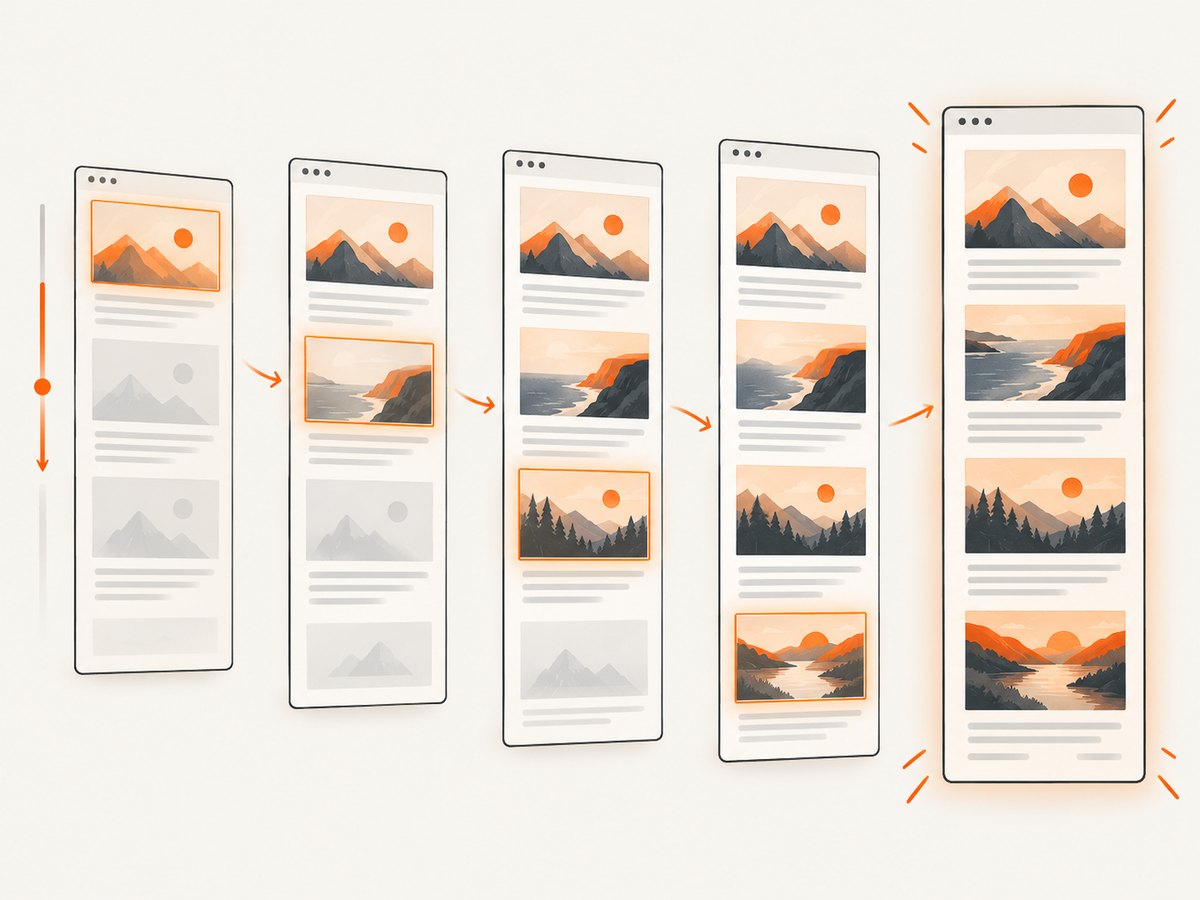
Load lazy images for a full-page capture
When capturing a long page, scroll through it to trigger viewport-based lazy loading, then return to the top and capture. This pattern is suitable for ordinary document scrolling; pages with custom scroll containers may need their own handling.
await page.goto(url, {waitUntil: 'networkidle2'});
await page.evaluate(async () => {
  const step = Math.max(window.innerHeight, 400);
  for (let y = 0; y < document.body.scrollHeight; y += step) {
    window.scrollTo(0, y);
    await new Promise(resolve => setTimeout(resolve, 100));
  }
  window.scrollTo(0, 0);
});
await page.waitForNetworkIdle({idleTime: 500, concurrency: 0});
await page.screenshot({path: 'full.png', fullPage: true});
The bounded per-step delay gives the page a chance to respond to scrolling; it is not a guarantee that every lazy-loading implementation will finish. For known pages, wait for the specific images or an application marker, and check the output when changing this flow.
Wait for fonts explicitly
Puppeteer’s PDF guide says Page.pdf() waits for fonts by default, but do not transfer that promise to screenshots. The screenshot API documentation does not document an equivalent automatic font wait. If typography affects the result, ask the page to wait for the Font Loading API:
await page.goto(url, {waitUntil: 'networkidle2'});
await page.evaluate(async () => {
  if (document.fonts) await document.fonts.ready;
});
await page.screenshot({path: 'font-ready.png'});
This resolves the document’s current font-loading set; it does not prevent later changes caused by scripts or a new stylesheet. For a highly dynamic page, combine it with the app’s readiness condition.
Freeze animation only when a stable frame is required
For repeatable visual comparisons, disable animations through a page stylesheet or the screenshot options supported by your installed Puppeteer version. Do this intentionally: disabling animation changes what the user would normally see. A short delay can help with a known transition, but arbitrary sleeps are fragile because fast pages waste time and slow pages can still be incomplete.
6. Capture one element instead of the whole page
When the image should contain only a chart, card, or other component, wait for that element and capture its handle. Puppeteer’s official guide includes element screenshots after waitForSelector (Screenshots).
await page.goto(url, {waitUntil: 'domcontentloaded'});
const chart = await page.waitForSelector('#chart[data-rendered="true"]', {
  visible: true,
  timeout: 20_000,
});
if (!chart) throw new Error('Chart did not appear');
await chart.screenshot({path: 'chart.png'});
For interactions, Puppeteer locators can wait for visibility and, for relevant actions, a stable bounding box across two animation frames. Those checks help ensure the target is ready for the interaction; they do not prove the entire page is complete. See the page interactions guide.
7. Troubleshoot incomplete screenshots
| Symptom | Likely cause | Fix |
|---|---|---|
| Blank or nearly blank screenshot | Screenshot ran after an early lifecycle event, before the app rendered, or the navigation failed. | Wait for a page-specific visible marker after navigation. Log the final URL and page errors; treat navigation timeout as failure. |
| Missing cards, data, or text | Client-side request or rendering finished after the chosen wait. | Wait for a selector or app condition that reflects the required content, optionally followed by a bounded network-idle wait. |
| Images are empty in a full-page screenshot | Lazy loading did not trigger outside the viewport, or image requests failed. | Scroll through the page, wait for relevant image elements or app readiness, then re-check. Handle custom scroll containers separately. |
Navigation times out at networkidle0 or networkidle2 |
Persistent requests, polling, analytics, streaming, or service behavior prevents the selected quiet state. | Navigate with domcontentloaded or load, then wait for the content signal that matters. Increase the timeout only if the page legitimately needs more time. |
| Selector wait times out | The selector is wrong, appears in a frame, is hidden, or is never produced on an error path. | Inspect the rendered DOM and selector spelling; account for iframes; decide whether visibility is required; surface application errors instead of suppressing the timeout. |
| Text wraps or layout shifts in the image | Web fonts, images, or late layout updates changed dimensions. | Wait for document.fonts.ready and the relevant image/component state before capture. |
| Screenshot differs between runs | Dynamic ads, timestamps, rotating content, animations, or viewport differences. | Set a fixed viewport and device scale factor, use a deterministic test URL or application state, and disable known animations only when appropriate. |
| Browser process hangs or memory grows | Pages or browser instances are not closed, or many full-page captures run concurrently. | Close pages and browsers in finally blocks; limit concurrency and measure memory for tall pages. |
During diagnosis, listen for page errors and failed requests, and inspect the output file rather than assuming a resolved wait produced the intended view:
page.on('pageerror', error => console.error('Page error:', error.message));
page.on('requestfailed', request => {
  console.error('Request failed:', request.url(), request.failure()?.errorText);
});
8. Reliability, speed, and cost considerations
Every extra condition improves confidence only if it measures something relevant. A good sequence is: navigate to a sensible lifecycle milestone, wait for a meaningful content signal, then capture. Avoid stacking long generic waits without a reason. Set finite navigation and selector timeouts so a broken page does not stall a job indefinitely, and record the failing URL and wait step for later diagnosis.
Network-idle waits and arbitrary delays increase capture latency. Full-page screenshots can require more rendering work and memory than viewport captures, particularly on very tall pages; limit parallel jobs if the browser process becomes memory constrained. Reuse browser processes carefully for batches, while creating isolated pages or contexts appropriate to the data and session boundaries. Close each page when finished.
With local Puppeteer, there is no per-screenshot API charge from Puppeteer itself, but you operate the browser runtime and its compute, memory, and maintenance. Factor in the cost of retries and slow pages when estimating job capacity. A timeout should be observable as a failed capture rather than quietly converted into an incomplete image.
Or skip the browser setup
ScreenshotNeo is a website screenshot API and MCP server. Its API takes a URL and returns an image or PDF. For a one-call WebP capture:
curl -G "https://api.screenshotneo.com/v1/shot" -d access_key=YOUR_API_KEY --data-urlencode url=https://stripe.com -o shot.webpSee the ScreenshotNeo API documentation for the request options. Python and Node.js examples using the same endpoint:
import requests

r = requests.get(
    "https://api.screenshotneo.com/v1/shot",
    params={"access_key": "YOUR_API_KEY", "url": "https://stripe.com"},
    timeout=90,
)
open("shot.webp", "wb").write(r.content)
const q = new URLSearchParams({
access_key: 'YOUR_API_KEY',
url: 'https://stripe.com',
});
const res = await fetch(`https://api.screenshotneo.com/v1/shot?${q}`);
if (!res.ok) throw new Error(`Screenshot request failed: ${res.status}`);
await require('node:fs/promises').writeFile('shot.webp', Buffer.from(await res.arrayBuffer()));Cookie banners, popups, and chat widgets are removed before the shot. Bot checks, blank pages, and failed loads are never billed. An MCP server lets AI agents take screenshots. The Free plan includes 1,000 screenshots a month with no card; paid plans start at $5 for 3,000. Sign up for 1,000 free screenshots a month, no card required.
9. Quick checklist
- Choose a navigation milestone that matches the page rather than assuming one event means visual completion.
- For client-rendered content, wait for an application-specific selector or state.
- Use network idle as a heuristic and account for persistent requests.
- Wait explicitly for lazy images or fonts when they affect the screenshot.
- Set finite timeouts, report failed waits, and close browser resources in a cleanup path.
- Inspect the screenshot when changing the readiness logic.
FAQ
Should I use networkidle0 or networkidle2?
Use the one that fits the page’s request behavior. The screenshot guide shows networkidle2 as an example. If persistent activity prevents either condition, wait for a page-specific signal instead.
Does network idle mean the page is fully loaded?
No. It means network activity met Puppeteer’s configured idle criteria for the required period. Timers, rendering, later user-driven behavior, and app updates can still change the page.
Is a fixed delay ever useful?
Yes, for a known page behavior with a bounded, understood delay. It is not a general readiness guarantee; prefer an observable condition when one exists.
Does Puppeteer wait for fonts before a screenshot?
The reviewed screenshot documentation does not make the font-wait guarantee documented for PDF generation. If fonts matter, wait for document.fonts.ready.
Can a visible locator prove the whole page is ready?
No. It can help establish that a target element is visible or stable for an interaction. Choose a condition that represents the content the screenshot must include.


