How to Wait for Google Captcha to Appear in Puppeteer
Wait for a reCAPTCHA element or frame in Puppeteer instead of guessing with a fixed delay. For owned sites, use Google’s test keys and a stable readiness signal.

To wait for Google reCAPTCHA in Puppeteer, wait for the page state your test needs: a host-page element, a visible widget selector, or a matching iframe. For example, if the integration creates a reCAPTCHA iframe, use page.waitForFrame() with a predicate matching its URL. Use a 10-second timeout as a starting point and handle timeout as a test result. A fixed sleep only delays the test; it does not prove the widget is ready.
These examples are for pages you own or are authorized to test. reCAPTCHA is an anti-abuse service. For an owned integration, Google’s documented test keys are the right way to test verification; do not try to defeat a live challenge.
1. Choose the condition that means “ready”
There is no universal “CAPTCHA appeared” event in Puppeteer. The right wait depends on the reCAPTCHA version and how the site renders it:
| What your test needs to observe | Wait method | Good fit |
|---|---|---|
| A stable element in the page | page.waitForSelector() |
The app renders a host-owned container, status marker, or known widget element. |
| A frame was attached | page.waitForFrame() |
The integration creates an iframe and the test needs to observe that frame. |
| The app’s integration is initialized | An app-owned callback, test hook, or DOM marker | You control the page and can expose a signal that does not depend on third-party markup. |
A selector wait against the main page does not search inside a cross-origin iframe. If the thing you need is inside the frame, first wait for the frame and then inspect its URL or use the frame APIs only where browser security and the integration permit it. Avoid coupling a test to generated Google markup when your own page can expose a stable signal.
2. Wait for a visible widget selector
For a visible checkbox integration that creates an iframe whose URL contains recaptcha, a concise wait is:
const captchaFrameElement = await page.waitForSelector(
  'iframe[src*="recaptcha"]',
  { visible: true, timeout: 10_000 },
);

if (!captchaFrameElement) {
  throw new Error('reCAPTCHA iframe did not become visible');
}
waitForSelector() waits for a matching element. The visible option requires that it be present and visible; omit it if attachment alone is the condition under test. When the timeout expires before the selector matches, Puppeteer throws a timeout error. A selector such as iframe[src*="recaptcha"] is only an example: adapt it to your integration and treat third-party markup as potentially changeable.
3. Wait for the frame itself
If the test is specifically about frame creation, use Puppeteer’s frame wait:
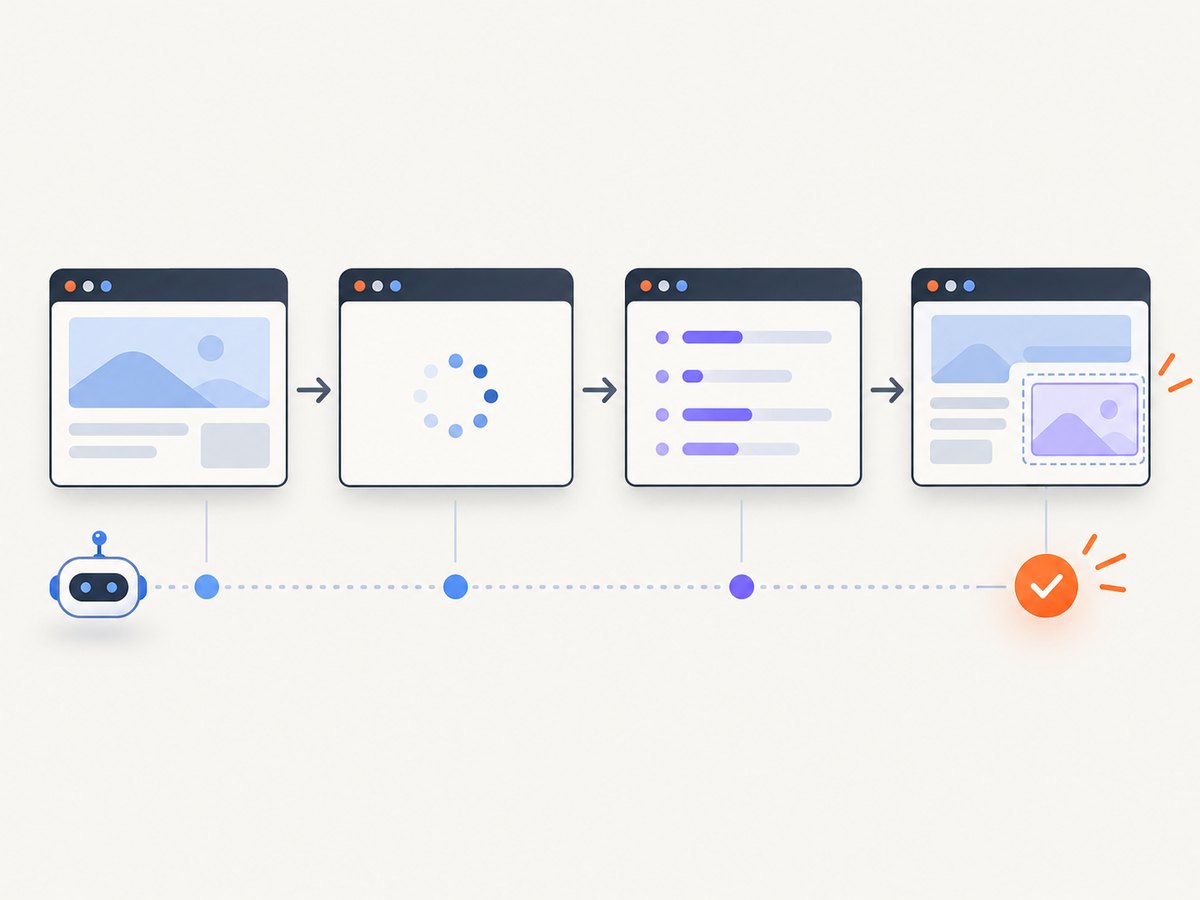
const captchaFrame = await page.waitForFrame(
  frame => frame.url().includes('recaptcha'),
  { timeout: 10_000 },
);

console.log('Observed frame:', captchaFrame.url());
This condition is clearer than waiting for a generic delay: it completes when a frame matching the predicate is available, or throws on timeout. The predicate should be as specific as the site permits. If unrelated frames could match, narrow the condition based on the expected integration URL. Do not assume a matching frame means a challenge is displayed or that the user interaction is complete; it means the frame condition you asked for was met.
4. Complete runnable Puppeteer example
The following CommonJS script visits a page you control and waits for a matching reCAPTCHA frame. Install Puppeteer in your project with npm install puppeteer, save the script as wait-for-recaptcha.cjs, and provide the authorized test URL in the environment.
const puppeteer = require('puppeteer');

async function main() {
  const targetUrl = process.env.TARGET_URL;
  if (!targetUrl) {
    throw new Error('Set TARGET_URL to a page you own or are authorized to test');
  }

  const browser = await puppeteer.launch({ headless: true });
  try {
    const page = await browser.newPage();
    page.setDefaultTimeout(10_000);

    await page.goto(targetUrl, { waitUntil: 'domcontentloaded' });

    try {
      const frame = await page.waitForFrame(
        candidate => candidate.url().includes('recaptcha'),
        { timeout: 10_000 },
      );
      console.log('reCAPTCHA frame appeared:', frame.url());
    } catch (error) {
      if (error.name === 'TimeoutError') {
        console.error(
          'No matching frame appeared. Check route configuration, trigger conditions, and test keys.',
        );
        process.exitCode = 2;
      } else {
        throw error;
      }
    }
  } finally {
    await browser.close();
  }
}

main().catch(error => {
  console.error(error);
  process.exitCode = 1;
});
Run it with TARGET_URL=https://your-test-site.example/form node wait-for-recaptcha.cjs, substituting your own test page. The script waits for DOM content before observing frames, uses a bounded timeout, and closes the browser even if navigation or the wait fails. It reports a missing frame as a distinct outcome so your CI job can identify an integration or configuration issue.
5. Use Google’s supported test setup for your own integration
For a site you control, test keys avoid depending on live anti-abuse decisions. Google’s reCAPTCHA FAQ says that for v2 the test keys show no CAPTCHA and pass verification requests; the widget displays a warning so the keys are not used for production traffic. For v3, Google recommends a separate testing key and cautions that test scores may not be accurate because v3 relies on real traffic. See the Google reCAPTCHA FAQ.
That has an important implication for the test: a successful v2 test-key integration may not render the visible challenge your selector expects. Test that your page loads and integrates the widget using the supported test configuration, and reserve a visible-widget assertion for an environment and configuration designed to render it. Do not make a production challenge the only way to test your form.
6. Coordinate asynchronous loading
The reCAPTCHA script may load asynchronously. Google’s loading guide explains that functions must not be used until the script has finished loading and documents grecaptcha.ready() and, for v2, an onload callback pattern. If you own the page, an app-owned readiness marker set by that callback is often more stable than inspecting internal iframe details.
A simplified page-side pattern for a site you control is to set a marker after the documented ready callback runs, then have Puppeteer wait for that marker. The exact callback wiring depends on your page’s script-loading configuration:
// In your application code, after the integration is ready:
window.__recaptchaReady = true;

// In the Puppeteer test, after navigation:
await page.waitForFunction(
  () => window.__recaptchaReady === true,
  { timeout: 10_000 },
);
Keep such hooks test-only if they reveal implementation state that should not be exposed in production. A readiness marker means the integration initialized; it does not mean a challenge appeared, a token was issued, or server-side verification succeeded. Test those separate outcomes at the appropriate layer.
7. Avoid fixed sleeps and misleading readiness signals
await page.waitForTimeout(5000) always spends five seconds and still cannot establish that a widget appeared. On a fast run, the delay wastes time; on a slow run, the widget may still be absent. Use it only when the behavior under test is itself time-based, not as a substitute for an observable readiness condition.
Likewise, networkidle is not synonymous with “reCAPTCHA ready.” The page can have ongoing requests, or the relevant frame can appear after a general network-idle event. Wait for the particular host element, frame, or owned readiness signal your test requires. Puppeteer’s Page API documentation covers selector waits, frame waits, navigation, and other page operations.
8. Troubleshooting
| Symptom | Likely cause | Fix |
|---|---|---|
waitForSelector times out |
The route does not render a visible iframe, the selector does not match this version, or the integration is not triggered on that page. | Inspect the page you own, confirm the widget configuration and route, then wait on a stable host element or use a test hook. |
waitForFrame times out |
The script did not load, the frame has a different URL pattern, or test keys/configuration do not show a visible challenge. | Check script loading and key type, and confirm the expected frame condition for the configured integration. |
| The wait passes, but no challenge is visible | A frame can exist without a visible challenge; some integrations do not present a checkbox challenge on every visit. | Assert the state your test actually requires. Do not equate iframe presence with challenge display. |
| The wait is flaky in CI | The test depends on generated third-party markup, an arbitrary sleep, or a live anti-abuse response. | Prefer Google’s test keys for owned integration tests and a page-owned readiness signal. Keep a bounded timeout and log the route and observed frames. |
| reCAPTCHA functions are undefined | The asynchronous script has not loaded before the call. | Use Google’s documented ready callback or onload pattern, then signal readiness to the test. |
| The test sees an automated-query warning | The service may be treating the traffic as automated. | For your own app, use documented test configuration. If a real user sees this warning, consult Google’s automated queries help page; do not try to bypass it. |
9. Reliability, runtime, and cost
State-based waits improve reliability because the test succeeds when its condition is observed and fails within a known time budget otherwise. Set the timeout to match your CI environment and the expected page performance; too short creates avoidable flakes, while very long waits delay diagnosis. Keep navigation and widget readiness as separate steps so a navigation failure is not mistaken for a missing widget.
Browser automation has setup and runtime costs: a browser process consumes memory and CPU, and opening one browser per test can add startup time. Reuse a browser process across isolated test pages when your test runner supports it, close pages and browsers deterministically, and avoid unnecessary full-page waits. This implementation question has no meaningful universal benchmark or fixed cost figure; measure your own pipeline and use test keys so results do not depend on live challenge behavior.
10. Or skip the browser setup
If your goal is a page screenshot rather than a Puppeteer test of reCAPTCHA readiness, ScreenshotNeo offers a one-request screenshot API. Its capture flow accepts cookie and consent banners and removes more than 60 known consent platforms, newsletter popups, and chat widgets before the shot; each step can be turned off. Bot checks/CAPTCHAs, blank pages, failed loads, timeouts, and cache hits are not billed, and the response identifies page verdict and billing status in headers. ScreenshotNeo also has an MCP server with take_screenshot, get_page_info, and capture_pdf tools for AI agents. This is a screenshot service, not a way to test or bypass CAPTCHA behavior.
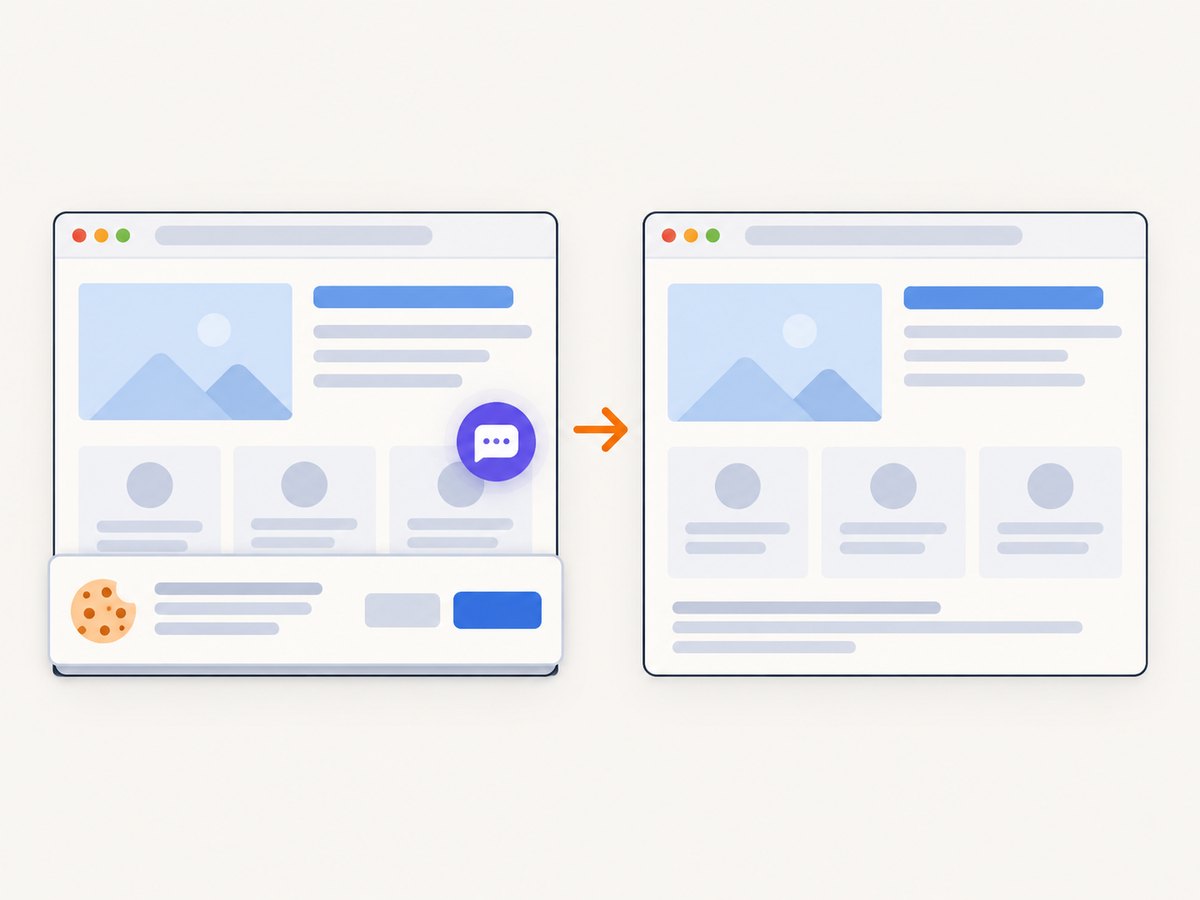
See the ScreenshotNeo API docs for the request details. This cURL command saves a WebP screenshot of the example URL:
curl -G "https://api.screenshotneo.com/v1/shot" \
  -d access_key=YOUR_API_KEY \
  --data-urlencode url=https://stripe.com \
  -o shot.webp
The same request in Python:
import requests

r = requests.get(
    "https://api.screenshotneo.com/v1/shot",
    params={"access_key": "YOUR_API_KEY", "url": "https://stripe.com"},
    timeout=90,
)
open("shot.webp", "wb").write(r.content)
And in Node.js:
const q = new URLSearchParams({
  access_key: 'YOUR_API_KEY',
  url: 'https://stripe.com',
});
const res = await fetch(`https://api.screenshotneo.com/v1/shot?${q}`);
if (!res.ok) throw new Error(`Screenshot request failed: ${res.status}`);
await require('node:fs/promises').writeFile('shot.webp', Buffer.from(await res.arrayBuffer()));
ScreenshotNeo includes 1,000 shots per month free with no card; paid plans start at $5 for 3,000 shots. Sign up for 1,000 free screenshots a month, with no card.
11. FAQ
Can Puppeteer wait until a CAPTCHA is solved?
This guide covers observing page readiness for authorized tests, not solving challenges. Test your own verification flow with Google’s documented test configuration.
Does every Google reCAPTCHA version create the same iframe?
No. A visible iframe selector is a useful example for some integrations, not a universal signal. Match the wait to the version and the page you control.
Should I use a longer timeout if the selector does not appear?
Only if you have evidence the expected state legitimately takes longer. First check whether the route, key configuration, script load, and trigger condition should create that state at all.
Can a screenshot tell me whether the widget is ready?
A screenshot can show visible page state, but it does not replace an application-level readiness or verification assertion in a Puppeteer test.


