How to Wait for HTML-to-PDF Conversion Before Exporting the PDF
Wait for navigation, fonts, and app-rendered content before generating a PDF—and await the PDF operation before saving or sending its bytes.
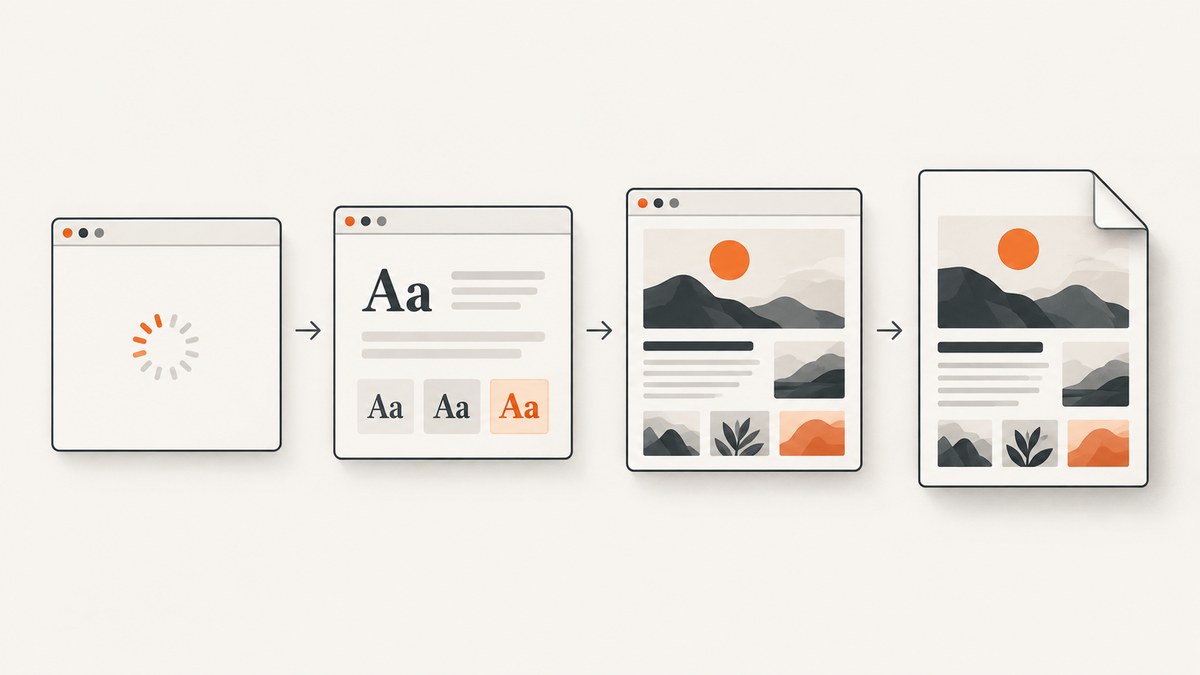
To avoid exporting a blank or incomplete PDF, wait for the page to reach the state your document needs, then await the PDF generation call before writing, downloading, or sending its result. These are separate waits: navigation completion does not guarantee that an app has finished rendering charts or data, and waiting for fonts does not signal that every JavaScript component is ready.
With Puppeteer, a basic navigated-page flow is await page.goto(url, { waitUntil: 'networkidle2' }) followed by await page.pdf(...). For dynamic pages, add an application-owned ready condition between those calls. Puppeteer’s PDF operation waits for fonts by default; its waitForFonts option waits for document.fonts.ready. Puppeteer’s PDF guide documents the navigation-and-PDF sequence, and its PDFOptions reference documents the font and output options.
1. What “finished” means
There is no single universal “HTML-to-PDF conversion is done” signal for every workflow. In browser automation, distinguish four stages:

- Navigation finished: the chosen lifecycle condition resolved. For example, Puppeteer’s guide uses
networkidle2. That is a browser lifecycle signal, not proof that your application has completed its own work. - Fonts are ready: the browser has resolved the document’s font readiness condition. Puppeteer enables
waitForFontsby default, which waits fordocument.fonts.ready. - Application content is ready: your chart, client-side data, custom elements, or other PDF-relevant content has rendered. Define a page-specific condition for this; there is no universal app-ready event supplied by navigation or font readiness.
- PDF generation finished: the awaited PDF method resolved and returned its bytes. Only then should you consume those bytes.
The practical sequence is: navigate, wait for your content condition if needed, set the intended media mode, call the PDF method, await it, then write or return the result.
2. Puppeteer: wait, generate, and save
This runnable Node.js example uses Puppeteer to print a URL to a file. Install Puppeteer in your project with npm install puppeteer, save the code as export-pdf.mjs, and run node export-pdf.mjs https://example.com.

import puppeteer from 'puppeteer';

const url = process.argv[2];
if (!url) throw new Error('Usage: node export-pdf.mjs <url>');

const browser = await puppeteer.launch({ headless: true });
try {
  const page = await browser.newPage();

  await page.goto(url, {
    waitUntil: 'networkidle2',
    timeout: 30_000,
  });

  const pdfBytes = await page.pdf({
    path: 'output.pdf',
    format: 'A4',
    printBackground: true,
    waitForFonts: true,
    timeout: 30_000,
  });

  console.log(`Wrote output.pdf (${pdfBytes.byteLength} bytes)`);
} finally {
  await browser.close();
}
page.pdf() returns a Promise<Uint8Array>. The await matters even when you provide a path: it ensures the operation has resolved before code proceeds to use its returned bytes or report completion. Avoid starting PDF generation without awaiting it and immediately closing the browser or returning a response; that can end the browser work before your application has consumed the result.
Wait for app-rendered content
For a page you control, expose a stable readiness flag only after all PDF-relevant rendering is complete. For instance, set window.readyForPdf = true after the data request, chart rendering, and any component setup that must appear in the output. Then wait for it before printing:
await page.goto(url, { waitUntil: 'networkidle2', timeout: 30_000 });

await page.waitForFunction(
  () => window.readyForPdf === true,
  { timeout: 15_000 },
);

const pdfBytes = await page.pdf({
  path: 'report.pdf',
  format: 'A4',
  printBackground: true,
  waitForFonts: true,
});
This waitForFunction pattern is an implementation example; check the API reference for your installed Puppeteer version if its signature differs. For a page you cannot modify, wait for a meaningful observable condition instead, such as a report container appearing or a loading marker disappearing. A selector becoming visible may prove that a container exists, but it does not necessarily prove that its contents are complete.
When a fixed delay is useful
A fixed delay can be a simple workaround when a third-party page exposes no readiness signal, but it is a weak completion test: a long delay wastes time on quick runs, while a short one can still finish before a slow render. Prefer a page condition that describes the content you need. If a delay is unavoidable, keep it bounded and treat it as a best-effort pause, not proof that the output is complete.
3. Puppeteer PDF options and print layout
Choose options according to the document rather than relying on defaults. Puppeteer’s documented PDF options include the following; check the reference for the version installed in your project because APIs and defaults can change.
| Option | Use | Practical note |
|---|---|---|
path |
Write the generated PDF to a file. | You can also use the returned bytes in your own storage or response flow. |
format |
Pick a named paper size, such as A4. |
Use explicit dimensions if your document requires a custom page size. |
landscape |
Print in landscape orientation. | Useful for wide tables and diagrams. |
margin |
Set page margins. | Check for overlap with headers, footers, and page content. |
printBackground |
Include background colors and images. | Without it, backgrounds may be omitted from print output. |
preferCSSPageSize |
Prefer page dimensions declared in CSS. | Useful when the document uses print styles and @page. |
pageRanges |
Print selected page ranges. | Confirm the content’s pagination before requesting a subset. |
timeout |
Bound PDF generation time. | The reference lists a default of 30,000 ms; set an intentional limit for your workload. |
waitForFonts |
Wait for document fonts before printing. | Documented as enabled by default. A page in the background may need to be brought to the front for font readiness to progress. |
page.pdf() uses print CSS by default. If the PDF should match screen styling, select screen media before calling it:
await page.emulateMediaType('screen');
const pdfBytes = await page.pdf({ printBackground: true });
Print output can adjust colors. Puppeteer points to the CSS property -webkit-print-color-adjust when exact color rendering is needed. For example, add print-specific rules to the page you control:
@media print {
  body {
    -webkit-print-color-adjust: exact;
  }
}
4. Playwright: await the PDF buffer
Playwright follows the same key rule: await PDF generation before using the returned buffer. Its documentation describes page.pdf() as returning a PDF buffer and using print media by default. Install with npm install playwright; the browser binaries may also need installation for your environment, following the official setup instructions.
import { chromium } from 'playwright';

const url = process.argv[2];
if (!url) throw new Error('Usage: node export-playwright.mjs <url>');

const browser = await chromium.launch({ headless: true });
try {
  const page = await browser.newPage();
  await page.goto(url, { waitUntil: 'networkidle', timeout: 30_000 });

  // If the page exposes an app-specific ready flag, wait for it here.
  // await page.waitForFunction(() => window.readyForPdf === true);

  const pdfBuffer = await page.pdf({
    path: 'output.pdf',
    format: 'A4',
    printBackground: true,
  });
  console.log(`Wrote output.pdf (${pdfBuffer.byteLength} bytes)`);
} finally {
  await browser.close();
}
Playwright’s navigation lifecycle names and behaviors should be checked against its installed version and the target page. The general design is unchanged: choose a navigation condition appropriate to the page, wait for app-specific readiness when required, then await page.pdf(). For screen media, use the documented media emulation API before the PDF call. See the Playwright Page PDF reference.
5. cURL, Python, and Node.js when conversion is a remote job
If conversion happens through a hosted service or an asynchronous job API rather than an in-process browser call, its completion process depends on that service’s documented contract. Some APIs may return a finished file directly; others may return a job identifier that must be checked until the documented terminal state. Do not assume a universal status URL, polling interval, or download endpoint. Use the provider’s docs to identify how it signals completion and how long its links remain valid.
The following generic client-side examples show the shape of the code when a documented endpoint returns a PDF response synchronously. Replace the placeholder URL and authentication with values from your provider’s documentation. These are request templates, not claims about a particular conversion API.
cURL
curl --fail --show-error --silent \
  -X POST 'https://provider.example/convert' \
  -H 'Authorization: Bearer YOUR_API_KEY' \
  -H 'Content-Type: application/json' \
  --data '{"html":"<h1>Report</h1>"}' \
  -o report.pdf
--fail makes HTTP error responses visible as command failures. If the provider uses an asynchronous job, first follow its documented create-job and status-check sequence; downloading immediately after job creation may retrieve a status response rather than a PDF.
Python
import requests

response = requests.post(
    "https://provider.example/convert",
    headers={"Authorization": "Bearer YOUR_API_KEY"},
    json={"html": "<h1>Report</h1>"},
    timeout=90,
)
response.raise_for_status()

with open("report.pdf", "wb") as pdf_file:
    pdf_file.write(response.content)
For a job-based API, make the status request specified by the provider, check for its documented completed state, and only then fetch the file. Add an overall deadline and handle failed or expired jobs instead of polling forever.
Node.js
const response = await fetch('https://provider.example/convert', {
  method: 'POST',
  headers: {
    Authorization: 'Bearer YOUR_API_KEY',
    'Content-Type': 'application/json',
  },
  body: JSON.stringify({ html: '<h1>Report</h1>' }),
  signal: AbortSignal.timeout(90_000),
});

if (!response.ok) {
  throw new Error(`Conversion failed: HTTP ${response.status}`);
}

const pdfBytes = new Uint8Array(await response.arrayBuffer());
await import('node:fs/promises').then(({ writeFile }) =>
  writeFile('report.pdf', pdfBytes)
);
For an asynchronous provider, this request is only the first step. Follow its documented job lifecycle and await the file download as well as the conversion job.
6. Or skip the browser setup
If you need a screenshot or PDF of a website rather than a custom HTML-to-PDF pipeline, ScreenshotNeo provides a one-request screenshot API and PDF capture. One GET request sends the target URL and returns a PNG, JPEG, WebP, or PDF. See the ScreenshotNeo API documentation for parameters and formats.
curl -G "https://api.screenshotneo.com/v1/shot" \
  -d access_key=YOUR_API_KEY \
  --data-urlencode url=https://stripe.com \
  -o page.pdf
Use the service’s documented PDF format parameter for PDF output. Its API base is https://api.screenshotneo.com/v1/shot; check the docs for the exact parameter spelling and other capture options.
The equivalent basic request shape in Python and Node.js is:
import requests

r = requests.get(
    "https://api.screenshotneo.com/v1/shot",
    params={"access_key": "YOUR_API_KEY", "url": "https://stripe.com"},
    timeout=90,
)
r.raise_for_status()
open("shot.webp", "wb").write(r.content)
const q = new URLSearchParams({
access_key: 'YOUR_API_KEY',
url: 'https://stripe.com',
});
const res = await fetch(`https://api.screenshotneo.com/v1/shot?${q}`);
if (!res.ok) throw new Error(`Screenshot request failed: ${res.status}`);
const bytes = new Uint8Array(await res.arrayBuffer());
await (await import('node:fs/promises')).writeFile('shot.webp', bytes);ScreenshotNeo accepts cookie and consent banners like a visitor and removes more than 60 known consent platforms, newsletter popups, and chat widgets before capture; each of those steps can be turned off. Bot checks and CAPTCHAs, blank pages, timeouts, failed loads, and cache hits cost nothing, and response headers identify the page verdict and billing status. An MCP server provides take_screenshot, get_page_info, and capture_pdf tools for Claude, Cursor, and other MCP clients. The free plan includes 1,000 shots per month with no card; paid plans start at $5 for 3,000 shots. Every feature is available on every plan.
Create a free ScreenshotNeo account for 1,000 screenshots a month with no card.
7. Troubleshooting incomplete or delayed PDFs
| Symptom | Likely cause | Fix |
|---|---|---|
| PDF is blank or missing a chart | Navigation finished before client-side rendering completed. | Wait for an app-owned flag or a specific content condition before calling page.pdf(). |
| PDF has fallback fonts or shifted text | Fonts were not ready, font loading failed, or the page was not in a state where readiness progressed. | Keep Puppeteer’s font waiting enabled, investigate font loading, and bring a background page to the front if needed. |
| PDF call times out | Page work, font loading, or PDF rendering exceeded the configured timeout. | Check that the page can finish loading, wait for a bounded app-ready condition, and set an intentional PDF timeout for the expected document size. |
| Backgrounds or colors are missing | Background printing is disabled or print color adjustment changes output. | Set printBackground: true and review print CSS, including -webkit-print-color-adjust where exact colors are required. |
| Layout differs from the browser view | PDF uses print media by default, so print styles apply. | Use screen media when the screen layout is intended, or fix the page’s print stylesheet. |
| File exists but is empty or truncated | The application consumed a result before the asynchronous operation completed, or the write/response path did not finish. | Await page.pdf() and then await the file write or response handling before reporting success. |
| Remote download contains JSON or an error page | The request returned a job status or HTTP error instead of the final PDF. | Check the status code and content type, then follow the provider’s documented job-completion and download flow. |
| Waiting for network idle never resolves | The page may keep network activity open, for example through long-lived connections. | Choose a suitable navigation condition and wait separately for a meaningful content-ready signal. |
8. Performance, reliability, and cost
PDF generation time includes the work your chosen workflow needs: page navigation, application rendering, font readiness, browser printing, and writing or transferring the result. The research sources do not provide a universal timing benchmark, so measure representative documents in your own runtime. Track each stage separately; that shows whether a delay comes from the page, the ready condition, PDF rendering, or output storage.
- Use conditions, not generous sleeps: an explicit ready signal can avoid waiting longer than necessary while still protecting against early output.
- Set bounded timeouts: give navigation, app readiness, PDF generation, and remote calls limits appropriate to the document, then return a useful error when they expire.
- Await every asynchronous boundary: await navigation, readiness checks, PDF generation, and file writes or uploads. Treat a completed conversion and a completed delivery as separate outcomes.
- Keep retries safe: retry transient failures only with a limit and a clear policy. A failed client connection does not always prove the remote job failed; consult the provider’s job contract before submitting duplicate work.
- Budget browser resources: rendering large pages and documents consumes browser time and memory. Reuse a browser process where your architecture allows it, but isolate pages or contexts appropriately for concurrent jobs.
For self-hosted Puppeteer or Playwright, the main costs are your compute, browser runtime, storage, and engineering time. For a hosted conversion API, pricing and retry behavior depend on that provider’s published terms. For ScreenshotNeo website captures, the stated plans are Free with 1,000 shots/month, Starter $5 for 3,000, Growth $15 for 15,000, Pro $39 for 60,000, Scale $99 for 250,000, and Business $249 for 1,000,000; yearly billing gives two months free. Only clean shots are billed under the supplied product terms, and every feature is on every plan. Review current product documentation before building billing assumptions into an application.
9. Checklist before exporting
- Confirm the navigation lifecycle condition suits the target page.
- Wait for a specific app-ready signal if content is generated asynchronously.
- Confirm font readiness behavior and inspect font loading failures.
- Choose print or screen media intentionally.
- Set page size, orientation, margins, backgrounds, and any page range explicitly when needed.
- Await the PDF call, then await saving, uploading, or returning its bytes.
- Use bounded timeouts and surface whether navigation, readiness, generation, or delivery failed.
- For remote services, follow their documented job and download contract rather than guessing a polling URL.
10. FAQ
Does network idle mean the PDF content is ready?
No. It indicates that the selected navigation lifecycle condition resolved. Application-specific rendering may still be incomplete, so wait for the page’s own meaningful condition where required.
Does Puppeteer wait for fonts automatically?
The documented waitForFonts PDF option is enabled by default and waits for document.fonts.ready. Confirm the behavior for your installed Puppeteer version.
Should I use networkidle0 or networkidle2?
Choose a navigation condition that fits the target page and the installed library version. Neither should substitute for a readiness signal that describes your app’s content.
Why is a fixed sleep unreliable?
It cannot observe completion: it may delay a fast page unnecessarily and still expire before a slow page has rendered. Use a specific condition when the page exposes one.
Can I export a PDF that looks like the screen?
PDF generation uses print media by default in Puppeteer and Playwright. Select screen media before generation if screen styling is the intended output, and inspect the result for print-specific differences.
Does an awaited PDF call mean the file has reached its user?
No. It means the PDF generation operation resolved. Your application must also await and handle the separate write, upload, or HTTP response step.


