How to Wait for All Images to Load Before Taking a Puppeteer Screenshot
Wait for fonts, decode every image, handle lazy loading, detect failures, and capture reliable Puppeteer screenshots with complete code.

Direct answer: wait for navigation or network idle, then run an asynchronous page.evaluate() function that waits for document.fonts.ready and calls image.decode() for every current <img> element. Check naturalWidth so a broken image is not reported as ready. Only after that promise resolves should you call page.screenshot().
await page.evaluate(async () => {
  await document.fonts.ready;

  await Promise.all(
    Array.from(document.images, async (image) => {
      await image.decode();
      if (!image.naturalWidth) {
        throw new Error(`Broken image: ${image.src}`);
      }
    }),
  );
});

await page.screenshot({ path: 'page.png' });
page.evaluate() waits for the promise returned by its page function. That makes it suitable for coordinating browser-side image checks before the Node.js screenshot call. Puppeteer’s screenshot guide demonstrates this decode pattern, while the Page API documents evaluate(), waitForNetworkIdle(), and related waits. See the Puppeteer screenshots guide and Page.evaluate API reference.
Why network idle alone misses images
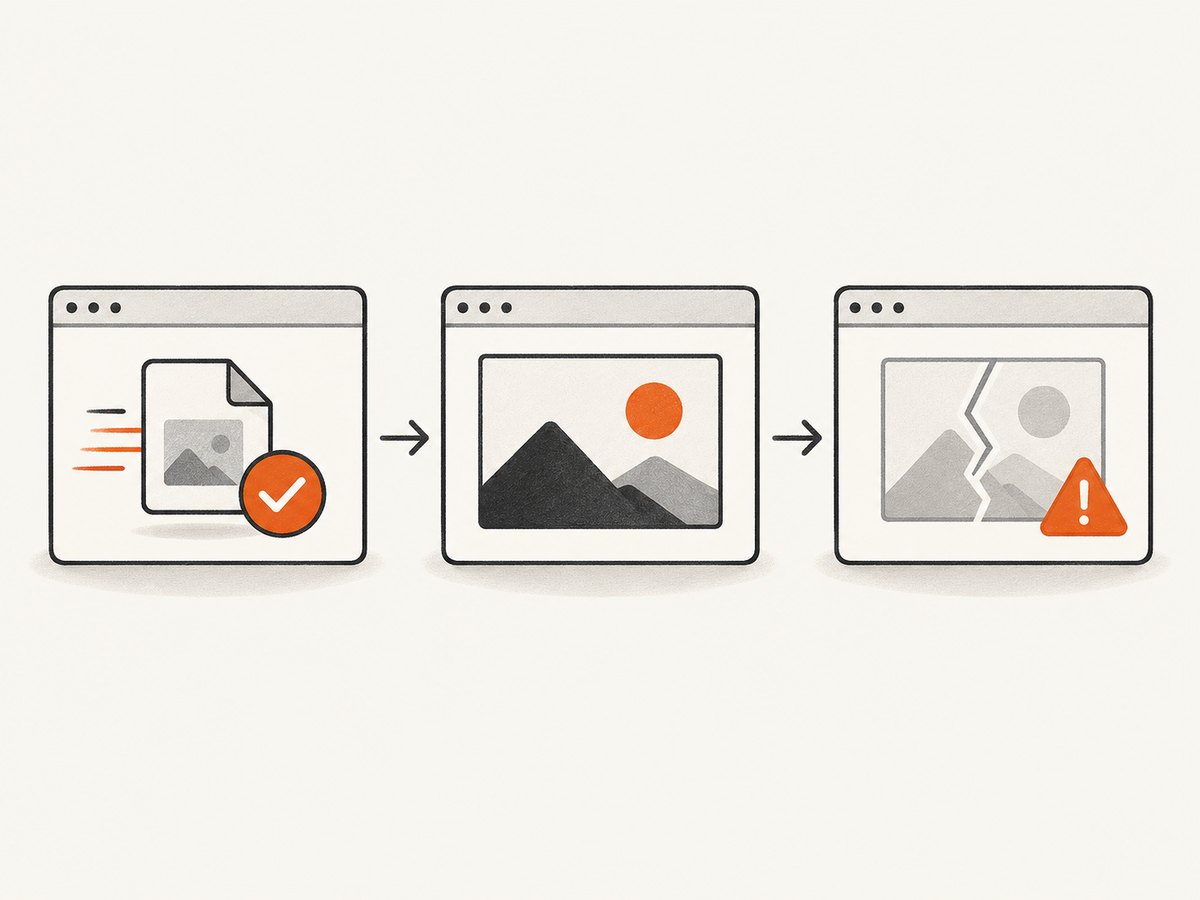
waitUntil: 'networkidle0' and page.waitForNetworkIdle() describe network activity. They do not prove that an image has decoded into pixels and is ready to paint. A request can finish while decoding is still pending, an image can fail, or JavaScript can insert another image after your network wait completes.
The reliable sequence is:
- Navigate to the page and wait for a sensible load condition.
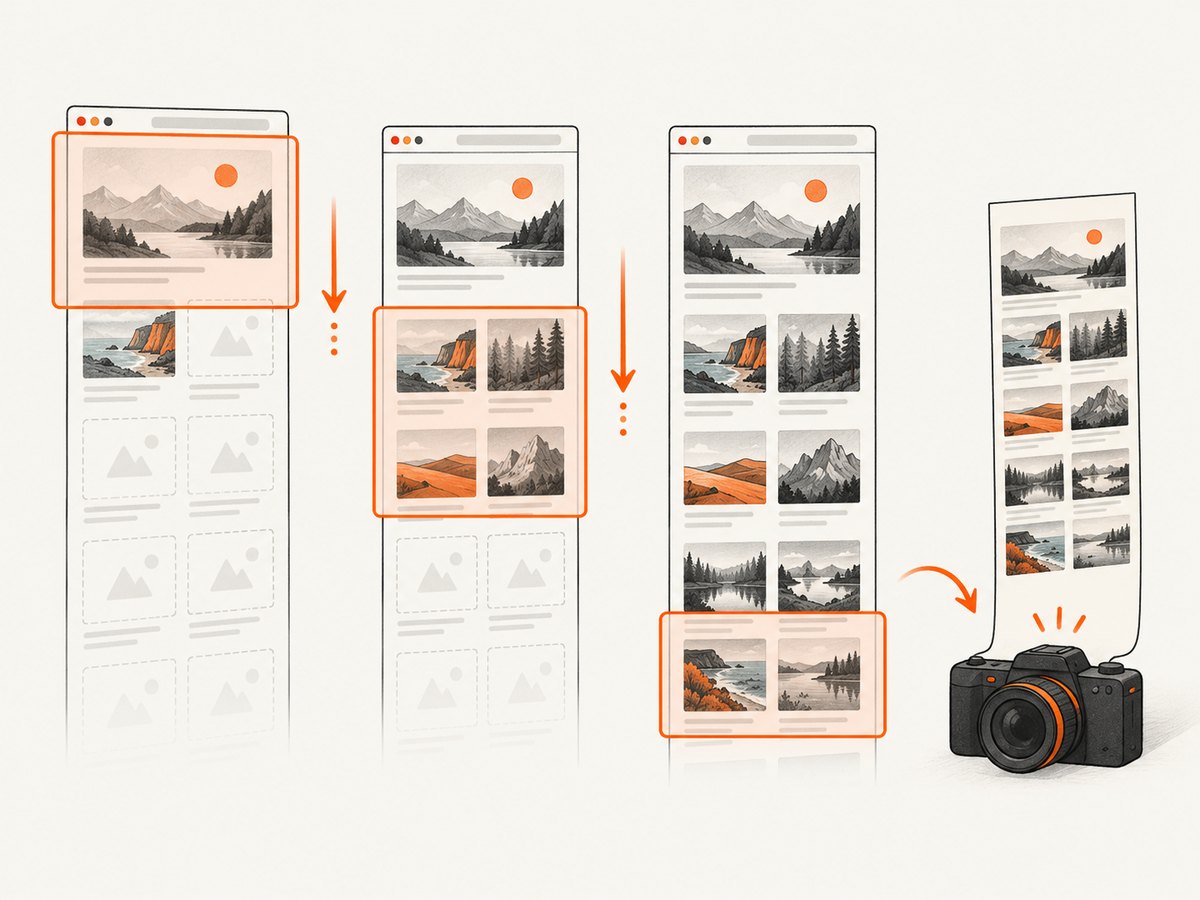
- Trigger lazy content by scrolling or interacting with the page.
- Wait for fonts and currently present images to decode.
- Validate image dimensions and collect diagnostics.
- Capture the viewport, an element, or the full page.
fullPage: true changes the screenshot extent; it does not wait for image readiness. Puppeteer documents fullPage as a screenshot option whose default is false. See ScreenshotOptions.
Complete Puppeteer implementation
1. Install Puppeteer
npm install puppeteer2. Navigate with a bounded timeout
import puppeteer from 'puppeteer';

const browser = await puppeteer.launch({ headless: true });
const page = await browser.newPage();

try {
  await page.goto('https://example.com', {
    waitUntil: 'domcontentloaded',
    timeout: 45_000,
  });

  // Continue with the readiness and screenshot code below.
} finally {
  await browser.close();
}
Use domcontentloaded when you will perform explicit readiness checks. networkidle0 can be useful for pages that settle quickly, but it should supplement, not replace, image decoding. Keep navigation and later waits finite so one unresponsive page cannot consume a worker indefinitely.
3. Wait for current images to decode
await page.evaluate(async () => {
  await document.fonts.ready;

  await Promise.all(
    Array.from(document.images, async (image) => {
      await image.decode();
      if (!image.naturalWidth) {
        throw new Error(`Broken image: ${image.currentSrc || image.src}`);
      }
    }),
  );
});
image.decode() resolves when the browser can decode the image for rendering. A rejection indicates a decode failure. The naturalWidth check catches an image that has no usable intrinsic width. Use currentSrc in diagnostics because responsive images may have selected a source different from the HTML src.
4. Capture the screenshot
await page.screenshot({
  path: 'page.png',
  fullPage: true,
  type: 'png',
});
For a smaller file, choose type: 'jpeg' with a quality from 0 to 100. Use omitBackground: true for transparency where supported. For a viewport shot, omit fullPage or set it to false. Element screenshots use const card = await page.$('.card'); await card.screenshot({ path: 'card.png' });; the readiness check still belongs before the element capture.
One reusable readiness helper
Production jobs usually need a timeout, a list of failed images, and a clear policy for missing assets. The helper below waits for images that exist at the time it runs and returns diagnostics instead of hiding failures.
export async function waitForImages(page, {
  timeout = 15_000,
  failOnBroken = true,
} = {}) {
  const result = await page.evaluate(async ({ timeout, failOnBroken }) => {
    const images = Array.from(document.images);
    const failures = [];

    const check = async (image) => {
      try {
        await image.decode();
      } catch (error) {
        failures.push({
          src: image.currentSrc || image.src,
          reason: error instanceof Error ? error.message : String(error),
        });
        return;
      }

      if (!image.naturalWidth) {
        failures.push({
          src: image.currentSrc || image.src,
          reason: 'naturalWidth is zero',
        });
      }
    };

    await Promise.race([
      Promise.all(images.map(check)),
      new Promise((_, reject) =>
        setTimeout(() => reject(new Error('Image readiness timed out')), timeout),
      ),
    ]);

    if (failOnBroken && failures.length) {
      throw new Error(JSON.stringify({ failures }));
    }
    return { count: images.length, failures };
  }, { timeout, failOnBroken });

  return result;
}
The timeout is enforced inside the page. You can also enforce an outer Node.js timeout around the entire capture job. Set failOnBroken: true for visual regression tests where a missing image invalidates the result. Set it to false for monitoring where a screenshot plus a failure report is more useful than no screenshot.
Lazy-loaded and dynamically inserted images
The decode loop covers image elements present when it runs. It does not cover images inserted later, CSS background images, or content that only appears after scrolling. Puppeteer.Guide states this limitation explicitly in its screenshot guidance: the check covers current image elements, not later inserted assets or CSS backgrounds. Treat the following as separate preparation steps.
Trigger lazy loading by scrolling
await page.evaluate(async () => {
  const step = Math.max(window.innerHeight, 400);
  for (let y = 0; y < document.body.scrollHeight; y += step) {
    window.scrollTo(0, y);
    await new Promise((resolve) => setTimeout(resolve, 100));
  }
  window.scrollTo(0, 0);
});

await page.waitForNetworkIdle({ idleTime: 500, timeout: 15_000 });
await waitForImages(page, { timeout: 15_000 });
Some sites use an intersection observer and need a real viewport intersection rather than a single jump. Incremental scrolling gives those observers time to run. If the page has an “Load more” control, click it and repeat the wait after each batch.
Wait for a known selector
await page.waitForSelector('.gallery img.loaded', { timeout: 15_000 });
await waitForImages(page, { timeout: 15_000 });
A selector wait is useful when the application exposes a reliable loaded state. It is not a substitute for checking every image if other assets can still be pending.
CSS background images
document.images does not include CSS backgrounds. If backgrounds matter, inspect computed styles and preload their URLs, or use an application-specific “ready” signal. A practical page-side check is to collect backgroundImage URLs, create temporary Image objects, and await their decode() calls. Because CSS can contain gradients, sprites, and multiple URLs, parse only the URL forms your application uses.
Handling failures and edge cases
| Situation | Recommended behavior |
|---|---|
| Broken image or decode rejection | Fail visual tests; otherwise record the URL and continue only when a partial capture is acceptable. |
| Cross-origin image | Normal display and screenshot capture work without canvas access. Avoid drawing it to a canvas unless the server sends suitable CORS headers. |
| Animated GIF or video | decode() confirms an image frame, not a deterministic animation time. Freeze animations with CSS or capture at a defined delay. |
| Responsive images | Report currentSrc, and set a known viewport and device scale factor before navigation. |
| Image added after the check | Wait for the application’s ready signal, a mutation-driven counter, or run a final check immediately before capture. |
| Very large page | Prefer an element or viewport capture, or increase resource and protocol timeouts while keeping a hard job deadline. |
Deterministic capture settings
Set the conditions that affect layout before waiting. A different viewport can select a different responsive image; a different device scale factor changes pixel dimensions.
await page.setViewport({ width: 1440, height: 900, deviceScaleFactor: 1 });
await page.emulateMediaType('screen');
await page.setJavaScriptEnabled(true);
await page.setExtraHTTPHeaders({ 'Accept-Language': 'en-US,en;q=0.9' });
Disable motion and blinking cursors when visual consistency matters:
await page.addStyleTag({
  content: `*, *::before, *::after {
    animation: none !important;
    transition: none !important;
    caret-color: transparent !important;
  }`,
});
Wait for fonts because a late font swap can change line wrapping and move images. The document.fonts.ready call in the helper handles fonts known to the document at that point.
Troubleshooting
“The screenshot still has blank image areas”
Cause: images are lazy-loaded, inserted after the check, or represented by CSS backgrounds. Fix: scroll through the page, wait for the application’s loaded selector, then run the final decode check immediately before capture. Inspect the DOM after scrolling to confirm the expected nodes exist.
“Network idle never occurs”
Cause: analytics, WebSockets, polling, or long-lived connections keep the page active. Fix: use domcontentloaded plus explicit selector and image waits, or call waitForNetworkIdle with a finite timeout and treat timeout as a diagnostic rather than an infinite wait.
“image.decode() throws”
Cause: the resource is corrupt, blocked, unavailable, or not decodable in the current browser context. Fix: log currentSrc, check the response status and content type, retry transient requests, and decide whether your job should fail or produce a partial result.
“naturalWidth is zero even though the URL is correct”
Cause: the request failed, the image has not completed, or the server returned non-image content. Fix: inspect the response, wait again after the page’s loaded event, and verify the server’s Content-Type.
“Full-page capture cuts off content”
Cause: content is inside a scrollable container, an iframe, or a virtualized list. Fix: capture the container separately, process each iframe with its own readiness check, or expand virtualized content before taking the screenshot.
“The job hangs on one URL”
Cause: an unbounded navigation, decode, or application wait. Fix: set timeouts for navigation, selectors, network idle, image readiness, and the overall job; close the browser in a finally block.
Performance, reliability, and cost
Decoding images adds work, but it prevents expensive false-success screenshots and downstream retries. Run the check once after all lazy content is triggered instead of repeatedly polling every image. For very long pages, consider capturing a target element or viewport. Limit concurrency across browser pages so CPU, memory, and network bandwidth remain predictable.
Cache behavior affects freshness. If your test requires current assets, disable application caches or use a unique query string where appropriate. If it requires production-like behavior, keep caching enabled and record the URL, viewport, browser version, and readiness policy with each artifact.
Reliability comes from bounded waits and explicit failure semantics. A screenshot with a recorded missing asset is different from a screenshot that was silently assumed complete. Store the failed URL and error, and expose whether the job timed out, encountered a broken image, or completed successfully.
Or skip the browser setup
ScreenshotNeo provides a website screenshot API when you do not want to maintain Chromium launch settings, lazy-load handling, consent cleanup, and capture workers. One GET request returns PNG, JPEG, WebP, or PDF. Its capture process accepts cookie and consent banners as a visitor and removes more than 60 known consent platforms, newsletter popups, and chat widgets before the shot; each cleanup step can be disabled. Bot checks, blank pages, timeouts, failed loads, and cache hits cost nothing, and response headers identify the page verdict and whether it was billed.
Read the ScreenshotNeo API documentation for all options, including full-page lazy-image loading, CSS selector element capture, custom JavaScript and CSS, waits, blocked resources, headers, cookies, device presets, retina scale, caching TTL, signed links, asynchronous jobs, bulk capture, and usage reporting.
curl -G "https://api.screenshotneo.com/v1/shot" -d access_key=YOUR_API_KEY --data-urlencode url=https://stripe.com -o shot.webpimport requests
r = requests.get("https://api.screenshotneo.com/v1/shot", params={"access_key": "YOUR_API_KEY", "url": "https://stripe.com"}, timeout=90)
open("shot.webp", "wb").write(r.content)const q = new URLSearchParams({ access_key: 'YOUR_API_KEY', url: 'https://stripe.com' });
const res = await fetch(`https://api.screenshotneo.com/v1/shot?${q}`);An MCP server provides take_screenshot, get_page_info, and capture_pdf tools for Claude, Cursor, and other MCP clients. The Free plan includes 1,000 screenshots each month with no card; paid plans start at $5 for 3,000. Create a free ScreenshotNeo account.
FAQ
Should I use waitUntil: 'networkidle0'?
Use it when useful, but still decode images explicitly. Network idle and image readiness measure different conditions.
Does fullPage: true wait for every image?
No. It controls the captured extent. Prepare and validate page assets before calling screenshot.
Can I ignore one broken image?
Yes, if a partial screenshot is acceptable. Record the URL and reason, and make that policy explicit in the job result.
How do I cover images added after my check?
Trigger all lazy content first, wait for the application’s ready condition, and run a final check immediately before capture. For highly dynamic pages, use a mutation counter or application-provided completion event.
Why wait for fonts?
Late font loading can reflow text and move images. Waiting for document.fonts.ready improves layout stability before the screenshot.


