How to Wait for Very Large PDFs to Finish Loading in Puppeteer
Puppeteer has no universal signal that a large PDF is fully rendered. Choose a wait based on whether you’re opening a PDF, loading a page, or using an embedded viewer.

Short answer: Puppeteer cannot universally tell you that every page of a very large PDF has finished rendering. A navigation event or network-idle wait can tell you about document loading or network activity, but it is not proof that a browser PDF viewer has decoded and painted every page. First identify what you are opening: a normal HTML page with a PDF link, a direct PDF URL, or a PDF inside an application-controlled viewer. Each needs a different readiness signal.
For a normal web page, wait for the lifecycle event your task needs. For an embedded viewer, use a completion state exposed by that application, if available. For direct PDF navigation, check which Puppeteer browser mode you use: Puppeteer documents that headless shell does not support navigating directly to PDF documents. See the Puppeteer waitForNetworkIdle API, Page.goto API, and headless modes guide.
1. Identify what “the PDF is loaded” means
The right wait depends on the task. “The server returned a PDF,” “the HTML document finished loading,” and “the viewer rendered every page” are different milestones. A wait that is correct for one can be misleading for another.
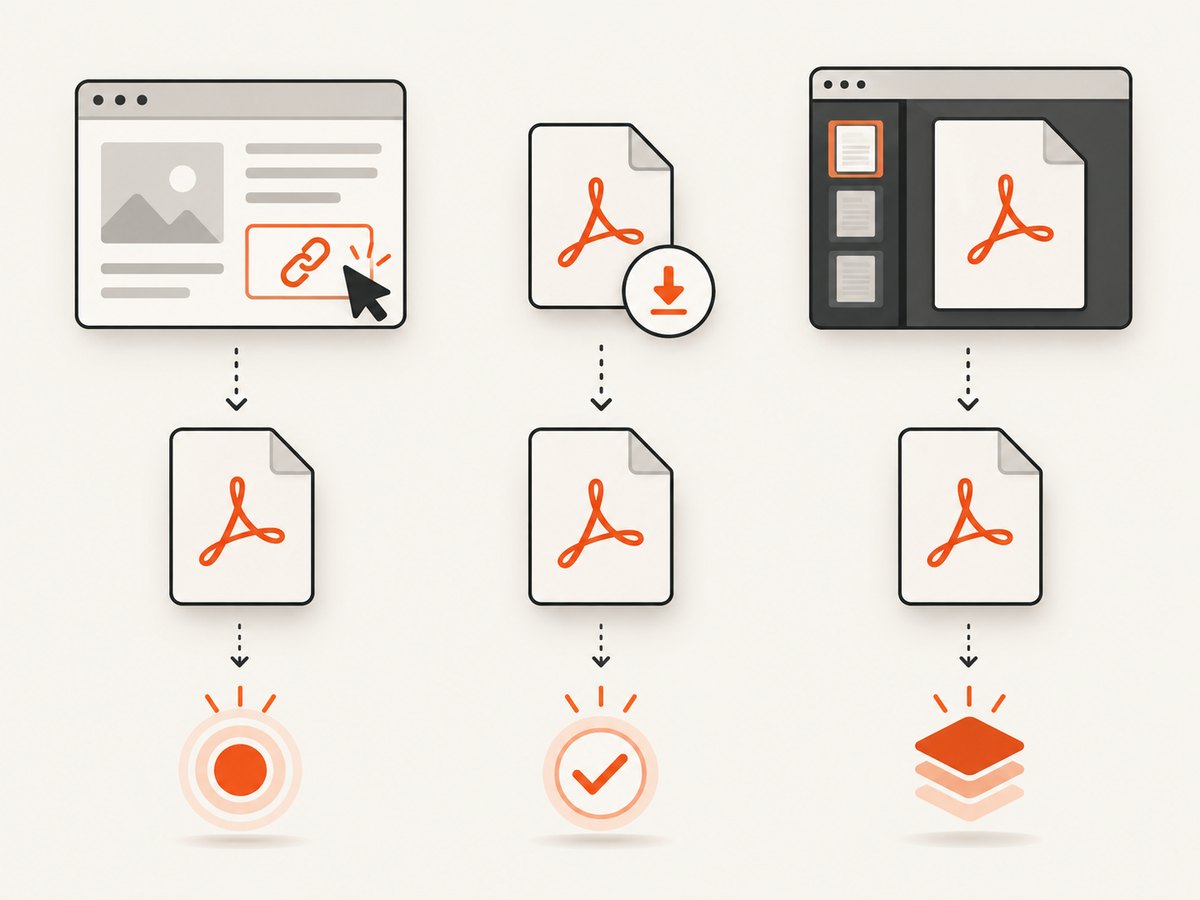
| What you opened | Useful signal | What it does not prove |
|---|---|---|
| HTML page with a PDF link | Navigation lifecycle such as load, or an application-owned readiness state |
That a PDF linked from the page was fetched or rendered |
| Direct PDF URL | Confirm response and browser mode; test the actual navigation | That headless shell supports direct PDF navigation, or that a viewer painted every page |
| PDF embedded in an app viewer | A viewer-specific loaded flag, page count, event, or selector | That network quiet alone equals rendering completion |
Be specific about the outcome your script needs. If you only need to capture the page shell, document load may be enough. If you need a screenshot of the last PDF page, wait for evidence that the viewer itself has rendered it. If you need to inspect PDF text or metadata, use a PDF-processing workflow rather than treating browser display as a parsing contract.
2. Choose the right Puppeteer wait
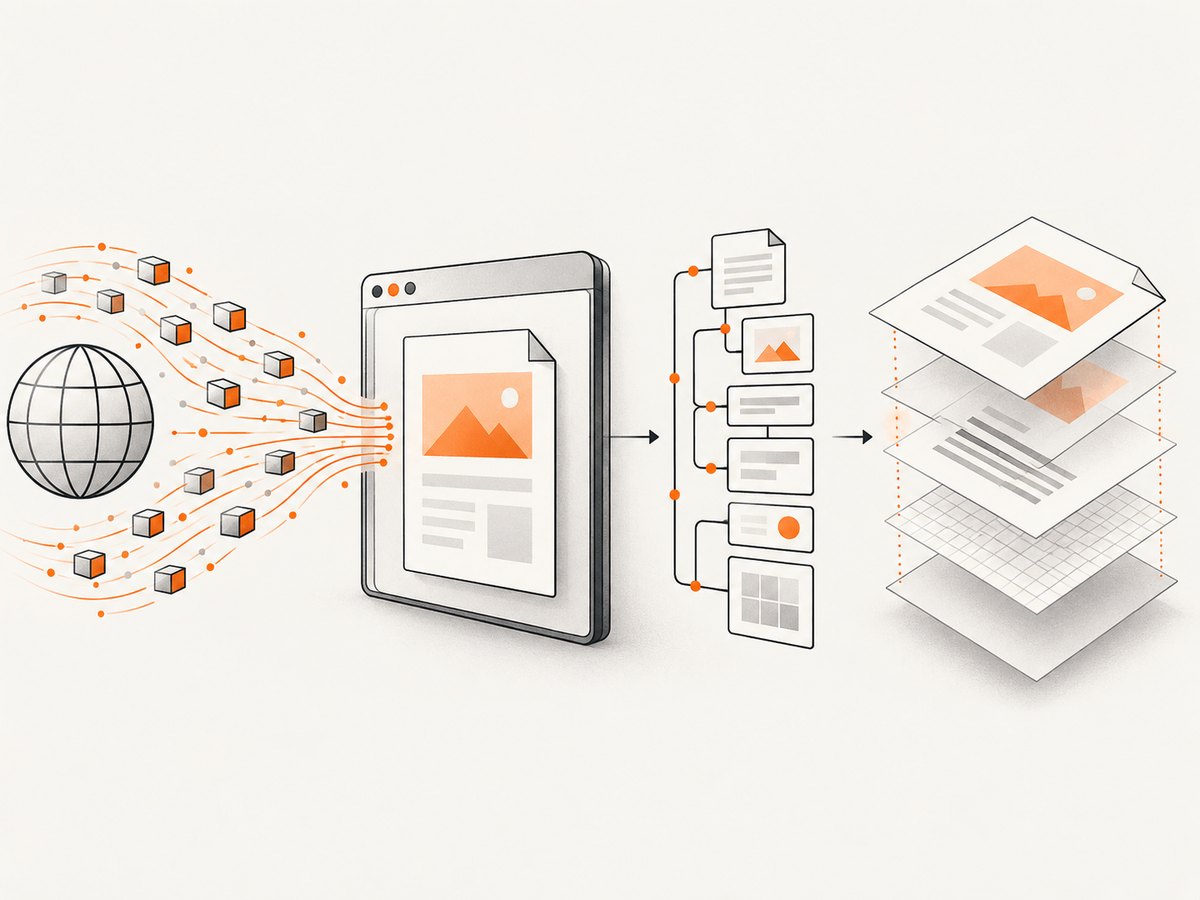
page.goto() accepts lifecycle conditions including load, domcontentloaded, networkidle0, and networkidle2. The network-idle lifecycle variants use a 500 ms quiet period and differ in how many active connections they tolerate: zero for networkidle0, up to two for networkidle2. DOMContentLoaded fires when the document has been parsed; referenced resources may still be downloading. None of these is a PDF-render-complete guarantee. See Puppeteer lifecycle events and Chromium’s description of DOMContentLoaded.
For a regular HTML page
Start with load when the page’s resources matter and the site does not keep connections open. Use domcontentloaded when you need the parsed document promptly and will wait for a specific condition afterward. Use a network-idle condition only when a quiet network is meaningful for that site. Pages using analytics, polling, streaming, or long-lived connections may not become idle as expected.
const response = await page.goto('https://example.com/report', {
  waitUntil: 'load',
  timeout: 120_000,
});

if (!response) {
  throw new Error('Navigation did not return a response');
}
console.log('HTTP status:', response.status());
The 120-second timeout is an example you can tune, not a Puppeteer recommendation. Set it according to your service’s latency budget and the document size you actually handle.
For an embedded application viewer
If the application exposes a loaded flag, page count, or event, wait for that condition. Puppeteer provides selector-based and function-based waits, but the correct condition is specific to the viewer. Do not copy a selector from a different PDF viewer and assume it is universal.
await page.goto('https://example.com/viewer?id=123', {
  waitUntil: 'domcontentloaded',
  timeout: 120_000,
});

// Replace this with a state the application actually documents or exposes.
await page.waitForFunction(() => {
  return window.viewerState?.allPagesRendered === true;
}, { timeout: 120_000 });

// Capture only after the application-specific condition succeeds.
await page.screenshot({ path: 'report.png', fullPage: true });
window.viewerState above is illustrative application state, not a built-in Puppeteer property or a standard Chrome PDF viewer API. If you control the application, expose an explicit readiness flag only after the work your capture depends on is complete. If you do not control it, inspect the viewer’s documented integration and DOM, then wait for an observable state you can defend.
When network idle is an additional signal
page.waitForNetworkIdle() resolves when Puppeteer considers the network idle. Its documented default idle time is 500 ms, and the method allows configuration of the idle period and concurrency. This can help when a viewer downloads data in a burst, but a quiet network only says that requests have settled for the configured period. Rendering and decoding may continue afterward.
await Promise.all([
  page.goto('https://example.com/viewer?id=123', {
    waitUntil: 'domcontentloaded',
    timeout: 120_000,
  }),
  page.waitForNetworkIdle({
    idleTime: 1_000,
    timeout: 120_000,
  }),
]);

// Still wait for the viewer's own readiness condition before capturing.
Starting both waits together can avoid missing a brief quiet period immediately after navigation. The one-second idle period and timeout here are examples. Tune them to the site, and keep the application-specific check if complete rendering matters.
3. Run a minimal Puppeteer diagnostic
This Node.js example records the response status and navigation timing for a regular HTML page. It also catches navigation failures separately so you can tell a timeout from an HTTP error. Replace the URL with the page under investigation. A non-2xx status is not necessarily a Puppeteer navigation exception, so inspect the response explicitly.
const puppeteer = require('puppeteer');

(async () => {
  const browser = await puppeteer.launch({ headless: true });
  try {
    const page = await browser.newPage();
    page.setDefaultNavigationTimeout(120_000);

    page.on('requestfailed', request => {
      console.error('Request failed:', request.url(), request.failure()?.errorText);
    });

    const started = Date.now();
    const response = await page.goto('https://example.com/report', {
      waitUntil: 'load',
    });

    console.log({
      status: response?.status(),
      finalUrl: page.url(),
      elapsedMs: Date.now() - started,
      title: await page.title(),
    });
  } finally {
    await browser.close();
  }
})().catch(error => {
  console.error(error);
  process.exitCode = 1;
});
This example diagnoses an HTML navigation. If the URL returns application/pdf, test the direct PDF case separately and confirm the browser mode. Headless shell’s direct-PDF limitation can look like a wait problem even though the root cause is unsupported navigation.
4. Direct PDF URLs and browser mode
A direct PDF URL is not the same task as calling page.pdf(). Direct navigation asks the browser to open a PDF document, usually through its PDF handling path. Puppeteer documents that headless shell does not support navigating to a PDF document. When this is your setup, changing networkidle0 to a longer timeout does not add that support. Confirm which headless mode is in use and check the current Puppeteer guidance for the version you run.
page.pdf(), by contrast, generates a PDF from the current page. It is for printing web content, not waiting for a remote PDF to load. Its documented default timeout is 30,000 ms and it waits for fonts by default. Do not transfer that default to navigation or other wait methods; each API has its own timeout behavior. See Page.pdf API and PDFOptions.
5. Inspect the PDF response with cURL or Python
When direct navigation is unclear, check whether the URL returns a PDF response and whether the server responds at all. These checks diagnose HTTP delivery; they do not prove that Chromium’s viewer has rendered the document.
curl -L -D response-headers.txt \
  -o downloaded.pdf \
  --max-time 120 \
  'https://example.com/files/report.pdf'
Inspect the headers for the response status and content type. A redirect may lead to an authentication page or an HTML error document rather than a PDF. The downloaded file can be checked with tools available in your environment; do not infer validity from the filename alone.
import requests

url = 'https://example.com/files/report.pdf'
response = requests.get(url, timeout=(10, 120), allow_redirects=True)
response.raise_for_status()

content_type = response.headers.get('content-type', '')
print('Final URL:', response.url)
print('Content-Type:', content_type)
print('Bytes:', len(response.content))

if 'application/pdf' not in content_type.lower():
    raise ValueError(f'Expected a PDF response, got {content_type!r}')

with open('downloaded.pdf', 'wb') as output:
    output.write(response.content)
The connection and read timeout values are examples. For large documents, stream the body to disk rather than holding it all in memory. Authentication, cookies, and redirect behavior must match the site’s access requirements.
6. Or skip the browser setup
If you need a screenshot of a web page or PDF viewer page and do not need to manage Chromium yourself, ScreenshotNeo provides a screenshot API and MCP server. Its one-call API returns an image or PDF; the following example requests a screenshot of a viewer page. See the ScreenshotNeo API documentation for request options.
curl -G "https://api.screenshotneo.com/v1/shot" \
  -d access_key=YOUR_API_KEY \
  --data-urlencode url=https://example.com/viewer?id=123 \
  -o viewer.webp
The same request in Python:
import requests

r = requests.get(
    'https://api.screenshotneo.com/v1/shot',
    params={
        'access_key': 'YOUR_API_KEY',
        'url': 'https://example.com/viewer?id=123',
    },
    timeout=90,
)
r.raise_for_status()
with open('viewer.webp', 'wb') as output:
    output.write(r.content)
And in Node.js:
const q = new URLSearchParams({
  access_key: 'YOUR_API_KEY',
  url: 'https://example.com/viewer?id=123',
});
const res = await fetch(`https://api.screenshotneo.com/v1/shot?${q}`);
if (!res.ok) throw new Error(`Screenshot request failed: ${res.status}`);
await require('node:fs/promises').writeFile('viewer.webp', Buffer.from(await res.arrayBuffer()));
Cookie banners, popups, and chat widgets are removed before the shot; each cleanup step can be turned off. Bot checks, blank pages, timeouts, and failed loads are never billed, and cache hits cost nothing; response headers report the page verdict and whether the request was billed. An MCP server gives AI agents tools to take screenshots, get page information, and capture PDFs. The free plan includes 1,000 screenshots a month with no card; paid plans start at $5 for 3,000. A screenshot of a viewer page still does not establish that every PDF page rendered, so use the viewer’s own completion state when that guarantee matters. Create a free account and get 1,000 screenshots a month with no card.
7. Troubleshooting
| Symptom | Likely cause | What to do |
|---|---|---|
| Direct PDF navigation times out in headless mode | The selected headless shell does not support direct PDF navigation. | Confirm the browser mode in Puppeteer’s headless documentation and test with a supported setup. Do not just extend the timeout. |
networkidle0 never resolves |
The page keeps connections active, for example through polling or streaming. | Try a less strict lifecycle condition, or configure waitForNetworkIdle concurrency and idle time. Then wait for the application state that matters. |
| Navigation resolves but the PDF looks incomplete | Navigation completion is earlier than viewer decoding or painting. | Wait for an application-owned rendered state or documented viewer event; capture only after it succeeds. |
DOMContentLoaded resolves while content is missing |
Referenced resources may still be loading, or application work has not finished. | Wait for load if resource completion is relevant, then wait for a specific selector or function condition. |
| HTTP request succeeds but page shows an error | The response may be a redirect, login page, or HTML error body. | Check final URL, response status, content type, and authentication in a separate HTTP diagnostic. |
page.pdf() does not solve the problem |
It prints the current page; it does not open a remote PDF in Chrome’s viewer. | Choose the workflow that matches the task: print HTML, navigate to a PDF in a supported browser mode, or process the PDF file directly. |
| A longer timeout makes jobs slow and still flaky | The wait condition does not match the completion requirement. | Measure navigation and viewer readiness separately, set a bounded timeout, and log which stage expired. |
8. Performance, reliability, and cost
Large PDFs can require substantial transfer, decoding, and rendering work. A stricter network-idle wait can add latency, and it may become unbounded in practice on pages with persistent connections unless a timeout is set. A fixed sleep is easy to write but either wastes time on quick loads or remains too short for slow ones; prefer an observable readiness condition plus a deadline.
For reliability, keep separate time budgets for navigation and the viewer condition. Record the target URL, response status, elapsed navigation time, failed requests, and which readiness check timed out. Do not silently treat a timeout as a successful screenshot. If you retry, make retries bounded and account for whether the operation is safe to repeat.
For cost, browser work consumes your own compute and runtime, so avoiding unnecessary browser sessions and bounding concurrency helps control resource use. Puppeteer’s cited API material gives timeout defaults only for the methods where documented; set navigation and wait timeouts explicitly rather than assuming page.pdf()’s 30-second default applies elsewhere. With ScreenshotNeo, only clean shots are billed; the supplied product terms say failed loads, blank pages, bot checks, timeouts, and cache hits are not billed. Consult its plan page for current plan details before budgeting.
9. A practical decision checklist
- Check whether the requested URL returns HTML or a PDF response.
- If HTML, choose
loadordomcontentloadedbased on the resources your task needs. - If using an embedded viewer, identify a viewer-specific readiness condition; do not equate network idle with rendered completion.
- If navigating directly to a PDF, verify the Puppeteer headless mode supports that path.
- Set explicit timeouts and log navigation, response, and viewer-wait stages separately.
- If the job needs PDF content rather than a visual capture, process the PDF itself instead of relying on browser painting.
FAQ
Does networkidle0 mean a large PDF is fully rendered?
No. It indicates a period with no active network connections according to Puppeteer’s lifecycle definition. It does not certify viewer decoding or painting.
Should I always use networkidle2 instead?
No. It tolerates up to two connections during the quiet period, which can help on some pages, but the correct condition depends on the site and still does not prove PDF rendering is finished.
Can Puppeteer wait for a specific page number in Chrome’s built-in viewer?
There is no universal cross-version viewer readiness event established by the cited Puppeteer APIs. Use a viewer integration’s documented signal if one exists, and validate it for your browser version.
What timeout should I use?
Choose a bounded value from your workload’s latency budget and observed document sizes. The examples here are starting points, not guarantees or official recommendations.
Is generating a PDF with page.pdf() the same as loading one?
No. page.pdf() creates a PDF from the current web page. It is distinct from opening a PDF URL in a browser viewer.


