How to Wait for a Page to Finish Loading in Python Selenium
Learn when Selenium considers a page loaded, how to wait for real application readiness, and how to handle SPAs, AJAX, timeouts, and dynamic content.
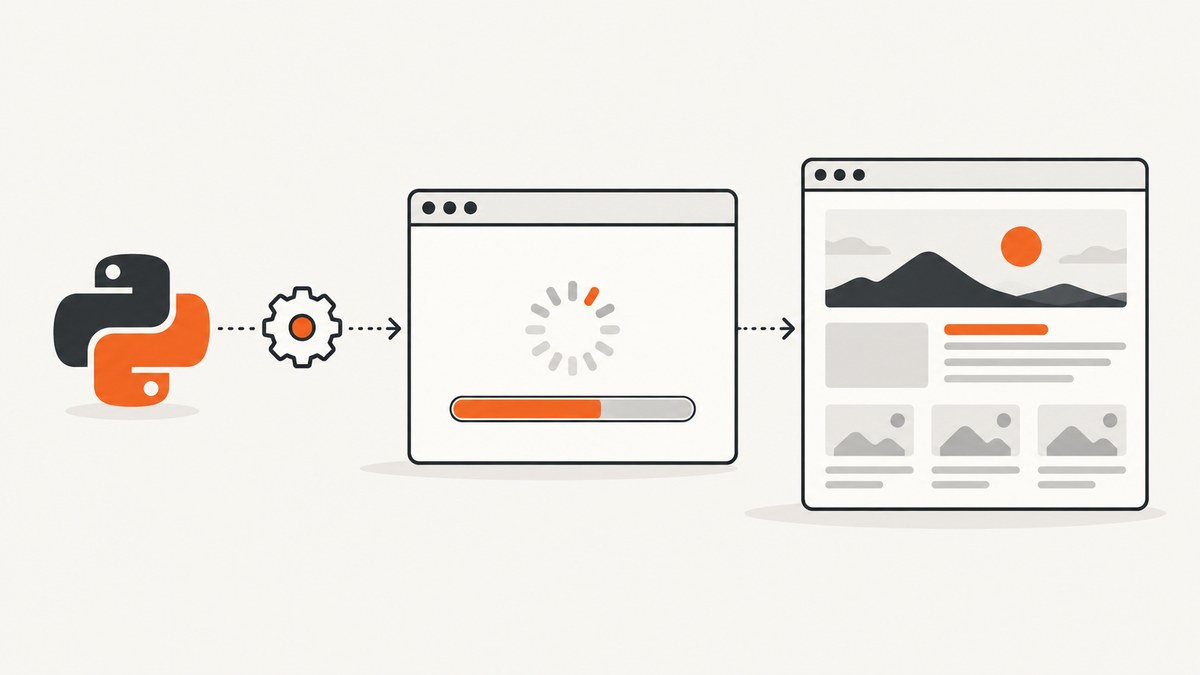
Use an explicit wait for the application state your test needs. In Python Selenium, driver.get() normally waits until the browser reports document.readyState == "complete". That confirms document and resource loading according to the selected page-load strategy, but it does not prove that a JavaScript application has finished rendering data.
The dependable pattern is:
- Choose a deliberate page-load strategy.
- Navigate with
driver.get(). - Wait for a meaningful condition such as a visible dashboard, enabled button, result text, or disappeared spinner.
- Use a bounded timeout and handle
TimeoutException.
Selenium’s browser options documentation describes the three page-load strategies, and its waits documentation explains expected conditions and explicit waits.
What “finished loading” means in Selenium
Navigation commands wait for a ready-state value selected by page_load_strategy. With the default normal strategy, navigation waits for complete. With eager, navigation returns at interactive, while many subresources can still be loading. With none, navigation returns without waiting and your code owns all synchronization.
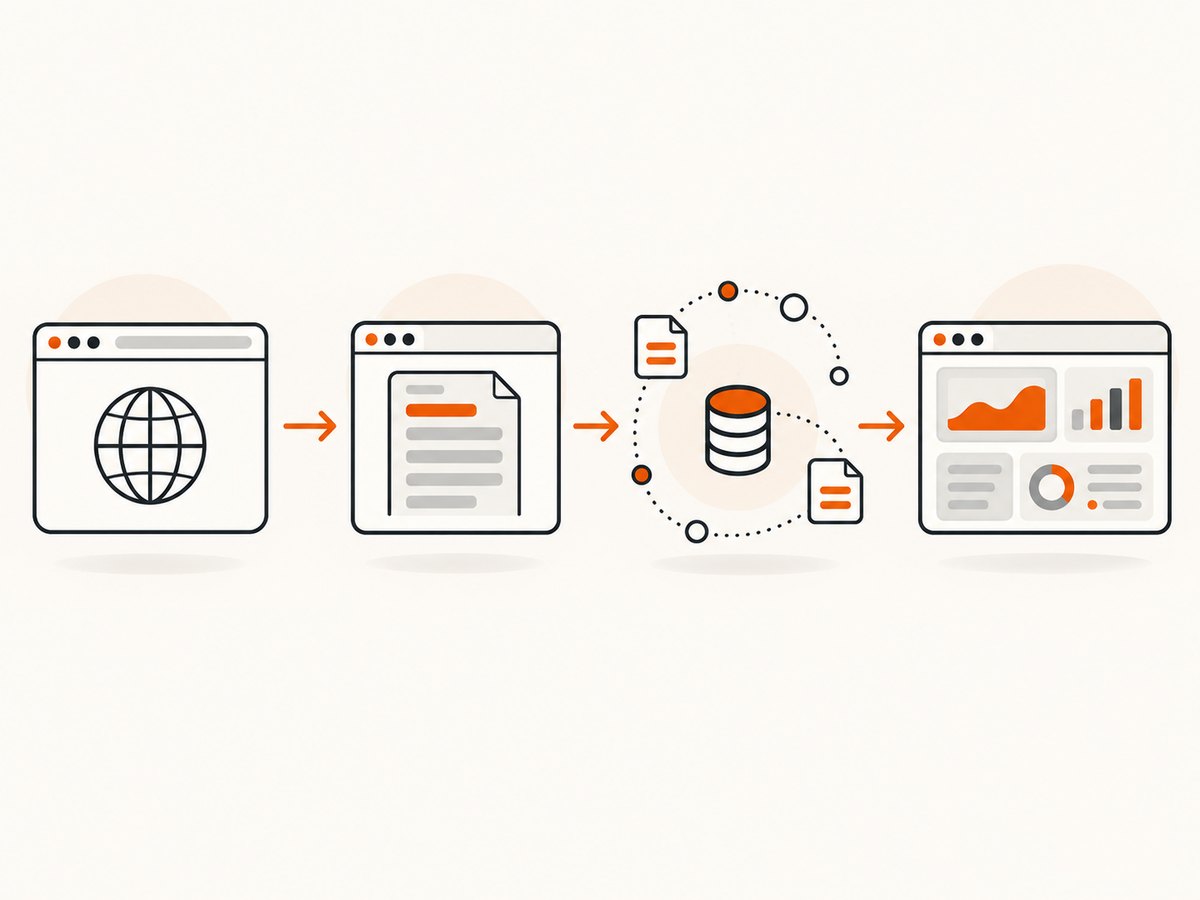
| Strategy | Navigation returns when | Good use | Risk |
|---|---|---|---|
normal |
readyState is complete |
Ordinary pages and conservative tests | Can wait for resources your assertion does not need |
eager |
readyState is interactive |
DOM-driven tests where images are irrelevant | Application data or controls may not be ready |
none |
Immediately after navigation starts | Custom synchronization and specialized flows | Every required readiness condition is your responsibility |
A complete ready state does not necessarily mean that a single-page application has finished fetching and rendering its data. Treat it as document readiness, then wait for the application milestone that enables the next action.
Recommended Python pattern
This complete example waits for a dashboard to be visible and a submit button to be clickable. It uses the default strategy explicitly so a future configuration change is obvious.
from selenium import webdriver
from selenium.webdriver.common.by import By
from selenium.webdriver.support.ui import WebDriverWait
from selenium.webdriver.support import expected_conditions as EC
from selenium.common.exceptions import TimeoutException

options = webdriver.ChromeOptions()
options.page_load_strategy = "normal"

driver = webdriver.Chrome(options=options)
try:
    driver.get("https://example.test/dashboard")

    wait = WebDriverWait(driver, 20, poll_frequency=0.5)
    dashboard = wait.until(
        EC.visibility_of_element_located(
            (By.CSS_SELECTOR, "[data-testid='dashboard']")
        )
    )
    submit = wait.until(
        EC.element_to_be_clickable((By.CSS_SELECTOR, "button.submit"))
    )
    submit.click()
except TimeoutException:
    print("The dashboard or submit button did not become ready in time")
    print("Current URL:", driver.current_url)
    print("Ready state:", driver.execute_script("return document.readyState"))
    raise
finally:
    driver.quit()
WebDriverWait.until() polls the condition until it returns a truthy value. The Python API documents a default polling interval of 0.5 seconds; setting it explicitly makes the behavior clear in code reviews.
Pick a wait condition that proves readiness
Do not use one generic “page loaded” wait for every page. Select the condition that represents the next operation.
| Condition | What it proves | Typical use |
|---|---|---|
presence_of_element_located |
The node exists in the DOM | Reading an attribute from a non-visible element |
visibility_of_element_located |
The node exists and is displayed | Reading user-visible content |
element_to_be_clickable |
The element is visible and enabled | Clicking a control |
text_to_be_present_in_element |
Expected status or result text is present | Waiting for AJAX output |
staleness_of |
An old element has been detached | Waiting for a loading view to be replaced |
invisibility_of_element_located |
A spinner or overlay is gone | Waiting for interaction to become possible |
For custom logic, pass a function that receives the driver and returns an element, a value, or False.
def results_have_rows(driver):
    rows = driver.find_elements(By.CSS_SELECTOR, "table.results tbody tr")
    return rows if rows else False

rows = WebDriverWait(driver, 20).until(results_have_rows)
Waiting for document.readyState directly
A ready-state wait can be useful when navigation uses eager or none, or when you need an explicit diagnostic. It is not a replacement for an application-specific condition.
from selenium.webdriver.support.ui import WebDriverWait

WebDriverWait(driver, 20).until(
    lambda browser: browser.execute_script(
        "return document.readyState"
    ) == "complete"
)
For a JavaScript-heavy page, follow it with a semantic wait:
WebDriverWait(driver, 20).until(
    EC.visibility_of_element_located(
        (By.CSS_SELECTOR, "[data-testid='results']")
    )
)
WebDriverWait(driver, 20).until(
    EC.invisibility_of_element_located((By.CSS_SELECTOR, ".loading-spinner"))
)
AJAX, single-page applications, and route changes
Navigation readiness does not cover an in-place update. A click, form submission, or client-side route change can start an asynchronous request without changing the document ready state. Wait for a visible result, changed text, a new URL, a spinner to disappear, or replacement of the old view.
old_panel = driver.find_element(By.CSS_SELECTOR, "[data-testid='profile-panel']")
driver.find_element(By.CSS_SELECTOR, "a.profile").click()

wait = WebDriverWait(driver, 20)
wait.until(EC.staleness_of(old_panel))
wait.until(
    EC.visibility_of_element_located(
        (By.CSS_SELECTOR, "[data-testid='profile-panel']")
    )
)
wait.until(EC.url_contains("/profile"))
When a status message is stable and meaningful, text is often a better readiness signal than a fixed delay:
wait.until(
    EC.text_to_be_present_in_element(
        (By.CSS_SELECTOR, "[role='status']"),
        "Loaded"
    )
)
Implicit waits versus explicit waits
An implicit wait sets a driver-wide polling period for element lookups. An explicit wait targets one condition and has its own timeout. Explicit waits make the synchronization point visible and keep unrelated lookups from silently taking longer.
Use one small, documented implicit wait only if your project has a clear reason. Avoid combining large implicit and explicit waits: Selenium can repeatedly apply the implicit delay inside explicit-condition lookups, producing confusing and unexpectedly long failures.
# Usually leave the implicit wait at its default of zero.
driver.implicitly_wait(0)

wait = WebDriverWait(driver, 15)
wait.until(EC.presence_of_element_located((By.ID, "results")))
Timeouts and driver configuration
A wait timeout is a maximum, not a guarantee that the condition will eventually become true. Set it according to the slowest supported environment, then keep it bounded so a broken page fails quickly.
options = webdriver.ChromeOptions()
options.page_load_strategy = "eager"

driver = webdriver.Chrome(options=options)
driver.set_page_load_timeout(45)
driver.set_script_timeout(30)
driver.set implicit_wait(0)  # remove this line; shown below correctly
Use the valid form below; the previous line is intentionally not executable:
driver.implicitly_wait(0)Catch TimeoutException, capture the URL and ready state, and save a screenshot or page source when diagnosing CI failures.
except TimeoutException:
    driver.save_screenshot("timeout.png")
    with open("timeout.html", "w", encoding="utf-8") as file:
        file.write(driver.page_source)
    raise
Common errors and fixes
| Symptom | Likely cause | Fix |
|---|---|---|
TimeoutException after get() |
Slow resource, blocked request, or page-load timeout | Inspect URL and browser logs, increase the bounded timeout only when justified, or use eager with explicit waits. |
| Ready state is complete but data is missing | AJAX or SPA rendering continues after navigation | Wait for the result element, expected text, URL change, or spinner removal. |
| Element exists but click fails | Hidden, disabled, covered, or still animating | Use element_to_be_clickable, wait for overlays to disappear, and scroll only when needed. |
| Stale element reference | Framework replaced the node after your lookup | Wait for staleness, then locate the element again rather than reusing the old reference. |
| Intermittent CI failures | Timing variance, shared resources, or an overly broad condition | Wait on a stable application signal, collect screenshots and HTML on failure, and avoid sleep(). |
| Wait returns too early | Presence was used where visibility or text was required | Match the condition to the next action. |
Why fixed sleep is a weak synchronization method
time.sleep(5) waits the same amount on a fast and slow run. It either wastes time or fails when five seconds is insufficient. A state-based wait returns as soon as the condition is true and produces a meaningful timeout when it is not.

# Avoid
time.sleep(5)

# Prefer
WebDriverWait(driver, 20).until(
    EC.visibility_of_element_located((By.CSS_SELECTOR, "main.ready"))
)
Performance and reliability guidance
- Use
eagerwhen tests only need the DOM and your explicit conditions cover the data and controls they use. - Use
normalfor broad compatibility and pages where downloaded resources are part of readiness. - Use
noneonly with a complete synchronization plan. - Prefer stable attributes such as
data-testidover presentation classes. - Keep waits local to the action that needs them.
- Use one timeout policy across local and CI environments, with a small allowance for known slower runners.
- Record the condition, timeout, URL, ready state, screenshot, and HTML when a wait fails.
Waiting does not reduce network transfer or browser CPU by itself. It controls when your script proceeds. If capture speed matters, reduce unnecessary navigation, reuse a driver where safe, and choose the earliest strategy and condition that still proves correctness.
Or skip the browser setup
If your goal is a clean image or PDF rather than browser interaction, ScreenshotNeo provides a single screenshot request. Its capture process accepts cookie and consent banners and removes more than 60 known consent platforms, newsletter popups, and chat widgets before the shot. Bot checks, blank pages, timeouts, failed loads, and cache hits are not billed, and the response identifies the result with X-Page-Verdict and X-Billed headers.
See the ScreenshotNeo API documentation for all options, including selectors, full-page capture, waiting, custom JavaScript and CSS, headers, cookies, device presets, PDFs, caching, signed links, asynchronous jobs, bulk capture, and usage reporting.
cURL
curl -G "https://api.screenshotneo.com/v1/shot" \
  -d access_key=YOUR_API_KEY \
  --data-urlencode url=https://stripe.com \
  -o shot.webp
Python
import requests

r = requests.get(
    "https://api.screenshotneo.com/v1/shot",
    params={"access_key": "YOUR_API_KEY", "url": "https://stripe.com"},
    timeout=90,
)
r.raise_for_status()
open("shot.webp", "wb").write(r.content)
Node.js
const q = new URLSearchParams({
  access_key: 'YOUR_API_KEY',
  url: 'https://stripe.com'
});
const res = await fetch(`https://api.screenshotneo.com/v1/shot?${q}`);
if (!res.ok) throw new Error(`HTTP ${res.status}`);
const buffer = Buffer.from(await res.arrayBuffer());
require('fs').writeFileSync('shot.webp', buffer);
ScreenshotNeo includes an MCP server with take_screenshot, get_page_info, and capture_pdf tools for Claude, Cursor, and other MCP clients. It includes 1,000 screenshots per month free with no card; paid plans start at $5 for 3,000 shots. Create a free ScreenshotNeo account.
FAQ
Does driver.get() always wait for every image?
With normal, it waits for the browser’s complete ready state, but application rendering can continue afterward. Use a condition tied to the content your test needs.
Should I wait for network idle?
Only when your application has a reliable definition of idle. A page can keep analytics or long polling requests open, so a visible result or status is often more dependable.
What timeout should I choose?
Start with a bounded value such as 15–30 seconds, measure normal CI variance, and adjust for the slowest supported environment. Keep failures observable instead of waiting indefinitely.
Can I wait for a JavaScript variable?
Yes. Pass a custom function to WebDriverWait that returns a truthy value when the variable or application state is ready, provided the variable is part of a stable contract.
When is Selenium the wrong tool?
If you only need screenshots or PDFs and do not need browser clicks, assertions, or form interaction, a screenshot API can remove driver setup and synchronization work.


