How to Wait for Page Load Before Headless Chrome Takes a Screenshot
Wait for the browser signal that matches the content you need, then capture. Here are runnable Puppeteer and Playwright examples, troubleshooting tips, and alternatives.
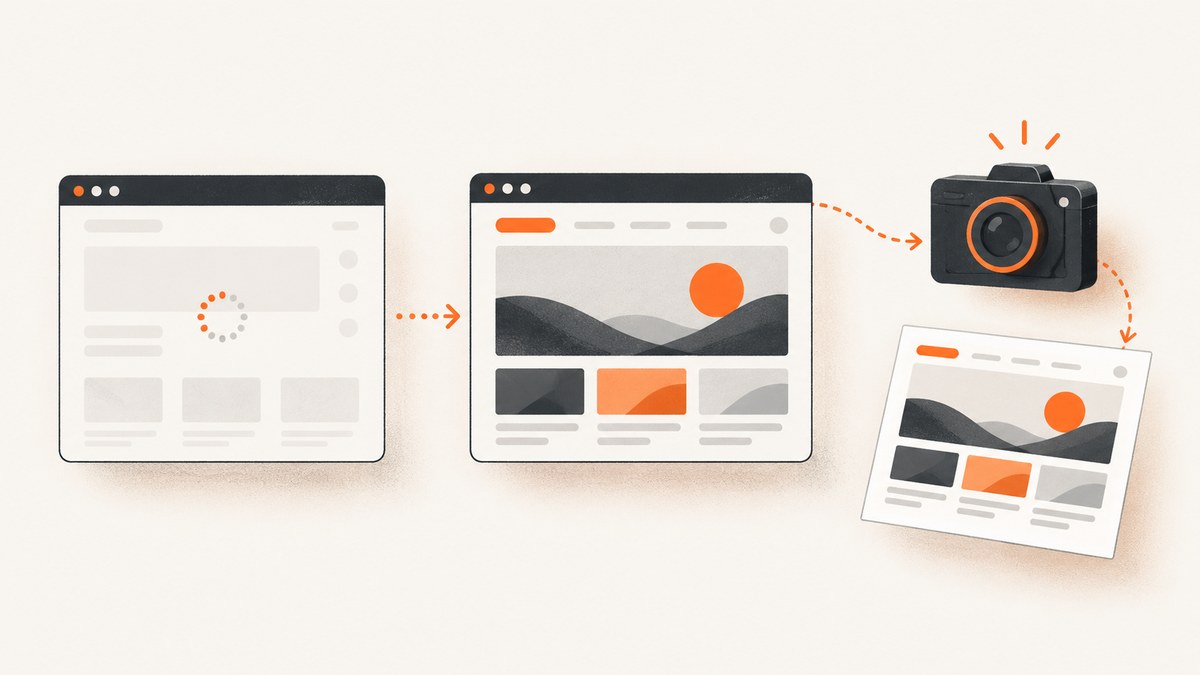
In Puppeteer, await page.goto() with a lifecycle state that fits the page, then await page.screenshot(). For a typical page, start with load; when the content you need appears asynchronously, wait for that content explicitly instead. A screenshot call captures the current page—it does not decide whether your application has finished rendering.
await page.goto(url, { waitUntil: 'load' });
await page.screenshot({ path: 'page.png' });
This guide explains what each wait condition means, shows complete Puppeteer and Playwright scripts, and covers common hangs and incomplete captures. If you want an image without managing a browser, there is also a one-request ScreenshotNeo option after the do-it-yourself instructions.
1. Choose the right readiness signal
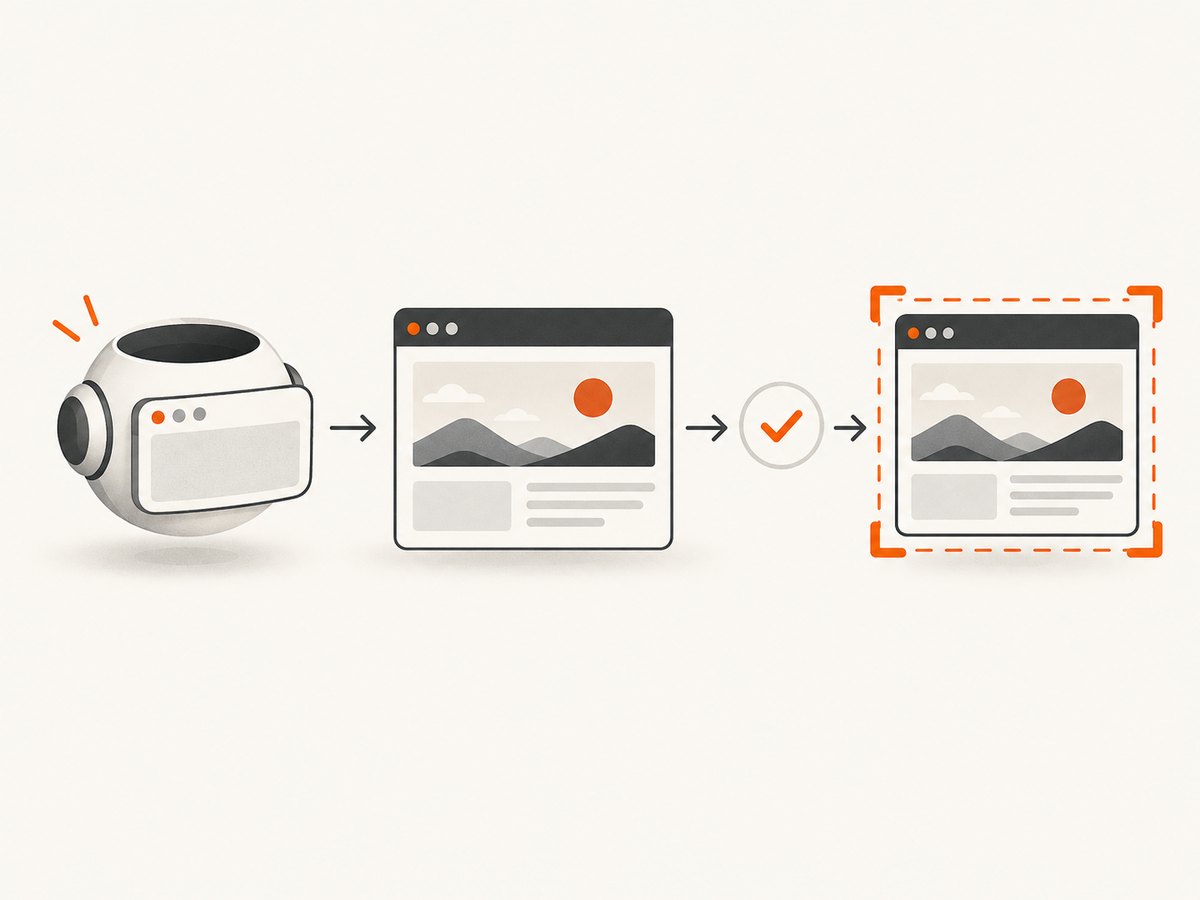
“Page load” can mean several different things. Browser lifecycle events describe document and resource progress; they do not necessarily tell you that a JavaScript application has rendered the specific data you want in the screenshot.
| Condition | What it signals | Use it when |
|---|---|---|
domcontentloaded |
The initial HTML has been parsed. | You need the document structure, and can wait separately for later content. |
load |
The page’s load event has fired. | Resources associated with the load event are sufficient for the capture. |
networkidle / Puppeteer networkidle2 |
A period of relative network quiet. | Network activity settling is a useful heuristic for the page you capture. |
| A selector or page condition | The specific element or state you care about exists or is visible. | Content is rendered asynchronously or background requests continue. |
Puppeteer’s screenshot guide demonstrates navigation with waitUntil: 'networkidle2' before taking the screenshot. Its navigation options also include lifecycle waits, and it provides standalone waits such as waitForNetworkIdle(), which waits at least the configured idle time. [Puppeteer screenshot guide] [Puppeteer Page API]
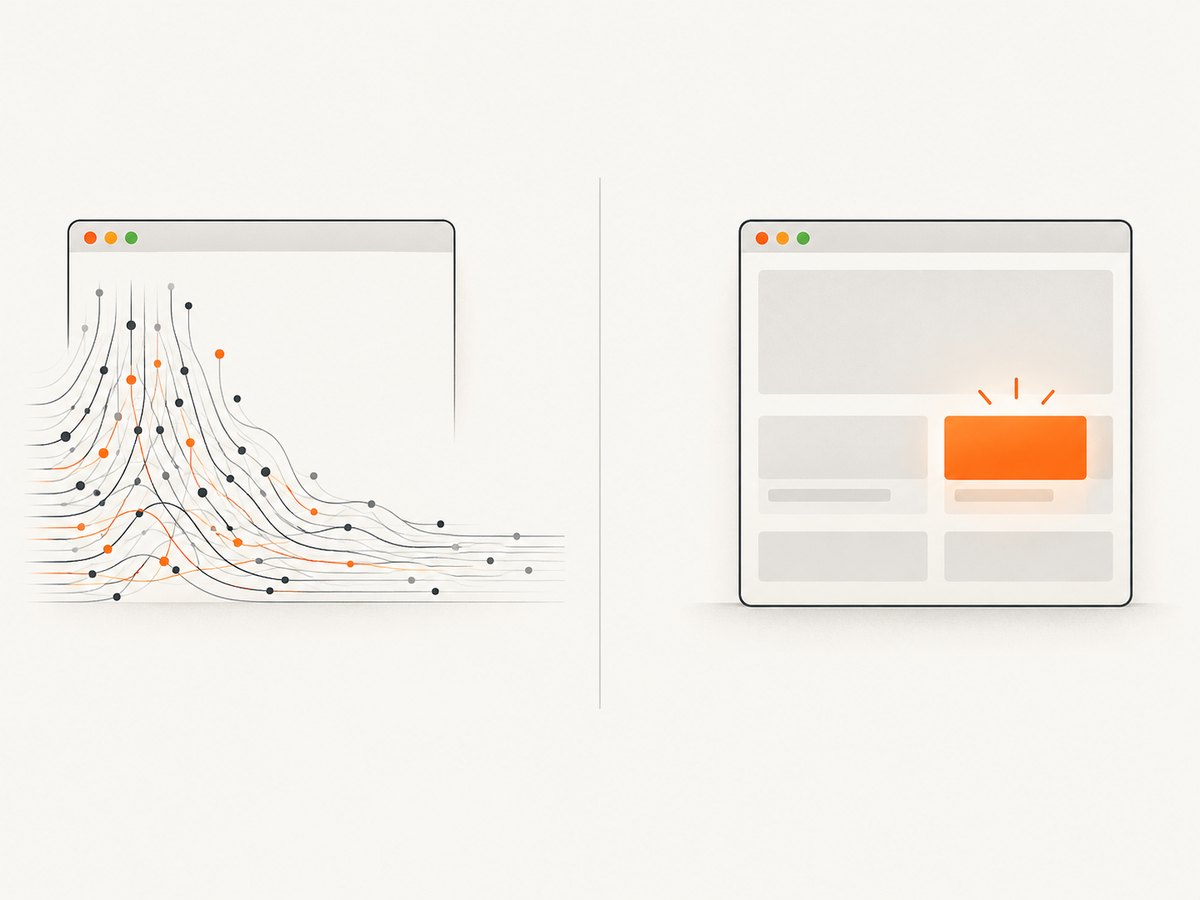
Network quiet is not the same as “the page is done.” Analytics, polling, streaming, and other ongoing requests can prevent quiet; conversely, a quiet network does not prove that the exact UI state you need is visible. Playwright defines its network-idle state as no network connections for at least 500 ms and discourages relying on it for tests. Prefer an assertion or condition tied to the expected page state when that is available. [Playwright waitForLoadState]
2. Complete Puppeteer example
This runnable Node.js script launches headless Chrome through Puppeteer, navigates to a URL, waits for the load event, and saves a screenshot. Install Puppeteer in your project first with npm install puppeteer, then save this as screenshot.mjs and run node screenshot.mjs.
import puppeteer from 'puppeteer';

const url = 'https://example.com';
const browser = await puppeteer.launch({ headless: true });

try {
  const page = await browser.newPage();
  await page.setViewport({ width: 1440, height: 1000 });

  await page.goto(url, {
    waitUntil: 'load',
    timeout: 30_000,
  });

  await page.screenshot({
    path: 'page.png',
    fullPage: true,
  });
} finally {
  await browser.close();
}
The important sequence is await page.goto(), then await page.screenshot(). With waitUntil: 'load', navigation resolves after the load event. Set the navigation timeout for your environment and target; a timeout is a limit, not a guarantee that a slow page will become ready if you raise it indefinitely. The finally block closes Chrome even if navigation or capture fails.
Wait for a particular element
For a single-page app that fetches its main content after the load event, wait for a selector that represents the actual content. Replace the illustrative selector with one that exists on your target page.
await page.goto(url, {
  waitUntil: 'domcontentloaded',
  timeout: 30_000,
});

await page.waitForSelector('[data-ready="true"]', {
  visible: true,
  timeout: 15_000,
});

await page.screenshot({ path: 'page.png', fullPage: true });
waitForSelector() can wait for an element to appear and, with visible: true, for it to be visible. Puppeteer also provides waitForFunction() for a page-specific JavaScript condition—for example, a known application state exposed on the page. Keep the condition narrow and grounded in the page’s real behavior; a generic delay does not establish readiness. [Puppeteer waitForSelector] [Puppeteer waitForFunction]
Use network idle when it fits
If relevant requests settle and the page does not keep connections open, you can use the navigation lifecycle option shown in Puppeteer’s guide:
await page.goto(url, {
  waitUntil: 'networkidle2',
  timeout: 30_000,
});
await page.screenshot({ path: 'page.png', fullPage: true });
For a separate idle wait after navigation, Puppeteer exposes waitForNetworkIdle(). Its options let you configure the idle time and connection threshold; consult the API for defaults and supported values in the Puppeteer version installed in your project. Do not stack long network-idle waits on pages with persistent activity when a selector can express readiness more directly. [Puppeteer waitForNetworkIdle]
3. Playwright equivalent
Playwright follows the same order: navigate with a suitable readiness condition, then take the screenshot. Install the Chromium browser for Playwright with npm install playwright and npx playwright install chromium. Save the following as screenshot-playwright.mjs and run it with Node.js.
import { chromium } from 'playwright';

const browser = await chromium.launch({ headless: true });

try {
  const page = await browser.newPage({
    viewport: { width: 1440, height: 1000 },
  });

  await page.goto('https://example.com', {
    waitUntil: 'load',
    timeout: 30_000,
  });

  await page.screenshot({ path: 'page.png', fullPage: true });
} finally {
  await browser.close();
}
For asynchronously rendered content, use a locator assertion before capture:
await page.goto('https://example.com', {
  waitUntil: 'domcontentloaded',
});

await page.locator('[data-ready="true"]').waitFor({
  state: 'visible',
  timeout: 15_000,
});

await page.screenshot({ path: 'page.png', fullPage: true });
Playwright’s navigation reference defines commit, domcontentloaded, load, and networkidle. Its migration guide maps Puppeteer’s waitForNetworkIdle() to Playwright’s waitForLoadState('networkidle'). For test code, Playwright recommends assertions about the page rather than using network idle as a general readiness test. [Playwright page.goto] [Playwright migration guide]
4. Or skip the browser setup
ScreenshotNeo returns an image or PDF from one GET request. The API accepts the target URL and can return PNG, JPEG, WebP, or PDF; see the ScreenshotNeo API documentation for parameters and response details.
curl -G "https://api.screenshotneo.com/v1/shot" \
  -d access_key=YOUR_API_KEY \
  --data-urlencode url=https://stripe.com \
  -o shot.webp
import requests
r = requests.get(
"https://api.screenshotneo.com/v1/shot",
params={"access_key": "YOUR_API_KEY", "url": "https://stripe.com"},
timeout=90,
)
open("shot.webp", "wb").write(r.content)const q = new URLSearchParams({
access_key: 'YOUR_API_KEY',
url: 'https://stripe.com',
});
const res = await fetch(`https://api.screenshotneo.com/v1/shot?${q}`);
if (!res.ok) throw new Error(`Screenshot request failed: ${res.status}`);
await import('node:fs/promises').then(({ writeFile }) =>
writeFile('shot.webp', Buffer.from(await res.arrayBuffer()))
);ScreenshotNeo accepts cookie and consent banners like a visitor, then removes more than 60 known consent platforms, newsletter popups, and chat widgets; each step can be turned off. Bot checks and CAPTCHAs, blank pages, timeouts, failed loads, and cache hits cost nothing, and response headers identify the page verdict and billing status. Its MCP server offers take_screenshot, get_page_info, and capture_pdf for AI agents and MCP clients.
The free plan includes 1,000 screenshots each month with no card. Paid plans start at $5 for 3,000 shots; every feature is available on every plan. For a managed screenshot API made by Yorker Media, visit ScreenshotNeo. Sign up free for 1,000 screenshots a month, no card required.
5. Fixed delays, full-page captures, and practical options
Why a fixed sleep is fragile
A fixed delay waits the same amount regardless of whether a page becomes ready quickly or slowly. It can waste time on fast pages and still capture too early on slow ones. Use a lifecycle event for document progress and a selector or page condition for application content. If a delay is required for a known animation or transition, treat it as an additional settling step after readiness, not as the only readiness check. This is implementation guidance based on the distinct conditions exposed by the browser libraries; no single duration works for every site.
Full page and lazy content
Both examples request a full-page screenshot. That controls the captured area; it does not prove that below-the-fold content has loaded. If the page lazily loads images or sections as they approach the viewport, identify the target content and wait for it or use a capture approach that scrolls through the page before capture. Validate the result when the page’s content depends on scrolling, because navigation readiness and full-page dimensions are separate concerns.
Make repeat captures consistent
- Set a viewport explicitly so responsive layout does not vary with the machine’s default window size.
- Wait for a meaningful element or application state when content arrives after navigation.
- Use a bounded timeout and report which wait failed; this distinguishes navigation problems from a missing selector.
- Close browser instances in cleanup code, including on exceptions.
- For visual comparisons, keep the URL, viewport, browser version, and readiness condition consistent.
6. Troubleshooting
| Symptom | Likely cause | Fix |
|---|---|---|
| Screenshot is blank or missing the main content | The screenshot ran after navigation but before app content appeared. | Wait for a visible target selector or a page-specific condition before capture. |
goto() times out |
The selected lifecycle event did not occur before the timeout, or the site is slow or unreachable. | Check the URL and navigation errors; choose a lifecycle state that matches what you need, and set a reasonable explicit timeout. |
| Network-idle wait hangs | Persistent requests keep the page from becoming quiet. | Wait for the relevant selector or condition instead of requiring the whole page to become idle. |
| Selector wait times out | The selector is wrong, the element is not rendered on this route, or it never becomes visible. | Inspect the page DOM and use a stable selector for the intended content; confirm whether hidden elements are expected. |
| Capture differs between runs | Responsive layout, asynchronous content, or timing varies. | Set the viewport, wait for the actual content state, and use the same capture configuration each run. |
| Fixed sleep still captures too early | The page sometimes needs longer than the chosen delay. | Replace the sleep-only check with a lifecycle wait and target-content wait. |
7. Performance, reliability, and cost
Waiting longer increases the latency of each capture, so choose the narrowest signal that guarantees the content you need. domcontentloaded may be adequate for static markup; an explicit selector can avoid waiting on unrelated background activity; network idle can be useful when the relevant resources settle. These are tradeoffs in what each condition observes, not universal speed rankings.
Reliability comes from making readiness observable. A bounded selector wait fails with a clear timeout when the expected element never appears. A network-idle heuristic can be misleading on both continuously active pages and pages whose UI updates after network quiet. Treat navigation success and application readiness as distinct checkpoints.
Self-hosted browser automation has no per-shot API fee described here, but it requires you to run and maintain the browser process and its environment. An API trades that setup for a service charge. ScreenshotNeo offers 1,000 free shots monthly, then plans at $5 for 3,000, $15 for 15,000, $39 for 60,000, $99 for 250,000, and $249 for 1,000,000; yearly billing gives two months free. Every feature is on every plan. Its clean-shot billing rules mean bot checks, blank pages, timeouts, failed loads, and cache hits cost nothing.
8. Frequently asked questions
Does page.screenshot() wait for page load?
No readiness wait should be assumed. Await navigation or a page condition first, then await the screenshot call.
Should I always use networkidle?
No. It is a network-quiet heuristic. Use it when relevant requests settle, and use a content condition when the page has ongoing requests or a specific element defines readiness.
What is the safest wait for an app that loads data after navigation?
Wait for a visible element or application condition that represents the data you need in the image, with a bounded timeout.
Can this pattern be used with Playwright?
Yes. Navigate with an appropriate state, wait for an assertion or locator when needed, and then call page.screenshot().


