How to Wait for a Page to Load with Python WebDriver
Learn when Selenium waits, how to choose page-load strategies, and how to synchronize Python WebDriver with dynamic pages reliably.
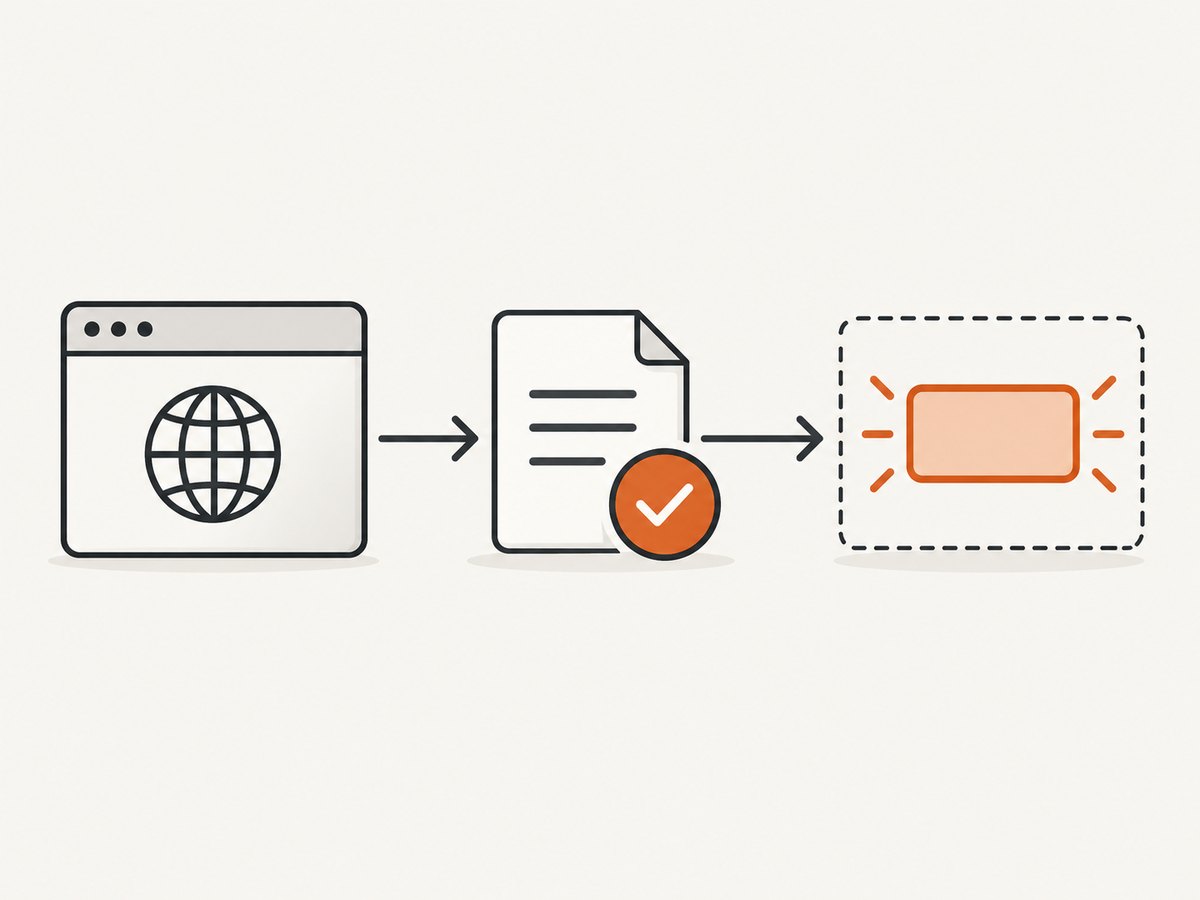
Use driver.get() for document navigation, then use an explicit WebDriverWait for the exact state your next action needs. With Selenium’s default normal page-load strategy, get() waits for the document’s complete readiness state. That does not guarantee that a single-page app has finished its JavaScript requests or rendered the element you need.
The reliable Python pattern is:
from selenium import webdriver
from selenium.webdriver.common.by import By
from selenium.webdriver.support.ui import WebDriverWait
from selenium.webdriver.support import expected_conditions as EC

driver = webdriver.Chrome()
try:
    driver.get("https://example.com")
    results = WebDriverWait(driver, 15).until(
        EC.visibility_of_element_located((By.CSS_SELECTOR, "[data-testid='results']"))
    )
    results.click()
finally:
    driver.quit()
Selenium documents this navigation/readiness distinction in its waiting guide. The Python API also exposes separate page-load and implicit timeouts in the WebDriver reference.
1. What “page loaded” means in Selenium
driver.get(url) blocks according to the session’s page-load strategy. Under normal (the default), WebDriver waits for the document’s readyState to reach complete, which corresponds to the load event. The HTML-defined resources may be ready at that point, while JavaScript can still add, replace, or hydrate elements afterward.
| Need | What to wait for | Typical Selenium tool |
|---|---|---|
| Initial document navigation | Browser document readiness | driver.get() plus a page-load strategy |
| An element exists in the DOM | Node is present, even if hidden | presence_of_element_located |
| User can see an element | Node is displayed | visibility_of_element_located |
| A click is safe | Displayed and enabled | element_to_be_clickable |
| A route changed | Expected URL or URL fragment | url_contains or url_to_be |
| App-specific readiness | Spinner gone, status ready, text present, or custom predicate | Custom explicit wait |
Choose the condition that makes the next operation safe. “The page loaded” is usually too broad for an AJAX or SPA workflow.
2. Install Selenium and create a driver
Install Selenium in the environment that will run the test or scraper:
python -m pip install -U seleniumfrom selenium import webdriver
driver = webdriver.Chrome()
try:
driver.get("https://example.com")
print(driver.title)
finally:
driver.quit()3. Use explicit waits for dynamic content
Presence, visibility, and clickability
from selenium import webdriver
from selenium.webdriver.common.by import By
from selenium.webdriver.support.ui import WebDriverWait
from selenium.webdriver.support import expected_conditions as EC

driver = webdriver.Chrome()
wait = WebDriverWait(driver, 15)

try:
    driver.get("https://example.com/dashboard")
    results_node = wait.until(EC.presence_of_element_located((By.CSS_SELECTOR, "[data-testid='results']")))
    results = wait.until(EC.visibility_of_element_located((By.CSS_SELECTOR, "[data-testid='results']")))
    refresh = wait.until(EC.element_to_be_clickable((By.CSS_SELECTOR, "button.refresh")))
    refresh.click()
finally:
    driver.quit()
WebDriverWait polls the condition until it returns a truthy result or the timeout expires. A failed wait raises TimeoutException.
Wait for a title, URL, text, or an attribute
wait.until(EC.title_contains("Dashboard"))
wait.until(EC.url_contains("/reports"))
wait.until(EC.text_to_be_present_in_element((By.CSS_SELECTOR, "[role='status']"), "Ready"))
wait.until(EC.text_to_be_present_in_element_value((By.NAME, "q"), "selenium"))
wait.until(EC.visibility_of_element_located((By.CSS_SELECTOR, "[aria-busy='false']")))
Wait for a custom application condition
def results_have_rows(driver):
    rows = driver.find_elements(By.CSS_SELECTOR, "table tbody tr")
    return rows if rows else False

rows = WebDriverWait(driver, 20, poll_frequency=0.25).until(results_have_rows)
print(f"Rows: {len(rows)}")
4. Set a navigation timeout separately
driver.set_page_load_timeout(seconds) is a ceiling for navigation completion. It does not wait for a selector, an AJAX response, or a business-level “ready” state.
from selenium import webdriver
from selenium.common.exceptions import TimeoutException

driver = webdriver.Chrome()
driver.set_page_load_timeout(30)
try:
    try:
        driver.get("https://example.com/slow-page")
    except TimeoutException:
        print("Navigation exceeded 30 seconds")
finally:
    driver.quit()
See the Selenium Python API documentation.
5. Choose a page-load strategy
| Strategy | Returns when | Use when | Follow-up |
|---|---|---|---|
normal |
complete and load event |
Conventional navigation behavior | Still wait for dynamic UI state |
eager |
interactive / DOMContentLoaded |
You synchronize application state yourself | Wait for the next required element or state |
none |
WebDriver does not block on readiness | You have strong readiness signals | Explicit waits are mandatory |
from selenium import webdriver
from selenium.webdriver.common.by import By
from selenium.webdriver.support.ui import WebDriverWait
from selenium.webdriver.support import expected_conditions as EC

options = webdriver.ChromeOptions()
options.page_load_strategy = "eager"
driver = webdriver.Chrome(options=options)
try:
    driver.get("https://example.com/app")
    WebDriverWait(driver, 20).until(
        EC.visibility_of_element_located((By.CSS_SELECTOR, "[data-testid='app-ready']"))
    )
finally:
    driver.quit()
The capability applies to the entire session. Click and form-submit navigation also needs condition-based waits.
6. Implicit waits
An implicit wait is a global delay applied to every element-location call. Its default is zero:
driver.implicitly_wait(5)Do not mix implicit and explicit waits because their timers can interact unpredictably. For dynamic applications, keep implicit waits at zero and use explicit waits:
driver.implicitly_wait(0)| Approach | Scope | Failure | Best fit |
|---|---|---|---|
| Page-load strategy | Every navigation | Navigation timeout | Choosing when get() returns |
| Implicit wait | Every element lookup | NoSuchElementException |
Simple pages |
| Explicit wait | One condition | TimeoutException |
SPAs and AJAX |
time.sleep() |
Fixed pause | Too short or wasteful | Rare deliberate pauses |
7. Reusable wait helper
from selenium import webdriver
from selenium.common.exceptions import TimeoutException, WebDriverException
from selenium.webdriver.common.by import By
from selenium.webdriver.support.ui import WebDriverWait
from selenium.webdriver.support import expected_conditions as EC

def open_until_visible(url, locator, navigation_seconds=30, condition_seconds=20):
    driver = webdriver.Chrome()
    driver.set_page_load_timeout(navigation_seconds)
    try:
        driver.get(url)
        element = WebDriverWait(driver, condition_seconds).until(
            EC.visibility_of_element_located(locator)
        )
        return driver, element
    except (TimeoutException, WebDriverException):
        driver.quit()
        raise

driver, results = open_until_visible(
    "https://example.com/dashboard",
    (By.CSS_SELECTOR, "[data-testid='results']")
)
try:
    print(results.text)
finally:
    driver.quit()
8. Common dynamic-page patterns
Wait for a loading indicator to disappear
wait.until(EC.invisibility_of_element_located((By.CSS_SELECTOR, "[data-testid='loading']")))Wait for a new page after a click
old_heading = driver.find_element(By.CSS_SELECTOR, "h1")
driver.find_element(By.CSS_SELECTOR, "a.next").click()
wait.until(EC.staleness_of(old_heading))
wait.until(EC.visibility_of_element_located((By.CSS_SELECTOR, "h1")))
Wait for a frame
wait.until(EC.frame_to_be_available_and_switch_to_it((By.CSS_SELECTOR, "iframe[data-app]")))
wait.until(EC.visibility_of_element_located((By.CSS_SELECTOR, ".inside-frame")))
driver.switch_to.default_content()
Wait for a new window
original = driver.current_window_handle
before = set(driver.window_handles)
driver.find_element(By.CSS_SELECTOR, "a[target='_blank']").click()
wait.until(lambda d: len(d.window_handles) > len(before))
new_handle = next(h for h in driver.window_handles if h != original)
driver.switch_to.window(new_handle)
wait.until(EC.presence_of_element_located((By.TAG_NAME, "body")))
Wait for an application flag
wait.until(lambda d: d.execute_script(
    "return document.querySelector('[data-app-ready]')?.dataset.appReady === 'true';"
))
document.readyState is useful for diagnostics, but does not prove that application data has finished loading.
9. Troubleshooting checklist
| Symptom | Cause | Fix |
|---|---|---|
get() returns but data is missing |
JavaScript ran after document readiness | Wait for the result element, status text, spinner disappearance, or custom predicate. |
TimeoutException |
Wrong locator, slow backend, wrong frame, or state never occurs | Verify the selector and context; increase timeout only when justified. |
NoSuchElementException |
Element is not present yet | Use an explicit presence or visibility wait. |
| Click intercepted | Overlay, banner, animation, or disabled control | Wait for clickability and overlay disappearance. |
StaleElementReferenceException |
Framework replaced the node | Locate the element again inside the wait. |
| Element inside iframe is missing | Wrong browsing context | Switch into the frame before locating. |
| Navigation hangs | Server or resource never completes | Set page-load timeout; consider eager or none with explicit waits. |
| Mixed waits are slow | Implicit and explicit waits compound | Remove the implicit wait. |
| CI differs from local | Different browser, viewport, network, or timing | Capture browser/version, URL, screenshot, page source, and readiness state. |
from pathlib import Path

Path("debug.png").write_bytes(driver.get_screenshot_as_png())
Path("debug.html").write_text(driver.page_source, encoding="utf-8")
print(driver.current_url, driver.title)
print(driver.execute_script("return document.readyState"))
10. Performance, reliability, and cost
- Performance: Explicit waits return as soon as their condition succeeds. A shorter polling interval can react faster but increases command traffic.
- Reliability: Prefer stable test IDs, ARIA states, URLs, and status attributes over brittle class names and fixed sleeps.
- Timeout design: Keep navigation and condition budgets separate, and collect diagnostics on failure.
- Resource use: Headless browsers consume CPU and memory, especially with many images, fonts, ads, and third-party scripts. Reuse drivers for related steps while resetting state deliberately.
- Cost: Selenium is open source, while hosted browsers, CI minutes, proxy traffic, and storage can add operational cost. Measure your own pages and concurrency.
11. Or skip the browser setup
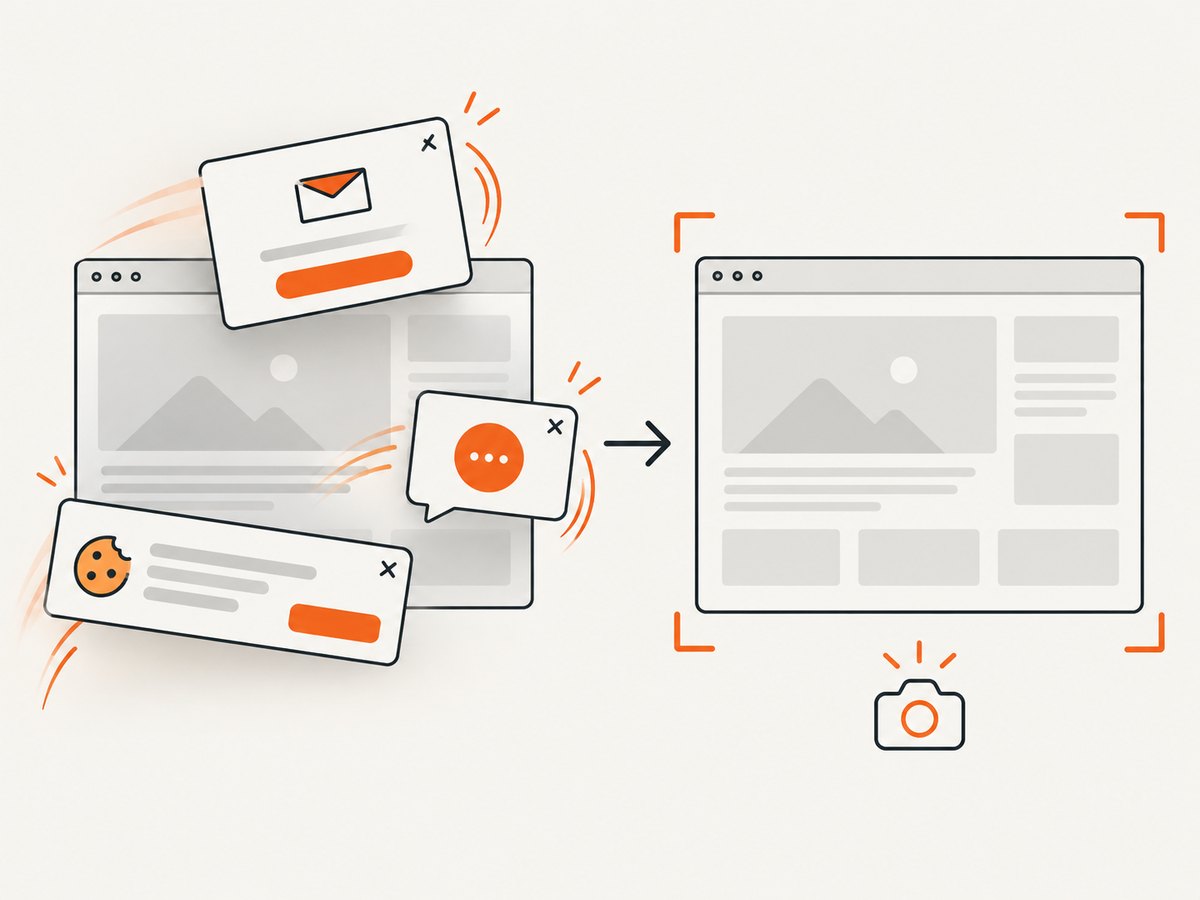
If the goal is a clean screenshot rather than browser interaction, ScreenshotNeo provides a single GET request. It accepts consent banners as a visitor and removes 60+ known consent platforms, newsletter popups, and chat widgets before capture; each cleanup step can be turned off. Bot checks or CAPTCHAs, blank pages, timeouts, failed loads, and cache hits are not billed, and the response identifies the result with X-Page-Verdict and X-Billed headers. ScreenshotNeo also provides an MCP server with take_screenshot, get_page_info, and capture_pdf for Claude, Cursor, and other MCP clients.
See the ScreenshotNeo API documentation for all options.
cURL
curl -G "https://api.screenshotneo.com/v1/shot" -d access_key=YOUR_API_KEY --data-urlencode url=https://stripe.com -o shot.webpPython
import requests
r = requests.get("https://api.screenshotneo.com/v1/shot", params={"access_key": "YOUR_API_KEY", "url": "https://stripe.com"}, timeout=90)
r.raise_for_status()
open("shot.webp", "wb").write(r.content)
Node.js
const q = new URLSearchParams({ access_key: 'YOUR_API_KEY', url: 'https://stripe.com' });
const res = await fetch(`https://api.screenshotneo.com/v1/shot?${q}`);
ScreenshotNeo supports full-page capture with lazy images loaded, CSS-selector element capture, dark mode, device presets, custom viewports, retina scale, PDF options, HTML/CSS-to-image, custom CSS and JavaScript, clicks, selector/delay/network-idle waits, request blocking, headers, cookies, user agents, Authorization, timezone, geolocation, transparent backgrounds, resizing, caching, signed links, async jobs with signed webhooks, bulk capture of 100 URLs per call, a usage API, and an OpenAPI spec.
Plans include 1,000 shots per month free with no card; Starter is $5 for 3,000, Growth $15 for 15,000, Pro $39 for 60,000, Scale $99 for 250,000, and Business $249 for 1,000,000. Yearly billing gives two months free, and every feature is on every plan. Create a free ScreenshotNeo account to get started.
12. FAQ
Does driver.get() wait for AJAX?
No. Wait for the AJAX result or application state you need.
Should I always use normal?
Use it for conventional navigation. Choose eager or none only with reliable explicit readiness conditions.
Is time.sleep() acceptable?
Only for a deliberate external pause. Use a condition for page synchronization.
Can page-load strategy vary by URL?
No. It is session-wide; create another driver if necessary.
What timeout should I choose?
Choose values from supported environments and keep navigation and condition budgets separate.


