Using Watir to Automate Web Browsers with Ruby
Learn how to install Watir, control a real browser with Ruby, locate elements, synchronize tests, troubleshoot drivers, and capture reliable evidence.

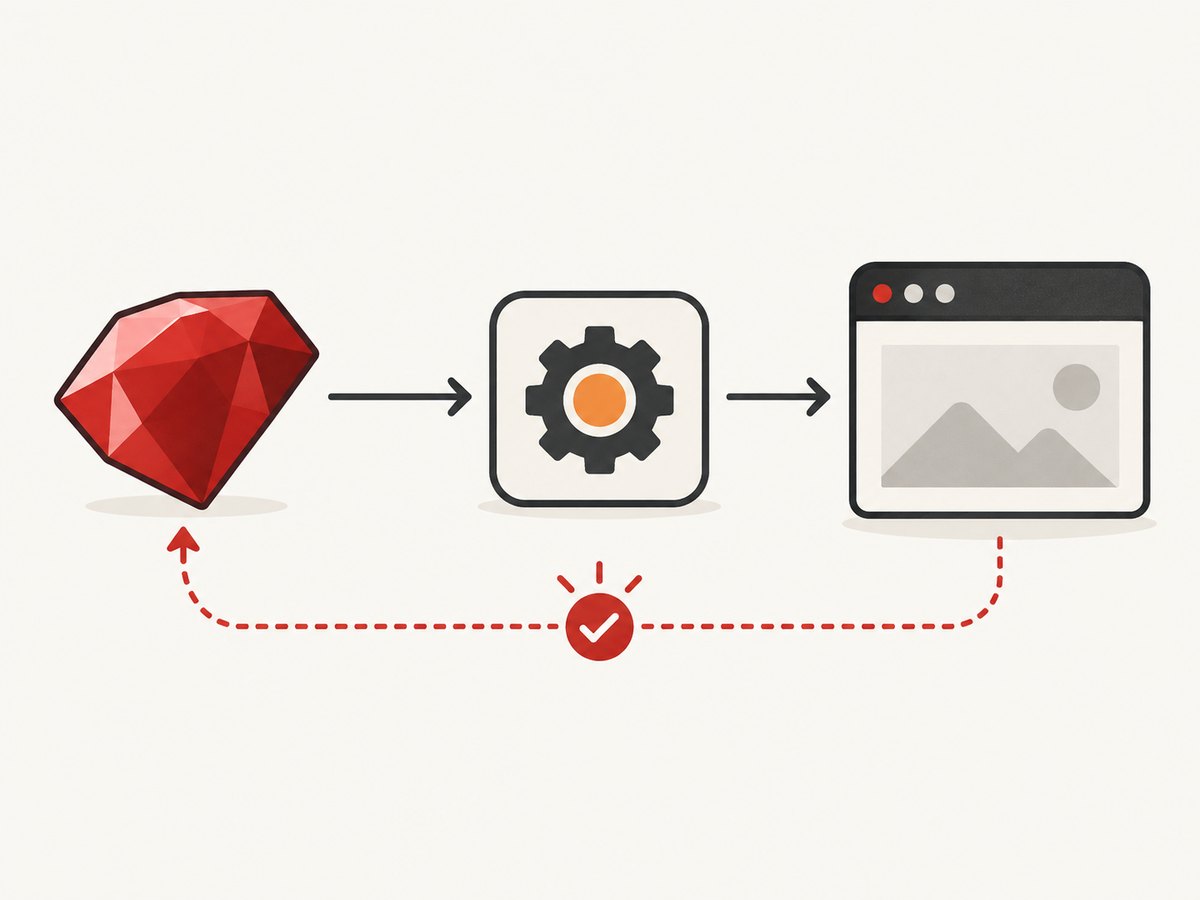
Watir is an open-source Ruby library for automating web application tests through browser interactions. It lets a Ruby program open a browser, visit a URL, click links, fill forms, inspect text and close the session. The Watir Project describes this as interacting with a browser the same way people do: clicking links, filling out forms and validating text. Watir is a Ruby API, not a browser. Selenium WebDriver supplies the browser-control layer, while the browser and its corresponding driver perform the actual work.
This guide builds a complete session from installation to assertions, then covers selectors, waits, headless execution, screenshots, page objects, failures and CI concerns. The examples use public pages and intentionally avoid relying on a particular browser version. Check the current Watir, Selenium and browser documentation before pinning versions in a production test suite.
What you need before writing a test
The stack has four parts:
| Part | Role |
|---|---|
| Ruby | Runs your test code and the Watir gem. |
| Watir | Provides Ruby methods such as Watir::Browser, goto, click and element assertions. |
| Selenium WebDriver | Communicates with a browser through a browser-specific driver. |
| Browser and driver | Launch and control Chrome, Firefox, Edge or another supported browser. |
Selenium’s architecture explains a common failure pattern: Ruby code can be syntactically correct while a session fails because the browser is absent, the driver is unavailable or the versions are incompatible. Watir’s guides list browser-specific instructions, automatic waits, headless execution, downloads, windows, cookies, alerts, screenshots and page objects. The guide index is community maintained, so confirm current procedures against the release you install.
Install Watir and create your first session
Install Ruby, then install the gem:
gem install watirThe installation guide documents that command. RubyGems listed Watir 7.3.0 with Ruby >= 3.0.0 at the time of the research, but package metadata changes. Check the current listing at RubyGems before setting a runtime requirement. Watir 7.3 release notes mention Selenium 4.2 or newer and recommend allowing newer Selenium to manage drivers in that release context; treat those notes as historical guidance and verify current Selenium setup.
Create first_session.rb:
require 'watir'

browser = Watir::Browser.new
browser.goto('https://example.com')

puts browser.title
puts browser.h1.text

browser.close
Run it with ruby first_session.rb. The lifecycle is deliberately explicit:
- Load the Watir library.
- Create a browser session.
- Navigate with
goto. - Locate or inspect elements.
- Close the browser even when the test finishes.
For guaranteed cleanup when an assertion raises, use a block:
require 'watir'

Watir::Browser.new do |browser|
  browser.goto('https://example.com')
  abort 'Unexpected page' unless browser.h1.text == 'Example Domain'
end
Locate elements and interact with a page
Watir elements are selected with readable attributes. Common selectors include id, class, visible text, name, href, data-testid and CSS selectors. Prefer a stable identifier owned by the application rather than a deeply nested CSS path.
require 'watir'

Watir::Browser.new do |browser|
  browser.goto('https://www.example.com/login')

  browser.text_field(id: 'email').set('qa@example.com')
  browser.text_field(name: 'password').set('correct-horse-battery-staple')
  browser.button(type: 'submit').click

  browser.div(data_testid: 'account-home').wait_until(&:present?)
  raise 'Login failed' unless browser.url.include?('/account')
end
The exact fields on a site vary, so inspect the page and adapt selectors. Useful element types include link, button, text_field, select_list, checkbox, radio, file_field, div and span.
Reading state and making assertions
heading = browser.h1
raise 'Heading is missing' unless heading.exists?
raise 'Heading is hidden' unless heading.visible?
raise 'Wrong text' unless heading.text.strip == 'Example Domain'

link = browser.link(text: 'More information')
raise 'Link target changed' unless link.href.start_with?('https://')
exists? checks whether an element can be found. present? also requires it to be visible. Use explicit assertions from your test framework when available; plain raise keeps these examples runnable without adding another dependency.
Synchronization: waits, delays and dynamic pages
Modern pages render asynchronously. A fixed sleep pauses for the same duration on every machine and can still be too short. Watir’s element waits are usually a better default:
browser.button(id: 'load-results').click
results = browser.div(id: 'results')
results.wait_until(timeout: 20, &:present?)
raise 'No results' if results.text.strip.empty?
Wait for a condition that represents readiness: an element becoming present, a loading indicator disappearing, a URL changing or a count reaching an expected value. Keep the timeout long enough for CI but short enough to expose genuine failures.
browser.div(class: 'spinner').wait_while(timeout: 20, &:present?)
browser.wait_until(timeout: 20) { browser.url.end_with?('/complete') }
Use a small delay only when the application has no observable readiness signal. When a test needs network-idle or custom JavaScript synchronization, inspect the current Watir and Selenium guides for supported APIs rather than assuming a browser-specific implementation.
Headless mode and browser options
Headless mode runs without a visible window and is useful on CI machines. Browser options belong to the browser driver, so keep them close to the session setup:
require 'watir'

options = Selenium::WebDriver::Chrome::Options.new
options.add_argument('--headless')
options.add_argument('--window-size=1440,1000')

Watir::Browser.new(:chrome, options: options) do |browser|
  browser.goto('https://example.com')
  puts browser.title
end
Option names and driver behavior can change. Validate headless flags against the browser version installed in your environment. A visible run is often easier while developing selectors; switch to headless in CI after the test is stable.
Cookies, alerts, windows and downloads
Browser automation often crosses page boundaries. Watir’s guide index includes dedicated material for these cases:
- Cookies: read, add or delete cookies when a test needs a known session state.
- Alerts: accept or dismiss JavaScript dialogs before continuing.
- Windows: switch to a popup or new tab and return to the original window.
- Downloads: configure a download directory and verify the resulting file.
Because these APIs depend on the current Watir and Selenium releases, use the project’s current browser guides for exact method names. Keep each test responsible for restoring state so cookies, extra windows and downloaded files do not leak into the next example.
Page objects for maintainable suites
When selectors are repeated, wrap them in a page object. This keeps application markup changes in one place and lets tests describe behavior:
class LoginPage
  def initialize(browser)
    @browser = browser
  end

  def open
    @browser.goto('https://example.com/login')
    self
  end

  def sign_in(email, password)
    @browser.text_field(id: 'email').set(email)
    @browser.text_field(id: 'password').set(password)
    @browser.button(type: 'submit').click
    self
  end

  def logged_in?
    @browser.div(data_testid: 'account-home').present?
  end
end

Watir::Browser.new do |browser|
  page = LoginPage.new(browser).open
  page.sign_in('qa@example.com', 'secret')
  raise 'Login failed' unless page.logged_in?
end
Keep waits inside page methods when they describe page readiness. Keep business assertions in the test so a failure explains what behavior was expected.
Capturing screenshots and test evidence
Watir and Selenium can capture screenshots from the browser session for failure diagnostics. Save them when an assertion fails, and include the current URL and browser logs when your environment supports them. Screenshots can contain cookies, personal data or secrets, so choose an access-controlled artifact store.
For a clean, repeatable image of a public URL outside a browser test, ScreenshotNeo provides a GET-based screenshot API. It accepts options for full-page capture, element selectors, dark mode, device presets, custom CSS and JavaScript, waits, request blocking, headers, cookies, user agents, timezone, geolocation, transparent backgrounds, resizing, caching, signed links, asynchronous jobs and bulk capture. Its API also supports PDF output.
Or skip the browser setup
If your goal is a rendered image rather than interactive assertions, call ScreenshotNeo directly. See the ScreenshotNeo API documentation for all options.
curl -G "https://api.screenshotneo.com/v1/shot" -d access_key=YOUR_API_KEY --data-urlencode url=https://stripe.com -o shot.webpimport requests
r = requests.get(
'https://api.screenshotneo.com/v1/shot',
params={'access_key': 'YOUR_API_KEY', 'url': 'https://stripe.com'},
timeout=90,
)
r.raise_for_status()
open('shot.webp', 'wb').write(r.content)const q = new URLSearchParams({ access_key: 'YOUR_API_KEY', url: 'https://stripe.com' });
const res = await fetch(`https://api.screenshotneo.com/v1/shot?${q}`);
if (!res.ok) throw new Error(`HTTP ${res.status}`);
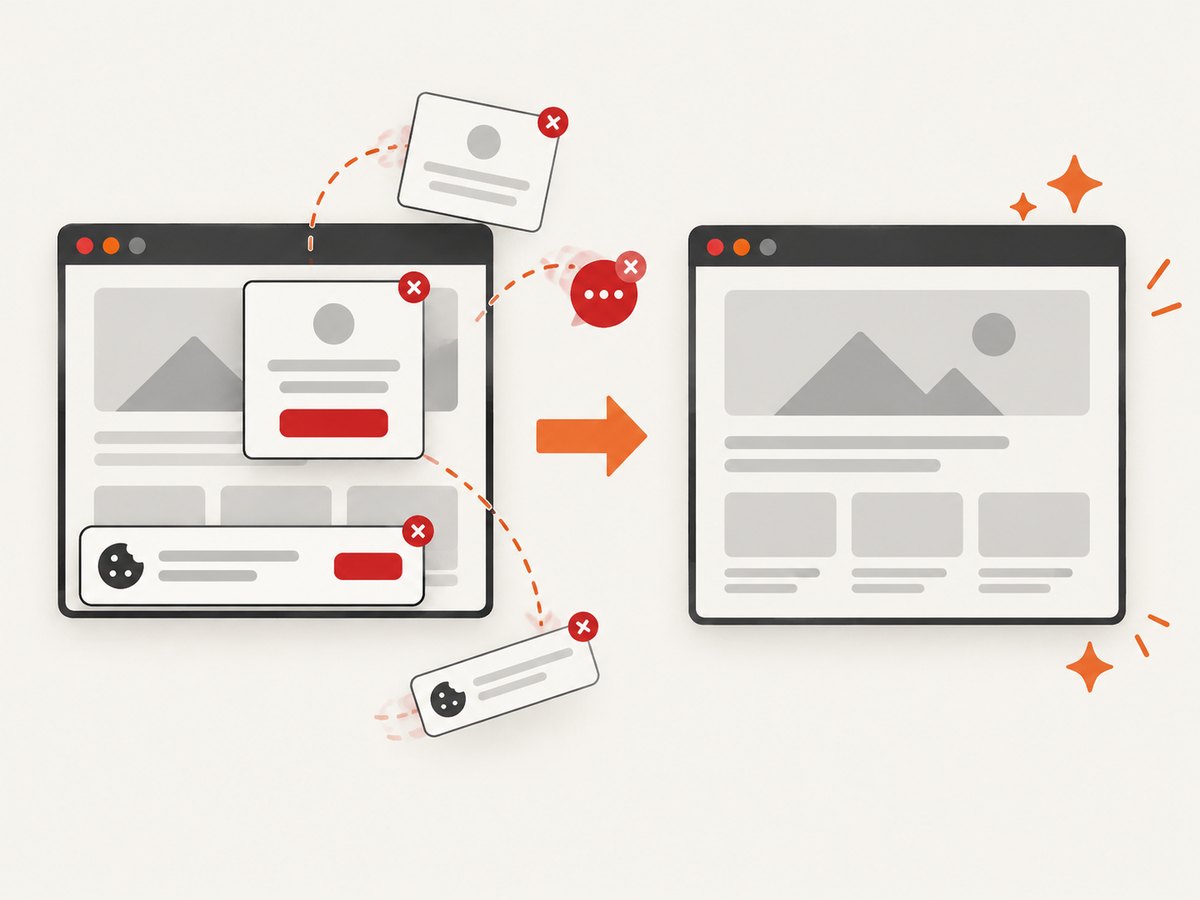
const image = Buffer.from(await res.arrayBuffer());ScreenshotNeo accepts cookie and consent banners before capture and removes more than 60 known consent platforms, newsletter popups and chat widgets; each cleanup step can be disabled. Bot checks, blank pages, timeouts, failed loads and cache hits are not billed, and response headers identify the page verdict and whether the request was billed. An MCP server provides take_screenshot, get_page_info and capture_pdf tools for Claude, Cursor and other MCP clients. The Free plan includes 1,000 screenshots per month with no card; paid plans start at $5 for 3,000 shots. Create a free ScreenshotNeo account.
Troubleshooting Watir sessions
| Symptom | Likely cause | Fix |
|---|---|---|
| Browser does not start | Missing browser, driver or incompatible versions. | Install the target browser, update Selenium and verify the current Watir browser guide and driver setup. |
unknown command or session errors |
Driver and browser speak incompatible protocols. | Check browser and driver versions together; avoid assuming a 2023 release note applies to your current stack. |
| Element not found | Wrong selector, iframe, delayed rendering or changed markup. | Inspect the DOM, switch into the correct frame if needed, and wait for a stable readiness condition. |
| Element exists but click fails | Element is covered, off-screen, disabled or not yet interactive. | Wait for visibility, close overlays, scroll when appropriate and verify the element’s state. |
| Test passes locally but fails in CI | Different browser version, viewport, timing or missing display server. | Pin and document the environment, use supported headless options, set a known window size and preserve screenshots on failure. |
| Unexpected login or consent page | Cookies and session state differ between runs. | Start with a clean profile, set required cookies deliberately and avoid sharing mutable browser state across tests. |
Performance, reliability and cost
Browser sessions are heavier than HTTP requests because they start a browser, load resources and execute JavaScript. Reuse one session for related checks when isolation permits, but create independent sessions for tests that must not share cookies or local storage. Parallel runs can reduce wall-clock time while increasing CPU, memory and driver contention; measure the concurrency your CI workers can sustain.
Use explicit waits instead of long global sleeps. Block unnecessary resources only when the test does not depend on them. Keep screenshots and video artifacts for failures rather than every passing step when storage is limited. For static visual capture, ScreenshotNeo caching lets you choose a TTL, and failed loads and cache hits are not billed. Its usage API, signed webhooks for asynchronous jobs and bulk capture of up to 100 URLs per call help when a suite grows beyond one-off local checks.
Recommended learning path
- Run the minimal session against a stable page.
- Replace brittle selectors with stable IDs or test attributes.
- Add waits around observable state changes.
- Move repeated selectors and workflows into page objects.
- Add headless execution and artifact capture in CI.
- Read the current Watir guides for frames, windows, alerts, cookies, downloads and advanced interactions.
Start with the Watir homepage and its guide index. For the underlying browser protocol, consult the Selenium WebDriver documentation.
FAQ
Is Watir a browser?
No. Watir is a Ruby automation library. Selenium WebDriver and a browser-specific driver connect your Ruby code to Chrome, Firefox, Edge or another browser.
Do I need RSpec to use Watir?
No. The examples run with plain Ruby. RSpec, Minitest or another framework can provide richer assertions, setup and reporting.
Should every test run headless?
No. Visible mode is useful while developing and debugging. Headless mode is often convenient for CI once selectors and waits are stable.
When should I use ScreenshotNeo instead?
Use it when you need rendered screenshots or PDFs without maintaining browser and driver setup, especially for batch captures, clean public-page images or AI-agent workflows.