How to Fix Strange Watir Capybara PhantomJS Screenshot Offsets
Diagnose screenshot coordinate offsets in Watir, Capybara, and PhantomJS by checking the renderer, viewport, capture mode, and page layout.

Start by running the page directly in PhantomJS, outside Watir and Capybara, and record the exact renderer version, operating system, viewport, and screenshot mode. If the coordinate mismatch remains in that minimal reproduction, the wrapper is not the only place to investigate. A 2017 report reproduced the issue with PhantomJS 2.1.1 directly and its answer attributed it to that release or its embedded Qt WebEngine. That is a historical diagnosis, not a current, independently confirmed root cause or a recommendation to install an old beta. [Original PhantomJS offset report]
Then compare DOM coordinates and screenshot pixels from the same settled page state. Confirm whether the image is viewport-only, full-page, or selector-bounded, and make the configured viewport and browser window agree. If those checks do not explain the output, compare the same capture in a currently maintained browser automation stack before changing application CSS.
1. What the reported offset tells you
The original report used PhantomJS 2.1.1, set a 1024 by 768 viewport, read image positions with getBoundingClientRect(), and rendered a PNG. One image appeared at x=952 in the screenshot while the logged DOM value was x=891. Left-side items reportedly aligned while content farther right did not. The page also rendered a search field at a different size and omitted its magnifying-glass icon. These extra symptoms matter: a screenshot can expose a CSS or browser-rendering difference in addition to any coordinate conversion problem. The report does not establish which symptom caused the offset. [Original report]
Because the same behavior appeared after bypassing Watir and Capybara, changing Ruby wrapper settings alone is unlikely to be a complete diagnosis. The renderer, page state, capture extent, and coordinate interpretation all need to be checked. A 2017 answer blamed PhantomJS 2.1.1 or the embedded Qt WebEngine and said the issue was absent in PhantomJS 2.5 beta at that time. Treat that as a historical user report; it does not establish that the beta is supported or suitable now. [Historical answer]
2. Build a direct, reproducible PhantomJS capture
Make the smallest reproduction possible: one URL, one viewport, one target element, one coordinate log, and one screenshot. Run it in the environment where the failure occurs. The following PhantomJS script illustrates the method for a legacy installation. Check the syntax against the PhantomJS binary and wrapper you actually have; this is diagnostic code for that historical engine, not a claim that PhantomJS should be adopted for new automation.
// save as diagnose.js; run with: phantomjs diagnose.js https://example.com
var system = require('system');
var webpage = require('webpage');
var page = webpage.create();
var targetUrl = system.args[1];

page.viewportSize = { width: 1024, height: 768 };
page.onConsoleMessage = function (message) {
  console.log(message);
};
page.onError = function (message, trace) {
  console.log('PAGE ERROR: ' + message);
  trace.forEach(function (item) {
    console.log('  ' + item.file + ':' + item.line);
  });
};

page.open(targetUrl, function (status) {
  if (status !== 'success') {
    console.log('Navigation failed: ' + status);
    phantom.exit(1);
    return;
  }
  window.setTimeout(function () {
    var measurements = page.evaluate(function () {
      var nodes = Array.prototype.slice.call(document.querySelectorAll('img'));
      return nodes.map(function (node) {
        var rect = node.getBoundingClientRect();
        return {
          src: node.currentSrc || node.src,
          left: rect.left,
          top: rect.top,
          width: rect.width,
          height: rect.height,
          scrollX: window.pageXOffset,
          scrollY: window.pageYOffset,
          devicePixelRatio: window.devicePixelRatio
        };
      });
    });
    console.log(JSON.stringify({
      url: targetUrl,
      viewport: page.viewportSize,
      window: page.evaluate(function () {
        return { width: window.innerWidth, height: window.innerHeight };
      }),
      measurements: measurements
    }, null, 2));
    page.render('diagnostic.png');
    phantom.exit();
  }, 1000);
});
The one-second delay only makes this example runnable; it is not a reliable readiness condition for every site. Replace it with a site-specific signal where possible, such as checking that the target exists and that its dimensions have stopped changing. For pages with delayed images, animations, fonts, or client-side rendering, take measurements only after the content relevant to the bug has settled.
Record the environment
- PhantomJS, Poltergeist, Watir, Capybara, and Ruby versions.
- Operating system and whether the run is local, containerized, or in CI.
- Exact URL and any authentication, locale, or test data that affects layout.
- Configured viewport and window dimensions, plus the measured
innerWidthandinnerHeight. - Capture method and mode: viewport, full-page, or selector screenshot.
- Whether the page was scrolled, zoomed, or changed by injected CSS before capture.
Keep the rendered PNG and coordinate log together. If the mismatch only occurs through a wrapper, compare the wrapper’s final browser state and screenshot call with the direct run. If it occurs in both, focus on the engine, page rendering, and capture semantics.
3. Check coordinates against the screenshot correctly
getBoundingClientRect() reports an element’s rectangle relative to the browser viewport in CSS pixels. A screenshot is a raster image whose pixel dimensions and origin depend on how it was captured. Before comparing a logged left value to an image pixel, check the following:
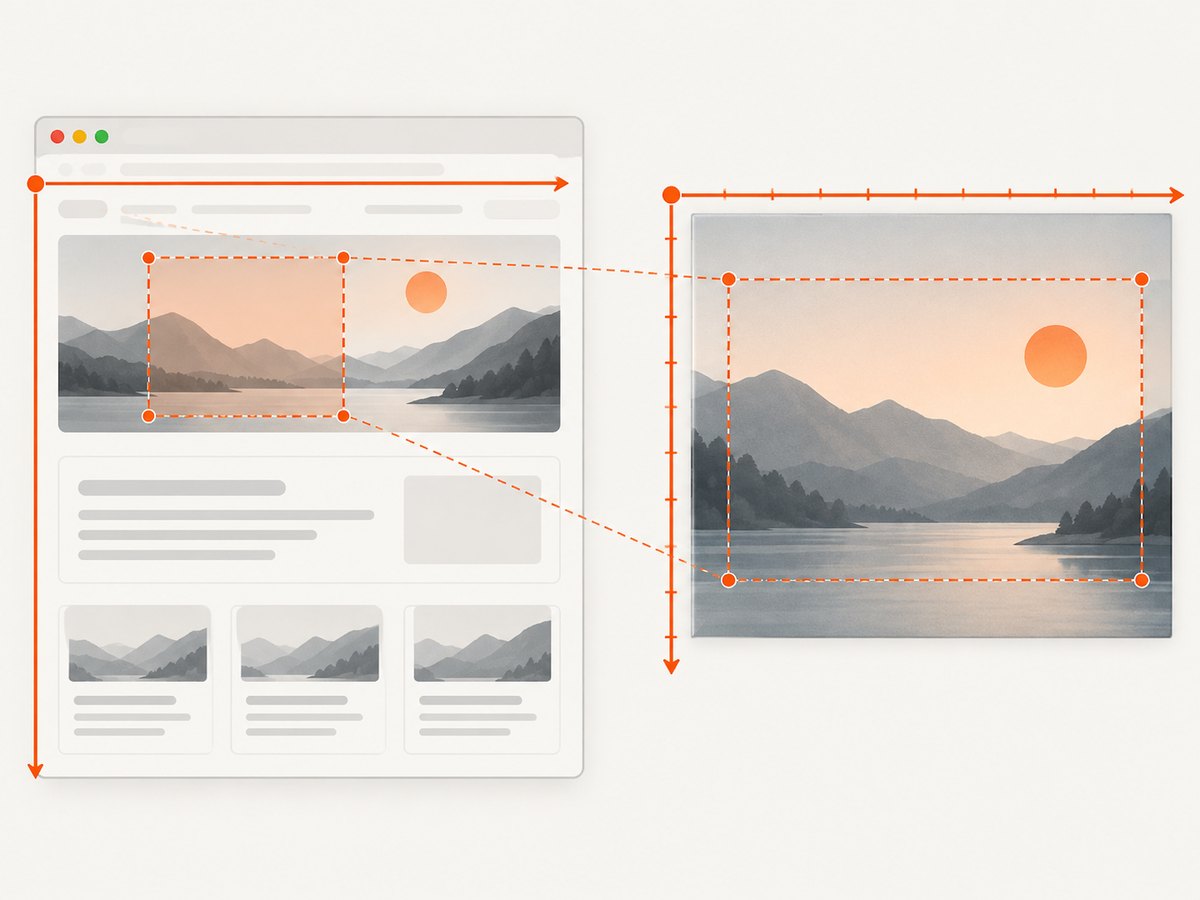
- Use the same page state. A moving layout, late font, image load, or script update between measurement and capture changes positions. Measure immediately before rendering after the page is stable.
- Check the screenshot origin. A viewport screenshot starts at the viewport origin. A full-page image may include content beyond the current viewport, and a selector screenshot may crop around an element. Do not compare viewport-relative coordinates to a cropped image as if both origins were zero.
- Check scale. Compare CSS pixels with CSS pixels or raster pixels with raster pixels. Account for device scale or retina settings if the capture path produces a scaled image.
- Check scrolling. A viewport-relative rectangle and a document-relative location differ by scroll offset. For document coordinates, add
pageXOffsetandpageYOffsetto the rectangle’s left and top. - Check the visual target. Borders, shadows, transforms, and background images can make the visible edge differ from the element’s layout box. A background with
covercan look wrong even when the box position is correct.
Use several landmarks across the page rather than only one element. If all landmarks share a constant offset, investigate the screenshot origin, crop, or scroll. If the discrepancy grows across the width, inspect scale, viewport, and rendering differences. These patterns are diagnostic clues, not proof of a particular cause.
4. Verify viewport, window, and screenshot mode in Poltergeist
Poltergeist documents viewport-only screenshots as the default, with options for full-page output, selector-based output, and configurable window size. Those modes produce different image extents and can invalidate a direct coordinate comparison if you assume they share an origin. Consult the documentation for the version installed in your project before changing options. [Poltergeist documentation]
# Illustrative Capybara / Poltergeist configuration.
# Confirm option names against the installed Poltergeist version.
Capybara.register_driver :poltergeist_diagnostic do |app|
  Capybara::Poltergeist::Driver.new(
    app,
    window_size: [1024, 768],
    debug: true
  )
end

Capybara.current_driver = :poltergeist_diagnostic
visit 'https://example.com'
save_screenshot('viewport.png')
save_screenshot('full.png', full: true)
save_screenshot('target.png', selector: '#target')
This snippet is a configuration sketch, not a universal drop-in: APIs and accepted screenshot arguments depend on the Poltergeist and Capybara versions. Set the window size and viewport intentionally, then log what the page reports. Do not infer that setting one necessarily sets the other in every driver/version combination. If using Watir directly, inspect the browser’s actual window and viewport measurements through the API available in that Watir release, and retain the same checks.
5. Try CSS injection only as a controlled experiment
A separate user in the 2017 discussion reported that applying overflow: hidden, height: 1080px, and max-height: 1080px to html and body helped in their situation. The original questioner later said the same styles produced the same result, and the answer warned that background-size: cover could remain inaccurate. This is a site-specific experiment, not a general PhantomJS fix. [Workaround discussion]
// Diagnostic experiment only; replace 1080 with dimensions justified by your test.
var page = require('webpage').create();
page.open('https://example.com', function (status) {
  if (status !== 'success') {
    phantom.exit(1);
    return;
  }
  page.evaluate(function () {
    var css = 'html, body {' +
      ' overflow: hidden !important;' +
      ' height: 1080px !important;' +
      ' max-height: 1080px !important;' +
      '}';
    var style = document.createElement('style');
    style.textContent = css;
    document.head.appendChild(style);
  });
  page.render('css-experiment.png');
  phantom.exit();
});
Use an override only to test whether a specific layout constraint changes the result. Match the height to the intended test, capture before and after, and check page backgrounds, sticky elements, and content below the fold. Remove the override if it hides the underlying rendering discrepancy or creates a new one. It is not a repair for a renderer bug.
6. Decide whether to keep PhantomJS or compare another driver
If the direct reproduction remains wrong with PhantomJS 2.1.1, the historical thread gives a reason to suspect the old engine, but not a current supported upgrade path. The same thread mentioned PhantomJS 2.5 beta as a result that differed for one respondent and suggested Selenium with headless Chrome in a separate Poltergeist discussion. Those are historical observations. Verify the current support and maintenance status of any browser and driver before selecting a replacement. [Historical discussion]
For a migration decision, run the same URL, data, viewport, wait condition, and screenshot extent through the candidate driver. Compare both the DOM measurements and resulting pixels. Include pages with the CSS features relevant to your application, especially where the original rendering also showed malformed controls or missing icons. A visually different result may indicate improved browser support, but it can also reveal site-specific rendering changes that require updating expected screenshots.
| Path | Useful when | Trade-off |
|---|---|---|
| Align viewport, window, and capture mode | The mismatch may come from coordinate origin, crop, or scale. | Does not fix an engine rendering defect. |
| Inject a page-specific CSS override | You have evidence that a particular page layout constraint is involved. | Can change backgrounds, clipping, and content; the historical workaround failed for the original reporter. |
| Test the old PhantomJS 2.5 beta report | A contained legacy investigation can reproduce the historical comparison. | It was described as beta in 2017; that is not a current support recommendation. |
| Compare a currently maintained browser driver | The direct PhantomJS capture remains inaccurate or renders page controls incorrectly. | Requires validating output, dependencies, and baseline screenshots in your project. |
7. Troubleshooting common symptoms
| Symptom | Likely area to inspect | Next step |
|---|---|---|
| Coordinates match on the left but drift to the right | Scale mismatch, viewport width, or different layout/rendering. | Compare several landmarks and measured viewport width; inspect raster scale. |
| Every element is shifted by about the same amount | Crop origin, page scroll, or selector screenshot bounds. | Record scroll offsets and identify the screenshot’s top-left origin. |
| DOM positions change between runs | Unsettled page scripts, fonts, images, or responsive layout. | Wait on a page-specific readiness condition and remeasure immediately before capture. |
| Search field size or icon differs too | Browser engine CSS/JS support or site-specific resources. | Check console and network failures; compare with a maintained browser driver. |
| Only full-page screenshots are wrong | Full-page stitching/extent behavior or lazy content. | Compare viewport mode first; ensure below-fold content has loaded and note capture dimensions. |
| CSS height/overflow override changes nothing | The root cause may not be document height or overflow. | Remove the override and continue with mode, scale, state, and engine checks. |
| Background image still looks misplaced | background-size: cover, container sizing, or engine rendering. |
Inspect the computed background and container dimensions separately from element bounds. |
| Wrapper capture differs from direct script | Different defaults, browser options, or capture API path. | Enable debug output, log effective window settings, and reproduce with the wrapper’s exact method. |
When reporting a driver defect, include a minimal reproduction, screenshot, coordinate log, stack trace if present, PhantomJS and Poltergeist versions, and operating system. Poltergeist documents debug output and its screenshot modes; use the documentation for the installed release to capture the right evidence. [Poltergeist project documentation]
8. Or skip the browser setup
If your goal is simply a screenshot of a URL rather than debugging PhantomJS internals, ScreenshotNeo provides a screenshot API and MCP server. Its API returns PNG, JPEG, WebP, or PDF from a GET request. The call below saves a WebP response; create an API key and see the [API documentation] for parameters and response details.

curl -G "https://api.screenshotneo.com/v1/shot" -d access_key=YOUR_API_KEY --data-urlencode url=https://example.com -o shot.webpScreenshotNeo accepts cookie or consent banners before capture and removes more than 60 known consent platforms, newsletter popups, and chat widgets; each step can be turned off. Bot checks, blank pages, timeouts, failed loads, and cache hits cost nothing, and response headers identify the page verdict and billing status. Its MCP server exposes take_screenshot, get_page_info, and capture_pdf for Claude, Cursor, and other MCP clients. The free plan includes 1,000 screenshots a month with no card; paid plans start at $5 for 3,000 shots. Every feature is on every plan. These features make it useful when you need captures without maintaining a local browser setup, but it is not a way to inspect or fix a PhantomJS coordinate bug in your own test runner.
Sign up for 1,000 free screenshots a month, with no card required.
9. FAQ
Is Watir or Capybara necessarily causing the offset?
No. The reported mismatch persisted in a direct PhantomJS reproduction, so a wrapper-only cause is not established.
Should I install PhantomJS 2.5 beta?
The 2.5 result comes from a 2017 answer that described it as beta. Treat it as historical evidence, not a present-day supported fix.
Does setting overflow: hidden fix the issue?
It helped one user in the old thread, but the original reporter said it did not change their result. Use it only as a controlled, page-specific experiment.
What is the fastest useful first check?
Capture the same settled page directly in the renderer, and record the viewport, actual window size, screenshot mode, scroll position, and exact versions alongside the PNG.


