How to Take Full-Page Screenshots with Watir and Firefox
Capture an entire Firefox page with Ruby Watir, understand Selenium’s version-sensitive full-page API, and troubleshoot common failures.

To capture an entire page in a Firefox session controlled by Ruby Watir, navigate to the page and ask Selenium’s Ruby screenshot API for a full-page image:
require 'watir'

browser = Watir::Browser.new :firefox
begin
  browser.goto 'https://example.com'
  browser.driver.save_screenshot('full-page.png', full_page: true)
ensure
  browser.close
end
This is the documented Ruby API shape, but it is conditional: Selenium checks whether the active driver supports full-page screenshots and can raise UnsupportedOperationError otherwise. The screenshot module is documented as a private, version-sensitive API. Check the documentation for the Selenium version installed in your project before building on it. A Watir Firefox guide last updated in 2021 describes Watir 6.19 and Selenium 4; it does not establish compatibility for every current Ruby, Watir, Firefox, and GeckoDriver combination. See the Selenium Ruby screenshot API and the Watir Firefox guide.
1. What “full page” means in this workflow
A normal browser screenshot often records the visible viewport. A full-page screenshot aims to include content beyond that viewport, producing a taller image of the document. That matters for page archives, visual reviews, documentation, and checks of content near the bottom of a long page.
Watir drives the browser; it does not define a separate portable full-page screenshot method. The call in the example delegates to Selenium’s Ruby driver API. Availability depends on the browser driver. Do not assume that a successful ordinary viewport screenshot proves full-page mode is available.
The title “full page” also does not guarantee that every element appears exactly as a person would see it after scrolling. Lazy-loaded images may not have loaded yet, sticky elements may behave differently, and animated or changing content can move during capture. The API’s availability and the page’s own behavior both affect the result.
2. Install and prepare Ruby, Watir, Firefox, and GeckoDriver
- Install Ruby. Use the Ruby version managed by your project or development environment.
- Add Watir. In a project using Bundler, add the gem and install dependencies:
# Gemfile
gem 'watir'
bundle install- Install Firefox. The browser must be available to the machine or container where the script runs.
- Make GeckoDriver available. Watir’s Firefox guide identifies GeckoDriver as the appropriate driver. Install it through your environment’s package manager or approved driver-management method, and ensure the driver can be found by the process.
- Check versions together. Confirm the versions of Ruby, Watir, Selenium WebDriver, Firefox, and GeckoDriver. The cited Watir guide reflects its 2021 context, while Selenium’s current Ruby API documentation can change. There is no compatibility matrix in the reviewed sources that verifies every combination.
For a quick dependency check, inspect the installed gems:
bundle exec ruby -e "require 'watir'; require 'selenium-webdriver'; puts Watir::VERSION; puts Selenium::WebDriver::VERSION"The Watir guide shows Firefox startup with Watir::Browser.new :firefox. If startup fails before navigation, resolve browser and driver discovery first; screenshot options are not involved yet.
3. Capture a full page with Watir
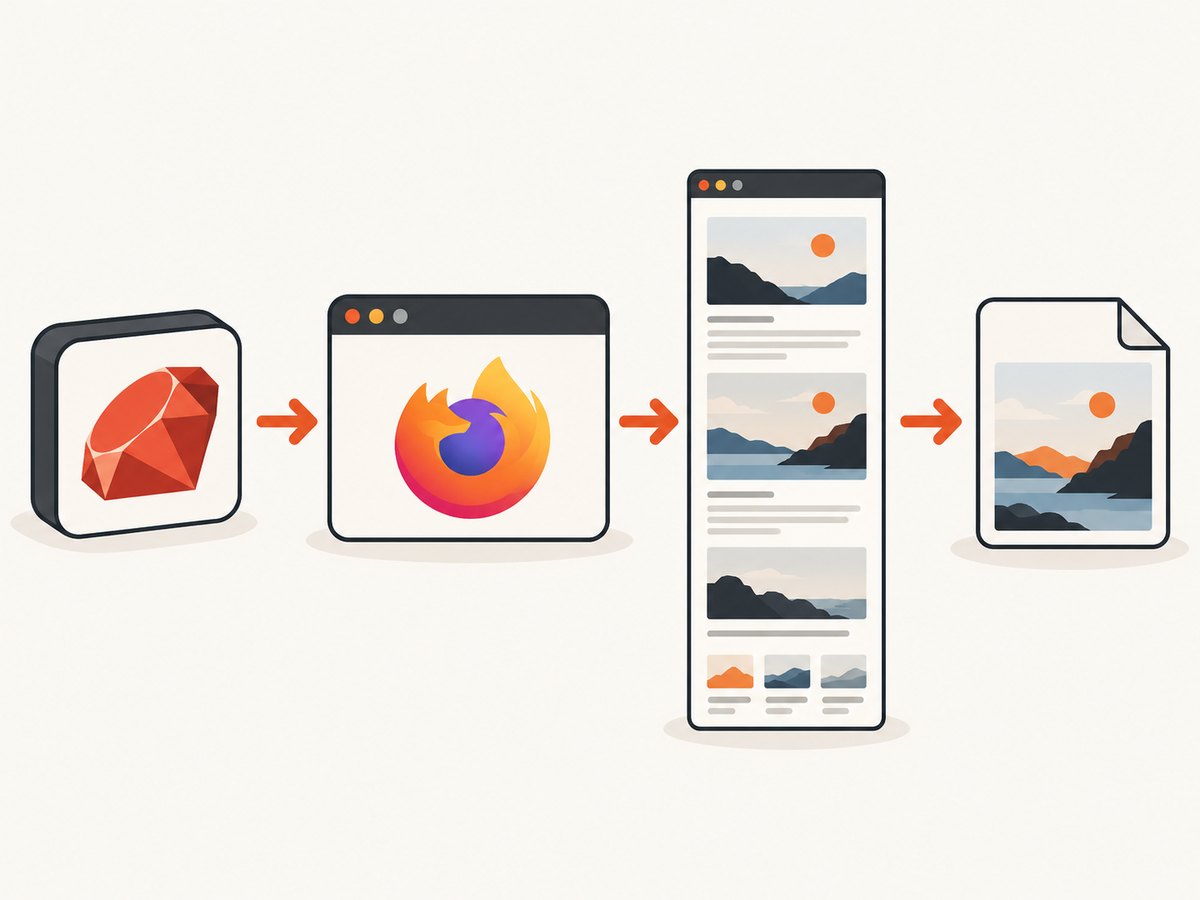
Save the following as capture.rb and run it with bundle exec ruby capture.rb. Replace the example URL with a page you are permitted to access.
require 'watir'

url = 'https://example.com'
output_path = 'full-page.png'

browser = Watir::Browser.new :firefox
begin
  browser.goto url
  browser.driver.save_screenshot(output_path, full_page: true)
  puts "Saved #{output_path}"
ensure
  browser.close
end
The example uses an explicit PNG extension and closes the browser even when navigation or capture raises an exception. Selenium’s Ruby API documents save_screenshot(png_path, full_page: false); setting the keyword to true requests full-page mode when that support exists. Consult the API reference for your installed Selenium version because this module is marked private.
Make navigation and cleanup easier to diagnose
For a script you will run repeatedly, report the URL and output path when handling failures, and make sure cleanup is attempted. Avoid swallowing the original exception:
require 'watir'

url = 'https://example.com'
output_path = 'full-page.png'
browser = nil

begin
  browser = Watir::Browser.new :firefox
  browser.goto url
  browser.driver.save_screenshot(output_path, full_page: true)
  puts "Captured #{url} to #{output_path}"
rescue StandardError => e
  warn "Capture failed for #{url}: #{e.class}: #{e.message}"
  raise
ensure
  browser.close if browser
end
This reports the failure and re-raises it so a scheduler or calling process can detect an unsuccessful capture. In production, log enough context to connect a failure to the run, while avoiding secrets such as authenticated URLs or credentials in logs.
Check that the file was created
A driver call returning successfully should be followed by a basic output check in automation. This small Ruby addition checks that a nonempty file exists:
unless File.file?(output_path) && File.size?(output_path)
  raise "Screenshot output is missing or empty: #{output_path}"
end
Place that check after save_screenshot and before reporting success. It verifies file presence and nonzero size, not whether every expected page element is visible or whether the image is the correct dimensions.
4. Understand the Selenium full-page option
The key setting is full_page: true. The documented method accepts a path and the full_page keyword. Selenium describes full-page support as conditional: it checks for a save_full_page_screenshot method and raises UnsupportedOperationError if it is unavailable. That is why a normal screenshot working does not ensure a full-page request will work.
The Ruby screenshot module is explicitly labeled a private API. Treat this as an integration point that may change with dependency versions. Pin and review the versions your application uses, run a small capture when upgrading, and consult the API docs matching the installed Selenium gem. Do not copy Java method names into Ruby: Selenium documents getFullPageScreenshotAs on a Java interface, which is not evidence that the same method exists in Ruby. See the Java API reference for the distinct Java interface.
| Choice | Use it for | Trade-off |
|---|---|---|
full_page: true in Ruby Selenium |
Repeatable capture from a Watir-controlled Firefox session | Driver-dependent private API; verify installed-version support |
| Firefox screenshot UI | One-off manual capture | Requires a person to initiate and save it |
Firefox DevTools :screenshot |
Manual capture with documented controls such as full page, selector, delay, and pixel ratio | Still a DevTools workflow rather than this Watir script |
5. Handle page loading, lazy content, and dynamic pages
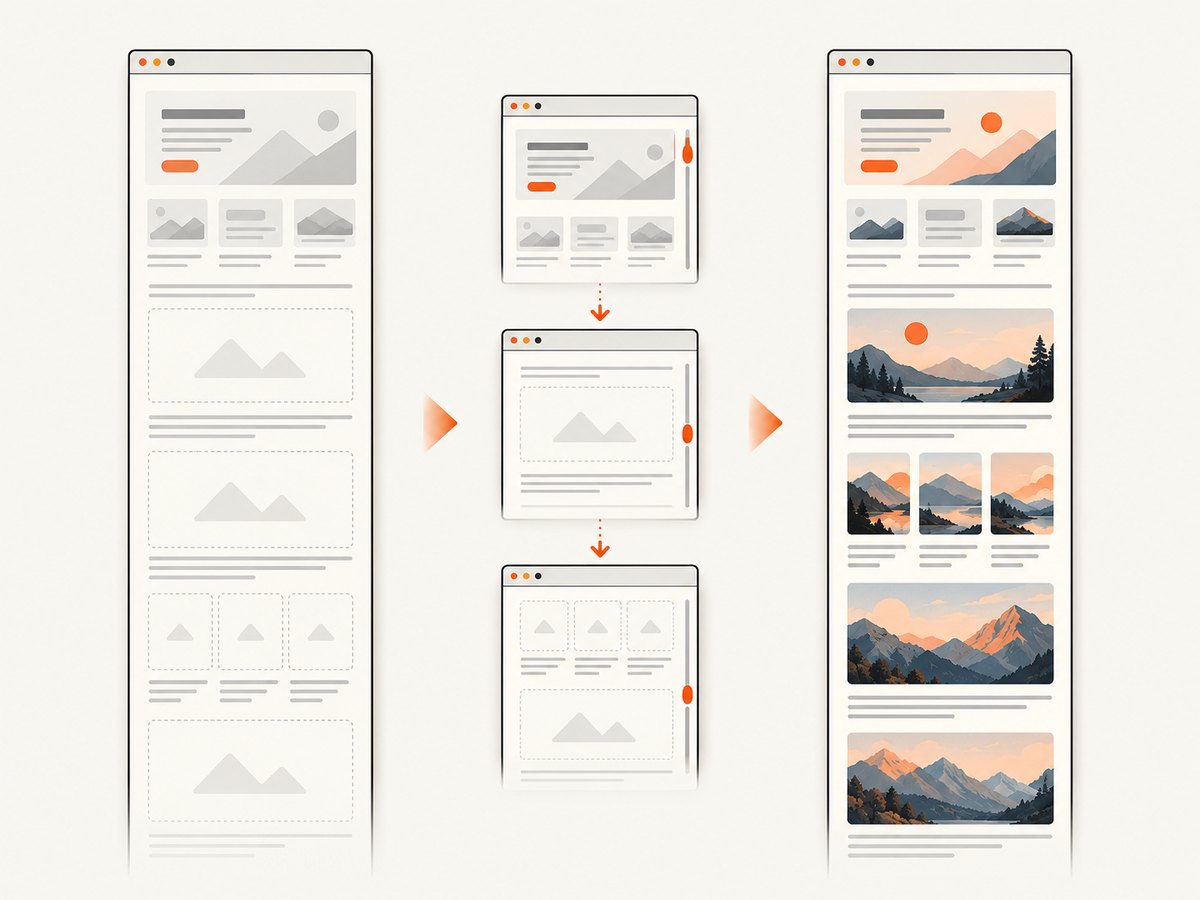
A successful navigation call is not proof that the page has finished rendering every visual element. Sites may load images as they approach the viewport, display content after JavaScript runs, or update parts of the page later. Choose a readiness condition that matches the target page rather than relying on an arbitrary long sleep for every site.
- Wait for a known element. If the page has a stable element that appears when its main content is ready, wait for that element through Watir before capture.
- Use a short delay only when needed. Some pages render asynchronously after navigation. A fixed delay can help with a known page, but it adds time to every run and does not guarantee readiness under variable network conditions.
- Consider lazy loading. Images below the fold may load only after scrolling. The reviewed sources do not provide a portable Watir Ruby recipe or guarantee that Selenium full-page mode triggers every site’s lazy-loading behavior. If those images matter, inspect the result and use a site-specific readiness or scrolling strategy.
- Expect animated or personalized content. Rotating banners, live data, consent state, and user-specific content can make captures differ between runs. Stabilize the test environment when comparing images.
When deciding whether to scroll before capture, consider page behavior: scrolling may trigger lazy loading, but it can also activate sticky headers, infinite loading, or other scripts. There is no single generic sequence that guarantees an identical capture for every site.
6. Manual full-page capture in Firefox
For an occasional screenshot, Firefox includes a built-in full-page screenshot flow. Invoke Take Screenshot, choose Save full page, then save or copy the result. Mozilla’s documentation describes enabling the full-page screenshot button through Available Toolbox Buttons in DevTools. The Web Console also documents a :screenshot helper with --fullpage, --filename, --delay, --dpr, and --selector. A repeated filename may overwrite an earlier image. See Firefox screenshot instructions and Mozilla’s Web Console command documentation.
The manual route is useful to inspect a page or capture it once. Watir is more suitable when a script must repeat the same browser-driven workflow. If your project requires unattended execution, verify how Firefox and GeckoDriver are installed and launched in that environment; a manual DevTools command is not a substitute for validating the scripted setup.
7. Troubleshoot common failures
| Symptom | Likely cause | What to do |
|---|---|---|
UnsupportedOperationError on full-page capture |
The active driver does not implement Selenium’s optional full-page method. | Check the installed Ruby API documentation and driver support. Use the standard screenshot only if a viewport image is acceptable, or use Firefox’s manual full-page route. The reviewed sources do not establish a portable Watir Ruby shim. |
| Firefox fails to start | Firefox or GeckoDriver is missing, undiscoverable, or incompatible with the environment. | Confirm both are installed and accessible to the same process; inspect the driver startup error before troubleshooting capture options. |
| Screenshot saves but is only viewport-sized | The full-page option was omitted, ignored by a different call path, or unsupported in the installed combination. | Confirm the exact call is browser.driver.save_screenshot(path, full_page: true) and verify support in the matching Ruby API docs. |
| File is missing or empty | Capture raised before writing, output path is not writable, or the process uses a different working directory than expected. | Use an explicit path, check the process working directory and write permissions, and verify file existence and size after capture. |
| Page is blank or incomplete | Navigation returned before client-rendered content appeared, the site failed to load, or content is gated. | Wait for a meaningful page condition, inspect browser state and logs, and check the page directly in Firefox under the same network conditions. |
| Images or lower-page sections are missing | Lazy loading, deferred rendering, infinite scroll, or page-specific scripts did not complete as expected. | Wait for the relevant content and inspect whether the page needs a site-specific scrolling or readiness strategy. Recheck the resulting image. |
| Captures differ between runs | Dynamic content, animation, personalization, changing fonts, or network timing. | Use a consistent test account and environment, wait for stable content, and avoid comparing pages while live elements are changing. |
| Capture works locally but fails in a container | Browser or driver setup differs, or the runtime lacks required environment configuration. | Compare installed versions and startup logs between environments. First make a minimal Firefox session start and navigate, then add capture. |
8. Performance, reliability, and cost considerations
Every screenshot run starts or uses a browser, navigates to the target, waits for content, and writes an image. Full-page output can be much taller than the viewport, so image encoding, transfer, and storage can take more time and space than a viewport capture. The reviewed sources provide no benchmark or fixed timing, so measure with the pages and environment that matter to your workload.
For more reliable automation, keep the workflow small, record the page URL and run outcome, close the browser in an ensure block, and check the output file. Treat private API support as a dependency: verify it after Selenium, Firefox, or GeckoDriver changes. A retry can help with transient navigation failures, but retries do not fix unsupported full-page functionality and can create duplicate work. Use bounded retries and retain the original error context.
Self-hosted browser automation has infrastructure costs: machine time, browser and driver maintenance, output storage, and engineering time spent handling page-specific behavior. There is no per-shot price in the cited Watir or Selenium documentation. Estimate cost from your execution environment and capture volume.
9. Or skip the browser setup
ScreenshotNeo takes a screenshot through one GET request, without requiring you to set up a Watir session. It returns PNG, JPEG, WebP, or PDF. For a full-page WebP shot of the same example page:
curl -G "https://api.screenshotneo.com/v1/shot" -d access_key=YOUR_API_KEY --data-urlencode url=https://example.com -o shot.webpPython:
import requests

r = requests.get(
    "https://api.screenshotneo.com/v1/shot",
    params={"access_key": "YOUR_API_KEY", "url": "https://example.com"},
    timeout=90,
)
open("shot.webp", "wb").write(r.content)
Node.js:
const q = new URLSearchParams({ access_key: 'YOUR_API_KEY', url: 'https://example.com' });
const res = await fetch(`https://api.screenshotneo.com/v1/shot?${q}`);
if (!res.ok) throw new Error(`Screenshot request failed: ${res.status}`);
await import('node:fs/promises').then(fs => fs.writeFile('shot.webp', Buffer.from(await res.arrayBuffer())));
See the ScreenshotNeo API documentation for request options. ScreenshotNeo accepts cookie and consent banners like a visitor, then removes more than 60 known consent platforms, newsletter popups, and chat widgets before capture; each cleanup step can be turned off. Bot checks and CAPTCHAs, blank pages, timeouts, failed loads, and cache hits cost nothing, and the response identifies the page verdict and billing status in headers. Its MCP server gives AI agents tools to take screenshots, get page information, and capture PDFs. The free plan includes 1,000 shots per month with no card; paid plans start at $5 for 3,000 shots. See ScreenshotNeo for product details and the docs for options including full-page capture. Sign up for 1,000 free screenshots a month, with no card required.
10. FAQ
Is full_page: true a Watir-specific option?
No. The documented call is Selenium’s Ruby driver screenshot API, reached through Watir’s browser.driver. Watir launches and controls the browser; support for full-page mode depends on the active driver.
Can I use Selenium Java’s full-page method name in Ruby?
No. The Java interface name in its documentation does not establish a Ruby method. Use the Ruby API reference for the Ruby gem you have installed.
What if I only need one full-page image?
Firefox’s built-in screenshot flow or its DevTools :screenshot --fullpage command may be simpler for a manual capture. Choose Watir when the workflow needs to run as a script.
Does the example guarantee every lazy-loaded image appears?
No. Lazy loading is page-dependent. Inspect the output and add a readiness or scrolling strategy appropriate to the site if below-the-fold content is missing.
11. Practical checklist
- Firefox and GeckoDriver are installed and discoverable.
- The Watir and Selenium versions are known, and the matching Ruby API documentation has been checked.
- The script navigates to the intended URL and requests
full_page: true. - The resulting PNG exists, is nonempty, and includes the expected page content.
- Dynamic and lazy-loaded content has been considered for the target page.
- Browser cleanup runs even when navigation or capture fails.


