Why Watir Headless Chrome Says Not Clickable at Point and How to Fix It
“Other element would receive the click” means the target’s center is covered or unreachable. Find the overlay, viewport mismatch, or scroll issue and fix the underlying state.

If Watir with headless Chrome reports not clickable at point (x,y) and says “Other element would receive the click,” the browser found your target, but a pointer click at its center would hit something else. The usual causes are an overlay, a responsive layout difference, or a target that has not been brought into a usable position. Compare the actual viewport, inspect the element receiving the click, and correct the page state before changing how the click is performed.
A locator finding an element proves only that a matching DOM node exists. It does not prove that the element is visible, unobstructed, or positioned where a user can click it. Headless mode can contribute when its viewport differs from headed mode, but it is not itself a complete diagnosis.
1. What “not clickable at point” means
WebDriver clicks the target at its in-view center. If another element covers that point, the click is intercepted. The WebDriver specification describes scrolling the element’s container into view, then checking whether the target is in view and obscured; an obscured target produces an element-click-intercepted error. Selenium’s interaction guidance describes the same center-point behavior. See the [Selenium interaction documentation](https://www.selenium.dev/documentation/webdriver/elements/interactions/) and the [W3C WebDriver Element Click algorithm](https://www.w3.org/TR/webdriver2/#element-click).
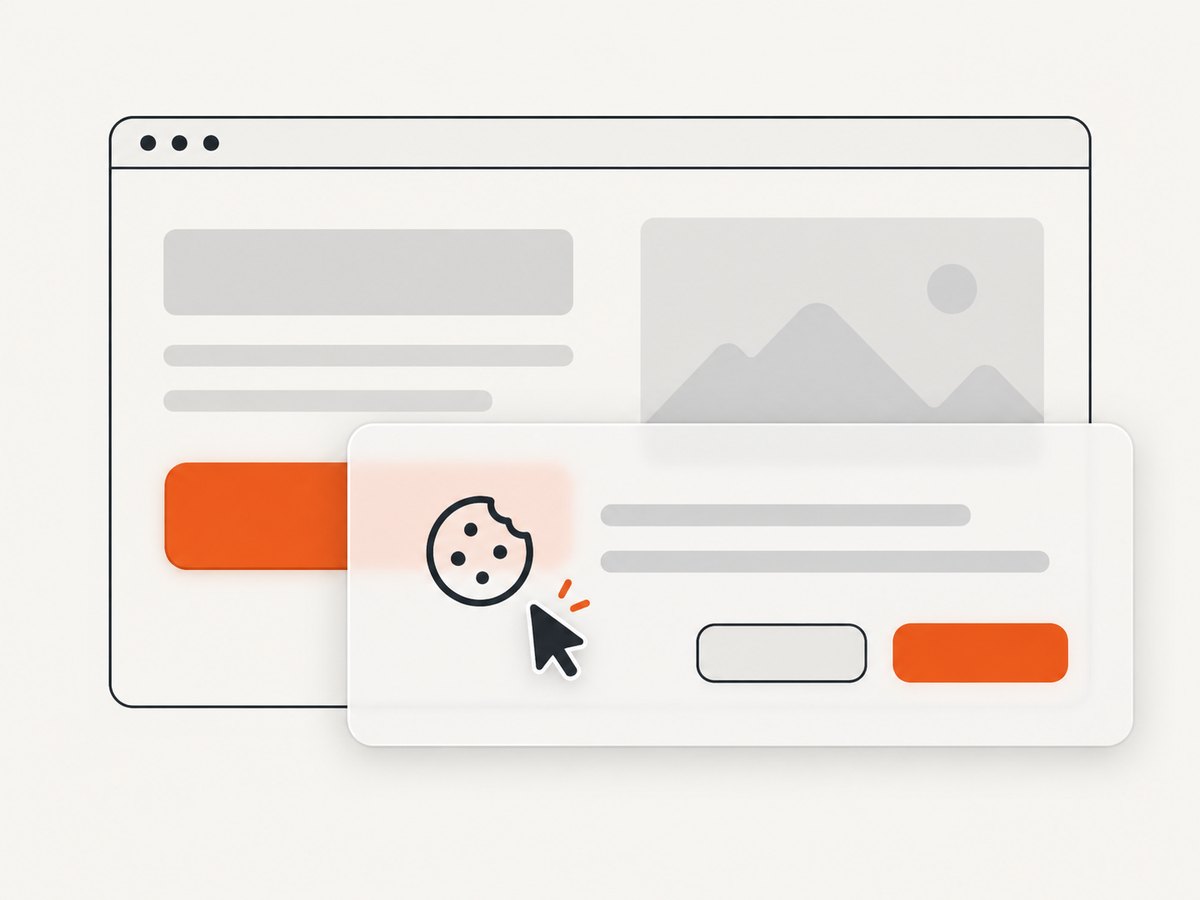
This explains why Watir::Element can be located successfully and still fail on click. At coordinate (x,y), another element may be first in the page’s paint order. The exception’s “Other element would receive the click” detail is a useful clue: inspect that element, and inspect what visually covers the target’s center.
The exact search phrasing—“Why Watir Chrome Headless ‘not clickable at point (x,y)’ when all fine in with browser mode?”—has a historical Watir report behind it. Its accepted answer identified differing headed and headless window sizes, which changed responsive layout and caused overlap. Matching the viewport fixed that author’s case. That report used older versions, so treat it as a plausible example, not a universal fix. [Original Watir report](https://stackoverflow.com/questions/48046677/why-watir-chrome-headless-not-clickable-at-point-x-y-when-all-fine-in-with-b).
2. Diagnose the failing click in order
- Keep the full exception. Record the target, coordinate, and the quoted element that would receive the click. Also record Watir, Selenium, Chrome, and ChromeDriver versions. Avoid reducing the failure to just “headless click failed.”
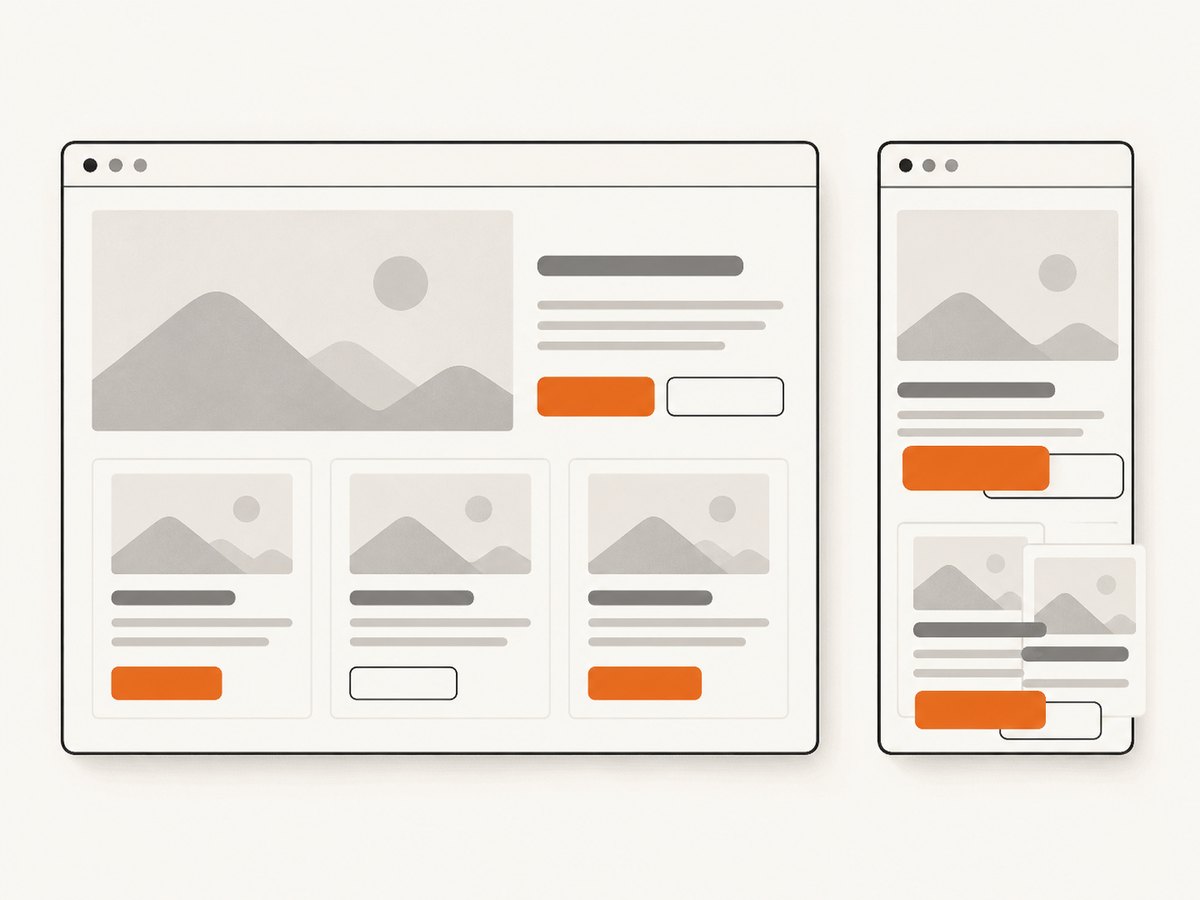
- Compare actual viewport dimensions. Check the browser window and page viewport in both runs. Window size and viewport size are related but not always identical because of browser chrome and device scale. Make the headed and headless sessions use the same supported page dimensions and device conditions.
- Inspect the page at the failure point. Look for cookie banners, modal backdrops, sticky headers or footers, chat widgets, newsletter prompts, animations, and responsive rearrangements. Determine whether the element named by the exception is actually over the target’s center.
- Check visibility and scrolling. Is the target in the viewport? Did scrolling bring it into view? Does a fixed header or overlay cover its center after scrolling? WebDriver attempts to scroll the element into view, but a scroll does not guarantee an unobstructed click point.
- Wait for the right state. If an animation or consent panel is transient, wait for its completion or dismiss it through its intended control. Prefer a condition that proves the overlay is gone or the target is clickable over a fixed sleep.
- Correct the cause and verify the effect. Use the site’s intended viewport, close the real overlay, or fix the page/test state. Retry, then verify that the expected action occurred—for example, that navigation completed or a checkbox changed.
Do not assume increasing the viewport will fix an offscreen or scrolling problem. A SeleniumHQ report from September 2025 describes a scroll-into-view failure with Selenium 4.35.0 and Chrome/Chromium 139/140 in both headed and headless modes. It is a version-specific issue report, not evidence that all current setups have the defect. [SeleniumHQ issue report](https://github.com/SeleniumHQ/selenium/issues/16188).
3. Make the headed and headless viewport match
Set the window size explicitly when starting Chrome, and make the headed run use the same size. With Watir, Chrome options can be passed when constructing the browser. The following Ruby example uses a fixed desktop viewport and waits for the target to be present and displayed before clicking. Adjust the URL, selector, and viewport to the application under test.
require "watir"

options = { args: ["--window-size=1365,900"] }
browser = Watir::Browser.new(:chrome, headless: true, options: options)

begin
  browser.goto("https://example.com")
  button = browser.button(css: "button#continue")

  button.wait_until(timeout: 10, &:present?)
  button.wait_until(timeout: 10, &:visible?)
  button.click

  # Assert an observable result of the click.
  browser.wait_until(timeout: 10) { browser.url.include?("/next") }
ensure
  browser.close
end
The example assumes your installed Watir and Selenium versions accept the shown Chrome options and wait predicates. If your project wraps browser startup, put the size argument in that configuration so local and CI runs use the same value. Use dimensions supported by the site and relevant to the real user path; a large arbitrary size can hide a responsive-layout bug instead of reproducing it.
When comparing runs, record the viewport from inside the page as well as the configured window size. For example, evaluate window.innerWidth and window.innerHeight through your browser’s JavaScript execution method. If the values differ, investigate device scale, browser configuration, and any emulated device settings before concluding the layouts are equivalent.
4. Handle overlays and transient UI correctly
If the intercepted element is a consent dialog, dismiss it through its visible accept, reject, or close control according to the test’s purpose. If it is a modal opened by your flow, wait for the modal to close before clicking the page behind it. If it is a sticky header or footer, scroll the target into a position where its center is not covered, or fix the page layout if the overlap is unintended.
A wait should describe the state you need. A simple Watir pattern for a known overlay is:
overlay = browser.div(css: ".cookie-dialog")

if overlay.exists? && overlay.visible?
  browser.button(css: ".cookie-dialog button.accept").click
  overlay.wait_while(timeout: 10, &:visible?)
end

continue = browser.button(css: "button#continue")
continue.wait_until(timeout: 10, &:visible?)
continue.click
Use selectors and state checks that match your application. A locator can exist while hidden, and a panel can disappear from view while remaining in the DOM, so choose a condition that reflects the actual behavior you need. If a page animation is involved, wait for its completion or for the covering element to stop intercepting input.
Do not solve the failure by clicking through a backdrop or by dismissing a consent flow through a hidden control unless that is specifically the behavior your test is meant to cover. A workaround that avoids the user-visible interaction can make the test pass while leaving the underlying obstruction in place.
5. Choose the right interaction method
Use a normal pointer click when the test is checking that a user can click the control. That preserves WebDriver’s visibility and obstruction checks. Keyboard activation is appropriate when the control supports keyboard interaction and the test intends to exercise that path—for example, activating a focused checkbox with Space. It does not fix an overlay or prove a pointer user can reach the control.
JavaScript-triggered clicks can bypass the pointer hit-test that produced this error. They may be appropriate for a test specifically concerned with application event handling, but they are a poor general workaround for a blocked user click. First establish whether the target is covered, offscreen, or in a different responsive layout.
6. Troubleshooting common failures
| Symptom | Likely cause | What to do |
|---|---|---|
| Headed works; headless reports another element will receive the click. | Different window or viewport dimensions trigger responsive overlap. | Measure both runs, set the same supported window size, then inspect the rendered layout at that size. |
| The exception names a cookie banner, backdrop, or chat panel. | A real overlay covers the target’s center. | Dismiss or wait for that UI through its intended interaction; verify it is gone before continuing. |
| The target is located but the click still fails. | DOM presence is being mistaken for pointer reachability; the target may be hidden or obscured. | Wait for displayed state and inspect the center point and covering element. |
| The target is below the fold or under a fixed header. | Scrolling did not leave an unobstructed center point. | Inspect the post-scroll page state; use a valid scroll or layout correction and retry only after the hit area is clear. |
| A fixed sleep makes the failure intermittent. | Page readiness or animation timing varies between runs. | Replace the sleep with a wait for the actual overlay, animation, or target state. Keep a timeout so a genuinely stuck page fails clearly. |
| Increasing viewport or switching to headed mode changes nothing. | The problem may be page state, scroll behavior, or driver-specific rather than responsive layout. | Preserve browser/driver/Selenium versions, inspect the page, and reproduce with a minimal case before investigating a version-specific issue. |
| JavaScript click succeeds but a normal click fails. | The script bypasses the pointer obstruction check. | Do not count this as proof the UI works for users. Find the covering element or explicitly scope the test to application event handling. |
7. Reliability, runtime, and maintenance
Explicit viewport settings improve repeatability when responsive layout is part of the test. They do not make the test reliable by themselves: animations, asynchronous data, consent state, and sticky UI can still change the hit target. Use waits tied to observable states, make test setup deterministic where possible, and assert the result of the click instead of treating the absence of an exception as success.
There is no single viewport size or browser/driver version that the cited evidence establishes as correct for every Watir project. Keep version information with failure logs, especially when a click begins failing after an environment upgrade. The reported 2025 Selenium scroll issue is useful context for investigation, but it does not establish that a particular version is generally broken.
Cost here is chiefly debugging and CI runtime: repeated retries, long sleeps, or rerunning headed sessions add time while obscuring the actual condition. A short, diagnostic failure that records dimensions and the intercepted element is more useful than silently retrying an unchanged click. Avoid infinite retries: a persistent overlay or invalid layout should surface as a clear failure.
8. Or skip the browser setup
If you only need a page screenshot for inspection or documentation, ScreenshotNeo can return an image or PDF with one GET request; see the ScreenshotNeo website and API documentation. A screenshot can help you inspect the page state, but it does not replace fixing a Watir interaction test.
curl -G "https://api.screenshotneo.com/v1/shot" -d access_key=YOUR_API_KEY --data-urlencode url=https://stripe.com -o shot.webpimport requests
r = requests.get(
"https://api.screenshotneo.com/v1/shot",
params={"access_key": "YOUR_API_KEY", "url": "https://stripe.com"},
timeout=90,
)
open("shot.webp", "wb").write(r.content)const q = new URLSearchParams({ access_key: 'YOUR_API_KEY', url: 'https://stripe.com' });
const res = await fetch(`https://api.screenshotneo.com/v1/shot?${q}`);
if (!res.ok) throw new Error(`Screenshot request failed: ${res.status}`);
await import('node:fs/promises').then(fs => fs.writeFile('shot.webp', Buffer.from(await res.arrayBuffer())));Replace the example URL with the page you need. Cookie banners, popups, and chat widgets are removed before the shot; bot checks, blank pages, and failed loads are never billed. An MCP server lets AI agents take screenshots. The free plan includes 1,000 screenshots a month with no card, and paid plans start at $5 for 3,000. Sign up for 1,000 free screenshots a month, no card required.
9. Frequently asked questions
Does this error mean Watir could not find my element?
No. The locator may have found it. The failure means the click point could not be used because the target was obscured or otherwise not reachable as a pointer target.
Should I always set a larger Chrome window?
No. Match a viewport that reproduces the intended user layout. A larger window can change responsive behavior and will not necessarily repair scrolling or an overlay.
Can I use Space instead of click on a checkbox?
Yes, when keyboard activation is valid for that control and that is the interaction being tested. It does not demonstrate that a pointer click is unblocked.
Is headless Chrome broken?
The error alone does not show that. Compare viewport and page state first, then investigate recorded browser and driver versions if the failure persists.


