13 Best Web Accessibility Testing Tools in 2026
Compare 13 web accessibility testing tools by workflow, strengths, and fit. Learn how to combine automated checks with keyboard and assistive technology testing.
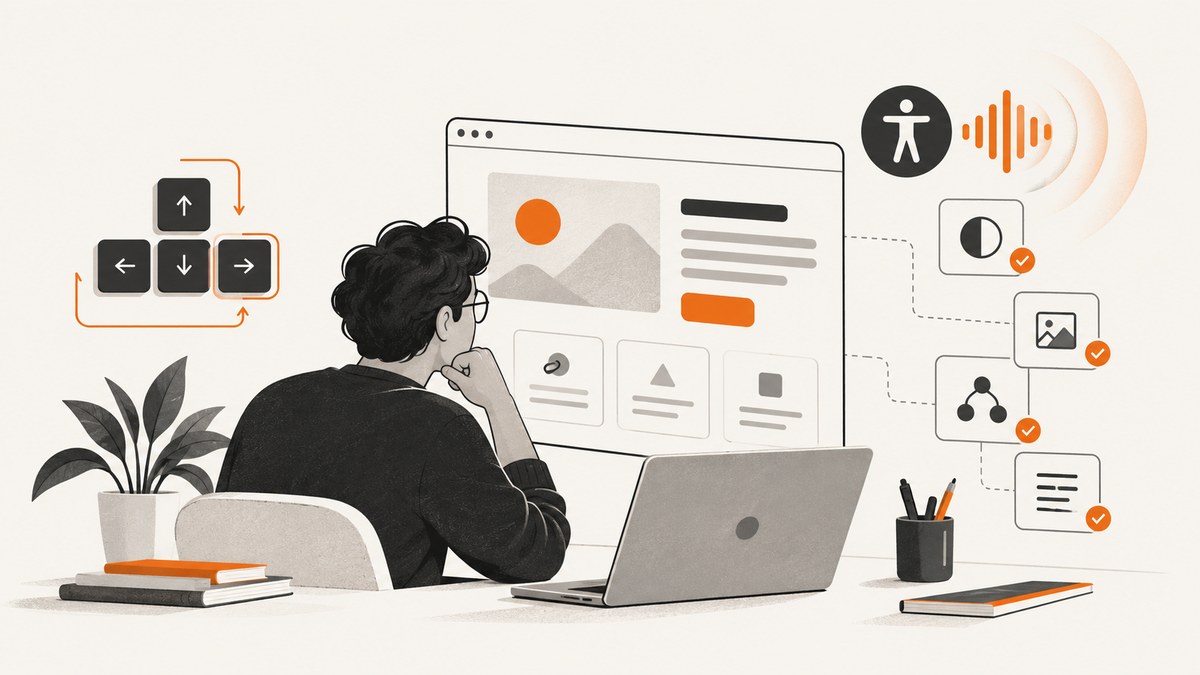
For most development teams, the best starting stack is axe-core or axe DevTools for developer checks, a repeatable automated scan in CI, and manual keyboard and assistive-technology testing for important user journeys. Add WAVE when visual explanations help reviewers inspect a page, or Accessibility Insights for a guided workflow in Chrome, Edge, and Windows. No automated checker can establish that an entire site conforms to WCAG or works for every person.
This guide compares 13 tools by how teams use them, what each is suited to, and what to verify before adopting it. It also explains how to build a practical testing workflow without treating a scan score as a compliance certificate.
1. How to choose an accessibility testing tool
Start with the work you need to repeat, not the longest feature list. A tool that fits into component development or functional tests may be more useful than a broad platform your team rarely runs. Decide which pages and journeys matter, who will review findings, and how issues will be tracked through remediation.
| Decision | Questions to ask |
|---|---|
| Testing method | Does it automate rule checks, guide manual review, annotate a page visually, or support simulated user flows? |
| Scope | Can it check a component, one page, authenticated dynamic flows, representative pages, or a site-wide crawl? |
| Workflow | Does it run in a browser, IDE, command line, test framework, API, CI/CD pipeline, dashboard, or monitoring service? |
| Standards | Which WCAG version and level does it report against? Does it document mappings such as EN 301 549, Section 508, or ACT rules? |
| Results | Can reviewers get useful remediation guidance, in-page context, machine-readable output, trend reporting, or issue tracking? |
| Operations | What are the crawl limits, authentication options, data-hosting terms, support arrangements, and maintenance burden? |
Check current vendor documentation and the W3C WAI evaluation tools directory before procurement. Browser support, standards mappings, service availability, integrations, and pricing can change; this comparison does not assign unverified prices or universal coverage percentages.
2. The 13 best web accessibility testing tools
1. axe DevTools and axe-core (Deque): best overall developer stack
axe-core is the open-source accessibility-testing engine; axe DevTools adds browser, guided, CI/CD, reporting, and broader platform features. Deque documents integrations with modern browsers, frameworks, functional tests, and CI/CD. This makes the axe stack a strong default when checks should live alongside normal development and regression tests. Choose the engine for customizable integration work and evaluate the DevTools product for the workflow and reporting features your team needs.
Automated findings still require review. A passing scan cannot establish that a person can complete a task with a keyboard or screen reader, and a reported issue needs context to prioritize and fix it.
2. WAVE (WebAIM): best for visual, human-assisted review
WAVE offers hosted evaluation, browser extensions, APIs, site-wide tools, and a licensable testing engine. WebAIM describes WAVE as helping a human evaluate web content, which is a useful way to frame its role: it provides visual cues and findings for a reviewer to interpret. Consider it when page-level context helps designers, content authors, or developers understand where a potential problem appears.
3. Google Lighthouse: best for quick Chrome triage
Lighthouse is a built-in Chrome audit option for a quick accessibility signal alongside performance and SEO checks. It is convenient during development and useful for spotting issues early. Treat it as a first pass, then add deeper automated checks and hands-on review. A single Lighthouse report is not a site-wide assessment.
4. Microsoft Accessibility Insights: best free guided workflow for Microsoft-browser and Windows teams
Accessibility Insights documents web testing in Chrome and Edge as well as Windows inspection and contrast tools. It is a good candidate when a team wants a guided process and already works in those browser and desktop environments. Confirm which workflow applies to the application under review, and use its guided checks as part of a broader process.
5. Siteimprove Accessibility Checker: best browser checker for reports and restricted pages
The W3C WAI directory lists Siteimprove Accessibility Checker with WCAG 2.2 checks, reports, and support for restricted or dynamic pages. Those capabilities make it worth evaluating when reviewers need to inspect more than a simple public static page. Compare its reporting and access model against the pages and workflows your team must cover.
6. Pa11y: best open-source CLI and dashboard-oriented option
Pa11y is a candidate for teams that want command-line checks and dashboard-oriented automation and can maintain their own setup. Before building a pipeline around it, check the W3C directory and project documentation for current release status, integrations, and the maintenance work required by your environment.
7. Tenon: best API-first option to investigate
Tenon is an API-first option to consider for embedding accessibility checks in build or content workflows. Verify that the service is currently available and review its current terms and pricing before depending on it. As with any API checker, decide how the team will handle authentication, result retention, failures, and follow-up.
8. QualWeb: best research-oriented open-source engine
QualWeb is suited to teams interested in a research-oriented engine and multiple rule sets for reproducible automated evaluation. Investigate maintenance, integration options, and the precise rules and standards mapping you need before selecting it for a production pipeline.
9. IBM Equal Access Accessibility Checker: best for IBM development environments
IBM Equal Access Accessibility Checker may fit organizations already invested in IBM development tooling. Confirm current browser support and CI integrations against your actual stack. Tool availability in a vendor ecosystem does not remove the need to check workflow fit and human-review coverage.
10. ARC Toolkit: best for browser-based inspection
ARC Toolkit is a browser-based developer inspection option with guided issue review. Check current browser support and ownership before making it part of team guidance or a standard operating procedure.
11. tota11y: best lightweight learning aid
tota11y is a lightweight visual aid for learning about common accessibility issues. It can help explain concepts while building awareness, but use it as an educational supplement rather than a conformance audit or a substitute for a maintained testing workflow.
12. HTML CodeSniffer: best embeddable JavaScript ruleset to customize
HTML CodeSniffer is an option for teams that need an embeddable JavaScript ruleset and want to customize automated checks. Verify its current WCAG rule coverage and maintenance status, and determine how custom rules will be reviewed and kept consistent.
13. Nu Html Checker: best markup-validation companion
Nu Html Checker helps find structural HTML markup errors that can affect accessibility. It is a useful companion to accessibility-specific tools, not a replacement for them: valid markup alone does not prove that names, focus behavior, instructions, and task flows work for users.
3. Build a workflow that catches more than automated rules
- Choose representative pages and journeys. Include key templates, dynamic states, forms, navigation, and authenticated routes where relevant. A handful of static pages cannot stand in for every interactive state.
- Run fast checks during development. Use an appropriate browser or developer tool while building components and pages. Fix clear issues close to where they are introduced.
- Add repeatable automation. Run checks with functional tests or CI/CD where the chosen tool supports it. Keep the selected routes and states explicit, and make results easy to connect to a page and code change.
- Review findings and prioritize fixes. Reproduce the issue, understand who is affected, and confirm that the proposed change addresses the actual experience. Automated output can contain findings that need human interpretation.
- Test manually with a keyboard. Navigate without a mouse. Check that focus is visible, moves in a sensible order, reaches controls, and is not trapped. Try the main tasks rather than only tabbing through the first screen.
- Use assistive technology for important flows. Check names, roles, states, instructions, error feedback, and task completion with the assistive technology relevant to your users and supported environments.
- Retest after fixes and regressions. Rerun automation, repeat the affected manual journey, and retain issues in a tracker or report that the team can revisit.
For rule checks and regression control, axe-core or axe DevTools are especially strong candidates because Deque documents integrations with functional tests and modern development environments. For visual, human-assisted inspection, WAVE is useful; for guided browser and Windows workflows, consider Accessibility Insights. Pair tools according to those jobs rather than expecting one scanner to do them all.
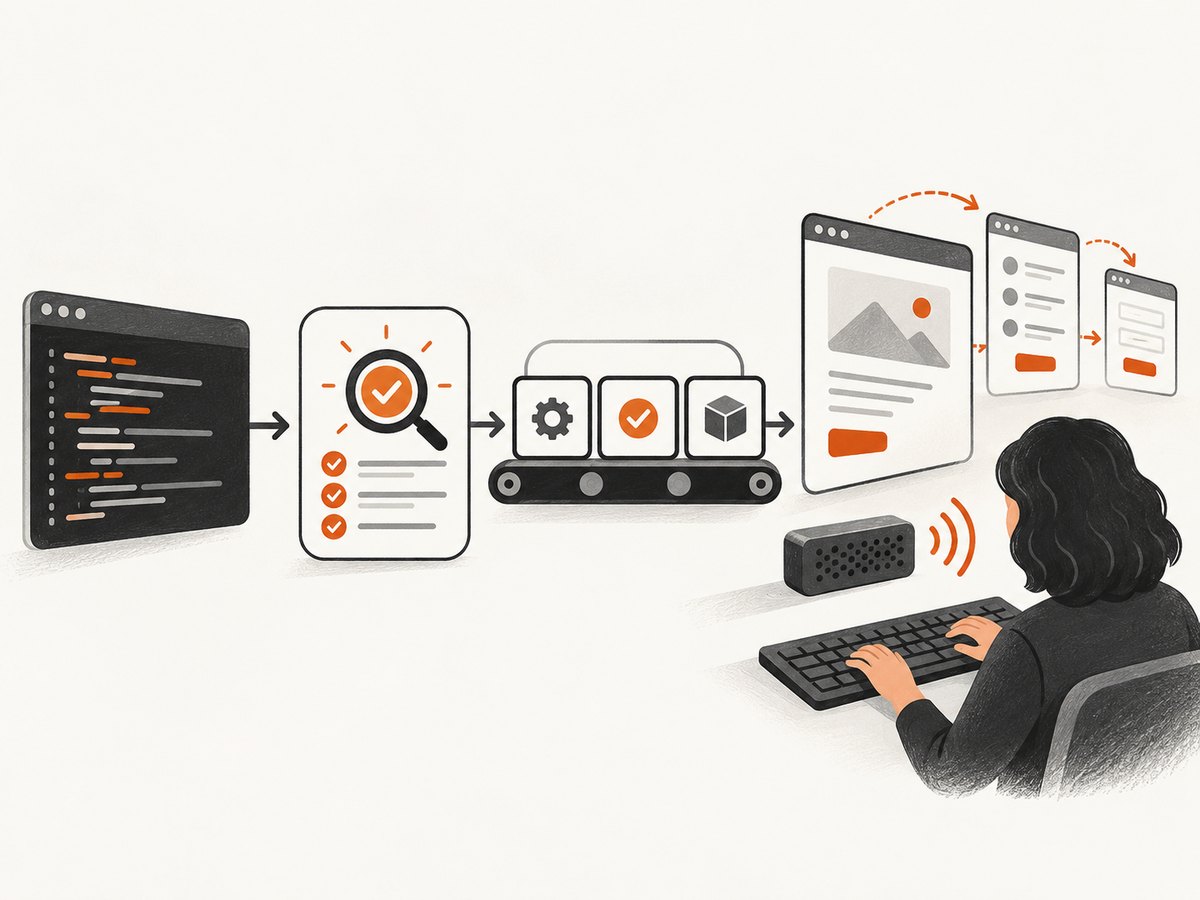
4. Do automated accessibility tools prove WCAG compliance?
No. An automated scan checks only the conditions that its rules can evaluate in the pages and states it actually reaches. Many questions need a person to judge meaning, context, keyboard operation, screen-reader announcements, focus behavior, content clarity, and whether a user can finish a task.
A clean report is evidence that certain automated checks did not report findings in that run. It is not a legal guarantee, proof that every success criterion was checked, or proof that all user journeys are accessible. Keep the test scope, tool, configuration, date, and manual review results with the evidence so readers understand what the scan did and did not cover.
5. ScreenshotNeo for visual page evidence
ScreenshotNeo is a website screenshot API and MCP server for developers. It is not an accessibility checker and does not assess WCAG conformance. It can help teams capture page evidence alongside their accessibility review—for example, to keep a visual record of a page state or share a screenshot with a reviewer. A screenshot cannot show keyboard behavior or replace assistive-technology testing. See ScreenshotNeo and the API documentation.
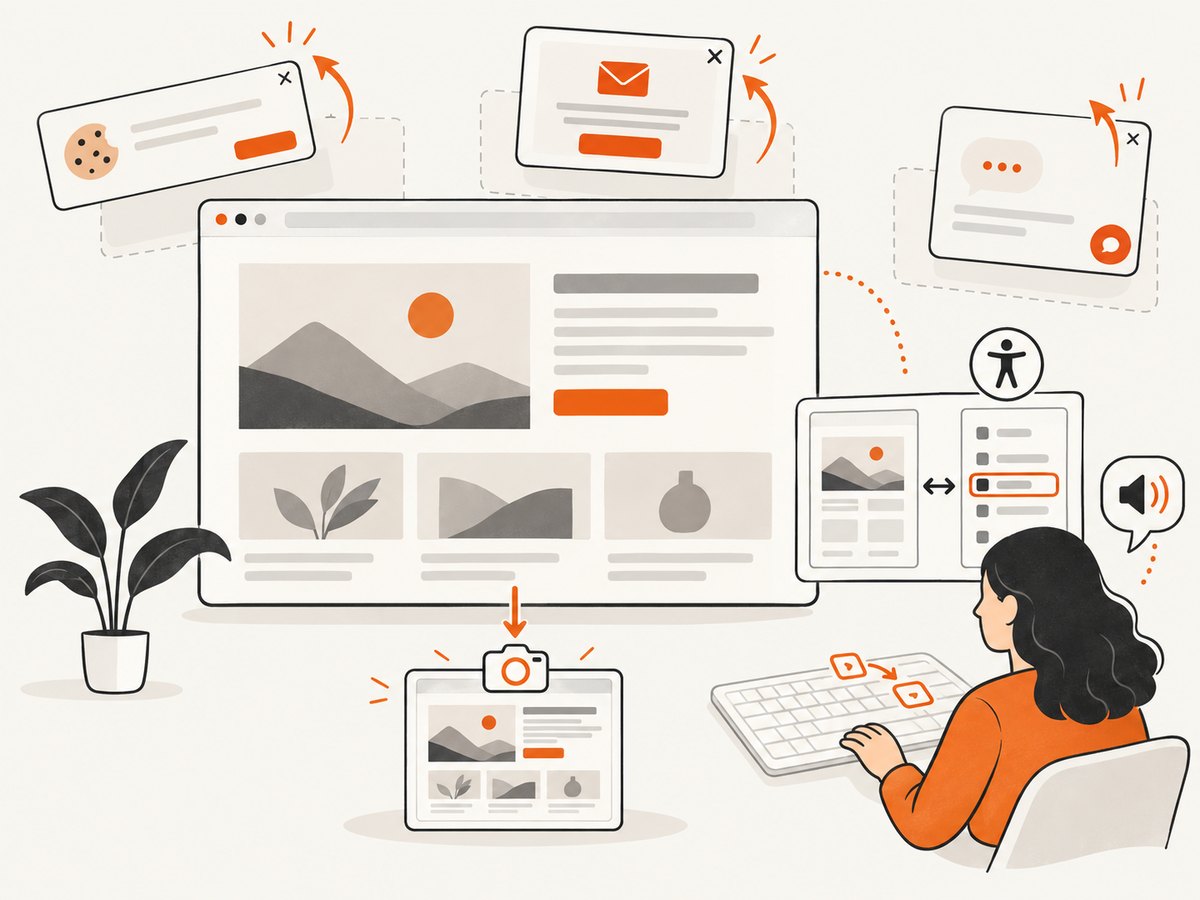
One GET request returns an image or PDF. This cURL example saves a WebP capture:
curl -G "https://api.screenshotneo.com/v1/shot" -d access_key=YOUR_API_KEY --data-urlencode url=https://example.com -o review.webpUse an API key and the URL of a page you are permitted to capture. ScreenshotNeo also provides an MCP server with take_screenshot, get_page_info, and capture_pdf tools for Claude, Cursor, and other MCP clients.
6. Troubleshooting common accessibility-testing problems
| Symptom | Likely cause | What to do |
|---|---|---|
| Scan reports no issues, but a user cannot complete a task | The problem needs human judgment, involves an untested state, or is outside the scanner’s rules. | Reproduce the journey with keyboard and assistive technology; add the relevant state to repeatable checks. |
| Automated report has many findings that seem unrelated | The scan reached unexpected content, a shared component produces repeated results, or reviewers need to interpret context. | Identify the affected template or component, verify each finding in context, and prioritize root causes rather than blindly suppressing output. |
| Authenticated page is missing from the scan | The chosen workflow may not have access to the session or route. | Check the tool’s supported authentication and dynamic-page workflow. For restricted-page tools, verify configuration and access before relying on coverage. |
| CI checks fail or produce inconsistent results | Routes, page state, timing, or test setup differ between runs, or an integration changed. | Make route and state setup repeatable, inspect the failing page output, and confirm current project and vendor integration guidance. |
| Markup validator passes but accessibility issues remain | Markup validity checks structural errors, not the whole user experience. | Run accessibility-specific checks and manually review keyboard, focus, content, and assistive-technology behavior. |
| Team treats a score as a compliance verdict | The report’s scope and limits were not recorded or communicated. | Document the pages and states tested, tool and configuration, findings, and manual testing performed. Describe results as evidence for triage and regression control. |
7. Performance, reliability, and cost considerations
Fast local checks can give developers feedback while they still have the relevant code open. Broader crawls and multiple browser or state combinations can add runtime and maintenance work. Keep CI checks focused on representative routes and critical journeys, then schedule or run broader reviews where your process supports them. Do not optimize for scan speed by silently dropping important pages or states.
Reliability depends on repeatable access to the pages, stable test setup, maintained integrations, and a clear process for reviewing failures. For third-party services, examine current availability, limits, data handling, support, and pricing directly with the provider. The tools in this guide do not all publish comparable pricing or have the same operating model, so a universal cost ranking would be misleading.
Open-source tools can avoid a subscription for the engine while still requiring engineering time to integrate, maintain, host, and interpret results. Hosted and enterprise tools may add reporting, crawling, support, or governance features; compare those capabilities to actual team needs rather than selecting from a headline score.
8. FAQ
What is the best free WCAG checker?
There is no single best checker for every task. Start with axe-core, Lighthouse, WAVE, or Accessibility Insights depending on whether you need developer integration, a quick Chrome audit, visual review, or a guided workflow. Pair the scan with manual checks.
Can I test accessibility in CI/CD?
Yes. The axe stack is a strong candidate because Deque documents functional-test and CI/CD integrations. Keep the route and state coverage intentional, and retain manual testing for issues automated rules cannot judge.
Should I choose a browser extension or an API?
Choose a browser workflow when people need to inspect and discuss a page directly. Consider an API or command-line integration when checks need to run in an existing build or content workflow. Confirm current support, authentication, and maintenance details before adoption.
How often should a site be checked?
Run repeatable checks as part of development and regression workflows, and revisit important journeys when pages or shared components change. The right cadence depends on release frequency and risk; no scan interval guarantees accessibility.
Start with a practical stack
For many teams, a useful first setup is axe in the developer and regression workflow, WAVE or Accessibility Insights for guided human review, and manual keyboard and assistive-technology checks on critical journeys. Add crawl, reporting, or governance capabilities when the site scope and team process call for them. Treat every tool as one source of evidence, and make the limits of that evidence clear.
Or skip the browser setup
For page screenshots used as visual review evidence, ScreenshotNeo makes a single API request. Cookie banners, popups, and chat widgets are removed before the shot; bot checks, blank pages, and failed loads are never billed. Its MCP server lets AI agents take screenshots. The free plan includes 1,000 screenshots a month with no card, and paid plans start at $5 for 3,000.
curl -G "https://api.screenshotneo.com/v1/shot" -d access_key=YOUR_API_KEY --data-urlencode url=https://example.com -o review.webpTry ScreenshotNeo with 1,000 free screenshots a month, no card required.


