How to Convert a Web Page to PDF Without Ads or Banners
Use your browser’s simplified print view to remove page clutter before saving a PDF. Learn the desktop and mobile steps, layout controls, and limits.
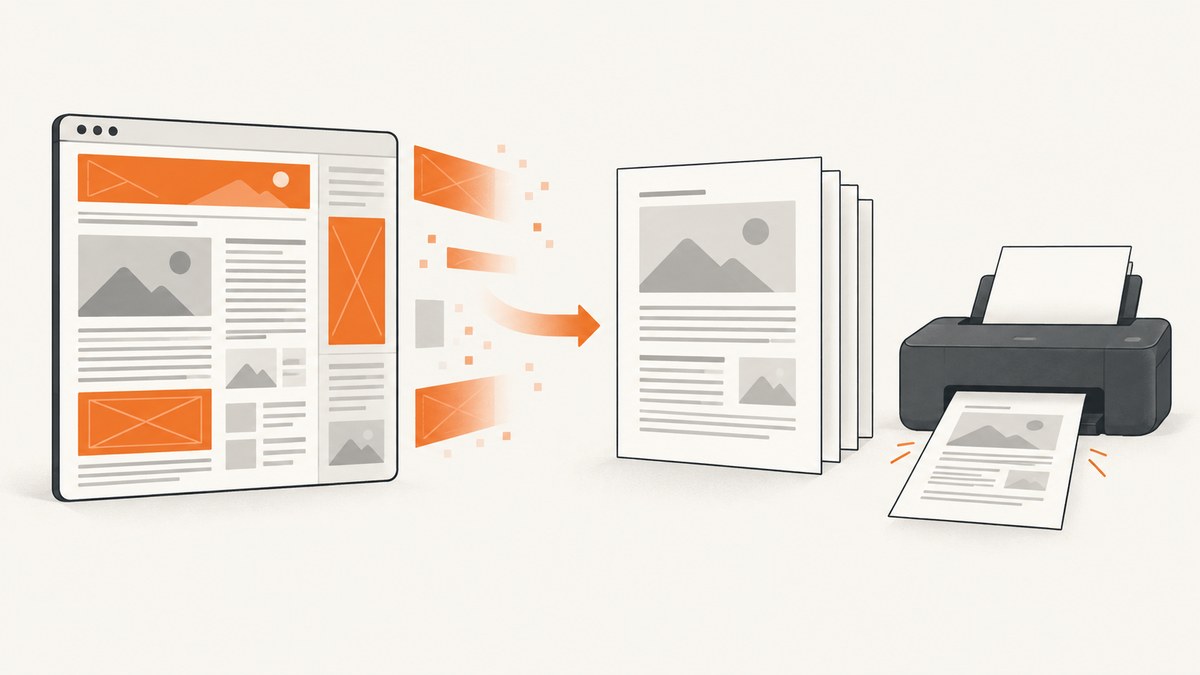
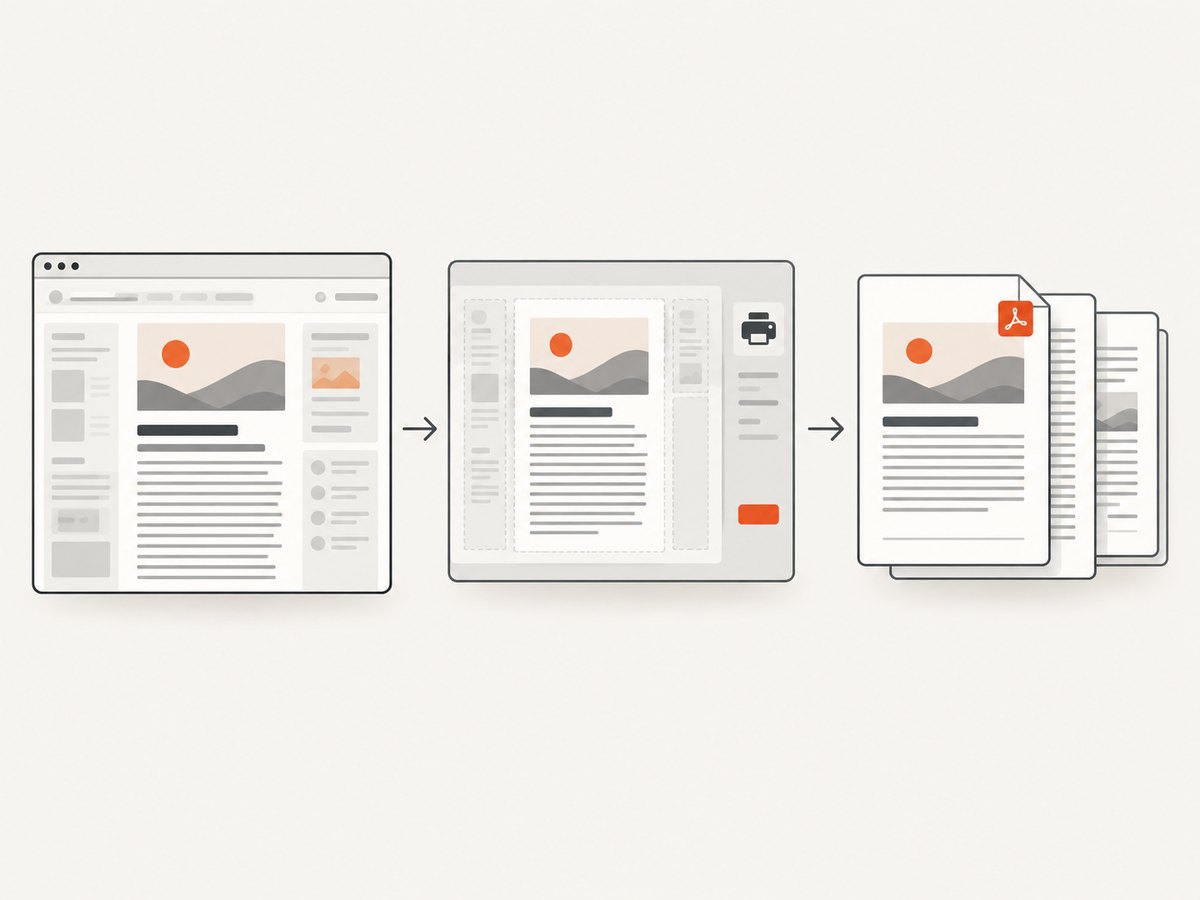
To save a web page as a PDF without ads or banners, first use a browser’s simplified or clutter-free print view if that option is available, then save the print preview as a PDF. In Firefox, choose Print, select Save to PDF, and look for Simplified under Format. In Microsoft Edge, check the print preview for its clutter-free option. These modes can remove surrounding page clutter, but availability depends on the browser version and the page.
On iPhone Safari and Android Chrome, the documented steps create a PDF; they do not promise to remove ads. Always inspect the preview: a PDF can paginate or render differently from the page on screen.
1. Choose the right route
| Browser/device | Can the documented flow remove page clutter? | PDF route |
|---|---|---|
| Firefox desktop | Yes, with Simplified when available; Reader View is another route when available. | Print → Save to PDF |
| Microsoft Edge | Edge documents a clutter-free print option; availability can vary during rollout. | Print → inspect preview → Save as PDF |
| Safari on iPhone | The documented save flow does not establish ad removal. Check Reader view if offered and inspect the result. | Share → Markup → Save File To |
| Chrome on Android | The documented mobile print flow does not describe an ad-removal control. | Share → Print → Save as PDF |
“Ads and banners” here means material included in the webpage, such as promotions, navigation, or popups. Browser-added headers and footers are separate print metadata. Turning those off will not remove an advertisement that is part of the page itself.
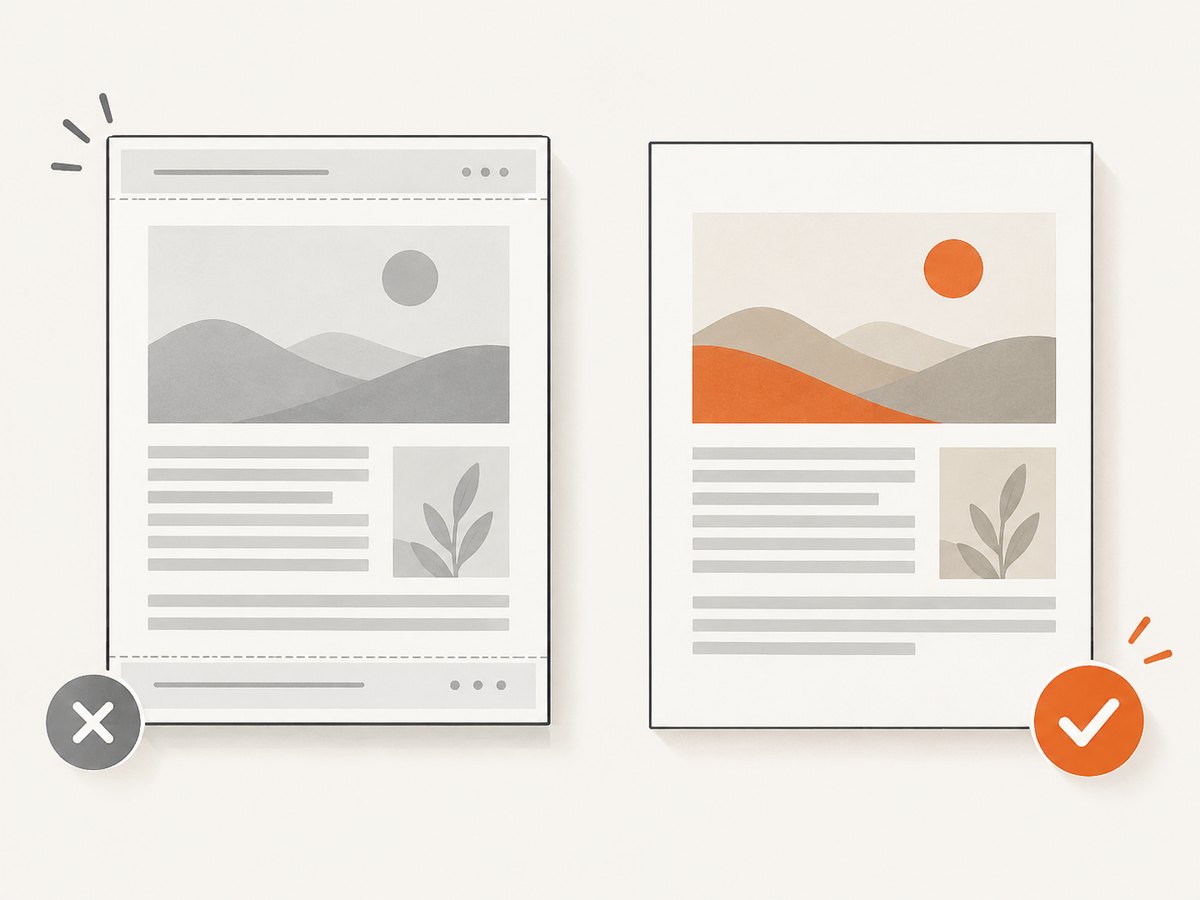
2. Firefox: print a simplified page to PDF
- Open the page you want to save.
- Open the menu and choose Print.
- In the print dialog, choose Save to PDF as the destination.
- Expand More settings. If present, set Format to Simplified.
- Review the preview and settings described below. Turn off headers and footers if you do not want browser-added metadata.
- Choose Save, select a location and filename, and confirm.
Mozilla describes Simplified printing as a way to strip clutter such as buttons, ads, and background images. The option is conditional: it may be absent when the page has no simplified version or when Reader View is already active. The [Firefox print guide](https://support.mozilla.org/en-US/kb/how-print-web-pages-firefox) covers print settings, while [Mozilla’s Simplified printing instructions](https://support.mozilla.org/en-US/kb/print-simplified-clutter-free-pages-firefox) explain the feature and its availability.
Use Reader View as an alternative
If Firefox shows a Reader View icon for the page, activate it and print from that view. Reader View presents supported article content in a less cluttered layout. It will not necessarily preserve the original design, sidebars, interactive elements, or all images. Check the preview and choose the route that retains the information you need.
3. Microsoft Edge: look for clutter-free printing
- Open the page and choose Print from the browser menu.
- Inspect the print preview for the clutter-free option and enable it if available.
- Choose a PDF destination, such as Save as PDF or the system PDF printer, depending on your version and device.
- Review Headers and footers, Background graphics, margins, scale, paper size, orientation, and page selection.
- Save the PDF after checking the preview.
Microsoft documents a clutter-free print option for removing surrounding material such as ads and site navigation, but notes that the feature is rolling out. If you do not see it, check that Edge is current and try again later; meanwhile, use another available reader or simplified view if the page supports one. See [Microsoft’s Edge print instructions](https://support.microsoft.com/en-us/microsoft-edge/print-in-microsoft-edge-4e8c8a0d-5b58-0de4-3e31-2b608ff6c7b4).
4. iPhone and Android: save a PDF, then inspect it
Safari on iPhone
- Open the webpage in Safari and tap Share.
- Choose Markup to create the PDF preview.
- Tap Done, then select Save File To and choose a destination.
- Open the saved PDF and check whether the page content you wanted is present and whether ads remain.
Apple’s documented flow is for saving a webpage as a PDF; it does not say that this flow removes advertisements. If Safari offers Reader view for the page, you can try that before saving and inspect the result. Follow [Apple’s Safari iPhone PDF instructions](https://support.apple.com/guide/iphone/annotate-and-save-a-webpage-as-a-pdf-iphfd5a5b5e7/ios).
Chrome on Android
- Open the page in Chrome and tap Share.
- Choose Print.
- In the print destination selector, choose Save as PDF.
- Select a save location and save, then open the PDF to review it.
Google’s instructions document this PDF-saving route, not an ad-removal feature. See [Chrome Help for printing on Android](https://support.google.com/chrome/answer/1069693?co=GENIE.Platform%3DAndroid&hl=en).
5. Tune the PDF before saving
Use the preview to balance cleanliness and fidelity. A plain output is not always the most useful one: backgrounds, images, tables, or navigation can carry information.
| Setting | What it changes | Practical choice |
|---|---|---|
| Headers and footers | Browser-added details around the page, such as a title, URL, date, or page number. | Turn off for a clean copy; keep page numbers when they help with a long document. |
| Background graphics | Page background colors and images. | Leave off for a simpler, ink-light result unless the background conveys meaning or the preview looks wrong without it. |
| Margins | Whitespace around printed content. | Use default or moderate margins; increase them if text is clipped near an edge. |
| Scale | How large content prints on each sheet. | Reduce slightly if a wide table is cut off; avoid shrinking until body text is hard to read. |
| Paper size and orientation | Page dimensions and portrait or landscape layout. | Try landscape for wide tables or code listings, then check the page count and legibility. |
| Pages | Which pages are included. | Use a range to omit unwanted pages only after checking the preview numbering. |
In Firefox, the relevant controls are available through the print dialog’s settings. Edge also documents controls for headers and footers and background graphics. Exact labels can vary by browser version and operating system. Mozilla cautions that some pages look different in print; Microsoft likewise recommends using the preview to check the output.
6. When browser print settings are not enough
A page may lack a simplified version, a mobile print flow may offer no clutter-removal control, or a site’s own print styles may produce a poor layout. Try the built-in options first: reader or simplified view, then print preview and sensible layout adjustments. If the content is still unsuitable, save the page using the browser’s PDF route and consider whether you need a different capture method for a repeatable workflow.
For a one-off personal copy, the built-in browser steps are usually the direct route. For developer workflows that need consistent screenshots or PDFs from URLs, a browser-based API can handle capture without setting up and maintaining a local browser. A screenshot capture is not the same as a clean article PDF: confirm the output format and whether the service supports PDF before choosing it.
7. Troubleshooting
| Problem | Likely cause | What to try |
|---|---|---|
| Simplified is missing in Firefox | The page may not provide a simplified version, or Reader View may already be active. | Try Reader View if offered; otherwise print the normal page and inspect the preview. |
| Edge has no clutter-free control | The feature may not have reached your version or device. | Check for browser updates and availability later; use a reader view or the normal print preview meanwhile. |
| Ads remain in the PDF | The browser flow may not remove them, or the clutter-free mode may not be available for this page. | Enable Simplified or clutter-free mode before saving, or try Reader View. The iPhone and Android flows above do not promise ad removal. |
| Text or a table is clipped | The page is wider than the selected paper size or scale. | Try landscape orientation, a smaller scale, or a different paper size; verify that text remains readable. |
| Colors or diagrams disappear | Background graphics are disabled or simplified mode removed decorative elements. | Enable backgrounds if they carry information, or print the normal view for that page. |
| Unexpected URL, date, or title appears | Headers and footers are enabled. | Disable the headers-and-footers setting, then check the preview again. |
| PDF layout differs from the browser page | Print styling and page breaks differ from the screen layout. | Review page breaks, scale, margins, and orientation. If the key content is incomplete, use a different view or capture route. |
| Save option is not where expected on mobile | Menus and destination names vary by OS version. | Follow the Share → Print or Markup route, then look for the PDF destination or file-saving action. |
8. Performance, reliability, and cost
For a single page, browser printing avoids a separate service and its request, account, or usage costs. The main variable is time spent correcting the preview. A simplified layout may be shorter and easier to read, but can discard visual context; a normal print can preserve more of the page while retaining clutter. Use the output that serves the reason you are archiving it.
For repeated captures, a developer-managed browser setup requires a browser runtime, page loading, print configuration, and handling for failed or slow pages. That approach gives control but also leaves you responsible for maintenance and consistency. A hosted API can reduce setup; reliability and billing behavior depend on the service, so check its documentation and response details rather than assuming all failed captures are treated alike.
Or skip the browser setup
ScreenshotNeo is a website screenshot API and MCP server from Yorker Media. One GET request can return PNG, JPEG, WebP, or PDF. The PDF capture options include paper size, margins, landscape, and page ranges. It can accept cookie or consent banners like a visitor and remove more than 60 known consent platforms, newsletter popups, and chat widgets before capture; each step can be turned off. Bot checks and CAPTCHAs, blank pages, timeouts, failed loads, and cache hits cost nothing, and response headers report the page verdict and billing status. AI agents can use its MCP server tools: take_screenshot, get_page_info, and capture_pdf.
See the ScreenshotNeo API documentation for options. Here is a one-call PDF example:
curl -G "https://api.screenshotneo.com/v1/shot" \
  -d access_key=YOUR_API_KEY \
  --data-urlencode url=https://stripe.com \
  -d format=pdf \
  -o page.pdf
Use the API key from your account in place of YOUR_API_KEY. The exact PDF parameter spelling and other available options are documented in the API reference. The product’s parameter names used by other screenshot APIs also work, which can ease a switch. This is a URL-based capture workflow; use your browser’s print dialog when you need its page-specific simplified view.
ScreenshotNeo includes 1,000 screenshots per month free with no card; paid plans start at $5 for 3,000, and every feature is on every plan. Sign up for free and try ScreenshotNeo.
FAQ
Does Save as PDF remove ads by itself?
No. Saving to PDF selects an output format; clutter removal depends on a supported simplified, reader, or clutter-free view.
Will a clean PDF look exactly like the website?
Not necessarily. Reader modes and print styles can change layout, and backgrounds or interactive elements may be omitted.
Can I remove only one banner?
The browser print instructions here describe simplified or clutter-free page views, not a general tool for selecting and deleting one arbitrary page element. Check the preview for what the mode removes.
Should I turn backgrounds off?
Usually for a plain, ink-light document, but turn them on if a color, image, or chart background carries necessary meaning.


